コンテンツへスキップ
amagicsoftロゴアイコン
  • ホーム
  • 製品紹介
    • Magic Data Recovery
    • Magic Recovery Key
  • 店舗
  • ブログ
  • もっと見る
    • Amagicsoftについて
    • お問い合わせ
    • プライバシーポリシー
    • 利用規約
    • ライセンス契約
    • 返金ポリシー
  • 日本語
    • English
    • 한국어
    • Deutsch
    • Français
    • 繁體中文
ウィキ

重複ファイルファインダー

2025年12月2日 エディ コメントはまだない
重複ファイルファインダー

目次

Duplicate Files Are Not Real Backups

Many users keep “extra safety” copies of documents by dragging them into new folders or external drives.
Over time, these copies multiply and turn into clutter rather than protection.

Duplicate files waste storage, slow backups, and make データ復旧 more confusing.
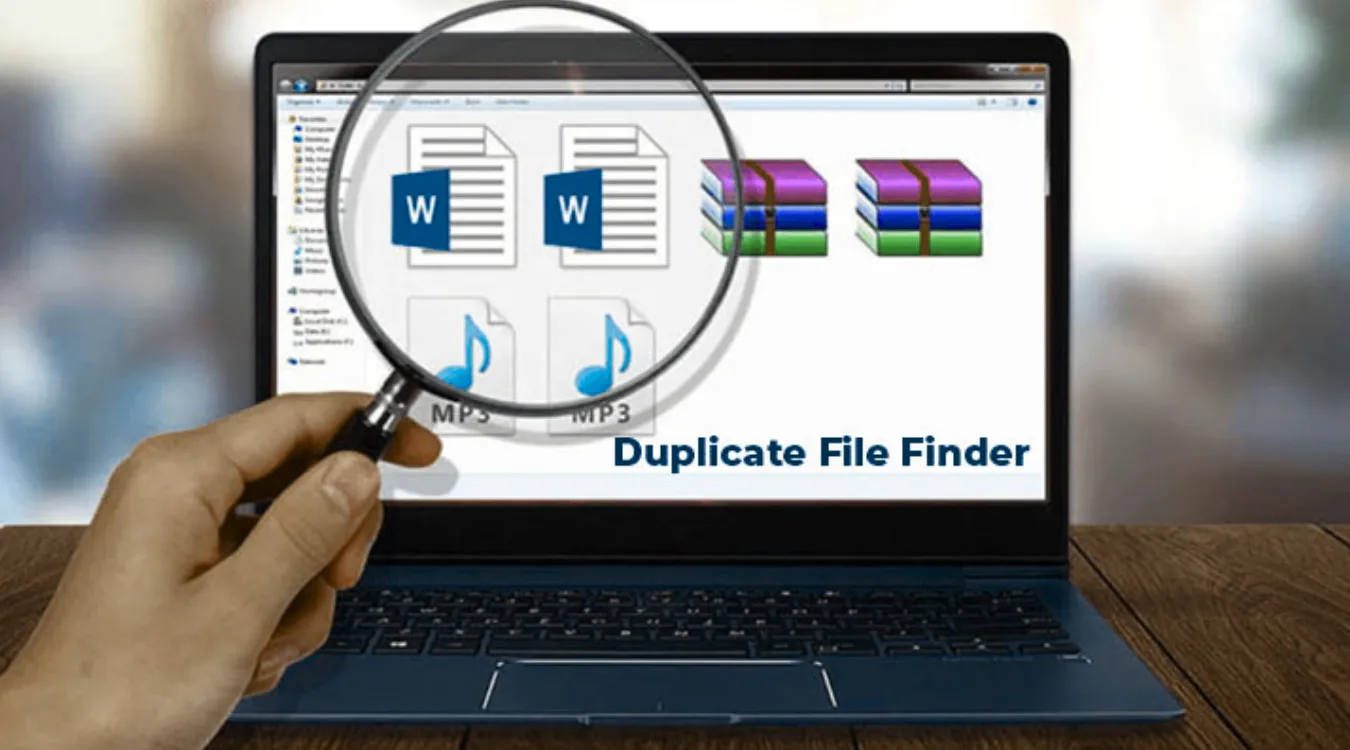
A 重複ファイルファインダー helps identify redundant copies so you keep one clean master while freeing space safely.
How Duplicate Files Usually Appear

Before using any tool, it helps to know where duplicates come from.

Common sources include:

  • Repeated downloads of the same installer or archive

  • Copy–paste operations during manual “backups”

  • Exported photos from phones into multiple folders

  • Cloud sync conflicts that create “filename (1).docx” variants

  • Old project folders copied for “versioning” and never cleaned

A good duplicate file finder focuses on these user areas instead of system folders and program directories.

What a Duplicate File Finder Actually Evaluates

A name alone does not define a duplicate.
Serious tools look at several attributes.

Key checks include:

  • File size: different sizes cannot match

  • Content signature: hash values such as MD5 or SHA-1

  • Optional metadata: timestamps, paths, and media tags

When content and size match, the tool groups files into a duplicate set, even if their names or locations differ.

Inside the Scan: From Filesystem to Duplicate Groups

Most duplicate file finders follow a staged process.
Understanding the stages helps you trust the results and tune performance.

Stage 1: Indexing Files

The tool walks through selected folders and collects candidates.
You often limit the scan to user data, such as Documents, Downloads, and Pictures.
You may also filter by extension to focus on photos, videos, or office files.

Stage 2: Grouping by Size and Hash

The scanner first groups files that share the same size.
It then computes hashes only inside those groups.
Files with identical size and hash go into the same duplicate group.

This strategy reduces CPU and disk load while still confirming content equality.

Stage 3: Presenting Results for Review

The tool lists groups where more than one file shares the same content.
You choose which locations to keep and which to remove or move.
Some tools auto-apply rules (keep newest, keep in a specific folder), but you still control final decisions.

Comparing Types of Duplicate File Finders

Different tools target different skill levels and data sets.

Tool TypeTypical User強みCaveats
Basic cleanersHome usersSimple UI, quick scanLimited control and filtering
Hash-based power toolsPower users, IT staffPrecise matching, detailed rulesMore options to misconfigure
Media-focused findersPhotographers, media teamsImage similarity, audio tag matchingHeavier scans for large photo libraries
Integrated utility suitesUsers with broader maintenanceCombines cleanup and diagnosticsInterface may feel more complex

You choose a tool that matches your comfort level and storage size.
In all cases, you get the best safety when you pair cleanup with a reliable リカバリーツール たとえば Magic Data Recovery.

Magic Data Recoveryをダウンロード

Windows 7/8/10/11およびWindows Serverをサポート

 Safe Cleanup Workflow with a Duplicate File Finder

A controlled procedure keeps you from removing the wrong copy.

  1. Back up critical data first. Create at least one backup to an external drive or NAS.

  2. Select target folders. Focus on personal data: user profiles, project folders, media libraries. Exclude system and program directories.

  3. Run an analysis-only scan. Let the tool build duplicate groups without deleting anything.

  4. Sort by total size. Tackle the largest groups first to gain space quickly.

  5. Apply simple rules. For example, keep one copy in an “Archive” folder and remove extras elsewhere.

  6. Delete to Recycle Bin initially. Use soft deletion first; verify that applications still work.

  7. Empty the bin after verification. Only perform permanent deletion when you feel confident.

This workflow favors safety over speed, which matters more when important data lives on the same drive.

When Amagicsoft Data Recovery Becomes Essential

Even careful users sometimes remove the wrong “duplicate.”
A unique edited version might share content size with an older copy but include small differences that went unnoticed.

If this happens, you can still recover.

On a Windows machine:

  1. Stop writing new data to the affected drive immediately.

  2. インストール Magic Data Recovery on a different disk.

  3. Scan the drive where you deleted the duplicates.

  4. Filter results by file type, name, or deletion time.

  5. Preview critical files, then restore them to a safe location on another drive.

This approach turns a risky cleanup into a reversible step and reduces the chance of permanent loss.

Windows 7/8/10/11およびWindows Serverをサポート。.

Magic Data Recoveryをダウンロード

Windows 7/8/10/11およびWindows Serverをサポート

 Reducing Duplicate Growth in the Future

A duplicate file finder solves today’s clutter, but habits prevent tomorrow’s mess.

実践的な習慣には次のようなものがある:

  • Use a single “incoming” folder for downloads, then sort it regularly.

  • Store final documents in a structured archive, not scattered across desktops.

  • Rely on versioning in backup or sync tools instead of manual copy-and-rename.

  • Document where “master” copies of photos or projects live and always update those.

With these practices, duplicate scans become occasional maintenance, not a constant emergency.


 よくある質問


Is duplicate file finder safe?

A duplicate file finder stays safe when you limit its scope and review results. Most tools read files and compute hashes without altering data until you confirm deletion. Create a backup first, avoid system and program folders, and delete in stages. This way, you gain space while keeping critical files intact and recoverable.

How does the duplicate file finder work?

The tool scans selected folders, groups files with the same size, and then compares their contents using hashes or byte-level checks. It flags groups where two or more files share identical content. You then choose which copies to keep and which to remove, often using rules like “keep newest” or “keep in main archive.”

Is duplicate file finder free?

Many duplicate finders offer free editions with core scanning features and manual cleanup. Paid versions usually add advanced filters, automatic selection rules, and scheduling. For most users, a free tool plus a strong recovery solution such as Amagicsoft Data Recovery already covers typical cleanup and correction needs effectively and safely.

Is it okay to delete duplicate files?

Yes, as long as you confirm that at least one intact copy remains where you expect it. Start with noncritical areas like Downloads and installers. Avoid deleting “duplicates” from folders used by applications, backup jobs, or sync tools until you understand their role. When unsure, keep one extra copy and verify behavior first.

Is the Finder app safe?

Most reputable duplicate finder apps operate safely because they scan in read-only mode and prompt before deletion. The main risk comes from user choices rather than the scan itself. Download software from trusted vendors, review each duplicate group carefully, and keep a backup so you can recover with Amagicsoft Data Recovery if needed.

What is the best duplicate file finder?

The best duplicate finder depends on your data size, platform, and experience level. Look for hash-based comparison, flexible filtering, and a clear preview of each group. A strong option integrates with your existing maintenance routine and works well alongside dedicated recovery tools, giving you both efficient cleanup and a recovery path.

Can deleting duplicates cause problems?

Yes, if you delete the only usable copy of a configuration file, project, or library. Some tools treat different versions as duplicates when they only differ slightly. Protect yourself by excluding system areas, testing applications after each cleanup batch, and using Amagicsoft Data Recovery to restore mistakenly deleted files when problems appear.

Does Windows have a duplicate file finder?

Windows does not include a friendly, built-in duplicate finder in File Explorer. Administrators sometimes use PowerShell scripts or third-party utilities to locate duplicates by hash or name. Most everyday users rely on dedicated duplicate finder applications for scanning and on tools like Amagicsoft Data Recovery to fix accidental deletions afterward.

What is the easiest way to find duplicate files?

The easiest method is to install a graphical duplicate finder, select a few user folders, and run a scan. The tool groups duplicates and shows previews so you can decide what to keep. Start with obvious clutter areas such as Downloads and desktop archives, then move on to large media folders once you feel comfortable.

How do I remove all duplicate files?

Do not remove everything in one step. Run a scan, sort duplicate groups by size, and start with low-risk items like repeated installers and exported archives. Use automatic rules where safe, but always keep at least one verified master copy. After each batch, test your system and applications, then rely on backups or Amagicsoft Data Recovery if problems appear.
  • WiKi
エディ

エディは、コンピューター業界の有名企業数社で10年以上の経験を持つITスペシャリストです。深い技術的知識と実践的な問題解決能力をすべてのプロジェクトに提供しています。.

投稿ナビゲーション

前へ
次のページ

検索

カテゴリー

  • ビットロッカーのリカバリ
  • 削除されたファイルの復元
  • フォーマットファイルの復元
  • ハードディスク・ドライブ復旧
  • ライセンスキーの回復
  • 紛失ファイルの復元
  • メモリーカード復元
  • ニュース
  • フォトリカバリー
  • SSDリカバリー
  • 未分類
  • USBドライブ復元
  • ユーザーガイド
  • ウィキ

最近の投稿

  • 外付けハードドライブとしてのSSDの長所と短所
    外付けハードドライブとしてのSSDの長所と短所
  • Macでターゲットディスクモードと共有モードを使用する方法
    Macでターゲットディスクモードとシェアモードを使う方法:完全ガイド
  • 重複ファイルファインダー
    重複ファイルファインダー

タグ

どのように Magic Data Recovery Magic Recovery Key WiKi

関連記事

コンテキスト・スイッチ
ウィキ

コンテキスト・スイッチ

2025年12月2日 エディ コメントはまだない

最近のオペレーティングシステムは、何十、何百ものアクティブなスレッドを操っている。コンテキストスイッチによって、スケジューラは実行中のスレッドを一時停止させ、別のスレッドを再開させることができる。この迅速な切り替えによって、並列実行の錯覚が生じ、後にクラッシュダンプの中で目にするものも形作られる。スレッドの実行コンテキストの内部 各スレッドはコードとデータ以上のものを運んでいる。そのコンテキストには以下が含まれます:汎用CPUレジスタとフラグ 命令ポインタとスタックポインタ セグメントレジスタと制御 [...]...

データ収集
ウィキ

データ収集

2025年12月2日 エディ コメントはまだない

目次 インシデントの現場:予定外のクリック、ルート・ログイン、ファイル・コピーによって、タイムスタンプ、ログ、未割り当て領域が、クリーンな状態を記録する前に変更される可能性があります。データ収集は、この問題を解決するものである。データ収集は、制御された方法でデータを収集することに重点を置き、最初のアクション以降、証拠としての完全性を維持する。フォレンジックの文脈におけるデータ収集とは、単にファイルをコピーするだけではありません。データを収集し、それを変更から保護し、裁判所または内部レビューにすべてのステップをどのように処理したかを示す、文書化されたプロセスを定義します。主な目的変更を最小限に抑える。

データ移行
ウィキ

データ移行

2025年12月2日 エディ コメントはまだない

新しいストレージ、新しいSaaSプラットフォーム、システムのアップグレードはすべて、情報をある場所から別の場所に押し出します。データ移行は、単純なコピーではなく、管理されたプロジェクトとしてその変化に対応します。目標は、整合性、関係性、使いやすさを維持しながら、システムやフォーマット間でデータを移行することです。推進要因、制約、リスク ほとんどの移行は、明確な理由に基づいて開始される:老朽化したストレージやサーバーの置き換え 複数のシステムを1つのプラットフォームに統合 オンプレミスのデータベースからクラウドサービスへの移行 アプリケーションベンダーやアーキテクチャの変更 同時に、チームは以下を管理しなければならない:ダウンタイムとカットオーバー計画 スキーマの違いと[...]...

amagicsoftロゴアイコン

当社のビジョンは、世界的に有名なソフトウェア ブランドおよびサービス プロバイダーとなり、一流の製品とサービスをユーザーに提供することです。

製品紹介
  • Magic Data Recovery
  • Magic Recovery Key
ポリシー
  • 利用規約
  • プライバシーポリシー
  • 返金ポリシー
  • ライセンス契約
会社概要
  • Amagicsoftについて
  • お問い合わせ
  • 店舗
フォローする

著作権©2025 Amagicsoft。無断複写転載を禁じます。

  • 利用規約
  • プライバシーポリシー