
Can a Hard Drive Be Repaired?
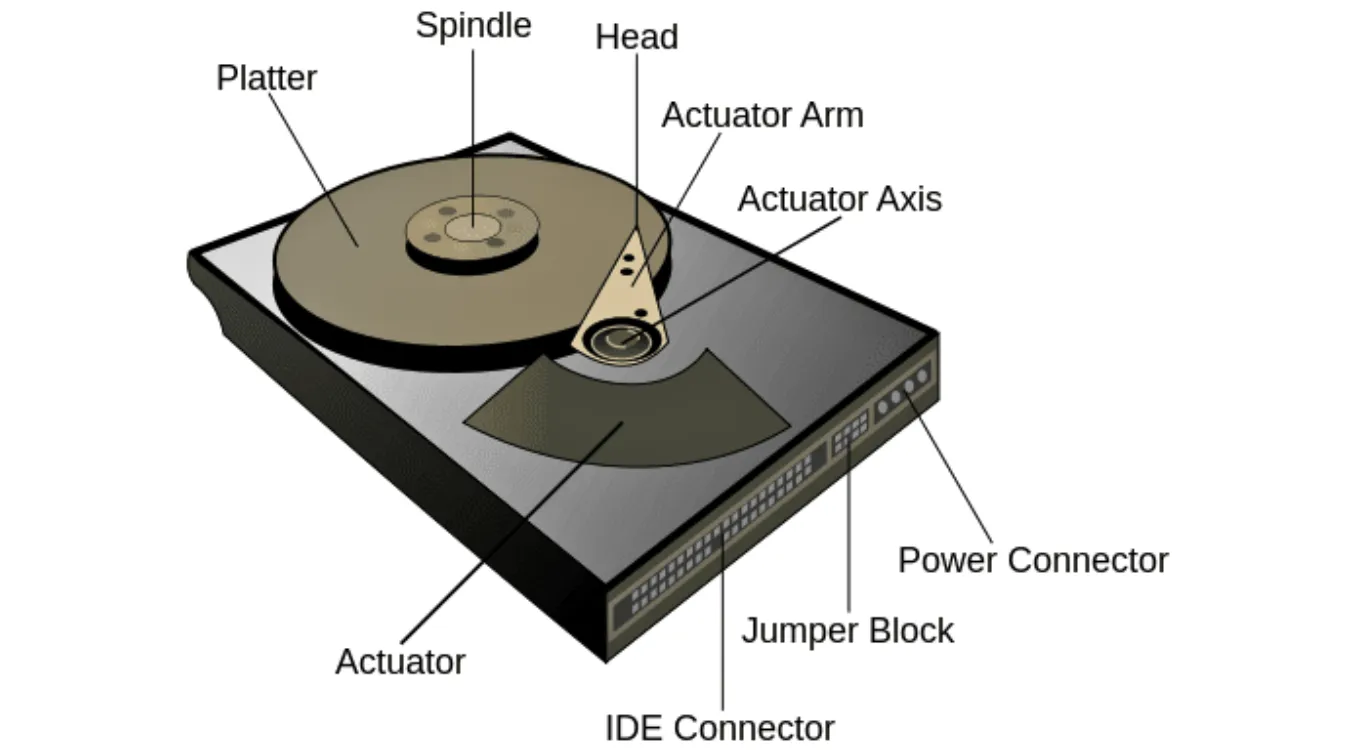
When a hard drive becomes slow, noisy, or unreadable, it’s natural to wonder whether it can be repaired. The answer depends on the type of failure you’re facing. Some issues can be corrected, while others require professional recovery. In all cases, the goal should be protecting your data and preventing further damage.
This guide explains what can be repaired, what cannot, and the safest ways to recover your files.
1. Can a Hard Drive Be Repaired? The Short Answer
Hard drives fail for two major reasons: logical errors and physical damage. These two categories determine whether a repair is realistic.

Logical Errors (Repairable)
Logical failures affect software structures rather than hardware. These may include:
Corrupted file systems
Partition table errors
Logical bad sectors
Minor firmware inconsistencies
Such problems are often repairable, and the drive may continue working long enough to recover your data.
Physical Damage (Not Truly Repairable)
Mechanical failures occur inside the drive itself:
Damaged read/write heads
Scratched platters
Seized spindle motor
Burned or shorted PCB
Severe shock, water damage, or contamination
These conditions cannot be “repaired” in the normal sense. Technicians can temporarily restore functionality to extract your files, but the drive is no longer reliable.
The Rule You Should Always Follow
Once a drive shows physical damage or accumulating bad sectors:
Use it only long enough to recover your data, then replace it.
No physical repair can restore its original reliability.
2. How to Tell What’s Wrong With Your Hard Drive
Identifying the type of failure helps you choose the safest next step.
Red Flags of Physical Damage
These symptoms indicate hardware failure and require immediate caution:
Clicking, knocking, or repetitive calibration noises
Grinding or scraping sounds
Drive not detected by BIOS
Excessive heat during normal use
Stop using the drive immediately. Continued operation can damage the platters and lead to permanent, unrecoverable data loss.
Yellow Flags of Logical Errors
These conditions suggest software-level problems:
Severe slowdowns
Freezes when opening or saving files
Corrupted or unreadable documents
File system errors at startup
Detection of bad sectors using diagnostic tools
Logical issues can often be repaired, but always create a backup or disk image first.
3. Ways to Fix a Hard Drive: What You Can Do and What Needs a Professional
3.1 Fixing Logical Errors You Can Repair at Home
Use CHKDSK
CHKDSK can correct file system errors and attempt to recover readable data from soft bad sectors.
Run:

chkdsk X: /f /r
/frepairs structural errors./ridentifies bad sectors and moves readable data to safe areas.
Caution: On failing disks, this process may accelerate damage. Always back up first.
Use Victoria or Similar Utilities
Tools such as Victoria offer:
Surface scanning
Sector remapping
Refresh or erase operations
These techniques can stabilize a drive long enough to recover data.
Perform a Full Format
A full (non-quick) format:
Overwrites every sector
Identifies and marks bad sectors
Rebuilds the file system
This destroys all existing data and should be used only when recovery is not needed.
3.2 When a Hard Drive Needs Professional Repair
Physical failures require specialized equipment and controlled environments.
Professionals can address:
Head crashes: Replace malfunctioning read/write heads using a donor drive.
PCB failure: Swap the circuit board and transfer adaptive ROM data.
Firmware corruption: Use tools like PC-3000 to rebuild service modules.
Liquid or heat damage: Clean and replace electronic components.
Two important rules:
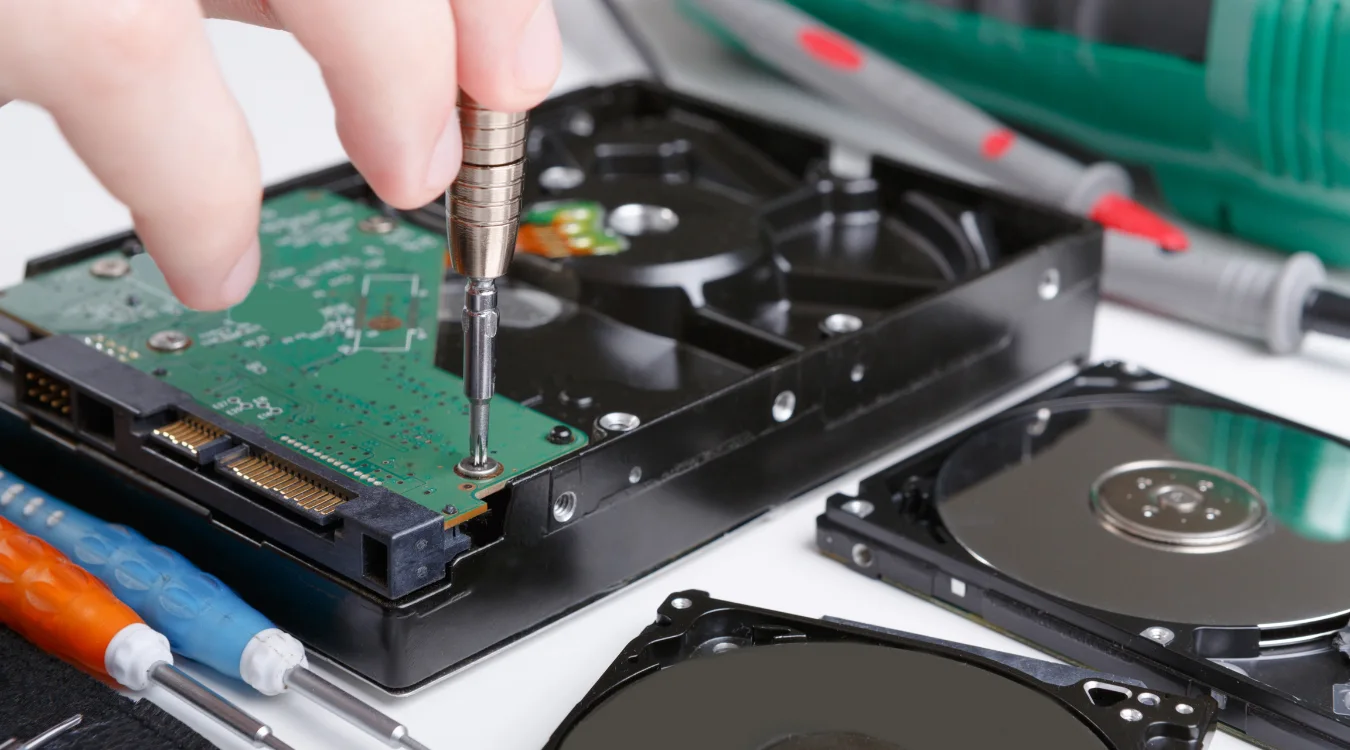
Do not open the drive yourself. Even tiny dust particles can damage the platters.
Choose a lab with a certified Class 100/1000 cleanroom and transparent evaluation procedures.
Professional repair exists to recover your data—not to make the drive usable again.
3.3 Why Upgrading to an SSD Is Often the Better Choice
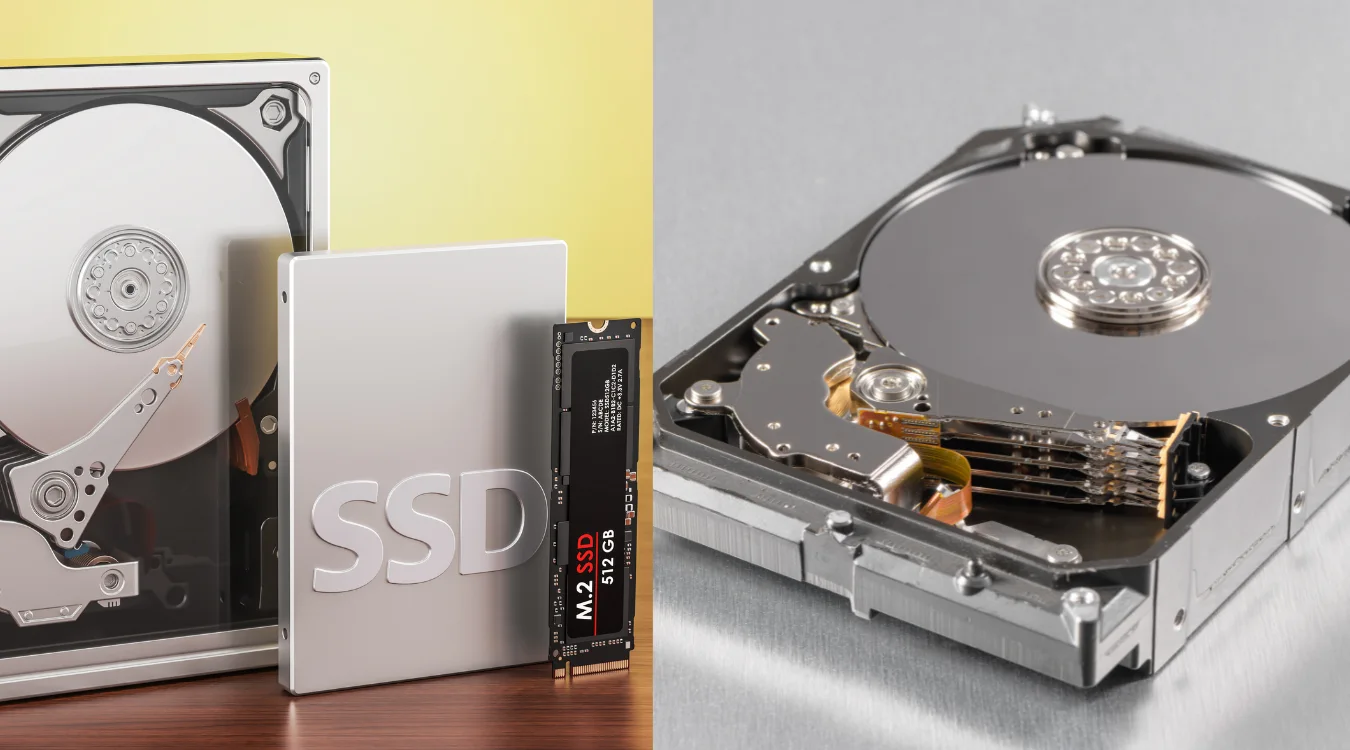
Replacing a failing hard drive with an SSD has clear advantages:
No mechanical parts
Faster boot and load times
Better durability
Lower power consumption
If your hard drive shows early signs of failure or performance issues, moving to an SSD is the safest long-term solution.
4. What To Do First: A Step-by-Step Data Rescue Plan
Step 1: Stop Writing to the Drive
Any write operation (temporary files, downloads, updates) can overwrite recoverable data.
Step 2: Create a Disk Image
Use tools such as:
Disk Drill
Macrium Reflect
Clonezilla
Create a byte-to-byte image of the failing disk to preserve its current state.
Step 3: Recover Data from the Image
All recovery attempts should happen on the cloned image—not the failing drive.
Step 4: Decide Whether to Attempt Repairs
Once your data is safe, you can either:
Attempt logical repairs
Perform a full format
Or retire the drive entirely
For drives with physical damage, replacement is the only safe option.
5. How to Prevent Hard Drive Failure in the Future
Use the 3-2-1 Backup Strategy
Keep 3 copies of your data
Store them on 2 types of media
Maintain 1 off-site copy in the cloud
Monitor Drive Health Regularly
Tools like CrystalDiskInfo can track S.M.A.R.T. values such as:
Reallocated sectors
Pending sectors
Seek error rates
Temperature
These metrics can alert you to early failure.
Practice Safe Usage Habits
Avoid dropping or moving drives during use
Ensure stable power and ventilation
Keep external drives on solid, vibration-free surfaces
Preventive care is the best long-term protection.
