How to Use Target Disk Mode and Share Mode on Mac Computers: A Complete Guide
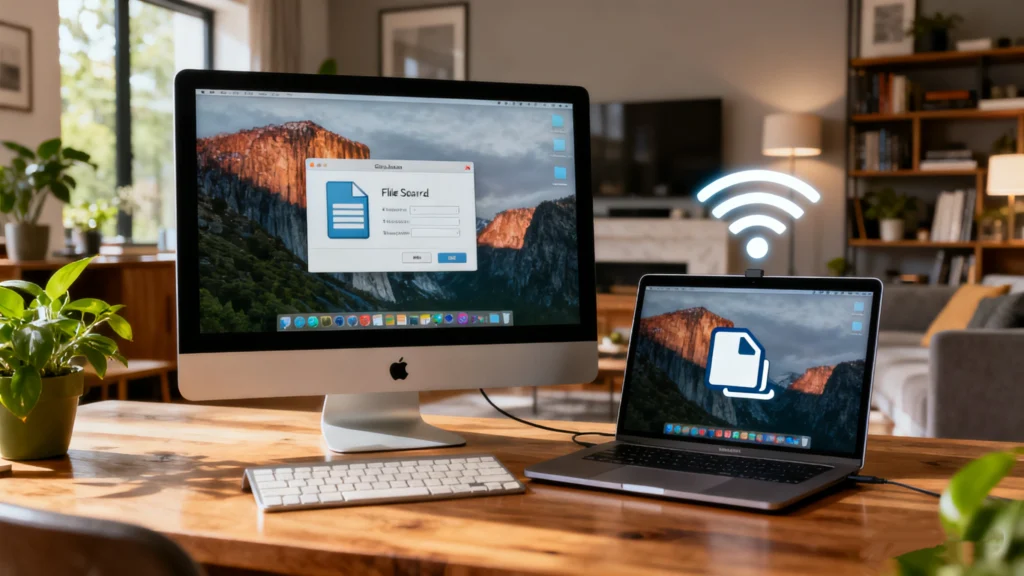
When a Mac stops responding or you need to move a large amount of data quickly, connecting two Macs directly is often the fastest and most reliable approach. macOS offers two features to make this possible: Target Disk Mode for Intel-based Macs and Share Disk (Mac Sharing Mode) for Apple Silicon devices. Both allow one Mac to appear as an external drive on another, enabling high-speed file transfers and disk access.
This guide explains how each mode works, what you need before you begin, and the precise steps to use both features safely.
Table of Contents
What Target Disk Mode and Share Disk Mode Do
Target Disk Mode (Intel Macs) and Share Disk Mode (Apple Silicon Macs) let one Mac act as an external storage device. After the connection is established, the other Mac can open the drive directly in Finder and copy, repair, or back up its data.
These modes are useful for:
Transferring large files between computers
Migrating data from an old Mac to a new one
Recovering files from a Mac that will not boot
Repairing or formatting a drive using Disk Utility
Running maintenance operations such as First Aid
Both methods rely on a direct cable connection and bypass Wi-Fi entirely for faster and more stable performance.
What You Need Before You Start
Before starting, review the hardware and software requirements to avoid connection issues.
Hardware Requirements
You will need:
Two Mac computers
A compatible cable between them
Cable Requirements
Cable compatibility is critical:
If either Mac runs macOS Big Sur (11) or later, you must use a Thunderbolt cable.
Older Intel models may support USB-C, USB, Thunderbolt, or FireWire depending on ports.
All Apple Silicon models support USB-C and Thunderbolt.
Power and Stability
Keep both Macs connected to power or charged to ensure the connection is not interrupted during transfers.
Software Preparations
To avoid mounting issues:
Temporarily disable FileVault on both Macs
(System Settings → Privacy & Security → FileVault)Update macOS to the latest version
Turn off VPN, firewalls, or antivirus tools if they interfere with detection or migration
How to Use Target Disk Mode on Intel Macs
The following steps apply to Intel-based Macs.
Step 1: Connect the Two Macs
Use the appropriate cable based on your models and operating system versions.
Step 2: Enter Target Disk Mode
You can enter Target Disk Mode in one of two ways:
If the Mac is off
Hold the T key
Press the power button
Continue holding T until a Thunderbolt or FireWire icon appears
If the Mac is on
Open Apple menu → System Settings → General → Startup Disk
Select Restart in Target Disk Mode
Step 3: Access the Disk on the Other Mac
The target Mac’s internal drive appears in Finder as an external disk.
You can now drag files to or from it, use Disk Utility, or copy the entire drive.
Step 4: Exit Target Disk Mode Safely
Eject the target disk in Finder
Shut down the target Mac
Disconnect the cable when the shutdown is complete
How to Use Share Disk Mode on Apple Silicon Macs
Apple Silicon Macs do not support classic Target Disk Mode. Instead, they use Share Disk Mode through macOS Recovery.
Step 1: Connect the Two Macs
Use a USB-C or Thunderbolt cable.
Step 2: Shut Down the Target Mac
Ensure the Mac you plan to access is fully powered off.
Step 3: Enter macOS Recovery
Press and hold the power button
Release when you see Loading Startup Options
Step 4: Continue to Recovery
Select Options → Continue
Enter your administrator password if prompted
Step 5: Start Share Disk
In the macOS Utilities window, open the menu bar
Select Utilities → Share Disk
Step 6: Choose a Disk or Volume
Select the internal disk or volume you want to access, then click Start Sharing.
Step 7: Access the Shared Disk
On the host Mac:
Open Finder
Select Network from the sidebar
Double-click the shared Mac to connect as a guest or authenticated user
Step 8: Stop Sharing
When finished:
Return to the Share Disk window
Click Stop Sharing
Shut down the target Mac if no further operations are needed
Advanced Uses You Should Know About
Target Disk Mode and Share Disk Mode can support more than basic file transfers.
Booting From Another Mac’s Drive
If both Macs are the same model and run the same macOS version, the host Mac can boot directly from the target Mac’s internal drive.
Steps:
Put the source Mac in Target Disk Mode
Start the other Mac while holding Option
Select the source drive to boot from
This method helps diagnose software issues or access macOS tools on a non-booting Mac.
Disk Utility Operations
When the target drive appears on the host Mac, you can:
Format or erase the drive
Create or remove partitions
Run First Aid to repair common disk errors
Prepare the drive for macOS installation
Important Warnings
These modes cannot repair hardware problems.
Signs of physical drive failure include:Clicking or scraping noises
Extremely slow performance
Recurring read/write errors
Accessing a failing drive in Target Disk Mode may worsen the damage.
Stop immediately if such symptoms occur.
Troubleshooting When the Disk Doesn’t Show Up
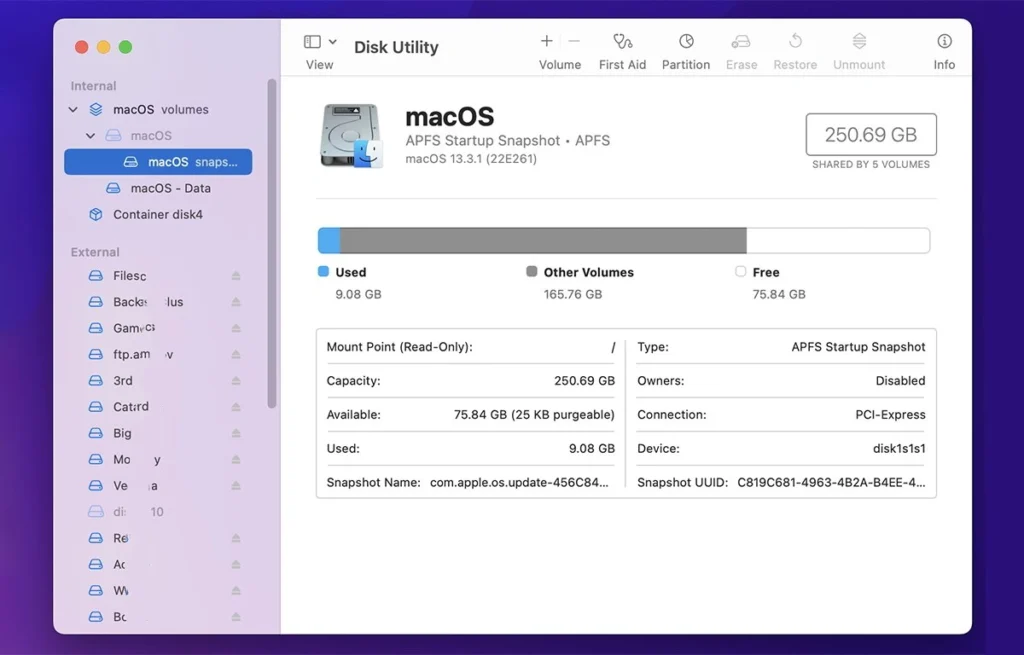
If the target Mac does not appear in Finder, review the common issues and their solutions.
Common Problems and Fixes
| Issue | Likely Cause | Solution |
|---|---|---|
| Host Mac does not detect the target disk | Wrong or incompatible cable | Use a certified Thunderbolt cable |
| Target disk does not mount | FileVault encryption enabled | Disable FileVault temporarily |
| Target Disk Mode cannot start | Firmware password set | Remove the firmware password in macOS Recovery |
| Disk not visible in Finder | Finder sidebar settings | Enable “External disks” and “Hard disks” |
| Disk visible but grayed out | Volume not mounted | Use Disk Utility → Mount |
| Intel Mac behaving erratically | NVRAM/PRAM corruption | Reset NVRAM (Intel only): Option + Command + P + R |
| Disk shows errors | Logical corruption | Run Disk Utility → First Aid |
If issues persist, the disk may have underlying hardware failure.
Wireless Alternatives if You Can’t Use a Cable
If a direct cable connection is not available, macOS provides several wireless or network-based options.
AirDrop
Best for transferring small or medium files quickly.
Migration Assistant
Ideal for full system migration, including applications, user profiles, and preferences.
File Sharing (SMB/AFP)
Enable under:
System Settings → General → Sharing → File Sharing
Cloud Storage Services
iCloud Drive, Google Drive, OneDrive, and Dropbox can transfer files when bandwidth is not a concern.
Remote File Transfer Tools
Useful for long-distance or enterprise workflows.
Conclusion
Target Disk Mode and Share Disk Mode provide reliable ways to transfer data, recover files, and troubleshoot issues between Macs. Whether you are migrating to a new machine or accessing a system that will not boot, these modes give you direct control over the target drive with minimal setup.
FAQs
Q1. Can Intel and Apple Silicon Macs use these modes together?
Q2. Is Target Disk Mode safe to use?
Q3. My Mac only shows a Thunderbolt icon. Is this normal?
Q4. Can Target Disk Mode be used for backup?
Q5. Will my Mac start normally after exiting Target Disk Mode?
Q6. Do Macs still have Target Disk Mode?
Q7. What is Mac sharing mode?

Eddie is an IT specialist with over 10 years of experience working at several well-known companies in the computer industry. He brings deep technical knowledge and practical problem-solving skills to every project.