Skip to content
amagicsoft logo icon
  • Home
  • Products
    • Magic Data Recovery
    • Magic Recovery Key
  • Store
  • Blog
  • More
    • About Amagicsoft
    • Contact US
    • Privacy Policy
    • Terms
    • License Agreement
    • Refund Policy
  • English
    • 日本語
    • 한국어
    • Deutsch
    • Français
    • 繁體中文
Wiki

Duplicate File Finder
02.12.2025 Eddie No comments yet
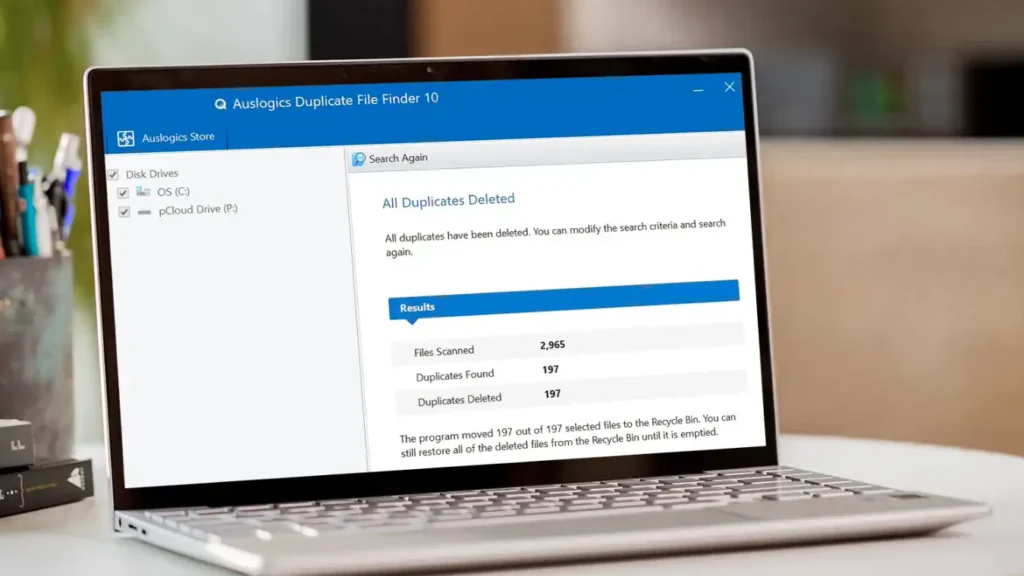
Duplicate File Finder

Table of Contents

Duplicate Files Are Not Real Backups

Many users keep “extra safety” copies of documents by dragging them into new folders or external drives.
Over time, these copies multiply and turn into clutter rather than protection.

Duplicate files waste storage, slow backups, and make data recovery more confusing.
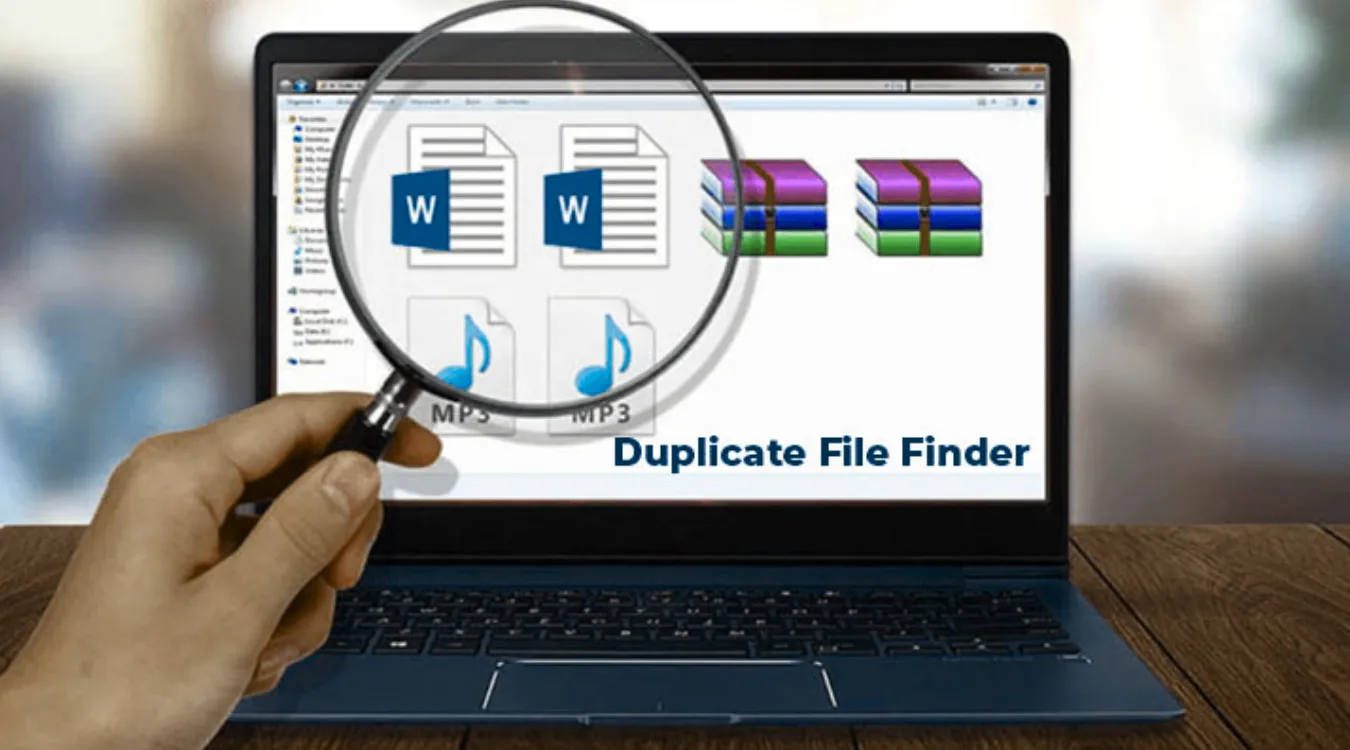
A Duplicate File Finder helps identify redundant copies so you keep one clean master while freeing space safely.
How Duplicate Files Usually Appear

Before using any tool, it helps to know where duplicates come from.

Common sources include:

  • Repeated downloads of the same installer or archive

  • Copy–paste operations during manual “backups”

  • Exported photos from phones into multiple folders

  • Cloud sync conflicts that create “filename (1).docx” variants

  • Old project folders copied for “versioning” and never cleaned

A good duplicate file finder focuses on these user areas instead of system folders and program directories.

What a Duplicate File Finder Actually Evaluates

A name alone does not define a duplicate.
Serious tools look at several attributes.

Key checks include:

  • File size: different sizes cannot match

  • Content signature: hash values such as MD5 or SHA-1

  • Optional metadata: timestamps, paths, and media tags

When content and size match, the tool groups files into a duplicate set, even if their names or locations differ.

Inside the Scan: From Filesystem to Duplicate Groups

Most duplicate file finders follow a staged process.
Understanding the stages helps you trust the results and tune performance.

Stage 1: Indexing Files

The tool walks through selected folders and collects candidates.
You often limit the scan to user data, such as Documents, Downloads, and Pictures.
You may also filter by extension to focus on photos, videos, or office files.

Stage 2: Grouping by Size and Hash

The scanner first groups files that share the same size.
It then computes hashes only inside those groups.
Files with identical size and hash go into the same duplicate group.

This strategy reduces CPU and disk load while still confirming content equality.

Stage 3: Presenting Results for Review

The tool lists groups where more than one file shares the same content.
You choose which locations to keep and which to remove or move.
Some tools auto-apply rules (keep newest, keep in a specific folder), but you still control final decisions.

Comparing Types of Duplicate File Finders

Different tools target different skill levels and data sets.

Tool TypeTypical UserStrengthsCaveats
Basic cleanersHome usersSimple UI, quick scanLimited control and filtering
Hash-based power toolsPower users, IT staffPrecise matching, detailed rulesMore options to misconfigure
Media-focused findersPhotographers, media teamsImage similarity, audio tag matchingHeavier scans for large photo libraries
Integrated utility suitesUsers with broader maintenanceCombines cleanup and diagnosticsInterface may feel more complex

You choose a tool that matches your comfort level and storage size.
In all cases, you get the best safety when you pair cleanup with a reliable recovery tool such as Magic Data Recovery.


Download Magic Data Recovery

Supports Windows 7/8/10/11 and Windows Server

 Safe Cleanup Workflow with a Duplicate File Finder

A controlled procedure keeps you from removing the wrong copy.

  1. Back up critical data first. Create at least one backup to an external drive or NAS.

  2. Select target folders. Focus on personal data: user profiles, project folders, media libraries. Exclude system and program directories.

  3. Run an analysis-only scan. Let the tool build duplicate groups without deleting anything.

  4. Sort by total size. Tackle the largest groups first to gain space quickly.

  5. Apply simple rules. For example, keep one copy in an “Archive” folder and remove extras elsewhere.

  6. Delete to Recycle Bin initially. Use soft deletion first; verify that applications still work.

  7. Empty the bin after verification. Only perform permanent deletion when you feel confident.

This workflow favors safety over speed, which matters more when important data lives on the same drive.

When Amagicsoft Data Recovery Becomes Essential

Even careful users sometimes remove the wrong “duplicate.”
A unique edited version might share content size with an older copy but include small differences that went unnoticed.

If this happens, you can still recover.

On a Windows machine:

  1. Stop writing new data to the affected drive immediately.

  2. Install Magic Data Recovery on a different disk.

  3. Scan the drive where you deleted the duplicates.

  4. Filter results by file type, name, or deletion time.

  5. Preview critical files, then restore them to a safe location on another drive.

This approach turns a risky cleanup into a reversible step and reduces the chance of permanent loss.

Supports Windows 7/8/10/11 and Windows Server.

Download Magic Data Recovery

Supports Windows 7/8/10/11 and Windows Server

 Reducing Duplicate Growth in the Future

A duplicate file finder solves today’s clutter, but habits prevent tomorrow’s mess.

Practical habits include:

  • Use a single “incoming” folder for downloads, then sort it regularly.

  • Store final documents in a structured archive, not scattered across desktops.

  • Rely on versioning in backup or sync tools instead of manual copy-and-rename.

  • Document where “master” copies of photos or projects live and always update those.

With these practices, duplicate scans become occasional maintenance, not a constant emergency.


 FAQ


Is duplicate file finder safe?

A duplicate file finder stays safe when you limit its scope and review results. Most tools read files and compute hashes without altering data until you confirm deletion. Create a backup first, avoid system and program folders, and delete in stages. This way, you gain space while keeping critical files intact and recoverable.

How does the duplicate file finder work?

The tool scans selected folders, groups files with the same size, and then compares their contents using hashes or byte-level checks. It flags groups where two or more files share identical content. You then choose which copies to keep and which to remove, often using rules like “keep newest” or “keep in main archive.”

Is duplicate file finder free?

Many duplicate finders offer free editions with core scanning features and manual cleanup. Paid versions usually add advanced filters, automatic selection rules, and scheduling. For most users, a free tool plus a strong recovery solution such as Amagicsoft Data Recovery already covers typical cleanup and correction needs effectively and safely.

Is it okay to delete duplicate files?

Yes, as long as you confirm that at least one intact copy remains where you expect it. Start with noncritical areas like Downloads and installers. Avoid deleting “duplicates” from folders used by applications, backup jobs, or sync tools until you understand their role. When unsure, keep one extra copy and verify behavior first.

Is the Finder app safe?

Most reputable duplicate finder apps operate safely because they scan in read-only mode and prompt before deletion. The main risk comes from user choices rather than the scan itself. Download software from trusted vendors, review each duplicate group carefully, and keep a backup so you can recover with Amagicsoft Data Recovery if needed.

What is the best duplicate file finder?

The best duplicate finder depends on your data size, platform, and experience level. Look for hash-based comparison, flexible filtering, and a clear preview of each group. A strong option integrates with your existing maintenance routine and works well alongside dedicated recovery tools, giving you both efficient cleanup and a recovery path.

Can deleting duplicates cause problems?

Yes, if you delete the only usable copy of a configuration file, project, or library. Some tools treat different versions as duplicates when they only differ slightly. Protect yourself by excluding system areas, testing applications after each cleanup batch, and using Amagicsoft Data Recovery to restore mistakenly deleted files when problems appear.

Does Windows have a duplicate file finder?

Windows does not include a friendly, built-in duplicate finder in File Explorer. Administrators sometimes use PowerShell scripts or third-party utilities to locate duplicates by hash or name. Most everyday users rely on dedicated duplicate finder applications for scanning and on tools like Amagicsoft Data Recovery to fix accidental deletions afterward.

What is the easiest way to find duplicate files?

The easiest method is to install a graphical duplicate finder, select a few user folders, and run a scan. The tool groups duplicates and shows previews so you can decide what to keep. Start with obvious clutter areas such as Downloads and desktop archives, then move on to large media folders once you feel comfortable.

How do I remove all duplicate files?

Do not remove everything in one step. Run a scan, sort duplicate groups by size, and start with low-risk items like repeated installers and exported archives. Use automatic rules where safe, but always keep at least one verified master copy. After each batch, test your system and applications, then rely on backups or Amagicsoft Data Recovery if problems appear.
  • WiKi
Eddie

Eddie is an IT specialist with over 10 years of experience working at several well-known companies in the computer industry. He brings deep technical knowledge and practical problem-solving skills to every project.

文章导航

Previous
Next

Search

Categories

  • Bitlocker Recovery
  • Deleted File Recovery
  • Format File Recovery
  • Hard Drive Recovery
  • License Key Recovery
  • Lost File Recovery
  • Memory Card Recovery
  • News
  • Photo Recovery
  • SSD Recovery
  • Uncategorized
  • USB Drive Recovery
  • User Guide
  • Wiki

Recent posts

  • The Pros and Cons of SSDs as External Hard Drives
    The Pros and Cons of SSDs as External Hard Drives
  • How to Use Target Disk Mode and Share Mode on Mac Computers
    How to Use Target Disk Mode and Share Mode on Mac Computers: A Complete Guide
  • Duplicate File Finder
    Duplicate File Finder

Tags

How to Magic Data Recovery Magic Recovery Key WiKi

Related posts

Context Switch
Wiki

Context Switch

02.12.2025 Eddie No comments yet

Table of Contents CPU Time as a Shared Resource Modern operating systems juggle dozens or hundreds of active threads.Only a few CPU cores exist, so most threads wait in queues while a small subset runs. A context switch lets the scheduler pause one running thread and resume another.This rapid switching creates the illusion of parallelism […]

Data Acquisition
Wiki

Data Acquisition

02.12.2025 Eddie No comments yet

Table of Contents  Incident Scene: Data at Risk Before Collection When an incident occurs, the first instinct often involves “looking around” the live system.Unplanned clicks, root logins, or file copies can alter timestamps, logs, and unallocated space before anyone records a clean state. Data acquisition solves this problem.It focuses on collecting data in a controlled […]

Data Migration
Wiki

Data Migration

02.12.2025 Eddie No comments yet

Table of Contents Data Migration as a Planned Change, Not a File Copy Organizations rarely move data just once.New storage, new SaaS platforms, and system upgrades all push information from one place to another. Data migration handles that change as a controlled project, not a simple copy.The goal is to move data between systems or […]

amagicsoft logo icon

Our vision is to become a globally renowned software brand and service provider, delivering top-tier products and services to our users.

Products
  • Magic Data Recovery
  • Magic Recovery Key
Policy
  • Terms
  • Privacy Policy
  • Refund Policy
  • License Agreement
Company
  • About Amagicsoft
  • Contact US
  • Store
Follow Us

Copyright © 2025 Amagicsoft. All Rights Reserved.

  • Terms
  • Privacy Policy