Fast Boot

Table of Contents
Fast Boot and Fastboot Mode: Similar Name, Different Purpose
Users often see two similar terms: Fast Boot on PCs and fastboot mode on Android phones.
They sound alike but solve different problems.
On PCs, Fast Boot (or Fast Startup) reduces boot time. Firmware and the operating system cache parts of the initialization process, so the next startup skips some hardware checks and system initialization.
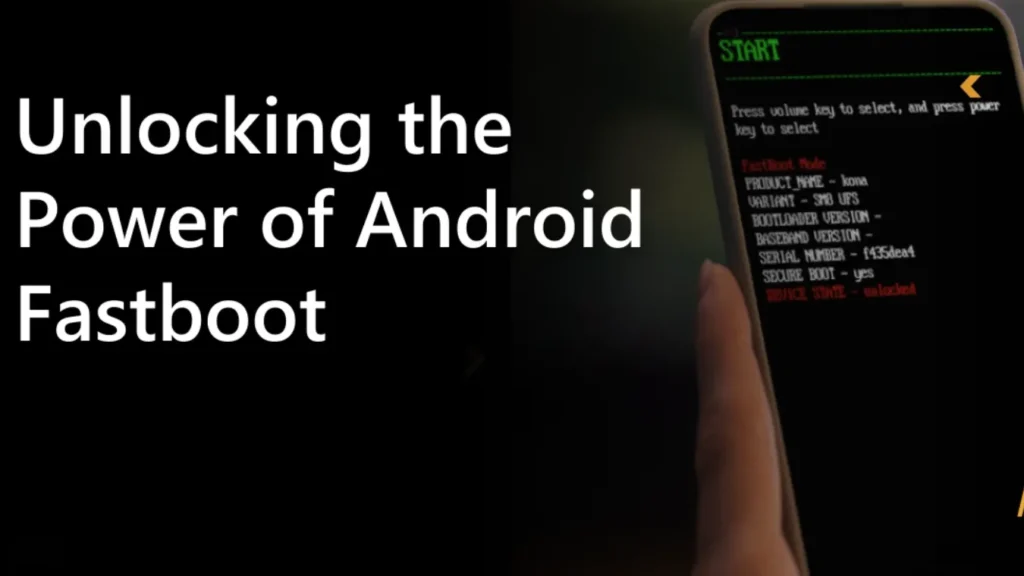
On Android, fastboot mode loads a minimal bootloader environment. You use it to flash firmware images, unlock bootloaders, or recover from software problems. It does not speed up boot directly; it provides a maintenance and repair channel.
Understanding this distinction helps you choose safe settings and avoid surprises, especially when you work with data recovery tools such as Amagicsoft Data Recovery after a boot failure.
How Fast Boot Shortens Startup on PCs
Modern PCs spend a lot of time on hardware checks, driver initialization, and OS startup tasks. Fast Boot reduces that time with several techniques.
Firmware-Level Fast Boot
Many UEFI firmware setups include a Fast Boot option:
The firmware stores hardware configuration after a successful boot.
Later boots skip full memory tests and long device scans.
The system initializes only essential controllers before handing control to the OS.
You see a shorter POST phase and fewer splash screens before Windows starts.
Windows Fast Startup
Windows adds another layer called Fast Startup:
When you shut down, Windows writes the kernel session and some driver state to a hibernation file.
On the next boot, Windows loads that cached session instead of starting from zero.
You get a hybrid between a cold boot and resume from hibernation.
This method feels fast, but it changes how the system handles full shutdowns, which matters for disk maintenance and data recovery.
Supports Windows 7/8/10/11 and Windows Server
How Fastboot Mode Works on Android Devices
While PC Fast Boot focuses on speed, Android fastboot mode focuses on control.
When a phone enters fastboot:
The device loads a small bootloader instead of the full Android system.
A connected computer uses the fastboot tool to send commands over USB.
You can flash boot images, recovery partitions, or system images, and sometimes unlock the bootloader.
Technicians use fastboot mode to repair corrupted firmware or install clean builds.
Ordinary users usually see it only after an error or key combination.
Benefits and Risks of Fast Boot for Everyday Users
Fast boot features help most people, but they come with trade-offs.
Where Fast Boot Helps
Faster startup on laptops and desktops
Less waiting after updates
Better experience on systems with SSDs and UEFI
You enable Fast Boot or Fast Startup if you start the system many times per day and rarely enter firmware settings.
Where Fast Boot Causes Problems
Fast Boot can complicate low-level work:
You may miss the key to enter UEFI/BIOS because the system skips prompts.
Dual-boot setups sometimes show inconsistent disk states.
External boot media may not appear in the boot menu.
Hibernation-style Fast Startup can lock NTFS volumes in a “dirty” state.
For data recovery, this matters. When Windows uses Fast Startup, it keeps the system partition in a special hibernated state. If you attach that drive to another PC and run Amagicsoft Data Recovery, you must disable Fast Startup first or perform a full shutdown to avoid inconsistent data.
Fastboot Mode and Data Safety on Phones
Fastboot mode offers powerful control over Android firmware, but it demands care.
Typical Use Cases
Flash stock firmware to fix boot loops
Install custom recovery images
Lock or unlock the bootloader
Erase specific partitions when troubleshooting
Each action directly touches partitions that hold system images and sometimes user data.
Data Loss Risks
Fastboot commands can erase user data quickly:
fastboot erase userdatawipes user partitions.Flashing the wrong image can corrupt the system or vendor partitions.
Unlocking the bootloader often forces a full wipe for security reasons.
Before you use fastboot commands, you should back up everything you can. If you lose data from an SD card or a mounted USB drive in the process, Amagicsoft Data Recovery can later scan that removable storage on a Windows PC and restore recoverable files.
Practical Recommendations for Fast Boot and Fastboot
You improve reliability and data protection with clear rules.
On Desktops and Laptops
Enable firmware Fast Boot only when you use stable hardware and a simple configuration.
Turn off Windows Fast Startup when you troubleshoot, dual-boot, or attach drives to other computers.
Perform an occasional full shutdown or restart to clear cached state.
Before disk maintenance or cloning, disable Fast Startup so tools see a consistent file system.
On Android Phones
Enter fastboot mode only when you understand the command you plan to run.
Use official images from the device vendor for flashing.
Expect a data wipe when you unlock the bootloader.
Back up media and documents to PC or cloud before any fastboot operation.
If a firmware flash goes wrong and you lose access to storage cards or external media, run Amagicsoft Data Recovery on a Windows system to scan those devices and recover files where possible.
Supports Windows 7/8/10/11 and Windows Server.
FAQ
What does fastboot do?
Should fast boot be on or off?
How do I exit fastboot mode?
You usually exit fastboot mode by restarting the device. Many phones let you hold the power button until the device reboots. You can also use a USB connection and run fastboot reboot from a computer that has the Android platform tools installed. After that, the phone attempts to boot the normal Android system again.
What happens if I fastboot my phone?
Can fastboot unlock my phone?
What problems can fast boot cause?
Eddie is an IT specialist with over 10 years of experience working at several well-known companies in the computer industry. He brings deep technical knowledge and practical problem-solving skills to every project.