Skip to content
amagicsoft logo icon
  • Home
  • Products
    • Magic Data Recovery
    • Magic Recovery Key
  • Store
  • Blog
  • More
    • About Amagicsoft
    • Contact US
    • Privacy Policy
    • Terms
    • License Agreement
    • Refund Policy
  • English
    • 日本語
    • 한국어
    • Deutsch
    • Français
    • 繁體中文
Wiki

iCloud Backup

29.11.2025 Eddie Comments Off on iCloud Backup
iCloud Backup

Table of Contents

Understanding iCloud Backup in Real-World Use

When an iPhone is lost, dropped in water, or stuck in a boot loop, the first question is simple: “Is my data still safe?”
For Apple users, iCloud Backup is the built-in safety net for iOS and iPadOS, with some support for macOS data via app sync.

The good news is that in most cases, personal data is still recoverable if an iCloud backup exists and is recent.
However, iCloud does not protect everything, and it does not replace a full data recovery strategy.

This guide explains how iCloud Backup works, its limits, and how to combine it with local backups and tools like Amagicsoft Data Recovery for more reliable protection.
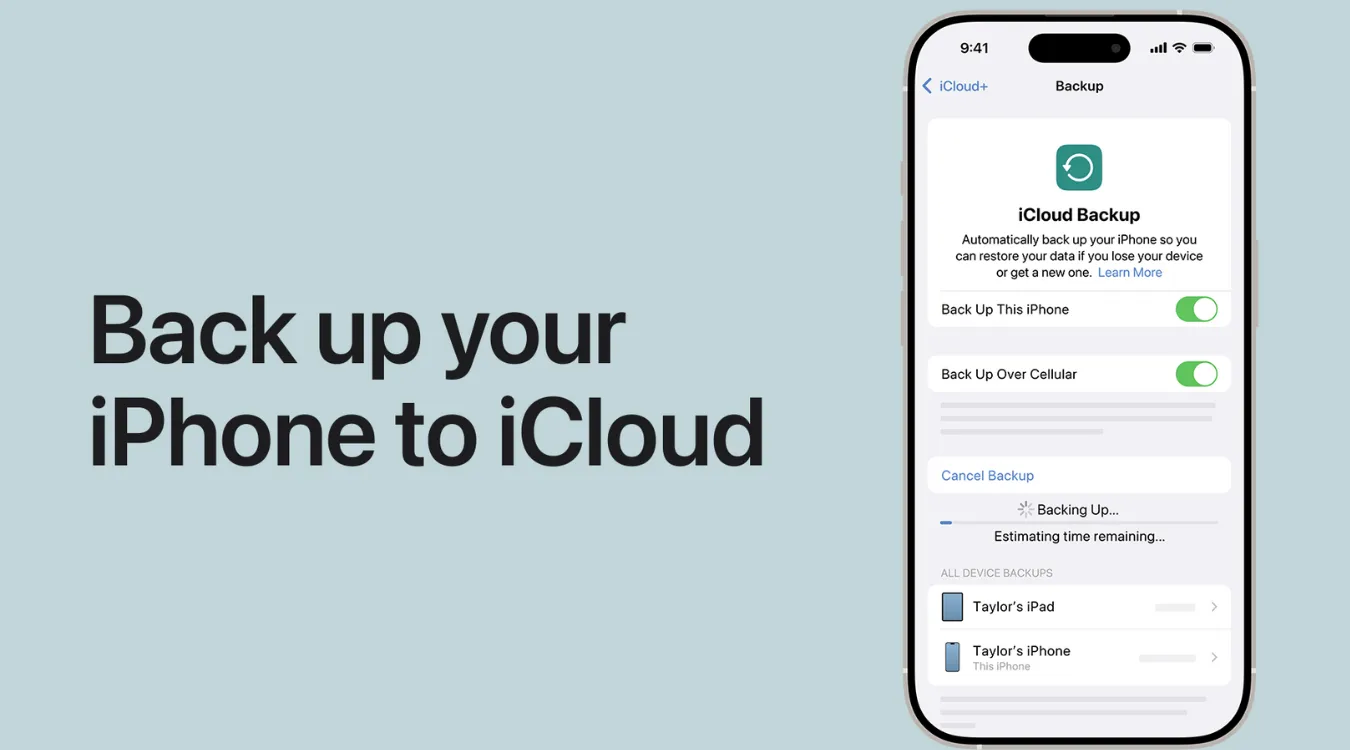
what is iCloud Backup

How iCloud Backup Actually Works

What iCloud Backs Up vs Syncs

iCloud Backup creates a copy of data and settings from an iPhone or iPad and stores it in Apple’s cloud.
It includes most items that are on the device but not already synchronized through other iCloud services.

Typical items included in an iCloud backup:

  • App data (for apps that store data locally rather than via iCloud)

  • Device settings, layout, and profiles

  • Messages (iMessage, SMS, MMS) if Messages in iCloud sync is not enabled

  • Photos and videos stored locally if iCloud Photos is off

  • Health data, Home screen layout, ringtones, and more

Items that are normally not in the iCloud backup because they sync separately:

  • iCloud Photos library (when iCloud Photos is on)

  • Contacts, Calendars, Notes already synced to iCloud

  • Mail stored on IMAP servers

The key point: iCloud Backup is focused on restoring a device to a working state, not on long-term archival.

When Backups Run

By default, iCloud Backup runs automatically when:

  • The device is connected to power

  • It is locked

  • It is connected to Wi-Fi (or 5G if allowed)

  • iCloud storage has available space

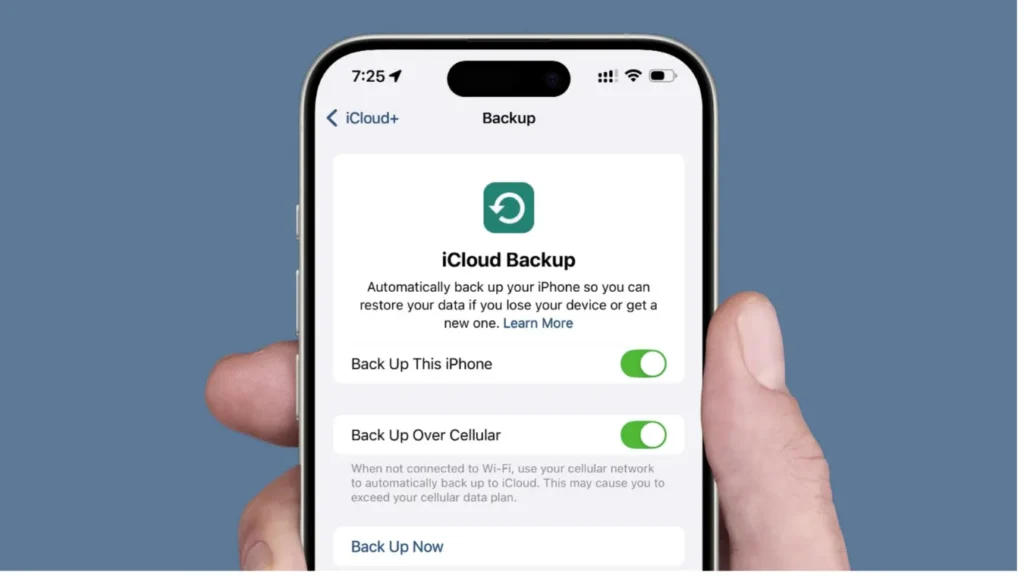
Users can also trigger a manual backup from Settings > [your name] > iCloud > iCloud Backup > Back Up Now.

Each new backup is incremental. Apple keeps the most recent backup per device and updates it rather than storing dozens of versions.

Where the Data Lives and How It Is Protected

iCloud backups are stored on Apple’s servers in encrypted form. Under standard data protection, Apple manages the encryption keys, which allows account recovery and lawful access when required.

With Advanced Data Protection, where available, more iCloud data categories—including iCloud backups—are end-to-end encrypted so that only the owner’s devices hold the keys.

Security is strong, but the exact protection level depends on:

  • Whether Advanced Data Protection is enabled

  • Regional limitations (for example, restrictions in some countries)

  • Strength of the Apple ID password and two-factor authentication


Limits and Risks of Relying Only on iCloud

Storage Quotas and the 5 GB Free Tier

Every Apple ID starts with 5 GB of free iCloud storage.
Backups share this space with iCloud Photos, iCloud Drive, and other services.

On a modern iPhone, 5 GB is usually insufficient. The result:

  • Backups fail or pause due to lack of space.

  • Old backups must be deleted to make room.

  • Some apps may be excluded from backup to reduce size.

The Manage Account Storage view in iOS shows which services and apps use the most iCloud space, sorted from highest to lowest usage.

Retention: How Long Backups Survive

Apple does not keep unused backups indefinitely.
If a user turns off iCloud Backup or stops using it, Apple may delete the last device backup after about 180 days of inactivity.

This means:

  • A device that is powered off and never backs up again can eventually lose its cloud backup.

  • Users who cancel iCloud storage plans but keep data over quota risk interruption and potential data removal after a grace period.

iCloud Backup is therefore a rolling safety net, not an archive.

Gaps: What iCloud Backup Does Not Cover Well

iCloud Backup is not well suited for:

  • Long-term, versioned history (for example, files from years ago)

  • Forensic-level recovery from damaged or partially overwritten storage

  • Situations where the Apple ID password is lost and account cannot be recovered

Once newer backups overwrite older states, deleted items may no longer be present.
If the device was already syncing deletions through iCloud (such as iCloud Photos), those deletions are propagated across devices, not preserved in a backup.

Advanced Strategies: Combining iCloud with Local Backups

Power users and IT staff rarely rely on a single layer of protection.
The typical expert setup combines:

  1. iCloud Backup for convenience and automatic recovery on new devices.

  2. Local encrypted backups made with Finder (macOS) or iTunes (Windows).

  3. Dedicated data recovery tools for worst-case scenarios.

Local Encrypted Backup on Computer

An encrypted local backup:

  • Stores more data than an unencrypted one (including saved passwords and Health data).

  • Can be archived and versioned manually.

  • Lives entirely under the user’s control on a Mac or PC.

Experts often:

  • Create an encrypted backup in Finder or iTunes.

  • Copy that backup folder to an external drive.

  • Label and archive it by date for long-term retention.

This approach complements iCloud Backup, which focuses on the most recent state.

When to Consider Low-Level Tools

In severe corruption cases—such as APFS volume errors, deleted partitions, or overwritten sectors—low-level forensic tools like WinHex allow direct sector analysis and manual carving of data structures.

However, this is a highly technical method:

  • It requires deep knowledge of file systems and hex analysis.

  • Mistakes can cause further damage or permanent data loss.

For general users, a guided data recovery application is safer.

Comparing iCloud, Local Backups, and Recovery Software

MethodStorage LocationMain PurposeStrengthsLimitations
iCloud BackupApple cloud serversEasy device restoreAutomatic, wireless, integratedLimited space, 180-day retention
Finder/iTunes encrypted backupLocal Mac/PCFull local device backupMore data, user-controlled, archivableRequires manual management
Amagicsoft Data Recovery / Magic Data RecoveryLocal Mac/PC (scans devices)Deep data recovery after lossFinds deleted/corrupted files, flexibleNot a live backup; scans after damage

This table shows why multiple layers—cloud, local, and recovery—provide the best resilience.

Adding a Dedicated Recovery Layer with Amagicsoft

Why Data Recovery Still Matters with Cloud Backups

Even with iCloud Backup configured correctly, users may encounter:

  • Backups that are too old or missing

  • Backups that failed due to storage limits

  • Data loss from external drives, USB sticks, or non-Apple systems

In those situations, a specialized recovery tool such as Amagicsoft Data Recovery can scan physical disks or logical volumes for recoverable files, independent of iCloud.

Typical Workflow with Amagicsoft Data Recovery

On a Windows machine, Amagicsoft Data Recovery can:

  • Scan local drives that previously held iOS or macOS data (for example, Time Machine disks, HFS+/APFS volumes mounted through third-party drivers).

  • Recover documents, photos, and videos from removable media that were never part of iCloud.

  • Work alongside exported data from iCloud Drive or iCloud Photos downloads.

The key advantage is that it operates on raw storage, not just on the latest synchronized state.

Download Magic Data Recovery

Supports Windows 7/8/10/11 and Windows Server


Step-by-Step: Check, Clean, and Protect iCloud Backups

This sequence helps keep iCloud backups reliable and storage under control while adding an extra safety layer.

Verify That iCloud Backup Is Working

  1. On the iPhone or iPad, open Settings.

  2. Tap [your name] > iCloud > iCloud Backup.

  3. Confirm that iCloud Backup is turned on.

  4. Check the Last Successful Backup time to ensure it is recent.

(This is an ideal place for a screenshot of the iCloud Backup settings page.)

Reduce Backup Size

  1. In Settings > [your name] > iCloud > Manage Account Storage, review the storage bar and list of apps.

  2. Tap Backups, then select the current device.

  3. Turn off backup for large, noncritical apps (for example, apps that can redownload data from their own cloud).

  4. Wait for iOS to recalculate the next backup size.

Run a Fresh Manual Backup

  1. Return to Settings > [your name] > iCloud > iCloud Backup.

  2. Tap Back Up Now and keep the device on Wi-Fi and power until it finishes.

  3. Confirm that the timestamp for Last Successful Backup updates.

This ensures that a current snapshot is available before any major update or device reset.

Create an Encrypted Local Backup

On macOS:

  1. Connect the device via USB.

  2. In Finder, select the device in the sidebar.

  3. Check Encrypt local backup and set a strong password.

  4. Choose Back Up Now and wait for completion.

On Windows:

  1. Install the latest version of iTunes.

  2. Connect the device and open iTunes.

  3. Select the device icon and, under Backups, choose This computer and enable Encrypt local backup.

  4. Click Back Up Now.

Use Amagicsoft Data Recovery as a Safety Net

On a Windows PC:

  1. Install Amagicsoft Data Recovery.

  2. Launch the program and select the drive or external disk that may contain lost files.

  3. Choose a full scan to locate deleted or damaged data structures.

  4. Preview important files and recover them to a safe destination drive (never back to the original damaged volume).

Amagicsoft Data Recovery fits into the workflow as a last-resort tool when cloud and local backups do not cover the loss.

Conclusion and Best Practices

iCloud Backup is a powerful, integrated safety net for iPhone and iPad users.
It captures most critical data and settings, allowing quick recovery to a new device or after a reset.

However, it has clear technical boundaries:

  • Limited storage and rolling retention

  • Dependence on Apple ID access

  • Exclusion of some synchronized or external data

For robust protection:

  • Keep iCloud Backup enabled and verify it regularly.

  • Maintain encrypted local backups on a computer.

  • Add a professional recovery tool such as Amagicsoft Data Recovery to handle drive failures and complex data loss scenarios.

Download Amagicsoft Data Recovery on a Windows PC to complement your iCloud and local backups, and restore files safely when accidents happen.
Supports Windows 7/8/10/11 and Windows Server.

Download Magic Data Recovery

Supports Windows 7/8/10/11 and Windows Server

FAQ


Is it good to delete iCloud backups?

Deleting old iCloud backups is safe if the device is no longer used or you already have a newer backup. Removing unused backups frees storage for current devices and reduces clutter. Just confirm that you no longer need to restore from that specific backup before deletion.

How do I access my iCloud backup?

You cannot browse an iCloud backup like a file folder. Instead, you access it during device setup by choosing Restore from iCloud Backup and signing in with your Apple ID. On iOS, you can only view backup size and date under Settings > [your name] > iCloud > iCloud Backup.

Does iCloud backup deleted photos?

An iCloud backup captures photos that were present on the device at the time of backup. If photos were deleted before the backup ran, they are not included. If you use iCloud Photos, deletions sync across devices, so once removed from Recently Deleted, they usually cannot be restored from iCloud.

What are the disadvantages of iCloud backup?

Key drawbacks include limited free storage, automatic deletion of unused backups over time, and dependence on Apple’s servers and account access. Backups store only the latest device state, not deep version history. In addition, iCloud cannot directly recover data from failing drives or non-Apple storage.

How do you clean out your iCloud backup?

Go to Settings > [your name] > iCloud > Manage Account Storage > Backups. Select a device, then disable backup for large apps or choose Delete Backup for devices you no longer use. After cleanup, run a fresh backup on your active device to keep protection current.

Why is my iCloud backup so full?

Large backups often come from apps storing media locally, chat histories with many attachments, or local photos when iCloud Photos is off. Over time, these grow and fill the 5 GB or paid tiers. Reviewing app backup settings and deleting backups from unused devices helps reduce the size significantly.

What exactly does iCloud back up?

iCloud Backup saves most on-device data and settings that are not already syncing via separate iCloud services. This includes app data, device configuration, messages in some setups, local photos, and more.  It is designed to rebuild your device environment rather than act as a general file archive.

How long are iCloud backups kept?

As long as a device continues backing up regularly, its latest iCloud backup is typically kept. If you disable iCloud Backup or stop using it, Apple may delete the last backup after around 180 days of inactivity.  Backups can also be removed manually to free storage.
  • WiKi
Eddie

Eddie is an IT specialist with over 10 years of experience working at several well-known companies in the computer industry. He brings deep technical knowledge and practical problem-solving skills to every project.

文章导航

Previous
Next

Search

Categories

  • Bitlocker Recovery
  • Deleted File Recovery
  • Format File Recovery
  • Hard Drive Recovery
  • License Key Recovery
  • Lost File Recovery
  • Memory Card Recovery
  • News
  • Photo Recovery
  • SSD Recovery
  • Uncategorized
  • USB Drive Recovery
  • User Guide
  • Wiki

Recent posts

  • The Pros and Cons of SSDs as External Hard Drives
    The Pros and Cons of SSDs as External Hard Drives
  • How to Use Target Disk Mode and Share Mode on Mac Computers
    How to Use Target Disk Mode and Share Mode on Mac Computers: A Complete Guide
  • Duplicate File Finder
    Duplicate File Finder

Tags

How to Magic Data Recovery Magic Recovery Key WiKi

Related posts

Duplicate File Finder
Wiki

Duplicate File Finder

02.12.2025 Eddie No comments yet

Table of Contents Duplicate Files Are Not Real Backups Many users keep “extra safety” copies of documents by dragging them into new folders or external drives.Over time, these copies multiply and turn into clutter rather than protection. Duplicate files waste storage, slow backups, and make data recovery more confusing.A Duplicate File Finder helps identify redundant copies so […]

Context Switch
Wiki

Context Switch

02.12.2025 Eddie No comments yet

Table of Contents CPU Time as a Shared Resource Modern operating systems juggle dozens or hundreds of active threads.Only a few CPU cores exist, so most threads wait in queues while a small subset runs. A context switch lets the scheduler pause one running thread and resume another.This rapid switching creates the illusion of parallelism […]

Data Acquisition
Wiki

Data Acquisition

02.12.2025 Eddie No comments yet

Table of Contents  Incident Scene: Data at Risk Before Collection When an incident occurs, the first instinct often involves “looking around” the live system.Unplanned clicks, root logins, or file copies can alter timestamps, logs, and unallocated space before anyone records a clean state. Data acquisition solves this problem.It focuses on collecting data in a controlled […]

amagicsoft logo icon

Our vision is to become a globally renowned software brand and service provider, delivering top-tier products and services to our users.

Products
  • Magic Data Recovery
  • Magic Recovery Key
Policy
  • Terms
  • Privacy Policy
  • Refund Policy
  • License Agreement
Company
  • About Amagicsoft
  • Contact US
  • Store
Follow Us

Copyright © 2025 Amagicsoft. All Rights Reserved.

  • Terms
  • Privacy Policy