
華碩資料恢復:如何安全地恢復遺失的檔案

Your ASUS Vivobook’s Documents folder is empty, photos disappeared from a Zenbook, or a ROG laptop asks you to format a drive. ASUS data recovery may still be possible, but missing files are not always permanently deleted. The right recovery method depends on whether the files were moved, deleted, or became inaccessible because of a storage problem.
A moved folder may only require a quick search, while deleted files on an HDD could remain recoverable until new data overwrites them. However, SSD TRIM, formatting, and physical damage can significantly reduce recovery chances. Therefore, identifying the cause before taking action is essential.
Stop writing new data to the affected drive. Avoid formatting, reinstalling Windows, or running repair tools until your important files are safe. This guide explains how to identify the problem, choose the safest recovery method, and verify the results. For additional storage-related guidance, visit our Hard Drive Recovery and Solutions Hub.
目錄
First Steps for Safe ASUS Data Recovery
Before troubleshooting, protect the original data:
- Do not download, install, or save files to the affected partition. New writes can overwrite deleted content.
- Do not format, initialize, reset Windows, or run CHKDSK yet. These actions may change file-system structures.
- Do not start ASUS Cloud Recovery to retrieve personal files. This restores the operating system and erases data on the system storage device.
- Stop DIY scanning if the drive clicks, disconnects repeatedly, or reports severe read errors. A professional may need to handle physical failure.
- Save recovered files to another physical drive. Do not overwrite the original recovery source.
Can ASUS Data Recovery Restore Your Files? Choose Your Situation
你所看到的 | 這可能意味著什麼 | 最安全的下一步 |
Files missing, but Windows works normally | Moved folder, hidden files, another user profile, or synchronization change | Search File Explorer and check the signed-in account |
最近刪除的檔案 | Files may still be in Recycle Bin | 直接從資源回收筒還原 |
Desktop or Documents files disappeared after sync | OneDrive may contain a copy or older version | Check OneDrive and its Recycle Bin |
Files were deleted or replaced earlier | A previous backup may exist | Check File History and external backups |
Recycle Bin emptied or Shift+Delete used | File records were deleted; content may or may not remain | Avoid new writes; try an appropriate recovery tool |
Quick-formatted or RAW partition | File-system references may be damaged or replaced | Recover files before repairing the volume |
Drive clicks or vanishes intermittently | Possible physical damage | Stop DIY attempts and assess professional recovery |
簡短回答: Restore an existing copy first. For deleted files on healthy storage, try a scan. For unstable hardware, stop DIY ASUS data recovery and seek specialist help.
Check Why ASUS Files Disappeared Before Scanning
開始 ASUS data recovery by confirming what disappeared; a changed folder path needs no disk scan.
Missing after an Update or Account Change
Sign: Desktop or Documents looks empty after an update. 檢查: 搜尋 此電腦 in File Explorer for *.docx or another extension. Inspect C:\Users\ for other account folders and check the OneDrive sign-in. 下一頁: Copy located files to safety. If Windows uses a temporary profile, preserve new work before signing out. A moved file does not need scanning.
A Drive Asks to Be Formatted or Shows RAW
Sign: Windows asks to format a partition. 檢查: 開啟 磁碟管理 through Windows + X and note its status without changing anything. A RAW label means Windows cannot read the file system, not necessarily that the content is gone. 下一頁: Recover files before repairs; see our RAW drive recovery guide.
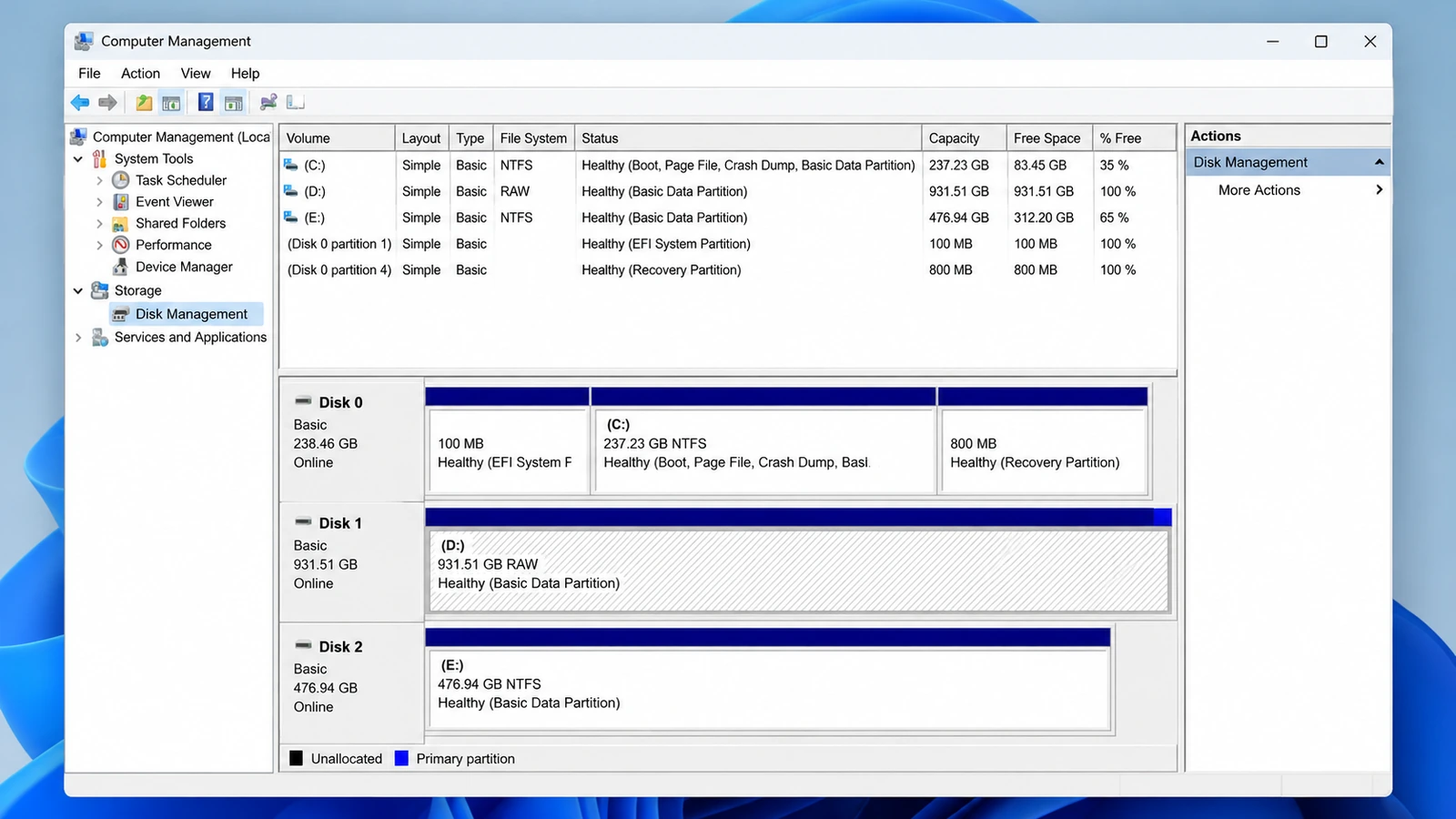
A Disk Disappears or Makes Unusual Sounds
Sign: Clicking, repeated disconnections, or worsening read failures. 下一頁: Stop scans and consult a specialist; software cannot fix physical defects.
Why Deletion, Formatting, and SSD TRIM Matter
On an HDD, deletion often removes a directory reference, leaving data blocks available for reuse. A 快速格式 rebuilds file-system structures but may leave file contents. A Windows 完整格式 or secure erase may destroy that content.
On SSDs, 調整 identifies deleted blocks for discard, sometimes eliminating software-recovery possibilities. For ASUS data recovery, minimize writes and remember: finding a filename does not prove its contents survived.
Try Built-In ASUS Data Recovery Options First
For most ASUS data recovery cases, restoring an existing copy is safer than scanning. Choose the method that fits your situation.
Restore Recently Deleted Files from Recycle Bin
最適合 Files deleted normally from an accessible Windows drive. 限制: Shift+Delete, an emptied bin, and some removable-drive deletions bypass this option.
- 開啟 回收站 在桌面上。.
- Sort or search for the missing files.
- Right-click the correct items and choose 還原.
- Open the original folder to confirm they returned.
預期結果: Files return to their original folder. Otherwise, check cloud storage and backups. See our Windows 11 deleted-file guide for permanent deletion.
Recover Synced Files from OneDrive
最適合 Missing Desktop, Documents, or Pictures files that were previously synced. 限制: The account, synchronization settings, and retention period determine which copies exist.
- 登入至 OneDrive using the correct Microsoft account.
- 開啟 回收站 and look for deleted items.
- 選擇 還原 for the required files.
- If a file still exists but its contents changed, inspect 版本歷史.
預期結果: A cloud copy or earlier version opens. If absent, check independent backups; sync alone is not a backup.
Restore an Earlier Copy from File History or Backup
最適合 An ASUS laptop whose backups were configured before the loss. 限制: File History cannot create historical copies retroactively.
- Connect the original backup drive, if applicable.
- 開啟 「控制台」>「系統和安全性」>「檔案歷史紀錄」.
- 選擇 還原個人檔案.
- Choose a saved version and restore it, preferably without replacing the current copy.
Alternatively, check 屬性 > 先前版本 for the original folder or 備份與還原 (Windows 7) for older backups. ASUS documents File History in its official instructions.
預期結果: The selected version opens and contains the missing information. If no backup exists, software scanning may be the next option.
ASUS Data Recovery After Permanent Deletion
When backups are absent after Shift+Delete or a quick format, ASUS data recovery may require scanning a stable, readable drive. Neither option below restores overwritten or TRIM-discarded blocks.
Option A: Windows File Recovery (Free, Command Line)
最適合 Advanced users who prefer free ASUS data recovery 工具。. 限制: No graphical preview; installing it onto an affected C: drive risks overwriting data.
If Windows File Recovery is already available, connect a separate destination drive such as E: 並輸入:
winfr C: E: /regular /n\Users\YourName\Documents\
更換 您的姓名 with your profile folder. 微軟建議 Regular mode for recent NTFS deletion and Extensive mode for older deletion, formatting, and non-NTFS file systems.
預期結果: Candidates appear on the destination drive; open them to verify. If command-line use is unsuitable, try a graphical tool.
Option B: Magic Data Recovery for Missing ASUS Files
最適合 Permanently deleted documents, photos, or videos, and some formatted or logically damaged partitions on storage that Windows can read reliably. 限制: It cannot repair physical defects, bypass encryption, restore overwritten bytes, or undo completed SSD TRIM.
Magic Data Recovery searches accessible storage for remaining file records and recognizable content. Unlike Recycle Bin, File History, and OneDrive, it does not depend on an existing copy. Its interface displays candidates and previews supported files before recovery.
適用於 ASUS data recovery without backups, this is useful only if storage is stable. A quick-formatted HDD may retain files; an erased SSD may not. See our formatted-drive recovery guide.
How to Use Magic Data Recovery on an ASUS Laptop
步驟 1:下載並安裝 Magic Data Recovery
Install on a different partition, preferably another physical disk. Installing on the affected volume may overwrite recoverable blocks.
支援 Windows 7/8/10/11 和 Windows Server
Step 2: Select the ASUS Drive or Partition to Scan
Open the application, identify the original ASUS drive by capacity and label, and start the scan.

Step 3: Scan for Lost or Deleted ASUS Files
Let the scan search for documents, photos, and folders without writing to the source drive.

步驟 4:復原前預覽檔案
Preview supported documents and images where possible; filenames do not prove file integrity.

步驟 5:將檔案復原至安全位置
Save selected files to another physical drive, then open the copies to verify them.

Verify ASUS Data Recovery Results Before Repairing Anything
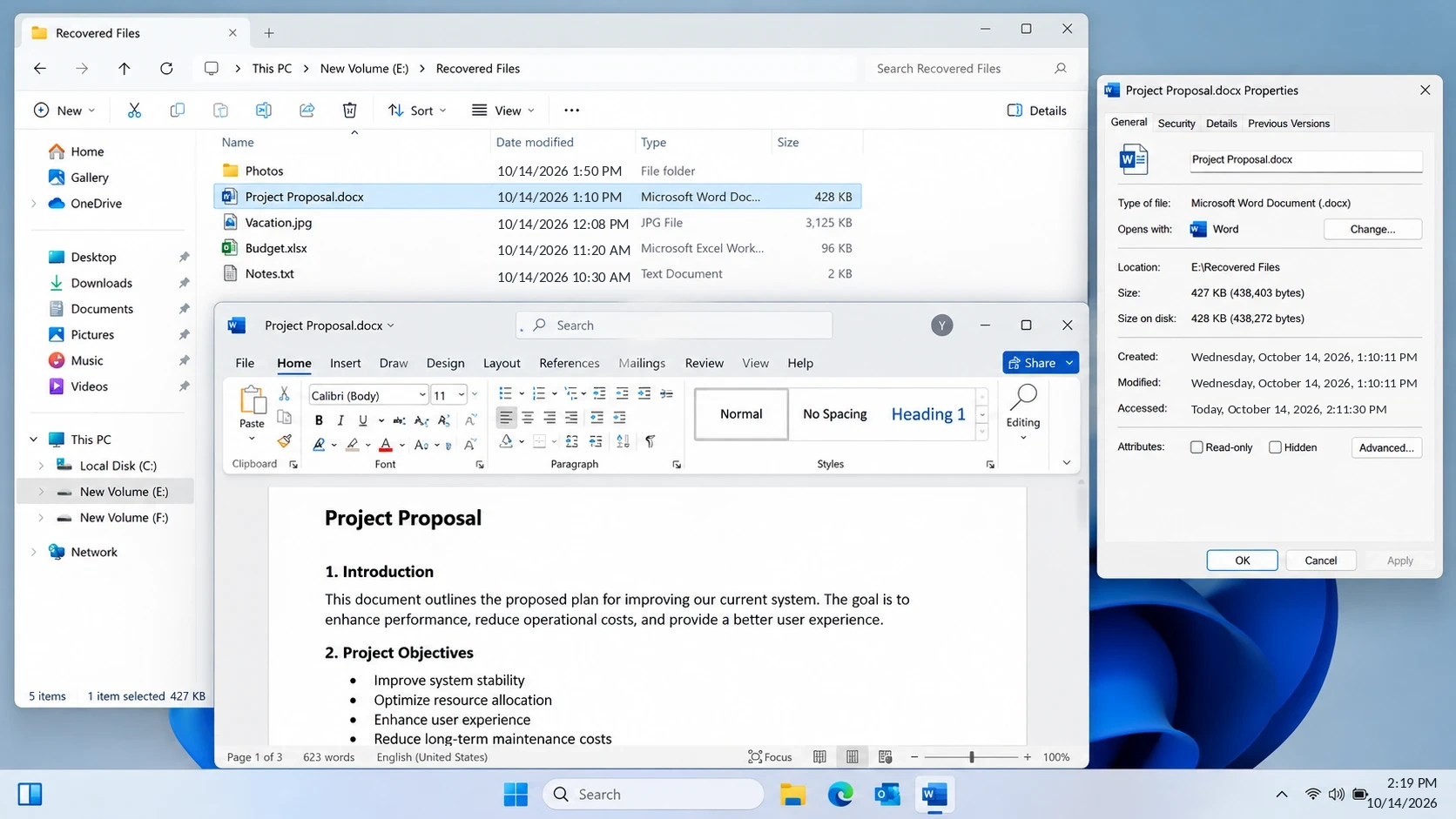
A scan result is not proof of successful ASUS data recovery. Before reusing the source:
- Open several restored files in the applications that created them.
- Check file sizes and contents. A zero-byte document or a photo that will not open needs further investigation.
- Check folder structure and versions. Make sure you recovered the correct project, not just an older namesake.
- Back up verified copies. Store important recovered data in more than one location.
Only then consider file-system repair, reformatting, or Windows reinstallation.
Do Not Confuse ASUS Cloud Recovery with File Recovery
ASUS Cloud Recovery 和 ASUS Recovery in WinRE restore Windows, not deleted personal files. ASUS warns that Cloud Recovery erases data on the system storage device, including its partitions.
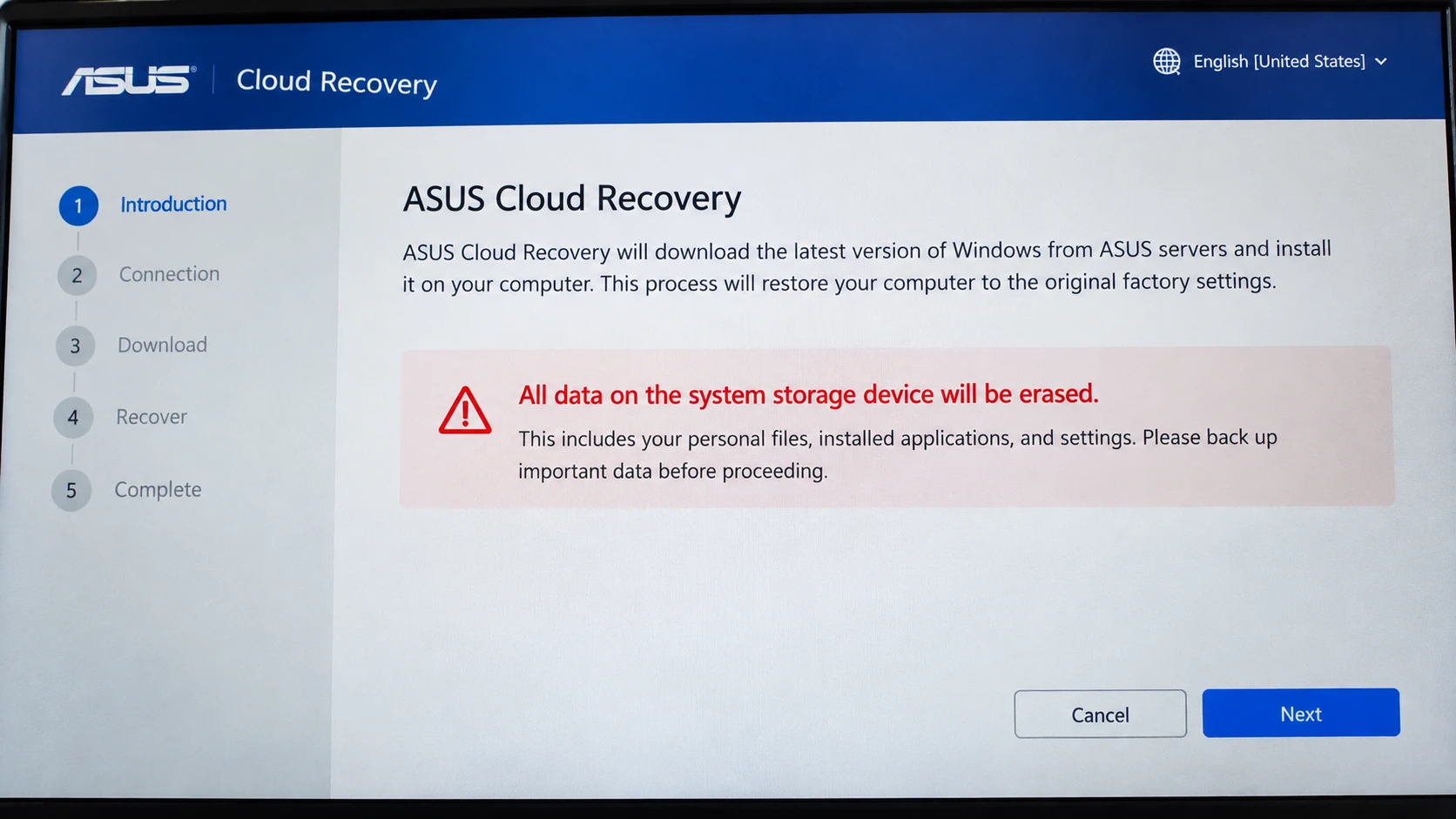
If Windows cannot boot, prioritize files. A healthy drive might be accessible on another computer, but BitLocker requires the correct key. For unstable storage, seek qualified help. Never use a factory reset as an ASUS data recovery shortcut.
何時該停止自行復原
別再自己動手做了 ASUS data recovery if a drive clicks, repeatedly disconnects, has worsening read errors, or suffered liquid or impact damage. Seek specialist help when the only copy is irreplaceable.
Repeated scans cannot repair failing hardware. Formatting, initializing, or running CHKDSK before securing files may complicate logical recovery. The correct order: recover, verify, then repair or reuse.
Prevent Future File Loss on ASUS Computers
Reliable backups make future ASUS data recovery emergencies less likely. Once files are safe, reduce dependence on a single SSD or HDD:
- Use independent backups. Keep an external copy of important files in addition to any cloud-synced folder. A 3-2-1 backup approach is a useful target.
- Enable version history where available. File History, OneDrive version history, and application-level recovery features help with different loss scenarios.
- 請定期測試還原功能。. Verify that a sample photo, document, and project folder open from the backup.
- 妥善保存加密金鑰。. Store BitLocker recovery information securely and separately from the laptop.
- Back up before major changes. Do this before an ASUS factory recovery, Windows reinstall, partition operation, or drive replacement.
Autosave is not a permanent independent backup.
總結
最安全的 ASUS data recovery path depends on the cause. For moved or synced files, find the existing copy. For deletion, check Recycle Bin and backups. If readable storage has no copy, try a scan; if hardware is failing, stop and consult a specialist.
Avoid factory reset, formatting, and CHKDSK before securing data. Verify recovered files and save them away from the source.
當內建方法失敗時、, Magic Data Recovery offers scanning and preview for readable ASUS drives. For related solutions, visit the Hard Drive Recovery Hub.
支援 Windows 7/8/10/11 和 Windows Server
常見問題
刪除資料後,華碩資料恢復功能還能運作多久?
在進行完整格式化或恢復出廠設定後,還能恢復 ASUS 的檔案嗎?
有沒有免費的華碩資料恢復方法?
如果我的華碩筆記型電腦無法開機,還能恢復資料嗎?
為什麼在華碩 SSD 上恢復已刪除的檔案這麼困難?
資料恢復軟體能在華碩電腦上找到未儲存的 Word 檔案嗎?
Will scanning an ASUS drive erase data, and where should I save recovered files?

Vasilii 是一位在該領域擁有約 10 年實務經驗的資料復原專家。在他的職業生涯中,他已成功解決數千個複雜的個案,包括刪除的檔案、格式化的硬碟機、遺失的磁碟分割和 RAW 檔案系統。他的專業知識涵蓋使用十六進位編輯器等專業工具的手動復原方法,以及使用復原軟體的進階自動解決方案。Vasilii 的使命是讓 IT 專業人士和一般使用者都能獲得可靠的資料復原知識,協助他們保護寶貴的數位資產。.