MiniTool Partition Recovery Not Working?

Losing a partition can be stressful. Your drive may suddenly show 未分配空間, a missing drive letter, a RAW volume, or an inaccessible partition. Therefore, many users search for MiniTool Partition Recovery to restore the partition and protect important files.
然而、, 磁碟分割復原 does not always follow one path. Sometimes you need to rebuild the partition structure. In other cases, you need to recover files from a deleted, formatted, RAW, or corrupted partition before you try any repair. This guide explains how MiniTool Partition Recovery works, where it may fall short, and why Magic Data Recovery can serve as a practical alternative.
支援 Windows 7/8/10/11 和 Windows Server
目錄
What Is MiniTool Partition Recovery?
MiniTool Partition Recovery is a feature in MiniTool Partition Wizard that helps users search for lost or 刪除的磁碟分割. A partition is a disk section that Windows shows as a separate drive, such as C, D, or E.
When a partition disappears, the files may still remain on the disk. However, Windows may lose the information that tells it where the volume starts, ends, and stores data. This is where 磁碟分割復原軟體 helps. It scans for old partition records, while 資料復原軟體 focuses on individual files.
When Do You Need MiniTool Partition Recovery?
You may need this recovery feature when a partition disappears but the storage device still works. For example, you may delete a D drive by mistake, lose a partition after a Windows update, or face damage after power failure, malware, or interrupted disk resizing.
In addition, Windows may show the affected area as unallocated space or ask you to format it. Do not format the drive. Instead, stop using it and scan it first. In many cases, 遺失的磁碟分割復原 works better when you act quickly.
Before Using Partition Recovery Software
Before you use any 磁碟分割復原軟體, take a few protective steps. First, stop writing data to the affected drive. New files can replace the partition information or file content that you want to recover.
Next, install recovery software on a healthy drive and save recovered files to another disk. Moreover, avoid running several repair tools in a row. Some repair actions change disk structure. Therefore, if your goal is file recovery, a scan-first workflow often gives you a safer starting point.
How MiniTool Partition Recovery Works
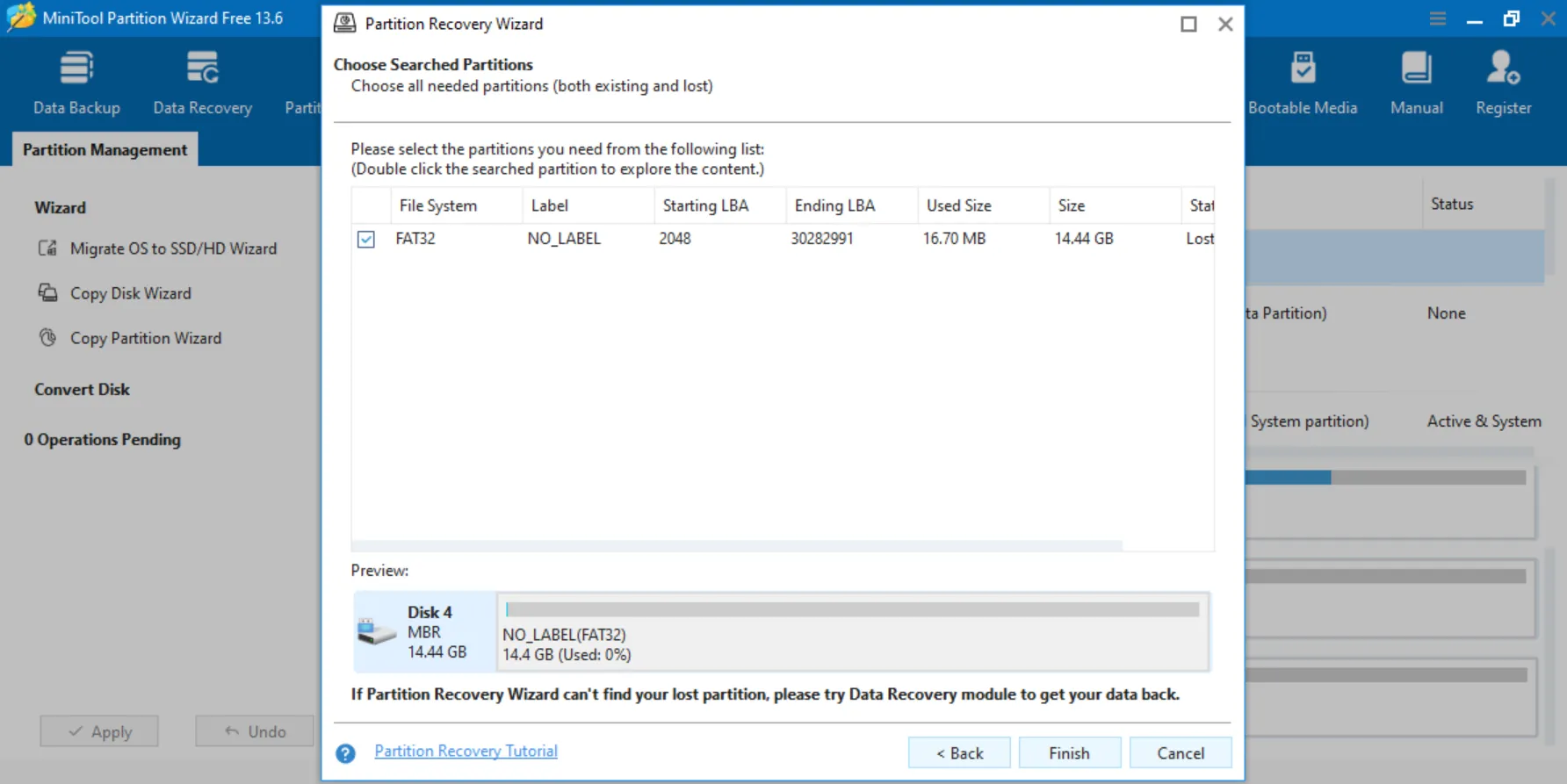
This tool usually works through a guided scan. You select the disk, choose a scan range, run a scan, review the found partitions, and apply the recovery result.
Scan Range Options
The tool may scan the whole disk, unallocated space, or a selected range. If you feel unsure, a full disk scan gives broader coverage.
Quick Scan and Full Scan
A quick scan works best when the partition was recently deleted. In contrast, a full scan takes longer but searches more deeply. Therefore, try a full scan if the quick scan misses the lost partition.

How to Recover a Lost Partition with This Tool
至 復原遺失的磁碟分割 structure, launch MiniTool Partition Wizard from a safe drive, choose the affected disk, and select a scan range. Then, start with a quick scan or use a full scan if the missing volume does not appear. Finally, review the partition size and file system before applying any change.
Limits of MiniTool Partition Recovery
MiniTool Partition Recovery can help in many deleted partition recovery cases, but it cannot solve every data loss problem.
First, it works best when the 分割表 remains recoverable. If formatting, severe corruption, or overwriting has damaged the original structure, the tool may not restore the partition correctly.
Second, partition recovery does not always mean file recovery. A restored partition may still contain damaged, missing, or inaccessible files. Therefore, if your main goal is to retrieve documents, photos, videos, or work files, you may need file-level recovery.
Finally, some users expect a free solution. However, partition recovery features may depend on the product version. For that reason, you should check the official edition details before you rely on the tool.
MiniTool Partition Recovery vs Magic Data Recovery
The right choice depends on your recovery goal. MiniTool Partition Recovery aims to restore a lost partition structure. Magic Data Recovery focuses on finding and recovering files from lost, deleted, formatted, RAW, or corrupted partitions.
Need | MiniTool Partition Recovery | Magic Data Recovery |
Restore a missing partition layout | Suitable | 並非重點 |
Recover files from a lost partition | 受個案限制 | Strong fit |
Handle 已格式化分割區的復原 | May not be ideal | Useful |
Handle RAW 磁碟分割復原 | May not be ideal | Useful |
Preview files before saving | Depends on case | 支援 |
Help non-technical users | 中度 | 適合初學者 |
Therefore, if you want the partition itself back, the MiniTool feature may fit. However, if you mainly need the files inside the partition, Magic Data Recovery often gives you a more direct route.
Why Magic Data Recovery Is a Reliable Alternative
Magic Data Recovery works well as a MiniTool Partition Recovery alternative because it focuses on the user’s real pain point: getting files back. Many users do not need to rebuild a partition table. Instead, they need photos, documents, videos, or business data from a partition that no longer opens.
In addition, Magic Data Recovery supports accidental deletion, lost partition data, 已格式化分割區的復原, RAW 磁碟分割復原, and corrupted partition recovery. It also lets users preview recoverable files before saving them. As a result, you can check whether the scan found the right files first.
Moreover, the workflow feels easier for ordinary users. You choose a location, scan it, preview the results, and recover files to a safe place. Therefore, when the partition condition looks uncertain, file-level recovery can offer a safer first step.
How to Use Magic Data Recovery for 遺失的磁碟分割復原
如果 MiniTool Partition Recovery cannot locate the missing partition, or if you need files from a formatted, RAW, corrupted, or inaccessible partition, Magic Data Recovery gives you a simple scan-preview-recover process.
步驟 1:下載並安裝 Magic Data Recovery
Download Magic Data Recovery and install it on a drive that has no data loss problem. This helps prevent accidental overwriting and keeps lost files safer during the scan.
支援 Windows 7/8/10/11 和 Windows Server
Step 2: Select the Lost Partition to Scan
Launch the program. Then, from the main interface, choose the lost, formatted, RAW, or inaccessible partition where your files disappeared. After that, start the scan.

步驟 3:掃瞄 Partition 用於可復原檔案
Magic Data Recovery runs an advanced scan automatically. Meanwhile, it lists recoverable files as the scan continues, so you can review results while the software searches deeper.

步驟 4:復原前預覽檔案
Next, use the preview function to check file content, names, sizes, and formats. This step helps you recover only the files you actually need.

步驟 5: 恢復 將檔案移至安全位置
Finally, select the target files and save them to a different drive or storage device. Never restore data to the same affected partition, because doing so may overwrite lost files or cause corruption.

Common Mistakes in Lost Partition Recovery
Small mistakes can reduce the success rate of 遺失的磁碟分割復原. Therefore, you should avoid risky actions before scanning.
First, do not format the partition when Windows asks for it. Formatting may make recovery harder. Next, do not create a new volume on unallocated space, because that action may replace old partition records.
Also, do not save recovered files to the same partition. Always choose another drive. Finally, use preview when possible. Preview helps you confirm file quality before recovery.
Conclusion: Choose the Right Recovery Solution
MiniTool Partition Recovery can help when you need to restore a lost or deleted partition structure. It works best when the partition disappeared recently and the original disk information still exists. However, it may not solve every problem, especially when the partition became formatted, RAW, corrupted, or partially overwritten.
Therefore, choose your recovery method based on your goal. If you want to rebuild the partition layout, the MiniTool feature may help. If you mainly need to recover files, Magic Data Recovery offers a clearer path because it scans, previews, and saves selected data to another place.
For users who want a practical MiniTool Partition Recovery alternative, Magic Data Recovery is reliable because it focuses on real file recovery needs without forcing users to change disk structure first.
支援 Windows 7/8/10/11 和 Windows Server
常見問題
Is MiniTool Partition Recovery free?
This MiniTool feature may appear in MiniTool Partition Wizard, but available functions can vary by edition. Therefore, you should check the official product page before you start. If the recovery option requires payment, compare that cost with your goal: restoring a partition or recovering files.
Can MiniTool Partition Recovery recover deleted files?
This partition tool mainly helps restore lost or deleted partition structure. However, deleted files need a different recovery approach. If you want documents, photos, videos, or folders back, file-level data recovery software such as Magic Data Recovery may offer a more suitable scan and preview workflow.
What is the difference between partition recovery and data recovery?
Partition recovery tries to rebuild the missing partition layout, including where the volume starts and ends. In contrast, data recovery searches for individual files on the drive. Therefore, a partition tool may help when the partition record remains intact, while Magic Data Recovery may help when files matter more.
我可以從格式化的磁碟分割復原檔案嗎?
Yes, recovery may work if new data has not overwritten the old files. However, you should stop using the formatted partition immediately. For formatted partition recovery, Magic Data Recovery can scan the partition, list recoverable files, and let you preview them before saving selected files to another location.
What if MiniTool Partition Recovery cannot find my partition?
If the partition tool cannot find the missing partition, stop changing the disk. Next, try a file-focused recovery scan. Magic Data Recovery can search the affected drive for recoverable files even when the partition structure does not return. This approach helps you protect important data first.
Is Magic Data Recovery a good MiniTool Partition Recovery alternative?
Yes, Magic Data Recovery can serve as a strong MiniTool Partition Recovery alternative when your priority is file recovery. It helps with deleted, formatted, RAW, corrupted, and inaccessible partitions. Moreover, it lets you preview recoverable files before saving them, which makes the recovery process clearer for non-technical users.
How can I improve my lost partition recovery success rate?
Stop using the affected drive as soon as you notice the problem. Then, avoid formatting, creating new partitions, or saving new files to that disk. In addition, install recovery software on another drive and save recovered files elsewhere. These habits improve lost partition recovery safety and reduce overwrite risk.
Vasilii 是一位在該領域擁有約 10 年實務經驗的資料復原專家。在他的職業生涯中,他已成功解決數千個複雜的個案,包括刪除的檔案、格式化的硬碟機、遺失的磁碟分割和 RAW 檔案系統。他的專業知識涵蓋使用十六進位編輯器等專業工具的手動復原方法,以及使用復原軟體的進階自動解決方案。Vasilii 的使命是讓 IT 專業人士和一般使用者都能獲得可靠的資料復原知識,協助他們保護寶貴的數位資產。.