Recover Files from Temp Folder: 6 Safe Ways

Recover Files from Temp Folder 6 Safe Ways

If an app crashed, Windows restarted, or a cleanup tool removed temporary data, you may need to recover files from temp folder before the remaining copies disappear. First identify what was actually lost: an unsaved document, an existing .tmp file, a deleted temp file, or the original saved file. This guide separates those cases and shows the safest method for each one. For broader document-loss scenarios, see Amagicsoft’s document recovery guide. If the temporary file itself was deleted and built-in options fail, Magic Data Recovery may help scan the original drive for recoverable data.

Temporary files are not permanent backups. Windows, apps, and Storage Sense may remove them, so avoid cleanup utilities until recovery is complete.

支援 Windows 7/8/10/11 和 Windows Server

目錄

Can You Recover Files from Temp Folder?

Yes, sometimes. However, the correct method depends on the file’s state.

If the temp file still exists, inspect %temp%. If an app crashed, check AutoRecover. For normal deletion, start with Recycle Bin. If the file was permanently removed, try backups or disk-level recovery. If the original saved file—not a temp copy—was deleted, recover that original file instead.

This distinction matters when you recover files from temp folder. Temp files, AutoRecover files, and backups can all preserve data, but they are not the same thing.

Before You Recover Temp Files

在您 recover files from temp folder, reduce overwrite risk:

  • Stop downloading, installing, or copying files to the affected drive.
  • Do not run cleanup tools.
  • 請勿在受影響的磁碟分割上安裝復原軟體。.
  • 將已復原的檔案儲存到另一個磁碟機。.
  • If the drive clicks, disconnects, or is not detected correctly, stop software recovery.

Microsoft also recommends minimizing computer use after deletion because Windows can reuse deleted-file space.

Method 1: Recover Files from Temp Folder Manually

最快的方式 recover files from temp folder is to see whether the temporary copy still exists.

  1. 新聞 贏 + R.
  2. 類型 %temp% 並按下 輸入.
  3. Switch File Explorer to 詳細資訊 觀看。.
  4. 排序方式 修改日期.
  5. Check files created around the time of the loss.
  6. Copy likely files elsewhere before opening or renaming them.

The user Temp folder is commonly C:\Users\<YourUserName>\AppData\Local\Temp. You can also inspect C:\Windows\Temp, although many files there are system or installer data.

Some guides recommend renaming .tmp files directly to .docx.xlsx. Instead, copy the file first and rename only the copy. Changing an extension does not change the file’s internal format. For Word cases, see our Word 暫存檔恢復指南.

Method 2: Check AutoRecover or Crash Recovery

If Word, Excel, PowerPoint, or another app crashed, do not assume %temp% is the only location. To recover files from temp folder safely, check the application’s own recovery feature first.

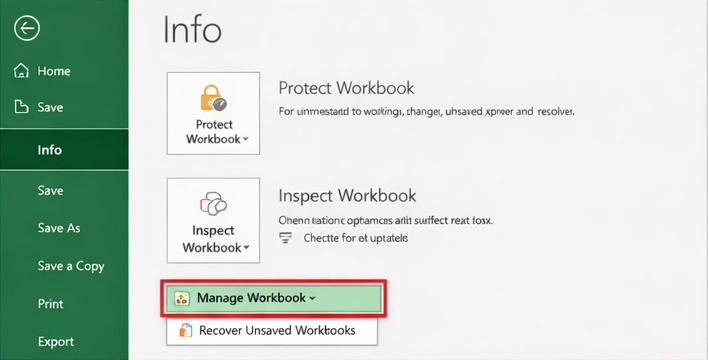
Microsoft Office may show Document Recovery after an unexpected close. You can also use File > Info > Manage Document/Workbook > Recover Unsaved Documents/Workbooks.

AutoRecover can live outside the standard Temp folder, so %temp% alone may miss it. For Excel, see 何處可找到 Excel 復原檔案. For Notepad++, use the unsaved file recovery guide. AutoRecover is not a permanent backup, so save files regularly.

recover unsaved files from Workbook

Method 3: Check Recycle Bin

If you manually deleted a temp file in File Explorer, Recycle Bin should be your next stop.

  1. 開啟 回收站.
  2. 排序方式 刪除日期.
  3. Search by filename, extension, or original location.
  4. Right-click the needed file and choose 還原.

此方法可以 recover files from temp folder after normal deletion. However, Shift+Delete, cleanup tools, and application cleanup may bypass a usable Recycle Bin copy.

If the file is no longer there, see our guide to recover files from an emptied Recycle Bin.

Method 4: Recover Files from Temp Folder with Previous Versions

If File History or another backup was enabled before the loss, use it before disk scanning.

  1. Open File Explorer and go to the folder that contained the file.
  2. 用滑鼠右鍵按一下資料夾,然後選擇 還原先前版本.
  3. Open a suitable version to check its contents.
  4. Restore it, preferably to another location first.

Microsoft notes that Previous Versions can restore earlier copies available through File History, although restoring directly can replace the current version. This method restores a retained copy rather than reconstructing deleted Temp data. For overwritten files, see our overwritten file recovery guide.

Method 5: Recover Files from Temp Folder with Windows File Recovery

If the Temp file is permanently deleted and no backup exists, Microsoft’s command-line Windows File Recovery can recover deleted files from local storage that are no longer in Recycle Bin. It does not support cloud storage or network shares.

此方法可以 recover files from temp folder after permanent deletion. Always recover to a different drive.

方法 6:使用 Magic Data Recovery 還原已刪除的暫存檔

If the Temp file is permanently deleted and no usable Recycle Bin, backup, or AutoRecover copy remains, Magic Data Recovery is a practical next step.

Unlike AutoRecover, File History, or Recycle Bin, Magic Data Recovery does not require a retained backup copy. It scans the selected storage device for recoverable data after deletion, formatting, or certain file-system-related loss. That makes it useful when you need to recover files from temp folder but the needed file is gone, or when the original saved file was deleted.

However, overwritten data may be unrecoverable. SSD TRIM can reduce recovery chances, and software cannot repair physical drive damage.

如果內建的恢復選項不再有效,請在新的資料覆寫已刪除檔案之前,嘗試使用 Magic Data Recovery。.

如何使用 Magic Data Recovery 來 Recover Files from Temp Folder

步驟 1:下載並安裝 Magic Data Recovery

Install Magic Data Recovery on a drive or partition different from the one that contained the missing file. If the loss occurred on C:, avoid installing the software to C: when another location is available.

支援 Windows 7/8/10/11 和 Windows Server

步驟 2: 選擇 the Drive Where the Temp File Was Stored

Launch the software and select the drive that contained the Temp folder or original file. For the standard Windows user Temp directory, this is usually the system drive.

Using Magic Data Recovery to recover files from temp folders

步驟 3:掃瞄 迷失 or Deleted Temp Files

Start the scan and filter by file type, path, size, and date. The needed file may appear under its original format rather than .tmp.

等待掃描

步驟 4: 恢復 將檔案移至安全位置

Recover selected files to another drive or safe location. Do not save them back to the same Temp folder or affected partition, because that can overwrite other recoverable data.

檔案復原

Why Temp Folder Recovery Can Fail

You may not always recover files from temp folder successfully. Common reasons include:

  • The app never wrote a useful temp copy.
  • The app removed recovery data after a normal close or “Don’t Save” action.
  • Storage Sense or a cleaner removed the file.
  • New data overwrote it, or SSD TRIM cleared deleted blocks.
  • The problem is corruption, not deletion. For Office files, try 開啟與維修 第一。.

Prevent Future Temp File Loss

在您 recover files from temp folder, save important work outside Temp. Enable AutoRecover where available, use File History or cloud version history, keep regular backups, and review cleanup settings before removing temporary files. Temp storage is disposable, so it should never be the only location for important work.

總結

最安全的方式是 recover files from temp folder is to start with the least invasive option. Search %temp%, check AutoRecover, inspect Recycle Bin, and use File History or Previous Versions when available.

If the Temp file or original file was permanently deleted and built-in methods fail, Magic Data Recovery can scan the affected drive for remaining recoverable data. For broader deletion scenarios, see our 已刪除檔案復原指南. Stop writing new data to the affected drive, and remember that overwriting, SSD TRIM, and physical damage can limit recovery.

支援 Windows 7/8/10/11 和 Windows Server

常見問題

How do I recover files from Temp folder in Windows 11?

To recover files from temp folder in Windows 11, press Win + R, enter %temp%, and sort by Date modified. Copy likely files elsewhere before testing them. If nothing useful remains, check the app’s AutoRecover feature, Recycle Bin, File History, or Windows File Recovery. For permanently deleted files, disk-level recovery software may be the next option.

Can I recover deleted temp files after emptying Recycle Bin?

Yes, but only if recoverable data still remains on the storage device or another backup copy exists. First check File History, Previous Versions, cloud version history, and application recovery folders. If those fail, stop using the affected drive and scan it with recovery software. SSD TRIM or later overwriting can make permanently deleted temp files unrecoverable.

Are Temp files the same as AutoRecover files?

No. Temp files are general temporary working data created by Windows and applications, while AutoRecover files are specifically created by supported apps to restore recent work after an interruption. They may use different folders and extensions. Therefore, searching %temp% alone can miss an AutoRecover copy stored in an application-specific recovery location.

Can I rename a .tmp file to .docx or .xlsx to restore it?

Sometimes, but changing the extension does not convert the file’s internal format. A .tmp file may contain Office data, but it may also contain unrelated cache or program information. Copy the temp file first, rename only the copy, and test it with the appropriate application. Check AutoRecover before relying on extension changes.

Why did my files disappear from the Temp folder?

Applications often remove temporary files after closing normally, while Windows cleanup features or third-party utilities can delete unnecessary temp data. In addition, some crash-recovery files disappear after you choose not to save recovered work. Therefore, a missing Temp file does not automatically mean the original document was deleted; check the app’s recovery folders, backups, and original location too.

Can recovery software restore an unsaved file that never existed on disk?

Not necessarily. Recovery software works best when the missing content was written to storage at some point, such as a deleted original file, temporary copy, backup fragment, or AutoRecover file. If an application kept unsaved content only in memory and never wrote it to disk, disk-level recovery software may have nothing to find after the program closes.

How can I prevent losing important files stored in Temp again?

Do not use the Temp folder as permanent storage. Save important files to Documents, a project folder, or backed-up cloud storage as soon as possible. Enable AutoRecover in supported applications, configure File History or another backup method, and review Storage Sense or cleanup settings before deleting temporary files. Versioned backups provide stronger protection than temporary recovery copies.

Vasilii 是一位在該領域擁有約 10 年實務經驗的資料復原專家。在他的職業生涯中,他已成功解決數千個複雜的個案,包括刪除的檔案、格式化的硬碟機、遺失的磁碟分割和 RAW 檔案系統。他的專業知識涵蓋使用十六進位編輯器等專業工具的手動復原方法,以及使用復原軟體的進階自動解決方案。Vasilii 的使命是讓 IT 專業人士和一般使用者都能獲得可靠的資料復原知識,協助他們保護寶貴的數位資產。.