
Comment supprimer le chiffrement BitLocker et récupérer les données

Si vous avez besoin de savoir Comment désactiver le chiffrement BitLocker Sans perdre de données, commencez par vérifier si Windows peut déverrouiller votre disque. Si le volume est en bon état et accessible, vous pouvez désactiver BitLocker via le Panneau de configuration, l'Invite de commandes ou PowerShell. En revanche, si la clé de récupération est manquante, si le système de fichiers est endommagé ou si le disque est défaillant, une approche différente s'impose.
Ce guide explique comment désactiver BitLocker en toute sécurité sous Windows 10 et 11, retrouver les clés de récupération manquantes et protéger vos fichiers importants avant de tenter toute réparation. Pour accéder à d'autres ressources de dépannage, consultez notre Centre de récupération BitLocker.
Table des matières
Réponse rapide : Comment désactiver le chiffrement BitLocker
Le moyen le plus sûr de désactiver le chiffrement BitLocker consiste à déverrouiller le disque dur et à laisser Windows le déchiffrer.
- Lecteur déverrouillé : Sélectionner Désactiver BitLocker dans le Panneau de configuration.
- Windows Home avec chiffrement des périphériques : Désactivez le chiffrement de l'appareil dans les Paramètres.
- Utilisateurs de la ligne de commande : Exécuter
manage-bde -off C :en tant qu'administrateur. - Disque verrouillé : Commencez par retrouver le mot de passe correct ou la clé de récupération à 48 chiffres.
- Disque dur endommagé ou défaillant : Protégez les données récupérables avant de tenter toute réparation.
Ne formatez pas, n'initialisez pas et ne repartitionnez pas un disque protégé par BitLocker tant qu'il contient encore des fichiers importants. Ces opérations ne permettent pas de déchiffrer les données existantes en toute sécurité.
Évaluez votre situation concernant BitLocker avant d'agir
Tous les problèmes liés à BitLocker ne nécessitent pas l'utilisation d'un outil de désactivation. Commencez par déterminer si le disque est verrouillé, endommagé ou simplement chiffré.
État de la route | Mesure recommandée | Résultat attendu |
Le déverrouillage s'effectue normalement, les fichiers sont visibles | Sauvegardez vos fichiers, puis désactivez BitLocker | Volume déchiffré |
Chiffrement des périphériques Windows Home activé | Désactiver le chiffrement de l'appareil | Disque système déchiffré |
Mot de passe oublié, clé de récupération disponible | Déverrouiller à l'aide de la clé de récupération | Accès rétabli |
Clé de récupération manquante | Rechercher les clés enregistrées et les fiches d'organisation | Récupération éventuelle des identifiants |
Le verrouillage est levé, mais il manque des fichiers | Effectuez une analyse à l'aide d'un logiciel de récupération adapté | Récupération potentielle de fichiers |
Au format RAW ou corrompu, clé valide disponible | Protégez vos données ; envisagez de faire appel à des services spécialisés en récupération de données | Dépend des dommages |
Le disque dur se déconnecte ou présente des défauts matériels | Mettre fin aux opérations menées de manière autonome | Évaluation professionnelle |
Par exemple, un disque dur externe qui demande un mot de passe n'est pas forcément endommagé. En revanche, un disque qui se déconnecte sans cesse peut présenter des problèmes matériels, même si la clé de récupération correcte existe.
La règle est simple : déverrouillez d'abord le disque, récupérez les fichiers importants si nécessaire, et ne le déchiffrez que lorsque le disque est en assez bon état.
Que se passe-t-il lorsque l'on désactive le chiffrement BitLocker ?
BitLocker protège les données grâce à un chiffrement au niveau du volume. Les installations Windows récentes utilisent généralement le chiffrement XTS-AES, tandis que le module TPM (Trusted Platform Module) peut contribuer à protéger les clés utilisées lors du démarrage.
Comprendre la différence entre les quatre opérations permet d'éviter les erreurs courantes :
Fonctionnement | Qu'en est-il du chiffrement ? |
Désactiver BitLocker | Windows déchiffre le volume |
Suspendre la protection | Les données restent chiffrées ; la protection par clé est temporairement suspendue |
Déverrouiller le disque dur | Vous y avez accès, mais le chiffrement est toujours en place |
Formater le lecteur | La structure actuelle des volumes est remplacée, ce qui comporte un risque de perte de données |
Par exemple, la désactivation de la protection avant certaines mises à jour du micrologiciel n'entraîne pas désactiver le chiffrement BitLocker. À la place, Windows modifie temporairement la manière dont il protège l'accès aux clés de chiffrement.
Microsoft explique ces différences dans son Guide d'utilisation de BitLocker.
Si vous souhaitez comprendre le fonctionnement de la protection basée sur la technologie TPM, consultez notre Guide sur BitLocker et le TPM.
Avant de désactiver BitLocker : vérifications de sécurité indispensables
Avant de lancer le déchiffrement, veillez à respecter les précautions suivantes :
- Sauvegardez vos fichiers importants. Enregistrez-les sur un autre disque dur ou dans un espace de stockage cloud sécurisé.
- Vérifiez votre clé de récupération. Conservez-en une copie séparée au cas où Windows vous la demanderait ultérieurement.
- Vérifier l'état du disque. Des erreurs d'E/S répétées, des déconnexions ou des bruits anormaux provenant du disque dur nécessitent une vérification.
- Utilisez une alimentation électrique fiable. Branchez votre ordinateur portable à son chargeur.
- Vérifiez le disque de destination. Vérifiez sa lettre et sa capacité avant d'exécuter des commandes.
Si le disque est en bon état, le déchiffrement préserve généralement les fichiers existants. Une sauvegarde offre toutefois une protection supplémentaire contre les pannes imprévues.
Comment désactiver le chiffrement BitLocker sous Windows 10 et 11
Windows propose plusieurs méthodes de déchiffrement intégrées. Par conséquent, vous n'avez généralement pas besoin d'un logiciel tiers pour désactiver le chiffrement sur un disque accessible.
Méthode 1 : désactiver BitLocker via le Panneau de configuration
Meilleur pour : Utilisateurs de Windows 10/11 Pro, Enterprise ou Éducation disposant d'un disque BitLocker accessible.
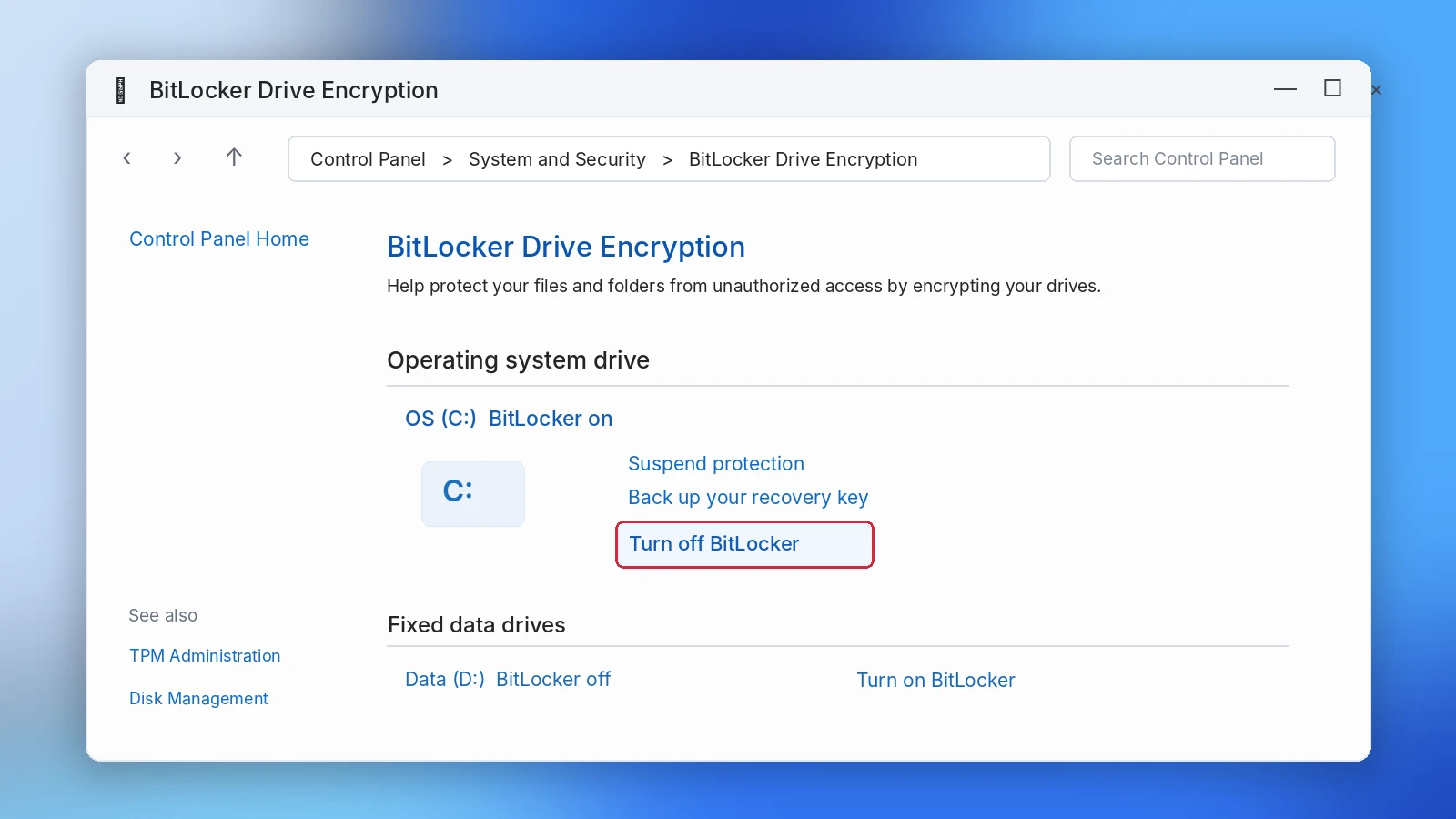
- Presse Fenêtres + S et rechercher Gérer BitLocker.
- Ouvrez le panneau de configuration « Chiffrement de lecteur BitLocker ».
- Recherchez le disque chiffré.
- Cliquez sur Désactiver BitLocker.
- Confirmez que vous souhaitez déchiffrer le volume.
- Attendez que Windows ait terminé le déchiffrement.
Résultat attendu : Dans des conditions normales, Windows désactive le chiffrement tout en conservant vos fichiers existants.
Limitation : Cette méthode nécessite un accès au volume et les autorisations appropriées. Elle ne permet pas de contourner l'invite de saisie de la clé de récupération.
Méthode 2 : Désactiver le chiffrement de l'appareil sous Windows 11 Édition Familiale
Certains ordinateurs équipés de Windows Home utilisent la fonctionnalité « Chiffrement des périphériques » à la place de l'interface de gestion complète de BitLocker.
Pour la désactiver :
- Ouvrir Paramètres.
- Aller à Confidentialité et sécurité > Chiffrement des appareils.
- Changer Cryptage des appareils à Arrêt.
- Validez l'opération et attendez que le déchiffrement soit terminé.
Sous Windows 10, ce paramètre peut apparaître sous Paramètres > Mise à jour et sécurité > Chiffrement de l'appareil.
Résultat attendu : Windows déchiffre les volumes protégés de l'appareil.
Limitation : Ce paramètre n'apparaît que sur les appareils et dans les configurations pris en charge. Si vous ne pouvez pas accéder à Windows, vous devez d'abord résoudre le problème de démarrage ou de récupération.
Méthode 3 : désactiver le chiffrement BitLocker à l'aide de l'invite de commande
Meilleur pour : Les utilisateurs qui préfèrent utiliser la ligne de commande ou qui ne peuvent pas accéder à la fenêtre de gestion habituelle.
Ouvrez l'Invite de commande en tant qu'administrateur.
Commencez par inspecter le disque dur :
manage-bde -status
Lancez ensuite le déchiffrement :
manage-bde -off C :
Remplacer C : avec la lettre de lecteur correcte.
Vous pouvez surveiller le processus à l'aide de :
manage-bde -status C :
Résultat attendu : Le pourcentage de données chiffrées diminue à mesure que Windows déchiffre le volume.
Limitation : Cette commande ne peut pas déverrouiller un lecteur si aucune authentification valide n'est disponible.
Pour découvrir d'autres commandes d'administration, consultez notre Guide d'utilisation de BitLocker via CMD. Microsoft fournit également des informations à ce sujet gérer-bde -off.
Méthode 4 : Désactiver BitLocker avec PowerShell
Meilleur pour : Les administrateurs et les utilisateurs qui préfèrent PowerShell.
Ouvrez PowerShell en tant qu'administrateur et exécutez la commande suivante :
Disable-BitLocker -MountPoint "C :"
Vérifiez ensuite le résultat :
Get-BitLockerVolume -MountPoint "C:"
PowerShell affiche l'état du chiffrement du volume ainsi que le pourcentage de progression, ce qui vous permet de déterminer si le déchiffrement est terminé.
Résultat attendu : Windows déchiffre le volume accessible spécifié.
Limitation : PowerShell ne dispense pas de fournir des identifiants de déverrouillage valides et ne permet pas de contourner les restrictions de l'entreprise.
Désactiver BitLocker sur un disque dur externe ou une clé USB
Pour les périphériques BitLocker To Go, connectez le disque à Windows et déverrouillez-le à l'aide du mot de passe ou de la clé de récupération.
Ensuite, ouvrez Gérer BitLocker, sélectionnez le lecteur amovible, puis choisissez Désactiver BitLocker.
Si vous avez transféré ce disque dur depuis un autre ordinateur, suivez notre guide pour déverrouiller un disque BitLocker sur un autre PC.
Évitez de déconnecter le disque dur pendant le déchiffrement.
Comment désactiver BitLocker sans mot de passe ni clé de récupération
De nombreux utilisateurs recherchent un Suppression de BitLocker après avoir oublié leur mot de passe. Cependant, la solution la plus sûre dépend de l'existence ou non d'un identifiant de récupération valide.
Tout d'abord, retrouvez votre clé de récupération BitLocker
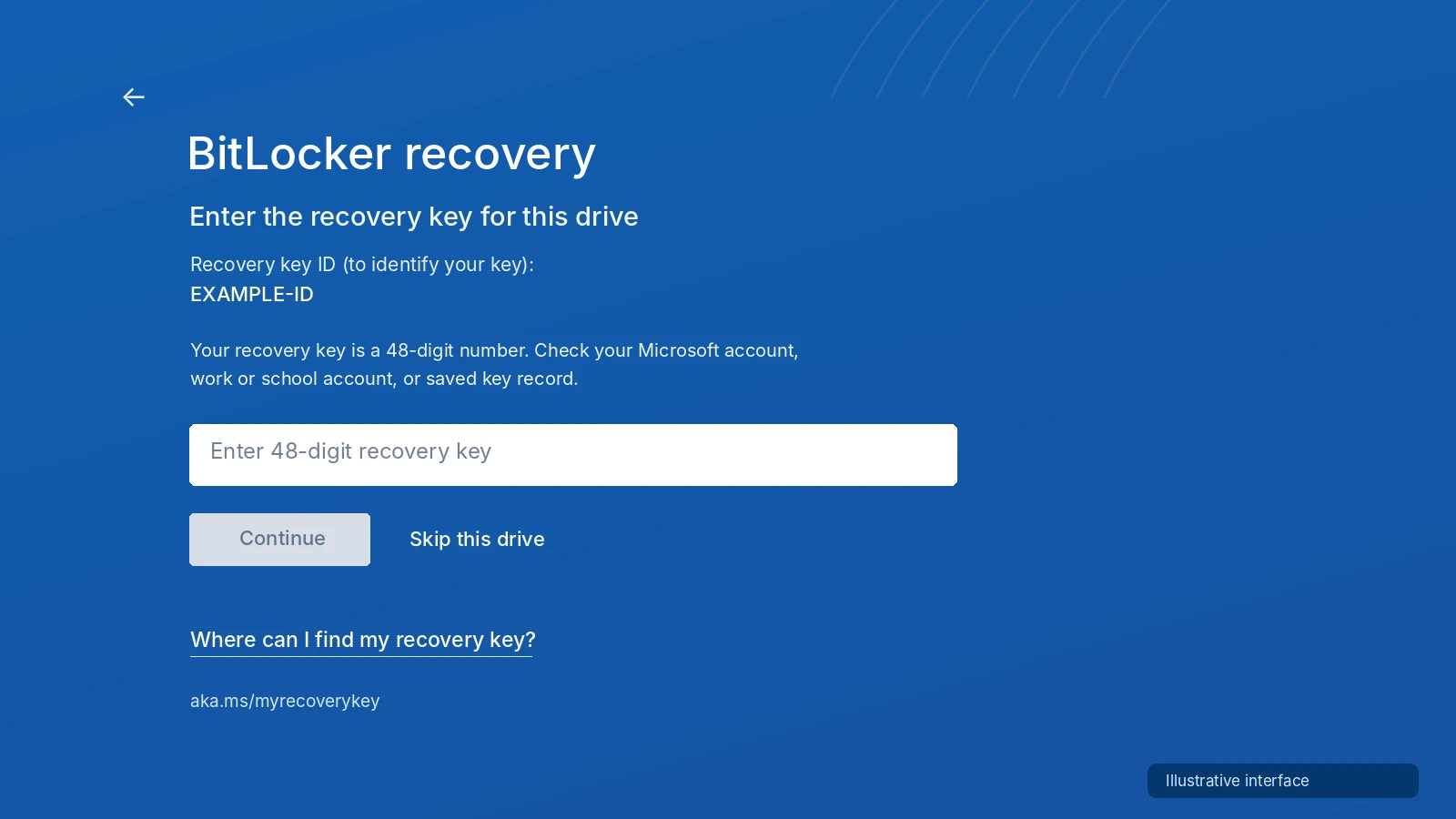
Vérifiez ces emplacements avant de procéder à d'autres opérations :
- Compte Microsoft : Visiter aka.ms/myrecoverykey.
- Compte professionnel ou scolaire : Contactez votre administrateur informatique.
- Clé USB : Recherchez les fichiers de clés de récupération exportés.
- Documents imprimés ou enregistrés : Vérifiez les documents créés lors de la configuration de BitLocker.
- Autres systèmes accessibles : Rechercher parmi les sauvegardes existantes.
Comparez l'identifiant de la clé de récupération affiché par Windows avec celui figurant dans l'enregistrement sauvegardé.
Microsoft propose un site officiel Guide de recherche de la clé de récupération BitLocker.
Pour plus d'options de dépannage, consultez Perte de la clé de récupération BitLocker.
Quand la méthode Magic Recovery Key peut s'avérer utile
Si votre clé ne se trouve pas dans les emplacements par défaut, Magic Recovery Key peut permettre de localiser les informations de récupération BitLocker précédemment enregistrées sur un système Windows accessible.
Contrairement aux recherches manuelles dans les registres locaux, sa fonctionnalité BitLocker dédiée propose un processus guidé de recherche de clés.
- Installez et ouvrez Magic Recovery Key.
- Sélectionnez son Clé de récupération BitLocker caractéristiques.
- Sélectionnez le disque concerné et lancez la recherche.
- Vérifiez tous les identifiants de clé détectés ainsi que les clés de récupération correspondantes.
- Conservez la clé correspondante en lieu sûr.
Par exemple, cette méthode peut s'avérer utile lorsque l'installation d'origine de Windows reste accessible, mais que vous ne parvenez pas à retrouver votre ancienne sauvegarde de clé de récupération.
Limitation : Magic Recovery Key ne peut pas reconstituer une clé cryptographique qui n'est plus disponible via les sources prises en charge. Trouver une clé existante et contourner le chiffrement sont deux opérations totalement différentes.

Peut-on désactiver BitLocker sans clé valide ?
Si un disque est verrouillé et qu'il n'existe plus aucun mot de passe valide, aucune clé de récupération ni aucune autre méthode de déverrouillage autorisée, un logiciel classique ne peut pas déchiffrer son contenu.
Un outil prétendant garantir le déverrouillage sans identifiants devrait susciter des inquiétudes.
Vous pouvez effacer un disque dur pour le réutiliser lorsque vous n'avez plus besoin de ses données. Cependant, le formatage est une opération destructive qui ne permet ni de récupérer ni de préserver les fichiers chiffrés.
Que faire si BitLocker ne peut pas être désactivé ?
Il arrive parfois que les identifiants soient corrects, mais que Windows signale tout de même des erreurs.
La clé de récupération ne fonctionne pas
Commencez par comparer l'identifiant de la clé de récupération avec vos enregistrements. Une clé appartenant à un autre disque ne permettra pas de déverrouiller le volume actuel.
Vérifiez ensuite si Windows affiche un message d'erreur spécifique. Des métadonnées BitLocker endommagées ou des problèmes de stockage peuvent également empêcher l'accès. Notre Guide : « La clé de récupération BitLocker ne fonctionne pas » prévoit des contrôles supplémentaires.
Le disque chiffré apparaît au format RAW
Un statut « RAW » peut indiquer que les structures du système de fichiers sont endommagées ou qu'un volume est inaccessible.
Cela ne prouve toutefois pas que le chiffrement BitLocker ait disparu.
Si le disque contient des données importantes :
- Ne l'initialisez pas et ne le formatez pas.
- Évitez d'utiliser CHKDSK tant que vous n'avez pas cerné la nature du problème et que vous n'avez pas sauvegardé les données récupérables.
- Conservez vos identifiants de récupération valides.
- En cas de corruption grave, envisagez de recourir à une image du disque ou à un service de récupération professionnel.
Microsoft propose la version avancée réparation-bde utilitaire destiné à certains volumes BitLocker endommagés.
Cependant, la commande « repair-bde » nécessite un support de récupération valide. Certains cas de corruption des métadonnées nécessitent également un ensemble de clés correspondant, et le volume de destination peut être entièrement écrasé.
Il ne s'agit donc pas d'un outil polyvalent de suppression de mot de passe, ni d'une première étape sûre pour tous les disques RAW.
Le disque dur présente des problèmes matériels
Si un disque dur émet des bruits mécaniques inhabituels, se déconnecte fréquemment ou ne parvient pas à s'initialiser à plusieurs reprises, interrompez toutes les opérations non indispensables.
Un logiciel ne peut pas réparer les dommages mécaniques. Des analyses ou des tentatives de décryptage répétées risquent d'aggraver la situation.
Si les données sont importantes, faites appel à un service de récupération professionnel avant de tenter d'autres réparations par vous-même.
Comment récupérer des données en toute sécurité à partir d'un disque chiffré avec BitLocker
Lorsque des fichiers disparaissent d'un disque protégé par BitLocker, il peut s'avérer nécessaire de procéder à une récupération des données plutôt qu'à un déchiffrement immédiat.
Commencez par déterminer si les fichiers sont simplement masqués, supprimés ou inaccessibles en raison d'une corruption du système de fichiers. Vérifiez les sauvegardes et les dossiers accessibles avant de lancer une analyse de récupération.
Par exemple, un utilisateur peut parvenir à déverrouiller un disque dur externe, mais constater qu'un dossier important a disparu. Dans ce cas, la récupération de fichiers peut s'avérer utile si les données n'ont pas été écrasées.
Récupérer des fichiers perdus avec Magic Data Recovery
Magic Data Recovery traite des cas de perte de fichiers liés à la suppression, à des problèmes de formatage et à certaines erreurs logiques de stockage.
Son processus compatible avec BitLocker permet de reconnaître les volumes chiffrés pris en charge et de demander des identifiants valides lorsque cela est nécessaire. Par conséquent, les utilisateurs n'ont pas nécessairement besoin de déchiffrer l'intégralité du disque avant l'analyse, à condition que le logiciel puisse accéder aux données protégées et les interpréter. Cela diffère de la récupération d'une clé de chiffrement perdue.
Étape 1 : Télécharger et installer Magic Data Recovery
Installez le logiciel sur un disque en bon état, distinct de celui contenant vos données manquantes.
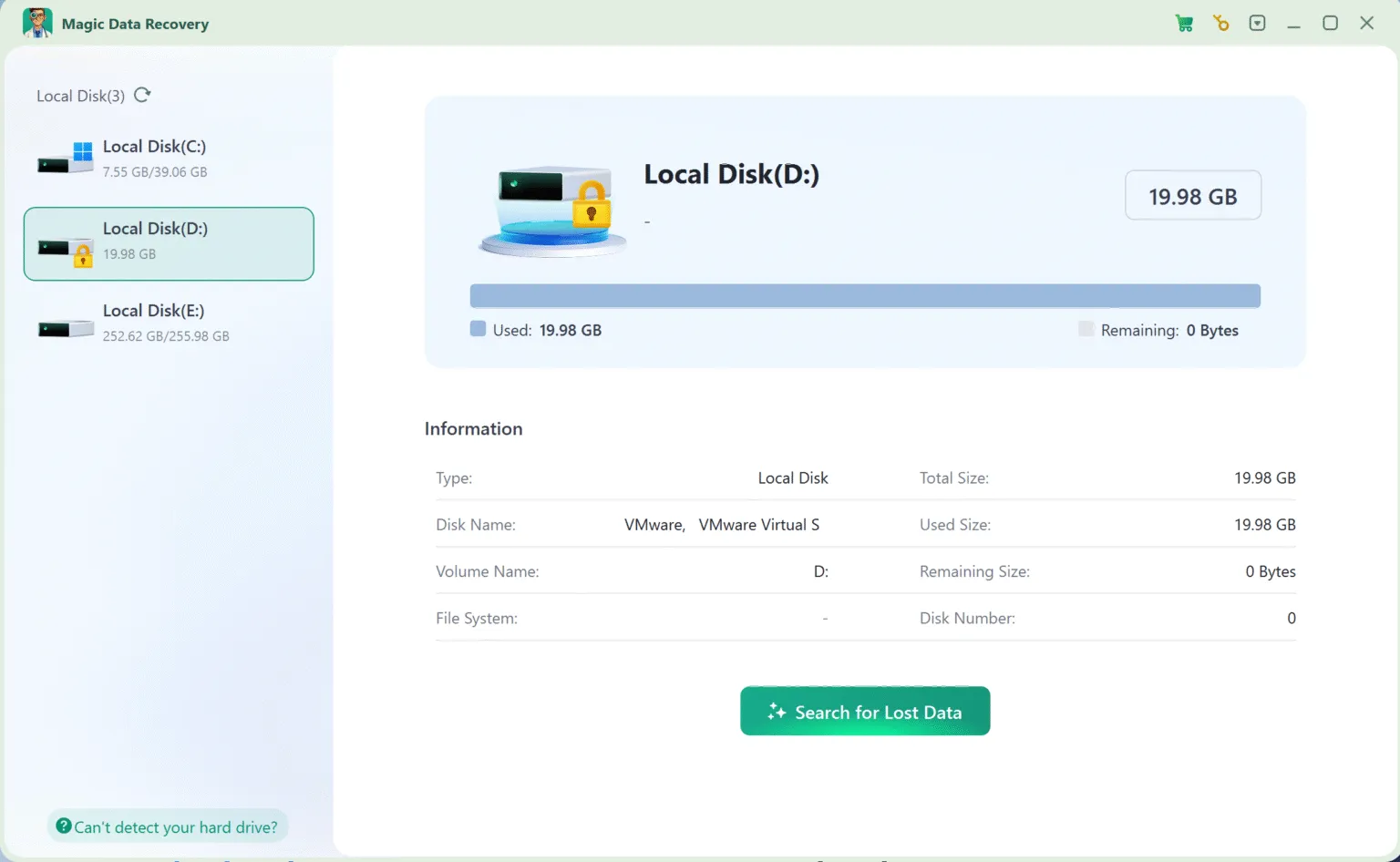
Étape 2 : Sélectionner le lecteur
Lancez le programme et identifiez le volume concerné. Vérifiez la taille et les détails du disque avant de le sélectionner.
Si le logiciel vous demande un mot de passe BitLocker ou une clé de récupération, saisissez les informations d'identification correctes.
Étape 3 : Recherche des fichiers perdus
Lancez l'analyse et laissez le logiciel examiner les enregistrements du système de fichiers disponibles ainsi que le contenu des fichiers.
Étape 4 : Prévisualisation des résultats
Parcourez les fichiers détectés et prévisualisez les documents importants, les images ou tout autre format pris en charge.
Étape 5 : Récupération sur un autre disque
Sélectionnez les fichiers dont vous avez besoin et enregistrez-les sur un autre support de stockage physique. Enfin, ouvrez les fichiers récupérés pour vérifier que leur contenu est lisible.
Limites de la récupération : Magic Data Recovery ne permet pas de contourner l'authentification BitLocker, de restaurer du contenu écrasé ni de réparer des dommages matériels. Les fonctions TRIM et de collecte des données inutiles du SSD peuvent également rendre les données supprimées irrécupérables, même lorsque le volume chiffré reste accessible.
Dans quels cas vaut-il la peine d'essayer la récupération de fichiers ?
Une analyse s'avère particulièrement utile lorsque des identifiants BitLocker valides sont disponibles, que le support de stockage reste lisible et que le contenu du fichier manquant peut encore exister.
Un formatage rapide ne détruit pas toujours tous les fichiers immédiatement. Cependant, un écrasement complet, un effacement sécurisé, une réutilisation intensive ou la perte de métadonnées de chiffrement essentielles peuvent rendre la récupération pratiquement impossible.
Si un disque dur présente des problèmes physiques graves, il convient de privilégier une procédure professionnelle de création d'image et de récupération plutôt qu'une analyse logicielle.
Comment vérifier la désactivation de BitLocker et la récupération des fichiers
Pour que le déchiffrement et la récupération des données aboutissent, il faut effectuer différentes vérifications.
Vérifier que le chiffrement a bien été supprimé
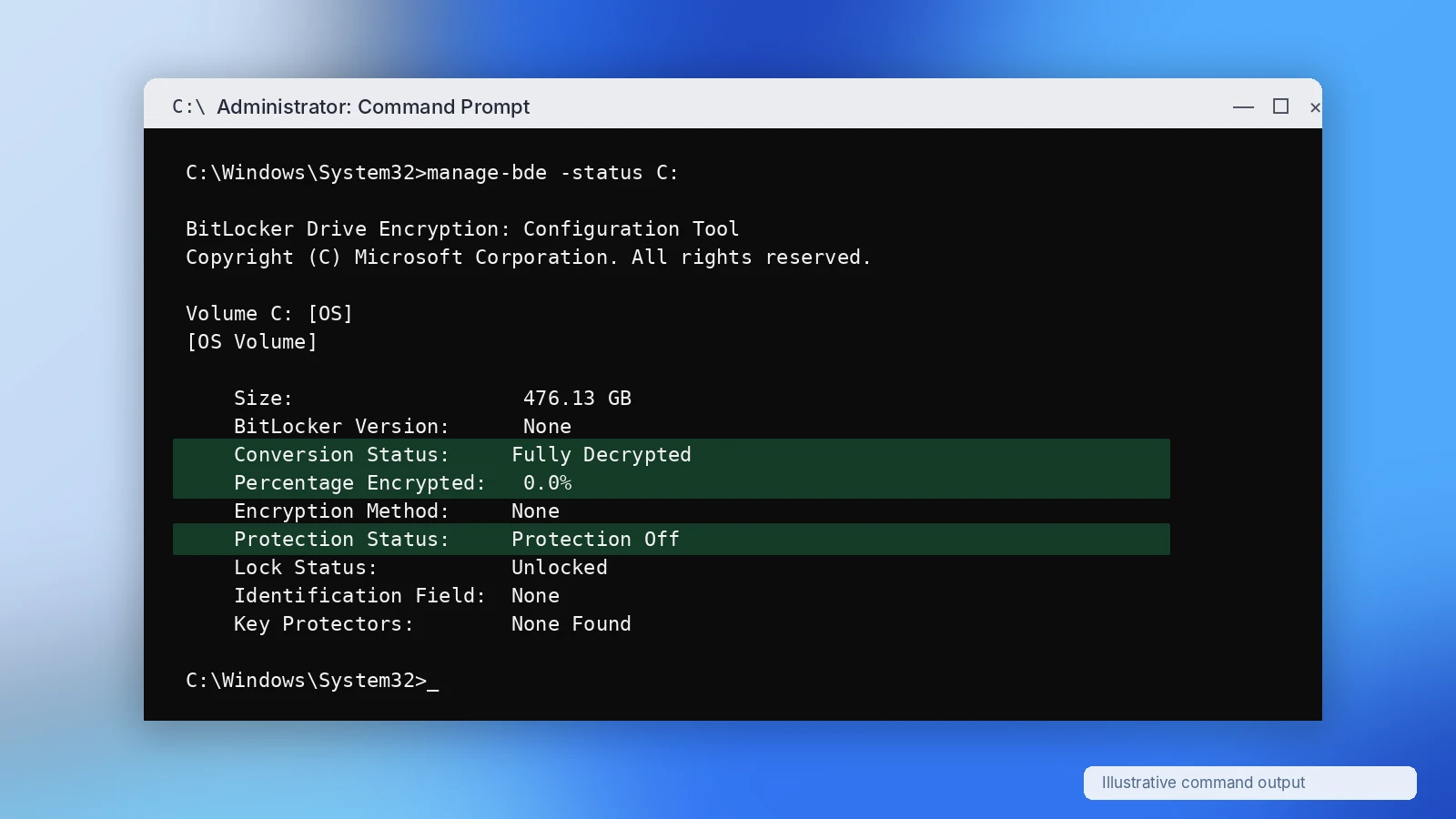
Une fois que Windows a terminé le déchiffrement du disque, exécutez la commande suivante :
manage-bde -status C :
Vérifiez que :
- Statut de conversion spectacles Entièrement déchiffré.
- Pourcentage chiffré lit 0.0%.
- Windows vous permet d'ouvrir les fichiers attendus.
Si Windows indique toujours que le déchiffrement est en cours, attendez que le processus soit terminé.
Vérifier que les fichiers récupérés fonctionnent
Le fait qu'un fichier apparaisse dans les résultats de l'analyse ne garantit pas qu'il pourra être récupéré.
Pour vérifier le résultat :
- Prévisualisez les fichiers importants avant de les enregistrer.
- Récupérez-les sur un autre disque physique.
- Ouvrez plusieurs fichiers à l'aide de leurs applications habituelles.
- Vérifiez leur contenu, et pas seulement leurs noms et leurs extensions.
- Vérifiez que les dossiers et documents indispensables sont bien présents.
Par exemple, un fichier Excel récupéré devrait s'ouvrir et afficher les feuilles de calcul attendues. Le simple fait de voir son nom de fichier apparaître dans la liste des fichiers récupérés ne suffit pas.
Les erreurs courantes à éviter
Ces actions peuvent augmenter le risque de perte définitive de données :
- Mise en forme ou initialisation d'un disque BitLocker verrouillé avant d'avoir trouvé sa clé.
- Confondre la protection suspendue avec le déchiffrement complet.
- Exécuter CHKDSK ou effectuer des réparations de partition avant de sécuriser les fichiers importants.
- Installation d'un logiciel de récupération sur le disque source.
- Restauration des fichiers à leur emplacement de stockage d'origine.
- Analyse répétée d'un disque présentant des défaillances matérielles.
- En partant du principe qu'un outil de désactivation de BitLocker peut contourner le chiffrement sans identifiants valides.
Quand les données comptent, se rétablir d'abord, se soigner ensuite. Une fois vos fichiers vérifiés, vous pouvez procéder au déchiffrement ou à d'autres opérations de maintenance.
Conclusion
Apprentissage Comment désactiver le chiffrement BitLocker Pour procéder en toute sécurité, il faut d’abord vérifier l’état du disque avant de choisir une méthode. Pour un volume en bon état et accessible, le Panneau de configuration de Windows, l’Invite de commandes et PowerShell offrent des moyens fiables de désactiver le chiffrement sans supprimer intentionnellement de fichiers.
Si vous ne parvenez pas à retrouver une clé de récupération existante, Magic Recovery Key propose une option supplémentaire de recherche de clé. Lorsque des fichiers sont manquants mais que l'accès à BitLocker reste valide, Magic Data Recovery propose un processus guidé de numérisation, de prévisualisation et de récupération.
Nous recommandons ces outils en raison de leurs fonctions distinctes : l'un permet de rechercher des identifiants existants, tandis que l'autre aide à récupérer des fichiers perdus. Aucun des deux ne peut contourner la sécurité BitLocker. Pour obtenir des conseils plus détaillés, rendez-vous sur notre Centre de récupération BitLocker.
Prise en charge de Windows 7/8/10/11 et Windows Server
Foire aux questions sur la désactivation du chiffrement BitLocker
Puis-je désactiver le chiffrement BitLocker sans perdre de données ?
Comment désactiver BitLocker sur un disque dur externe ?
Puis-je désactiver BitLocker sans clé de récupération ?
Combien de temps faut-il pour déchiffrer un disque BitLocker ?
manage-bde -status, veillez à ce que l'alimentation soit stable et attendez que Windows confirme que le volume est entièrement déchiffré.Un outil de désactivation de BitLocker peut-il déverrouiller un disque dur sans mot de passe ?
Puis-je récupérer des données à partir d'un disque chiffré avec BitLocker ?
Dois-je suspendre ou désactiver BitLocker avant de mettre à jour Windows ?

Vasilii est un spécialiste de la récupération de données qui possède une dizaine d'années d'expérience pratique dans ce domaine. Tout au long de sa carrière, il a résolu avec succès des milliers de cas complexes impliquant des fichiers supprimés, des disques formatés, des partitions perdues et des systèmes de fichiers RAW. Son expertise couvre à la fois les méthodes de récupération manuelle à l'aide d'outils professionnels tels que les éditeurs hexagonaux et les solutions automatisées avancées à l'aide de logiciels de récupération. La mission de Vasilii est de rendre accessible aux professionnels de l'informatique et aux utilisateurs quotidiens des connaissances fiables en matière de récupération de données, afin de les aider à sauvegarder leurs précieuses ressources numériques.