
I file di Quicken sono scomparsi? Guida al recupero
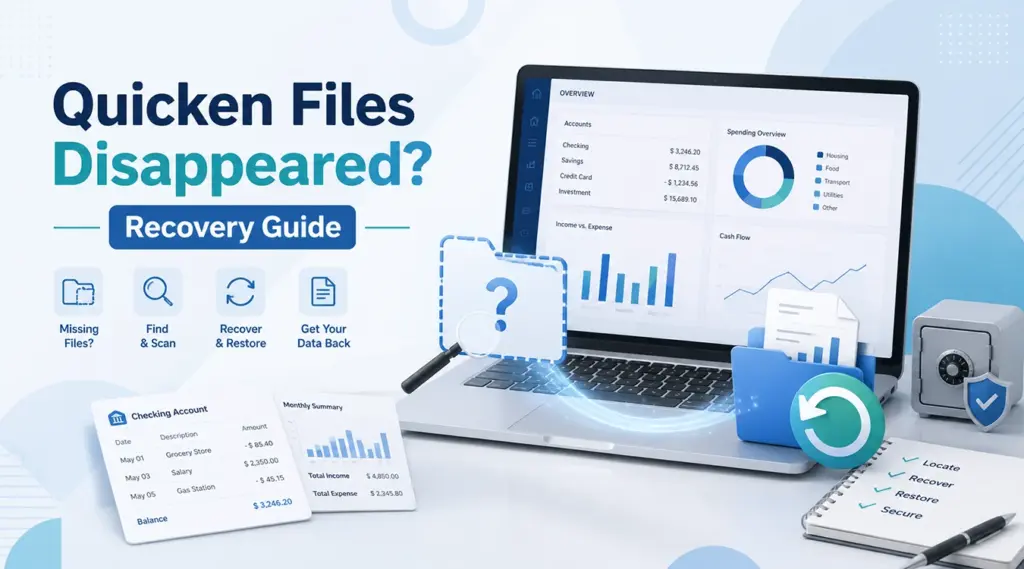
Se il vostro I file di Quicken sono scomparsi, non dare per scontato che i tuoi dati finanziari siano andati persi definitivamente. Quicken potrebbe aver perso il percorso del file, Windows potrebbe aver spostato il file, OneDrive potrebbe aver modificato la posizione della cartella "Documenti", oppure potrebbe esserci ancora un backup utilizzabile. Pertanto, individua la causa del problema prima di scrivere nuovi dati sull'unità interessata.
Questa guida spiega come Trova il file QDF di Quicken posizioni, ripristinare un backup, controllare Windows e OneDrive, e ripristinare un file Quicken cancellato dati con Magic Data Recovery quando è normale recupero dei file cancellati i metodi falliscono.
Supporta Windows 7/8/10/11 e Windows Server
Indice dei contenuti
Perché i tuoi file di Quicken sono scomparsi?
Quando I file di Quicken sono scomparsi, diversi problemi possono causare lo stesso sintomo. Ad esempio, Quicken potrebbe chiederti di selezionare un file di dati oppure potrebbe avviarsi senza alcun conto.
Le cause più comuni includono:
- Quicken ha aperto un file di dati diverso.
- Il QDF è stato spostato in un'altra cartella.
- Windows ha modificato il Percorso del file Quicken.
- Documenti reindirizzati o sincronizzati su OneDrive.
- Qualcuno ha cancellato il QDF per sbaglio.
- A seguito di una migrazione del PC, il file è stato spostato in un altro profilo.
- Il QDF principale è scomparso, ma un QDF-backup esiste ancora.
Pertanto, occorre distinguere tra i file “mancanti” e quelli “cancellati”. Innanzitutto, cerca il file originale e i backup. Solo se non si trova né l’uno né l’altro, prova a recuperare il file cancellato.
Metodo 1: Individuare i file QDF di Quicken sul computer
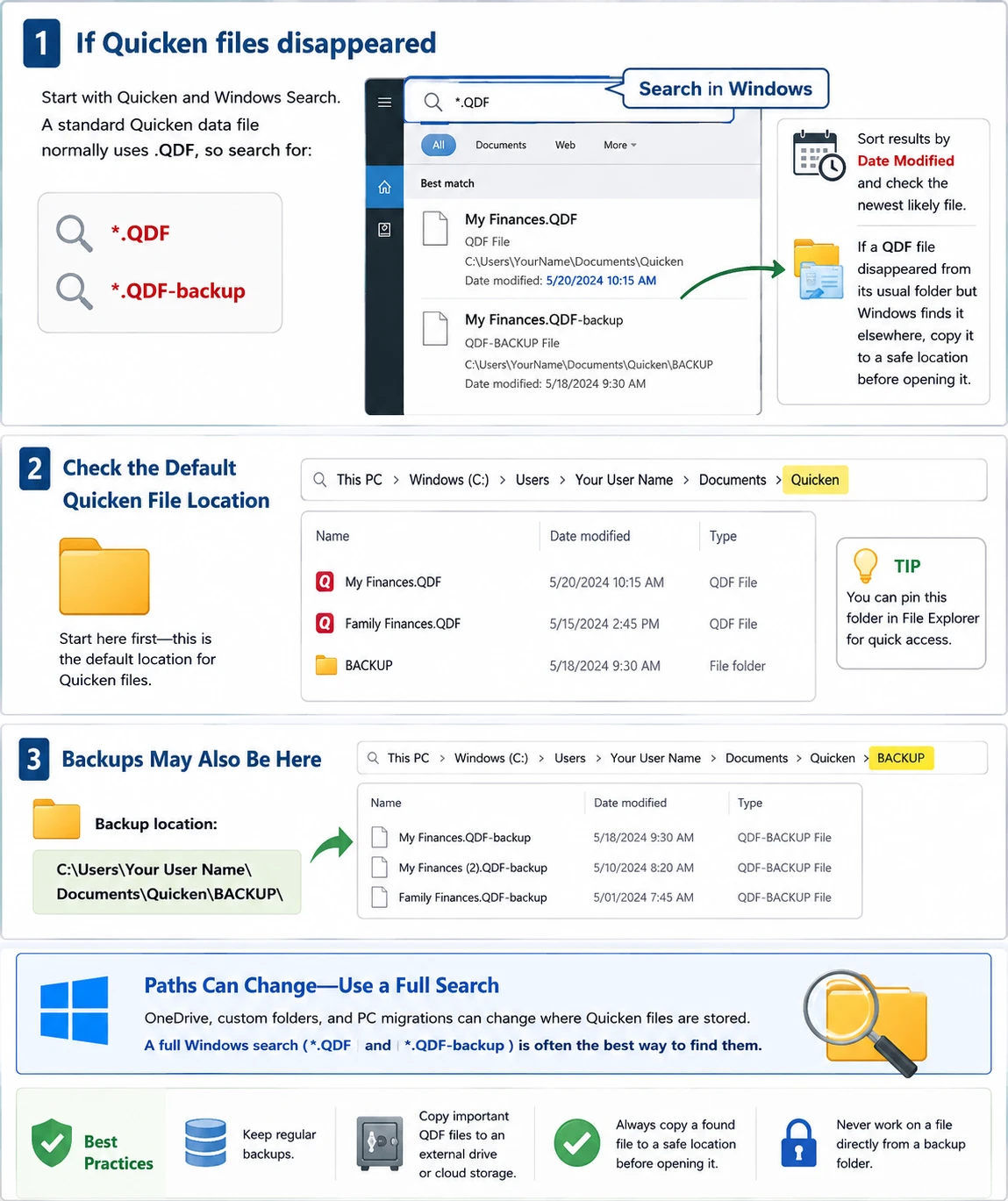
Se I file di Quicken sono scomparsi, cominciamo con Quicken e Windows Search. Un file di dati standard di Quicken utilizza normalmente .QDF, quindi cerca:
*.QDF*.QDF-backup
Successivamente, ordina i risultati in base alla data di modifica e controlla il file più recente tra quelli che potrebbero essere quello giusto. Se un Il file QDF è scomparso se non si trova nella cartella abituale ma Windows lo rileva altrove, copiarlo in una posizione sicura prima di aprirlo.
Controlla l'impostazione predefinita Posizione del file Quicken
Se state chiedendo Dove vengono salvati i file di Quicken?, inizia con:
C:\Utenti\[Il tuo nome utente]\Documenti\Quicken\
I backup potrebbero comparire anche nelle seguenti sezioni:
C:\Utenti\[Il tuo nome utente]\Documenti\Quicken\BACKUP\
Tuttavia, OneDrive, le cartelle personalizzate e le migrazioni del PC possono modificare questi percorsi. Di conseguenza, una ricerca completa in Windows spesso funziona meglio rispetto alla verifica di una singola cartella.
Metodo 2: Ripristinare un backup quando i file di Quicken sono scomparsi
A volte I file di Quicken sono scomparsi solo dalla cartella di lavoro, mentre un file recente QDF-backup è ancora disponibile. Pertanto, cerca i file di backup in tutto il computer.
Se ne compaiono diversi, confronta le date, le dimensioni e le posizioni. Successivamente, scegli il backup più recente creato prima che il problema si verificasse.
Come Ripristina il backup di Quicken File in sicurezza
Utilizza l'opzione "Ripristina da backup" di Quicken invece di rinominare i file o sovrascrivere i dati esistenti. Innanzitutto, ripristina il backup in una cartella separata. Quindi, controlla le transazioni recenti, i saldi, l'attività di investimento e la cronologia delle riconciliazioni.
Se I file di backup di Quicken sono scomparsi Anche in questo caso, prosegui qui sotto. Altrimenti, crea un nuovo backup indipendente dopo aver verificato i dati ripristinati.
Metodo 3: controllare il Cestino e OneDrive quando i file di Quicken scompaiono
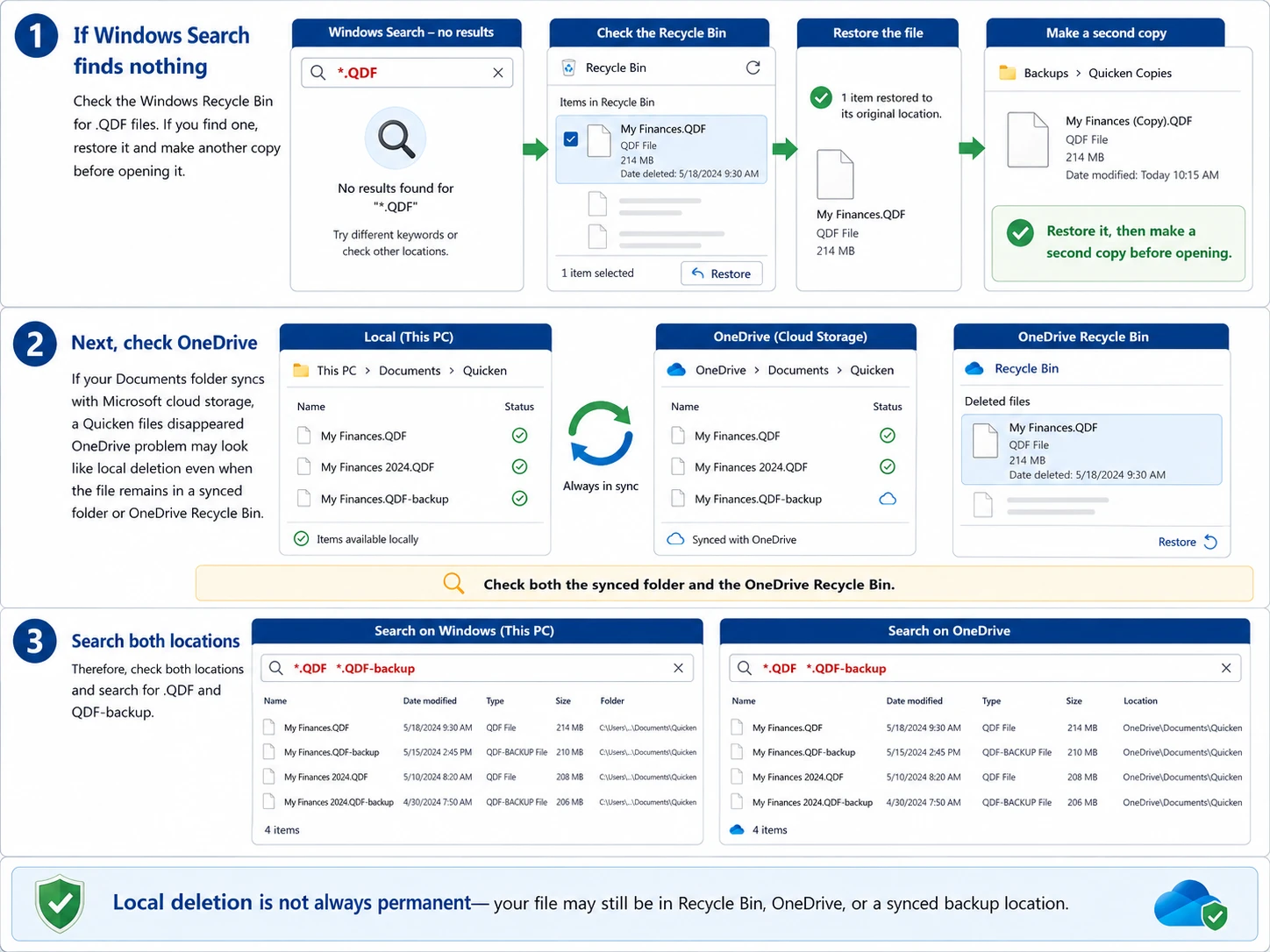
Se la ricerca di Windows non trova nulla, controlla nel Cestino di Windows se è presente .QDF file. Se ne trovi uno, ripristinalo e creane un’altra copia prima di aprirlo.
Successivamente, controlla su OneDrive se la cartella “Documenti” si sincronizza con l’archivio cloud di Microsoft. A I file di Quicken sono scomparsi da OneDrive Il problema potrebbe sembrare una cancellazione locale anche quando il file rimane in una cartella sincronizzata o nel Cestino di OneDrive.
Pertanto, controlla entrambe le posizioni e cerca .QDF e QDF-backup.
Quicken Cloud non è un backup del desktop
La sincronizzazione su Quicken Cloud e un backup completo in formato QDF hanno finalità diverse. Pertanto, non dare per scontato che la sincronizzazione su cloud possa ricreare l'intero database del desktop dopo un Il file di dati di Quicken è scomparso. È invece consigliabile mantenere un QDF indipendente oppure QDF-backup copie.
Metodo 4: Controllare la Cronologia dei file e altre posizioni di backup
Se I file di Quicken sono scomparsi e se non sono presenti in nessuno dei due Cestini, controlla altre fonti di backup, tra cui la Cronologia file di Windows, i backup manuali, le unità del computer precedente, i profili Windows precedenti e i servizi di backup su cloud.
Ad esempio, se File QDF mancanti Se i problemi sono iniziati dopo la migrazione del PC, controllare il vecchio disco rigido e la precedente cartella “Documenti”. Se non è presente alcuna copia utilizzabile, passare al recupero a livello di archiviazione.

Metodo 5: Prepararsi al recupero di un file Quicken cancellato
Quando I file di Quicken sono scomparsi Poiché qualcuno ha cancellato il file originale, l'attività continua del disco può ridurre le possibilità di recupero. Windows potrebbe riutilizzare quello spazio di archiviazione, quindi nuove operazioni di scrittura potrebbero sovrascrivere i dati recuperabili.
Pertanto, evitate download di grandi dimensioni, installazioni di software non pertinenti, strumenti di pulizia del disco e il salvataggio dei dati recuperati sulla stessa unità. Questa precauzione è importante se dovete Recuperare un file Quicken senza backup.
Metodo 6: I file di Quicken sono scomparsi? Recuperali con Magic Data Recovery
Se I file di Quicken sono scomparsi e non è possibile trovare un file QDF utilizzabile nei backup di Quicken, nel Cestino di Windows, su OneDrive o nella Cronologia file, Magic Data Recovery può eseguire una scansione dell'unità in cui si trovava in precedenza il file mancante.
A differenza dell’elenco dei file o della funzione di ripristino dal backup di Quicken, Magic Data Recovery opera a livello di archiviazione. Pertanto, offre un’alternativa quando il file non compare più nelle cartelle normali. Tuttavia, nessuno strumento di recupero può garantire il successo in caso di sovrascrittura.
Passo 1: Scaricare e installare Magic Data Recovery
Scarica Magic Data Recovery dal sito ufficiale Amagicsoft sito web. Se possibile, installalo su un'unità diversa da quella su cui era precedentemente memorizzato il file Quicken mancante.
Ciò riduce le operazioni di scrittura superflue. Di conseguenza, si riduce il rischio di sovrascrivere dati che potrebbero ancora essere recuperabili.
Supporta Windows 7/8/10/11 e Windows Server
Passaggio 2: Selezionare l'unità su cui è stato salvato il file di Quicken
Avvia Magic Data Recovery e controlla le unità nell'interfaccia principale. Quindi, seleziona l'unità su cui era originariamente memorizzato il file mancante File QDF di Quicken e avviare la scansione.

Fase 3: Eseguire una scansione dell'unità alla ricerca del file Quicken mancante
Magic Data Recovery avvia una scansione avanzata e cerca i dati recuperabili nell'unità selezionata. Nel frattempo, i file rilevati vengono visualizzati man mano che la scansione procede.
È possibile visualizzare i risultati durante la scansione. Tuttavia, se possibile, è consigliabile attendere il completamento dell'operazione. Successivamente, cercare il file mancante in base al nome, al percorso originale, alla data, alle dimensioni o all'estensione .QDF, se presente.

Passaggio 4: Recuperare il file Quicken in una posizione sicura
Infine, seleziona i file desiderati e avvia il recupero. Salva i dati recuperati su un'unità o in una posizione di archiviazione diversa dall'unità che hai sottoposto a scansione.
Una volta completato il ripristino, crea un’altra copia del file QDF. Quindi, apri la copia in Quicken e verifica i conti, le transazioni recenti, i saldi e altri dati importanti.

Perché l'Magic Data Recovery si adatta a questo scenario
Magic Data Recovery risolve un problema che gli strumenti integrati in Quicken non riescono a risolvere: il file locale potrebbe non essere più visibile in una cartella o in un backup utilizzabile. Inoltre, il suo flusso di lavoro di scansione, anteprima e recupero offre agli utenti Windows una procedura semplice e intuitiva.
Ad esempio, supponiamo che il tuo I file di Quicken sono scomparsi dal disco C:, il Il Cestino è vuoto, su OneDrive non c'è alcuna copia, e ogni QDF-backup è troppo vecchio. In tal caso, la scansione dell'unità originale rappresenta un'altra opzione pratica.
Tuttavia, i software di recupero dovrebbero integrare i backup, non sostituirli.
Cosa fare dopo aver recuperato i file Quicken persi
Trovare il file non è l'ultimo passo. Innanzitutto, mantieni inalterato il file originale recuperato. Successivamente, apri una copia in Quicken e verifica i saldi, le transazioni recenti, i dati relativi agli investimenti, le categorie e le riconciliazioni.
Se tutto sembra a posto, crea subito un nuovo backup. Inoltre, conserva un’altra copia in una posizione diversa.
Come evitare che i file di Quicken scompaiano di nuovo
È possibile ridurre il rischio che si verifichi un altro I file di Quicken sono scomparsi problema con una semplice procedura di backup.
Innanzitutto, assicurati che i backup automatici siano attivi. Successivamente, crea un backup manuale prima di effettuare aggiornamenti di Windows, aggiornamenti di Quicken, migrazioni del computer o sostituzioni del disco rigido. Inoltre, conserva almeno un backup al di fuori della cartella principale di Quicken.
Infine, verifica periodicamente i tuoi backup. Un backup è utile solo se riesci a individuarlo e a ripristinarlo.
Conclusione: cosa fare quando i file di Quicken scompaiono
Quando I file di Quicken sono scomparsi, inizia con la soluzione più sicura. Per prima cosa, cerca il file QDF originale. Poi, controlla QDF-backup file, Cestino di Windows, OneDrive, Cronologia file e altre posizioni di backup.
Se non riesci ancora a trovare una copia utilizzabile, riduci le operazioni di scrittura sull'unità interessata e valuta la possibilità di un ripristino a livello di storage. Magic Data Recovery È adatto a questa fase perché è in grado di eseguire una scansione dell'unità dopo che le normali ricerche e il ripristino dal backup hanno fallito.
Tuttavia, nessun software di recupero dati può garantire il successo in ogni caso di cancellazione. Per questo motivo, Magic Data Recovery offre i migliori risultati come soluzione pratica di ultima istanza recupero dei file cancellati opzione. Una volta completato il ripristino, creare nuovi backup indipendenti per ridurre i rischi futuri.
Supporta Windows 7/8/10/11 e Windows Server
Domande frequenti sulla scomparsa dei file di Quicken
Perché il mio file di Quicken è scomparso all'improvviso?
Il problema della scomparsa di un file Quicken può verificarsi perché Quicken ha aperto un altro database, Windows ha spostato il file, OneDrive ha modificato il percorso della cartella "Documenti" oppure qualcuno ha cancellato il file QDF per errore. Pertanto, prima di ritenere che il file sia andato perso definitivamente, cerca i file con estensione .QDF e .QDF-backup. Controlla anche le posizioni dei file recenti, il Cestino, OneDrive e le tue cartelle di backup.
Dove vengono salvati i file di Quicken su Windows?
Se ti stai chiedendo dove siano salvati i file di Quicken, inizia dalla cartella “Documenti\Quicken” all’interno del tuo profilo Windows. Tuttavia, la posizione effettiva dei file di Quicken potrebbe variare se utilizzi OneDrive, un’altra partizione, una cartella personalizzata o un profilo migrato. Pertanto, una ricerca completa dei file con estensione *.QDF spesso dà risultati migliori rispetto al controllo di una singola posizione.
Cosa devo fare se Quicken mi chiede di aprire un file di dati?
Se Quicken mi chiede di aprire un file di dati, non creare subito un nuovo database. Per prima cosa, controlla i file recenti e cerca i file con estensione .QDF in Windows. Successivamente, controlla le cartelle “Documenti\Quicken”, OneDrive e quelle di backup. Se vengono visualizzati diversi file papabili, confronta le date di modifica e apri una copia del file che ti sembra più probabile.
È possibile recuperare un file Quicken senza backup?
Sì, è possibile recuperare un file Quicken senza backup se il file QDF è ancora presente altrove o se i dati cancellati sono ancora recuperabili sul disco. Tuttavia, il successo dipende da ciò che è accaduto dopo la cancellazione. Pertanto, è consigliabile ridurre le nuove operazioni di scrittura sul disco interessato e provare il recupero a livello di archiviazione solo dopo che le ricerche, il Cestino, OneDrive e la Cronologia file non hanno dato esito positivo.
Che cos’è un file di backup QDF?
Un file di backup QDF contiene una copia di backup dei dati di Quicken per desktop. Se il file QDF attivo viene perso o diventa inutilizzabile, è possibile ripristinare i dati di backup di Quicken da quel file. Pertanto, prima di ricorrere al recupero dei file cancellati, cercare in tutto il computer i file con estensione .QDF-backup. Effettuare sempre il ripristino in una posizione separata, in modo da preservare il backup originale.
Quicken Cloud può sostituire il mio backup QDF locale?
No. La sincronizzazione di Quicken Cloud non sostituisce un backup QDF autonomo sul desktop. Pertanto, è consigliabile conservare copie di backup separate dei dati importanti di Quicken. Se un file di dati di Quicken dovesse scomparire, controllare innanzitutto le posizioni effettive dei file QDF e dei backup QDF, anziché dare per scontato che la sincronizzazione cloud possa ricreare l'intero database sul desktop.
Quando dovrei utilizzare Magic Data Recovery per i file di Quicken?
Utilizza Magic Data Recovery dopo che i file di Quicken sono scomparsi e hai controllato Windows Search, i backup di Quicken, il Cestino, OneDrive, la Cronologia file e altre posizioni di backup. A quel punto, è possibile che il file originale sia stato eliminato anziché smarrito. Pertanto, una scansione a livello di archiviazione offre un’altra opzione, anche se il recupero dipende comunque dal fatto che il file sia stato sovrascritto da nuovi dati.

Vasilii è uno specialista del recupero dati con circa 10 anni di esperienza pratica nel settore. Nel corso della sua carriera, ha risolto con successo migliaia di casi complessi riguardanti file cancellati, unità formattate, partizioni perse e file system RAW. La sua esperienza copre sia i metodi di recupero manuale utilizzando strumenti professionali come gli editor esadecimali, sia le soluzioni automatiche avanzate con i software di recupero. La missione di Vasilii è quella di rendere accessibile la conoscenza del recupero dati affidabile sia ai professionisti IT che agli utenti di tutti i giorni, aiutandoli a salvaguardare i loro preziosi beni digitali.