
Os arquivos do Quicken sumiram? Guia de recuperação
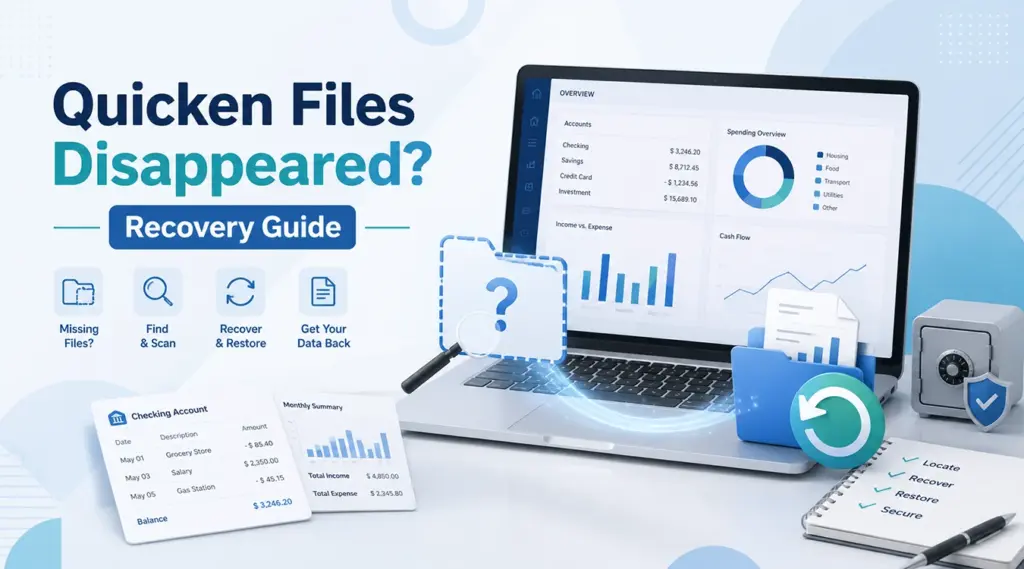
Se o seu Os arquivos do Quicken desapareceram, não presuma que seus dados financeiros tenham sido perdidos para sempre. O Quicken pode ter perdido o caminho do arquivo, o Windows pode ter movido o arquivo, o OneDrive pode ter alterado o local da pasta “Documentos” ou ainda pode existir um backup utilizável. Portanto, diagnostique o problema antes de gravar novos dados na unidade afetada.
Este guia mostra como localizar arquivo QDF do Quicken locais, restaurar um backup, verificar o Windows e o OneDrive e recuperar arquivo do Quicken excluído dados com Magic Data Recovery quando está normal recuperação de arquivos excluídos os métodos falham.
Compatível com Windows 7/8/10/11 e Windows Server
Índice
Por que seus arquivos do Quicken desapareceram?
Quando Os arquivos do Quicken desapareceram, vários problemas podem causar o mesmo sintoma. Por exemplo, o Quicken pode solicitar que você selecione um arquivo de dados ou pode abrir sem contas.
As causas comuns incluem:
- O Quicken abriu um arquivo de dados diferente.
- O QDF foi movido para outra pasta.
- O Windows alterou o Localização do arquivo do Quicken.
- O OneDrive redirecionou ou sincronizou os documentos.
- Alguém apagou o QDF por engano.
- Uma migração do PC transferiu o arquivo para outro perfil.
- O QDF principal desapareceu, mas um Backup do QDF ainda existe.
Portanto, trate os arquivos “ausentes” e “excluídos” de maneira diferente. Primeiro, procure o arquivo original e os backups. Em seguida, tente recuperar o arquivo excluído somente se nenhum dos dois existir.
Método 1: Localizar arquivos QDF do Quicken no seu computador
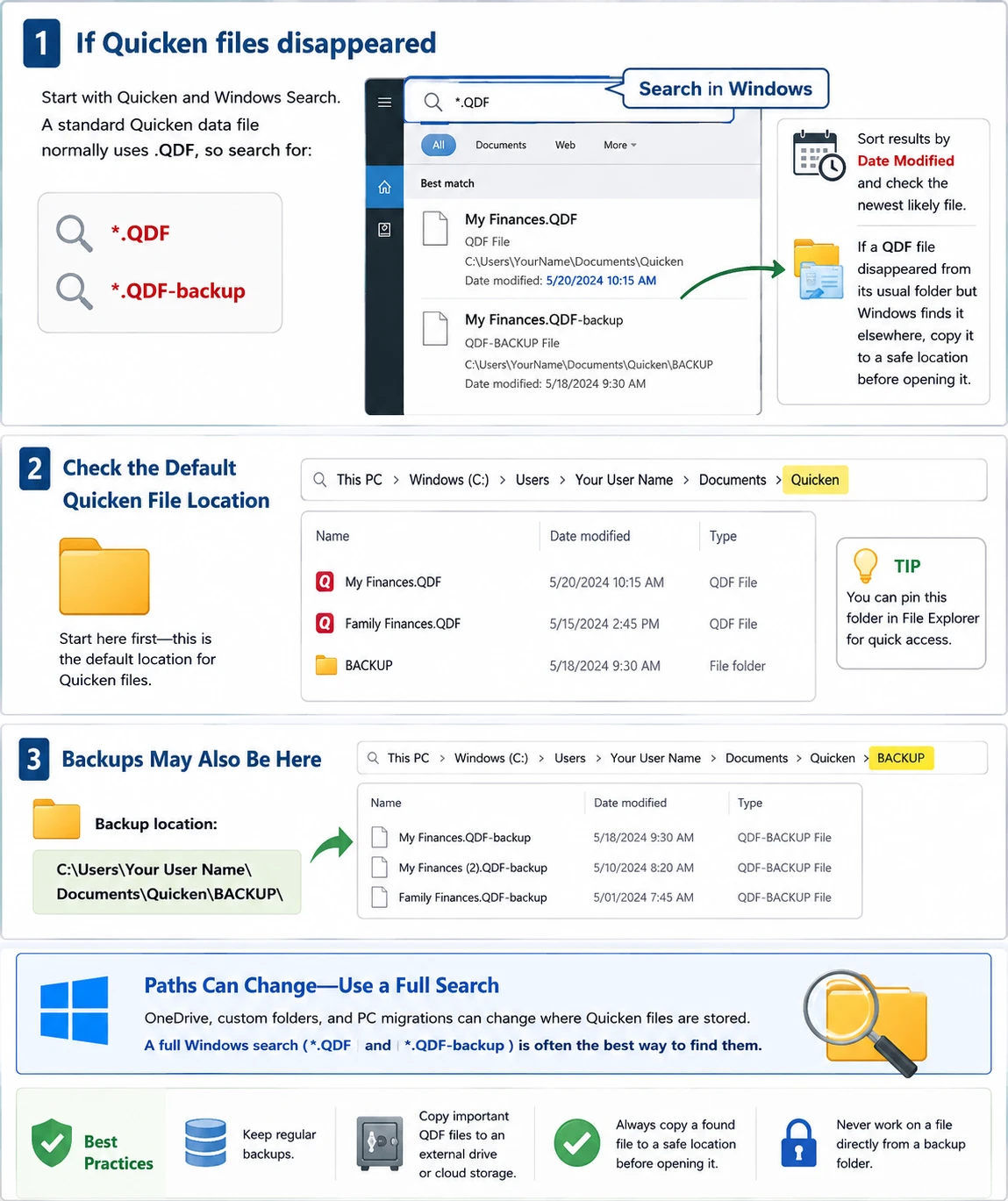
Se Os arquivos do Quicken desapareceram, comece com o Quicken e o Windows Search. Um arquivo de dados padrão do Quicken normalmente usa .QDF, então procure por:
*.QDF*.QDF-backup
Em seguida, classifique os resultados por “Data de modificação” e verifique o arquivo mais recente. Se um O arquivo QDF desapareceu da pasta habitual, mas o Windows o localiza em outro lugar; copie-o para um local seguro antes de abri-lo.
Verifique o padrão Localização do arquivo do Quicken
Se estiver perguntando Onde os arquivos do Quicken são armazenados?, comece com:
C:\Usuários\[Seu nome de usuário]\Documentos\Quicken\
Os backups também podem aparecer em:
C:\Usuários\[Seu nome de usuário]\Documentos\Quicken\BACKUP\
No entanto, o OneDrive, pastas personalizadas e migrações de PC podem alterar esses caminhos. Consequentemente, uma pesquisa completa no Windows costuma funcionar melhor do que verificar apenas uma pasta.
Método 2: Restaurar um backup quando os arquivos do Quicken desaparecerem
Às vezes Os arquivos do Quicken desapareceram apenas da pasta de trabalho, enquanto um arquivo recente Backup do QDF continua disponível. Portanto, procure por arquivos de backup em todo o computador.
Se houver vários, compare as datas, os tamanhos e os locais deles. Em seguida, escolha o backup mais recente criado antes do início do problema.
Como fazer Restaurar o backup do Quicken Arquivos com segurança
Use a opção “Restaurar a partir do backup” do Quicken em vez de renomear arquivos ou sobrescrever dados existentes. Primeiro, restaure o backup em uma pasta separada. Em seguida, verifique as transações recentes, os saldos, as atividades de investimento e o histórico de reconciliação.
Se Os arquivos de backup do Quicken desapareceram Se for o caso, continue a seguir. Caso contrário, crie um novo backup independente após confirmar os dados restaurados.
Método 3: Verifique a Lixeira e o OneDrive quando os arquivos do Quicken desaparecerem
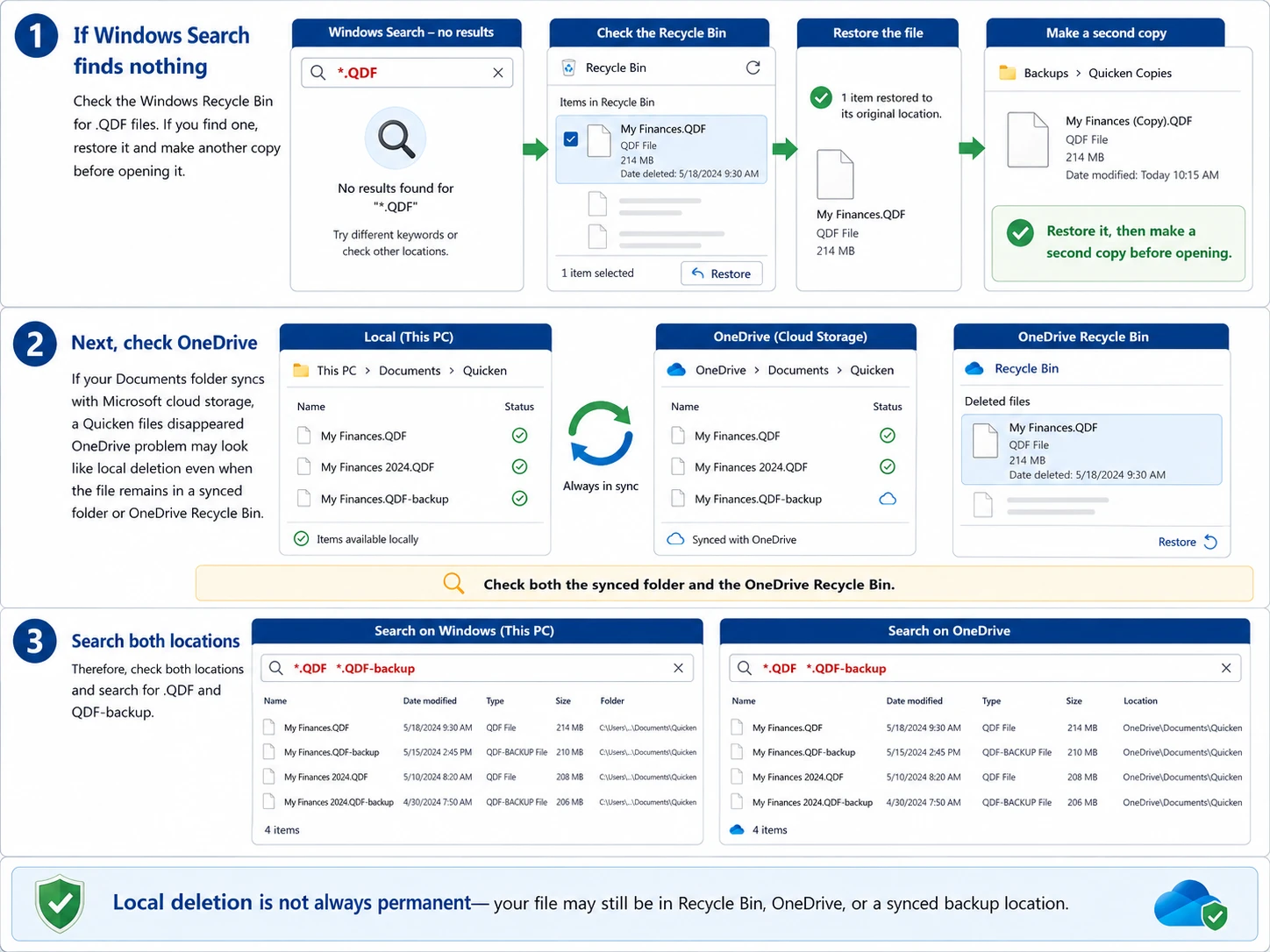
Se a Pesquisa do Windows não encontrar nada, verifique a Lixeira do Windows para ver se há .QDF arquivos. Se você encontrar um, restaure-o e faça outra cópia antes de abri-lo.
Em seguida, verifique no OneDrive se sua pasta “Documentos” está sincronizada com o armazenamento em nuvem da Microsoft. A Os arquivos do Quicken desapareceram do OneDrive O problema pode parecer uma exclusão local, mesmo quando o arquivo permanece em uma pasta sincronizada ou na Lixeira do OneDrive.
Portanto, verifique ambos os locais e procure por .QDF e Backup do QDF.
O Quicken Cloud não é um backup para desktop
A sincronização do Quicken Cloud e um backup completo do arquivo QDF têm finalidades diferentes. Portanto, não presuma que a sincronização na nuvem possa recriar todo o seu banco de dados do desktop após um O arquivo de dados do Quicken desapareceu. Em vez disso, mantenha um QDF independente ou Backup do QDF cópias.
Método 4: Verificar o Histórico de Arquivos e outros locais de backup
Se Os arquivos do Quicken desapareceram e, caso não estejam na Lixeira, verifique outras fontes de backup, incluindo o Histórico de Arquivos do Windows, backups manuais, unidades de disco de computadores anteriores, perfis antigos do Windows e serviços de backup na nuvem.
Por exemplo, se Faltam arquivos QDF Se os problemas começaram após uma migração do PC, verifique o disco antigo e a pasta “Documentos” anterior. Caso não haja nenhuma cópia utilizável, passe para a recuperação no nível do armazenamento.

Método 5: Prepare-se para recuperar um arquivo do Quicken excluído
Quando Os arquivos do Quicken desapareceram Como alguém excluiu o arquivo original, a atividade contínua do disco pode reduzir as chances de recuperação. O Windows pode reutilizar esse espaço de armazenamento, de modo que novas gravações podem sobrescrever os dados recuperáveis.
Portanto, evite downloads grandes, instalações de softwares não relacionados, ferramentas de limpeza de disco e salvar dados recuperados na mesma unidade. Essa precaução é importante caso você precise Recuperar arquivo do Quicken sem backup.
Método 6: Os arquivos do Quicken sumiram? Recupere-os com o Magic Data Recovery
Se Os arquivos do Quicken desapareceram e você não consegue encontrar um arquivo QDF utilizável nos backups do Quicken, na Lixeira do Windows, no OneDrive ou no Histórico de Arquivos, Magic Data Recovery pode fazer uma varredura na unidade onde o arquivo perdido estava anteriormente.
Ao contrário da lista de arquivos ou do recurso de restauração de backup do Quicken, o Magic Data Recovery atua no nível do armazenamento. Portanto, ele oferece uma alternativa quando o arquivo não aparece mais nas pastas normais. No entanto, nenhuma ferramenta de recuperação pode garantir o sucesso após uma sobrescrita.
Etapa 1: Faça o download e instale o Magic Data Recovery
Baixe o Magic Data Recovery no site oficial Amagicsoft site. Se possível, instale-o em uma unidade diferente daquela em que o arquivo do Quicken que está faltando estava armazenado anteriormente.
Isso reduz as gravações desnecessárias. Consequentemente, você diminui o risco de sobrescrever dados que ainda possam ser recuperáveis.
Compatível com Windows 7/8/10/11 e Windows Server
Etapa 2: Selecione a unidade em que o arquivo do Quicken foi salvo
Inicie o Magic Data Recovery e verifique as unidades na interface principal. Em seguida, selecione a unidade na qual o arquivo ausente estava armazenado originalmente Arquivo QDF do Quicken e inicie a varredura.

Etapa 3: Verifique a unidade em busca do arquivo do Quicken que está faltando
O Magic Data Recovery inicia uma verificação avançada e procura dados recuperáveis na unidade selecionada. Enquanto isso, os arquivos detectados são exibidos à medida que a verificação avança.
Você pode verificar os resultados durante a verificação. No entanto, deixe-a concluir sempre que possível. Em seguida, procure o arquivo ausente pelo nome do arquivo, caminho original, data, tamanho ou extensão .QDF, quando disponível.

Etapa 4: Recupere o arquivo do Quicken e salve-o em um local seguro
Por fim, selecione os arquivos desejados e inicie a recuperação. Salve os dados recuperados em uma unidade ou local de armazenamento diferente daquela que foi verificada.
Após a recuperação, faça outra cópia do arquivo QDF. Em seguida, abra a cópia no Quicken e verifique as contas, as transações recentes, os saldos e outros registros importantes.

Por que o Magic Data Recovery se encaixa nesse cenário
O Magic Data Recovery resolve um problema que as ferramentas integradas do Quicken não conseguem resolver: o arquivo local pode não estar mais em uma pasta visível ou em um backup utilizável. Além disso, seu fluxo de trabalho de verificação, visualização e recuperação oferece aos usuários do Windows um processo simples e direto.
Por exemplo, suponha que seu Os arquivos do Quicken desapareceram da unidade C:, o A Lixeira está vazia, o OneDrive não tem nenhuma cópia, e cada Backup do QDF está muito antigo. Nessa situação, fazer uma varredura na unidade original é outra opção prática.
No entanto, os softwares de recuperação devem complementar os backups, e não substituí-los.
O que fazer após recuperar arquivos perdidos do Quicken
Encontrar o arquivo não é a etapa final. Primeiro, mantenha o original recuperado inalterado. Em seguida, abra uma cópia no Quicken e verifique os saldos, as transações recentes, os registros de investimentos, as categorias e as reconciliações.
Se tudo parecer correto, faça um novo backup imediatamente. Além disso, mantenha outra cópia em um local separado.
Como evitar que os arquivos do Quicken desapareçam novamente
Você pode reduzir o risco de outro Os arquivos do Quicken desapareceram incidente relacionado a uma rotina simples de backup.
Primeiro, mantenha os backups automáticos ativados. Em seguida, crie um backup manual antes de atualizações do Windows, atualizações do Quicken, migrações de computador ou substituições de disco rígido. Além disso, mantenha pelo menos um backup fora da pasta principal do Quicken.
Por fim, teste seus backups periodicamente. Um backup só é útil quando você consegue localizá-lo e restaurá-lo.
Conclusão: O que fazer quando os arquivos do Quicken desaparecem
Quando Os arquivos do Quicken desapareceram, comece pela solução mais segura. Primeiro, procure o QDF original. Em seguida, verifique Backup do QDF arquivos, Lixeira do Windows, OneDrive, Histórico de Arquivos e outros locais de backup.
Se você ainda não conseguir encontrar uma cópia utilizável, reduza as gravações na unidade afetada e considere uma recuperação no nível do armazenamento. Magic Data Recovery é adequado para essa etapa, pois pode fazer uma varredura na unidade quando as buscas normais e a recuperação do backup falham.
No entanto, nenhum software de recuperação pode garantir sucesso em todos os casos de exclusão. Por esse motivo, o Magic Data Recovery funciona melhor como uma opção prática de último recurso recuperação de arquivos excluídos opção. Após a recuperação, crie novos backups independentes para reduzir riscos futuros.
Compatível com Windows 7/8/10/11 e Windows Server
Perguntas frequentes sobre o desaparecimento de arquivos do Quicken
Por que meu arquivo do Quicken desapareceu de repente?
O problema do desaparecimento de um arquivo do Quicken pode ocorrer porque o Quicken abriu outro banco de dados, o Windows moveu o arquivo, o OneDrive alterou o caminho da pasta “Documentos” ou alguém excluiu o arquivo QDF por engano. Portanto, procure por arquivos com extensões .QDF e .QDF-backup antes de presumir que a perda seja definitiva. Verifique também os locais de arquivos recentes, a Lixeira, o OneDrive e suas pastas de backup.
Onde os arquivos do Quicken são armazenados no Windows?
Se você está se perguntando onde os arquivos do Quicken são armazenados, comece pela pasta Documentos\Quicken no seu perfil do Windows. No entanto, o local real dos arquivos do Quicken pode variar se você usar o OneDrive, outra partição, uma pasta personalizada ou um perfil migrado. Portanto, uma busca completa por *.QDF costuma funcionar melhor do que verificar apenas um local.
O que devo fazer se o Quicken me pedir para abrir um arquivo de dados?
Se o Quicken solicitar que você abra um arquivo de dados, não crie um novo banco de dados imediatamente. Primeiro, verifique os arquivos recentes e pesquise por arquivos com extensão .QDF no Windows. Em seguida, verifique as pastas “Documentos\Quicken”, “OneDrive” e as pastas de backup. Se aparecerem vários arquivos possíveis, compare as datas de modificação e abra uma cópia do arquivo mais provável.
É possível recuperar um arquivo do Quicken sem backup?
Sim, é possível recuperar um arquivo do Quicken sem backup se o arquivo QDF ainda existir em outro local ou se os dados excluídos ainda puderem ser recuperados na unidade. No entanto, o sucesso depende do que aconteceu após a exclusão. Portanto, reduza as novas gravações na unidade afetada e tente a recuperação no nível do armazenamento somente depois que as buscas, a Lixeira, o OneDrive e o Histórico de Arquivos falharem.
O que é um arquivo de backup QDF?
Um arquivo .QDF-backup armazena uma cópia de backup dos dados do Quicken para desktop. Se o arquivo QDF ativo se perder ou ficar inutilizável, você poderá restaurar os dados de backup do Quicken a partir desse arquivo. Portanto, procure por arquivos com a extensão .QDF-backup em todo o computador antes de usar a função de recuperação de arquivos excluídos. Sempre restaure primeiro em um local separado para preservar o backup original.
O Quicken Cloud pode substituir meu backup local em formato QDF?
Não. A sincronização do Quicken Cloud não substitui um backup independente do arquivo QDF no desktop. Portanto, mantenha cópias de backup separadas dos dados importantes do Quicken. Se um arquivo de dados do Quicken desaparecer, verifique primeiro os locais do QDF original e do backup do QDF, em vez de presumir que a sincronização na nuvem possa recriar o banco de dados completo do desktop.
Quando devo usar o Magic Data Recovery para arquivos do Quicken?
Utilize o Magic Data Recovery depois que os arquivos do Quicken desaparecerem e você já tiver verificado a Pesquisa do Windows, os backups do Quicken, a Lixeira, o OneDrive, o Histórico de Arquivos e outros locais de backup. Nesse caso, o arquivo original pode ter sido excluído, e não apenas perdido. Portanto, uma varredura no nível do armazenamento oferece outra opção, embora a recuperação ainda dependa do fato de novos dados terem sobrescrito o arquivo.

Vasilii é um especialista em recuperação de dados com cerca de 10 anos de experiência prática na área. Ao longo de sua carreira, ele resolveu com sucesso milhares de casos complexos envolvendo arquivos excluídos, unidades formatadas, partições perdidas e sistemas de arquivos RAW. Sua experiência abrange métodos de recuperação manual usando ferramentas profissionais, como editores hexadecimais, e soluções automatizadas avançadas com software de recuperação. A missão do Vasilii é tornar o conhecimento confiável sobre recuperação de dados acessível tanto para profissionais de TI quanto para usuários comuns, ajudando-os a proteger seus valiosos ativos digitais.