
Hasleo 데이터 복구 리뷰 및 대안
Hasleo Data Recovery is worth considering when a Windows file disappears after Shift + Delete, an emptied Recycle Bin, or accidental formatting. Yet a scan that finds a filename is not proof that the file can be restored intact. Free recovery limits, drive type, and licensing also affect your choice. This review examines published recovery tests alongside features and pricing, then explains when another data recovery tool may help if backups and built-in recovery methods fail.
We compare Hasleo Data Recovery, Recuva, Windows File Recovery, and Magic Data Recovery. 편집자 주: Amagicsoft develops Magic Data Recovery. The real-world results cited below were published by different reviewers, including one Amagicsoft-run test. We independently checked those reports, but did not run the four products under identical conditions. Therefore, this is an evidence-based review, not a head-to-head recovery-rate ranking. For a closer look at storage problems, see Amagicsoft’s 하드 드라이브 복구 솔루션.
목차
Quick Picks: Which Windows Recovery Tool Fits?
필요 | 고려 사항 | 왜 |
Restore up to 2 GB for free | Hasleo Data Recovery | The Free edition advertises a 2 GB default allowance for eligible home users. |
Restore recently deleted local files using a GUI | Recuva Free | A straightforward Windows interface and deep-scan option. |
Avoid a paid license and use commands | Windows 파일 복구 | Microsoft’s free command-line utility has no published GB quota. |
Try another scanner after built-in methods fail | Magic Data Recovery | GUI scanning and previews, with a documented 500 MB free allowance. |
These picks reflect suitability and cost, not a universal winner. First check the Recycle Bin, File History, or cloud version history; an intact backup is safer than a fresh disk scan.
Hasleo Data Recovery vs Alternatives: Features and Limits
결정 요인 | Hasleo | Recuva | Windows 파일 복구 | Magic Data Recovery |
플랫폼 | Windows | Windows | Windows 10/11 | Windows |
인터페이스 | GUI | GUI | 명령줄 | GUI |
무료 복구 | 2 GB by default | 무료 | 무료 | 500MB |
Search methods | Deleted File / Deep Scan | Standard / Deep Scan | Regular / Extensive | Drive scan and filters |
미리 보기 | 지원되는 형식 | 지원되는 형식 | No integrated preview | 지원되는 형식 |
주요 상충관계 | Advanced features restricted by edition | Pro extras and Windows-only scope | No graphical file browser | Smaller free allowance |
가장 적합 | General home recovery | Routine deletion | 기술 사용자 | A second GUI assessment |
Hasleo Data Recovery Testing Methodology: Published Results
Evidence Sources and Selection Rules
평가하려면 Hasleo Data Recovery fairly, we reviewed completed, publicly documented recovery attempts from Remontka.pro (Hasleo), Digital Trends (Recuva Professional), CleverFiles (Windows File Recovery), 및 Amagicsoft (Magic Data Recovery). We included reports that identify a storage or data-loss scenario and provide concrete outcomes rather than unsubstantiated recovery-rate advertising.
The test authors chose their own drives, sample files, software versions, scan modes, and verification methods. We did not obtain their original recovered files or reproduce their experiments. Independent editorial reporting and vendor-published testing are labeled separately; the primary Hasleo Data Recovery experiment is historical, and CleverFiles also develops competing recovery software. Thus, comparisons of file counts should stay within each published experiment.
Published Hands-on Recovery Results
소프트웨어 | Test environment and scenario | Published observation | Verification boundary |
Hasleo Data Recovery | USB flash drive, 50 mixed files; reformatted from FAT32 to NTFS | 32/50 files restored: 31 photos and 1 PSD. The reviewer reported those 32 files were undamaged; documents and videos were not recovered. | Older version, cross-file-system format, no published SHA-256 audit |
Recuva Professional | External HDD, 163 files; separate deletion and quick-format attempts | 163/163 restored after deletion; 158/163 after formatting. Some recovered items had generated names. | Tested paid Professional, not Recuva Free; no complete hash-verification table |
Windows 파일 복구 | Windows 11 Pro 23H2; 16 GB NTFS USB, 753-file dataset | 743/753 recovered after deletion in about 1 minute. Separate format and corruption tests reportedly produced about 700 files each. | Competing vendor’s test; different loss modes; no per-file hash audit |
Magic Data Recovery | Windows 11, 500 GB HDD; 35 deleted mixed files | Amagicsoft reported 35/35 recovered files opened normally; completed scan 37분. | First-party test against Donemax, not Hasleo; no published file-by-file hash results |
How to read these numbers: 그리고 Hasleo Data Recovery 32/50 result comes from a 2018 format test; it does not predict current version 6.8 performance. Recuva’s 163/163 and 158/163 results came from two separate scenarios on a particular HDD. Windows File Recovery’s roughly 700 files in the other tests should not be combined into a single formatting success percentage. Magic Data Recovery’s 35/35 is a company-reported file-open result, not an independently verified comparison with Hasleo.
In addition, an Ask Leo! case report from 2024 describes a Hasleo scan lasting more than 24 hours that found more candidates than Recuva but did not restore the document that mattered most. This illustrates why a long result list is not equivalent to successful restoration.
How We Interpret Recovery Quality
We apply the same four definitions when interpreting reports:
- 발견됨: The application lists a candidate filename or signature.
- 미리 보기 가능: Supported content appears in the preview window.
- Recovered: The program exports a file to another storage location.
- 변경 없음: The file opens and works correctly; an exact SHA-256 match provides stronger byte-level evidence.
Not every publication establishes all four stages. Consequently, we do not compute a cross-product Hasleo Data Recovery success rate or assign a tested speed winner. The separately prepared 22-file synthetic benchmark dataset has passed 22/22 source-file SHA-256 checks, but its proposed Hasleo/Recuva/WinFR/MDR Windows recovery runs have not been executed. Source-file verification is not a recovery outcome.
1. Hasleo Data Recovery Review: Free Limit and Real-World Evidence
최적 대상: Windows home users with deleted files or a logically formatted, readable drive, especially when the expected export is no more than 2 GB.
Main Features and Workflow
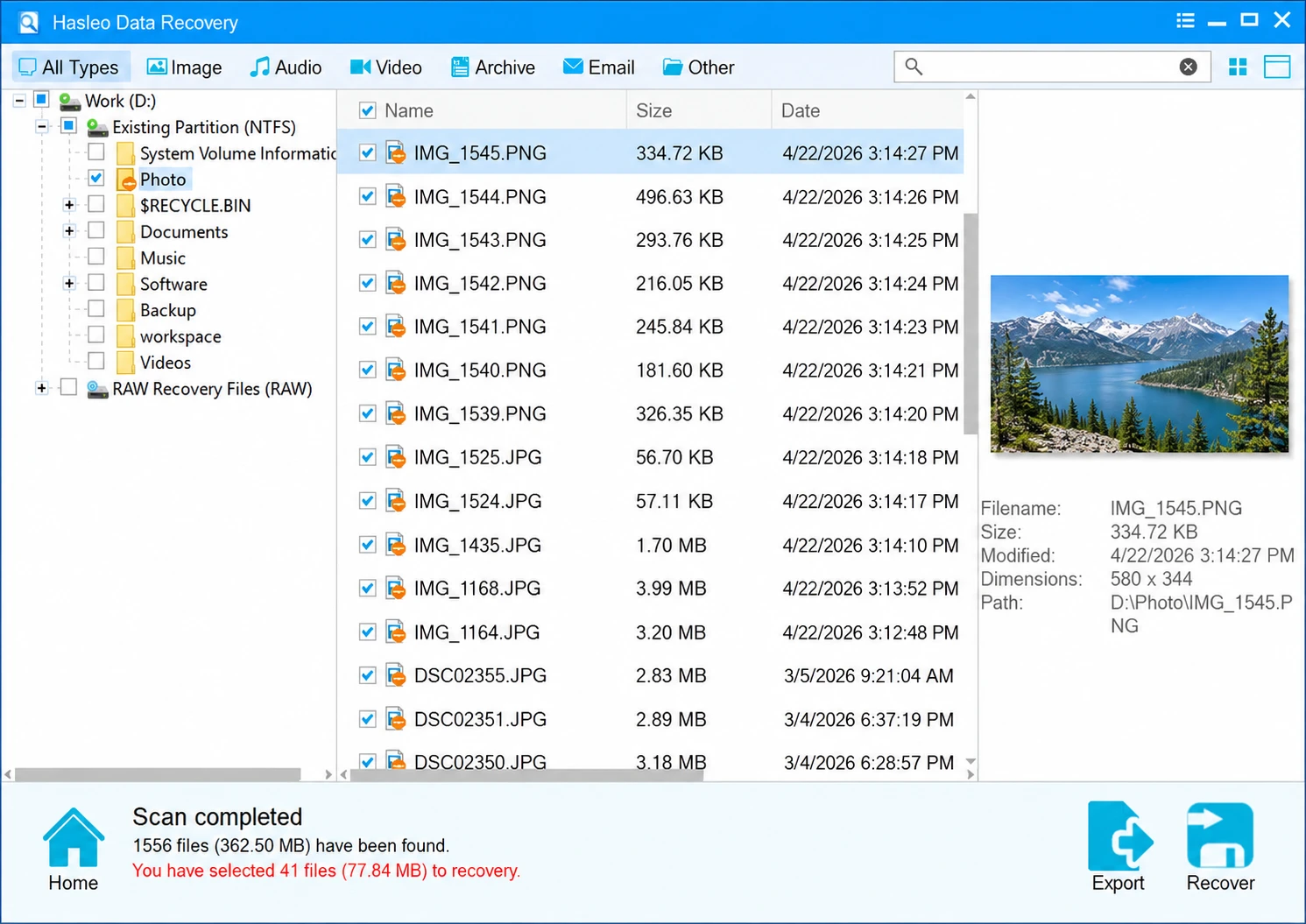
그리고 official Hasleo product page identifies Hasleo Data Recovery version 6.8. 삭제된 파일 복구 targets ordinary deletion, while Deep Scan Recovery searches more extensively after formatting, partition loss, or certain file-system problems. It supports common HDDs, USB storage, and memory cards and documents file previews and saved scan sessions.
The independent 2018 Remontka.pro test recovered 32 of 50 files after a FAT32-to-NTFS reformat. The reviewer could use the recovered images and PSD but did not retrieve the original documents or videos. This offers a concrete historical example of uneven recovery by file type, not a benchmark of today’s release.
강점: Clear 2 GB default free allowance, two task-specific scan modes, previews, and saved scan results. 제한 사항: The free edition excludes WinPE boot media and BitLocker recovery; an old cross-format result cannot establish contemporary recovery performance. SSD TRIM and physical damage may eliminate software recovery options entirely.
Is Hasleo Data Recovery Really Free?
Yes. According to Hasleo’s edition comparison, Free permits 2 GB by default. A separate promotion may grant eligible Windows Home users a one-year Home license after a qualifying public share. This is conditional, noncommercial use—not unconditional access to every paid feature.
Professional lists 49 for 1 PC, 169 for two PCs, and Technician $299 for unlimited PCs, excluding VAT. Professional adds WinPE boot media; BitLocker Data Recovery requires Ultimate or Technician 그리고 a valid password or 48-digit recovery key. The paid editions advertise lifetime upgrades.
평결: Hasleo Data Recovery is a sensible first GUI option for qualifying Windows users. The published test shows that a recovered photo can be usable even when other file types remain missing; it does not establish Hasleo as the most successful scanner overall.
2. Recuva vs Hasleo Data Recovery: Deleted-File Recovery
최적 대상: Home users who prefer a GUI for files deleted from a healthy HDD or removable disk.
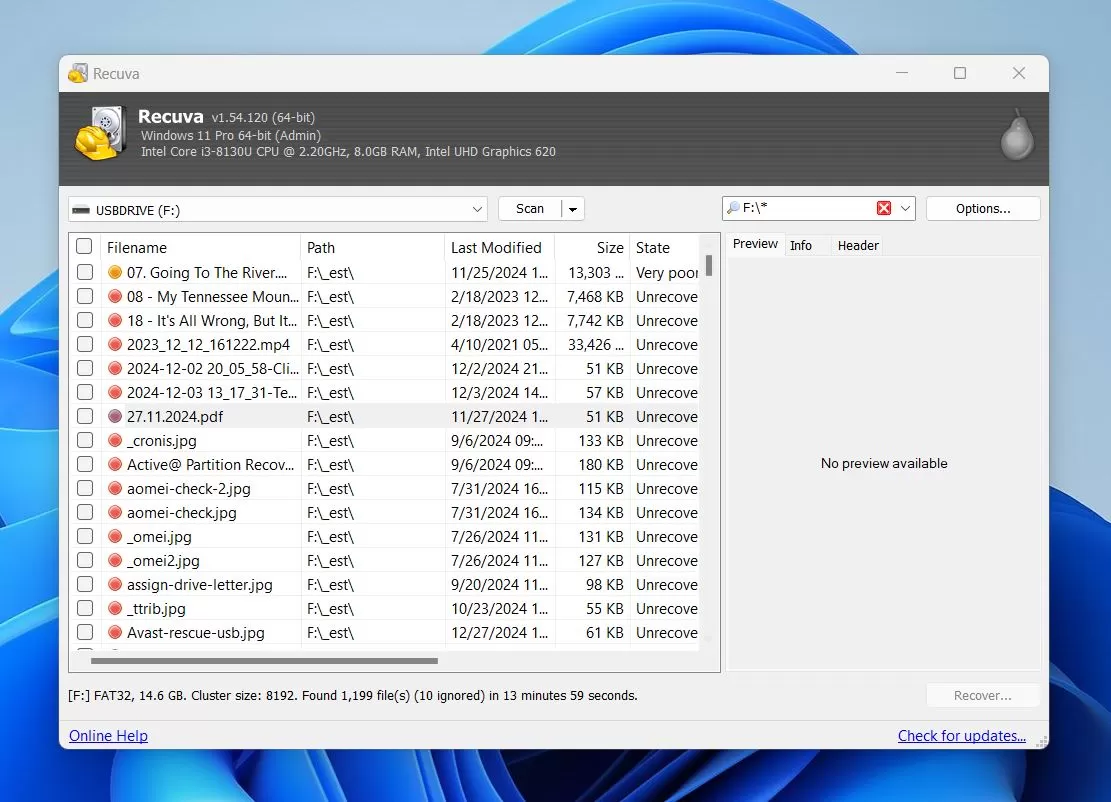
Recuva provides a free Windows edition and a paid Professional edition. It offers ordinary and deep scans, candidate-file status information, and supported previews.
In a 2024 Digital Trends review, the author used Recuva Professional on an external HDD. It restored all 163 files in the deletion test; after quick formatting, 158 of 163 returned. Nevertheless, some recovered files lost their original names. In that review, the tester also reported unsuccessful SSD recovery attempts. Those observations belong to that particular setup and should not be generalized to all SSDs.
강점: Free graphical edition, easy file filtering, and a published independent HDD test. 제한 사항: The reported result came from Professional rather than Free; filenames may be lost; virtual-hard-drive support and updates are paid extras.
Price and verdict: Recuva Professional displays $24.95, with a one-year subscription described in the Digital Trends review. Free is suitable to try first for basic deletion, while paid users should verify current checkout and device terms.
3. Windows File Recovery vs Hasleo Data Recovery
최적 대상: Users comfortable with Microsoft command-line tools and local Windows file systems.
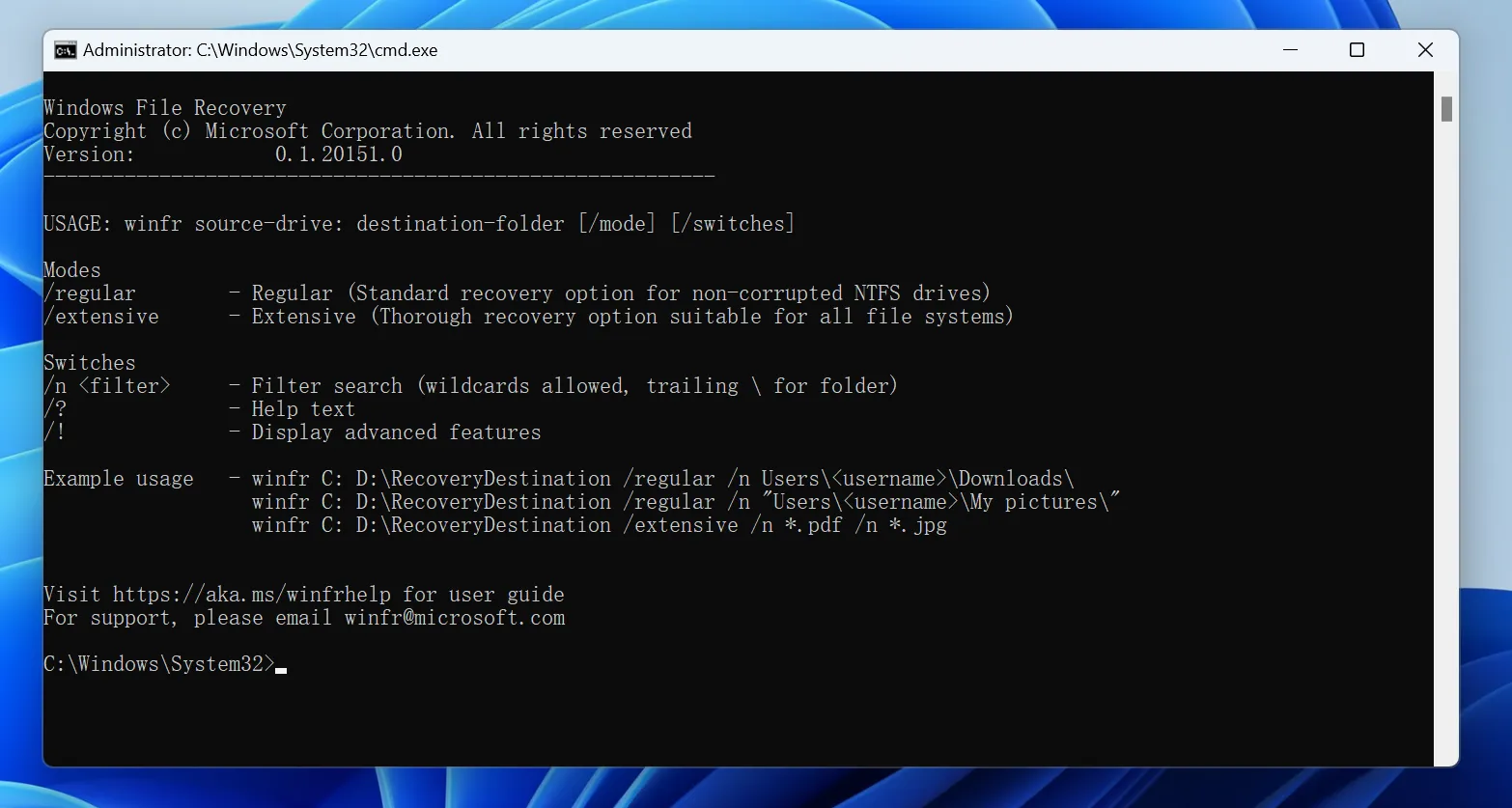
Windows 파일 복구 is free. Its 일반 mode targets many recent NTFS deletions; 광범위 mode addresses older deletion and certain formatting or other file-system situations. A typical command looks like winfr C: E: /regular /n *.pdf, with output written to a different drive.
A 2025 CleverFiles review reported a Windows 11 Pro 23H2 machine, 16 GB NTFS USB test drive, and 753 files. Regular mode returned 743/753 after deletion in approximately one minute. Separate format and corruption cases took about twelve minutes each and returned roughly 700 files, often without original names. The publisher develops competing recovery software, so its results should be treated as disclosed third-party claims rather than independent laboratory certification.
강점: No purchase, no stated GB cap, and powerful filename/path filters. 제한 사항: No GUI preview, command-line learning curve, and less control over recovered filenames in some modes.
Price and verdict: 무료. Consider it if you are comfortable with commands and want a Microsoft tool before purchasing another recovery license.
4. Magic Data Recovery vs Hasleo Data Recovery
최적 대상: Users whose backups and initial recovery attempts failed but whose source drive remains physically stable and readable.
Magic Data Recovery from Amagicsoft scans Windows disks and removable storage. Its documented workflow covers drive selection, scanning, filtering, supported previews, and export to another physical drive.
Magic Data Recovery reportedly restored 35 deleted files from a 500 GB HDD, and all 35 opened normally. The scan took 37분. This is a first-party test of a deletion scenario against Donemax, not a direct test against Hasleo Data Recovery. It also does not document byte-identical SHA-256 recovery for each file.
강점: GUI workflow, supported previews, and a real published file-open assessment. 제한 사항: 그것의 500MB free allowance is smaller than Hasleo’s default 2 GB; the cited recovery test was run by its developer, not an independent lab; it cannot reverse overwriting or completed SSD TRIM.
Price and verdict: 그리고 Amagicsoft store advertises 49.95 for 1 year and 69.95 for Pro Perpetual, each covering one computer. Magic is worth evaluating as a second scanner, not because the unrelated 35-file test proves it outperforms Hasleo.

Hasleo Data Recovery Prices and License Comparison
판 | 표시된 USD 가격 | Relevant conditions |
Hasleo Free | $0 | 2 GB default; home-use restrictions |
Hasleo Professional | $49 | 1 PC; unlimited exports; WinPE; no BitLocker mode |
Hasleo Ultimate | $169 | 2 PCs; adds BitLocker mode with required credentials |
Hasleo Technician | $299 | Unlimited PCs; service-provider rights |
Recuva Free | $0 | Home use; no published GB allowance |
Recuva Professional | $24.95 | Paid extras; verify subscription terms |
Windows 파일 복구 | $0 | Microsoft command-line utility |
Magic Data Recovery 무료 | $0 | 500MB 무료 복구 |
Magic Data Recovery Pro 1 Year | $49.95 | 1 PC; one year of upgrades |
Magic Data Recovery Pro Perpetual | $69.95 | 1 PC; lifetime upgrades |
Prices reviewed October 21, 2026. Hasleo store prices exclude VAT. Recuva and Amagicsoft offers can change; check taxes, renewal, refund, and device-transfer terms before buying.
Which Hasleo Data Recovery Alternative Fits Your Case?
상황 | Safer first action |
File remains in Recycle Bin | Restore it directly; skip paid software |
File History, OneDrive, or another backup contains an intact copy | Restore the backup first |
Permanently deleted files on a healthy HDD | Compare Hasleo, Recuva, or Windows File Recovery |
Quick-formatted HDD or RAW volume | Stop writes; scan only when the hardware is stable |
Hasleo finds files but the exports are corrupt | Verify content; consider another scanner if the source is healthy |
Unsaved Word or Excel document | Check AutoRecover or temporary files, not generic deleted-file scans |
Locked BitLocker volume | Obtain the recovery key; check licensed encryption support |
SSD deletion after TRIM | Check backups; software recovery may be impossible |
Clicking or repeatedly disconnecting drive | Stop DIY scanning; seek professional recovery |
언제 Hasleo Data Recovery is not the right fit, choose a method that matches the storage fault instead of relying on a different brand name. For device-specific instructions, see recovering deleted files from an HDD 그리고 recovering data from a formatted hard drive. If folders merely look missing, first investigate files disappearing from an external hard drive rather than assuming they were deleted.
When Hasleo Data Recovery or Any Scanner Is the Wrong Choice
If an intact backup exists, use it. If a file was never written to storage, disk scanning cannot reconstruct text that existed only in application memory. Autosave and AutoRecover may help, but neither is a permanent backup.
Similarly, do not repeatedly scan a clicking or disappearing HDD. Software cannot repair failed heads or electronics. On SSDs, TRIM may make deleted blocks inaccessible even without visible new user files. Avoid repair commands, formatting, or installing tools on the affected drive until important data is protected.
다음과 같은 경우 Hasleo Data Recovery preview looks correct, that is encouraging but still weaker than verifying the exported file. Finally, verify actual output before paying. Found files, previews, exported files, and intact content are different results, and no published recovery figure guarantees your own outcome.
Conclusion: Is Hasleo Data Recovery Worth Using?
Hasleo Data Recovery offers an accessible Windows workflow, a documented 2 GB default free allowance, and separate modes for deletion and more extensive scans. The historical independent test shows usable image recovery after one cross-file-system format, alongside failures for other file types. Recuva has a separate favorable HDD test, while Windows File Recovery offers a free command-line route. If initial methods fail on healthy storage, Magic Data Recovery is another GUI option, although its published test is first-party and not directly comparable.
Choose based on the actual data-loss scenario, license, and whether an exported file opens—not a cross-study percentage. For more device-specific Hasleo Data Recovery troubleshooting, return to the 하드 드라이브 복구 솔루션.
Windows 7/8/10/11 및 Windows Server 지원
자주 묻는 질문
Hasleo 데이터 복구 서비스는 완전히 무료인가요?
Hasleo 데이터 복구 프로그램에 대해 독립적인 테스트에서는 어떤 결과가 나왔나요?
Hasleo Data Recovery가 Recuva보다 더 나은가요?
Hasleo 데이터 복구 프로그램으로 영구적으로 삭제되거나 포맷된 파일을 복구할 수 있나요?
Hasleo Free 버전은 BitLocker 파일을 복구할 수 있나요?
다른 복구 프로그램이 Hasleo가 놓친 파일을 찾아낼 수 있는 이유는 무엇일까요?
결과를 확인해 보기 전에 복구 소프트웨어 비용을 지불해야 할까요?

바실리는 이 분야에서 약 10년간 실무 경험을 쌓은 데이터 복구 전문가입니다. 그는 경력 전반에 걸쳐 삭제된 파일, 포맷된 드라이브, 손실된 파티션 및 RAW 파일 시스템과 관련된 수천 건의 복잡한 사례를 성공적으로 해결했습니다. 그의 전문 지식은 헥스 에디터와 같은 전문 도구를 사용한 수동 복구 방법과 복구 소프트웨어를 사용한 고급 자동화 솔루션을 모두 다룹니다. 바실리의 사명은 IT 전문가와 일반 사용자 모두에게 신뢰할 수 있는 데이터 복구 지식을 제공하여 소중한 디지털 자산을 보호할 수 있도록 돕는 것입니다.