클라우드 백업

목차
Remote Copies as a Safety Net
Laptops break, offices flood, and ransomware can encrypt every local drive you own.
When all copies live in one building or on one NAS, a single incident can still erase everything.
Cloud backup adds distance to your protection plan.
You send encrypted copies of important data to a remote provider so local disasters do not remove every version at once.
Cloud Backup as a Service, Not Just a Folder
Cloud backup works as a managed process, not simply “dragging files into a sync folder.”
A backup agent runs on your system and follows a schedule that you define.
That agent usually:
Selects folders, volumes, or applications to protect
Encrypts data before it leaves your device
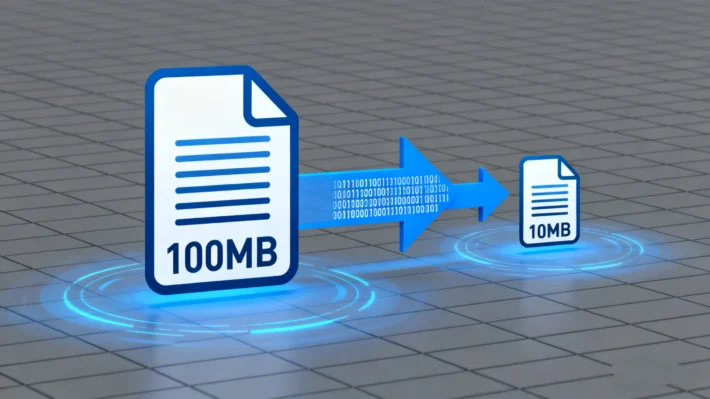
Compresses and packages backup sets for transfer
Sends them to the provider over secure channels
Maintains version history and retention policies in the cloud
You then restore data through the same agent or a web console when you need it.
Components in a Cloud Backup Architecture

Several pieces work together behind the scenes.
Typical roles include:
Client agent on your workstation or server
Gateway or API endpoint that accepts incoming backup traffic
Storage platform that holds encrypted backup objects and metadata
Management console for policy, reporting, and restores
The provider may also offer features such as immutability, cross-region replication, and alerting when backups fail or fall behind schedule.
Strengths and Limitations Compared with Local Backup
Cloud backup complements, not replaces, other backup methods.
Each approach solves a different part of the risk profile.
Advantages of Cloud Backup
Off-site protection against physical loss at your location
Automatic scheduling with minimal manual effort
Geographic redundancy when the provider replicates data
Easy scaling as your data grows
유의해야 할 제한 사항
Restore speed depends on your Internet bandwidth
Large first-time backups can take days or longer
Ongoing subscription cost instead of one-time hardware expense
Data sovereignty and compliance rules that you must respect
Combining local image backups with cloud backup gives you fast recovery on-site and strong protection off-site.
Security and Privacy Considerations
You should treat cloud backup as part of your security architecture, not just storage.
Important safeguards include:
End-to-end encryption using keys that you control
Authentication and MFA for consoles and restore operations
Role-based access control for administrators and operators
Audit logs that record who restored or deleted data
Well-designed systems encrypt data before upload and keep backups encrypted at rest.
That design prevents the provider’s staff or third parties from browsing your content directly.
Planning a Cloud Backup Strategy
A deliberate plan helps you use cloud backup efficiently instead of just sending everything blindly.
Questions to answer:
Which systems contain irreplaceable data?
How often does that data change?
How long do you need to keep previous versions?
How quickly must you restore in a real incident?
Answers to these questions drive policy choices such as backup frequency, retention periods, and which data stays local only.
Implementing Cloud Backup on Windows Systems
A structured roll-out lowers the chance of gaps and surprises.
Step 1: Prepare and Classify Data
List key systems: desktops, laptops, file servers, and application servers.
Group data into tiers such as critical, important, and archival.
Decide which tiers must always go to the cloud and which can stay local.
Step 2: Configure the Cloud Backup Agent
Install the provider’s backup agent on each protected machine.
Sign in with a secured account that uses multi-factor authentication.
Select folders, volumes, or application data (such as databases or email stores).
Set schedules for full and incremental backups that match your work patterns.
Step 3: Test Restores
Run initial 백업 and confirm they complete without errors.
Use the console to restore a small set of test files to a temporary location.
Verify file integrity and timestamps.
Document the restore procedure so you can follow it quickly under pressure.
If a disk later fails or ransomware hits, you can still combine cloud backups with tools such as Magic Data Recovery to recover data directly from damaged local media and then cross-check against cloud versions.
Windows 7/8/10/11 및 Windows Server 지원
결론
Cloud backup extends your protection beyond the walls of your office and the limits of local hardware.
It sends encrypted copies of your data to remote infrastructure so a single fire, theft, or ransomware incident does not erase your history.
When you pair cloud backup with local images, clear policies, and tested restores, you gain a robust, layered defense.
The result is a backup strategy that covers everyday mistakes, device failures, and large-scale disruptions with equal confidence.
자주 묻는 질문
What is meant by cloud backup?
Do I really need cloud backup?
What's the difference between cloud storage and backup?
How safe is cloud backup?
Can you empty your cloud storage?
Why would I need an iCloud backup?
What happens when cloud storage is full?
Are OneDrive and cloud the same?

Eddie는 컴퓨터 업계의 여러 유명 회사에서 10년 이상 근무한 경력을 가진 IT 전문가입니다. 그는 모든 프로젝트에 심도 있는 기술 지식과 실용적인 문제 해결 기술을 제공합니다.