
還原永久刪除的檔案:行之有效的方法
Accidentally pressed Shift + Delete, emptied the Recycle Bin, or removed important files from a storage device? In many cases, you can still 還原永久刪除的檔案 if Windows has not overwritten the original data and SSD TRIM has not already cleared it.
The first rule is simple: stop using the affected drive. Then check Windows backups, Previous Versions, cloud storage, and Microsoft Windows File Recovery. If those methods cannot locate the files, Magic Data Recovery can scan the original storage device for recoverable data.
This guide focuses specifically on permanent deletion. For a broader explanation of different deletion scenarios and recovery options, start with Amagicsoft’s 已刪除檔案復原指南.
Below, you will learn five practical ways to 復原永久刪除的檔案, when each solution works, and what you should avoid before recovery.
支援 Windows 7/8/10/11 和 Windows Server
想知道您的檔案是否可以復原嗎? 找出 透過以下的快速檢查,您可以在幾秒鐘內完成檢查。.
資料復原評估
回答 3 個快速問題以估計您的復原機會
目錄
Quick Answer: Can You Restore Permanently Deleted Files?
Yes. You may be able to 還原永久刪除的檔案, but the correct method depends on how the files disappeared and what happened afterward.
Try these methods in order:
- Restore the files with File History.
- 查看先前版本。.
- Use Windows File Recovery.
- Check OneDrive or another backup.
- Scan the original drive with data recovery software.
Backup-based recovery should come first because it does not depend on deleted data remaining on the source disk.
However, if no backup exists, recovery may still be possible. On an HDD, deleted file contents often remain until new data overwrites their storage space. SSDs are less predictable because TRIM and garbage collection can clear deleted blocks.
Therefore, avoid saving new files, installing software, formatting the drive, or running repair tools before you determine the safest recovery method.
What Happens When Files Are Permanently Deleted?
A file becomes permanently deleted when Windows can no longer restore it directly from the Recycle Bin.
常見的情況包括
- 壓製 Shift + 刪除
- 清空資源回收筒
- Deleting files that bypass the Recycle Bin
- Removing files from some external storage devices
- Using an application that deletes files directly
On traditional hard drives, permanent deletion usually removes the file-system reference and marks its storage space as available. Windows can then reuse that space for new files.
However, the actual file content may remain until another write replaces it. This is why you sometimes can 還原永久刪除的檔案 even though File Explorer no longer shows them.
If your files disappeared specifically after clearing the Windows bin, see the detailed guide on how to 從已清空的「資源回收筒」中還原檔案.
Why SSD Permanent Deletion Is Different
SSDs handle deleted data differently from traditional HDDs.
Windows can send a TRIM command after deletion to tell the SSD that certain blocks no longer contain useful data. The SSD controller may later erase those blocks through garbage collection.
Therefore, SSD recovery can become difficult even when you have not manually overwritten the files.
Still, not every missing SSD file is immediately unrecoverable. TRIM behavior, drive activity, controller behavior, and the cause of data loss all matter. If your deleted files were stored on solid-state storage, read how to recover deleted files from an SSD before attempting repair operations.
Can Permanently Deleted Files Be Recovered?
是的,有時候你可以 復原永久刪除的檔案, but no method can guarantee success.
Your chances are generally better when:
- You stopped using the affected drive soon after deletion.
- Windows has not overwritten the deleted data.
- File History or another backup contains an earlier copy.
- The storage device remains healthy and readable.
- SSD TRIM has not cleared the relevant blocks.
- You did not securely erase or wipe the data.
In contrast, recovery becomes less likely after heavy disk use, secure deletion, repeated writes, or successful SSD garbage collection.
Another important factor is the type of data loss.
A file that disappeared because of accidental deletion requires a different approach from a file lost because of physical drive failure. If a disk clicks, repeatedly disconnects, disappears from BIOS, or reports serious I/O errors, stop software recovery attempts and consider professional assistance.
Before You Restore Permanently Deleted Files
The actions you take immediately after deletion can directly affect recovery.
Stop Writing Data to the Source Drive
Suppose you deleted important files from drive D:. Avoid downloading, copying, extracting archives, or installing programs onto D:.
New data can reuse the same disk space that previously contained the deleted files.
Do Not Recover Files to the Same Drive
Always choose another drive for recovered data.
For example, if the source is an external HDD, save recovered files to your internal disk or another external device.
Avoid Formatting or Repair Commands
Do not format a drive just because Windows asks you to format it.
Likewise, avoid running CHKDSK as your first response when valuable files are missing. Repair tools modify file-system structures, which may make later recovery more difficult in some situations.
Recover important data first. Repair the storage device afterward.
How to Restore Permanently Deleted Files: 5 Methods
There is no single best method for every deletion case. Start with free backup-based solutions, then move to disk scanning if no usable copy exists.
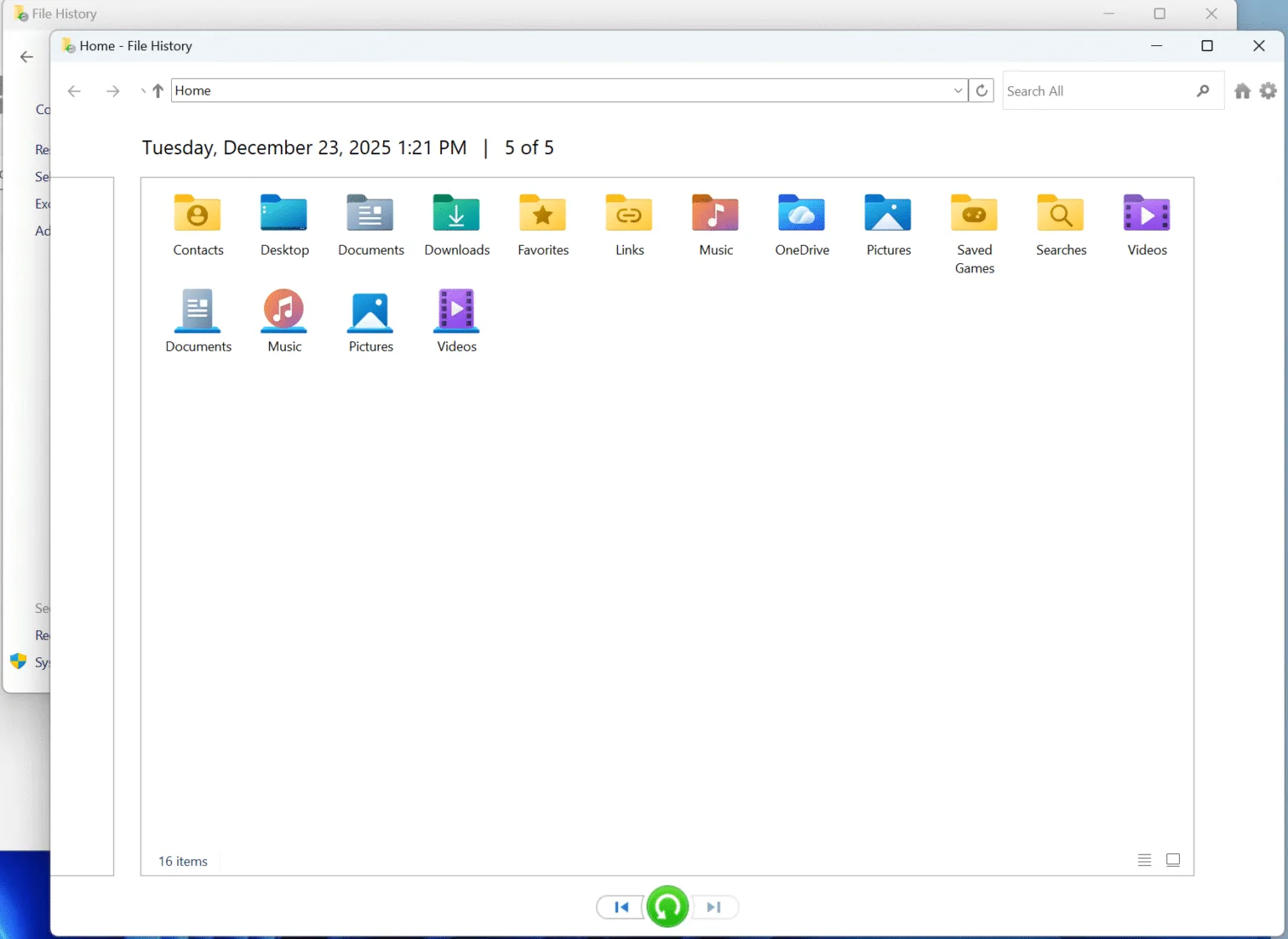
Method 1: Restore Permanently Deleted Files with File History
File History provides one of the safest ways to 還原永久刪除的檔案 when you enabled the feature before the deletion occurred.
請遵循以下步驟:
- 開啟 控制面板.
- 選擇 系統與安全性.
- 開啟 檔案歷史.
- 鍵點選 還原個人檔案.
- Browse to the original folder.
- Move through the available backup dates.
- 請選取您需要的檔案或資料夾。.
- Restore them.
File History does not reconstruct deleted disk sectors. Instead, it retrieves a previously saved copy.
That distinction makes this method reliable when a suitable backup exists.
However, File History cannot help if you never enabled it or if the required file was not included in an available backup.
Method 2: Restore Permanently Deleted Files from Previous Versions
Previous Versions offers another built-in way to 還原永久刪除的檔案 if Windows has preserved an earlier version of the original folder.
- 開啟 檔案總管.
- 請導航至先前存放該檔案的資料夾。.
- 用滑鼠右鍵按一下資料夾。.
- 選擇 屬性.
- 開啟 先前版本 標籤。.
- Select a version dated before the deletion.
- 鍵點選 開啟 to inspect its contents.
- Copy the required files to a safe location.
For example, suppose you permanently deleted an Excel workbook from:
C:\Users\您的名稱\文件\專案
Instead of searching for the individual deleted workbook, right-click the Projects or Documents folder and check whether Windows has an older version.
If the Previous Versions tab is empty, move to the next method rather than changing the source disk unnecessarily.
Method 3: Recover Permanently Deleted Files with Windows File Recovery
Microsoft provides an official command-line utility called Windows File Recovery.
It can help 復原永久刪除的檔案 from local internal drives, external disks, and USB storage when the files no longer exist in the Recycle Bin.
The general command format is:
winfr source-drive: destination-drive:[/mode] [/switches] [/switches
例如:
winfr C: E: /regular /n\Users\\Documents\
在此範例中:
C:is the source drive.E:is the recovery destination./regularselects Regular mode./nlets you specify the file or folder to search.
使用 Regular mode as the first option for recently deleted files on a healthy NTFS drive.
For older deletion cases, non-NTFS file systems, or more difficult recovery situations, 廣泛模式 performs a broader search.
Most importantly, the source and destination drives must be different. Do not recover files back to the same drive you are scanning.
Windows File Recovery is free, but it uses commands instead of a graphical interface. Therefore, users who are uncomfortable with Command Prompt may prefer a visual recovery application.
Method 4: Recover Permanently Deleted Files from OneDrive or a Backup
Before scanning the disk, check whether another copy already exists.
可能的地點包括:
- OneDrive
- 視窗備份
- 一台外接備份硬碟
- A NAS
- Another cloud service
- A copy stored on another computer
OneDrive deserves particular attention because many Windows users synchronize Desktop, Documents, and Pictures automatically.
If the missing data came from a synchronized folder, check the OneDrive Recycle Bin and available recovery features first. Our dedicated guide explains how to recover files deleted from OneDrive.
Cloud recovery and local disk recovery solve different problems.
For example, an online-only OneDrive file may never have stored its complete contents on the PC. In that case, local recovery software cannot recreate data that never existed on the local drive.
However, if OneDrive previously downloaded or synchronized the file locally, the local disk may still contain recoverable traces after deletion.
Method 5: Restore Permanently Deleted Files with Magic Data Recovery
If File History, Previous Versions, Windows File Recovery, and backups cannot find the missing files, disk-level scanning becomes the next practical option.
Magic Data Recovery is designed for logical data-loss situations such as:
- Shift + 刪除
- 清空回收站
- 意外刪除檔案
- Lost files on HDDs
- Deleted files from USB drives
- Deleted files from SD cards
- Files lost from external storage
- Some file-system problems
Unlike backup-based methods, recovery software scans the original storage device for file-system records and accessible file data.
這種做法可以有所幫助 還原永久刪除的檔案 when Windows no longer has a normal reference to them.
Magic Data Recovery also provides a graphical interface. Users can select a drive, scan it, filter results, preview supported files, and choose exactly what they want to restore.
This workflow is particularly useful when Windows File Recovery feels too technical or when you need to review many scan results before recovery.
The current free version allows up to 500MB of data recovery, which can also help you test the recovery process with smaller files before deciding whether you need more.
步驟 1:安全安裝軟體
Download the application, but do not install it on the same drive that contained the lost files.
If the files were deleted from an external hard drive, install the program on your normal Windows system drive instead.
For external-disk-specific cases, you can also read how to recover deleted files from an external hard drive.
支援 Windows 7/8/10/11 和 Windows Server
Step 2: Select the Source Drive
Open Magic Data Recovery and select the drive where the files originally existed.
Do not simply choose the largest disk. Identify the correct source based on its drive letter, capacity, and storage device.

Step 3: Scan for Deleted Data
Start the scan and allow the software to search the selected storage device.
After scanning, narrow the results by filename, file type, path, or other available filters.

步驟 4:預覽檔案
Preview supported files before recovery whenever possible. A valid preview can help confirm that you selected the correct file and that its contents remain readable.
This step is especially valuable when the scan finds several files with similar names.

步驟 5:復原至另一個磁碟機
Select the files you need and save them somewhere other than the source drive.
Do not write recovered data back to the affected disk until you have recovered everything important.

您應該選擇哪種恢復方法?
Use the situation itself to choose the safest starting point.
情況 | Recommended First Method |
已啟用「檔案歷史紀錄」 | 檔案歷史 |
An older folder copy exists | 先前版本 |
Local files were permanently deleted | Windows 檔案復原 |
Files were synced to the cloud | OneDrive 或雲端備份 |
No usable backup exists | 資料復原軟體 |
Data was deleted from an SSD | Stop drive activity and assess TRIM |
External drive was involved | Keep it connected only when needed for recovery |
Drive has hardware symptoms | Stop scanning and seek professional help |
In general, backup-based methods deserve the first attempt because they restore known copies without searching deleted disk space.
However, if those copies do not exist, a careful scan of the original device may still 復原永久刪除的檔案.
Tips to Improve Permanent File Recovery
If you still need to 還原永久刪除的檔案, follow several simple best practices.
- Stop using the source drive as soon as possible.
- Avoid installing recovery tools on that drive.
- Do not format a drive before recovering important data.
- Avoid unnecessary CHKDSK or repair operations.
- Recover files to another physical storage device.
- Preview important files when the recovery tool supports it.
- Do not repeatedly scan a physically unstable drive.
- Keep the device powered off when you are not actively recovering from it.
These steps do not guarantee recovery. Instead, they reduce avoidable actions that could overwrite or alter data that may still be recoverable.
How to Avoid Permanent File Loss in the Future
Once you successfully 復原永久刪除的檔案, prevention becomes much easier than another recovery attempt.
Enable File History or another automatic backup system. In addition, keep at least one backup on a separate device.
For important work folders, cloud synchronization can add another layer of protection. However, remember that synchronization is not always the same as backup. A deletion can sometimes synchronize across devices.
For irreplaceable documents, photos, videos, and project files, keep multiple copies in separate locations.
A usable backup turns permanent deletion into a normal restore task instead of an uncertain disk recovery problem.
總結
您經常可以 還原永久刪除的檔案, but the right solution depends on where the data was stored, whether a backup exists, how much the device has been used since deletion, and whether technologies such as SSD TRIM have already cleared the data.
Start with File History, Previous Versions, Windows File Recovery, and cloud or external backups. These options are free and should come before deeper disk scanning.
If no usable backup exists, Magic Data Recovery provides a more accessible way to scan the original storage device, filter the results, preview supported files, and recover selected data to another location. Its graphical workflow and 500MB free recovery allowance make it particularly useful when built-in Windows options cannot solve the problem.
Still, no tool can recover information that has already been overwritten or securely erased. Therefore, stopping unnecessary drive activity remains the most important first step.
For additional Windows deletion situations, recovery principles, and related guides, visit Amagicsoft’s 刪除的檔案復原 資源。.
支援 Windows 7/8/10/11 和 Windows Server
還原永久刪除檔案的常見問題
永久刪除的檔案可以復原嗎?
如何在 Windows 11 中還原已永久刪除的檔案?
如果沒有備份,我還能恢復已永久刪除的檔案嗎?
我可以免費還原已永久刪除的檔案嗎?
永久刪除的檔案會去哪裡?
Windows 檔案恢復工具能還原按 Shift + Delete 刪除的檔案嗎?
Can I recover permanently deleted files from an SSD?

Vasilii 是一位在該領域擁有約 10 年實務經驗的資料復原專家。在他的職業生涯中,他已成功解決數千個複雜的個案,包括刪除的檔案、格式化的硬碟機、遺失的磁碟分割和 RAW 檔案系統。他的專業知識涵蓋使用十六進位編輯器等專業工具的手動復原方法,以及使用復原軟體的進階自動解決方案。Vasilii 的使命是讓 IT 專業人士和一般使用者都能獲得可靠的資料復原知識,協助他們保護寶貴的數位資產。.