
Restore Permanently Deleted Files: Proven Methods
Accidentally pressed Shift + Delete, emptied the Recycle Bin, or removed important files from a storage device? In many cases, you can still restore permanently deleted files if Windows has not overwritten the original data and SSD TRIM has not already cleared it.
The first rule is simple: stop using the affected drive. Then check Windows backups, Previous Versions, cloud storage, and Microsoft Windows File Recovery. If those methods cannot locate the files, Magic Data Recovery can scan the original storage device for recoverable data.
This guide focuses specifically on permanent deletion. For a broader explanation of different deletion scenarios and recovery options, start with Amagicsoft’s deleted file recovery guide.
Below, you will learn five practical ways to recover permanently deleted files, when each solution works, and what you should avoid before recovery.
Supports Windows 7/8/10/11 and Windows Server
Wondering if your files can be recovered? Find out in seconds with our quick check below.
Data Recovery Assessment
Answer 3 quick questions to estimate your recovery chances
Table of Contents
Quick Answer: Can You Restore Permanently Deleted Files?
Yes. You may be able to restore permanently deleted files, but the correct method depends on how the files disappeared and what happened afterward.
Try these methods in order:
- Restore the files with File History.
- Check Previous Versions.
- Use Windows File Recovery.
- Check OneDrive or another backup.
- Scan the original drive with data recovery software.
Backup-based recovery should come first because it does not depend on deleted data remaining on the source disk.
However, if no backup exists, recovery may still be possible. On an HDD, deleted file contents often remain until new data overwrites their storage space. SSDs are less predictable because TRIM and garbage collection can clear deleted blocks.
Therefore, avoid saving new files, installing software, formatting the drive, or running repair tools before you determine the safest recovery method.
What Happens When Files Are Permanently Deleted?
A file becomes permanently deleted when Windows can no longer restore it directly from the Recycle Bin.
Common situations include:
- Pressing Shift + Delete
- Emptying the Recycle Bin
- Deleting files that bypass the Recycle Bin
- Removing files from some external storage devices
- Using an application that deletes files directly
On traditional hard drives, permanent deletion usually removes the file-system reference and marks its storage space as available. Windows can then reuse that space for new files.
However, the actual file content may remain until another write replaces it. This is why you sometimes can restore permanently deleted files even though File Explorer no longer shows them.
If your files disappeared specifically after clearing the Windows bin, see the detailed guide on how to recover files from an emptied Recycle Bin.
Why SSD Permanent Deletion Is Different
SSDs handle deleted data differently from traditional HDDs.
Windows can send a TRIM command after deletion to tell the SSD that certain blocks no longer contain useful data. The SSD controller may later erase those blocks through garbage collection.
Therefore, SSD recovery can become difficult even when you have not manually overwritten the files.
Still, not every missing SSD file is immediately unrecoverable. TRIM behavior, drive activity, controller behavior, and the cause of data loss all matter. If your deleted files were stored on solid-state storage, read how to recover deleted files from an SSD before attempting repair operations.
Can Permanently Deleted Files Be Recovered?
Yes, you can sometimes recover permanently deleted files, but no method can guarantee success.
Your chances are generally better when:
- You stopped using the affected drive soon after deletion.
- Windows has not overwritten the deleted data.
- File History or another backup contains an earlier copy.
- The storage device remains healthy and readable.
- SSD TRIM has not cleared the relevant blocks.
- You did not securely erase or wipe the data.
In contrast, recovery becomes less likely after heavy disk use, secure deletion, repeated writes, or successful SSD garbage collection.
Another important factor is the type of data loss.
A file that disappeared because of accidental deletion requires a different approach from a file lost because of physical drive failure. If a disk clicks, repeatedly disconnects, disappears from BIOS, or reports serious I/O errors, stop software recovery attempts and consider professional assistance.
Before You Restore Permanently Deleted Files
The actions you take immediately after deletion can directly affect recovery.
Stop Writing Data to the Source Drive
Suppose you deleted important files from drive D:. Avoid downloading, copying, extracting archives, or installing programs onto D:.
New data can reuse the same disk space that previously contained the deleted files.
Do Not Recover Files to the Same Drive
Always choose another drive for recovered data.
For example, if the source is an external HDD, save recovered files to your internal disk or another external device.
Avoid Formatting or Repair Commands
Do not format a drive just because Windows asks you to format it.
Likewise, avoid running CHKDSK as your first response when valuable files are missing. Repair tools modify file-system structures, which may make later recovery more difficult in some situations.
Recover important data first. Repair the storage device afterward.
How to Restore Permanently Deleted Files: 5 Methods
There is no single best method for every deletion case. Start with free backup-based solutions, then move to disk scanning if no usable copy exists.
Method 1: Restore Permanently Deleted Files with File History
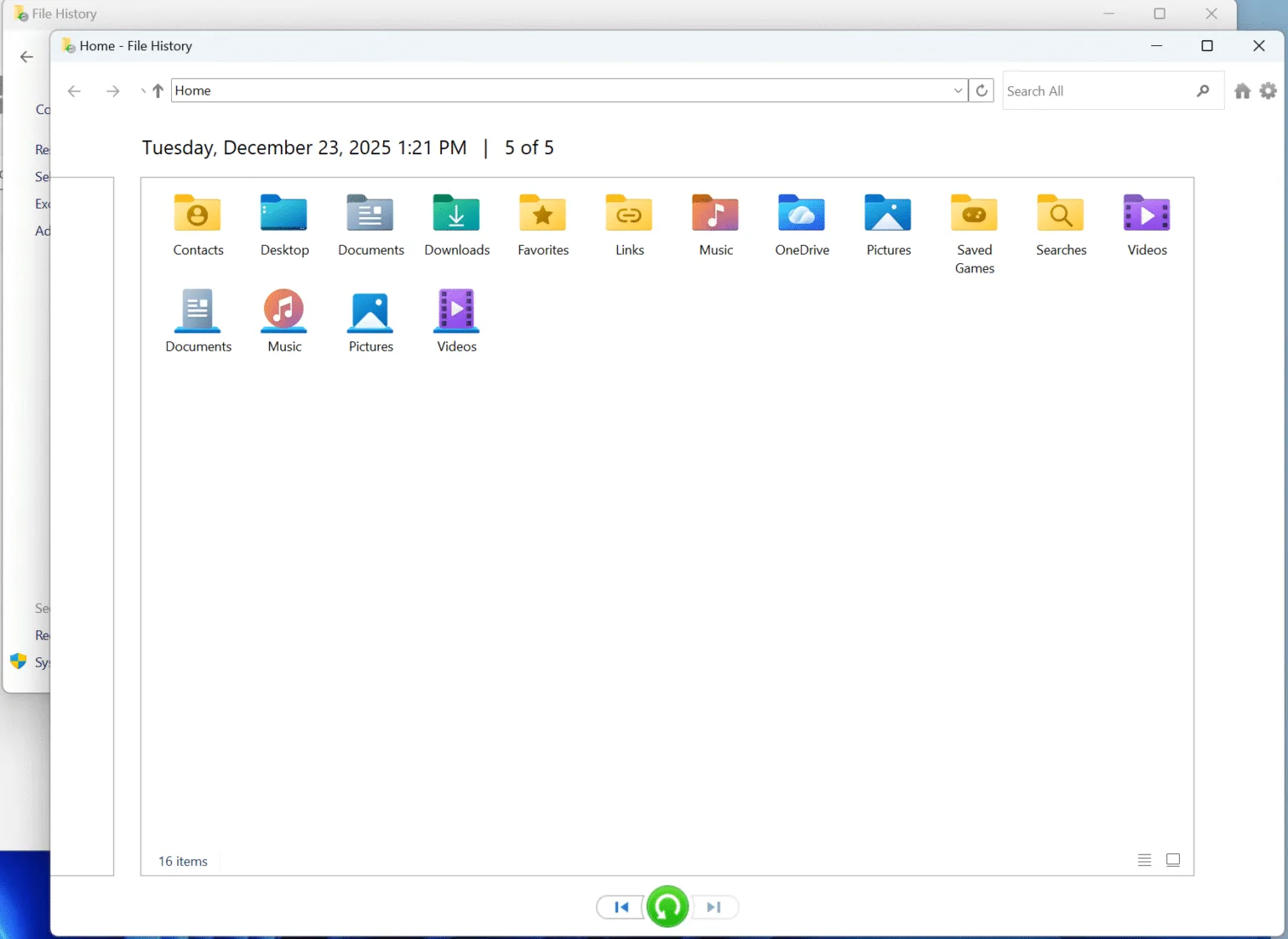
File History provides one of the safest ways to restore permanently deleted files when you enabled the feature before the deletion occurred.
Follow these steps:
- Open Control Panel.
- Select System and Security.
- Open File History.
- Click Restore personal files.
- Browse to the original folder.
- Move through the available backup dates.
- Select the files or folders you need.
- Restore them.
File History does not reconstruct deleted disk sectors. Instead, it retrieves a previously saved copy.
That distinction makes this method reliable when a suitable backup exists.
However, File History cannot help if you never enabled it or if the required file was not included in an available backup.
Method 2: Restore Permanently Deleted Files from Previous Versions
Previous Versions offers another built-in way to restore permanently deleted files if Windows has preserved an earlier version of the original folder.
- Open File Explorer.
- Navigate to the folder that previously contained the file.
- Right-click the folder.
- Choose Properties.
- Open the Previous Versions tab.
- Select a version dated before the deletion.
- Click Open to inspect its contents.
- Copy the required files to a safe location.
For example, suppose you permanently deleted an Excel workbook from:
C:\Users\YourName\Documents\Projects
Instead of searching for the individual deleted workbook, right-click the Projects or Documents folder and check whether Windows has an older version.
If the Previous Versions tab is empty, move to the next method rather than changing the source disk unnecessarily.
Method 3: Recover Permanently Deleted Files with Windows File Recovery
Microsoft provides an official command-line utility called Windows File Recovery.
It can help recover permanently deleted files from local internal drives, external disks, and USB storage when the files no longer exist in the Recycle Bin.
The general command format is:
winfr source-drive: destination-drive: [/mode] [/switches]
For example:
winfr C: E: /regular /n \Users\<username>\Documents\
In this example:
C:is the source drive.E:is the recovery destination./regularselects Regular mode./nlets you specify the file or folder to search.
Use Regular mode as the first option for recently deleted files on a healthy NTFS drive.
For older deletion cases, non-NTFS file systems, or more difficult recovery situations, Extensive mode performs a broader search.
Most importantly, the source and destination drives must be different. Do not recover files back to the same drive you are scanning.
Windows File Recovery is free, but it uses commands instead of a graphical interface. Therefore, users who are uncomfortable with Command Prompt may prefer a visual recovery application.
Method 4: Recover Permanently Deleted Files from OneDrive or a Backup
Before scanning the disk, check whether another copy already exists.
Possible locations include:
- OneDrive
- Windows Backup
- An external backup drive
- A NAS
- Another cloud service
- A copy stored on another computer
OneDrive deserves particular attention because many Windows users synchronize Desktop, Documents, and Pictures automatically.
If the missing data came from a synchronized folder, check the OneDrive Recycle Bin and available recovery features first. Our dedicated guide explains how to recover files deleted from OneDrive.
Cloud recovery and local disk recovery solve different problems.
For example, an online-only OneDrive file may never have stored its complete contents on the PC. In that case, local recovery software cannot recreate data that never existed on the local drive.
However, if OneDrive previously downloaded or synchronized the file locally, the local disk may still contain recoverable traces after deletion.
Method 5: Restore Permanently Deleted Files with Magic Data Recovery
If File History, Previous Versions, Windows File Recovery, and backups cannot find the missing files, disk-level scanning becomes the next practical option.
Magic Data Recovery is designed for logical data-loss situations such as:
- Shift + Delete
- Emptied Recycle Bin
- Accidental file deletion
- Lost files on HDDs
- Deleted files from USB drives
- Deleted files from SD cards
- Files lost from external storage
- Some file-system problems
Unlike backup-based methods, recovery software scans the original storage device for file-system records and accessible file data.
This approach can help restore permanently deleted files when Windows no longer has a normal reference to them.
Magic Data Recovery also provides a graphical interface. Users can select a drive, scan it, filter results, preview supported files, and choose exactly what they want to restore.
This workflow is particularly useful when Windows File Recovery feels too technical or when you need to review many scan results before recovery.
The current free version allows up to 500MB of data recovery, which can also help you test the recovery process with smaller files before deciding whether you need more.
Step 1: Install the Software Safely
Download the application, but do not install it on the same drive that contained the lost files.
If the files were deleted from an external hard drive, install the program on your normal Windows system drive instead.
For external-disk-specific cases, you can also read how to recover deleted files from an external hard drive.
Supports Windows 7/8/10/11 and Windows Server
Step 2: Select the Source Drive
Open Magic Data Recovery and select the drive where the files originally existed.
Do not simply choose the largest disk. Identify the correct source based on its drive letter, capacity, and storage device.

Step 3: Scan for Deleted Data
Start the scan and allow the software to search the selected storage device.
After scanning, narrow the results by filename, file type, path, or other available filters.

Step 4: Preview the Files
Preview supported files before recovery whenever possible. A valid preview can help confirm that you selected the correct file and that its contents remain readable.
This step is especially valuable when the scan finds several files with similar names.

Step 5: Recover to Another Drive
Select the files you need and save them somewhere other than the source drive.
Do not write recovered data back to the affected disk until you have recovered everything important.

Which Recovery Method Should You Choose?
Use the situation itself to choose the safest starting point.
Situation | Recommended First Method |
File History was enabled | File History |
An older folder copy exists | Previous Versions |
Local files were permanently deleted | Windows File Recovery |
Files were synced to the cloud | OneDrive or cloud backup |
No usable backup exists | Data recovery software |
Data was deleted from an SSD | Stop drive activity and assess TRIM |
External drive was involved | Keep it connected only when needed for recovery |
Drive has hardware symptoms | Stop scanning and seek professional help |
In general, backup-based methods deserve the first attempt because they restore known copies without searching deleted disk space.
However, if those copies do not exist, a careful scan of the original device may still recover permanently deleted files.
Tips to Improve Permanent File Recovery
If you still need to restore permanently deleted files, follow several simple best practices.
- Stop using the source drive as soon as possible.
- Avoid installing recovery tools on that drive.
- Do not format a drive before recovering important data.
- Avoid unnecessary CHKDSK or repair operations.
- Recover files to another physical storage device.
- Preview important files when the recovery tool supports it.
- Do not repeatedly scan a physically unstable drive.
- Keep the device powered off when you are not actively recovering from it.
These steps do not guarantee recovery. Instead, they reduce avoidable actions that could overwrite or alter data that may still be recoverable.
How to Avoid Permanent File Loss in the Future
Once you successfully recover permanently deleted files, prevention becomes much easier than another recovery attempt.
Enable File History or another automatic backup system. In addition, keep at least one backup on a separate device.
For important work folders, cloud synchronization can add another layer of protection. However, remember that synchronization is not always the same as backup. A deletion can sometimes synchronize across devices.
For irreplaceable documents, photos, videos, and project files, keep multiple copies in separate locations.
A usable backup turns permanent deletion into a normal restore task instead of an uncertain disk recovery problem.
Conclusion
You can often restore permanently deleted files, but the right solution depends on where the data was stored, whether a backup exists, how much the device has been used since deletion, and whether technologies such as SSD TRIM have already cleared the data.
Start with File History, Previous Versions, Windows File Recovery, and cloud or external backups. These options are free and should come before deeper disk scanning.
If no usable backup exists, Magic Data Recovery provides a more accessible way to scan the original storage device, filter the results, preview supported files, and recover selected data to another location. Its graphical workflow and 500MB free recovery allowance make it particularly useful when built-in Windows options cannot solve the problem.
Still, no tool can recover information that has already been overwritten or securely erased. Therefore, stopping unnecessary drive activity remains the most important first step.
For additional Windows deletion situations, recovery principles, and related guides, visit Amagicsoft’s deleted file recovery resource.
Supports Windows 7/8/10/11 and Windows Server
FAQs About Restoring Permanently Deleted Files
Can permanently deleted files be recovered?
How do I restore permanently deleted files in Windows 11?
Can I recover permanently deleted files without a backup?
Can I restore permanently deleted files for free?
Where do permanently deleted files go?
Can Windows File Recovery restore Shift + Delete files?
Can I recover permanently deleted files from an SSD?

Vasilii is a data recovery specialist with around 10 years of hands-on experience in the field. Throughout his career, he has successfully solved thousands of complex cases involving deleted files, formatted drives, lost partitions, and RAW file systems. His expertise covers both manual recovery methods using professional tools like hex editors and advanced automated solutions with recovery software. Vasilii's mission is to make reliable data recovery knowledge accessible to both IT professionals and everyday users, helping them safeguard their valuable digital assets.