
Teams 中的檔案消失了?7 種解決方法
如果 Teams 中的檔案消失了, ,請勿假設這些檔案已被永久刪除。微軟已變更檔案在 Teams 中的顯示方式,即使檔案在 Teams 中不見了,仍可能安然無恙地存放在 SharePoint、OneDrive、其他頻道或資源回收筒中。.
特別是那些突然發現 Teams 中缺少「檔案」分頁 可能只是看到了微軟較新的 已分享 「標籤頁」,該標籤頁已在許多頻道中取代了原有的「檔案」標籤頁。.
本指南首先介紹最安全的檢查步驟,然後才進入實際的檔案恢復程序。若要了解有關恢復已刪除資料的更詳盡說明,請參閱 Amagicsoft 的 已刪除檔案復原指南.
如果 Teams 和 Microsoft 365 中已不再包含該檔案,但您先前曾將完整副本同步或下載至 Windows 電腦,, Magic Data Recovery 可能會提供另一種從本地磁碟進行還原的途徑。.
目錄
快速解答:您的 Teams 檔案去哪裡了?
在嘗試解決方法之前,請先確認究竟是什麼東西消失了。.
你所看到的 | 最可能的原因 | 該先查看哪裡 |
Teams 中缺少「檔案」分頁 | 微軟將「檔案」更名為「共享」 | 頻道 > 共享 |
Teams 頻道中缺少「檔案」分頁 | 新的 Teams 介面或分頁載入問題 | 「共享」> 「在圖書庫中」 |
部分頻道檔案消失了 | 檔案已移動、刪除或權限已變更 | SharePoint 文件庫 |
檔案在「移動至」後消失了 | 它們現在可能位於另一個資料夾、頻道或網站中 | 目標 SharePoint 資料庫 |
已刪除的頻道檔案 | SharePoint 刪除 | SharePoint 資源回收筒 |
已刪除的聊天附件 | OneDrive 刪除 | 寄件者的 OneDrive |
檔案雖然存在,但舊的內容已不復存在 | 檔案已被覆寫 | 版本歷史 |
「雲端複製」功能已永久停用 | 本機已同步/下載的副本可能仍可恢復 | Windows 磁碟機或備份 |
微軟目前將上傳至 Teams 頻道的檔案儲存於 SharePoint 中,而透過聊天分享的檔案則通常儲存於發送者的 OneDrive for Business 中。目前的 Teams 介面是透過「共享」分頁來顯示頻道內容。.
這項區別之所以重要,是因為正確的恢復方法取決於 檔案儲存的位置, ,而不僅僅是您上次在 Teams 中看到它的位置。.
為什麼 Teams 中的檔案會消失?
當 Teams 中的檔案消失了, ,其原因通常可歸入以下幾類之一。.
微軟將「檔案」分頁替換為「共享」
最常見的原因之一,其實根本不是資料遺失。.
微軟一直以來都在將 Teams 頻道中的「檔案」分頁替換為一個 已分享 「分頁」。「共享」檢視將檔案、連結及其他共享內容整合在一起,同時仍可存取底層的頻道文件庫。.
因此,如果您注意到 Teams 頻道中缺少「檔案」分頁, 請尋找 已分享 在進行其他故障排除之前。.
檔案已移動
「Teams」讓使用者能夠在資料夾與可用的 Microsoft 365 位置之間移動檔案。.
一旦移動操作完成,該項目便會從原始資料夾中消失,並出現在目標資料夾中。如果使用者選錯了目標資料夾,即使該檔案實際上仍存在於其他地方,看起來也彷彿遺失了一樣。.
這解釋了許多情況,例如 團隊中的檔案消失了 在執行「移動至」操作後立即。.
您正在查看的不是正確的 SharePoint 網站
標準的 Teams 頻道通常會使用父團隊 SharePoint 網站中的資料夾。.
然而,微軟對私人頻道與共用頻道的處理方式有所不同。每個私人或共用頻道都可以擁有自己的 SharePoint 網站。因此,檢查上級團隊的「資源回收筒」時,可能無法找到從私人或共用頻道中刪除的檔案。.
檔案已被刪除
擁有足夠權限的使用者可能已故意或無意間刪除了該文件。.
頻道檔案通常會移至已連線的 SharePoint 資源回收筒。聊天室檔案則通常遵循 OneDrive 的刪除與還原流程。.
存取權限或權限設定已變更
在以下情況下,文件可能會看似消失:
- 您已被移出某個團隊或頻道。.
- 私人/共用頻道的存取權限已變更。.
- 某個檔案或資料夾已被移至您無法存取的位置。.
- 某項分享權限或連結已變更。.
- 您已使用另一個 Microsoft 365 帳戶登入。.
在嘗試恢復之前,請確認同事們是否仍能看到該遺失的項目。.
解決方案 1:檢查 Teams 中的「新共享」分頁
如果……,請從這裡開始 Teams 中缺少「檔案」分頁 這是你的主要問題。.
微軟目前的 Teams 文件指引使用者前往 已分享 用於頻道和聊天檔案的標籤頁。.
步驟
- 開啟 Microsoft Teams。.
- 前往 聊天 > 頻道.
- 開啟受影響的團隊和頻道。.
- 選擇 已分享 在最上方。.
- 選擇 檔案 如果您想篩選共享的內容。.
- 使用 在圖書館裡 以瀏覽該頻道的 SharePoint 文件庫。.
如果您的舊版「檔案」分頁消失了,但所有內容都顯示在「共享」下,這表示您的檔案並未被刪除。.
這應該是首要檢查項目,因為重新安裝 Teams、清除快取或執行資料恢復軟體,都無法恢復 Microsoft 刻意重新命名的分頁。.
解決方案 2:直接在 SharePoint 中開啟該頻道
如果 Teams 中的檔案消失了 但如果在「共用」中無法清楚顯示,請檢查底層的 SharePoint 資料庫。.
Teams 作為協作介面,而 SharePoint 則實際負責儲存頻道文件。.
如何檢查
- 開啟受影響的頻道。.
- 選擇 已分享.
- 開啟「庫」檢視。.
- 選擇 更多選項 > 在 SharePoint 中開啟.
- 在文件庫中搜尋遺失的檔案名稱。.
- 請檢查附近的資料夾和最近修改的項目。.
您可能會發現,有人重新整理了頻道資料夾,但並未刪除任何內容。.
舉例來說,一份先前刊載於以下位置的季度報告:
財務 > 報告 > 第二季
可能已移至:
財經 > 存檔 > 2026 > 第二季
從原始的 Teams 資料夾來看,它似乎已經消失了。但在 SharePoint 中,它仍然完好無損。.
解決方案 3:尋找移動後消失的 Teams 檔案
當有人使用後,檔案便立即消失時,便會出現一種特別令人困惑的情況: 移至.
微軟確認,「移動至」會將檔案從原始位置移至選定的目的地;相較之下,「複製至」則會在保留原始檔案的同時,建立另一份副本。.
如果 團隊中的檔案消失了, 請查看以下地點:
- The destination folder selected during the move
- Other channels in the same team
- Another team’s SharePoint site
- The source SharePoint Recycle Bin
- The destination site’s document library
- A private or shared channel’s separate SharePoint site
Pay Special Attention to Private and Shared Channels
Suppose you moved a document from a standard channel into a private channel.
Searching only the main team’s SharePoint site may not find it because the private channel uses a separate site.
Likewise, if a document disappeared from a shared channel, open that specific shared channel in SharePoint rather than searching only the parent team.
For important files, using Copy to and confirming the destination before deleting the original can reduce this risk.
Fix 4: Restore Deleted Teams Files from SharePoint Recycle Bin
If you confirm that a channel file was deleted, SharePoint provides the most direct recovery method.
Microsoft’s current recovery instructions use the following route:
- Open the affected Teams channel.
- 選擇 已分享.
- 選擇 更多選項 > 在 SharePoint 中開啟.
- 選擇 回收站 in SharePoint.
- 找出已刪除的檔案或資料夾。.
- 請選取它。.
- 鍵點選 還原.
The item normally returns to its previous location.
Check the Second-Stage Recycle Bin Too
If the item is missing from the normal SharePoint Recycle Bin, a site collection administrator may still find it in the second-stage Recycle Bin.
For SharePoint in Microsoft 365, deleted items can remain within the two-stage Recycle Bin system for up to 93 days from the original deletion date. The second-stage period is not an additional 93 days; both stages share the overall retention period.
This detail is important because many older guides describe the retention process incorrectly.
If the file is valuable and neither Recycle Bin contains it, contact your Microsoft 365 administrator quickly. Organizational retention policies or backups may provide additional options.
Fix 5: Check OneDrive for Files Shared in Teams Chat
Not every Teams file belongs to SharePoint.
Files uploaded to a channel normally go to SharePoint. Files uploaded through a private or group chat, however, are generally stored in the uploader’s OneDrive for Business.
因此,如果 Teams 中的檔案消失了 chat:
- Open the original chat.
- 選擇 已分享.
- Filter the list to files.
- Open OneDrive in Teams or sign in to OneDrive for work or school.
- Search for the file.
- 請檢查 OneDrive 的資源回收筒。.
If you originally uploaded the missing attachment, your account is particularly important because your OneDrive may hold the underlying file.
For more OneDrive-specific troubleshooting, see Amagicsoft’s OneDrive 檔案消失處理指南.
If deletion is confirmed, the guide to recovering files deleted from OneDrive covers the available cloud and local recovery paths in more detail.
Fix 6: Check Version History, Backups, and Admin Audit Logs
Sometimes the document did not disappear. The content you need disappeared because somebody overwrote or replaced the file.
Restore an Earlier File Version
For a document that still exists:
- Open its SharePoint library.
- Select the file’s menu.
- 選擇 版本歷史.
- Review earlier versions.
- 請選擇所需的版本。.
- 選擇 還原.
SharePoint creates the restored version as the current version rather than deleting the existing history.
This is particularly useful for Word, Excel, and PowerPoint files that multiple team members edit.
For Large-Scale Changes
If many documents were deleted, overwritten, corrupted, or changed at approximately the same time, administrators may also be able to restore a SharePoint document library to an earlier point within the feature’s supported recovery window. Microsoft currently supports restoring qualifying shared libraries after large-scale changes made during the previous 30 days.
Ask an Administrator to Check the Audit Log
If nobody knows whether the document was moved or deleted, Microsoft 365 administrators can investigate SharePoint and OneDrive activity through Microsoft Purview Audit.
Audit records can identify operations such as file deletion and movement and help determine who performed the action and where a moved file went.
That makes audit logs especially useful when 團隊中的檔案消失了 and users do not remember the destination.
Fix 7: Recover a Missing Local Copy with Magic Data Recovery
Use data recovery software only after checking Microsoft 365.
這項區別很重要。.
Magic Data Recovery cannot scan Microsoft’s SharePoint or OneDrive cloud servers for permanently deleted cloud data. However, it can help when the missing Teams document previously existed as a real local file on your Windows storage.
Suitable situations include:
- You downloaded the Teams file to your PC and later deleted it.
- A SharePoint library was fully synced to your Windows computer.
- A locally available OneDrive/Teams file was deleted from the disk.
- A local copy disappeared after a file-system error.
- A disk, partition, or storage device containing exported Teams files was formatted or corrupted.
- You emptied the Windows Recycle Bin containing a local copy.
Microsoft’s Files On-Demand system makes this distinction especially important. An online-only file may appear in File Explorer without storing the complete file contents locally. A locally available or “Always keep on this device” file, by contrast, has been downloaded to the computer.
How to Recover the Local File
1. Stop saving new data to the drive containing the missing file.
2. Install Magic Data Recovery on another drive when possible.
支援 Windows 7/8/10/11 和 Windows Server
3. Open the program and select the drive where the local Teams file was stored.
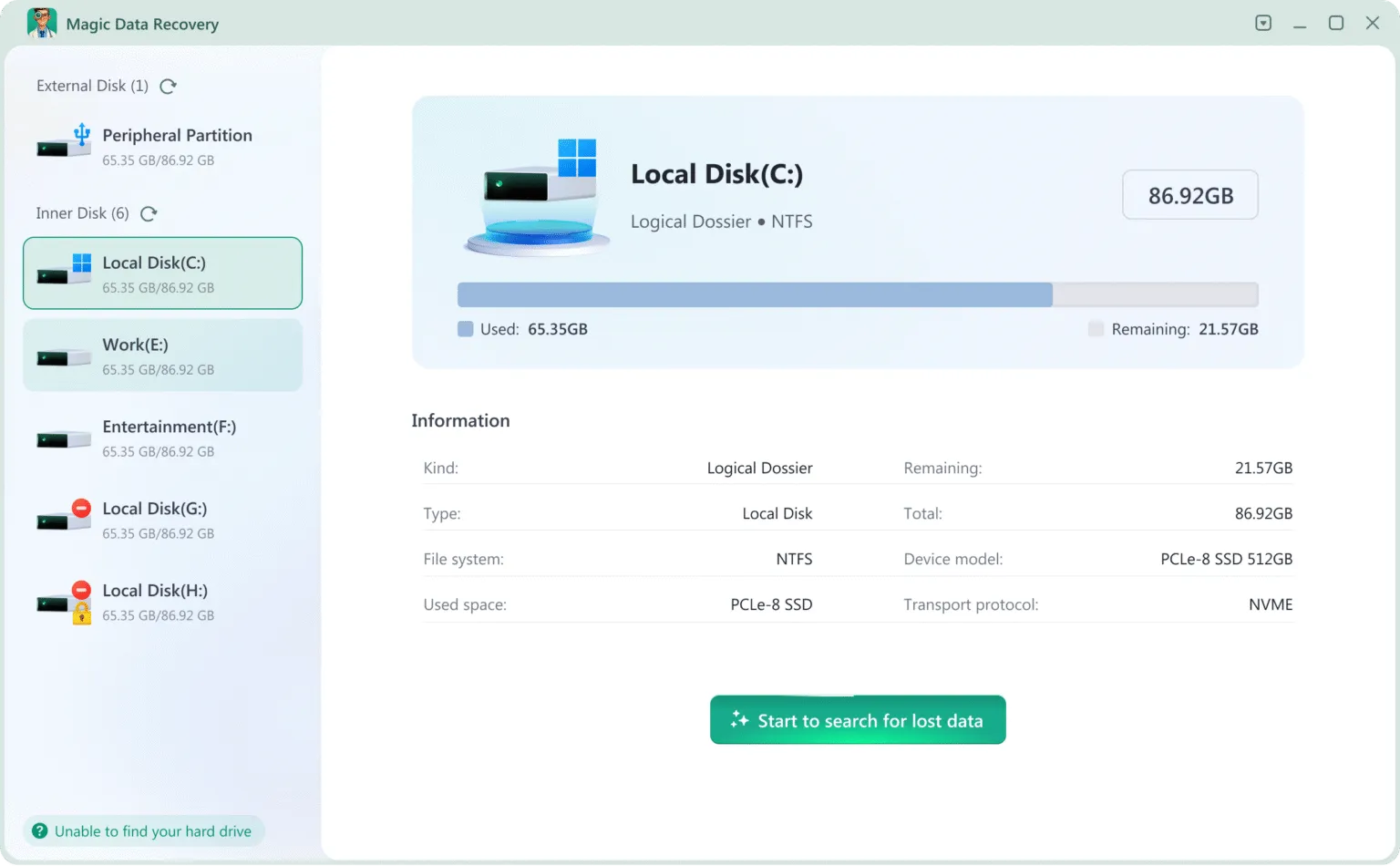
4. Start the scan. Click the “Search for lost data” button to search for your lost files.
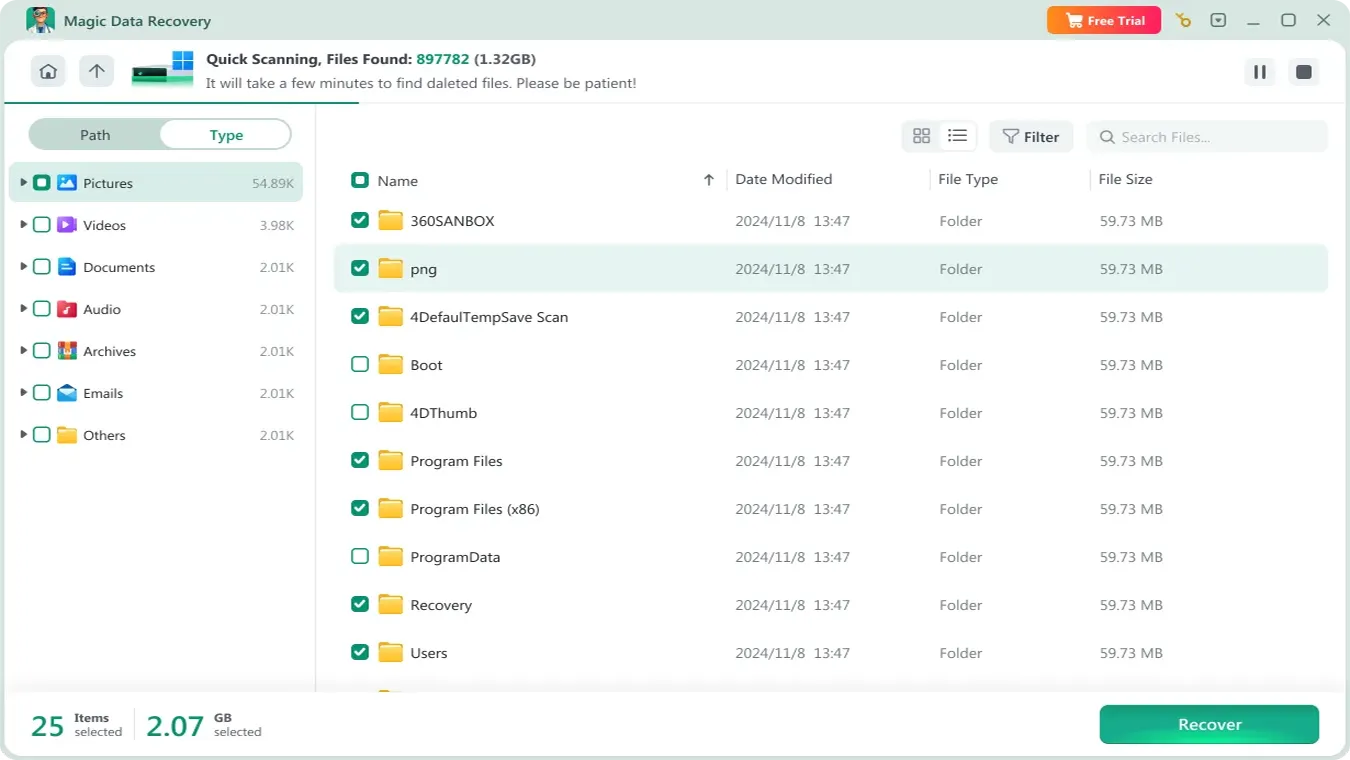
5. Search or filter the results by file name, type, or location.
6. Preview recoverable documents when available.
7. Restore selected files to a different drive.
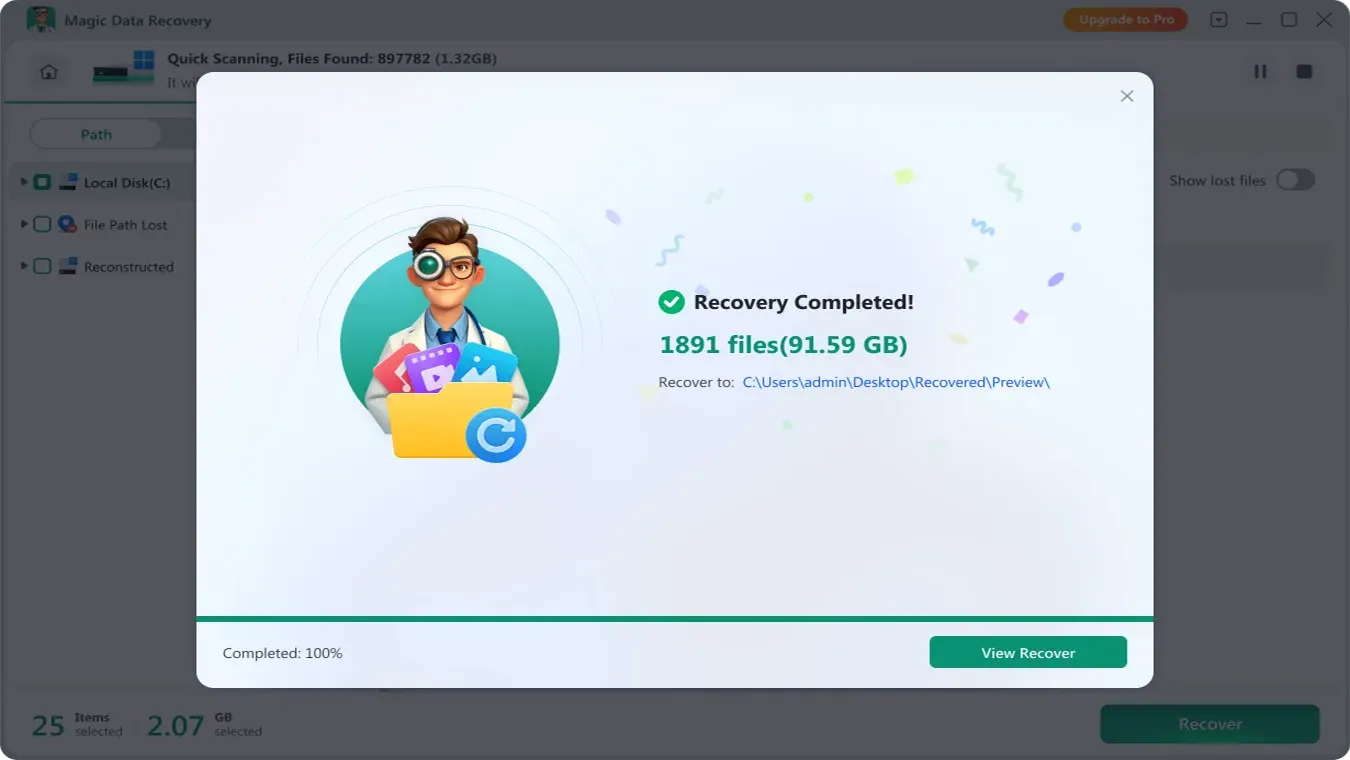
Magic Data Recovery supports common data-loss scenarios including deletion, formatting, inaccessible file systems, and lost files on Windows storage devices. It can scan documents, images, videos, archives, and thousands of other file formats.
Its main advantage in this particular situation is not that it replaces SharePoint recovery. Instead, it covers the local-storage recovery path that Microsoft’s cloud Recycle Bins cannot cover.
That makes it most useful after SharePoint, OneDrive, version history, and backups have already been checked.
Which Teams File Recovery Method Should You Use?
Use this order rather than trying random fixes:
If the Files tab is missing:
開啟 已分享 第一。.
If only certain channel files are missing:
Open the channel in SharePoint and search its document library.
If files vanished after Move to:
Check both the source and destination sites, especially private/shared channel sites.
If a channel file was deleted:
Check the SharePoint first-stage and second-stage Recycle Bins.
If the file came from a chat:
Check the uploader’s OneDrive.
If the file exists but its content changed:
Use Version History.
If many files disappeared simultaneously:
Ask an administrator to check library restore options, retention, backups, and audit logs.
If Microsoft 365 no longer has the file but a local Windows copy existed:
Check Windows backups and then consider local disk recovery.
Following this order protects existing data and avoids wasting time on tools that cannot address the actual storage location.
How to Prevent Teams Files from Disappearing Again
Once you recover the files, a few practices can make future incidents easier to resolve.
- 使用 Copy to rather than Move to for critical documents until the destination is confirmed.
- Make sure team members understand that channel files are stored in SharePoint.
- Explain that current Teams versions may use 已分享 instead of Files.
- Keep important SharePoint libraries backed up according to your organization’s policies.
- Review permissions before removing users from private or shared channels.
- Use Version History rather than creating many manually renamed document copies.
- Ask administrators to configure appropriate retention and Microsoft 365 backup policies.
- Keep particularly important working files available offline when a legitimate local copy is required.
Most importantly, do not treat Teams itself as a standalone file-storage system. Understanding the relationship between Teams, SharePoint, and OneDrive makes missing-file incidents much easier to diagnose.
總結
當 Teams 中的檔案消失了, first determine whether anything was actually deleted. A Teams 中缺少「檔案」分頁 often means the old Files tab has become Shared, while missing channel documents may simply have been moved within SharePoint.
For genuine deletion, check the correct SharePoint or OneDrive Recycle Bin, Version History, organizational backups, and administrator recovery options first. Our 已刪除檔案復原指南 provides additional guidance for deleted-file scenarios.
If those cloud recovery methods fail and the missing document previously existed as a complete local Windows file, Magic Data Recovery offers a practical final step. It can scan local storage for deleted, formatted, or otherwise lost data without pretending to recover files that existed only in Microsoft’s cloud.
支援 Windows 7/8/10/11 和 Windows Server
常見問題
為什麼我的檔案從 Teams 中消失了?
當 Teams 中的檔案消失了, 這些檔案可能已被移動、刪除、因權限變更而被隱藏,或儲存於另一個 SharePoint 位置。此外,「檔案」分頁也可能已變更為「共用」。在斷定檔案已永久刪除之前,請先檢查「共用」狀態以及相關的 SharePoint 資料庫。.
為什麼 Teams 中的「檔案」標籤頁不見了?
如果 Teams 中缺少「檔案」分頁 若您的頻道突然出現變化,最可能的原因是 Microsoft 調整了介面。在當前的 Teams 版本中,您現在可透過「共享」分頁存取原先的「檔案」功能,其中包含該頻道的 SharePoint 文件庫。.
如果 Teams 頻道中缺少「檔案」分頁,我該怎麼辦?
當 Teams 頻道中缺少「檔案」分頁 若發生此問題,請開啟該通道並尋找「共享」項目。使用「檔案」篩選器或「在資料庫中」檢視。您也可以直接開啟已連線的 SharePoint 文件庫,以確認文件是否仍然存在。.
Microsoft Teams 的頻道檔案實際上儲存在哪裡?
Teams 頻道的文件通常儲存於 SharePoint 中,而非 Teams 應用程式內部。標準頻道會使用其所屬團隊的 SharePoint 網站,而私人頻道和共用頻道則可能擁有各自獨立的 SharePoint 網站。這會影響您應在何處搜尋遺失或已刪除的檔案。.
我可以從「資源回收筒」中還原已刪除的 Teams 檔案嗎?
是的。針對頻道檔案,請在 SharePoint 中開啟相關頻道,並檢查其「資源回收筒」。若檔案已不在其中,網站管理員可根據 Microsoft 的保留規則,嘗試檢查第二階段的「資源回收筒」。.
為什麼我在移動 Teams 檔案後,這些檔案就消失了?
當「移動至」操作成功後,原始位置將不再包含該檔案。請在選定的目的地及其 SharePoint 資料庫中進行搜尋。若目的地為私人或共用頻道,請注意該頻道可能會使用獨立的 SharePoint 網站。.
Teams 的聊天記錄是否儲存於 SharePoint 中?
通常不會。直接上傳至私人或群組聊天室的檔案,通常會儲存於上傳者的 OneDrive for Business 中,並與聊天室參與者共享。因此,若聊天室附件遺失,應透過 OneDrive 以及 Teams 的「共享」分頁進行查核。.
Magic Data Recovery 能否恢復從 Microsoft Teams 刪除的檔案?
Magic Data Recovery 僅在 Windows 磁碟機上先前已存在完整副本時才有效,例如已下載或已進行本地同步的 Teams 檔案。它無法直接掃描 SharePoint 或 OneDrive 伺服器,以復原微軟已永久刪除的「僅存於雲端」檔案。.

Jason 是一位擁有超過 15 年實務經驗的資料復原與技術支援專家。 他長期與第一線使用者密切合作,處理棘手的資料遺失案例,並針對誤刪資料、磁碟格式化、檔案系統損毀、分割區遺失、系統故障及其他緊急資料復原情況,提供實用的復原解決方案。其專業領域還涵蓋備份與還原、檔案修復及災難復原,並特別注重提供安全、可靠且技術上精準的指導。.