
免費恢復已格式化的 USB 隨身碟:4 種方法
You accidentally formatted a USB drive, opened it in File Explorer, and discovered that your photos, documents, or videos were missing. If you’re trying to recover a formatted USB drive for free, don’t assume those files are permanently lost.
Recovery is often possible after a quick format, provided the original data remains readable. However, a full format, new files written to the drive, or hardware problems can significantly reduce your chances. The most important factor is what happened to the data after formatting.
Stop using the USB immediately. This guide walks you through four recovery methods, helps you choose the right one, and explains how to verify the results. For other formatted storage devices, see our 已格式化磁碟復原指南.
目錄
What to Do Immediately After Formatting a USB Drive
嘗試之前 formatted USB data recovery, protect the remaining data from further changes.
- Don’t save anything to the USB. New files may overwrite the original content.
- Don’t format it again. Another format can replace additional file-system information.
- Avoid CHKDSK and disk repair tools. Repair operations may modify records needed for recovery.
- 請將復原軟體安裝在其他位置。. Use your computer’s internal drive.
- Prepare another destination. Never save recovered files back to the affected USB.
- Watch for hardware problems. Stop if the device overheats, disconnects repeatedly, or reports an incorrect capacity.
If Windows asks you to format the USB before opening it, select 取消. That message may indicate file-system corruption rather than a drive that needs another format.
These precautions won’t reverse damage that has already occurred, but they can help preserve your remaining recovery options.
Can You Recover Files from a Formatted USB Drive?
Yes, sometimes. The outcome depends primarily on the formatting method, subsequent data writes, and the device’s condition.
Use the table below to identify your situation before choosing a recovery method.
USB situation | 復甦前景 | What to do next |
Quick format, no new files | More favorable | 檢查備份,然後進行掃描 |
Quick format followed by reuse | Some files may survive | 停止書寫並進行掃描 |
Completed Windows full format | 非常有限 | Prioritize backups |
USB converted into Windows installation media | Untouched areas may survive | Stop using installation media |
USB shows RAW or requests formatting | Depends on file-system damage | Recover before repairing |
USB disconnects or shows zero capacity | 可能的硬體故障 | 停止自行恢復 |
適用於 格式化後的筆記型電腦資料復原, a healthy USB that hasn’t been reused generally offers better prospects than one that has received new data.
Check the USB in Windows Before Scanning
首先,開啟 檔案總管 > 此電腦 and identify the USB by its label and capacity.
If the drive opens but appears empty, choose 檢視 > 顯示 > 隱藏項目 in Windows 11. This can reveal existing files with hidden attributes, although it won’t undo a genuine format.
Next, press Win + X 並開啟 磁碟管理.
Check the drive’s displayed status:
- FAT32, exFAT, or NTFS: Windows recognizes the current file system.
- RAW: Windows cannot interpret the file system normally.
- Unallocated: Partition information may be missing.
- No Media or incorrect capacity: The storage device may have a hardware problem.
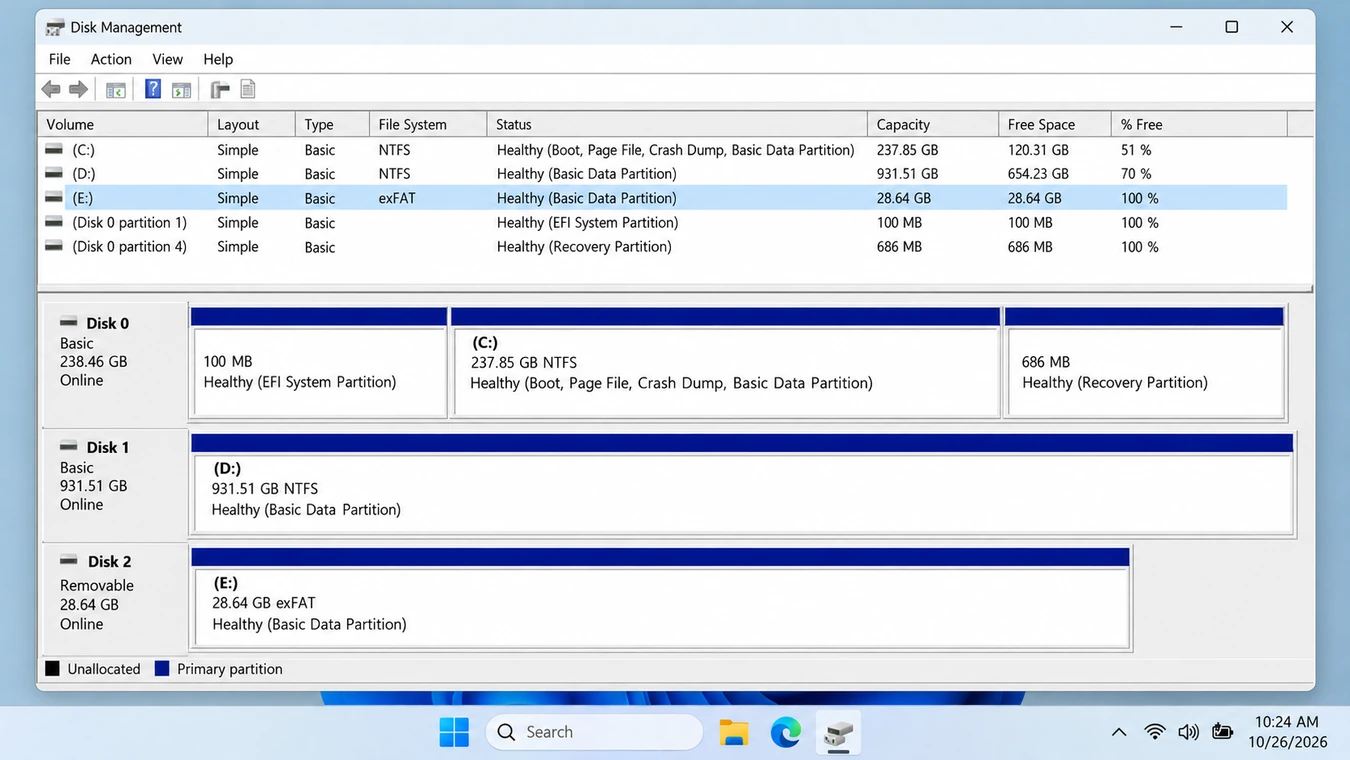
A RAW volume doesn’t automatically mean the data is gone. If Windows still detects the correct capacity, recovery software may be able to read the device. For more information, see our RAW 隨身碟資料恢復指南.
If the USB is physically unstable, skip the software methods and consider professional assistance.
Why Quick Format and Full Format Produce Different Results
A file system, such as FAT32, exFAT, or NTFS, keeps track of file names, directories, and storage locations.
A 快速格式 creates new file-system structures without deliberately overwriting every previous data sector. Consequently, recovery tools may still find old file records or recognize file content.
A 完整格式 on modern Windows generally overwrites accessible sectors. Once that data has been replaced, ordinary software cannot reconstruct it. Microsoft documents these behaviors in its format command reference.
Flash memory adds some uncertainty because a USB controller manages the underlying storage internally. Therefore, even after a quick format, intact data isn’t guaranteed.
What this means: Stop using the USB, recover files before attempting repairs, and judge success by whether the recovered files actually open.
How to Recover a Formatted USB Drive for Free: 4 Methods
Choose your method according to the data-loss situation rather than trying every tool randomly.
A backup should come first because it avoids scanning the affected USB. When no copy exists, Windows File Recovery provides a free official option. PhotoRec can search for file signatures when directory information is missing. A graphical recovery program offers another workflow for users who need previews and selective recovery.
方法 1:從備份中還原已格式化的 USB 檔案
最適合 Users who may already have another copy of their files.
A backup is the lowest-risk way to restore data because it doesn’t require reading the formatted USB.
Steps to Find Previous Copies
- Search OneDrive, Google Drive, or Dropbox for the missing file names.
- Check cloud trash folders and version history.
- Look for original files on your computer.
- Check Windows File History if you previously enabled it for the relevant folders.
- Search other storage devices, email attachments, and original cameras or recorders.
For example, if you formatted a pen drive containing project documents, those files may still exist in the original project folder on your laptop.
預期結果: You find a usable copy with its original contents, name, and folder structure.
限制: Windows File History doesn’t automatically back up every removable USB drive. Another copy must have existed before formatting.
如果失敗的話: Keep the USB unchanged and move to Windows File Recovery.
方法 2:使用 Windows 檔案恢復工具免費恢復已格式化的 USB 隨身碟
最適合 Windows 10 and 11 users who want a free Microsoft recovery utility and are comfortable entering commands.
Windows 檔案復原 searches storage for missing files without requiring a paid recovery license.
微軟建議 廣泛模式 for formatted NTFS drives and for recovery from FAT and exFAT file systems.
Step 1: Prepare the Source and Destination
Connect the formatted USB to your Windows computer.
Confirm the drive letters in File Explorer or Disk Management.
For this example:
- Formatted USB:
E: - Recovery destination:
D:
Use a separate physical drive for the recovered files.
步驟 2:安裝 Windows 檔案還原工具
Download Windows File Recovery from the Microsoft Store.
Install it on your computer, not the formatted USB. Then launch the utility with administrator permissions.
步驟 3:執行復原指令
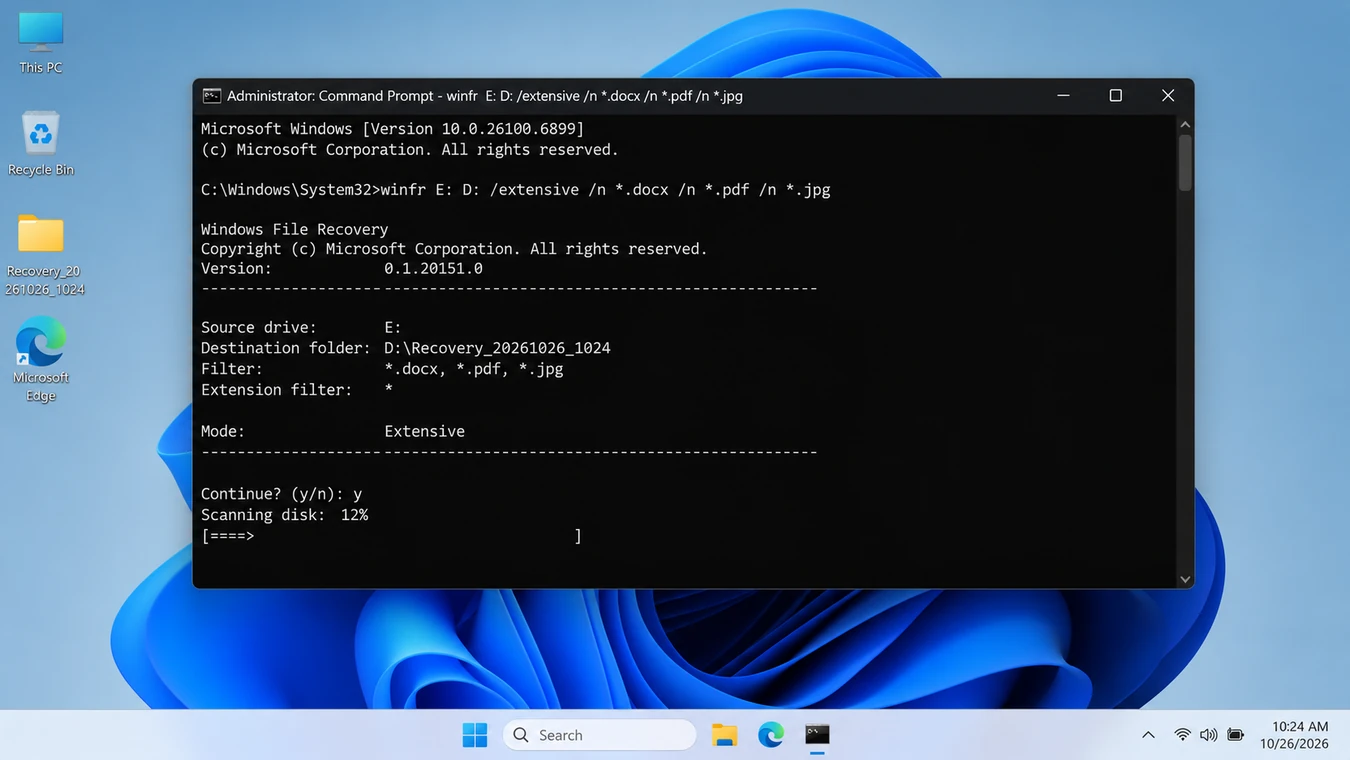
To search for Word documents, PDF files, and JPG photos, enter:
winfr E: D: /extensive /n *.docx /n *.pdf /n *.jpg
Replace the drive letters with your actual locations.
The command uses:
/廣泛的to perform a more thorough search./n *.docxto filter Word documents./n *.pdfto filter PDF files./n *.jpgto filter JPG images.
You can add more filters, such as *.xlsx, *.png, 或 *.mp4, depending on the missing files.
Step 4: Check the Recovered Files
Confirm the operation when prompted.
Windows File Recovery creates a folder named Recovery_<date and time> on the destination drive.
Open the folder and try opening several recovered files.
預期結果: The destination contains readable documents, images, or other recovered content.
限制: Windows File Recovery doesn’t provide a graphical file-preview interface, and results may lack original names or complete content.
如果失敗的話: PhotoRec offers an alternative scanning approach, particularly when the file-system records are missing.
Method 3: Recover Formatted Pen Drive Files with PhotoRec
最適合 Users who need free file-signature recovery and can organize files manually afterward.
照片記錄 is an open-source recovery tool available for Windows, macOS, and Linux.
Rather than depending entirely on file-system records, it identifies recognizable file content. This can help recover formatted pen drive files when the original directory structure is damaged or missing.
How to Recover Formatted Data from Pen Drive Using PhotoRec
- 請從 CGSecurity 官方網站下載 TestDisk 和 PhotoRec。.
- Extract the archive to your computer.
- Open PhotoRec with administrator permissions, or launch QPhotoRec for a graphical interface.
- Select the formatted USB using its device name and capacity.
- Choose the relevant partition or disk area.
- 選擇 其他 for common FAT32, exFAT, and NTFS file systems in PhotoRec’s file-system options.
- For a reformatted partition, choose the whole-partition scan when appropriate, rather than restricting the search to free space.
- Select the file types you need and choose a destination on another drive.
- Start recovery and review the saved output.
CGSecurity’s official PhotoRec tutorial explains these settings in more detail.
What Results Should You Expect?
Suppose a formatted USB stick previously held JPG photos, MP4 videos, and PDF documents.
PhotoRec may identify those files through their internal signatures, even when the original folders no longer exist.
However, it often assigns generated names such as f123456.jpg and saves results inside directories such as recup_dir.1.
預期結果: You recover recognizable files, although their original names or folders may be missing.
限制: Fragmented files can remain incomplete, and sorting large quantities of recovered content may take considerable effort.
如果失敗的話: If the USB remains healthy, consider another recovery tool with file-system analysis and preview features. Don’t expect a second scanner to restore overwritten content.
Method 4: Recover Formatted USB Files with Magic Data Recovery
最適合 Windows users who prefer guided scanning, file filtering, and previews instead of command-line recovery.
If no usable backup exists and Windows can reliably access the USB hardware, Magic Data Recovery offers a graphical alternative.
It supports logical recovery from formatted USB drives using common file systems, including FAT32, exFAT, and NTFS.
為何要考慮 Magic Data Recovery?
The main difficulty after formatting isn’t always finding files. Sometimes it’s identifying which results are worth recovering.
For example, imagine a 32 GB USB containing PDF contracts, Excel spreadsheets, and travel photos.
PhotoRec may retrieve numerous files with generic names. Magic Data Recovery lets you browse discovered files, apply filters, and preview supported content before choosing what to restore.
Its relevant capabilities include:
- Formatted USB scanning: Searches for recoverable content after logical formatting-related data loss.
- 檔案預覽: Helps identify potentially readable documents and photos.
- Search and filters: Narrows results by file type, name, or other available properties.
- Broad file support: Supports more than 5,000 file formats, according to Amagicsoft’s product documentation.
- Windows interface: Provides a guided workflow without recovery commands.
These features make file selection more convenient, but they don’t establish a higher recovery success rate than every free alternative.
How to Recover Formatted Data from Pen Drive with Magic Data Recovery
步驟 1:下載並安裝
Download Magic Data Recovery from the 官方產品頁面. Install it on your computer’s internal drive rather than the affected USB.
支援 Windows 7/8/10/11 和 Windows Server
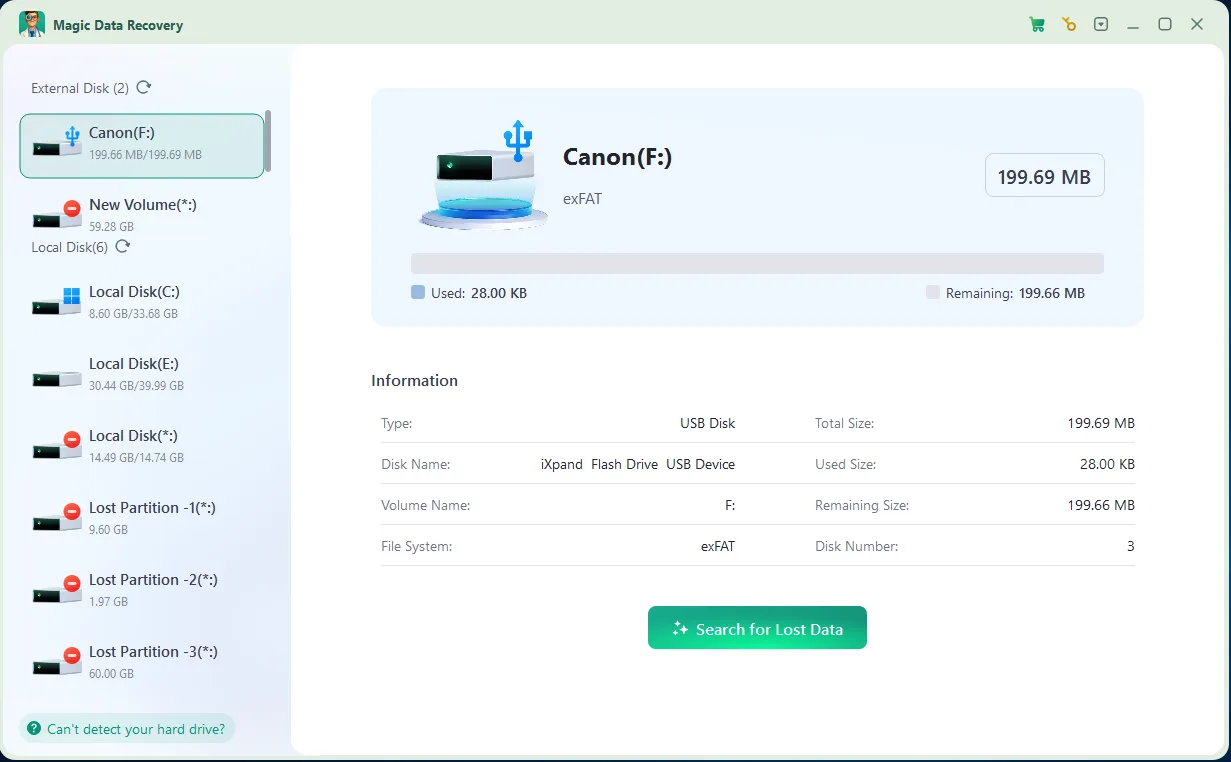
Step 2: Select the Formatted USB
Launch the software and locate the USB by its drive letter and capacity. Select the correct device or partition before starting the scan.
步驟 3:掃描遺失的檔案
Allow Magic Data Recovery to scan the USB for recoverable file-system information and file content. Keep the connection stable while the scan runs.
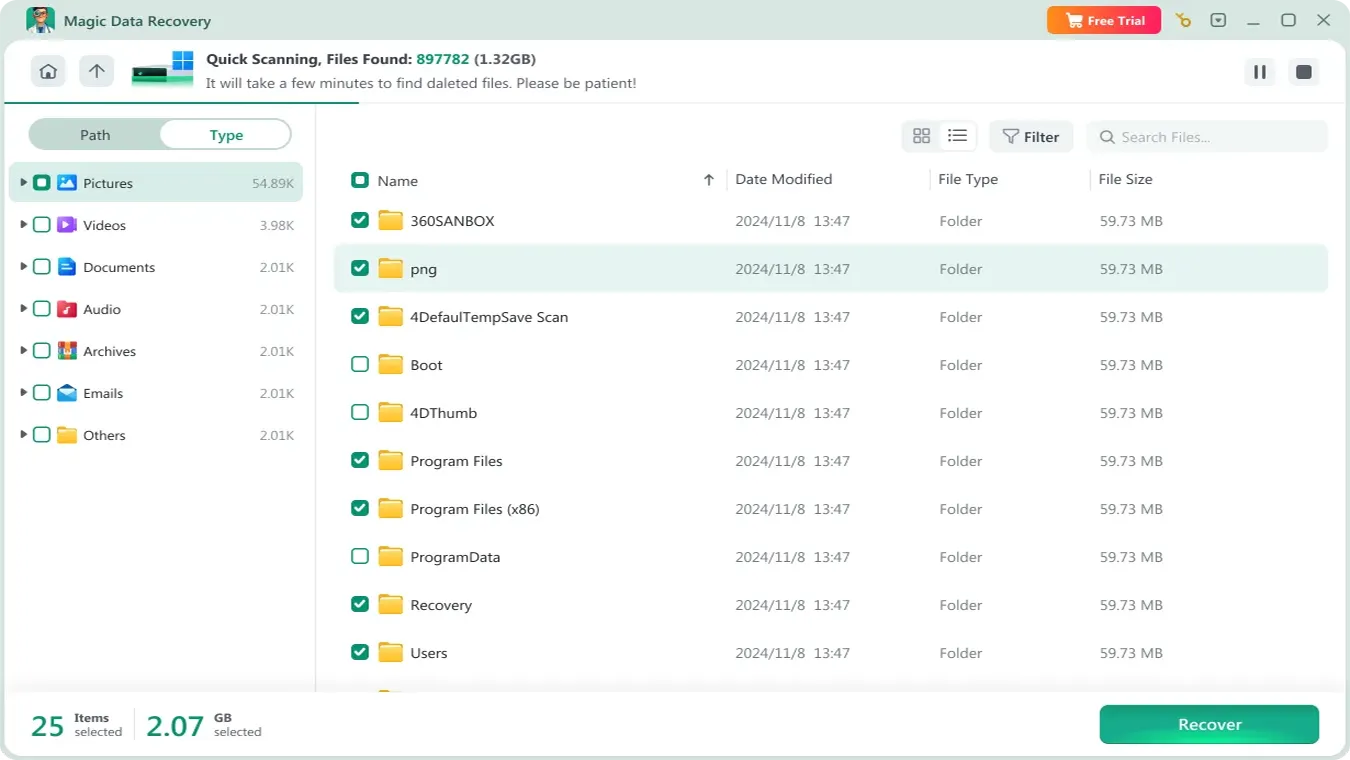
Step 4: Preview and Filter
Browse the scan results and use the available filters to locate relevant documents, photos, or videos. Preview supported files when possible. A preview that looks correct is useful evidence, but you should still verify the saved copy.

步驟 5:復原至另一個磁碟機
選取您需要的檔案,然後點擊 恢復. Choose your computer’s internal drive or another healthy storage device as the destination.
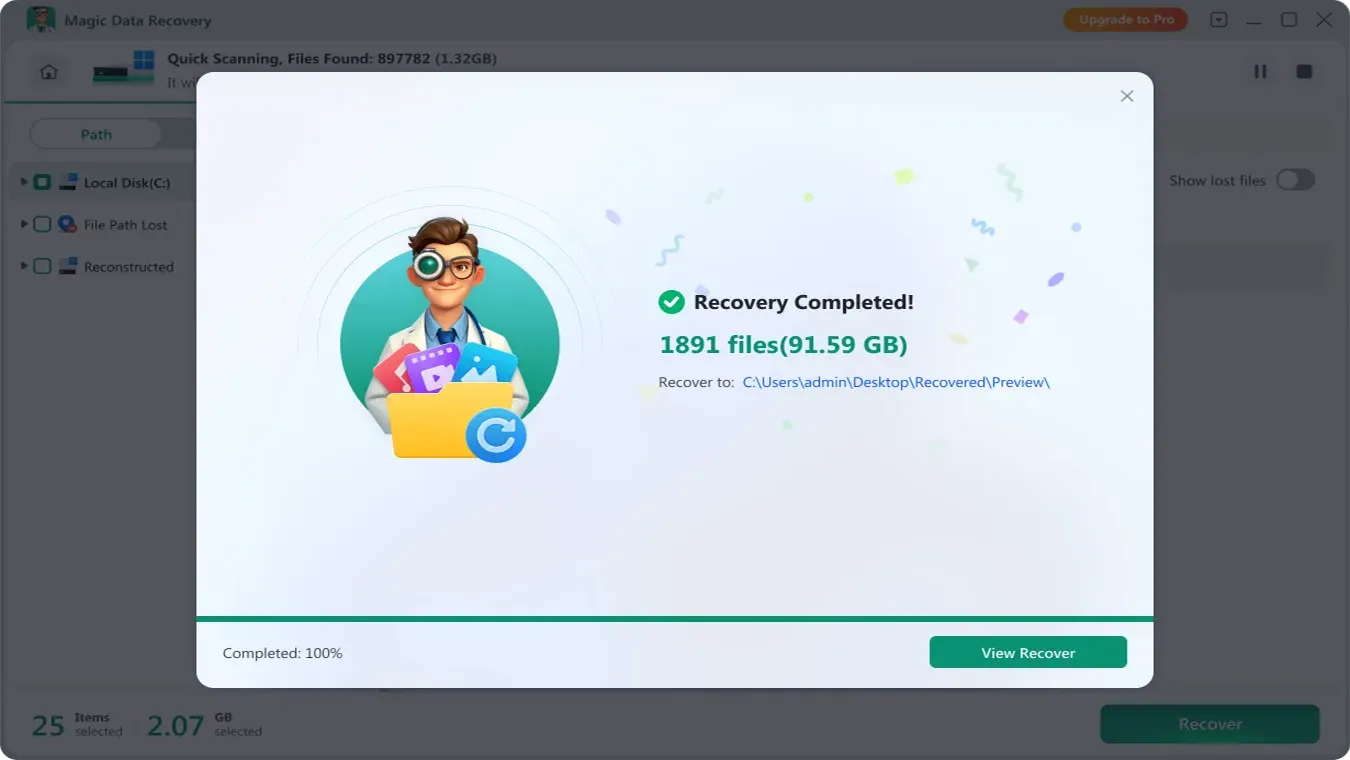
Finally, open the recovered files to check their integrity. For the detailed interface workflow, see the Magic Data Recovery 使用指南.
Free Allowance and Recovery Limits
Magic Data Recovery currently allows up to 500 MB of free recovery. This can cover a small collection of documents or photos. Larger jobs may require a paid license.
Its limitations are the same fundamental boundaries that affect other software recovery tools:
- Overwritten content cannot be reconstructed.
- Physical USB hardware failures require different handling.
- Completed secure erasure or full overwriting can prevent recovery.
- A discovered filename doesn’t guarantee a usable file.
預期結果: You identify, select, and save readable files to another drive.
如果失敗的話: Review whether the original content may have been overwritten. If the USB becomes unstable, stop scanning and seek specialist advice.
How to Verify Your Recovered USB Files
A recovery scan may report hundreds of discovered files, but found files are not necessarily usable files.
Before declaring recovery successful, inspect the copies saved on your destination drive.
檔案類型 | 如何驗證它 | Warning signs |
DOCX, PDF, XLSX | Open the document and inspect several pages or sheets | Errors, missing text, unreadable content |
JPG、PNG | View at full resolution | Gray areas, incomplete image, artifacts |
MP4, MOV | Play the beginning, middle, and end | Playback stops, missing footage |
ZIP, RAR | Test or extract the archive | CRC errors, failed extraction |
專案檔案 | Open in the original application | Missing assets or corrupted structure |
Also, check file sizes. A zero-byte file or a suspiciously small recovered video deserves closer inspection.
For especially important documents, compare them with any available previous versions or backups.
If recovered files have generic names, use embedded metadata, recognizable content, and file extensions to identify them.
The recovery is only useful when the saved files contain the information you actually need.
Can CMD Unformat a USB Drive?
Some instructions recommend ATTRIB, CHKDSK, or DiskPart as solutions for 格式化後的筆記型電腦資料復原.
However, these utilities don’t reverse a completed format.
- 屬性 changes file attributes and can reveal files that are merely hidden. It cannot rebuild data removed by formatting.
- CHKDSK checks and repairs certain file-system errors. Its repair operations may modify metadata needed for later recovery.
- 磁碟分割 manages disks and partitions. Commands such as
清洗和格式can make recovery more difficult.
There is no standard Windows command that restores a formatted USB to its exact previous state.
實際上、, unformat USB drive usually refers to retrieving surviving files through backups or data recovery software.
Recover your important files before attempting to repair or reformat the device.
When Should You Stop DIY USB Recovery?
Software recovery is most appropriate when the device remains stable and exposes readable storage to Windows.
Stop repeated scanning and consider professional assistance if:
- The USB repeatedly disconnects during reading.
- Windows reports zero or an obviously incorrect capacity.
- The connector is damaged or the device overheats.
- Multiple computers cannot recognize the storage device.
- Read errors become more frequent.
- The files are irreplaceable, and you cannot afford further risk.
These symptoms may indicate controller, connector, or flash-memory problems that ordinary recovery software cannot repair.
For valuable data, a specialist may attempt to create a sector-by-sector image before deeper recovery work. However, imaging also requires reading the device and isn’t automatically safe for severely failing hardware.
How to Prevent USB Formatting Data Loss
Once your important files are recovered and verified, take a few precautions before reusing the USB.
- 請保留一份獨立的備份。. Don’t store the only copy of valuable files on a flash drive.
- Check the device before formatting. Verify its label, capacity, and contents.
- Use cloud version history or File History. These can preserve earlier copies of frequently edited documents.
- Replace unreliable USB drives. Repeated disconnections or capacity errors may indicate hardware deterioration.
If the USB works normally after recovery, you can prepare it for reuse. See our guide on 將 USB 隨身碟格式化為 FAT32 if you need compatibility with older devices.
However, don’t format or repair the original USB until you’ve verified that your recovered files are safely stored elsewhere.
Conclusion: Recover a Formatted USB Drive Safely
如果您想 免費恢復已格式化的 USB 隨身碟, your first priority should be protecting the existing data. A quick-formatted pen drive may still contain recoverable files, while full formatting, heavy reuse, or hardware damage can sharply reduce your options.
Start with backups. If no copy exists, Windows File Recovery provides a free Microsoft solution, and PhotoRec offers open-source file-signature scanning.
For Windows users who prefer a guided workflow, Magic Data Recovery is worth considering. Its file previews, filtering options, and 500 MB free recovery allowance can simplify smaller recovery tasks without requiring command-line experience.
Whichever option you choose, save recovered files elsewhere and verify them before reusing the USB. For additional recovery situations, visit Amagicsoft’s 已格式化磁碟復原指南.
支援 Windows 7/8/10/11 和 Windows Server
常見問題
Can Recuva recover files from a formatted pen drive?
Can I recover files after formatting a pen drive twice?
Can I recover files after turning a USB into Windows installation media?
How long does formatted pen drive recovery take?
Can I recover formatted USB files without paying?
Can I recover a formatted USB drive on a Mac?
Does scanning a formatted USB change or overwrite its data?

Jason 是一位擁有超過 15 年實務經驗的資料復原與技術支援專家。 他長期與第一線使用者密切合作,處理棘手的資料遺失案例,並針對誤刪資料、磁碟格式化、檔案系統損毀、分割區遺失、系統故障及其他緊急資料復原情況,提供實用的復原解決方案。其專業領域還涵蓋備份與還原、檔案修復及災難復原,並特別注重提供安全、可靠且技術上精準的指導。.