
Mauvais secteurs sur le disque dur : Réparations et récupération de données
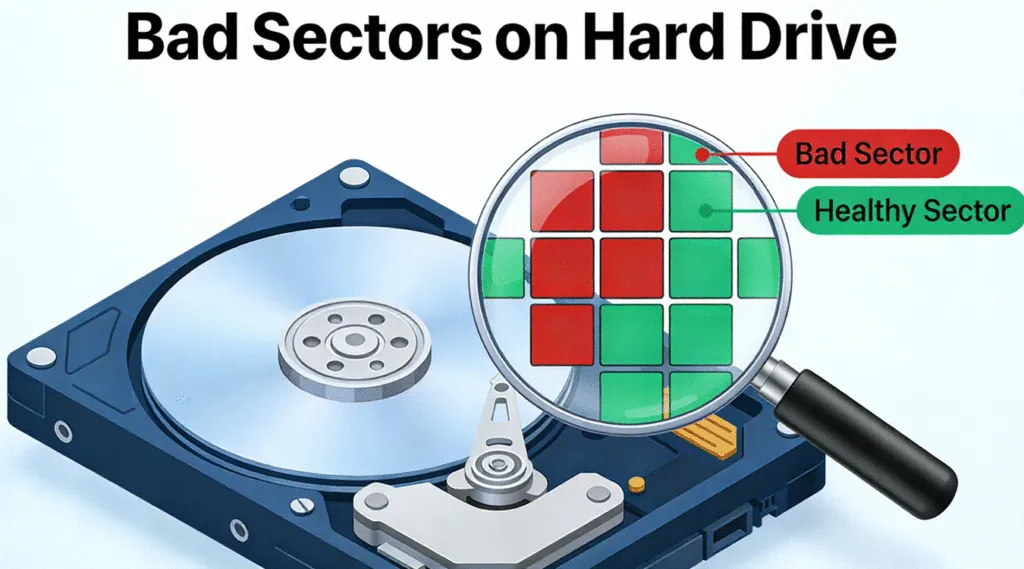
Un ordinateur lent, des fichiers endommagés, des erreurs de lecture répétées ou un disque dur qui se bloque lors des transferts de fichiers peuvent indiquer secteurs défectueux sur le disque dur. Même si un secteur endommagé ne signifie pas toujours qu’un disque dur va tomber en panne immédiatement, un nombre croissant de mauvais secteurs peut entraîner une corruption des fichiers, des performances instables et une perte définitive perte de données.
L'essentiel est de choisir la bonne réaction. Certains secteurs logiques défectueux peut résulter de problèmes liés au système de fichiers et peut parfois être corrigé. En revanche, secteurs physiques défectueux indiquent des dommages au niveau du support ou du matériel que le logiciel ne peut pas réellement réparer. Par conséquent, si le disque contient des fichiers importants, il convient de privilégier la sauvegarde ou la récupération de vos données avant de tenter des réparations trop radicales.
Ce guide explique les causes secteurs défectueux sur le disque dur, comment les vérifier avec SMART et CHKDSK, quelles réparations sont indiquées et à quel moment le remplacement devient la solution la plus sûre.
Table des matières
Qu'est-ce que Mauvais secteurs sur le disque dur?
Un disque dur stocke les données dans de petites unités adressables appelées « secteurs ». Selon la conception du disque, Windows peut utiliser des secteurs logiques de 512 octets, des secteurs physiques de 4 Ko ou des secteurs natifs de 4 Ko.
En temps normal, le disque dur peut lire et écrire sur ces emplacements sans difficulté. Cependant, lorsqu'un secteur devient défaillant ou illisible, le système peut le traiter comme un mauvais secteur.
En pratique, secteurs défectueux sur le disque dur peut entraîner plusieurs problèmes :
- Les fichiers peuvent être endommagés ou devenir illisibles.
- Les transferts de fichiers peuvent s'interrompre de manière inattendue.
- Windows peut signaler des erreurs CRC ou des erreurs de disque.
- Les applications peuvent se bloquer lors de l'accès au disque.
- Le disque dur peut devenir anormalement lent.
- Les informations de santé SMART pourraient présenter de plus en plus d'erreurs.
Cependant, tous les secteurs défectueux n'ont pas la même cause. Comprendre la différence entre les dommages logiques et physiques vous aide à déterminer s'il vaut la peine de tenter une réparation.
Types de Mauvais secteurs sur le disque dur
Secteurs défectueux logiques ou « soft »
Secteurs logiques défectueux, parfois appelé secteurs défectueux logiques, surviennent lorsque l'espace de stockage reste physiquement utilisable, mais que Windows ne parvient pas à accéder de manière fiable à son contenu.
Les causes les plus fréquentes sont les suivantes :
- Arrêts intempestifs
- Perte soudaine de puissance
- Corruption du système de fichiers
- Opérations d'écriture interrompues
- Le logiciel plante pendant une opération sur le disque
- Métadonnées du système de fichiers incorrectes
Comme la surface du disque elle-même peut encore être en bon état, un logiciel peut parfois corriger l'erreur logique sous-jacente.
Secteurs défectueux physiques ou « durs »
Secteurs physiques défectueux impliquent des problèmes réels liés aux supports de stockage ou au matériel du disque dur.
Parmi les causes possibles, on peut citer :
- Dégradation de la surface du disque dur
- Vieillissement mécanique
- Défauts de fabrication
- Chocs physiques
- Chaleur excessive
- Dommages au niveau de la tête ou du plateau
- Usure à long terme
Les logiciels ne permettent pas de restaurer des supports magnétiques endommagés physiquement. En revanche, le micrologiciel du disque dur peut parfois réaffecter un secteur défaillant à un emplacement de réserve.
Par conséquent, il ne faut pas confier de données importantes à un disque dur sur lequel des secteurs défectueux continuent d'apparaître.
Type de secteur défectueux | Cause courante | Est-ce que ça peut être réparé ? | Mesures recommandées |
Secteur défectueux logique | Erreur liée au système de fichiers ou à l'écriture | Parfois | Récupérer ou sauvegarder, puis réparer |
Secteur défectueux physique | Dommages causés aux supports ou au matériel | Ce n'est pas une véritable réparation | Récupérer les données et remplacer le disque dur |
Secteur réaffecté | Le micrologiciel du disque a détecté un problème | Remappé en interne | Surveiller SMART et effectuer une sauvegarde |
Augmentation des mauvais secteurs | Défaillance progressive du système d'entraînement | En général, ce n'est pas sans risque | Remplacer le disque dur |
Quelles sont les causes Mauvais secteurs sur le disque dur?
Plusieurs facteurs peuvent être à l'origine de secteurs défectueux sur le disque dur, et il arrive parfois que plusieurs problèmes surviennent en même temps.
Vieillissement et usure normale
Les disques durs mécaniques contiennent des composants mobiles. Au fil des années d'utilisation, leurs plateaux, leurs têtes de lecture, leurs roulements et d'autres composants peuvent s'user.
Par conséquent, un disque dur ancien qui commence soudainement à signaler des secteurs défectueux mérite d'être surveillé de près.
Perte soudaine d'électricité
Si une coupure de courant survient pendant que le disque dur est en train d'écrire des données, les informations du système de fichiers risquent de devenir incohérentes. Par conséquent, Windows peut signaler des erreurs logiques sur le disque ou des zones illisibles.
L'utilisation d'une alimentation électrique fiable ou d'un onduleur (UPS) peut réduire ce risque.
Choc physique
Si vous faites tomber un disque dur externe alors qu'il est en marche, cela peut entraîner des dommages bien plus graves. Par exemple, la tête de lecture/écriture risque d'entrer en contact avec la surface du plateau.
Si un disque dur commence à émettre des cliquetis ou des grincements après une chute, cessez de l'utiliser au lieu de le scanner à plusieurs reprises.
Corruption du système de fichiers
NTFS, FAT32, ou exFAT Les métadonnées peuvent être endommagées même lorsque le disque dur reste en bon état physique. Dans ce cas, Windows peut se comporter comme si certaines zones étaient inaccessibles.
Les outils de réparation logique peuvent s'avérer utiles, mais il convient avant tout de mettre en sécurité les fichiers importants.
Chaleur excessive
La chaleur peut réduire la durée de vie des composants électroniques et mécaniques. C'est pourquoi une bonne circulation de l'air et des températures de fonctionnement raisonnables contribuent à limiter les problèmes liés au stockage à long terme.
Signes courants de Mauvais secteurs sur le disque dur
En règle générale, il est impossible d'identifier un secteur défectueux en examinant le disque dur lui-même. Il faut plutôt être attentif à l'apparition de symptômes récurrents.
Les signes d'alerte les plus courants sont les suivants
- Les fichiers refusent soudainement de s'ouvrir.
- La copie de fichiers volumineux s'interrompt ou se bloque.
- Windows affiche un Contrôle de redondance cyclique (CRC) erreur.
- Des dossiers disparaissent ou deviennent inaccessibles.
- Le disque dur émet des cliquetis inhabituels.
- Le démarrage de Windows prend beaucoup plus de temps.
- Les applications se bloquent lors du chargement des fichiers.
- Les utilitaires SMART signalent les secteurs en attente ou réaffectés.
- Le disque dur se déconnecte sans cesse.
- Windows demande de manière inattendue de formater le disque.
Une seule erreur isolée ne prouve pas que vous ayez secteurs défectueux sur le disque dur. Toutefois, la présence simultanée de plusieurs symptômes justifie une sauvegarde immédiate et une vérification de l'état du disque.
Comment vérifier Mauvais secteurs sur le disque dur
Avant de tenter une réparation, déterminez s'il s'agit d'un problème logique ou matériel.
Méthode 1 : Vérifier les informations SMART
La technologie SMART (Self-Monitoring, Analysis and Reporting Technology) enregistre les informations de santé transmises par le disque dur.
Parmi les attributs utiles, on peut citer :
- Nombre de secteurs réaffectés
- Nombre actuel de secteurs en attente
- Nombre de secteurs irrécupérables hors ligne
- Erreurs irrémédiables signalées
Un secteur réaffecté signifie que le disque dur a remplacé un emplacement physique problématique par un autre provenant de sa zone de réserve.
En attendant, un secteur en attente reste instable, car le disque dur n'a pas encore confirmé s'il était capable de le lire ou de le réécrire de manière fiable.
Ne vous fiez pas uniquement à une seule valeur SMART brute pour évaluer un disque dur, car les fabricants peuvent interpréter ces attributs de manière différente. Prêtez plutôt attention aux avertissements et aux valeurs qui ne cessent d'augmenter.
Méthode 2 : Utiliser la vérification des erreurs de Windows
Windows propose une option graphique simple permettant de vérifier l'état des disques.
- Ouvrir Explorateur de fichiers.
- Sélectionner Ce PC.
- Cliquez avec le bouton droit de la souris sur le disque concerné.
- Choisir Propriétés.
- Ouvrir le Outils tabulation.
- Trouver Vérification des erreurs.
- Cliquez sur Vérifier.
Windows déterminera si le système de fichiers nécessite une vérification supplémentaire.
Cette méthode est efficace pour les erreurs logiques courantes. Toutefois, si le disque dur se déconnecte, émet des bruits inhabituels ou contient des fichiers irremplaçables, veillez à récupérer les données avant de lancer des analyses approfondies.
Méthode 3 : Vérifier le disque avec CHKDSK
Vous pouvez également inspecter un disque local à l'aide d'une invite de commande avec privilèges.
Commencez par :
chkdsk X :
Remplacer X : avec la lettre de lecteur correcte.
En l'absence de paramètres de réparation, CHKDSK se contente principalement de vérifier le volume et d'indiquer son état.
Une fois vos fichiers importants protégés, vous pouvez utiliser :
chkdsk X : /f /r
Les /f Ce paramètre corrige les erreurs du système de fichiers. De plus, Microsoft précise que /r repère les secteurs défectueux et tente d'en récupérer les informations lisibles.
Toutefois, cela n'est pas le cas pas Cela signifie que CHKDSK répare physiquement les surfaces endommagées des plateaux.
Comment réparer Mauvais secteurs sur le disque dur En toute sécurité
La solution la plus sûre dépend de la cause du problème.
Solution n° 1 : récupérez ou sauvegardez d'abord vos données importantes
Avant de modifier le système de fichiers, posez-vous la question suivante :
Ai-je besoin de quelque chose sur ce disque dur ?
Si la réponse est oui, commencez par protéger ces fichiers.
Cette approche axée sur la récupération est importante, car les opérations de réparation modifient le système de fichiers. De plus, un disque présentant une défaillance mécanique risque de s'abîmer davantage au fil des analyses répétées.
Voici une règle utile :
Récupérer d'abord → vérifier les fichiers récupérés → réparer ensuite.
Solution n° 2 : réparer les erreurs logiques du système de fichiers
Si le disque dur semble en bon état sur le plan mécanique et que le problème est d'ordre logique, l'outil de vérification des erreurs de Windows ou la commande CHKDSK peuvent corriger les incohérences du système de fichiers.
Par exemple :
chkdsk X : /f
peut corriger les erreurs liées aux systèmes de fichiers pris en charge.
Si vous souhaitez spécifiquement que Windows recherche les secteurs illisibles après avoir sécurisé les données, utilisez la commande suivante :
chkdsk X : /f /r
Cependant, n'exécutez pas CHKDSK à plusieurs reprises sur un disque physique instable.
Solution n° 3 : laisser le disque dur se charger du remappage des secteurs
Les micrologiciels des disques durs modernes sont capables d'identifier certains secteurs défaillants et de rediriger les accès futurs vers des secteurs de réserve.
Ce processus est appelé remappage des secteurs ou une réaffectation.
Il est important de noter que les utilitaires de disque tiers peuvent aider à détecter les zones endommagées et à lire les informations SMART, mais c'est généralement le micrologiciel du disque dur qui se charge lui-même du remappage physique.
Il ne faut donc pas confondre le remappage avec la réparation d'un support magnétique endommagé.
Solution n° 4 : Remplacer un disque présentant des dommages physiques de plus en plus importants
Si les valeurs SMART continuent de se détériorer ou si de nouveaux secteurs défectueux apparaissent, le remplacement constitue la solution la plus sûre à long terme.
Vous devriez également cesser toute réparation par vos propres moyens lorsque le disque dur :
- Clics ou grincements
- Se déconnecte sans cesse
- Cesse de tourner normalement
- Disparaît de la Gestion des disques
- Le système devient extrêmement lent à chaque opération de lecture
Dans ce cas, il peut être plus sûr de faire appel à un service professionnel de récupération de données lorsque les fichiers ont une grande valeur.
Récupérer les données avant de procéder à la réparation Mauvais secteurs sur le disque dur
Parfois, le plus gros problème n'est pas le secteur endommagé en soi. Les utilisateurs se rendent plutôt compte que des documents, des photos, des vidéos ou même des dossiers entiers ne sont plus accessibles.
Si Windows détecte toujours le disque dur et qu'il n'y a aucun signe évident de panne mécanique grave, Magic Data Recovery offre une solution pratique de récupération avant de formater ou de réparer le disque.
Ce logiciel répond à plusieurs difficultés courantes liées à la récupération :
- Fichiers perdus ou supprimés
- Partitions formatées
- Partitions perdues
- Stockage « RAW » ou inaccessible
- Fichiers manquants sur les disques durs et autres périphériques de stockage pris en charge
- Plusieurs formats de documents, de photos, de vidéos, de fichiers audio et d'archives
Un autre avantage réside dans sa facilité d'utilisation. Au lieu de demander aux utilisateurs lambda d'utiliser des éditeurs de secteurs complexes ou des outils de récupération en ligne de commande, Magic Data Recovery propose un flux de travail graphique permettant d'analyser le support de stockage, de prévisualiser les fichiers récupérables et d'enregistrer les données sélectionnées.

Faut-il réparer ou remplacer le disque dur ?
Pour prendre votre décision, privilégiez l’état du véhicule plutôt que son côté pratique.
Situation | La meilleure étape suivante |
Erreurs logiques mineures | Effectuer une sauvegarde, puis réparer |
Quelques alertes SMART stables | Faites des sauvegardes et surveillez attentivement |
Des fichiers manquent, mais le disque est détecté | Récupérer d'abord les données |
Système de fichiers RAW | Commencez par récupérer les données, puis réparez ou formatez le disque plus tard |
Les secteurs en attente ne cessent d'augmenter | Remplacer le disque dur |
Le nombre de secteurs réaffectés ne cesse d'augmenter | Remplacer le disque dur |
Bruits de cliquetis ou de grincement | Cessez d'utiliser ce disque dur |
Le disque dur se déconnecte sans cesse | Se remettre ou demander l'aide d'un professionnel |
Même si un disque dur endommagé redevient utilisable après l'exécution de CHKDSK, ne lui confiez pas systématiquement votre seule copie de fichiers importants.
Comment prévenir Mauvais secteurs sur le disque dur
Il est impossible de prévenir toutes les pannes matérielles. Néanmoins, le respect de bonnes pratiques en matière de stockage permet de réduire les risques inutiles.
- Éteignez correctement Windows.
- Évitez de débrancher les disques durs pendant les transferts de fichiers.
- Protégez vos disques durs externes contre les chutes et les chocs.
- Utilisez un onduleur dans les endroits où les coupures de courant soudaines sont fréquentes.
- Veillez à assurer un refroidissement adéquat.
- Consultez régulièrement SMART Health.
- Conservez au moins une copie de sauvegarde distincte de vos fichiers importants.
- Remplacez les disques durs vieillissants lorsque leurs indicateurs d'état se détériorent.
Surtout, ne considérez jamais un seul disque dur physique comme une stratégie de sauvegarde complète.
Conclusion
Lorsque vous découvrez secteurs défectueux sur le disque dur, la protection de vos données doit primer sur toute tentative de remise en état du disque dur. Les erreurs logiques peuvent être corrigées par la fonction de vérification des erreurs de Windows ou par CHKDSK, tandis que les secteurs défectueux physiques ne peuvent pas être véritablement réparés et peuvent indiquer une défaillance du disque.
Commencez donc par vérifier les symptômes et l'état SMART. Si des fichiers importants sont manquants mais que Windows parvient toujours à détecter le disque, récupérez-les avant de formater le disque, d'effectuer des opérations de réparation intensives ou de remplacer le disque.
Pour ceux-ci perte logique de données situations, Magic Data Recovery est recommandé car il combine l'analyse du disque dur, l'aperçu des fichiers, la prise en charge d'un large éventail de types de fichiers et un processus de récupération simple pour les utilisateurs lambda de Windows. Plus important encore, il offre une solution plus sûre se rétablir d'abord, se soigner ensuite stratégie plutôt que d'encourager les utilisateurs à réparer un disque défaillant avant de protéger leurs fichiers.
Enfin, remplacez tout disque dur présentant un nombre croissant de secteurs défectueux. Aucune solution logicielle ne vaut mieux que de conserver vos données sur un support de stockage fiable.
Prise en charge de Windows 7/8/10/11 et Windows Server
FAQ
Est-il possible de réparer les secteurs défectueux d'un disque dur ?
CHKDSK permet-il de réparer définitivement les secteurs défectueux ?
Combien de secteurs défectueux peut-on tolérer sur un disque dur ?
Les secteurs défectueux peuvent-ils se propager avec le temps ?
Les secteurs défectueux peuvent-ils entraîner une perte définitive de données ?
Dois-je remplacer un disque dur qui présente des secteurs défectueux ?
Est-il possible de récupérer des données sur un disque dur présentant des secteurs défectueux ?

Vasilii est un spécialiste de la récupération de données qui possède une dizaine d'années d'expérience pratique dans ce domaine. Tout au long de sa carrière, il a résolu avec succès des milliers de cas complexes impliquant des fichiers supprimés, des disques formatés, des partitions perdues et des systèmes de fichiers RAW. Son expertise couvre à la fois les méthodes de récupération manuelle à l'aide d'outils professionnels tels que les éditeurs hexagonaux et les solutions automatisées avancées à l'aide de logiciels de récupération. La mission de Vasilii est de rendre accessible aux professionnels de l'informatique et aux utilisateurs quotidiens des connaissances fiables en matière de récupération de données, afin de les aider à sauvegarder leurs précieuses ressources numériques.