
Sectores defectuosos en el disco duro: Soluciones y recuperación de datos
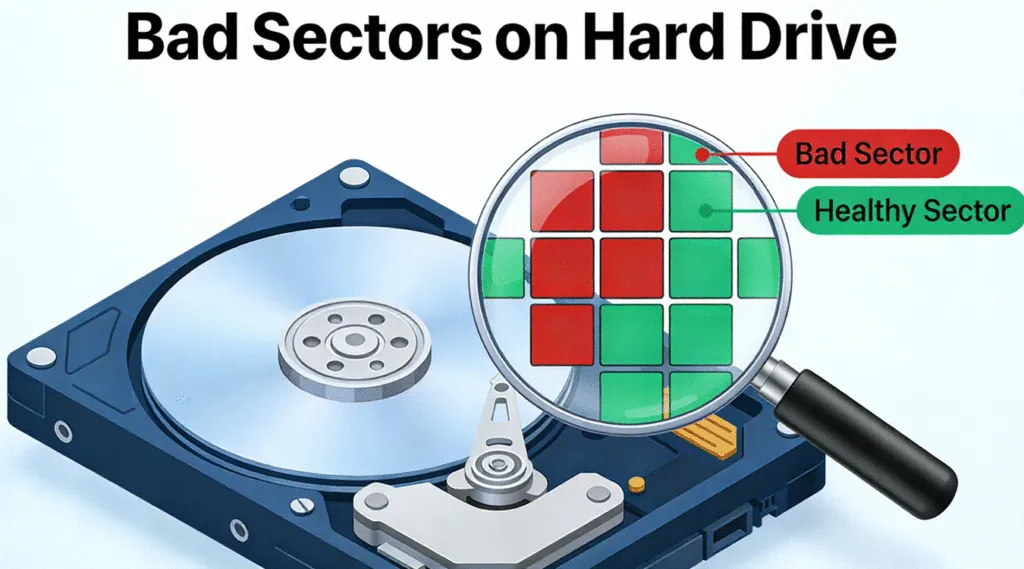
Un ordenador lento, archivos dañados, errores de lectura recurrentes o un disco duro que se bloquea durante la transferencia de archivos pueden indicar que sectores defectuosos en el disco duro. Aunque un sector dañado no siempre significa que una unidad vaya a fallar de inmediato, cada vez son más los sectores defectuosos puede provocar daños en los archivos, un rendimiento inestable y pérdidas permanentes pérdida de datos.
La clave está en elegir la respuesta adecuada. Algunos sectores defectuosos lógicos puede deberse a problemas del sistema de archivos y, en ocasiones, se puede solucionar. Por el contrario, sectores defectuosos físicos indican daños en el soporte o en el hardware que el software no puede reparar realmente. Por lo tanto, si la unidad contiene archivos importantes, la protección o la recuperación de los datos debe tener prioridad frente a los intentos agresivos de reparación.
Esta guía explica las causas sectores defectuosos en el disco duro, cómo comprobarlos con SMART y CHKDSK, qué reparaciones son adecuadas y cuándo la sustitución se convierte en la solución más segura.
Índice
¿Qué son Sectores defectuosos en el disco duro?
Un disco duro almacena datos en pequeñas unidades direccionables denominadas sectores. Dependiendo del diseño de la unidad, Windows puede trabajar con sectores lógicos de 512 bytes, sectores físicos de 4K o sectores nativos de 4K.
Normalmente, el disco duro puede leer y escribir en estas ubicaciones sin dificultad. Sin embargo, cuando un sector deja de ser fiable o se vuelve ilegible, el sistema puede tratarlo como un sector defectuoso.
En la práctica, sectores defectuosos en el disco duro puede provocar varios problemas:
- Los archivos pueden resultar dañados o ilegibles.
- Las transferencias de archivos pueden interrumpirse de forma inesperada.
- Es posible que Windows muestre errores de CRC o del disco.
- Las aplicaciones pueden bloquearse al acceder a la unidad.
- Es posible que el disco duro funcione con una lentitud inusual.
- La información sanitaria SMART podría presentar cada vez más errores.
Sin embargo, no todos los sectores defectuosos tienen la misma causa. Comprender la diferencia entre el daño lógico y el físico te ayuda a decidir si merece la pena intentar repararlos.
Tipos de Sectores defectuosos en el disco duro
Sectores defectuosos lógicos o «blandos»
Sectores lógicos defectuosos, a veces denominado sectores defectuosos de tipo «suave», se producen cuando el espacio de almacenamiento sigue siendo físicamente utilizable, pero Windows no puede acceder a su contenido de forma fiable.
Las causas más comunes son:
- Paradas inadecuadas
- Pérdida repentina de potencia
- Corrupción del sistema de archivos
- Operaciones de escritura interrumpidas
- El programa se cuelga durante la actividad del disco
- Metadatos incorrectos del sistema de archivos
Dado que la superficie del disco en sí misma puede seguir estando en buen estado, el software a veces puede corregir el error lógico subyacente.
Sectores defectuosos físicos o «duros»
Sectores defectuosos físicos implican problemas reales con los soportes de almacenamiento o con el hardware de la unidad.
Entre las posibles causas se encuentran:
- Deterioro de la superficie del disco duro
- Envejecimiento mecánico
- Defectos de fabricación
- Golpes físicos
- Calor excesivo
- Daños en el cabezal o en el plato
- Desgaste a largo plazo
El software no puede recuperar soportes magnéticos que hayan sufrido daños físicos. En cambio, el firmware de la unidad puede, en ocasiones, reasignar un sector no fiable a una ubicación de reserva.
Por lo tanto, no se debe confiar en una unidad en la que sigan apareciendo sectores defectuosos físicos para almacenar datos importantes.
Tipo de sector defectuoso | Causa habitual | ¿Se puede arreglar? | Acción recomendada |
Sector defectuoso lógico | Error del sistema de archivos o de escritura | A veces | Recuperar o hacer una copia de seguridad y, a continuación, reparar |
Sector defectuoso físico | Daños en los soportes o en el hardware | No es una reparación propiamente dicha | Recuperar datos y sustituir el disco duro |
Sector reasignado | El firmware de la unidad ha detectado un problema | Reasignado internamente | Supervisar SMART y realizar copias de seguridad |
Aumento de sectores defectuosos | Fallo progresivo del sistema de transmisión | Normalmente no es seguro | Sustituir la unidad |
Causas Sectores defectuosos en el disco duro?
Hay varios factores que pueden provocar sectores defectuosos en el disco duro, y a veces surgen varios problemas a la vez.
Envejecimiento y desgaste normal
Los discos duros mecánicos contienen componentes móviles. Tras muchos años de funcionamiento, sus platos, cabezales, cojinetes y otros componentes pueden deteriorarse.
Por lo tanto, un disco duro antiguo que de repente empiece a mostrar sectores defectuosos debe ser objeto de un seguimiento minucioso.
Pérdida repentina de potencia
Si se produce un corte de corriente mientras la unidad está escribiendo datos, la información del sistema de archivos podría volverse incoherente. Como consecuencia, Windows podría indicar errores lógicos en el disco o áreas ilegibles.
El uso de una fuente de alimentación fiable o de un SAI puede reducir este riesgo.
Choque físico
Si se deja caer un disco duro externo mientras está en funcionamiento, se pueden producir daños mucho más graves. Por ejemplo, el cabezal de lectura/escritura podría entrar en contacto con la superficie del plato.
Si un disco duro empieza a hacer ruidos de chasquidos o chirridos tras una caída, deja de utilizarlo en lugar de escanearlo una y otra vez.
Corrupción del sistema de archivos
NTFS, FAT32, o exFAT Los metadatos pueden resultar dañados incluso cuando el propio disco duro se encuentra en buen estado físico. En estos casos, Windows puede comportarse como si no se pudiera acceder a determinadas áreas.
Las herramientas de reparación lógica pueden ser de ayuda, pero primero hay que proteger los archivos importantes.
Calor excesivo
El calor puede acortar la vida útil de los componentes electrónicos y mecánicos. Por lo tanto, una buena circulación del aire y unas temperaturas de funcionamiento adecuadas ayudan a reducir los problemas derivados del almacenamiento a largo plazo.
Síntomas comunes de Sectores defectuosos en el disco duro
Normalmente, no es posible detectar un sector defectuoso con solo observar la unidad. En su lugar, presta atención a los síntomas recurrentes.
Las señales de advertencia más comunes son:
- De repente, los archivos ya no se abren.
- La copia de archivos grandes se detiene o se bloquea.
- Windows muestra un Comprobación de redundancia cíclica (CRC) error.
- Las carpetas desaparecen o ya no se puede acceder a ellas.
- El disco duro emite unos ruidos de chasquido extraños.
- Windows tarda mucho más en arrancar.
- Las aplicaciones se bloquean al cargar archivos.
- Las utilidades SMART informan de los sectores pendientes o reasignados.
- La unidad se desconecta una y otra vez.
- Windows solicita el formateo de forma inesperada.
Un error aislado no demuestra que tengas sectores defectuosos en el disco duro. Sin embargo, la aparición conjunta de varios síntomas justifica realizar inmediatamente una copia de seguridad y una comprobación del estado del disco.
Cómo comprobarlo Sectores defectuosos en el disco duro
Antes de intentar solucionar el problema, determina si se trata de un problema lógico o físico.
Método 1: Comprobar la información SMART
SMART (tecnología de autocontrol, análisis y generación de informes) registra la información sobre el estado que proporciona la unidad.
Entre los atributos útiles pueden figurar:
- Número de sectores reasignados
- Recuento actual de sectores pendientes
- Número de sectores incorregibles sin conexión
- Errores irreparables notificados
Un sector reasignado significa que el disco duro ha sustituido una ubicación física problemática por otra procedente de su área de reserva.
Mientras tanto, un sector pendiente sigue sin estabilizarse, ya que la unidad aún no ha confirmado si puede leerlo o reescribirlo de forma fiable.
No juzgues un disco duro (HDD) basándote únicamente en un dato SMART sin procesar, ya que los fabricantes pueden interpretar los atributos de forma diferente. En su lugar, presta atención a las advertencias y a los valores que siguen aumentando.
Método 2: Utilizar la herramienta de comprobación de errores de Windows
Windows ofrece una opción gráfica sencilla para comprobar el estado de los discos.
- Abrir Explorador de archivos.
- Seleccione Este PC.
- Haz clic con el botón derecho del ratón en la unidad afectada.
- Elija Propiedades.
- Abra el Herramientas ficha.
- Encuentre Comprobación de errores.
- Haga clic en Consulte.
Windows determinará si el sistema de archivos requiere una comprobación adicional.
Este método funciona bien para los errores lógicos habituales. Sin embargo, si el disco duro se desconecta, emite ruidos extraños o contiene archivos irreemplazables, recupera los datos antes de realizar análisis exhaustivos.
Método 3: Comprobar la unidad con CHKDSK
También puedes examinar una unidad local mediante una Ventana de comandos con privilegios de administrador.
Empieza por:
chkdsk X:
Sustituir X: con la letra de unidad correcta.
Sin parámetros de reparación, CHKDSK se limita principalmente a comprobar el volumen e informa de su estado.
Una vez que hayas protegido los archivos importantes, puedes utilizar:
chkdsk X: /f /r
En /f Este parámetro corrige los errores del sistema de archivos. Además, Microsoft explica que /r detecta los sectores defectuosos e intenta recuperar de ellos la información legible.
Sin embargo no Esto significa que CHKDSK repara físicamente las superficies dañadas de los platos.
Cómo solucionar Sectores defectuosos en el disco duro Con seguridad
La solución más segura depende de cuál haya sido la causa del problema.
Solución 1: Recupera o haz una copia de seguridad de los datos importantes primero
Antes de cambiar el sistema de archivos, hazte una pregunta:
¿Necesito algo de este disco duro?
Si la respuesta es sí, protege primero esos archivos.
Este enfoque que da prioridad a la recuperación es importante porque las operaciones de reparación modifican el sistema de archivos. Además, una unidad con fallos mecánicos puede deteriorarse aún más tras repetidos escaneos.
Una regla útil es:
Primero, recuperar → comprobar los archivos recuperados → después, reparar.
Solución 2: Reparar errores lógicos del sistema de archivos
Si el disco duro parece estar en buen estado mecánico y el problema es de naturaleza lógica, la herramienta de comprobación de errores de Windows o CHKDSK pueden corregir las inconsistencias del sistema de archivos.
Por ejemplo:
chkdsk X: /f
puede reparar los errores del sistema de archivos compatibles.
Si necesitas específicamente que Windows busque sectores ilegibles tras proteger los datos, utiliza:
chkdsk X: /f /r
Sin embargo, no ejecutes CHKDSK repetidamente en una unidad física inestable.
Solución 3: Dejar que la unidad se encargue de la reasignación de sectores
El firmware de los discos duros modernos es capaz de identificar determinados sectores defectuosos y redirigir los accesos futuros a sectores de reserva.
Este proceso se conoce como reasignación de sectores o reasignación.
Es importante destacar que las utilidades de disco de terceros pueden ayudar a detectar áreas dañadas y a leer la información SMART, pero normalmente es el firmware del disco duro el que se encarga de realizar la reasignación física.
Por lo tanto, no se debe confundir la reasignación con la reparación de soportes magnéticos dañados.
Solución 4: Sustituir una unidad con daños físicos cada vez mayores
Si los valores SMART siguen empeorando o aparecen nuevos sectores defectuosos, la sustitución es la solución más segura a largo plazo.
También deberías dejar de hacer reparaciones por tu cuenta cuando el disco duro:
- Chasquidos o crujidos
- Se desconecta una y otra vez
- Deja de girar con normalidad
- Desaparece de «Administración de discos»
- Se vuelve extremadamente lento durante cada operación de lectura
En ese caso, puede que sea más seguro recurrir a un servicio profesional de recuperación de datos cuando los archivos sean de gran valor.
Recupera los datos antes de realizar la reparación Sectores defectuosos en el disco duro
A veces, el mayor problema no es el sector dañado en sí mismo. En cambio, los usuarios se dan cuenta de que ya no pueden acceder a documentos, fotos, vídeos o carpetas enteras.
Si Windows sigue detectando el disco duro y no hay indicios claros de un fallo mecánico grave, Magic Data Recovery ofrece una opción práctica de recuperación antes de formatear o reparar la unidad.
El software resuelve varios problemas habituales relacionados con la recuperación:
- Archivos perdidos o borrados
- Particiones formateadas
- Particiones perdidas
- Almacenamiento en formato RAW o inaccesible
- Archivos que faltan en los discos duros y otros dispositivos de almacenamiento compatibles
- Múltiples formatos de documentos, fotos, vídeos, archivos de audio y archivos comprimidos
Otra ventaja es su facilidad de uso. En lugar de pedir a los usuarios normales que utilicen complejos editores de sectores o herramientas de recuperación de línea de comandos, Magic Data Recovery ofrece un flujo de trabajo gráfico para escanear el almacenamiento, previsualizar los archivos recuperables y guardar los datos seleccionados.

¿Deberías reparar o sustituir el disco duro?
A la hora de tomar la decisión, ten en cuenta el estado del vehículo en lugar de la comodidad.
Situación | El mejor paso a seguir |
Errores lógicos menores | Haz una copia de seguridad y, a continuación, repara |
Algunas alertas SMART estables | Hacer copias de seguridad y supervisar de cerca |
Faltan archivos, pero se detecta la unidad | Recuperar datos primero |
Sistema de archivos RAW | Recupera primero; repara o formatea después |
Los sectores pendientes siguen aumentando | Sustituir el disco duro |
Los sectores reasignados siguen aumentando | Sustituir el disco duro |
Ruidos de chasquidos o chirridos | Deja de utilizar la unidad |
La unidad se desconecta una y otra vez | Recuperarse o buscar ayuda profesional |
Aunque un disco duro dañado vuelva a funcionar tras ejecutar CHKDSK, no confíes automáticamente en él para guardar tu única copia de archivos importantes.
Cómo prevenir Sectores defectuosos en el disco duro
No es posible evitar todos los fallos de hardware. No obstante, unas buenas prácticas de almacenamiento reducen los riesgos innecesarios.
- Apaga Windows correctamente.
- Evita desconectar los discos duros durante la transferencia de archivos.
- Protege las unidades externas contra caídas y golpes.
- Utiliza un SAI en los lugares donde sean frecuentes los cortes repentinos de corriente.
- Mantén una refrigeración adecuada.
- Consulta SMART Health periódicamente.
- Guarda al menos una copia de seguridad independiente de los archivos importantes.
- Sustituye las unidades antiguas cuando los indicadores de estado se deterioren.
Y lo más importante: nunca consideres un disco duro físico como una estrategia de copia de seguridad completa.
Conclusión
Cuando descubras sectores defectuosos en el disco duro, la protección de tus datos debe ser prioritaria antes de intentar que el disco duro vuelva a funcionar. Los errores lógicos pueden solucionarse con la herramienta de comprobación de errores de Windows o con CHKDSK, mientras que los sectores defectuosos físicos no se pueden reparar realmente y pueden indicar que la unidad está fallando.
Por lo tanto, empieza por comprobar los síntomas y el estado SMART. Si faltan archivos importantes, pero Windows sigue detectando la unidad, recupéralos antes de formatearla, realizar operaciones de reparación agresivas o sustituir el disco.
En estos casos pérdida lógica de datos situaciones, Magic Data Recovery Se recomienda porque combina el escaneo de discos duros, la vista previa de archivos, la compatibilidad con una amplia variedad de tipos de archivo y un proceso de recuperación sencillo para los usuarios habituales de Windows. Y lo que es más importante, ofrece una mayor seguridad Primero recuperarse, luego reparar estrategia, en lugar de animar a los usuarios a reparar un disco con problemas antes de proteger sus archivos.
Por último, sustituye cualquier disco duro en el que aumenten los sectores defectuosos físicos. Ninguna solución de software es más valiosa que guardar tus datos en un soporte de almacenamiento fiable.
Compatible con Windows 7/8/10/11 y Windows Server
PREGUNTAS FRECUENTES
¿Se pueden reparar los sectores defectuosos de un disco duro?
¿Puede CHKDSK reparar los sectores defectuosos de forma definitiva?
¿Cuántos sectores defectuosos son aceptables en un disco duro?
¿Pueden los sectores defectuosos extenderse con el tiempo?
¿Pueden los sectores defectuosos provocar una pérdida permanente de datos?
¿Debería cambiar un disco duro que tiene sectores defectuosos?
¿Se pueden recuperar los datos de un disco duro que tiene sectores defectuosos?

Vasilii es un especialista en recuperación de datos con unos 10 años de experiencia práctica en este campo. A lo largo de su carrera, ha resuelto con éxito miles de casos complejos relacionados con archivos borrados, unidades formateadas, particiones perdidas y sistemas de archivos RAW. Su experiencia abarca tanto métodos de recuperación manual con herramientas profesionales como editores hexadecimales como soluciones automatizadas avanzadas con software de recuperación. La misión de Vasilii es poner los conocimientos sobre recuperación de datos al alcance tanto de los profesionales informáticos como de los usuarios de a pie, ayudándoles a salvaguardar sus valiosos activos digitales.