
Récupération de carte SD : restaurer les fichiers d'une carte SD
La perte de photos, de vidéos ou de documents stockés sur une carte SD peut sembler urgente. Cependant, cliquer à la hâte, reconnecter la carte à plusieurs reprises ou la formater précipitamment peut compliquer la récupération. Récupération de la carte SD Pour un résultat optimal, il est recommandé de cesser d'utiliser la carte, de protéger les données d'origine et de la numériser avant de la faire réparer.
Ce guide explique comment Récupération de la carte SD comment ça marche, par quoi commencer et comment récupérer des fichiers perdus stockés sur une carte SD en toute sécurité. Vous apprendrez également quand récupération de la carte SD formatée pourrait fonctionner, comment gérer les cartes endommagées, et pourquoi Magic Data Recovery est un outil pratique pour une utilisation en toute sécurité Récupération de la carte SD.
Prise en charge de Windows 7/8/10/11 et Windows Server
Table des matières
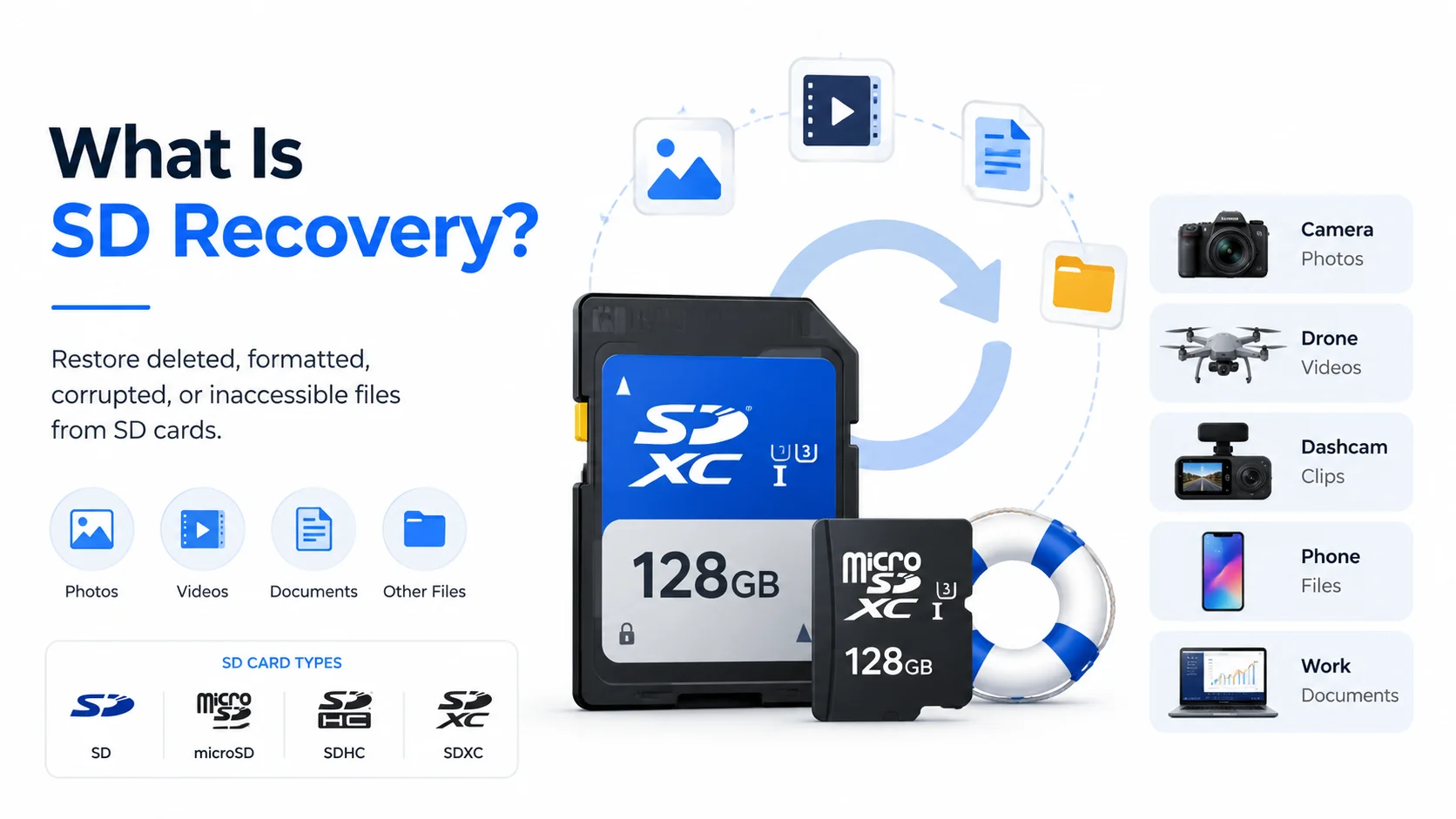
Qu'est-ce que la récupération de données sur carte SD ?
Récupération de la carte SD Cela consiste à récupérer des fichiers supprimés, formatés, endommagés ou inaccessibles sur une carte SD, une carte microSD, une carte SDHC ou une carte SDXC. Ces cartes contiennent souvent des photos prises avec un appareil photo, des vidéos filmées par un drone, des séquences enregistrées par une caméra embarquée, des fichiers de téléphone et des documents professionnels.
Dans de nombreux cas de suppression, le contenu du fichier reste un certain temps sur la carte. La carte se contente de marquer l'ancien espace comme disponible. C'est pourquoi les logiciels de récupération parviennent souvent à localiser les données perdues avant que de nouveaux fichiers ne les écrasent. Formatage rapide fonctionne de manière similaire. Il modifie le système de fichiers, mais il se peut qu'il n'efface pas tous les fichiers immédiatement.
Cependant, aucun outil ne permet de récupérer des données après un effacement complet. C'est pourquoi la première règle de logiciel de récupération de données sur carte mémoire C'est simple : arrêtez d'utiliser la carte avant de la scanner.
Commencez la récupération de votre carte comme il se doit
Avant d'essayer toute méthode de récupération, retirez la carte de votre appareil photo, de votre téléphone, de votre drone ou de votre enregistreur. Ensuite, ne la formatez pas, même si Windows vous y invite. Évitez également d'utiliser des outils de réparation tant que vous n'avez pas récupéré vos fichiers importants.
Ensuite, connectez la carte à votre ordinateur à l'aide d'un lecteur fiable. Analysez-la à l'aide d'un logiciel de récupération et enregistrez les fichiers récupérés sur un autre disque. Surtout, n'enregistrez pas les fichiers récupérés sur la même carte SD.
Ces mesures permettent de réduire le risque de réécriture. De plus, elles garantissent que la carte d'origine reste inchangée pendant Récupération de la carte SD. Si la carte est chaude au toucher, présente des fissures ou provoque le blocage de votre ordinateur, cessez toute tentative de réparation par vous-même et envisagez de faire appel à un professionnel.
Dans quels cas la récupération de carte peut-elle fonctionner ?
Les chances de récupération dépendent de la cause de la perte de données. Cela dit, dans de nombreux cas, les chances sont raisonnables si vous agissez rapidement.
Situation | Chance de rétablissement | Meilleure action |
Photos ou vidéos supprimées | Élevé s'il n'est pas écrasé | Ne plus utiliser la carte et la scanner |
Format rapide | Moyenne à élevée | Utiliser l'analyse approfondie et prévisualiser les fichiers |
Carte au format RAW ou endommagée | Moyen | Récupérer les fichiers avant la réparation |
La carte demande une mise en forme | Moyen | Annuler la mise en forme et lancer la numérisation |
Format complet ou réutilisation intensive | Faible | Essayez de lancer une analyse, mais attendez-vous à certaines limites |
Dommages physiques | Manque de clarté | Faites appel à des professionnels pour vous aider à vous en sortir |
Par exemple, un photographe qui supprime un dossier et cesse de prendre des photos peut récupérer de nombreux fichiers. En revanche, un utilisateur qui formate la carte et l'enregistrement de nouvelles vidéos en 4K peut entraîner une perte définitive de certaines données. Il est donc important d'avoir des attentes réalistes lors de récupération d'une carte SD corrompue.
Meilleur logiciel de récupération de carte SD : pourquoi choisir Magic Data Recovery ?
De nombreux utilisateurs recherchent le meilleur logiciel de récupération de données sur carte SD ou logiciel gratuit de récupération de données sur carte SD après avoir perdu des fichiers. Certains outils ne proposent qu'une analyse gratuite, tandis que d'autres nécessitent des compétences en ligne de commande. En revanche, Magic Data Recovery offre aux utilisateurs lambda un processus clair comprenant l'analyse, la prévisualisation et la récupération.
Magic Data Recovery permet de récupérer des fichiers sur des cartes SD, des cartes microSD, des clés USB, des disques durs, des SSD et d'autres périphériques de stockage. Il prend en charge les types de fichiers courants, notamment les photos, les vidéos, les fichiers audio, les documents, les archives et les fichiers RAW d'appareils photo. Il s'adapte donc à des situations concrètes, comme celles liées aux appareils photo Récupération de photos sur carte SD à la récupération de vidéos prises par drone.
Cet outil résout trois problèmes majeurs. Premièrement, il analyse les cartes supprimées, formatées ou inaccessibles. Deuxièmement, il permet aux utilisateurs de prévisualiser les fichiers avant de les enregistrer. Enfin, il évite les étapes techniques complexes. Par exemple, un photographe peut avoir besoin de fichiers RAW supprimés, tandis qu'un utilisateur de drone peut avoir besoin de vidéos MP4 perdues. Dans les deux cas, Magic Data Recovery propose une solution de récupération pratique sans imposer de réparation préalable.
Comment utiliser Magic Data Recovery pour Récupération de carte SD
Suivez les étapes suivantes pour récupérer vos fichiers en toute sécurité.
Étape 1 : Télécharger et installer le logiciel
Téléchargez Magic Data Recovery depuis le site officiel Amagicsoft sur le site web ci-dessous. Ensuite, installez-le sur votre ordinateur, et non sur la carte SD endommagée. Ce point est important, car une installation sur le périphérique de stockage endommagé risquerait d'écraser les fichiers perdus.
Prise en charge de Windows 7/8/10/11 et Windows Server
Étape 2 : Connecter la carte SD, puis sélectionnez la carte à analyser
Insérez la carte SD dans un lecteur de carte fiable et connectez-le à votre PC. Si Windows vous demande de formater la carte, cliquez sur « Annuler ». Ensuite, ouvrez Magic Data Recovery et sélectionnez la carte SD cible pour lancer la recherche des fichiers perdus.

Étape 3 : Attendre la fin de l'analyse
Le logiciel effectue automatiquement une analyse avancée. Pendant ce temps, il répertorie tous les fichiers récupérables au fur et à mesure que l'analyse progresse.

Étape 4 : Avant-première Dossiers
Une fois la numérisation terminée, prévisualisez les photos, vidéos, documents et autres fichiers. Cette étape vous permet de sélectionner les fichiers dont vous avez besoin et d'éviter ceux qui sont endommagés.

Étape 5 : Récupérer les fichiers
Enfin, enregistrez les fichiers sélectionnés sur un autre support. N'enregistrez jamais les fichiers récupérés sur la même carte SD pendant Récupération de la carte SD.

Conseils pour améliorer les résultats de la récupération
Vous pouvez obtenir de meilleurs résultats en adoptant certaines habitudes. Tout d'abord, agissez rapidement après une suppression, un formatage ou une corruption de la carte. Ensuite, évitez d'écrire de nouveaux fichiers sur la carte. Puis, effectuez une analyse avant de procéder à une réparation ou à un formatage. Une fois la récupération effectuée, formatez les cartes SD dans l'appareil d'origine, éjectez-les en toute sécurité et sauvegardez les fichiers importants après chaque séance photo ou chaque voyage.
Conclusion : optez pour une solution de récupération de données sur carte SD plus sûre
Récupération de la carte SD Pour obtenir les meilleurs résultats, il faut agir rapidement, protéger la carte d'origine et utiliser un outil qui analyse les données avant d'effectuer des modifications. Les fichiers supprimés, les formatages rapides, les cartes au format RAW et les cartes mémoire endommagées peuvent encore contenir des données récupérables. Cependant, toute négligence peut réduire vos chances de réussite.
Magic Data Recovery mérite d'être recommandé car il résout de véritables problèmes rencontrés par les utilisateurs. Il propose un flux de travail clair, prend en charge les formats photo et vidéo courants, gère les cartes SD et microSD, et permet aux utilisateurs de prévisualiser les fichiers avant récupération de fichiers depuis la carte SD. Si vous recherchez une solution plus efficace et plus adaptée aux débutants Récupération de la carte SD solution, essayez la méthode Magic Data Recovery avant de vous lancer dans des opérations de réparation plus risquées.
Prise en charge de Windows 7/8/10/11 et Windows Server
FAQ sur la récupération de données sur carte SD
Qu'est-ce que la récupération de données sur carte SD ?
La récupération de données sur carte SD consiste à restaurer des fichiers supprimés, formatés, endommagés ou inaccessibles à partir de cartes SD, microSD, SDHC et SDXC. Ce processus est plus efficace lorsque les données perdues sont encore présentes sur la carte. Il est donc recommandé de cesser immédiatement d'utiliser la carte et de la analyser avant d'y enregistrer de nouveaux fichiers.
Puis-je récupérer gratuitement des fichiers supprimés sur une carte SD ?
Certains outils proposent une analyse gratuite, tandis que d'autres permettent une récupération gratuite limitée. Les limites de la version gratuite varient toutefois selon les produits. Avant de vous fier à un outil, effectuez une analyse de la carte et prévisualisez les résultats. Si les fichiers semblent récupérables, choisissez une méthode qui vous permette de les enregistrer en toute sécurité sur un autre disque.
Est-il possible de récupérer les données d'une carte SD formatée ?
Oui, la récupération des données d'une carte SD formatée peut fonctionner après un formatage rapide, surtout si vous n'avez pas réutilisé la carte. Cependant, un formatage complet ou de nouveaux enregistrements peuvent écraser les anciens fichiers. Pour obtenir les meilleurs résultats, cessez d'utiliser la carte, lancez une analyse approfondie et enregistrez les fichiers récupérés ailleurs.
Le Magic Data Recovery est-il efficace pour la récupération après une défaillance du système ?
Magic Data Recovery est un choix pratique pour la récupération de cartes SD, car il prend en charge les cartes supprimées, formatées ou endommagées. Il permet également aux utilisateurs de prévisualiser les fichiers récupérables avant de les enregistrer. Ainsi, les débutants peuvent consulter leurs photos, vidéos, documents et fichiers RAW sans avoir à utiliser d'outils en ligne de commande complexes.
Puis-je récupérer des photos et des vidéos à partir de la carte SD d'un appareil photo ?
Oui, il est souvent possible de récupérer les photos et vidéos de votre appareil photo si elles n'ont pas été écrasées par de nouvelles données. Arrêtez de prendre des photos, retirez la carte mémoire et analysez-la à l'aide d'un logiciel de récupération. Cette méthode fonctionne pour les images JPG, les photos RAW, les vidéos MP4, les fichiers MOV et d'autres formats multimédias courants utilisés par les appareils photo.
Que dois-je faire si ma carte SD passe en format RAW ou est endommagée ?
Ne formatez pas la carte dans un premier temps. Connectez-la plutôt à un lecteur de carte fiable et analysez-la à l'aide d'un logiciel de récupération. Une fois que vous aurez récupéré vos fichiers importants, vous pourrez réparer ou reformater la carte. Cette procédure réduit les risques, car les opérations de réparation peuvent modifier le système de fichiers.
Où dois-je enregistrer les fichiers récupérés de la carte SD ?
Enregistrez les fichiers récupérés sur votre ordinateur, sur un disque dur externe ou sur un autre support de stockage sécurisé. Ne les enregistrez pas à nouveau sur la même carte SD pendant la récupération. Sinon, vous risquez d'écraser des fichiers que le logiciel n'a pas encore restaurés, ce qui pourrait nuire aux résultats de la récupération.

Vasilii est un spécialiste de la récupération de données qui possède une dizaine d'années d'expérience pratique dans ce domaine. Tout au long de sa carrière, il a résolu avec succès des milliers de cas complexes impliquant des fichiers supprimés, des disques formatés, des partitions perdues et des systèmes de fichiers RAW. Son expertise couvre à la fois les méthodes de récupération manuelle à l'aide d'outils professionnels tels que les éditeurs hexagonaux et les solutions automatisées avancées à l'aide de logiciels de récupération. La mission de Vasilii est de rendre accessible aux professionnels de l'informatique et aux utilisateurs quotidiens des connaissances fiables en matière de récupération de données, afin de les aider à sauvegarder leurs précieuses ressources numériques.