
Recupero SD: ripristino dei file della scheda SD
La perdita di foto, video o documenti da una scheda SD può sembrare un problema urgente. Tuttavia, clic fatti in preda al panico, ripetute ricollegamenti e una formattazione affrettata possono rendere più difficile il recupero. Recupero dei dati SD funziona al meglio se smetti di usare la scheda, proteggi i dati originali e la scansioni prima della riparazione.
Questa guida spiega come Recupero dei dati SD come funziona, da cosa iniziare e come recuperare i file persi dalla scheda SD in modo sicuro. Imparerete anche quando Recupero della scheda SD formattata potrebbe funzionare, come gestire le schede danneggiate e perché Magic Data Recovery è uno strumento pratico per garantire la sicurezza Recupero della scheda SD.
Supporta Windows 7/8/10/11 e Windows Server
Indice dei contenuti
Che cos’è SD Recovery?
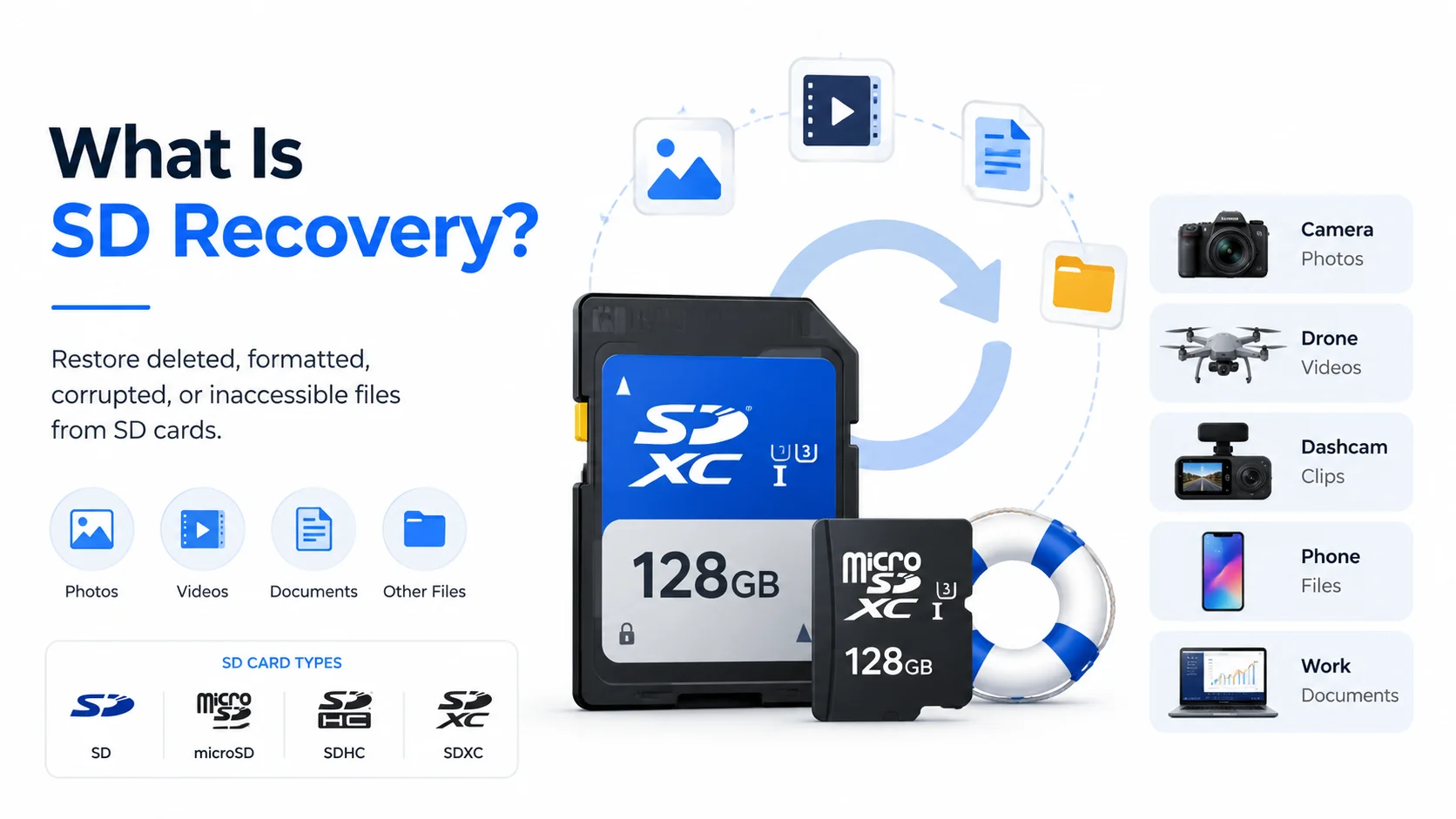
Recupero dei dati SD significa recuperare file cancellati, formattati, danneggiati o inaccessibili da una scheda SD, microSD, SDHC o SDXC. Queste schede contengono spesso foto scattate con la fotocamera, video girati con i droni, filmati registrati con le dashcam, file del telefono e documenti di lavoro.
In molti casi di cancellazione, il contenuto del file rimane sulla scheda per un certo periodo. La scheda si limita a contrassegnare lo spazio occupato in precedenza come disponibile. Pertanto, i software di recupero riescono spesso a individuare i dati persi prima che vengano sovrascritti da nuovi file. Formattazione rapida funziona in modo simile. Modifica il file system, ma potrebbe non cancellare immediatamente tutti i file.
Tuttavia, nessun strumento è in grado di recuperare i dati dopo una sovrascrittura completa. Per questo motivo, la prima regola di software per il recupero dei dati dalle schede di memoria È semplice: smetti di usare la carta prima di scansionarla.
Inizia il recupero delle carte nel modo giusto
Prima di provare qualsiasi metodo di recupero, rimuovi la scheda dalla fotocamera, dal telefono, dal drone o dal registratore. Successivamente, non formattarla, anche se Windows te lo chiede. Inoltre, evita di utilizzare strumenti di riparazione finché non avrai recuperato i file importanti.
Quindi, collega la scheda al computer utilizzando un lettore affidabile. Eseguine la scansione con un software di recupero dati e salva i file recuperati su un'altra unità. Soprattutto, non salvare i risultati sulla stessa scheda SD.
Queste misure riducono il rischio di sovrascrittura. Inoltre, garantiscono che la scheda originale rimanga inalterata durante Recupero dei dati SD. Se la scheda risulta calda al tatto, presenta crepe o blocca il computer, interrompi i tentativi di riparazione fai da te e valuta di rivolgerti a un professionista.
In quali casi è possibile recuperare i dati da una carta?
Le possibilità di recupero dipendono dalla causa della perdita dei dati. Tuttavia, in molti casi le possibilità di recupero sono buone se si interviene tempestivamente.
Situazione | Possibilità di recupero | Azione migliore |
Foto o video eliminati | Alto, se non sovrascritto | Smettere di usare la carta e scansionarla |
Formato rapido | Da medio ad alto | Utilizza la scansione approfondita e visualizza l'anteprima dei file |
Scheda RAW o danneggiata | Medio | Recuperare i file prima della riparazione |
La scheda richiede la formattazione | Medio | Annulla la formattazione ed esegui prima la scansione |
Formato completo o riutilizzo esteso | Basso | Prova a eseguire una scansione, ma tieni presente che ci sono dei limiti |
Danno fisico | Non chiaro | Ricorri all’aiuto di professionisti per il recupero |
Ad esempio, un fotografo che cancella una cartella e smette di scattare potrebbe recuperare molti file. Tuttavia, un utente che formatta la scheda e la registrazione di nuovi video in 4K potrebbe comportare la perdita definitiva di alcuni dati. Pertanto, è importante avere aspettative realistiche durante Recupero della scheda SD danneggiata.
Il miglior software di recupero dati per schede SD: perché scegliere Magic Data Recovery?
Molti utenti cercano il il miglior software di recupero dati per schede SD o software gratuito per il recupero di schede SD dopo aver perso dei file. Alcuni strumenti consentono solo la scansione gratuita, mentre altri richiedono competenze nell'uso della riga di comando. Al contrario, Magic Data Recovery offre agli utenti comuni un flusso di lavoro chiaro che comprende scansione, anteprima e recupero.
Magic Data Recovery consente di recuperare file da schede SD, schede microSD, chiavette USB, dischi rigidi, SSD e altri dispositivi di archiviazione. Supporta i formati di file più comuni, tra cui foto, video, file audio, documenti, archivi e file RAW delle fotocamere. È quindi adatto a situazioni reali, a partire dalle fotocamere Recupero di foto da scheda SD al recupero dei video girati con i droni.
Lo strumento risolve tre principali problemi. Innanzitutto, esegue la scansione di schede cancellate, formattate o inaccessibili. In secondo luogo, consente agli utenti di visualizzare in anteprima i file prima di salvarli. In terzo luogo, evita complesse procedure tecniche. Ad esempio, un fotografo potrebbe aver bisogno di recuperare file RAW cancellati, mentre un utente di droni potrebbe aver bisogno di recuperare video MP4 persi. In entrambi i casi, Magic Data Recovery offre una soluzione pratica per il recupero senza richiedere prima una riparazione.
Come utilizzare Magic Data Recovery per Recupero SD
Seguite questi passaggi per recuperare i file in modo sicuro.
Passo 1: Scaricare e installare il software
Scarica Magic Data Recovery dal sito ufficiale Amagicsoft dal sito web indicato di seguito. Successivamente, installalo sul tuo computer, non sulla scheda SD danneggiata. Questo è importante perché l'installazione sul dispositivo di archiviazione danneggiato potrebbe sovrascrivere i file persi.
Supporta Windows 7/8/10/11 e Windows Server
Passo 2: Collegare la scheda SD e selezionare la scheda da scansionare
Inserisci la scheda SD in un lettore di schede affidabile e collegalo al PC. Se Windows ti chiede di formattare la scheda, fai clic su “Annulla”. Successivamente, apri Magic Data Recovery e seleziona la scheda SD di destinazione per avviare la ricerca dei file persi.

Fase 3: Attendere il completamento della scansione
Il software esegue automaticamente una scansione avanzata. Nel frattempo, elenca tutti i file recuperabili man mano che la scansione procede.

Passo 4: Anteprima File
Al termine della scansione, visualizza in anteprima foto, video, documenti e altri file. Questo passaggio ti aiuta a scegliere i file che ti servono ed evitare quelli danneggiati.

Passo 5: Recupero i file
Infine, salva i file selezionati su un'altra unità. Non salvare mai i file recuperati sulla stessa scheda SD durante Recupero dei dati SD.

Suggerimenti per migliorare i risultati del recupero
È possibile ottenere risultati migliori adottando alcune precauzioni. Innanzitutto, agisci rapidamente dopo la cancellazione, la formattazione o il danneggiamento della scheda. In secondo luogo, evita di scrivere nuovi file sulla scheda. Successivamente, esegui una scansione prima di procedere alla riparazione o alla formattazione. Dopo il recupero, formatta le schede SD nel dispositivo originale, espelli le schede in modo sicuro ed esegui il backup dei file importanti dopo ogni sessione fotografica o viaggio.
Conclusione: scegli una soluzione più sicura per il recupero delle schede SD
Recupero dei dati SD Funziona al meglio se si agisce rapidamente, si protegge la scheda originale e si utilizza uno strumento che esegue una scansione prima di apportare modifiche. I file cancellati, le formattazioni rapide, le schede RAW e le schede di memoria danneggiate possono comunque contenere dati recuperabili. Tuttavia, azioni imprudenti possono ridurre le possibilità di recupero.
Magic Data Recovery merita di essere consigliato perché risolve problemi concreti degli utenti. Offre un flusso di lavoro chiaro, supporta i formati più comuni di foto e video, gestisce schede SD e microSD e consente agli utenti di visualizzare in anteprima i file prima di recupero dei file dalla scheda SD. Se vuoi un sistema più efficiente e adatto ai principianti Recupero dei dati SD Come soluzione, prova Magic Data Recovery prima di procedere con interventi di riparazione più rischiosi.
Supporta Windows 7/8/10/11 e Windows Server
Domande frequenti sul recupero dei dati da schede SD
Che cos’è il recupero SD?
Il recupero da scheda SD è il processo di ripristino di file cancellati, formattati, danneggiati o inaccessibili da schede SD, microSD, SDHC e SDXC. Funziona al meglio quando i dati persi sono ancora presenti sulla scheda. Pertanto, è consigliabile smettere immediatamente di utilizzare la scheda ed eseguire una scansione prima di salvare nuovi file.
È possibile recuperare gratuitamente i file cancellati da una scheda SD?
Alcuni strumenti offrono una scansione gratuita, mentre altri consentono un recupero gratuito limitato. Tuttavia, i limiti della versione gratuita variano a seconda del prodotto. Prima di affidarti a uno strumento qualsiasi, esegui una scansione della scheda e visualizza l'anteprima dei risultati. Se i file sembrano recuperabili, scegli un metodo che ti consenta di salvarli in modo sicuro su un'altra unità.
È possibile recuperare i dati da una scheda SD formattata?
Sì, il recupero dei dati da una scheda SD formattata può funzionare dopo una formattazione rapida, soprattutto se la scheda non è stata riutilizzata. Tuttavia, una formattazione completa o nuove registrazioni potrebbero sovrascrivere i vecchi file. Per ottenere i migliori risultati, smetti di utilizzare la scheda, esegui una scansione approfondita e salva i file recuperati altrove.
Il Magic Data Recovery è efficace per il recupero della SD?
Magic Data Recovery è una scelta pratica per il recupero dei dati da schede SD, poiché supporta casi in cui le schede sono state cancellate, formattate o danneggiate. Consente inoltre agli utenti di visualizzare in anteprima i file recuperabili prima di salvarli. Pertanto, anche i principianti possono controllare foto, video, documenti e file RAW senza dover ricorrere a complicati strumenti da riga di comando.
È possibile recuperare foto e video dalla scheda SD di una fotocamera?
Sì, spesso è possibile recuperare foto e video dalla fotocamera, a condizione che non siano stati sovrascritti da nuovi dati. Smetti di scattare, rimuovi la scheda e esegui una scansione con un software di recupero dati. Questo metodo funziona con immagini JPG, foto RAW, video MP4, file MOV e altri formati multimediali comunemente utilizzati dalle fotocamere.
Cosa devo fare se la mia scheda SD diventa RAW o risulta danneggiata?
Non formattare la scheda prima. Collegala invece a un lettore di schede affidabile ed esegui una scansione con un software di recupero dati. Dopo aver recuperato i file importanti, potrai riparare o riformattare la scheda. Questa sequenza riduce i rischi, poiché le operazioni di riparazione potrebbero modificare il file system.
Dove devo salvare i file recuperati della scheda SD?
Salva i file recuperati sul tuo computer, su un disco rigido esterno o su un altro dispositivo di archiviazione sicuro. Non salvarli nuovamente sulla stessa scheda SD durante il recupero. In caso contrario, potresti sovrascrivere i file che il software non ha ancora ripristinato, compromettendo così i risultati del recupero.

Vasilii è uno specialista del recupero dati con circa 10 anni di esperienza pratica nel settore. Nel corso della sua carriera, ha risolto con successo migliaia di casi complessi riguardanti file cancellati, unità formattate, partizioni perse e file system RAW. La sua esperienza copre sia i metodi di recupero manuale utilizzando strumenti professionali come gli editor esadecimali, sia le soluzioni automatiche avanzate con i software di recupero. La missione di Vasilii è quella di rendere accessibile la conoscenza del recupero dati affidabile sia ai professionisti IT che agli utenti di tutti i giorni, aiutandoli a salvaguardare i loro preziosi beni digitali.