
Formattazione rapida: Come funziona, recupero dei dati e buone pratiche
La formattazione di un'unità è un'operazione comune quando si prepara l'archiviazione per il riutilizzo. Tuttavia, molti utenti scelgono accidentalmente Formato rapido senza comprenderne appieno le conseguenze. Di conseguenza, i file importanti possono sembrare definitivamente persi in pochi secondi.
In questo articolo verrà spiegato come funziona questa opzione di formattazione, in che modo si differenzia da un'opzione di formattazione Formato completo, se i dati sono ancora recuperabili e come ripristinare i file persi in modo sicuro. Se si verifica una perdita di dati dopo la formattazione, questo articolo spiega anche perché Magic Data Recovery è una soluzione affidabile.
Indice dei contenuti
Che cos'è Formato rapido?
È un'opzione di formattazione disponibile in Windows, macOS e in molti strumenti di gestione del disco. Prepara un dispositivo di archiviazione, ad esempio un disco disco rigido, SSD, unità flash USB o scheda SD, per riutilizzarli ricostruendo la struttura del file system.
A differenza dei metodi di formattazione più approfonditi, questo processo di formattazione rapida si completa in pochi secondi perché non esegue la scansione della superficie del disco e non cancella i blocchi di dati esistenti.
Scenari comuni in cui viene utilizzata questa opzione di formato
Gli utenti applicano spesso questo metodo di formattazione quando:
- Reinstallazione di Windows o macOS
- Preparazione di un'unità USB per il trasferimento dei file
- Ripristino di un disco rigido esterno
- Correzione di errori minori del file system
- Impostazione di una nuova partizione
Sebbene sia conveniente, la velocità di questo approccio spesso crea la falsa impressione che i dati vengano cancellati completamente.
Come Formato rapido Opere: Il principio tecnico
Per comprendere il recupero dei dati dopo la formattazione, è essenziale sapere cosa accade effettivamente durante il processo.
Cosa succede durante il processo
Quando si esegue un Formato rapido, il sistema:
- Elimina i metadati del file system (come la tabella di allocazione dei file o MFT).
- Segna lo spazio su disco come disponibile
- Crea una nuova struttura di file system vuota
Cosa non succede
Tuttavia, questa opzione non lo fa:
- Sovrascrivere i dati del file esistente
- Scansione dei settori danneggiati
- Cancellazione sicura dei contenuti
In pratica, i file continuano a esistere sul disco fino a quando nuovi dati non li sovrascrivono.
Come eseguire una Formato su Windows (passo dopo passo)
La comprensione del processo aiuta a ridurre il rischio di perdita accidentale dei dati.
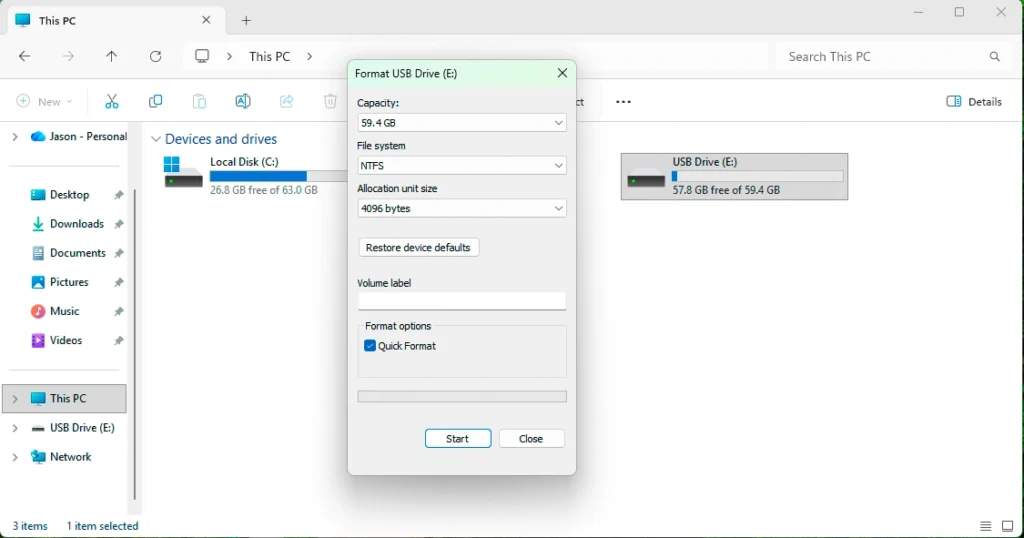
Utilizzo di Esplora file di Windows
- Aprire questo PC
- Fare clic con il tasto destro del mouse sull'unità di destinazione
- Selezionare il formato
- Controllo Formato rapido
- Scegliere un file system (NTFS, FAT32, o exFAT)
- Fare clic su Avvio
Utilizzo di Gestione disco
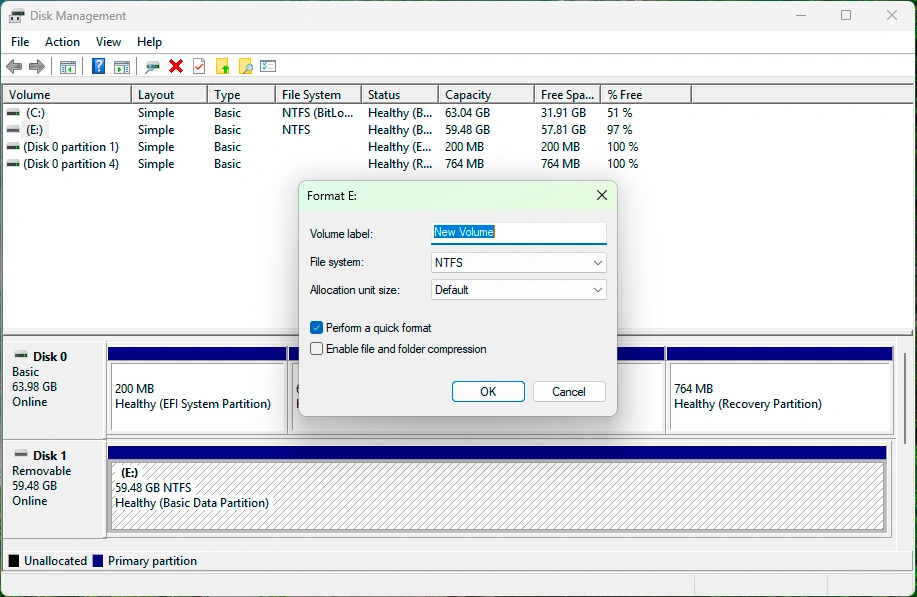
- Premere Win + X → Gestione del disco
- Fare clic con il tasto destro del mouse sulla partizione
- Selezionare il formato
- Attivare l'opzione di formattazione rapida
- Confermare l'operazione
Una richiesta di conferma avverte della perdita di dati, ma non spiega la possibilità di recupero.
Formato rapido contro il formato integrale: Differenze principali
La scelta tra questi due metodi ha implicazioni a lungo termine per la sicurezza e il recupero dei dati.
Caratteristica | Formato rapido | Formato completo |
Tempo richiesto | Secondi | Da minuti a ore |
Elimina il file system | Sì | Sì |
Sovrascrive i dati | No | Sì |
Scansione dei settori danneggiati | No | Sì |
Dati recuperabili | Alto | Molto basso |
Consigliato per il riutilizzo | Limitato | Sì |
Quando ogni opzione è appropriata
- Formato rapido: Problemi minori, riutilizzo veloce, pulizia temporanea
- Formato completo: Vendita di un'unità, problemi di sicurezza, controllo approfondito degli errori
I dati sono recuperabili dopo la formattazione?
Sì, nella maggior parte dei casi, recupero dati dopo un rapido processo di formattazione è altamente possibile.
Perché il recupero funziona
Poiché questo metodo rimuove solo i riferimenti ai file, il software di recupero può:
- Scansione dei settori grezzi del disco
- Identificare le firme dei file
- Ricostruire i file eliminati
Quando il recupero può fallire
Il successo del recupero diminuisce se:
- I nuovi dati vengono scritti sull'unità
- A Formato completo viene eseguita successivamente
- TRIM è abilitato sulle unità SSD
- Il disco subisce un danno fisico
Per ottenere risultati ottimali, smettere di usare l'unità subito dopo la formattazione.
Come recuperare i dati dopo la formattazione
Il recupero dei dati richiede uno strumento in grado di eseguire la scansione oltre il file system.
Soluzione consigliata: Magic Data Recovery
Magic Data Recovery è stato progettato per ripristinare i file persi a causa della formattazione, cancellazione accidentale, e perdita di partizione.
Supporta Windows 7/8/10/11 e Windows Server
Risolve i principali punti dolenti
- File mancanti dopo la formattazione
- Partizioni inaccessibili
- Foto perse, documenti e video
- Recupero di unità USB ed esterne
Perché Magic Data Recovery è una scelta affidabile
Invece delle dichiarazioni di marketing, il valore di Magic Data Recovery è nelle prestazioni pratiche di recupero.
Vantaggi principali
- Tecnologia di scansione profonda che bypassa i file system eliminati
- Supporto per NTFS, FAT32, exFAT e altro ancora
- Compatibile con HDD, SSD, unità USB e schede SD
- Scansione in sola lettura per evitare la sovrascrittura dei dati
Caso d'uso nel mondo reale
Uno scenario comune prevede che gli utenti formattino un'unità USB per risolvere un errore del file system. Dopo aver utilizzato l'opzione di formattazione rapida, i file scompaiono. Magic Data Recovery può scansionare il dispositivo, individuare i file recuperabili e visualizzarli in anteprima prima del ripristino.
Perché è più affidabile dei metodi manuali
I tentativi di recupero manuale, come CHKDSK o una nuova riformattazione, spesso riducono le percentuali di successo. Al contrario, Magic Data Recovery conserva il contenuto originale del disco mentre esegue scansioni avanzate.
Le migliori pratiche per evitare la perdita di dati
La prevenzione rimane la strategia più efficace.
Consigli pratici
- Eseguire sempre il backup dei file importanti prima di formattare
- Controllare due volte le opzioni di formato prima di confermare
- Evitare la formattazione di unità con errori sconosciuti
- Interrompere immediatamente l'utilizzo dell'unità in caso di perdita di dati
Queste abitudini riducono notevolmente la necessità di recupero.
Conclusione
Formato rapido è veloce e conveniente, ma spesso viene frainteso. Pur eliminando l'accesso al file system, non cancella immediatamente i dati. Ciò rende possibile il recupero, a condizione che non si verifichino altre scritture.
Quando I file vengono persi dopo la formattazione, Una soluzione professionale come Magic Data Recovery offre un modo sicuro, efficiente e comprovato per ripristinare i dati preziosi senza causare ulteriori danni. Se siete alla ricerca di una soluzione affidabile per il recupero dei dati dopo la formattazione, Magic Data Recovery offre una combinazione equilibrata di affidabilità, facilità d'uso e profondità tecnica adatta alla maggior parte degli utenti.
Supporta Windows 7/8/10/11 e Windows Server
Domande frequenti
Il formato rapido è sufficiente per l'USB?
Perché un formato completo è più vantaggioso di un'opzione rapida?
Devo formattare velocemente o formattare completamente la PS3?
È meglio formattare rapidamente o completamente un'unità USB?
C'è un aspetto negativo nell'utilizzo di exFAT?
Il formato completo vale la pena?
Quale formato devo utilizzare per il mio SSD?

Erin Smith è riconosciuta come una delle scrittrici più professionali di Amagicsoft. Negli ultimi 10 anni ha continuamente affinato le sue capacità di scrittura e ha aiutato milioni di lettori a risolvere i loro problemi tecnologici.