
Come recuperare i file in quarantena da Defender
Il fatto che Microsoft Defender elimini improvvisamente un programma di installazione scaricato, un archivio ZIP, un documento di lavoro o un’utilità può essere motivo di preoccupazione, specialmente quando si sa che il file proviene da una fonte attendibile. Fortunatamente, un file segnalato da Defender non viene sempre eliminato in modo definitivo. In molti casi, viene semplicemente isolato in quarantena e può ancora essere ripristinato.
Se stai cercando di trovare Come recuperare i file in quarantena da Windows Defender, è consigliabile iniziare con "Sicurezza di Windows" anziché installare immediatamente un software di recupero. Microsoft Defender è solitamente in grado di ripristinare un elemento finché questo è ancora presente in quarantena. Tuttavia, se Defender ha già rimosso il file e non ne rimane alcuna copia in quarantena, il problema diventa un caso di recupero di file cancellati.
Questa guida illustra entrambe le situazioni. Imparerete come ripristinare un elemento in quarantena tramite la Cronologia della protezione, come utilizzare l'utilità MpCmdRun di Microsoft quando l'interfaccia grafica non funziona, come recuperare un file effettivamente eliminato e come impedire che lo stesso file attendibile venga nuovamente messo in quarantena.
Per casi più generali che riguardano file effettivamente cancellati, consulta la nostra recupero dei file cancellati guida. Se il file originale non è più disponibile tramite Defender, Magic Data Recovery può eseguire una scansione del dispositivo di archiviazione interessato alla ricerca di dati recuperabili.
Supporta Windows 7/8/10/11 e Windows Server
Importante: Non ripristinare mai un rilevamento di Defender solo perché hai bisogno del file. Verifica prima che il file, lo sviluppatore e la fonte di download siano affidabili.
Indice dei contenuti
Risposta rapida: Come recuperare i file in quarantena da Windows Defender
Il metodo corretto dipende da ciò che Microsoft Defender ha effettivamente fatto.
Situazione | La soluzione migliore |
Il file compare nella sezione "Elementi in quarantena" | Ripristinalo tramite Sicurezza di Windows |
L'opzione di ripristino non è presente, ma la quarantena esiste ancora | Utilizza MpCmdRun |
Il file è stato rimosso e non è più in quarantena | Verifica i backup o utilizza la funzione di recupero dati |
Il file proviene da una fonte di download ufficiale | Scarica una nuova copia |
Il file ripristinato viene rilevato nuovamente | Verificalo, poi concedine l'accesso solo se ti fidi |
PC per il lavoro o per la scuola | Contatta il tuo amministratore |
Per la maggior parte degli utenti privati, Ripristino dalla quarantena di Windows Defender Si dovrebbe iniziare dalla Cronologia della protezione. Il software di recupero dati diventa utile solo quando Defender non è più in grado di ripristinare il file originale.
Cosa succede quando Windows Defender mette un file in quarantena?
Prima di tentare il ripristino, è importante comprendere bene il funzionamento della quarantena.
Quando Microsoft Defender individua un file sospetto, può isolarlo in modo che le applicazioni di Windows non possano più eseguirlo né accedervi normalmente. Questo processo protegge il sistema, consentendo al contempo a Defender di mantenere il controllo sull'elemento.
Un file messo in quarantena è quindi diverso da un file eliminato definitivamente.
In quarantena vs. Rimosso vs. Eliminato
A file in quarantena è ancora presente sotto il controllo di Microsoft Defender. Se Defender lo conserva ancora, di solito è possibile ripristinarlo.
A file rimosso è già stato eliminato da Defender. In questo caso, l'opzione Ripristina potrebbe non essere più disponibile.
Un file può anche scomparire a causa di una cancellazione manuale, di un altro programma antivirus, di errori del disco o di problemi di archiviazione non correlati.
Questa distinzione è importante quando si impara Come recuperare i file in quarantena da Windows Defender. Non è necessario ricorrere subito a un software di recupero se Defender ha ancora il file.
Attualmente Microsoft consiglia agli utenti di Windows di aprire "Protezione da virus e minacce" → "Cronologia della protezione", filtrare gli elementi in quarantena e selezionare "Ripristina" quando opportuno. Microsoft fornisce inoltre MpCmdRun come metodo ufficiale di ripristino da riga di comando.
Metodo 1: Ripristino dei file in quarantena da Windows Defender
Il modo più semplice per ripristinare i file in quarantena in Windows Defender è tramite l'interfaccia di Sicurezza di Windows.
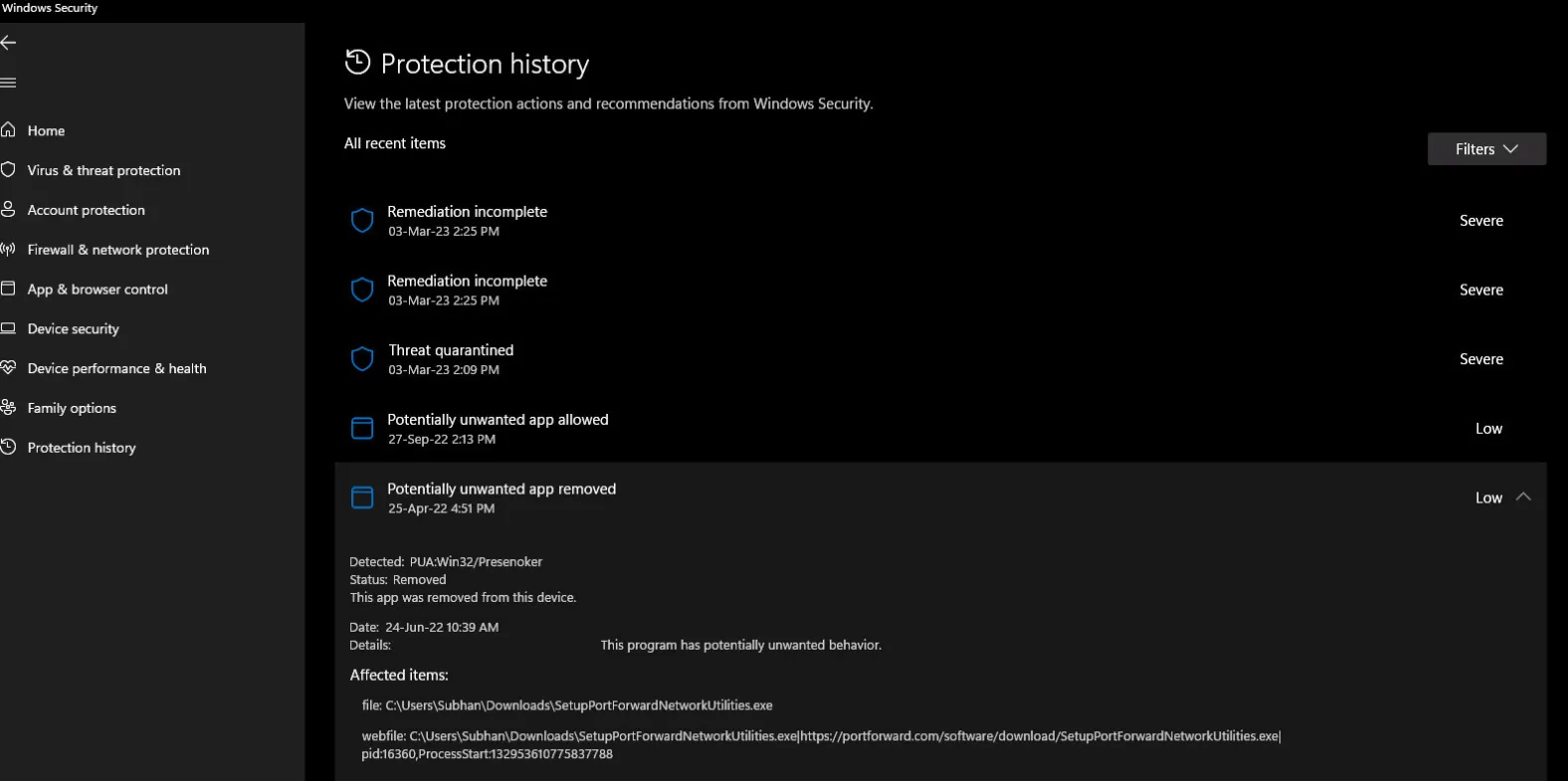
Passaggio 1: Aprire "Sicurezza di Windows"
Stampa Windows + S, digita:
Sicurezza di Windows
Apri il risultato corrispondente.
Quindi selezionare:
Protezione da virus e minacce
Fase 2: Aprire la cronologia delle protezioni
Nella sezione "Protezione da virus e minacce", selezionare:
Cronologia delle protezioni
Windows mostra le azioni recenti eseguite da Microsoft Defender.
Se vengono visualizzati molti record, utilizza il filtro e seleziona:
Articoli in quarantena
Fase 3: Individuare il rilevamento corretto
Apri la segnalazione relativa al file mancante.
Prima di ripristinarlo, verificare quanto segue:
- Percorso del file originale
- Nome della minaccia o del rilevamento
- Nome del file
- Scarica il codice sorgente
- Editore o firma digitale, se disponibili
Ad esempio, supponiamo che Defender metta in quarantena un programma di installazione scaricato direttamente dal sito web ufficiale di uno sviluppatore di software. Se il nome del file, la firma digitale e l’editore corrispondono a quanto ci si aspettava, è più probabile che si tratti di un falso positivo.
Tuttavia, un file eseguibile non conosciuto, proveniente da un allegato e-mail o da un sito di download sconosciuto, dovrebbe rimanere in quarantena.
Passaggio 4: Seleziona "Ripristina"
Espandi il campo di rilevamento e seleziona:
Azioni → Ripristina
Defender dovrebbe restituire il file se la copia in quarantena è ancora presente.
Microsoft sottolinea che il ripristino di una minaccia messa in quarantena può far sì che Defender rilevi nuovamente lo stesso file. Se si è certi che si tratti di un falso positivo, esaminare il nuovo avviso e utilizzare Consenti sul dispositivo piuttosto che disattivare in modo generalizzato la protezione antivirus.
Per la maggior parte degli utenti che effettuano ricerche Come recuperare i file in quarantena da Windows Defender, questa è la soluzione più sicura e veloce.
Metodo 2: Recuperare i file messi in quarantena da Defender con MpCmdRun
A volte il file non viene visualizzato correttamente in Cronologia della protezione di Windows, oppure l'interfaccia grafica non offre l'opzione di ripristino che ti aspetti.
Microsoft offre un altro metodo denominato MpCmdRun, un'utilità da riga di comando inclusa in Microsoft Defender Antivirus.
Passo 1: aprire il Prompt dei comandi come amministratore
Stampa Windows + S, digita:
cmd
Cliccare con il tasto destro del mouse Prompt dei comandi, quindi selezionare:
Eseguire come amministratore
I privilegi di amministratore sono importanti perché Defender limita l'accesso ai dati in quarantena.
Fase 2: Individuare MpCmdRun
In molte installazioni di Windows, l'utilità da riga di comando di Defender si trova in:
C:\ProgramData\Microsoft\Windows Defender\Platform\\
La documentazione di Microsoft consiglia di utilizzare la cartella della piattaforma Defender più recente. Se tale percorso non è disponibile, Windows può anche utilizzare:
C:\Programmi\Windows Defender
Fase 3: Elenco dei file in quarantena
Una volta che il Prompt dei comandi è attivo nella directory corretta di Defender, eseguire:
MpCmdRun.exe -Restore -ListAll
Questo comando elenca gli elementi che Defender conserva ancora in quarantena.
Microsoft attualmente descrive proprio questo MpCmdRun restore flusso di lavoro per Microsoft Defender Antivirus.
Fase 4: Ripristinare il file richiesto
Dopo aver identificato l'elemento, eseguire:
MpCmdRun.exe -Restore -Name
Sostituisci con il nome del file indicato nel risultato precedente.
Se MpCmdRun riesce ancora a individuare l'elemento, questo metodo potrebbe funzionare anche quando l'interfaccia standard risulta poco pratica.
Tuttavia, se l'elemento non è più presente nell'elenco di quarantena, l'esecuzione ripetuta dei comandi di Defender non consentirà di ripristinare i dati di archiviazione eliminati. A quel punto, passare al metodo successivo.
Metodo 3: Recuperare i file eliminati da Windows Defender con Magic Data Recovery
C'è un punto importante che molte guide sul recupero tendono a trascurare:
Il ripristino della quarantena non equivale al recupero dei file cancellati.
Se Defender possiede ancora la copia in quarantena, utilizzare Windows Security o MpCmdRun. Se invece Defender ha già rimosso il file e non è rimasta alcuna copia in quarantena utilizzabile, Come recuperare i file in quarantena da Windows Defender diventa un normale problema di recupero dei dati cancellati.
È qui che Magic Data Recovery diventa rilevante.
Magic Data Recovery esegue la scansione del dispositivo di archiviazione originale anziché fare affidamento sul database di quarantena di Defender. Supporta il recupero di file persi a causa di cancellazioni accidentali, formattazioni, errori del file system e altre situazioni di perdita di dati.
È inoltre compatibile con dischi rigidi (HDD), SSD, chiavette USB, schede SD, dispositivi di archiviazione esterni e i più comuni file system di Windows, supportando oltre 5.000 tipi di file.
Quando utilizzare l'Magic Data Recovery?
Tienilo presente quando:
- Defender ha già eliminato il file originale.
- File messi in quarantena da Windows Defender non compaiono più nella Cronologia della protezione.
- MpCmdRun non è in grado di visualizzare la voce richiesta.
- Non disponi di un backup utilizzabile.
- Non è possibile scaricare nuovamente il file.
- Devi cercare i dati dei file cancellati sul disco originale.
A differenza della funzione "Restore" di Defender, Magic Data Recovery non richiede la presenza di un record di quarantena attivo.
Fase 1: Interrompere la scrittura di nuovi dati sull'unità
Se il file è stato effettivamente cancellato, evita download, installazioni, copie di file e aggiornamenti di Windows di grandi dimensioni non necessari sull'unità interessata.
Lo spazio di archiviazione liberato potrebbe, alla fine, essere riutilizzato per nuovi dati.
Se il file mancante proviene da un’altra partizione, da una chiavetta USB o da un disco esterno, installare il software di recupero in un’altra posizione, se possibile.
Fase 2: Eseguire la scansione della posizione di archiviazione originale
Avvia Magic Data Recovery e seleziona la partizione o il dispositivo di archiviazione in cui si trovava originariamente il file mancante.

Ad esempio:
- Il file è scomparso dal desktop → di solito si esegue la scansione della partizione di sistema di Windows.
- Il file è stato messo in quarantena da un disco rigido esterno → esegui la scansione di quel disco rigido esterno.
- Il file è stato rimosso da una chiavetta USB → eseguire la scansione del dispositivo USB.
Avvia la scansione e lascia che il software cerchi i file cancellati e persi.
Fase 3: Filtrare e visualizzare l'anteprima dei risultati
Quando vengono visualizzati molti file, restringi i risultati:
- Nome file
- Percorso
- Tipo di file
- Estensione
- Dimensione del file
Se possibile, visualizza in anteprima i file supportati prima del recupero.

Questo passaggio è particolarmente utile se il nome del file originale o la struttura delle cartelle sono andati parzialmente persi.
Passaggio 4: Recuperare il file in un'altra posizione
Seleziona il file desiderato e salvalo in un un'altra unità o partizione.

Non riscrivere immediatamente i dati recuperati nella stessa posizione di archiviazione interessata dal problema. In caso contrario, si rischia di sovrascrivere altre informazioni recuperabili.
Inoltre, è importante mantenere aspettative realistiche. Nessuna applicazione per il recupero dei file cancellati può garantire che tutti i file rimangano recuperabili. L'uso continuato del disco, la sovrascrittura, le condizioni di conservazione e il comportamento della funzione TRIM degli SSD possono tutti influire sui risultati.
Questa distinzione rende Magic Data Recovery una soluzione alternativa pratica piuttosto che una sostituzione superflua degli strumenti di ripristino integrati di Microsoft.
Metodo 4: Ripristinare il file da un backup o dalla fonte originale
Prima di eseguire una scansione di ripristino approfondita, verifica di disporre già di un’altra copia integra.
Tra le possibili sedi figurano:
- OneDrive
- Storia del file
- Unità di backup esterne
- Un altro computer
- Archiviazione in cloud
- Allegati alle e-mail
- Repository dei progetti
- Backup dell'organizzazione
Se Defender ha rimosso un programma di installazione, una DLL, un archivio o un componente di un’applicazione originariamente fornito da uno sviluppatore legittimo, scaricare la versione più recente dal sito ufficiale dello sviluppatore potrebbe essere più sicuro che ripristinare una copia precedente.
Ciò vale in particolare per i file eseguibili.
Una sostituzione completa spesso rappresenta una soluzione migliore rispetto al tentativo di recuperare i file cancellati da Windows Defender da vecchi settori di archiviazione.
Perché non riesco a trovare l'opzione "Ripristina" in Windows Defender?
Spesso gli utenti aprono la Cronologia della protezione solo per scoprire che Ripristino manca.
Sono possibili diverse spiegazioni.
Defender ha già rimosso il file
Se Defender segnala che l'elemento è stato rimosso anziché messo in quarantena, potrebbe non esserci alcuna copia in quarantena da ripristinare.
Prova a usare MpCmdRun. Se nemmeno questo riesce a individuare il file, controlla i backup o esegui una scansione del dispositivo di archiviazione originale.
La cronologia delle protezioni non mostra più l'evento
Microsoft precisa che la Cronologia della protezione conserva gli eventi per circa due settimane. I record più vecchi possono quindi scomparire dalla cronologia visibile.
Ciò non significa necessariamente che ogni elemento in quarantena sottostante venga eliminato esattamente nello stesso momento. Pertanto, vale comunque la pena controllare MpCmdRun.
Non disponi dei diritti di amministratore
I dettagli della cronologia della protezione e alcune operazioni di Defender richiedono l'autorizzazione dell'amministratore.
Se utilizzi un account Windows standard, accedi con un account amministratore oppure chiedi aiuto al proprietario del dispositivo.
La vostra organizzazione gestisce Microsoft Defender
I computer aziendali e scolastici possono utilizzare criteri Defender gestiti a livello centrale.
Se il reparto IT gestisce la quarantena, le esclusioni o le politiche di sicurezza, non cercare di aggirare tali controlli. Rivolgiti invece all'amministratore.
E se Defender mettesse nuovamente in quarantena il file?
Un file ripristinato potrebbe far scattare immediatamente un altro rilevamento.
Non risolvere il problema disattivando definitivamente Microsoft Defender.
Invece:
- Verifica la provenienza del file.
- Verifica chi è lo sviluppatore o l'editore.
- Verificare la firma digitale, se disponibile.
- Verificare che il nome del file e la versione corrispondano a quelli previsti per il software.
- Aggiornare le definizioni di Microsoft Defender.
- Se sei sicuro che si tratti di un falso positivo, ricontrolla il nuovo rilevamento.
- Scegliere Consenti sul dispositivo ove opportuno.
Microsoft avverte espressamente che l'esecuzione di un file effettivamente dannoso potrebbe esporre il computer e i dati a rischi.
È consigliabile aggiungere un'esclusione in Windows Defender?
Un'esclusione impedisce a Defender di eseguire la scansione di un file, una cartella, un tipo di file o un processo specificati.
Questo può essere d'aiuto nel caso di un'applicazione attendibile che viene ripetutamente identificata erroneamente, ma le esclusioni dovrebbero rimanere il più limitate possibile.
Ad esempio, escludere un file di richiesta verificato comporta un rischio minore rispetto all’esclusione di:
C:\ oppure l'intera cartella "Download".
Non aggiungere mai un'esclusione solo perché il software ti chiede di disattivare la protezione antivirus senza spiegarne il motivo.
Se si sospetta un falso positivo, contattare lo sviluppatore del software o segnalare il rilevamento a Microsoft rappresenta un approccio più sicuro nel lungo periodo.
Migliori pratiche prima di ripristinare i file messi in quarantena da Defender
Quando si impara Come recuperare i file in quarantena da Windows Defender, proteggere il PC è importante tanto quanto recuperare il file.
Tieni a mente queste regole:
- Ripristina solo i file di cui conosci la provenienza.
- Si consiglia di provare innanzitutto l'opzione di ripristino integrata di Microsoft.
- Utilizzare MpCmdRun quando l'interfaccia grafica non è in grado di ripristinare un elemento in quarantena esistente.
- Non disattivare in modo permanente Defender per un singolo file.
- Mantieni aggiornate le definizioni di Windows e Defender.
- Conservare i backup dei lavori importanti.
- Se il file è stato effettivamente cancellato, ridurre al minimo le operazioni di scrittura sull'unità originale.
- Salva i dati recuperati in un'altra posizione.
- Sui PC gestiti, rivolgersi al reparto IT anziché aggirare i controlli di sicurezza.
Questa procedura garantisce che il processo di recupero sia al tempo stesso pratico e sicuro.
Conclusione
La migliore risposta a Come recuperare i file in quarantena da Windows Defender Dipende dal fatto che il file sia ancora in quarantena o sia già stato rimosso.
Se Defender sta ancora trattenendo il file, inizia con Sicurezza di Windows → Protezione da virus e minacce → Cronologia della protezione → Elementi in quarantena → Ripristina. Se l'interfaccia grafica non funziona, quella di Microsoft MpCmdRun L'utilità offre un altro metodo ufficiale per ripristinare gli elementi in quarantena.
Se il file è effettivamente scomparso da Defender, controlla i backup o scarica prima una nuova copia affidabile. Quando nessuna delle due opzioni è disponibile, Magic Data Recovery Vale la pena provarlo perché esegue la scansione del dispositivo di archiviazione stesso alla ricerca di dati cancellati, anziché affidarsi al database di quarantena di Defender.
Il supporto per i file cancellati, le unità formattate, gli errori del file system, i dispositivi di archiviazione multipli, l’anteprima, i filtri e migliaia di formati di file lo rende utile quando i normali Ripristino dalla quarantena di Windows Defender ha raggiunto il proprio limite.
Per ulteriori informazioni sui file che sono stati eliminati definitivamente, consultare la guida di Amagicsoft recupero dei file cancellati guida.
Soprattutto, non ripristinare mai un file sospetto solo perché è importante. Verifica prima il file, poi scegli il metodo di recupero più adatto al suo stato effettivo.
Supporta Windows 7/8/10/11 e Windows Server
Domande frequenti
Come posso recuperare i file messi in quarantena da Windows Defender?
Dove vengono archiviati i file messi in quarantena da Windows Defender?
È possibile recuperare un file dopo che Windows Defender lo ha eliminato?
Perché in Windows Defender non c'è il pulsante "Ripristina"?
Windows Defender metterà nuovamente in quarantena un file ripristinato?
Magic Data Recovery è in grado di ripristinare i file direttamente dalla quarantena di Defender?
La quarantena di Windows Defender elimina definitivamente i file?
Devo disattivare Windows Defender prima di recuperare un file?

Jason è uno specialista nel recupero dati e nell’assistenza tecnica con oltre 15 anni di esperienza sul campo. Ha lavorato a lungo a stretto contatto con gli utenti finali, risolvendo casi complessi di perdita di dati e fornendo soluzioni pratiche di recupero in caso di cancellazione accidentale, unità formattate, file system danneggiati, partizioni perse, guasti di sistema e altre emergenze di recupero. La sua competenza comprende anche il backup e il ripristino, la riparazione dei file e il ripristino di emergenza, con particolare attenzione a fornire indicazioni sicure, affidabili e tecnicamente accurate.