
Intune BitLocker 복구 키에 대한 설명
An Intune BitLocker 복구 키 이는 BitLocker로 암호화된 Windows 드라이브에 대한 48자리 복구 암호로, 해당 암호가 Microsoft Entra ID에 성공적으로 백업된 경우 권한이 있는 사용자가 Microsoft Intune을 통해 이를 검색할 수 있습니다. 이를 통해 Windows에서 드라이브를 정상적으로 잠금 해제할 수 없는 상황에서도 사용자가 암호화된 데이터에 다시 액세스할 수 있습니다.
Intune은 BitLocker 정책과 복구 정보를 관리하지만, 요청에 따라 복구 암호를 생성하지는 않습니다. 복구 암호는 Windows에서 생성하며, Microsoft Entra ID는 해당 암호의 백업을 저장할 수 있습니다.
이러한 관계를 이해하면 Intune에 복구 키가 표시되는 이유, 때때로 복구 키가 사라지는 이유, 그리고 어떤 복구 옵션을 계속 사용할 수 있는지를 설명하는 데 도움이 됩니다. 더 자세한 배경 정보는 당사의 BitLocker 복구 가이드.
목차
Intune BitLocker 복구 키: 주요 정보
다음 표는 Microsoft가 관리하는 Windows 환경에서 BitLocker 복구 키의 주요 특징을 요약한 것입니다.
속성 | 설명 |
기술 | Microsoft BitLocker 드라이브 암호화 |
복구 형식 | 48자리 숫자로 구성된 복구 비밀번호 |
만든 사람 | Windows BitLocker |
클라우드 백업 위치 | Microsoft Entra ID를 구성한 경우 |
관리 인터페이스 | Microsoft Intune 관리 센터 |
사용자 접근 권한 | 승인된 관리자 또는 자격을 갖춘 기기 사용자 |
관련 용어 | Azure AD, 엔드포인트 관리자, 복구 키 ID, 회사 포털 |
주요 목적 | 일반적인 BitLocker 잠금 해제가 실패할 경우 승인된 액세스 권한 복원 |
주요 차이점: Microsoft Intune은 복구 기록에 대한 액세스를 제공하지만, 그 자체로는 암호화 엔진도 아니며 모든 BitLocker 암호를 저장하는 통합 저장소도 아닙니다.
Intune BitLocker 복구 키는 실제로 어떤 역할을 할까요?
간단히 말해, BitLocker는 Windows 드라이브의 내용을 암호화하여 드라이브를 보호합니다. 이를 통해 누군가가 드라이브를 분리하여 다른 컴퓨터에 연결하는 것만으로는 데이터를 읽을 수 없게 됩니다.
일반적으로 Windows는 컴퓨터의 신뢰할 수 있는 보안 구성을 확인한 후 시스템 드라이브의 잠금을 자동으로 해제합니다.
그러나 특정 변경 사항으로 인해 BitLocker에서 추가 인증을 요청할 수 있습니다. 예를 들어, 펌웨어 업데이트, TPM 관련 변경 사항 또는 시작 환경 수정 후 컴퓨터가 복구 모드로 전환될 수 있습니다.
이 경우 Windows는 BitLocker 복구 화면을 표시하고 48자리 암호를 입력하도록 요청합니다.
기업에서 관리하는 기기의 경우, 권한이 있는 관리자가 Microsoft Intune에서 해당 비밀번호를 조회할 수 있습니다. 그러면 사용자가 해당 비밀번호를 입력하여 드라이브의 잠금을 해제할 수 있습니다.
이 과정은 두 가지 목적을 가지고 있습니다:
- 데이터 보호: 권한이 없는 사용자는 암호화를 우회하여 보호된 파일에 접근할 수 없습니다.
- 승인된 복구: 조직은 BitLocker 보안을 비활성화하지 않고도 정당한 사용자가 다시 액세스할 수 있도록 도울 수 있습니다.
따라서, Intune BitLocker 복구 키 이는 독립된 암호화 기술이 아니라, 관리형 복구 시스템의 일부로 이해하는 것이 가장 적절합니다.
Intune의 BitLocker 복구 키 관리는 어떻게 이루어지나요?
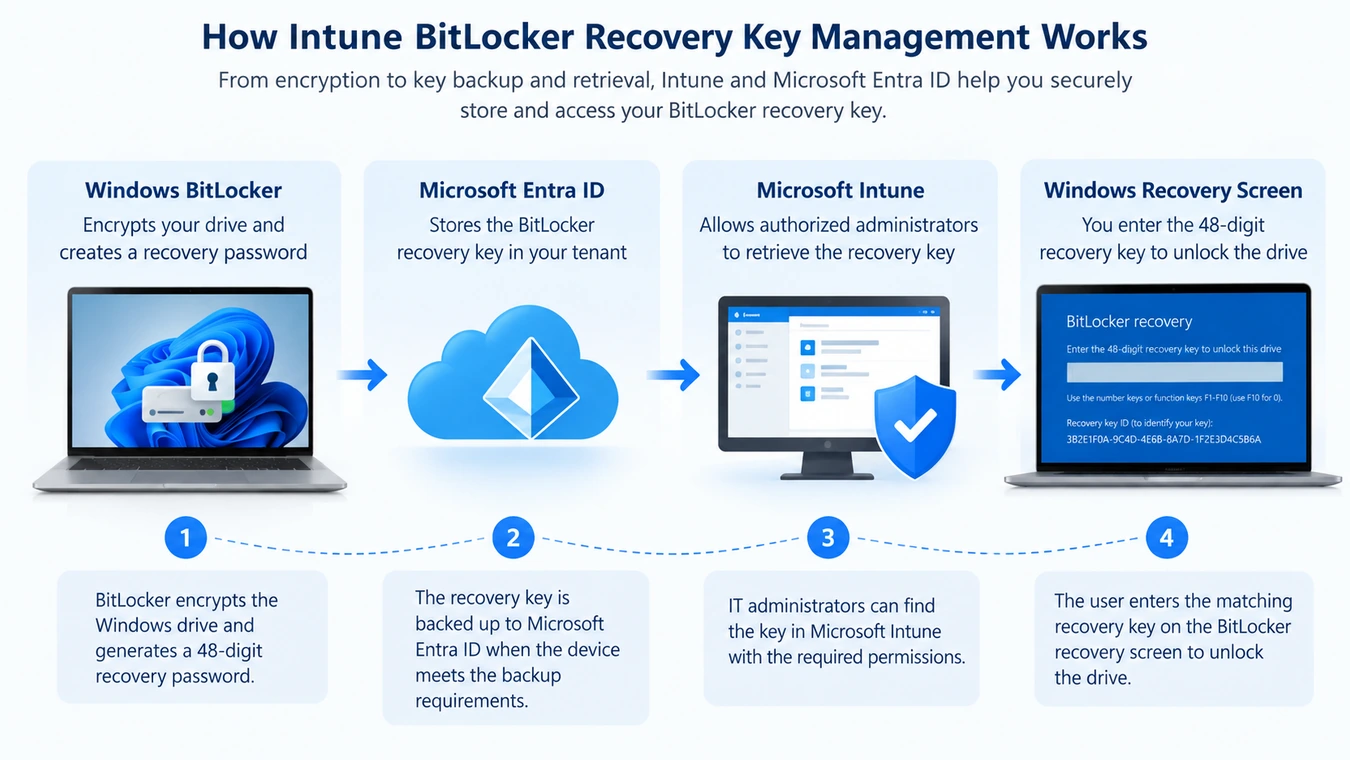
BitLocker 복구는 여러 Windows 및 Microsoft 클라우드 구성 요소가 함께 작동하는 과정을 포함합니다.
이 순서를 이해하면 복구 정보가 어디에서 비롯되는지, 그리고 Intune이 실제로 무엇을 관리하는지 알 수 있습니다.
Windows에서 BitLocker 복구 암호 생성
관리자가 BitLocker를 활성화하면 Windows는 해당 드라이브에 필요한 암호화 보호 기능을 구성합니다.
복구 비밀번호 보호 기능은 일반적인 인증이 실패할 경우 대체 잠금 해제 방법을 제공합니다.
복구 비밀번호는 48자리로 구성되며, 일반적으로 6자리씩 8개 그룹으로 나뉘어 표시됩니다.
이 숫자 비밀번호는 BitLocker가 볼륨을 보호하기 위해 내부적으로 사용하는 암호화 키와는 다릅니다.
Windows는 복구 정보를 백업합니다
Intune으로 관리되는 환경에서 관리자는 Windows가 BitLocker 복구 정보를 Microsoft Entra ID에 백업하도록 요구하는 정책을 구성할 수 있습니다.
관련 설정에 따라 Windows가 복구 암호를 저장할지 여부와, 암호화를 수행하기 전에 백업이 성공적으로 완료될 때까지 기다려야 하는지 여부가 결정됩니다.
이러한 구분은 중요합니다. 조직이 복구 키의 저장 여부를 확인하지 않은 채 암호화 작업을 진행하도록 허용할 경우, 사용 가능한 클라우드 백업이 없더라도 컴퓨터가 암호화될 수 있습니다.
마이크로소프트는 자사의 Intune BitLocker 정책 설정.
Microsoft Entra ID는 복구 기록을 저장합니다.
백업이 성공하면 Microsoft Entra ID는 복구 정보를 해당 장치 ID와 연결합니다.
저장된 정보에는 복구 비밀번호와 이에 대응하는 식별자가 포함될 수 있습니다.
하지만 클라우드 스토리지를 사용한다고 해서 조직 내 모든 구성원이 해당 비밀번호에 접근할 수 있는 것은 아닙니다.
Microsoft Entra는 복구 키 검색에 신원 및 권한 제어 기능을 적용합니다.
Intune은 승인된 사용자에게 저장된 키를 표시합니다.
관리자가 Intune에서 복구 암호를 요청하면, 해당 서비스는 연결된 Microsoft Entra 복구 정보에 액세스합니다.
키가 존재하고 계정에 충분한 권한이 있는 경우, Intune에서 해당 키를 표시합니다.
마이크로소프트는 또한 키 입력 이벤트를 감사 로그에 기록합니다.
해당 기록이 없는 경우, Intune에 다음과 같이 표시될 수 있습니다. 이 장치에 대한 BitLocker 키가 없습니다..
Windows는 일치하는 암호를 사용하여 드라이브의 잠금을 해제합니다.
마지막으로, 관리자나 승인된 사용자는 저장된 복구 키 ID를 잠긴 컴퓨터에 표시된 식별자와 대조합니다.
올바른 비밀번호를 확인한 후, 사용자는 48자리 코드를 입력합니다.
그런 다음 BitLocker는 복구 암호를 확인하며, 확인이 성공하면 보호된 드라이브의 잠금을 해제합니다.
전체 과정은 다음과 같은 순서로 진행됩니다:
BitLocker 암호화 → 복구 암호 생성 → Microsoft Entra 백업 → Intune을 통한 복구 → 승인된 드라이브 잠금 해제
중요한 점은, 암호화 작업이 성공적으로 수행되었다고 해서 그 자체만으로는 클라우드에 복구 비밀번호가 존재한다는 사실이 입증되는 것은 아니라는 점입니다.
Intune vs. Azure AD vs. Endpoint Manager: 차이점은 무엇인가요?
마이크로소프트는 시간이 지남에 따라 여러 제품명을 변경해 왔습니다. 그 결과, 오래된 설명서에는 현재의 관리 인터페이스와 다른 용어가 사용되었을 수 있습니다.
예를 들어, 다음을 검색하면 Azure AD BitLocker 복구 키 그리고 BitLocker 복구 키 Azure AD 일반적으로 Microsoft Entra ID에 저장된 복구 비밀번호를 의미합니다.
마찬가지로, 엔드포인트 매니저 비트락커 복구 키 이는 과거의 Microsoft 엔드포인트 관리 용어를 반영한 것입니다.
이 용어들은 일부 중복되는 부분이 있지만, 모두 동일한 구성 요소를 지칭하는 것은 아닙니다.
Microsoft 구성 요소 | 주요 역할 | BitLocker와의 관계 |
Microsoft Intune | 클라우드 엔드포인트 관리 | 암호화 정책을 구성하고 복구 액세스를 제공합니다. |
Microsoft Entra ID | 신원 및 기기 디렉터리 | 클라우드 기반의 복구 정보를 저장합니다. |
Azure Active Directory | Entra ID의 이전 명칭 | 동일한 아이덴티티 플랫폼의 이전 명칭 |
Microsoft Endpoint Manager | 이전 경영진의 제품 브랜딩 | 구형 Intune 문서에서 사용되던 역사적 용어 |
기업 포털 | 직원 셀프 서비스 인터페이스 | 자격을 갖춘 사용자가 복구 정보를 조회할 수 있도록 합니다 |
Active Directory 도메인 서비스 | 온프레미스 디렉터리 서비스 | 도메인 관리 대상 기기의 복구 정보를 저장할 수 있습니다. |
Intune 대 Microsoft Entra ID
가장 중요한 차이점은 관리 및 보관 방식에 있습니다.
Intune은 장치 구성을 관리하고 복구 키 조회 인터페이스를 제공합니다. 한편, Microsoft Entra ID는 해당 클라우드 장치 기록과 백업된 복구 정보를 관리합니다.
따라서 Entra ID에 복구 비밀번호가 등록되어 있지 않아도 컴퓨터가 Intune에 표시될 수 있습니다.
Entra ID 대 Active Directory 도메인 서비스
Microsoft Entra ID and traditional Active Directory Domain Services support different identity-management environments.
Organizations using on-premises domain management may store BitLocker recovery passwords in AD DS instead of, or alongside, Entra ID.
In that situation, administrators need the appropriate directory tools and permissions.
For additional details, see How to Find a BitLocker Recovery Key in Active Directory.
BitLocker Recovery Key vs. Recovery Key ID
The recovery password and its identifier serve different purposes.
기능 | 비밀번호 복구 | 복구 키 ID |
주요 목적 | 암호화된 드라이브의 잠금을 해제합니다. | Identifies the relevant recovery password |
Typical format | 48-digit number | Identifier associated with a recovery protector |
BitLocker 잠금을 해제하나요? | Yes, if it matches | 아니요 |
Where displayed | Recovery records and approved backups | Recovery screen and management tools |
Can generate the password? | 해당 없음 | 아니요 |
A Recovery Key ID is not an encoded recovery password.
Therefore, you cannot calculate a valid BitLocker recovery password from its identifier alone.
Instead, use the ID to match the recovery screen with an existing record.
This distinction becomes especially important when a computer has undergone password rotation or has several recovery records.
For a more detailed explanation, read ID에서 BitLocker 복구 키를 찾는 방법.
Why Is Intune BitLocker Recovery Key Management Important?
그리고 Intune BitLocker 복구 키 plays an important role in enterprise data protection and device support.
Its value goes beyond unlocking a computer after a startup problem.
Data Security and Controlled Access
BitLocker encryption protects data when a computer is lost, stolen, or accessed without authorization.
However, organizations also need a reliable method to restore access for legitimate users.
Centralized recovery information helps administrators handle these situations without broadly distributing encryption passwords.
Business Continuity
Consider an employee whose Windows laptop enters BitLocker recovery mode after a firmware update.
Without a recovery password, the employee may be unable to access the encrypted system drive.
If the organization has backed up the password correctly, an authorized administrator can retrieve it and help restore access.
This reduces dependence on a single printed recovery document or locally saved file.
Auditing and Accountability
Recovery passwords are sensitive security credentials.
Microsoft Entra ID and Intune support permission-controlled access and auditing when administrators reveal recovery information.
As a result, organizations can review who accessed recovery records and apply appropriate security policies.
Recovery Limitations
Centralized management also creates responsibilities.
If administrators fail to verify recovery backups, they may discover missing records only after a computer becomes locked.
Therefore, encryption deployment should include recovery planning, backup verification, and access-control reviews.
Where Can You Find an Intune BitLocker Recovery Key?
You may encounter BitLocker recovery information in several Microsoft management interfaces.
The correct location depends on your organization’s device configuration and your account permissions.
Microsoft Intune Admin Center
IT administrators can view available cloud-backed recovery information through the Microsoft Intune 관리 센터.
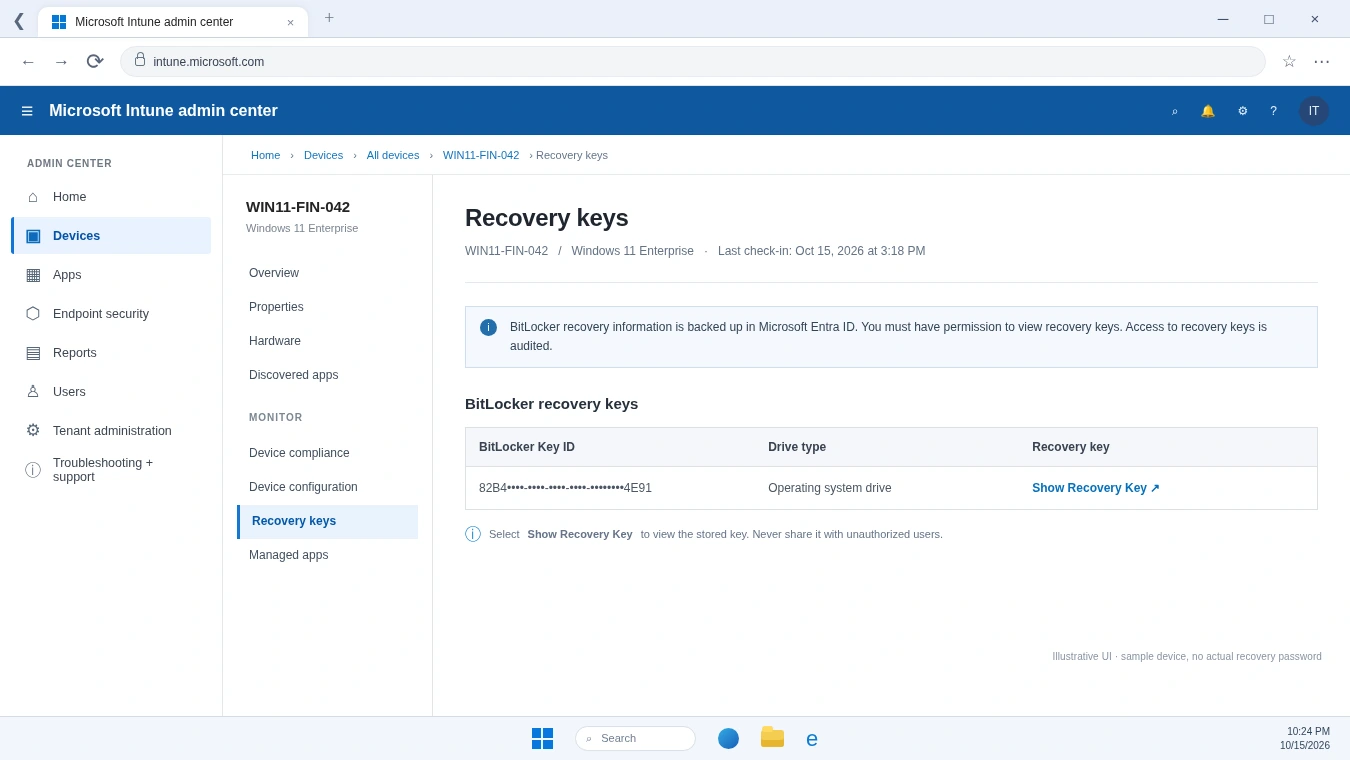
The usual path is:
Devices → All devices → Select device → Recovery keys → Show Recovery Key
The Recovery keys option appears under the device’s monitoring section.
When recovery records exist, Intune can display the Key ID, recovery password, and drive type.
However, administrators need the appropriate Microsoft Entra permissions to reveal the password.
Microsoft Entra Admin Center
Administrators can also view an Azure AD BitLocker 복구 키 through the Microsoft Entra admin center.
열기 Entra ID → Devices → All devices, select the affected computer, and choose Show Recovery Key 가능할 때.
This method accesses recovery information associated with the device’s Entra identity.
Microsoft documents the required roles and permissions in its device management guidance.
BitLocker Recovery Portal for Employees
Employees may be able to retrieve their own recovery passwords through a bitlocker recovery portal, depending on organizational settings.
For eligible Intune-enrolled devices, the Company Portal website provides a self-service option:
- Sign in with your registered work or school account.
- 열기 디바이스 and select the affected computer.
- 선택 Get recovery key 그리고 Show recovery key.
- Compare the Key ID and use the matching password.
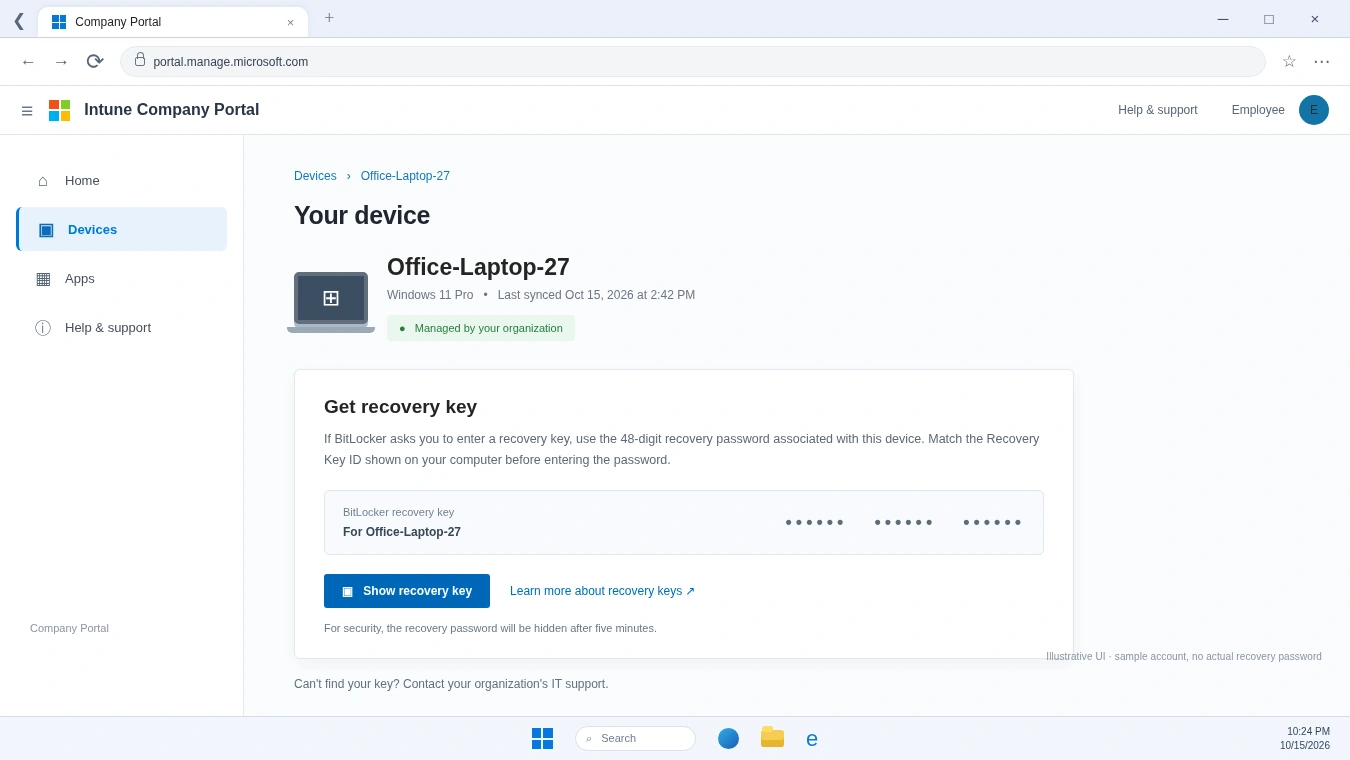
Microsoft states that Company Portal hides the displayed password after five minutes.
Some organizations also allow device owners to view recovery information through Microsoft My Account.
However, Configuration Manager’s separate BitLocker Self-Service Portal is not the same service as Intune Company Portal. Organizations must configure it independently.
See Microsoft’s official Company Portal guide for current requirements and supported devices.
Common Misconceptions About Intune BitLocker Recovery Keys
Several misunderstandings can make BitLocker recovery more confusing than necessary.
Does Every Intune-Managed Device Have a Recovery Key in Entra ID?
아니요.
Intune enrollment and successful recovery password backup are separate conditions.
A device may appear in the Intune inventory even though Windows never successfully saved its recovery password to Microsoft Entra ID.
Administrators should verify the backup rather than assume enrollment guarantees recovery availability.
Can Intune Generate a New Recovery Key for a Locked Drive?
아니요.
Intune cannot generate the missing recovery password needed to unlock an already inaccessible drive.
Supported key rotation can refresh recovery information for eligible managed devices, but it does not replace the requirement to unlock an inaccessible volume with valid credentials.
Can You Recover a Password from Its Key ID Alone?
아니요.
The Key ID identifies a recovery protector. It does not contain enough information to calculate the 48-digit recovery password.
A legitimate recovery process must locate an existing matching password rather than attempt to convert the identifier into one.
Does a Missing Recovery Key Mean the Drive Is Damaged?
꼭 그렇지는 않습니다.
A missing cloud record usually points to a backup, account, identity, or permission problem.
The encrypted drive may still function correctly.
Therefore, avoid assuming the storage device needs formatting or repair merely because Intune cannot display a recovery password.
What Happens When an Intune BitLocker Recovery Key Is Missing?
A missing recovery password can have different causes and consequences.
Understanding the visible symptoms helps determine whether the issue involves missing data or simply unavailable access.
증상 | Possible Explanation | Appropriate Next Step |
No BitLocker key found | No recovery record exists in Entra ID | Verify backup status on an accessible device |
액세스 거부됨 | Account lacks required permission | Ask an authorized administrator |
Device not listed | Incorrect account, tenant, or device identity | Verify organizational registration |
Key does not work | Incorrect or outdated recovery password | Compare the Recovery Key ID |
Self-service option missing | Organizational policy restricts access | Contact the IT help desk |
If Windows is still accessible, an administrator can inspect the existing BitLocker protector information with PowerShell:
Get-BitLockerVolume -MountPoint "C:"
This command provides information about the drive’s encryption status and key protectors.
However, it cannot run within a normal Windows session when the computer is blocked at the preboot recovery screen.
Furthermore, checking protector information is not the same as repairing a missing cloud backup.
For more comprehensive recovery methods, see BitLocker 복구 키를 분실하셨나요? 복구하는 단계.
Is It Safe to Delete or Modify BitLocker Recovery Information?
BitLocker recovery information requires careful handling because it protects access to encrypted data.
Deleting a recovery record does not necessarily remove encryption from the drive. Instead, it may eliminate an important way to regain access later.
For example, Microsoft warns that deleting device records from Entra ID can affect associated BitLocker recovery information. Device deletion behavior also depends on the applicable lifecycle and soft-delete support.
Therefore, administrators should verify recovery backups before removing device objects.
Likewise, recovery password rotation should follow supported Intune procedures. After rotation, confirm that the current password appears in the intended backup location.
Avoid these actions when the only recovery password is missing:
- Resetting or formatting the encrypted drive without understanding the data-loss consequences.
- Removing organizational device records before checking recovery information.
- Sharing complete recovery passwords through public or unsecured channels.
- Attempting to calculate a password from its Recovery Key ID.
If the drive is already locked, involve the organization’s IT administrator before making changes that could complicate recovery.
When Should You Take Further Action?
이해 Intune BitLocker 복구 키 is useful even when your computer works normally. However, certain situations require more than a conceptual explanation.
If you are an administrator, review whether BitLocker policies require successful recovery information backup and whether authorized staff can retrieve the correct keys.
If your device is locked, check Intune, Entra ID, Company Portal, and approved backup locations before making changes to the encrypted drive.
When an existing recovery password may have been stored on an accessible Windows system, Magic Recovery Key offers a supplementary way to search for that information. Its dedicated BitLocker search interface can display found keys and support copying or saving them, which may be more convenient than manually examining multiple locations. However, it cannot bypass encryption or generate a password that was never stored, and organizational authorization remains essential.

결론
An Intune BitLocker 복구 키 is the recovery password used to regain access to a BitLocker-encrypted Windows drive when normal unlocking fails. Windows creates the password, Microsoft Entra ID can store its backup, and Intune provides an authorized management interface for retrieving it.
Understanding these separate roles helps explain why a device can appear in Intune without an available recovery password.
For most users, the safest approach is to rely on official recovery portals and verified backups. When local recovery information exists on accessible storage, Magic Recovery Key may provide a useful supplementary search option.
For more information about BitLocker recovery mechanisms and practical solutions, explore the Amagicsoft BitLocker Recovery Hub.
Windows 7/8/10/11 및 Windows Server 지원
자주 묻는 질문
Intune BitLocker 복구 키는 실제로 어디에 저장되나요?
Azure AD BitLocker 복구 키는 Entra ID 키와 다른가요?
Intune에서 왜 ‘이 장치에 대한 BitLocker 키를 찾을 수 없음’이라고 표시되나요?
일반 직원도 BitLocker 복구 키를 볼 수 있나요?
BitLocker 복구 키 순환 시 키 ID가 변경되나요?
장치가 삭제되면 BitLocker 복구 키는 어떻게 되나요?
복구 소프트웨어가 Microsoft Intune BitLocker 복구 기능을 대체할 수 있을까요?

바실리는 이 분야에서 약 10년간 실무 경험을 쌓은 데이터 복구 전문가입니다. 그는 경력 전반에 걸쳐 삭제된 파일, 포맷된 드라이브, 손실된 파티션 및 RAW 파일 시스템과 관련된 수천 건의 복잡한 사례를 성공적으로 해결했습니다. 그의 전문 지식은 헥스 에디터와 같은 전문 도구를 사용한 수동 복구 방법과 복구 소프트웨어를 사용한 고급 자동화 솔루션을 모두 다룹니다. 바실리의 사명은 IT 전문가와 일반 사용자 모두에게 신뢰할 수 있는 데이터 복구 지식을 제공하여 소중한 디지털 자산을 보호할 수 있도록 돕는 것입니다.