
파일 카빙: 데이터 복구 원리
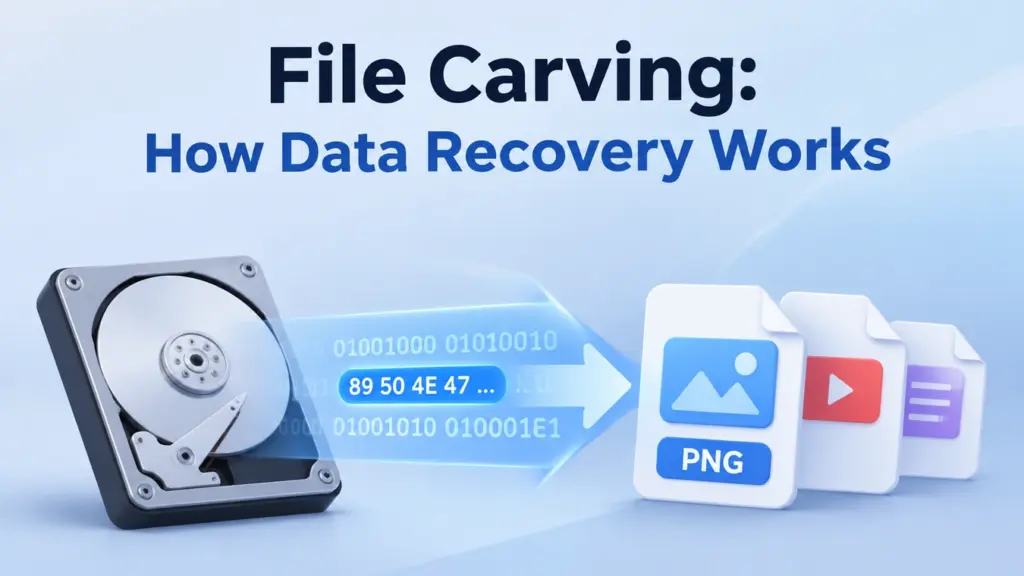
파일 조각 파일 시스템 레코드를 사용하는 대신 파일의 데이터를 직접 읽어 들여 파일을 찾아내고 추출합니다. 알려진 바이트 패턴을 검색하고, 파일 레이아웃을 확인하며, 시작점과 끝점일 가능성이 높은 위치를 찾아냅니다. 이는 폴더나 파일 레코드가 사라진 경우에 도움이 될 수 있습니다. 하지만 오래된 파일 이름을 복원하거나 조각난 파일을 재구성하지는 못할 수도 있습니다.
이 방법은 도구가 여전히 읽을 수 있는 데이터에 대해 작동합니다. NTFS, FAT32, exFAT 드라이브는 물론 HDD, USB 드라이브, SD 카드, SSD 및 디스크 이미지에도 적용할 수 있습니다.
목차
파일 카빙의 작동 원리
일반적인 파일 추출 스캔 과정은 네 단계로 이루어집니다:
- 알려진 파일 시그니처를 기반으로 읽을 수 있는 데이터를 검색합니다.
- 각 일치를 확인하고 해당 파일의 구조를 살펴보세요.
- 파일의 대략적인 시작 위치와 끝 위치를 찾으세요.
- 데이터를 복사한 다음 결과를 확인해 보세요.
일부 도구는 여유 공간을 스캔합니다. 다른 도구는 전체 볼륨이나 디스크 이미지를 스캔합니다. 스캔 대상 영역은 사용하는 도구와 작업에 따라 다릅니다.
파일 헤더 및 서명 찾기
파일 서명은 파일 유형을 나타낼 수 있는 바이트 집합입니다. 복구 도구는 이러한 패턴을 찾아내어 해당 파일이 될 가능성이 있는 파일을 식별합니다.
예를 들어, PNG 파일은 다음과 같은 8바이트 서명으로 시작합니다: 89 50 4E 47 0D 0A 1A 0A.
일치하는 부분이 있다고 해서 해당 PNG 파일이 여전히 존재한다는 것을 의미하지는 않습니다. 일부 바이트가 사라졌거나 손상되었을 수도 있고, 다른 파일의 데이터와 섞여 있을 수도 있습니다. 서명 기반 파일 복구 이 검색으로 시작되며, 보다 심층적인 방법들은 파일 구조도 확인합니다.
파일 이름이나 확장자만으로는 이를 증명할 수 없습니다. 파일 이름을 변경하면 .jpg 파일을 .png 데이터를 변경하지 않습니다. 헤더에는 크기, 이미지 너비 또는 기타 파일 세부 정보를 나타내는 필드가 포함될 수도 있습니다. 다음을 참조하십시오. 파일 서명 및 매직 넘버 가이드 더 많은 예시를 보려면.
파일의 시작과 끝 찾기
헤더를 찾는 것은 단지 첫 단계일 뿐입니다. 도구는 또한 해당 파일에 속하는 바이트 수가 몇 바이트인지 판단해야 합니다.
파일 유형은 각기 다른 방식으로 끝을 표시합니다:
- 일부에는 알려진 종료 마커가 있습니다.
- 어떤 것은 파일이나 데이터의 크기를 저장하기도 합니다.
- 어떤 사람들은 데이터를 여러 조각이나 레코드로 나눕니다.
- 다른 경우에는 파일 구조를 읽기 위해 파서가 필요합니다.
따라서 모든 파일에서 머리글과 바닥글을 검색하는 방식이 통하지는 않습니다. 또한 일반 데이터 내부에도 종료 마커가 나타날 수 있습니다. 일부 파일 형식에는 단일 종료 마커가 없습니다.
PNG 청크: 첫 번째 IEND 일치 결과가 잘못될 수 있는 이유
그리고 W3C PNG 사양 에 따르면, PNG 파일은 8바이트 길이의 서명으로 시작된다고 합니다. PNG는 파일의 나머지 부분을 청크 단위로 저장합니다.
각 청크에는 네 개의 필드가 있습니다:
필드 | 길이 | 목적 |
길이 | 4바이트 | 데이터 필드의 크기를 반환합니다. |
유형 | 4바이트 | 청크에 이름을 지정합니다 |
데이터 | 변수 | 청크 데이터를 저장합니다. |
CRC | 4바이트 | 유형과 데이터를 확인합니다 |
전체 청크는 다음을 사용합니다. 12 + 데이터 길이 바이트. ‘길이’ 필드는 자체 값, ‘유형’ 필드, 또는 CRC를 포함하지 않습니다.
모든 PNG 파일은 IHDR 청크. 이 청크의 데이터 필드는 항상 13바이트입니다. 전체 청크의 길이는 25바이트입니다.
이 서명 방식은 오프셋을 사용합니다 0x00–0x07. 첫 번째 청크는 다음 위치에서 시작합니다. 0x08. 다음 블록은 에서 시작합니다. 0x21:
0x08 + 25 = 0x21
이 수식은 다음 블록이 어디서 시작되는지 보여줍니다.
사양에 기반한 교육용 예시를 살펴보겠습니다. 유효한 136바이트 크기의 PNG 파일입니다. 이 파일의 tEXt chunk holds the text IEND as part of a comment.
구조 | Chunk start | Data length | Next offset |
PNG Signature |
| 8바이트 |
|
IHDR |
| 13 bytes |
|
tEXt |
| 56 bytes |
|
IDAT |
| 11 바이트 |
|
IEND |
| 0 바이트 |
|
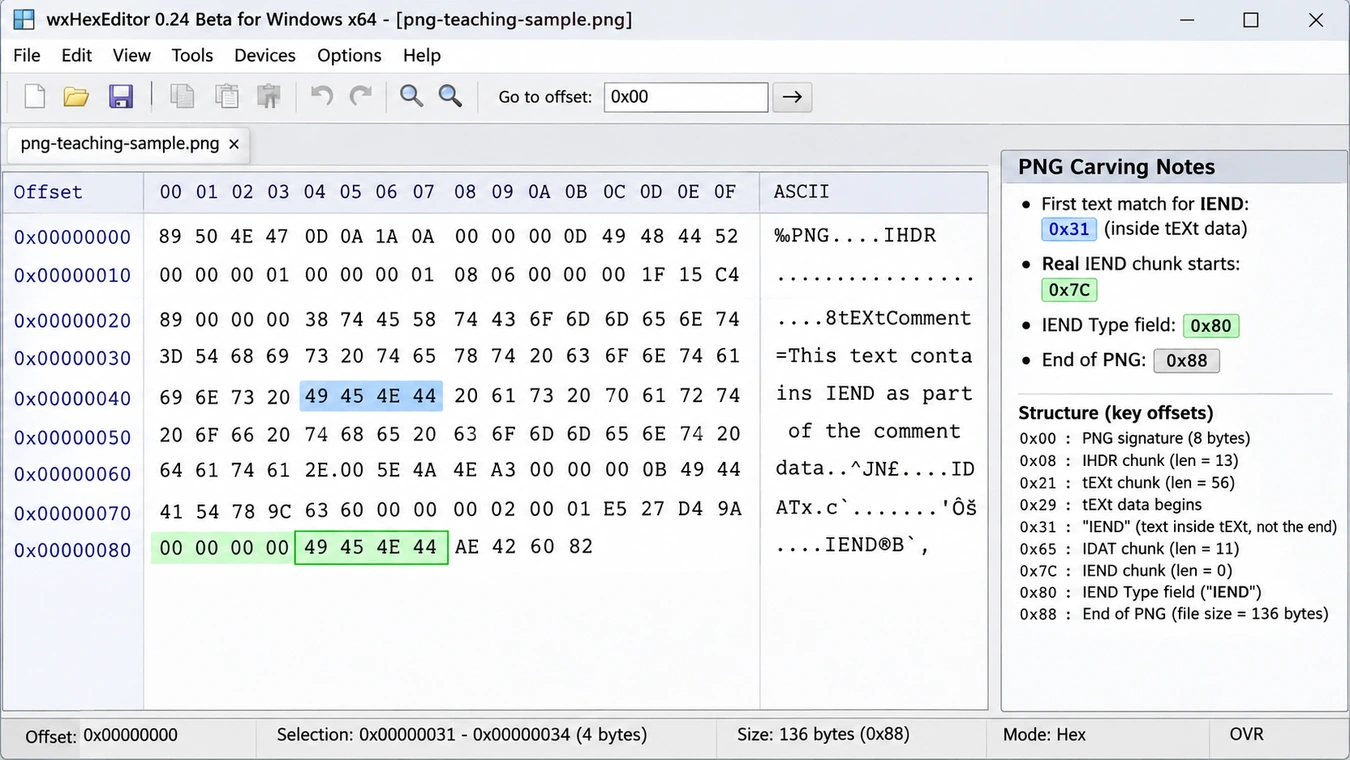
그리고 tEXt data starts at 0x29. The first text match for IEND is at 0x31. It sits inside the text data. It is not the end of the PNG.
The real IEND chunk starts at 0x7C. Its Type field starts at 0x80. Its Data field has no bytes, so the PNG ends at 0x88.
This sample shows why a byte search is not enough. A byte search finds the first match. A PNG parser reads each Length field and checks if IEND sits in a chunk Type field.
PNG also has a CRC for each chunk. The CRC checks the Type and Data fields, not the Length field. It can find some forms of damage. However, it cannot prove that a found image is the same as the old one.
Copy and Check the Found File
After a tool finds the likely end, it copies the data. But a copied file is not always a good file.
It may have a valid header but lack later data. It may also have wrong size fields, broken records, or bytes from other files.
A tool can check the result in several ways:
- Check that key headers and fields are present.
- Check size values and file bounds.
- Check CRCs or other checks when the file type has them.
- Open or parse the found file.
- Compare its hash with a trusted copy, if one exists.
A file that opens may still be broken. Some apps can show part of a damaged image or document.
File Carving Techniques
다른 file carving techniques use different levels of file detail. A tool may use more than one method in the same scan.
방법 | 작동 방식 | 주요 제한 |
Header and footer | Finds start and end patterns | A pattern may appear inside other data |
Size-based | Uses a known size or a size field | The size may be lost or wrong |
Layout-based | Reads fields, chunks, or records | Needs rules for that file type |
Content checks | Tests if the data forms a valid file | Checks vary by file type |
Fragment search | Looks for parts that may belong together | The right order may be hard to prove |
Header, Footer, and Size
These methods work best when a file type has clear start and end data. A tool can find a header and look for its end marker. It can also read a size field and copy that many bytes.
But an end marker may sit inside file data. A size field may also refer to one part of a larger file. If a tool reads the wrong value, it may copy too much or too little.
Layout and Content Checks
A layout-based tool reads the parts inside a file. For example, it can read PNG chunk sizes or check records in a ZIP file.
Content checks go one step further. They test whether the parts form a file that makes sense. These checks can cut down on false matches. Still, they cannot bring back bytes that are gone.
A file may pass some checks and still differ from the old file. These checks raise trust in a result, but they do not prove that it is the same file.
Find File Fragments
Fragment search tries to put split file parts back in the right order. It may use file rules, data patterns, and other clues.
Research from DFRWS on carving split files with object checks looks at ways to check and join file parts.
This work is harder than a basic signature scan. The result depends on the file type, the parts that remain, and clues about their order.
File Carving vs. Metadata-Based Recovery
The key difference between 파일 추출 and metadata-based recovery is the data each method uses to find a file.
비교 | Metadata-Based Recovery | File Carving |
Main clue | File-system records and cluster maps | File signatures and data layout |
Old file name | May still exist in file records | Usually not found from file data alone |
폴더 경로 | May still exist in folder records | Usually not kept |
조각난 파일 | Can use saved cluster maps | Needs more clues to join parts |
Main need | Usable file records or maps | Readable data and known file rules |
가장 적합 | File records still help find the data | File records are gone or cannot help |
How File-System Records Find Data
On NTFS, the Master File Table holds records about files. A file record can have data that tells the system where file content sits.
For data stored outside the file record, NTFS mapping pairs list data runs. They can show which clusters hold each part and the order of those parts.
Microsoft explains these records in its Master File Table guide 그리고 attribute record header guide. These pages cover NTFS version 3.
Other file systems use other maps:
- FAT32 uses FAT entries to link the clusters that hold a file.
- exFAT uses directory entries to describe file data. Its
NoFatChainflag shows whether a file uses one run of clusters or a FAT chain.
그리고 Microsoft exFAT spec sets out these rules. If these maps still work, a tool can use them to find split parts in the right order. This gives metadata-based recovery an edge over a scan that only looks for file signatures.
But good file records do not prove that the data is still whole. The NTFS Deleted File MFT Test shows why file records, data location, and file content need their own checks. For more on this method, see 파일 시스템 메타데이터 복구.
Raw Data Recovery Explained: Why File Names Go Missing
원시 복구 often means a scan that reads data without using the normal file and folder records. In many cases, it includes a scan for file signatures and file carving.
The term can mean different things in different tools. It is not a file-system standard. In this context, raw file carving recovery means finding files in readable data without using the old folder records.
Raw Recovery Without Original File Names
File systems keep file names and folder paths in their own records. Those names do not have to appear in the file data.
So, a tool may find a JPEG or PDF but not know its old name or folder. It may give the found file a new name instead.
PhotoRec says that it does not bring back old file names or folder paths. It finds files by their data signatures. See the PhotoRec guide.
Some details may still stay inside the file. A JPEG may hold EXIF data. A PDF may hold a title or author name. These details are not the same as the old file name or folder path.
Raw Recovery Is Not a RAW File System
The word RAW can mean two things:
- Raw recovery: A scan that reads data without using normal file and folder records.
- RAW file system: A volume that Windows cannot read as a known file system.
A RAW volume does not prove that all data is gone. The file-system records may be damaged, hard to read, or from a file system that Windows does not support.
A raw scan may still find data that can be read. But it does not fix the volume or bring back its old folder tree.
Encryption also matters. A BitLocker volume usually needs to be unlocked before a tool can read the files inside it. PhotoRec explains this need for BitLocker volumes.
Why File Fragmentation Limits File Carving
A file is split when its data sits in more than one run of clusters. A file-system-aware tool can use saved cluster maps to find each part. A basic carver may not have those maps.
Think of a file with three parts:
A → B → C
If the parts sit next to each other, the data order may also be A → B → C. A tool can read from A to C if it knows the right start and end.
Now look at a split file:
Storage order | 데이터 |
Block 1 | A |
Block 2 | X (data from another file) |
Block 3 | B |
Block 4 | C |
The file occupies consecutive blocks. A sequential read can collect A, B, and C in order if the start and boundary are known.
Illustrative model only. A, B, and C are parts of one file; X belongs to unrelated data. The blocks do not represent physical NAND pages or a real disk image.
The file still needs A → B → C. But a scan from A may read A → X → B. It has mixed in data from another file.
So, a good header does not prove that the next blocks belong to the same file. The NIST file carving draft lists split data as a key issue for file carving.
Can File Carving Recover Fragmented Files?
Sometimes. If file-system maps still work, a tool may use them to find each part. Advanced carving can also use file rules and other clues.
But there may be many possible parts. The right order may not be clear. Compressed or locked data can make the job even harder because it hides clues in the data.
No one method can promise to rebuild every split file from its data alone. See Fragmented Files Explained for more on split files.
File Carving Limitations and Recovery Conditions
The result depends on how much data a tool can still read and how well it can find the file parts.
Limit | 중요한 이유 | Possible Result |
덮어쓴 데이터 | New data takes the place of old bytes | Some or all data may be lost |
SSD 트림 | The drive may stop showing freed data | Old data may no longer be read |
Split files | Parts do not sit in a row | The file may be incomplete |
No clear end | The file has no safe end point | The tool may copy too much or too little |
False matches | The same byte pattern may appear in other data | A false file may be found |
암호화 | The tool cannot read locked data | File signatures may not show |
Unknown file type | The tool has no rules for that type | The tool may miss the file |
덮어쓴 데이터
A tool can only copy bytes that it can still read. It cannot make old data from new data. Some parts may survive a partial write. Even then, the found file may be broken or lack key data.
SSD TRIM and Data That Cannot Be Read
On some systems, Windows can send TRIM or deallocation hints when file-system space is freed. These hints tell the drive that it can reuse those blocks. Microsoft explains this in its guide to TRIM and Unmap hints.
TRIM does not mean that every deleted file vanishes at once. The result depends on the drive and its setup. But once the drive has dealt with freed blocks, normal reads may no longer return the old data.
So, a scan cannot copy data that the drive no longer shows.
Locked Data and Unknown File Types
Locked data often hides the byte patterns that a tool needs to find a file. The tool may need the data to be unlocked first.
A tool may also find a file start but fail to read the rest. This can happen if it does not know that file type or a newer version of it.
So, no result does not always mean that no data remains. The tool may not know how to read what is there.
How to Check Carved Files
A match does not mean that a tool has found a full file. Check each result in steps.
확인 | What It Shows | What It Does Not Show |
Signature found | A known byte pattern is there | A full file is there |
File layout looks right | Some file rules match | All old data is still there |
File opens | An app can read some or all of it | It is the same as the old file |
Hash matches an old copy | Both files have the same bytes | The old name or folder |
Some file types use CRC checks. These can find some data errors. But a good CRC does not prove that a file is the real old file.
If you have a trusted copy, compare file hashes. A match shows that both files have the same bytes. If you do not have a copy, check the file layout, size, content, and whether an app can read it from start to end.
When Should You Use File Carving?
Carving can help when file-system records no longer show where files are, but a tool can still read some file data.
Common cases include:
- A damaged file system with missing folder records.
- Deleted files whose file records no longer help.
- A formatted drive that still holds old data.
- A disk image that needs a scan for file types.
- Files that a metadata-based scan cannot find.
If file records still work, metadata-based recovery may be a better first choice. It can keep old names, folder paths, and maps for split files.
Before you try to recover data, protect the source drive:
- Stop saving new data to the drive.
- Do not format, set up, or repair the source before you save key data.
- If the data matters, make a full drive image before more scans.
- Scan the image or use a read-only source when you can.
- Save found files to a different drive.
If the drive clicks, drops out, or shows major read errors, stop repeated scans. More reads may make a failing drive worse.
File recovery, file-system repair, and hardware repair are not the same job. Carving copies data that still exists. It does not fix a bad drive or rebuild a file system.
결론
파일 조각 finds and copies files by reading their data and file layout. It does not need the old file-system records. Its success depends on known file patterns, clear start and end points, readable data, and clues that show the right order of file parts.
A signature match is only the first step. File checks and tests help show if the result is whole and useful. If file-system records still work, they may hold details that a data scan cannot bring back, such as old names, folder paths, and maps for split files.
자주 묻는 질문
데이터 복구에서 ‘파일 카빙’이란 무엇인가요?
파일 카빙을 통해 이전 파일 이름을 복구할 수 있나요?
파일 카빙을 통해 조각난 파일을 복구할 수 있나요?
원시 복구(raw recovery)는 RAW 파일 시스템과 같은 것인가요?
드라이브를 포맷한 후에도 파일 복구(file carving)가 가능할까요?
파일 카빙을 통해 덮어쓴 데이터를 복구할 수 있나요?
SSD TRIM 기능이 파일 카빙을 막아줄까요?
메타데이터 기반 복구가 파일 카빙보다 더 나은가요?

바실리는 이 분야에서 약 10년간 실무 경험을 쌓은 데이터 복구 전문가입니다. 그는 경력 전반에 걸쳐 삭제된 파일, 포맷된 드라이브, 손실된 파티션 및 RAW 파일 시스템과 관련된 수천 건의 복잡한 사례를 성공적으로 해결했습니다. 그의 전문 지식은 헥스 에디터와 같은 전문 도구를 사용한 수동 복구 방법과 복구 소프트웨어를 사용한 고급 자동화 솔루션을 모두 다룹니다. 바실리의 사명은 IT 전문가와 일반 사용자 모두에게 신뢰할 수 있는 데이터 복구 지식을 제공하여 소중한 디지털 자산을 보호할 수 있도록 돕는 것입니다.