
온트랙 이지리커버리 리뷰: 그만한 가치가 있을까요?
Choosing data recovery software is not simply about finding the most recognizable name. The right choice depends on what happened to your files, whether the storage device is still healthy, which operating system you use, and whether you need basic file recovery or advanced functions such as disk imaging. This Ontrack EasyRecovery review examines those factors to help you decide whether EasyRecovery fits your actual recovery situation.
Rather than judging the software from its feature list alone, we checked Ontrack’s current product documentation, edition differences, free-recovery limits, supported recovery scenarios, and the practical boundaries of software-based recovery. We also separate verified product information from claims that would require controlled performance testing.
If you are dealing specifically with an HDD, you can also use Amagicsoft’s 하드 드라이브 솔루션 for additional guidance on deleted files, formatted drives, RAW volumes, drive errors, and other common hard-drive recovery situations.
목차
Quick Verdict from Our Ontrack EasyRecovery Review
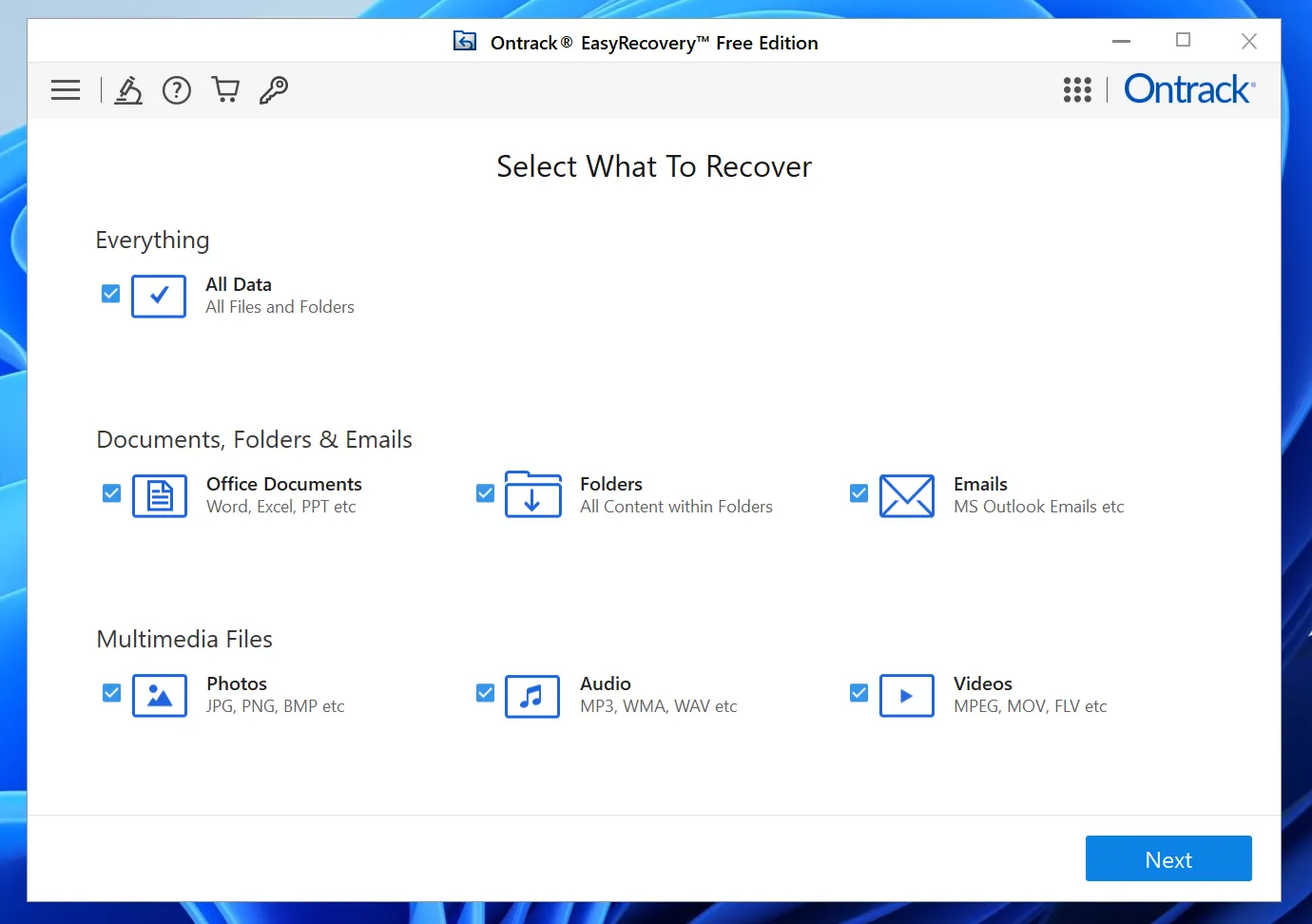
온트랙 이지리커버리 is most compelling when you need features offered by one of its specific editions rather than only basic deleted-file recovery.
Consider Ontrack EasyRecovery if:
- You need Windows or macOS recovery software.
- Disk-image creation matters to your workflow.
- You need higher-tier functions such as photo/video repair or cloning.
- You need Technician-level RAID recovery features.
- You prefer a product family with separate home, business, and professional tiers.
Consider a simpler alternative if:
- You only need Windows file recovery.
- Your main problem is deletion, quick formatting, RAW storage, or an inaccessible partition.
- You do not need RAID recovery, cloning, or media-repair tools.
- You want a simpler scan → preview → recover workflow.
Do not use recovery software when a drive clicks, grinds, repeatedly disconnects, fails to spin, or shows other signs of physical failure.
Ontrack EasyRecovery vs Magic Data Recovery at a Glance
The table below uses the same criteria for both tools so that product-specific marketing claims do not distort the comparison.
Criterion | 온트랙 이지리커버리 | Magic Data Recovery |
Primary Platform | Windows and macOS editions | Windows |
무료 복구 | Up to 1 GB; individual files under 25 MB | 500MB |
삭제된 파일 | 예 | 예 |
포맷된 스토리지 | 예 | 예 |
RAW / Logical Corruption | Supports logical volume recovery | Supports RAW/logically inaccessible storage |
Disk Imaging | Professional and higher | Not a primary feature |
Photo/Video Repair | Higher editions | Not a primary feature |
RAID Recovery | Technician edition | Not designed as a RAID recovery suite |
Core Strength | Broad edition range and advanced recovery functions | Focused Windows file-recovery workflow |
주요 제한 사항 | Important features vary by edition | Windows-focused; lacks advanced RAID/repair toolset |
Best Fit | Users who need specific advanced EasyRecovery features | Windows users who mainly need straightforward file recovery |
이 Ontrack EasyRecovery review does not declare a recovery-rate winner. We do not have a standardized head-to-head dataset proving that either application consistently produces more intact recovered files across the same deletion, formatting, and corruption scenarios.
How We Evaluated This Ontrack EasyRecovery Review
A review can verify product features without pretending those checks are equivalent to a controlled recovery benchmark.
For this update, product information was checked on September 24, 2026.
We evaluated five decision areas.
- 복구 범위
We checked whether each product addresses:
- 삭제된 파일
- Formatted storage
- Logically corrupted volumes
- RAW 또는 접근 불가능한 저장소
- HDDs, SSDs, and removable devices
- Free and Paid Boundaries
We distinguish between:
- Free download
- 무료 검사
- Free preview
- Actual free recovery
This matters because a product that lets users scan for free is not necessarily a product that lets them recover data for free.
- Advanced Features
We looked for features that materially affect a buying decision, including:
- 디스크 이미징
- Drive cloning
- RAID 복구
- Photo/video repair
- Platform support
- Recovery Safety
We also considered when software should not be used, including:
- Mechanical HDD failure
- Unstable drives
- 덮어쓴 데이터
- 안전 삭제
- SSD 트림
- Workflow and User Fit
Finally, we considered whether the software suits:
- Ordinary home users
- Windows-only users
- Advanced recovery workflows
- Technicians
- Users who mainly need a simple file-recovery process
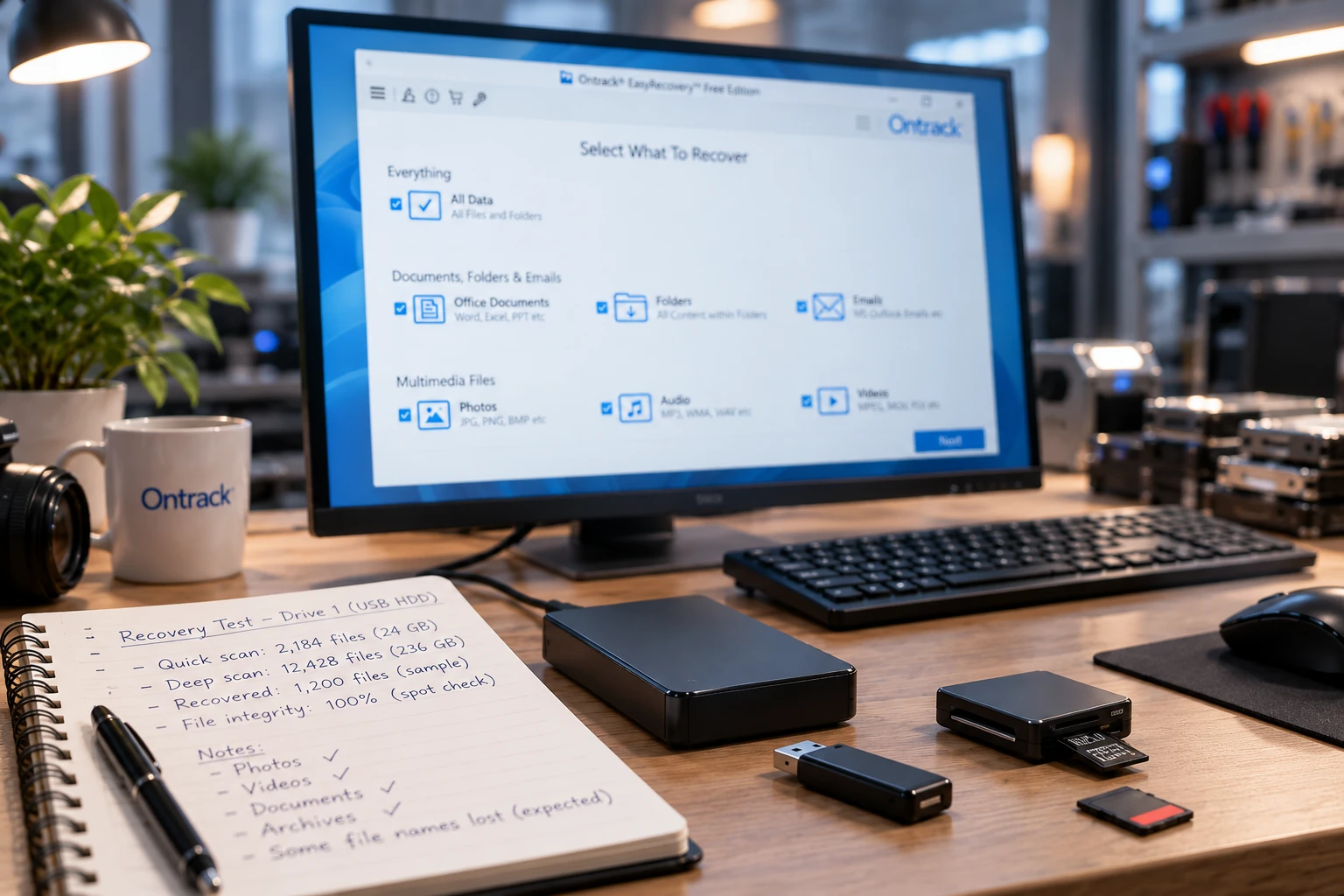
Reproducible Micro-Test Framework
To make future performance comparisons auditable, this article uses the following test framework for hands-on updates.
Test Element | 표준 |
운영 체제 | Windows 11 |
Test Device | Same healthy USB/HDD for both tools |
파일 시스템 | NTFS |
데이터 세트 | Same documents, JPGs, videos, ZIP archives |
Scenario 1 | Normal deletion + Recycle Bin emptied |
Scenario 2 | 빠른 포맷 |
Installation | Software installed on another drive |
Recovery Destination | Separate healthy storage |
Result 1 | Files detected |
Result 2 | Files previewable |
Result 3 | Files successfully exported |
Result 4 | Recovered files opened and verified intact |
No percentage should be published unless both programs complete the same test under the same conditions.
This prevents a common comparison error: treating a large scan result as evidence of a high recovery success rate.
크롤 온트랙 이지리커버리란?
크롤 온트랙 이지리커버리 is the older name many users still encounter in Google searches, previous reviews, forums, and software discussions.
Current official pages generally use 온트랙 이지리커버리.
The software primarily addresses logical data-loss scenarios such as:
- 실수로 삭제
- 서식 지정
- 파일 시스템 손상
- Lost or inaccessible files
- Storage-device problems that remain readable at the hardware level
Depending on the edition, Ontrack also provides more advanced capabilities such as disk imaging, repair functions, cloning, and RAID recovery.
This distinction is important because software recovery should not be confused with physical data recovery.
If your HDD clicks, fails to spin, overheats, repeatedly disconnects, or has suffered impact or liquid damage, stop scanning it.
Ontrack EasyRecovery Review: Editions and Features
One of the biggest differences between EasyRecovery and simpler recovery applications is its edition structure.
Ontrack EasyRecovery Free
Ontrack EasyRecovery Free currently provides up to 1 GB of free recovery, with an important restriction: each recovered file must be smaller than 25 MB.
That makes the Free edition useful for:
- Office documents
- Small photos
- TXT files
- Small PDFs
- Other lightweight files
However, the restriction can matter significantly for:
- 동영상
- ZIP or RAR archives
- PSD files
- 데이터베이스
- Large project files
- 디스크 이미지
Therefore, users should evaluate the per-file limit, not just the headline 1 GB allowance.
Home Edition
Home focuses on personal file recovery.
Ontrack currently lists:
- 삭제된 파일 복구
- Recovery from virus-affected drives
- 빠른 스캔
- 딥 스캔
It makes more sense for ordinary logical recovery than for users who require imaging, cloning, or RAID-related features.
온트랙 이지복구 프로페셔널
온트랙 이지복구 프로페셔널 is one of the most important secondary keywords being preserved from the merged pages.
Professional currently adds:
- Disk-image creation
- CD/DVD recovery
- Hard-drive health monitoring
- Recovery across multiple logical data-loss scenarios
Disk imaging is the most meaningful differentiator.
When recovery professionals work with an unstable but still readable device, reducing repeated reads from the original media can be important. Ontrack also documents image-based recovery functionality in its EasyRecovery product materials.
Therefore, users who specifically need image-based workflows have a stronger reason to consider 온트랙 이지복구 프로페셔널 than users who only need undelete functionality.
Premium
Premium extends the product beyond basic file recovery.
Ontrack lists corrupt photo and video repair among its additional capabilities.
That feature may matter to photographers or video users whose recovered media exists but no longer opens correctly.
Technician and Toolkit
Higher editions target technicians and professional recovery environments.
These editions are more relevant when commercial use, RAID workflows, or broader professional requirements matter.
For an ordinary user attempting to recover recently deleted documents from one Windows HDD, much of this feature set may be unnecessary.
Ontrack EasyRecovery Review by Data-Loss Scenario
Recovery results depend heavily on 데이터가 손실된 방법.
삭제된 파일
Recently deleted files on a traditional HDD may remain recoverable until new data overwrites the original sectors.
Therefore, after accidental deletion:
- 영향을 받는 드라이브의 사용을 중지합니다.
- Do not install recovery software onto it.
- Avoid downloading or copying files to it.
- Recover files to another storage device.
Both quick and deeper scans can be useful depending on whether usable file-system metadata remains.
Formatted Hard Drives
Ontrack explicitly lists formatting among the data-loss events addressed by EasyRecovery.
A quick format does not necessarily overwrite every previous data sector on an HDD. Consequently, files may remain recoverable until later writes replace their content.
If you accidentally formatted a hard drive, avoid immediately formatting it again or running unnecessary repair operations.
다음에 대한 안내서 recovering files from a formatted HDD explains the process in more detail.
The safer sequence is:
Recover first → verify recovered files → repair or reuse later.
RAW and Corrupted Volumes
A previous version of this review described EasyRecovery’s RAW capability too broadly as “limited.”
That wording has been removed.
Current Ontrack materials document logical recovery from corrupted storage and support for common file systems. Ontrack also explicitly describes RAW file recovery in parts of the EasyRecovery product family.
A RAW drive is not one single failure type.
It can result from:
- File-system metadata corruption
- 파티션 손상
- 불량 섹터
- Interrupted writes
- Power loss
- Hardware instability
A stable drive with damaged NTFS metadata presents a very different recovery case from an HDD that became RAW because it can no longer read sectors reliably.
SSD Recovery and TRIM
SSDs introduce another limitation: TRIM.
After deletion, the operating system may notify the SSD that certain blocks are no longer needed. Once the SSD internally clears those blocks, recovery software cannot reconstruct data that is physically gone.
This is not a limitation unique to Ontrack.
It affects data recovery software generally.
Read our guide to SSD data recovery and TRIM for a deeper explanation.
What Community Reports Add to the Review
Short-term testing cannot reproduce every real-world recovery case. Community discussions can therefore help identify questions that users repeatedly encounter.
However, anecdotal reports are not used as benchmark data.
For example, one Reddit user reported that EasyRecovery located and exported files from a BitLocker/OneDrive-related recovery case, but many recovered files were unreadable. Another reported discovering a much larger amount of apparently recoverable data than the amount ultimately restored, with some files showing zero-byte results.
These reports do not prove that EasyRecovery performs poorly overall. Different failure mechanisms, previous disk activity, file-system damage, overwriting, and SSD behavior can radically change the result.
Instead, they reinforce one useful evaluation principle:
Seeing a file in scan results does not automatically mean the recovered copy will be intact.
Conversely, other community users have reported using Ontrack successfully for some logical recovery situations.
Community evidence therefore supports realistic expectations rather than a universal positive or negative verdict.
온트랙 이지복구의 장단점
장점
- Provides actual free recovery rather than only free scanning
- Supports both Windows and macOS product paths
- 빠른 스캔 및 정밀 스캔 옵션
- Multiple editions for different recovery needs
- Disk-image creation in Professional
- Media repair available in higher editions
- Advanced options for technician-oriented workflows
- Official documentation and technical support resources are available
단점
- Free recovery is limited to files smaller than 25 MB
- Important functions vary significantly between editions
- Buyers must identify the correct tier before purchasing
- Advanced editions may be unnecessary for basic file deletion
- Recovery software cannot solve mechanical drive failure
- It cannot recover overwritten data
- SSD recovery remains limited after TRIM has cleared deleted blocks
The most important limitation is not simply “price.”
그것은 feature fit. Buying an advanced edition provides little value if your problem only requires ordinary Windows file recovery.
Ontrack EasyRecovery Pricing and Licensing
Pricing and licensing are among the fastest-changing parts of software reviews.
For that reason, this article avoids preserving old prices from previous Kroll/Ontrack pages as permanent facts.
Pricing checked: September 24, 2026.
Ontrack currently maintains separate Free, Home, Professional, Premium, Technician, and Toolkit product tiers.
Before purchasing, verify:
- Current edition price
- Windows vs macOS availability
- License duration
- Number of allowed systems
- Renewal terms
- Whether disk imaging is included
- Whether repair or cloning is included
- Whether RAID recovery is included
- Whether commercial use is permitted
Do not assume that a feature listed for EasyRecovery Premium or Technician is automatically available in Home or Professional.
What Is Actually Free? The current Free edition offers up to 1 GB of recovery, provided individual files remain below 25 MB. That is more useful information than simply labeling the software “Free Download.”
Is Magic Data Recovery a Good Ontrack EasyRecovery Alternative?

유용한 Ontrack EasyRecovery alternative should be recommended because it fits a different user scenario—not because this site happens to develop one.
Magic Data Recovery is primarily designed for Windows users dealing with logical data loss.
Its documented workflow covers scenarios such as:
- 삭제된 파일
- Formatted storage
- RAW volumes
- 액세스할 수 없는 파티션
- HDD
- SSD
- USB 장치
- 메모리 카드
It supports Windows 7 through Windows 11 and common file systems including NTFS, FAT/exFAT, and ReFS. Its documentation also lists support for internal and external HDDs, SSDs, USB drives, and memory cards.
Its main strength is the simpler Windows-focused workflow:
Select storage → scan → filter/preview → recover elsewhere
For someone who simply needs files back from a Windows disk, that can reduce unnecessary feature complexity.
However, its main limitation is equally important. Magic Data Recovery is not positioned as a replacement for all higher-tier EasyRecovery functions.
It is not the better choice when your priority is:
- Ontrack Professional disk-image functions
- Dedicated photo/video repair
- Advanced cloning
- Technician-oriented RAID recovery
- macOS recovery
This limitation is important because otherwise the comparison would unfairly define the criteria around Amagicsoft’s own product.
Which Tool Fits Your Situation?
The better choice depends on what you actually need from recovery software. EasyRecovery’s broader edition structure suits some users, while a simpler workflow may make more sense in ordinary Windows recovery cases.
상황 | Tool to Consider | 왜 |
Free test for small files | EasyRecovery Free | 1 GB total, <25 MB per file |
디스크 이미징 | EasyRecovery Professional | Includes imaging |
Basic Windows recovery | Magic Data Recovery | Simpler recovery workflow |
macOS | EasyRecovery | Mac version available |
RAID / technician use | Higher EasyRecovery editions | 고급 복구 기능 |
Physical HDD damage | 둘 다 아님 | DIY 복구 중단 |
When You Should Not Buy Either Tool
Sometimes the correct data recovery decision is not to buy another program. You probably should not buy either tool when:
- The HDD clicks or disconnects: stop software scanning.
- A verified backup exists: restore that copy first.
- The data was overwritten: software cannot recreate overwritten sectors.
- SSD TRIM has cleared the blocks: switching tools will not reverse it.
- You only need to check detectability: test scan/preview first.
Conclusion: Is Ontrack EasyRecovery Worth It?
The answer from this Ontrack EasyRecovery review depends more on the edition and use case than on the brand name.
선택 온트랙 이지리커버리 when you need features that distinguish its product tiers—especially disk imaging in 온트랙 이지복구 프로페셔널, media repair in higher editions, macOS support, or technician-level capabilities.
For ordinary Windows users whose main goal is retrieving deleted, formatted, RAW, or inaccessible files, Magic Data Recovery provides a more focused alternative without pretending to replace EasyRecovery’s advanced toolkit.
Neither choice overrides the fundamentals of safe recovery. Stop writing to the affected storage, recover files to another device, and avoid repair operations until important data is safely copied and verified.
For more HDD recovery methods, failure diagnosis, and related guidance, continue with Amagicsoft’s 하드 드라이브 솔루션.
Windows 7/8/10/11 및 Windows Server 지원
FAQs About Ontrack EasyRecovery
Is Kroll Ontrack EasyRecovery the same as Ontrack EasyRecovery?
Is Ontrack EasyRecovery Free actually free?
What does Ontrack EasyRecovery Professional add?
Can Ontrack EasyRecovery recover a formatted hard drive?
Can Ontrack EasyRecovery recover a RAW drive?
Is Magic Data Recovery better than Ontrack EasyRecovery?
데이터 복구 소프트웨어를 사용하기 전에 CHKDSK를 실행해야 하나요?

바실리는 이 분야에서 약 10년간 실무 경험을 쌓은 데이터 복구 전문가입니다. 그는 경력 전반에 걸쳐 삭제된 파일, 포맷된 드라이브, 손실된 파티션 및 RAW 파일 시스템과 관련된 수천 건의 복잡한 사례를 성공적으로 해결했습니다. 그의 전문 지식은 헥스 에디터와 같은 전문 도구를 사용한 수동 복구 방법과 복구 소프트웨어를 사용한 고급 자동화 솔루션을 모두 다룹니다. 바실리의 사명은 IT 전문가와 일반 사용자 모두에게 신뢰할 수 있는 데이터 복구 지식을 제공하여 소중한 디지털 자산을 보호할 수 있도록 돕는 것입니다.