
最佳免費 SD 卡資料恢復軟體:5 款工具比較
免費 SD 卡復原軟體 當原始資料仍完好無損時,可協助恢復已刪除的照片、影片和文件。即使發生意外格式化或檔案系統損毀,仍有機會進行恢復。然而,若持續使用記憶卡、資料被覆寫或記憶卡遭受物理損壞,則會降低恢復成功的機率。.
首先,請停止使用 SD 卡。. 請勿拍攝新照片、格式化記憶卡或執行修復指令。在嘗試執行復原掃描之前,請先確認是否已有備份。.
本指南比較了五款資料恢復工具,說明其免費版本的限制,並展示如何在 Windows 上安全地恢復遺失的檔案。若遇到其他特定裝置的問題,請造訪我們的 SD 卡復原解決方案.
目錄
能否從 SD 卡中恢復檔案?
選擇之前 免費 SD 卡復原軟體, 查明您的檔案發生了什麼狀況。不同的問題需要採取不同的處理方式,而且並非每張記憶卡都能安全地進行掃描。.
問題 | 復原的可能性 | 建議行動 |
不慎刪除的照片或影片 | 若未被覆寫,通常是可行的 | 先檢查副本,然後掃描 |
已快速格式化的 SD 卡 | 若資料尚存,則有可能 | 停止書寫並進行掃描 |
檔案消失了,但記憶卡仍可讀取 | 可能被隱藏或無法存取 | 檢查資料夾和備份 |
RAW 或無法讀取的檔案系統 | 若硬體運作穩定,則有可能 | 取消格式設定;先還原 |
記憶卡顯示 0 位元組 或 無媒體 | 軟體不得存取該項目 | 檢查另一台讀卡機,然後尋求協助 |
卡片反覆斷線 | 可能的硬體故障 | 停止自行恢復 |
資料被新錄製的內容覆寫 | 已被覆寫的資料無法恢復 | 檢查備份 |
舉例來說,在數位相機中刪除照片時,通常只是移除檔案系統中的參照,而非將圖片移至電腦的「資源回收筒」。部分資料可能會殘留,直到記憶卡重新使用該空間為止。.
同樣地,快速格式化可能會刪除目錄資訊,但不會立即覆寫每個檔案。不過,結果取決於裝置和格式化操作,因此無法保證能夠成功恢復資料。.
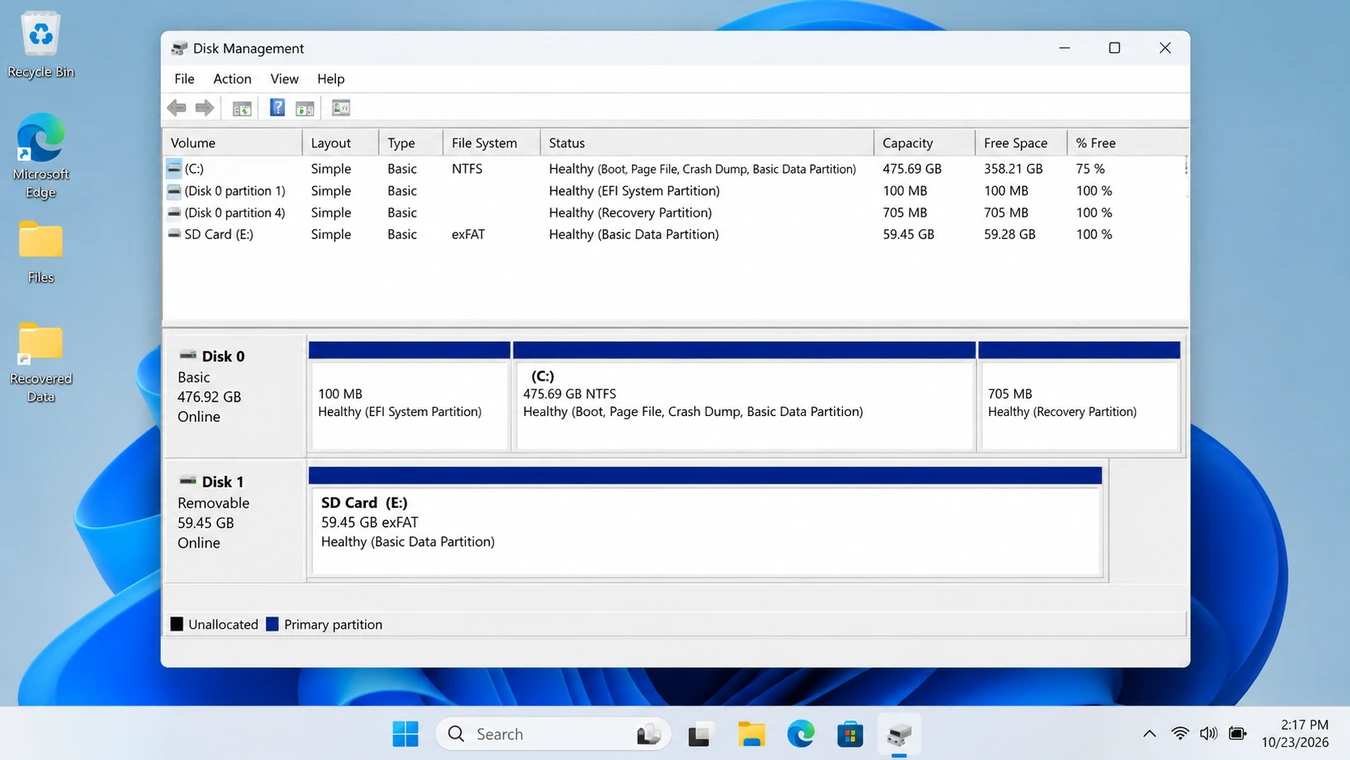
如果 Windows 偵測到記憶卡的預期容量且該數值保持穩定,進行復原掃描可能會有所幫助。至於反覆消失、過熱或顯示異常容量的記憶卡,則需要採取不同的處理方式。.
恢復前:試試這些低風險的方法
最安全的恢復方法,就是避免對原始 SD 卡進行不必要的變更。.
方法 1:檢查隱藏檔案和原始資料夾
最適合 這些檔案在沒有明顯刪除或格式化操作的情況下消失了。.
將一張穩定且可讀取的 SD 卡連接至您的電腦,並檢查其中的資料夾。.
- 開啟「檔案總管」,並選取 SD 卡。.
- 選擇 檢視 > 顯示 > 隱藏項目 在 Windows 11 中。.
- 請檢查 DCIM 資料夾及其他錄製目錄。.
- 如果您的相機設有兩個記憶卡插槽,請確認您插入的是正確的記憶卡。.
有時,相機的播放設定或資料夾結構會導致現有的照片看似遺失。如需更多疑難排解資訊,請參閱 為什麼 SD 卡上的檔案會消失.
限制: 顯示隱藏檔案無法還原已刪除的內容,也無法修復受損的目錄項目。.
預期結果: 無需使用資料恢復軟體,即可找到並複製完整的原始檔案。.
方法 2:從備份中還原檔案
最適合 先前已匯入、同步或備份的照片和影片。.
請檢查您的電腦上的 Google 相片、OneDrive、外部儲存裝置、相機配套應用程式以及先前匯入的資料夾。.
如果您先前曾將檔案複製到受「Windows 檔案歷史紀錄」保護的資料夾中,您也可以還原到較早的版本。.
「檔案歷史紀錄」不會僅因您將 SD 卡連接至電腦,就自動備份該 SD 卡。.
限制: 備份無法還原從未被納入其中的檔案。.
預期結果: 在不掃描受影響的卡片的情況下,還原現有的副本。.
當這兩種方法都行不通時,, SD 卡復原軟體 成為下一種穩定且可偵測的裝置選項。.
最佳免費 SD 卡資料恢復軟體:快速比較
有些資料恢復程式確實是免費的。另一些則提供有限度的免費使用額度,或讓您在購買授權前先試用檔案。.
為了清楚區分兩者,我們將適合初學者的免費選項與進階的專業選項分開列出。.
軟體 | 最適合 | 免費復原 | OS |
Magic Data Recovery | Windows 初學者 | 最多 500 MB | 視窗 |
Recuva | 最近刪除的檔案 | 免費版 | 視窗 |
照片記錄 | 無限次免費恢復 | 免費、開源 | Windows、macOS、Linux |
UFS Explorer | 進階檔案系統復原 | 試用版:每檔 256 KB | Windows、macOS、Linux |
R-Studio | 專業工作流程 | 示範:每檔 1024 KB | Windows、macOS、Linux |
最後兩款工具是專業版試用版本,並非無限制的免費資料恢復程式。相關限制依據開發者公開的資訊而定,且可能有所變更。.
我們如何比較這些工具
我們考量了五項標準:
- 復原情境: 已刪除的檔案、格式化、RAW 分割區以及邏輯損毀。.
- 檔案支援: 照片、相機 RAW 檔、影片、文件及壓縮檔。.
- 易用性: 裝置選取、掃描、篩選及檔案預覽。.
- 安全: 無損操作及備份至另一顆硬碟。.
- 免費瀏覽: 使用者是否能在不付費的情況下儲存實際檔案。.
這是一篇基於已記錄功能的編輯性功能比較,並非受控的直接對比恢復測試。因此,此清單並未聲稱各產品之間存在經量測的成功率差異。.
3 款免費或「免費增值」模式的 SD 卡資料恢復工具
Magic Data Recovery — 最適合 Windows 初學者的選擇
Magic Data Recovery 可協助 Windows 使用者恢復因刪除、快速格式化以及相關邏輯檔案系統問題而遺失的檔案。.
其主要優勢在於工作流程簡明直觀。使用者只需選取受影響的記憶卡、進行掃描、篩選結果、預覽受支援的檔案,並將可恢復的資料儲存至另一顆硬碟即可。.
主要優勢:
- 支援 SD、SDHC、SDXC 及 microSD 記憶卡,並可透過 Windows 存取。.
- 可識別常見的 JPG、PNG、MP4、MOV、文件及相機 RAW 格式。.
- 在還原前提供檔案篩選與預覽功能。.
- 根據其目前公布的條款,提供最多 500 MB 的免費資料恢復服務。.
限制: 僅限 Windows 系統,免費恢復功能有限,且不支援修復物理損壞的記憶卡。.
最適合 一位攝影師不慎將相機記憶卡格式化,但仍能將其穩定地連接至 Windows 電腦。.
對於偏好視覺化介面而非命令列工具的用戶而言,Magic Data Recovery 是一個實用的選擇。推薦此工具的依據在於其易用性與支援的功能,而非那些未經證實的「更高恢復率」說法。.
Recuva — 最適合恢復最近刪除的檔案
Recuva 是一款具備免費版本的 Windows 系統還原工具。.
它支援記憶卡、USB 隨身碟及其他可寫入的儲存裝置。直觀的介面能協助使用者搜尋已刪除的照片、文件和影片。.
該程式還提供更深入的掃描功能,並宣稱可從某些受損或剛格式化的磁碟中恢復資料。.
優勢: 免費版本、操作簡便,且具備基本刪除檔案還原功能。.
限制: 恢復結果取決於原始資料及檔案系統的狀態。其進階恢復與映像製作功能,相較於專業工具而言較為有限。.
最適合 SD 卡上最近刪除的照片,該 SD 卡目前仍可正常開啟。.
若只是進行簡單的檔案還原,Recuva 或許就已足夠。.
PhotoRec — 最佳的完全免費 SD 卡資料恢復軟體
照片記錄 是一款免費的開源資料恢復程式,適用於 Windows、macOS 和 Linux。.
與主要依賴現存檔案系統記錄的工具不同,PhotoRec 能夠透過可辨識的內部簽名來定位檔案。這項技術稱為 檔案還原.
當格式化或資料損毀導致資料夾資訊遺失,但檔案內容仍可復原時,此方法便能派上用場。.
優勢: 無還原配額、廣泛的平台支援,以及檔案簽名還原功能。.
限制: 其工作流程需要更強的技術信心。原始檔案名稱和資料夾結構可能會遺失,而碎片化的檔案可能仍會不完整。.
最適合 需要完全免費的資料恢復服務,且能接受在整理恢復結果時需額外花費些許時間的用戶。.
當預算為零,且傳統的圖形化資料恢復體驗並非首要考量時,PhotoRec 便顯得格外有價值。.
2 款專業 SD 卡資料恢復軟體的替代方案
專業版軟體提供更深入的診斷選項、磁碟映像功能,以及對複雜邏輯資料恢復的更多控制權。然而,其免費版本通常會限制檔案儲存功能。.
UFS Explorer — 最適合處理進階檔案系統問題
UFS Explorer Standard Recovery provides advanced file-system analysis, scanning, preview, and disk imaging.
Its imaging function can help experienced users work from a copy of readable storage rather than repeatedly scanning the original card.
優勢: Detailed recovery controls, disk imaging, FAT32/exFAT support, and multiple operating systems.
限制: The trial saves individual files only up to 256 KB. Larger files require a suitable license.
最適合 Technically experienced users examining formatted cards or logical file-system damage.
If the card shows physical instability, do not treat advanced software as a substitute for professional hardware assessment.
R-Studio — Best for Professional Recovery Workflows
R-Studio offers advanced scanning, file-system analysis, disk imaging, and file recovery tools.
It suits users who need more control over recovery than a basic scan-and-restore wizard provides.
優勢: Extensive diagnostic options, support for multiple file systems, and Windows, macOS, and Linux editions.
限制: More complex for beginners. Demo mode allows saving files no larger than 1024 KB.
最適合 Advanced users and technicians evaluating complex logical data loss.
R-Studio is useful when those additional controls matter. For simple photo deletion, a less complicated tool is usually a better starting point.
How to Recover Deleted Files from an SD Card on Windows
If the SD card remains stable and Windows detects it correctly, follow this tutorial to 從 SD 卡中恢復已刪除的檔案.
The example uses Magic Data Recovery because its graphical interface suits beginners. Other recovery applications may use different controls.
Step 1: Connect the SD Card to Your PC
Insert the card into a reliable USB card reader. Open Disk Management and check whether Windows detects the expected storage capacity.
If Windows asks you to format the card, select 取消. Do not initialize the disk or create a new partition.
Step 2: Install Magic Data Recovery and Select the Card
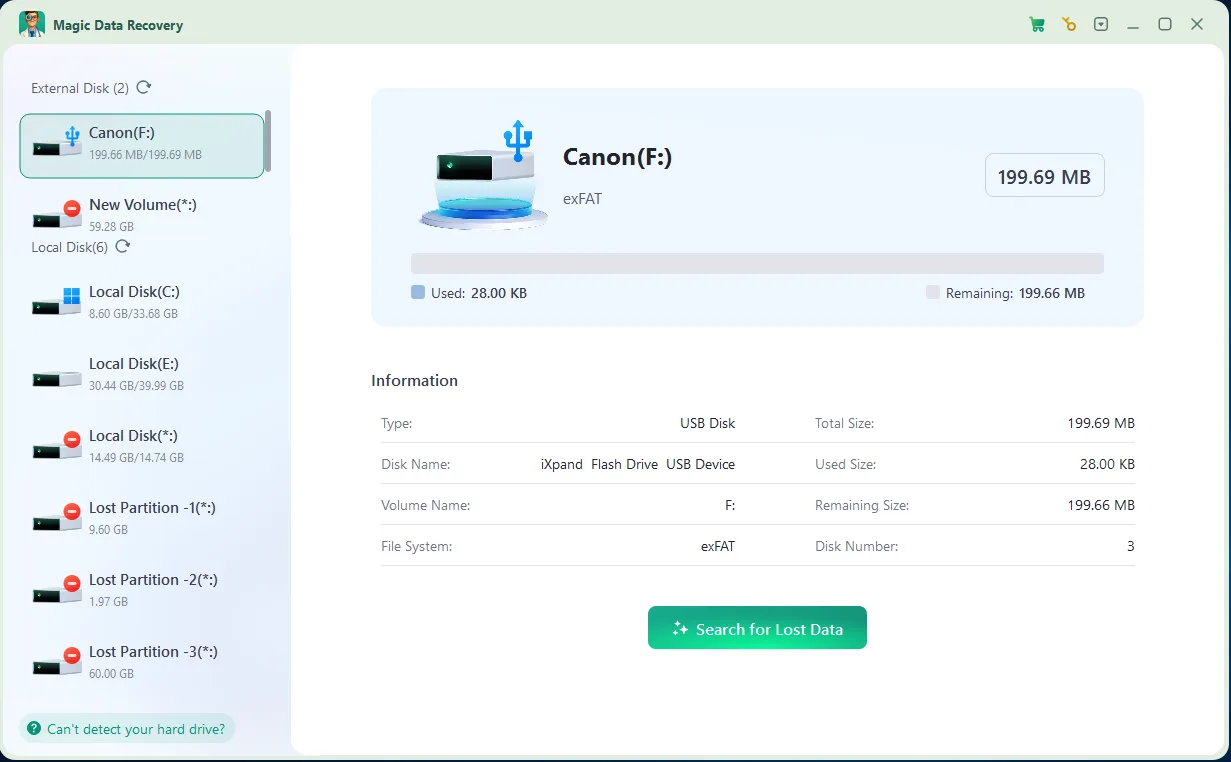
下載 Magic Data Recovery and install it on your computer’s internal drive, not the affected SD card. Launch the program and select the memory card or lost partition.
Check the device capacity carefully so that you do not confuse the source card with another removable drive.
Step 3: Scan and Identify Lost Files
Start scanning the selected card. Look for the file types you need:
- 照片: JPG, PNG, CR3, NEF, ARW, or DNG.
- 影片: MP4, MOV, AVI, or other camera recording formats.
- 文件: PDF, DOCX, XLSX, or other supported files.
Use available filters to narrow the results. If the card remains stable, allow the scan to finish before judging whether the required files are missing.
步驟 4:預覽和復原檔案
Preview supported photographs or documents to identify relevant results.
Next, select the files you need and save them to your computer or another healthy storage device.
Never save recovered files to the original SD card. Doing so could overwrite additional recoverable data.
Finally, open the saved files to confirm that they work correctly.
預期結果: Usable copies of files whose original data remains intact.
限制: A scan may find filenames or partial file content without recovering complete, readable files.
For an accidentally reformatted card, see our dedicated guide on 如何恢復已格式化的 SD 卡.
Is Free SD Card Recovery Software Safe?
選擇 安全的 SD 卡復原軟體 matters, but your actions before and during recovery are equally important.
遵循這些規則:
- Download programs from official developer websites.
- Prefer tools that scan without modifying the source storage.
- Never recover files directly to the damaged or deleted-data card.
- Avoid formatting, initializing, or running CHKDSK before securing important files.
- Stop repeated scans if the card disconnects, overheats, or becomes unreliable.
- Do not assume a paid recovery program can repair physical damage.
快速格式化與完整格式化
A quick format generally recreates file-system structures without intentionally overwriting all existing user data. Therefore, recovery may remain possible.
A full format or device-specific erase operation can behave differently. Some procedures overwrite accessible storage, while flash controllers may also change how deleted data remains available.
Consequently, neither the format type nor the time since deletion guarantees recoverability. What matters is whether usable original data survives.
What If the SD Card Shows RAW?
A RAW file system means Windows cannot recognize a usable file system on the volume. It does not necessarily mean the card contains no data.
If the device remains stable and reports the correct capacity, recovery software may locate surviving files before you attempt repairs. For more detailed troubleshooting, read how to recover files from a corrupted SD card.
How to Verify Your Recovered SD Card Files
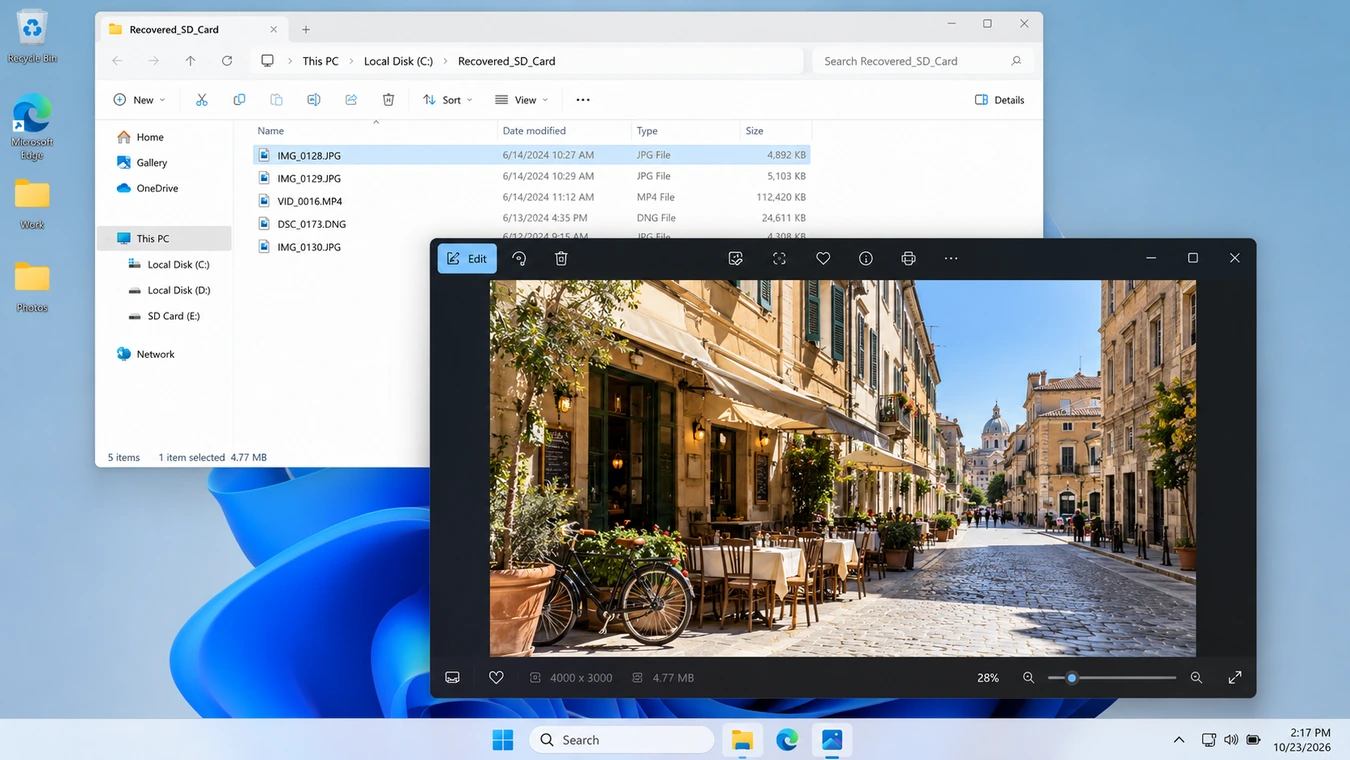
Finding a file in scan results does not prove successful recovery. For example, a recovery program might display a JPEG filename even when some image data has been overwritten. Likewise, a camera RAW file may contain a readable embedded thumbnail while its full-resolution content is damaged.
After recovery, check the saved copies:
檔案類型 | What to Verify |
JPG / PNG photos | Open at full resolution; inspect the entire image |
Camera RAW files | Open in compatible software; check full-resolution decoding |
MP4 / MOV videos | Play the beginning, middle, and end |
PDF / Office documents | Open and inspect the expected contents |
ZIP / archives | Test integrity or extract representative files |
Also, check filenames, dates, file counts, and folder contents where applicable.
If you have a known-good original copy, comparing file hashes provides stronger confirmation that the recovered file matches it.
However, do not interpret matching file sizes or visible thumbnails as proof of complete restoration.
What If Recovered Files Will Not Open?
First, try a compatible application that supports the original format. Then examine whether the file contains valid content or only an incomplete recovery.
For camera videos, missing segments or damaged recording metadata can prevent playback even when part of the video survives.
Repeatedly scanning the same card will not recreate overwritten data. If the missing files are irreplaceable, consider professional assessment before further attempts.
SD Card Recovery App vs PC Recovery Software
顏色 SD 卡復原應用程式 may refer to an Android application or a desktop recovery program.
For removable microSD cards, using a compatible card reader with free SD card data recovery software for PC may allow more direct access to the storage than a phone application.
However, Android internal storage and adopted microSD storage can use encryption or access restrictions that prevent ordinary PC recovery software from scanning deleted content.
Magic Data Recovery supports compatible removable cards accessible through Windows. It cannot directly recover files from Android internal storage or bypass device-specific encryption.
Conclusion: Which Free SD Card Recovery Software Should You Choose?
的 最好的免費 SD 卡復原軟體 depends on your card’s condition and your recovery needs.
Recuva is a reasonable option for straightforward deletion. PhotoRec provides genuinely free file recovery without a quota, although its workflow requires more technical confidence. UFS Explorer and R-Studio offer advanced capabilities for experienced users, but their trial versions have significant saving restrictions.
For typical Windows users, we recommend Magic Data Recovery. Its guided workflow, file filtering, and supported previews make it easier to locate important files before recovery. The available free allowance also lets users evaluate actual restored files before deciding whether they need a paid edition.
Still, no software guarantees recovery from overwritten content or physically damaged storage.
Protect the original card, check your backups, and verify recovered files before reusing it.
For additional scenarios involving cameras, formatted memory cards, and inaccessible storage, explore our SD 卡復原解決方案.
支援 Windows 7/8/10/11 和 Windows Server
常見問題
哪款是最好的免費 SD 卡資料恢復軟體?
我可以免費復原已刪除的 SD 卡檔案嗎?
免費的 SD 卡資料恢復軟體能恢復已被格式化的檔案嗎?
從損壞的 SD 卡中恢復資料,最安全的方法是什麼?
SD 卡資料恢復軟體在 Windows 11 上能正常運作嗎?
SD 卡資料恢復應用程式能否直接從 Android 裝置恢復檔案?
為何從 SD 卡恢復的照片或影片會出現損壞?

Erin Smith 是 Amagicsoft 公認最專業的作家之一。過去 10 年來,她不斷磨練自己的寫作技巧,幫助數百萬讀者解決技術問題。.