
5 Best Free SD Card Recovery Tools in 2026 (Tested & Ranked)

Accidentally deleted photos from a camera SD card? Formatted a microSD card by mistake? Found that your SD card has become corrupted, unreadable, or showing as RAW? A reliable SD card recovery tool can help you scan the card, preview lost files, and recover photos, videos, documents, and other data before they are overwritten.
In this guide, we compare five SD card recovery tools for different data loss situations, including accidental deletion, quick formatting, corrupted SD cards, damaged file systems, and RAW photo or video recovery. We also show how Magic Data Recovery helps Windows users scan SD cards, preview lost files, and recover data from SD cards safely. You will learn how to choose the right tool, recover files from SD cards, and avoid mistakes that may reduce your chance of recovery.
Supports Windows 7/8/10/11 and Windows Server
Data Recovery Assessment
Answer 3 quick questions to estimate your recovery chances
Table of Contents
Quick Picks: Best SD Card Recovery Tools
Ranking | Tool | Best For | Free Recovery Limit | Operating System | Ease of Use |
1 | Magic Data Recovery | Best overall SD card recovery tool for Windows users | Recover files under 500MB for free | Windows | Very easy |
2 | Recuva | Basic deleted file recovery | Free version available | Windows | Easy |
3 | PhotoRec | Free open-source SD card recovery | Free | Windows, macOS, Linux | Advanced |
4 | UFS Explorer | Corrupted or unstable SD cards | Trial with file saving limit | Windows, macOS, Linux | Advanced |
5 | R-Studio | Professional data recovery | Demo with file size limit | Windows, macOS, Linux | Advanced |
If you are a beginner and need a simple Windows SD card recovery tool, Magic Data Recovery is the best starting point. If you want a completely free open-source option and do not mind a more technical interface, PhotoRec is a strong alternative. For severely corrupted cards or professional recovery cases, UFS Explorer and R-Studio offer more advanced tools.
Comparison Table: SD Card Recovery Software
Feature | Magic Data Recovery | Recuva | PhotoRec | UFS Explorer | R-Studio |
Deleted file recovery | Yes | Yes | Yes | Yes | Yes |
Formatted SD card recovery | Yes | Limited to moderate cases | Yes | Yes | Yes |
Corrupted SD card recovery | Yes | Limited | Yes | Yes | Yes |
RAW SD card recovery | Yes | Limited | Yes | Yes | Yes |
Preview before recovery | Yes | Yes | No traditional preview | Yes | Yes |
Beginner-friendly interface | Yes | Yes | No | Moderate | Moderate |
Deep scan | Yes | Yes | Yes | Yes | Yes |
Disk image support | Basic recovery workflow | Limited | Technical workflow | Yes | Yes |
Best user type | Beginners and general users | Casual users | Technical users | Advanced users | Professionals |
How We Evaluated These SD Card Recovery Tools
To make this comparison more useful, we evaluated each SD card recovery tool based on real recovery needs rather than only listing features. A good SD card recovery program should not only scan a card, but also help users understand which files can actually be recovered.
The main factors we considered were:
- Recovery scenarios: accidental deletion, quick format, corrupted SD card, RAW file system, and unreadable SD card.
- Supported file types: JPG, PNG, RAW camera files, MP4, MOV, DOCX, PDF, ZIP, and other common formats.
- SD card compatibility: SDHC, SDXC, microSD, camera memory cards, drone SD cards, GoPro cards, and phone memory cards.
- Ease of use: whether beginners can complete recovery without technical knowledge.
- Preview function: whether users can preview files before recovery.
- Free version limit: whether the free version can actually save recovered files.
- Safety: whether the software avoids writing recovered files back to the same SD card.
Important note: No SD card recovery tool can guarantee 100% recovery. If the lost files have been overwritten by new data, even the best software may not be able to restore them. For the best result, stop using the SD card immediately after data loss.
1. Magic Data Recovery – Best Overall SD Card Recovery Tool

Best for: Windows users who want a simple, guided SD card recovery process
Supported system: Windows 7/8/10/11 and Windows Server
Free version: Recover files under 500MB for free
Recommended for: deleted photos, formatted SD cards, corrupted SD cards, microSD cards, camera SD cards
Magic Data Recovery is the best overall SD card recovery tool for users who want a balance between ease of use, recovery capability, and file preview. It is designed for common data loss situations such as accidental deletion, formatting, file system corruption, and unreadable memory cards.
The biggest advantage of Magic Data Recovery is its beginner-friendly workflow. You do not need to understand file systems, partitions, or command-line recovery. After connecting the SD card to your computer, you can select the card, start a scan, preview the found files, and recover them to a safe location.
Magic Data Recovery supports common SD card file types, including photos, videos, documents, compressed files, and camera media formats. This makes it suitable for users who need to recover pictures from a digital camera, videos from a drone or action camera, or documents stored on a microSD card.
Key Features
- Recover deleted, formatted, or lost files from SD cards.
- Support SDHC, SDXC, microSD, camera cards, and other memory cards.
- Deep scan for formatted or corrupted SD cards.
- Preview photos, documents, and other files before recovery.
- Simple recovery process for beginners.
- Recover files under 500MB for free.
Pros
- Easy to use for non-technical users.
- Clear scan and recovery workflow.
- Useful preview feature before saving files.
- Works well for common SD card recovery scenarios.
- Good choice for Windows users.
Cons
- Windows only.
- Free recovery is limited to files under 500MB.
- Advanced users may prefer more technical tools for complex damaged file systems.
Verdict
Magic Data Recovery is the best choice if you want a straightforward SD card recovery tool for Windows. It is especially suitable for recovering deleted photos, videos, documents, and files from formatted or corrupted SD cards without dealing with complicated technical settings.
2. Recuva (Windows Only)

Best for: simple deleted file recovery
Supported system: Windows
Free version: Free version available
Recommended for: recently deleted files, basic photo recovery, simple SD card scans
Recuva is a popular Windows file recovery tool that can recover deleted files from memory cards, USB drives, external drives, and other rewritable storage devices. It is lightweight, easy to use, and suitable for users who only need to recover recently deleted files.
For basic SD card recovery, Recuva can be a good option. If you deleted photos or documents from an SD card and have not used the card since then, Recuva may be able to find and restore the files. It also includes a deep scan mode for files that are harder to locate.
However, Recuva is not always the best option for serious SD card problems. If your SD card is severely corrupted, has become RAW, or has been formatted multiple times, a more advanced SD card recovery tool may be more suitable.
Key Features
- Recover deleted files from memory cards and other rewritable media.
- Support photos, videos, documents, emails, and other file types.
- Deep scan mode for harder-to-find files.
- Simple Windows interface.
Pros
- Free version available.
- Lightweight and simple.
- Good for recently deleted files.
- Suitable for basic SD card recovery.
Cons
- Windows only.
- Less effective for severely corrupted SD cards.
- Limited advanced recovery functions.
- Interface feels dated compared with newer tools.
Verdict
Recuva is a good free SD card recovery tool for simple deleted file recovery. It is best for users who deleted files recently and have not written new data to the SD card. For formatted, RAW, or corrupted cards, Magic Data Recovery, PhotoRec, UFS Explorer, or R-Studio may be better options.
3. PhotoRec (Advanced Users)

Best for: technical users who want a completely free tool
Supported system: Windows, macOS, Linux
Free version: Completely free and open-source
Recommended for: formatted cards, damaged file systems, RAW file recovery, camera media recovery
PhotoRec is one of the most powerful free SD card recovery tools available. It is open-source, cross-platform, and designed to recover lost files from memory cards, hard drives, USB drives, and other storage media. Unlike many recovery tools that depend heavily on the file system, PhotoRec scans for file signatures, which means it can still work even if the SD card file system is damaged or reformatted.
This makes PhotoRec a strong option for formatted SD cards, RAW SD cards, and damaged memory cards. It can recover many file types, including photos, videos, documents, archives, and camera media files.
The main drawback is usability. PhotoRec is not as beginner-friendly as Magic Data Recovery or Recuva. It does not provide the same modern graphical preview experience, and recovered files may lose their original names and folder structure. For users who are comfortable with technical recovery steps, however, PhotoRec is an excellent free option.
Key Features
- Free and open-source.
- Works on Windows, macOS, and Linux.
- Can recover files even when the file system is damaged.
- Supports many file types, including photos and videos.
- Useful for camera memory cards and formatted SD cards.
Pros
- Completely free.
- Strong recovery capability for damaged or formatted cards.
- Cross-platform support.
- Good for advanced users and technical recovery tasks.
Cons
- Not beginner-friendly.
- No traditional file preview interface.
- Recovered files may not keep original names.
- Folder structure may be lost.
- Interface can be confusing for casual users.
Verdict
PhotoRec is the best free open-source SD card recovery tool for technical users. It is powerful, but not the easiest option. If you want a simple preview-and-recover workflow, Magic Data Recovery is easier. If you want a free technical recovery tool and can handle a more complex process, PhotoRec is a strong choice.
4. UFS Explorer

Best for: advanced recovery from corrupted, unstable, or damaged storage
Supported system: Windows, macOS, Linux
Free version: Trial version with file saving limit
Recommended for: corrupted SD cards, unstable cards, damaged file systems, professional evaluation
UFS Explorer is a professional-grade data recovery tool designed for more complex recovery situations. It is more advanced than typical consumer SD card recovery software and offers features that are useful when dealing with corrupted file systems, unstable storage devices, disk images, and complex storage structures.
For SD card recovery, UFS Explorer is most useful when the card is not behaving normally. For example, if the SD card is slow to respond, frequently disconnects, shows errors, or has file system damage, UFS Explorer provides advanced tools for scanning, previewing, and evaluating recoverable data.
One of its key strengths is disk imaging. If an SD card is unstable, repeatedly scanning the original card can increase the risk of further damage. Creating an image first and recovering from the image is often safer. This type of workflow is more advanced, but it can be important for valuable data.
Key Features
- Advanced recovery for damaged or corrupted storage.
- Support for scanning, browsing, and previewing recoverable data.
- Disk imaging tools for unstable storage devices.
- Suitable for complex file system recovery.
- Available for Windows, macOS, and Linux.
Pros
- Strong advanced recovery features.
- Useful for corrupted or unstable SD cards.
- Supports disk image workflow.
- Cross-platform support.
- Good for technical users.
Cons
- Not as beginner-friendly.
- Free trial has a file saving limit.
- May be too advanced for simple deleted file recovery.
- Interface requires more technical understanding.
Verdict
UFS Explorer is a good choice if your SD card is corrupted, unstable, or difficult to scan with basic tools. It is not the simplest option for beginners, but it is powerful for advanced recovery cases.
5. R-Studio

Best for: professional users, IT technicians, and complex recovery cases
Supported system: Windows, macOS, Linux
Free version: Demo mode with file size limit
Recommended for: advanced SD card recovery, damaged partitions, formatted cards, professional diagnostics
R-Studio is a professional data recovery solution designed for advanced users, technicians, and data recovery specialists. It supports Windows, macOS, and Linux, and can recover data from local disks, removable disks, damaged disks, formatted disks, and many types of file systems.
For SD card recovery, R-Studio is useful when the case is more complicated than accidental deletion. It supports advanced scanning, file preview, disk imaging, and recovery from damaged or formatted storage. It can also work with a wide range of file systems, which makes it more flexible than basic recovery tools.
However, R-Studio is not the most beginner-friendly option. It includes many professional features that may be unnecessary for users who simply want to recover deleted photos from an SD card. For beginners, Magic Data Recovery or Recuva may be easier. For professionals and advanced users, R-Studio is one of the most capable options.
Key Features
- Professional data recovery software.
- Supports Windows, macOS, and Linux.
- Recovers from damaged, formatted, and deleted disks.
- Supports disk image creation.
- Built-in file preview.
- Advanced recovery algorithms and file system support.
Pros
- Powerful professional recovery features.
- Cross-platform support.
- Suitable for complex recovery cases.
- Supports disk images and advanced file systems.
- Good for technicians and experienced users.
Cons
- More complex than beginner tools.
- Demo version has recovery limitations.
- Advanced features may be unnecessary for casual users.
- Paid license required for full recovery.
Verdict
R-Studio is one of the best SD card recovery tools for professional and advanced users. It is powerful, flexible, and suitable for complex recovery cases, but beginners may prefer a simpler tool like Magic Data Recovery.
How to Recover Files using SD Card Recovery Tool (Step-by-Step Guide)
Supports Windows 7/8/10/11 and Windows Server
3. Insert the SD card (via card reader) and select it in the software.
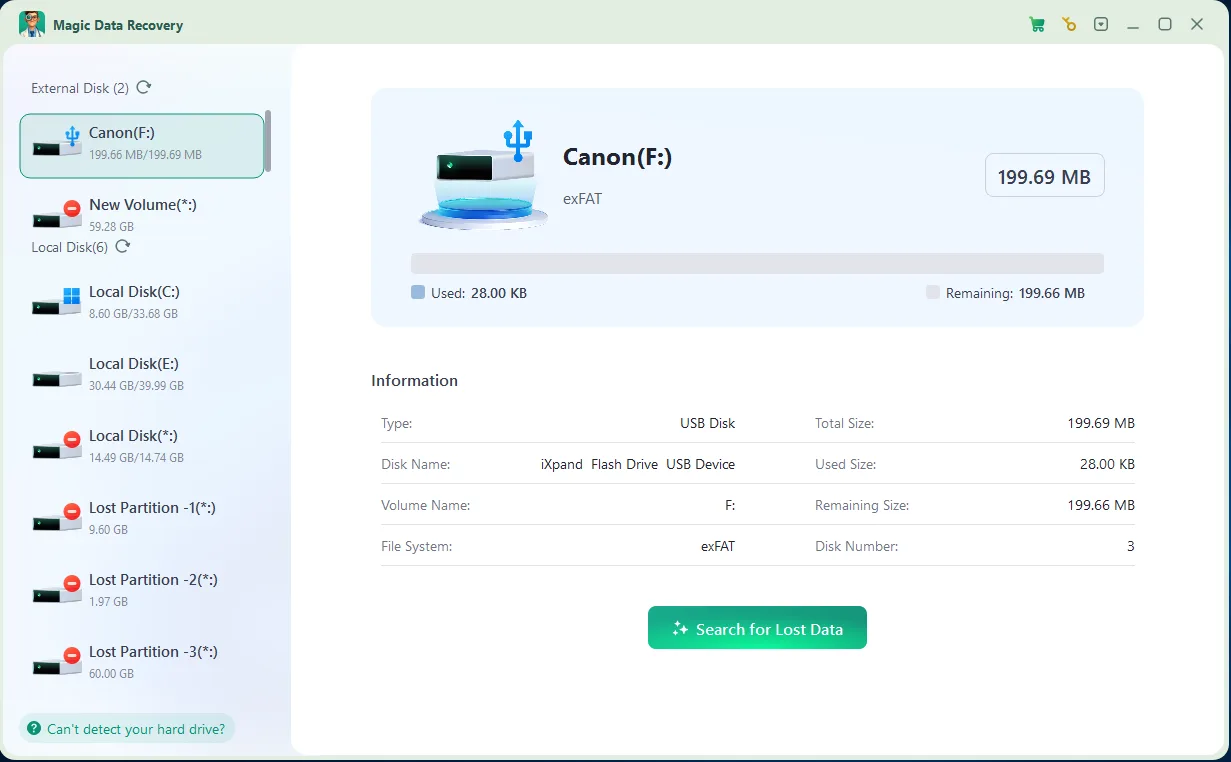
4. Click the Search for lost data to scan your lost files. You will see all scanned files during the process.

5. Preview & recover your files to a safe location.


Tips to Improve SD Card Recovery Success Rate
1. Stop Using the Card Immediately
The more you use the SD card after data loss, the higher the risk of overwriting lost files. Remove the card from your camera, phone, drone, or computer as soon as possible.
2. Do Not Format the Card Again
If your device says the SD card needs to be formatted, do not format it before running recovery software. Formatting may make recovery more difficult.
3. Do Not Save Recovered Files to the Same SD Card
Always save recovered files to another storage device. Saving files back to the same SD card may overwrite other recoverable data.
4. Use a Reliable Card Reader
A poor-quality card reader can cause connection errors, slow scans, or failed recovery attempts. Use a stable card reader and avoid disconnecting the SD card during scanning.
5. Create a Disk Image for Unstable Cards
If the SD card is slow, disconnects often, or shows signs of failure, advanced users should create a disk image first and recover from the image instead of repeatedly scanning the original card.
6. Avoid Running Repair Tools Before Recovery
Tools such as CHKDSK may change the file system structure. If your priority is data recovery, scan and recover your files first, then repair or format the SD card afterward.
Final Verdict: What Is the Best SD Card Recovery Tool?
The best SD card recovery tool depends on your situation. For most Windows users, Magic Data Recovery is the best overall choice because it offers an easy recovery process, deep scan, file preview, and support for common SD card data loss situations.
For users who want a free tool for basic deleted file recovery, Recuva is a simple option. For technical users who want a completely free open-source tool, PhotoRec is powerful but less beginner-friendly. For corrupted, unstable, or complex recovery cases, UFS Explorer and R-Studio are better suited for advanced users and professionals.
If you are not sure where to start, use a beginner-friendly SD card recovery tool first, preview the recoverable files, and save them to a safe location.
Supports Windows 7/8/10/11 and Windows Server
FAQ
What is the best SD card recovery tool?
Is there a completely free SD card recovery tool?
Can I recover files from a formatted SD card?
Can SD card recovery software recover corrupted SD cards?
Can I recover deleted photos from a camera SD card?
Can I recover videos from a GoPro, drone, or dashcam SD card?
Should I use CHKDSK before SD card recovery?
Why should I not save recovered files back to the same SD card?
Can overwritten SD card files be recovered?
Does SD card recovery work on microSD cards?
Is SD card recovery software safe?
How long does SD card recovery take?

Erin Smith is recognized as one of the most professional writers at Amagicsoft. She has continually honed her writing skills over the past 10 years and helped millions of readers solve their tech problems.