Free Recover Files: 5 Safe Windows Methods

Accidentally deleting important documents, photos, videos, or work files can be stressful. However, users who search for free recover files are usually looking for a safe way to 還原刪除的資料 without paying upfront. Fortunately, Windows tools, backups, cloud services, and professional recovery software can help you recover files for free in many common situations.
本指南將說明五種實用的方法來 recover files for free. First, you will learn how to protect deleted data. Next, you will compare built-in Windows options. Finally, you will see how Magic Data Recovery scans, previews, and restores files through a simple visual workflow.
支援 Windows 7/8/10/11 和 Windows Server
目錄
Quick Answer: How Can You Recover Files for Free?
The right method depends on how the files disappeared. Therefore, start with the least invasive option and move to a deeper scan only when necessary.
情況 | 最佳的第一種方法 | 成本 | 難度 |
檔案仍留在資源回收筒中 | 回收站 | 免費 | 簡易 |
File History contains an older copy | 先前版本 | 免費 | 簡易 |
A cloud service synced the files | 雲端垃圾桶或版本歷史紀錄 | Usually free | 簡易 |
You permanently deleted local files | Windows 檔案復原 | 免費 | 進階 |
You emptied the Recycle Bin or formatted a drive | Magic Data Recovery | Up to 500MB free | 簡易 |
Before You Recover Files for Free, Protect the Data
Your actions after deletion can determine whether recovery succeeds. For that reason, follow these precautions before trying any free file recovery 方法。.
停止使用受影響的磁碟機
Do not install programs, download large files, or copy folders to the drive that contained the missing data. Windows may reuse the deleted file’s storage space. Once new information overwrites it, even the 最佳免費資料恢復軟體 可能會失敗。.
Use Another Location
Whenever possible, install recovery software on another partition. Likewise, save restored data to a different drive. For example, recover files from C: to D:, or from a memory card to your computer. Otherwise, restored data may overwrite files that remain recoverable.
5 Ways to Recover Files for Free on Windows
Windows users have several recovery options. Some methods restore an existing copy, while others scan storage for deleted data. Although no method guarantees every result, these solutions cover the most common situations.
Method 1: Restore Files from the Recycle Bin
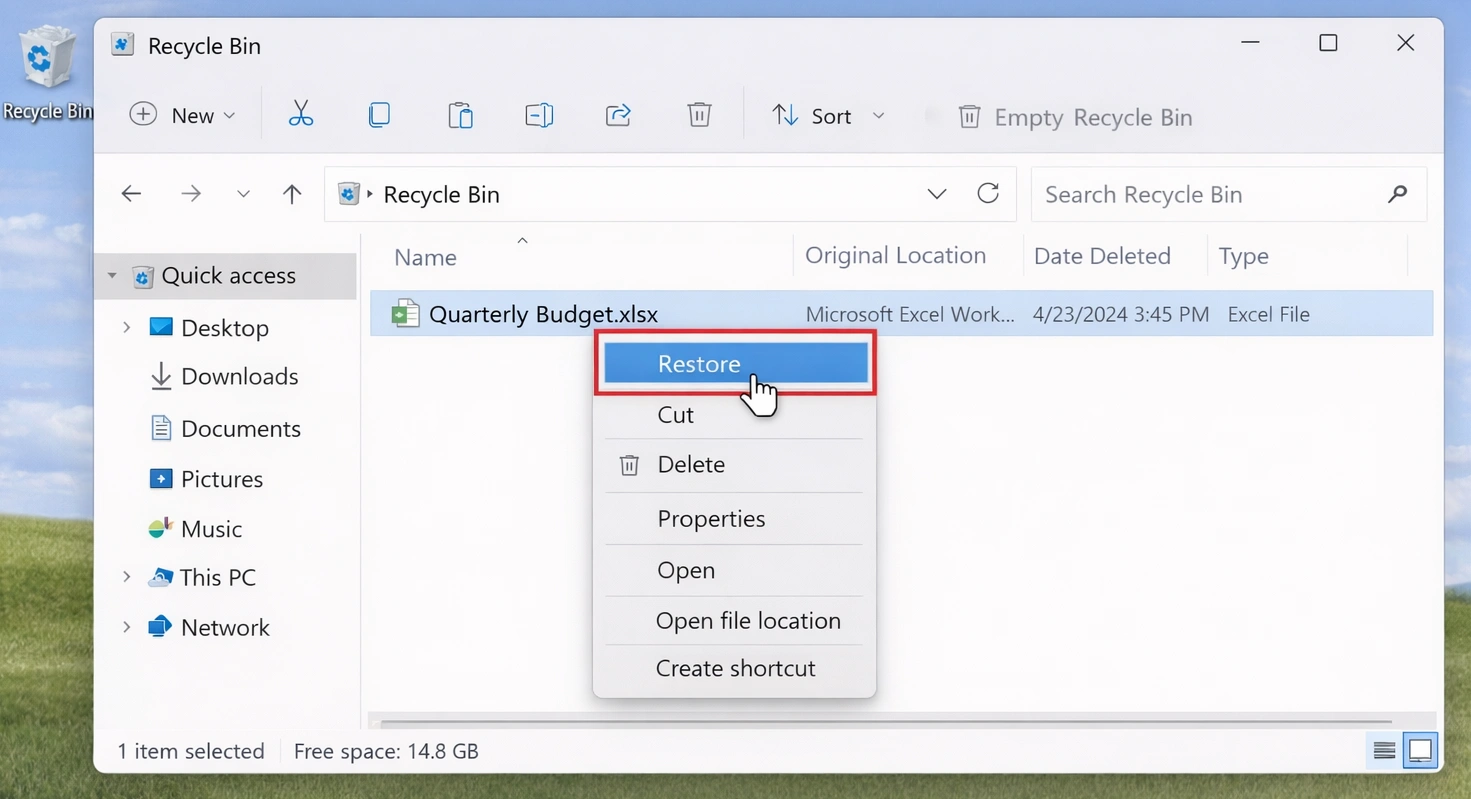
The Recycle Bin offers the fastest way to recover files for free 在正常刪除之後。.
- 開啟回收站。.
- 可依檔案名稱、類型或刪除日期進行搜尋。.
- 請選取您需要的檔案或資料夾。.
- 按一下滑鼠右鍵,然後選擇 還原.
- 檢查原始資料夾。.
This method does not scan the drive. However, it cannot help after Shift+ 刪除, an emptied Recycle Bin, or deletion from some removable devices.

Method 2: Use File History
File History can restore an earlier copy if you enabled it before the loss.
- 開啟檔案總管。.
- Go to the original folder.
- 按一下滑鼠右鍵,然後選擇 還原先前版本.
- Open a suitable version.
- Restore the required file.
For example, File History may recover an older report after accidental replacement. However, Windows cannot create a past backup after the file disappears. If no version appears, choose another way to recover files for free.

Method 3: Check Cloud Storage and Backups
Before scanning a drive, check every location that may contain another copy. This approach often provides the safest way to recover deleted files for free.
Review OneDrive, Google Drive, Dropbox, email attachments, messaging app downloads, backup drives, shared folders, and other devices. For instance, OneDrive may still contain the original file and folder structure. Therefore, review synchronized services before starting a deep scan.
方法 4:使用 Windows 檔案還原
Windows 檔案復原 is Microsoft’s command-line utility for deleted local files. It can search internal drives and removable storage. Moreover, it works well for users who understand file paths and basic commands.
winfr C: E: /regular /n\Users\YourName\Documents\
Here, C: contains the missing data, while E: stores the results. The source and destination must use different drives.
Windows File Recovery provides a completely free option without a recovery-size limit. However, it lacks visual preview, and beginners may find its commands difficult. As a result, users who want to recover files for free through a graphical interface may prefer a simpler solution.

Method 5: Use Magic Data Recovery
當內建方法失敗時、, Magic Data Recovery 提供了一種視覺化的方式來 recover files for free. Users can select a drive, start a scan, filter results, preview content, and restore selected files without entering commands.
Magic Data Recovery supports more than 5,000 file types and common devices, including HDDs, SSDs, USB drives, and memory cards. In addition, the free version can recover up to 500MB. Therefore, users can test smaller recovery tasks before considering an upgrade.
如何 Recover Files for Free 配備 Magic Data Recovery
Magic Data Recovery can help after Shift+Delete, an emptied Recycle Bin, accidental formatting, or file loss from a USB drive or memory card. More importantly, its preview feature lets you inspect discovered files before recovery.
步驟 1:下載並安裝 Magic Data Recovery
Download Magic Data Recovery and install it on your computer. Whenever possible, choose a drive or partition that does not contain the deleted files. This precaution reduces the risk of accidental overwriting.
支援 Windows 7/8/10/11 和 Windows Server
步驟 2:選擇 驅動器 You Want to Scan
Open Magic Data Recovery. Then, review the drives and partitions on the main interface. Choose the location where the files disappeared and start the scan.

步驟 3:掃描磁碟機中已刪除的檔案
Magic Data Recovery automatically starts an Advanced Scan for deleted and lost data. Meanwhile, the interface displays discovered files as the scan continues. Therefore, you can review results before the process finishes.

步驟 4: 預覽 復原前的檔案
Next, preview file content and condition. You can also filter results by file type, name, or original location. As a result, you can identify the correct documents, photos, videos, and other files before restoring them.

步驟 5:將檔案復原至安全位置
Finally, select the files you need and start the recovery. Save them to a different drive or partition rather than the original location. Otherwise, restored data may overwrite other recoverable files.

為何選擇 Magic Data Recovery?
Many users need deeper scanning but do not want to learn command-line syntax. Therefore, Magic Data Recovery combines scanning, filtering, preview, and recovery in one interface.
其主要優點包括
- A beginner-friendly visual workflow
- 復原前預覽
- 支援超過 5,000 種檔案類型
- Compatibility with common Windows storage devices
- Up to 500MB of free recovery
- Filters for file type, name, and location
For example, someone who 清空回收站 can scan the affected drive, preview deleted photos, and recover only the required items. Similarly, a user who formatted a USB drive can inspect found documents before restoring them.
Magic Data Recovery offers a clearer workflow than command-line tools. However, it cannot guarantee complete recovery. Results depend on overwriting, storage condition, 檔案碎片, and the type of data loss. This limitation applies to every recovery program.
Compare Free File Recovery Methods
方法 | 預覽 | Emptied Bin | 格式化磁碟機 | Easy for Beginners | 主要限制 |
回收站 | 是 | 沒有 | 沒有 | 是 | Files must remain there |
檔案歷史 | 是 | 有時 | 沒有 | 是 | A backup must already exist |
雲端備份 | 是 | 有時 | 不適用 | 是 | A synchronized copy must exist |
Windows 檔案復原 | 沒有 | 是 | 有時 | 沒有 | It requires commands |
Magic Data Recovery | 是 | 是 | 是 | 是 | 500MB free limit |
Built-in tools work best when another copy still exists. In contrast, recovery software helps you recover files for free when Windows no longer displays the files normally. Therefore, choose the simplest method that matches your situation.
When File Recovery Software Cannot Help
雖然軟體可以 recover files for free in many logical-loss cases, it cannot solve every storage problem. Stop DIY recovery if a hard drive clicks repeatedly, disconnects during use, smells burnt, or fails to appear consistently.
In these situations, repeated scans may place more stress on the device. Therefore, disconnect it and consider professional data recovery. Software also cannot restore data after complete overwriting. In addition, 固態硬碟機 recovery may prove difficult because 調整 can clear deleted data quickly.
Conclusion: The Best Way to Recover Files for Free
A safe recovery process starts with the least invasive 刪除檔案復原方法. First, check the Recycle Bin. Next, review File History, cloud storage, and backups. After that, use Windows File Recovery if you feel comfortable with command-line tools.
Magic Data Recovery becomes useful when you need an easier way to scan an emptied Recycle Bin, formatted drive, USB device, or memory card. It provides visual preview, supports thousands of file types, and offers up to 500MB of free recovery. Therefore, it gives ordinary users a practical way to evaluate recoverable data before a larger recovery task.
如果您需要 recover files for free through a visual workflow, try Magic Data Recovery. Scan the affected drive, preview the results, and restore the required files to a safe location.
支援 Windows 7/8/10/11 和 Windows Server
FAQs About Recovering Files for Free
Can I recover files for free after emptying the Recycle Bin?
Yes, you can still try if new data has not overwritten the deleted content. First, stop using the affected drive. Next, run Windows File Recovery or Magic Data Recovery. A previewable scan helps you identify readable files before you restore them to another location.
What is the best free file recovery method for Windows?
Start with the Recycle Bin, File History, and cloud backups because these methods restore existing copies without deep scanning. However, if they fail, use Windows File Recovery or Magic Data Recovery. Your technical experience, file size, and data-loss situation should guide the final choice.
Is Magic Data Recovery completely free?
Magic Data Recovery lets users scan for lost files and recover up to 500MB for free. Therefore, it can work well for smaller documents, photos, or selected files. Larger recovery jobs may require a paid license, so review the scan results and total file size first.
Can I recover permanently deleted files on Windows 11?
You may recover permanently deleted files if Windows has not reused their storage space. Stop using the drive immediately. Then, try Windows File Recovery or a visual recovery tool. However, no software can rebuild a file after new data completely overwrites its original content.
Can free recovery software restore a formatted USB drive?
Recovery software may find files after a quick format, especially when you have not copied new data to the USB drive. Select the device, run a complete scan, preview the results, and save recovered files elsewhere. A full format or heavy overwriting reduces the recovery chance.
我應該將已復原的檔案儲存到哪裡?
Save recovered files to a different drive, partition, or storage device. For example, recover data from C: to D:, or from a USB drive to your computer. This approach prevents restored data from overwriting other deleted files that may remain recoverable during the same session.
Can I recover deleted files from an SSD?
SSD recovery can be difficult because TRIM may clear deleted data quickly. Stop using the SSD as soon as possible and scan it from another drive or system. If the software cannot preview the missing files, repeated DIY attempts may not improve the result.
Vasilii 是一位在該領域擁有約 10 年實務經驗的資料復原專家。在他的職業生涯中,他已成功解決數千個複雜的個案,包括刪除的檔案、格式化的硬碟機、遺失的磁碟分割和 RAW 檔案系統。他的專業知識涵蓋使用十六進位編輯器等專業工具的手動復原方法,以及使用復原軟體的進階自動解決方案。Vasilii 的使命是讓 IT 專業人士和一般使用者都能獲得可靠的資料復原知識,協助他們保護寶貴的數位資產。.