外接硬碟檔案恢復:7 種方法

When you need external hard drive recover files solutions, your first priority is to protect the data that may still remain on the drive. Accidental deletion, formatting, a RAW partition, or file-system corruption does not always mean your files are gone forever. In many logical data-loss cases, recovery remains possible as long as new data has not overwritten the original storage space.
本指南說明如何 從外接式硬碟機復原檔案 safely, how to choose the right external drive recovery method, and when data recovery software makes sense. In addition, you will learn how Magic Data Recovery can simplify the process for Windows users who prefer a visual workflow instead of command-line tools.
支援 Windows 7/8/10/11 和 Windows Server
目錄
External Hard Drive Recover Files: What to Do First
在嘗試任何 external hard drive recover files method, stop using the affected drive. New writes may overwrite recoverable data.
因此:
- Stop copying, moving, or creating files on the drive.
- Do not format a RAW or inaccessible drive.
- 避免 CHKDSK before you save critical files.
- Install recovery software on another healthy drive.
- 將已復原的檔案儲存至不同的儲存裝置。.
- Disconnect the drive if it clicks, grinds, or repeatedly loses power.
Therefore, prevent further writes before recovery.
Can Your External Hard Drive Still Be Recovered?
The answer depends on whether the problem is logical or physical. Logical loss includes deletion, formatting, lost partitions, hidden files, and RAW-drive problems. Physical failure involves hardware damage.
症狀 | Likely issue | Best first step |
刪除的檔案 | Logical loss | Stop using the drive and check backups |
磁碟機已格式化 | Logical loss | 請停止使用,並進行掃描 |
磁碟分割變為 RAW | File-system damage | Recover before formatting |
Files disappear but drive opens | Hidden files or logical error | Check attributes, then scan |
Drive appears only in Disk Management | Partition or file-system issue | Do not format it |
Clicking or grinding | 物理故障 | 斷開硬碟連接 |
Burnt smell, liquid damage, or no spin | 物理故障 | 聯絡救援服務 |
If Windows still detects the drive, DIY 外接硬碟資料復原 may work. Hardware failure calls for professional help.
7 External Hard Drive Recover Files Methods
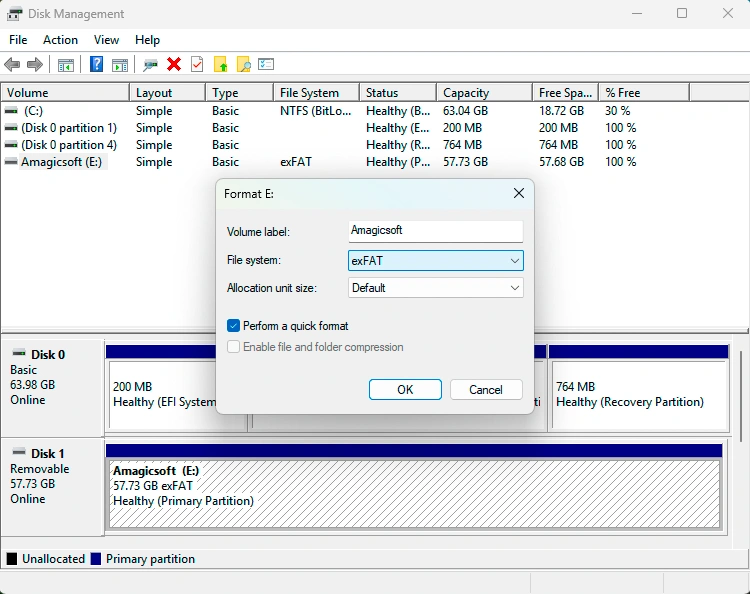
Method 1: Check the External Hard Drive in Disk Management
Before starting an external hard drive recover files process, confirm that Windows can still detect the device.
新聞 Windows + X, 選擇 磁碟管理, and locate the drive. Check its capacity, partition status, and drive letter.
If Disk Management sees the drive but File Explorer does not, you may have a drive-letter, partition, or file-system problem. Do not format the disk even if Windows prompts you. If the drive clicks, repeatedly disconnects, or fails to spin, stop DIY recovery.

Method 2: Restore Files from a Backup
Next, check File History, OneDrive, Google Drive, Dropbox, NAS storage, another external disk, or your normal backup system.
A backup is usually the safest solution. If no usable copy exists, move to 外接式硬碟機復原軟體.
Method 3: External Hard Drive Recover Files with Magic Data Recovery
When no usable backup exists, Magic Data Recovery provides a practical external hard drive recover files option for Windows users.
It supports common storage devices and many file types. Moreover, its graphical interface suits deletion, formatting, RAW partitions, and other logical data-loss cases on readable drives. Its scan, preview, and recovery workflow makes external hard drive file recovery easier.
步驟 1:下載並安裝 Magic Data Recovery
Download Magic Data Recovery and install it on a healthy drive. Do not install the program on the affected external disk because new installation data could overwrite lost files.
支援 Windows 7/8/10/11 和 Windows Server
Step 2: Select the External Hard Drive
Next, connect the drive, launch Magic Data Recovery, and select the disk or partition where the files disappeared.

步驟 3:掃描遺失的檔案
Start the scan. Meanwhile, avoid using the affected drive for other tasks.

Step 4: Preview the Recovery Results
After scanning, preview supported files and verify the ones you need.

步驟 5:將檔案復原至另一個磁碟機
Finally, save the files you need to another storage device. Never restore them to the source disk.
For a visual external hard drive recover files workflow, Magic Data Recovery is simpler than command-line recovery. However, software cannot restore fully overwritten data or repair severe physical damage.

方法 4:使用 Windows 檔案還原
Windows File Recovery is Microsoft’s command-line recovery utility:
winfr E: D: /regular /n *.docx
這裡,, E: is the source and D: is the destination; they must be different drives. The tool is free, but it requires correct syntax and mode selection. Therefore, beginners may prefer Magic Data Recovery for a graphical external hard drive recover files 過程。.

方法 5:還原先前版本
If File History or another backup feature created an earlier copy, right-click the original folder, choose 屬性, ,並開啟 先前版本. Restore a suitable version if Windows lists one.
However, this method depends on an existing backup and does not scan the drive for deleted data.
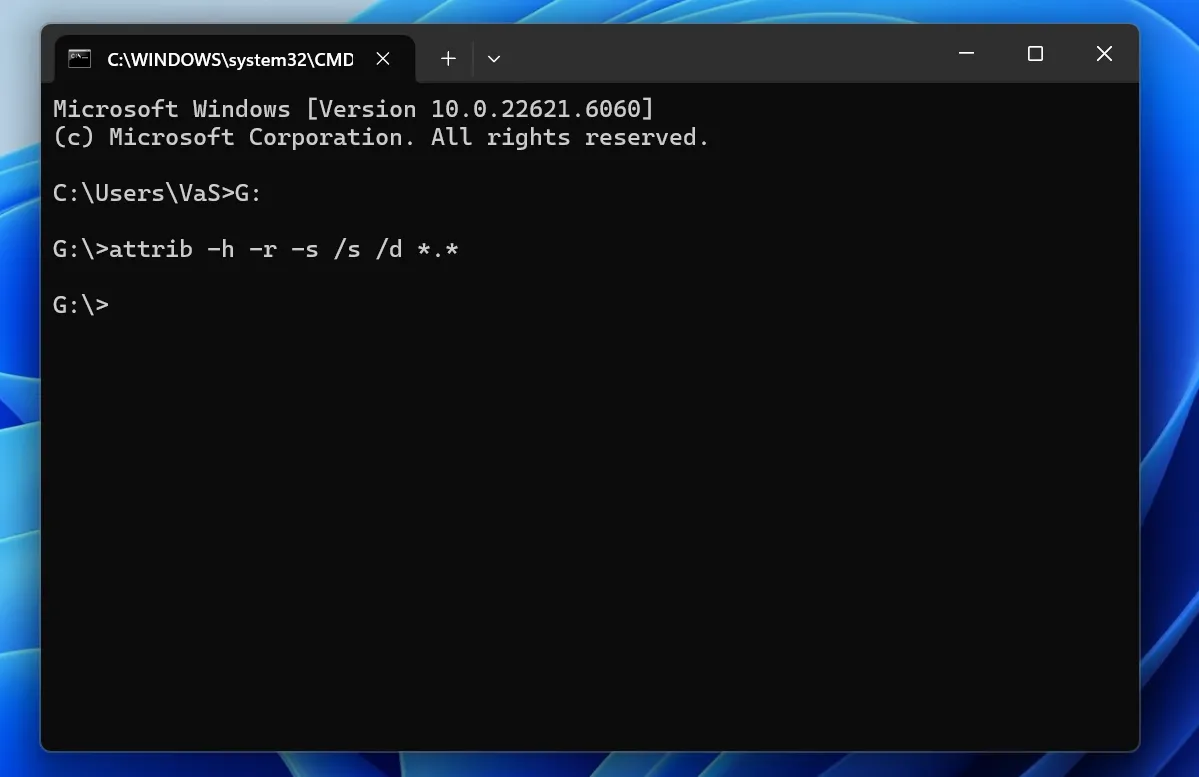
Method 6: Recover Hidden Files with CMD
Sometimes malware or file attributes hide existing files from File Explorer.
試試看:
attrib -h -r -s /s /d G:\*.*
更換 G: 使用正確的磁碟機代號。.
This command can reveal hidden files, but it cannot restore permanently deleted or overwritten data. Therefore, if files remain missing, use an external hard drive recover files 掃描。.

Method 7: Use a Professional Data Recovery Service
Stop DIY recovery if the drive clicks, grinds, repeatedly disconnects, smells burnt, no longer spins, or suffered liquid or impact damage. These symptoms can indicate physical failure, so use a professional recovery lab.
External Hard Drive Recover Files: Which Method Is Best?
The best method depends on the cause and drive condition.
解決方案 | 最適合 | 難度 |
磁碟管理 | Checking whether Windows detects the drive | 簡易 |
Backup / File History | Existing backup copies | 簡易 |
Magic Data Recovery | Deleted, formatted, RAW, or inaccessible data | 簡易 |
Windows 檔案復原 | Deleted and some formatted/corrupted cases | 進階 |
先前版本 | Earlier backup copies | 簡易 |
CMD | 隱藏檔案 | 中型 |
專業服務 | 物理故障 | No DIY work |
First, confirm that Windows detects the drive. Next, use an existing backup if available. If no backup contains the files and the drive remains readable, recovery software becomes the next logical choice.
因此,這 external hard drive recover files sequence keeps the recovery path clear.
Should You Run CHKDSK Before External Hard Drive Recover Files?
Usually, no, especially when important files have no backup.
CHKDSK checks and repairs file-system problems, but repair operations can change file-system metadata. Therefore, recover critical files first. Afterward, run CHKDSK or reformat the drive if needed.
If your priority is an external hard drive recover files operation, save the data before repairing the disk.
Common External Hard Drive Recovery Mistakes to Avoid
Avoid these common mistakes:
- Copying new files to the affected drive
- Formatting the disk when Windows prompts you
- Running repair tools before recovering important files
- 在受影響的磁碟上安裝復原軟體
- 將復原的檔案儲存回同一個磁碟機
- Repeatedly reconnecting a mechanically failing HDD
For example, copying new data after deletion may overwrite sectors that still contain lost files. As a result, even reliable 外接式硬碟機復原軟體 可能會失敗。.
如何預防未來的外接式硬碟機資料遺失
After recovery, keep another copy of important data, safely eject portable drives, and protect mechanical HDDs from drops. In addition, follow the 3-2-1 支援 principle: keep three copies, use two storage types, and keep one copy elsewhere.
Conclusion: External Hard Drive Recover Files Safely
最安全的 external hard drive recover files method depends on what caused the loss. First, confirm that Windows can detect the external drive. Next, check whether an existing backup contains the missing files. If no backup exists and the drive remains physically readable, recovery software becomes the practical next step. For physical failure, stop using the drive and seek professional help.
Magic Data Recovery is worth considering for Windows users who prefer a graphical workflow. It lets users select the affected drive, scan for lost data, preview supported files, and save recovered files elsewhere. In addition, it avoids the command-line learning curve of Windows File Recovery.
No tool can restore fully overwritten data or repair severe hardware damage. However, for common logical data loss, Magic Data Recovery provides a clear external hard drive recovery solution.
支援 Windows 7/8/10/11 和 Windows Server
FAQ - External Hard Drive Recover Files
我可以從外接式硬碟機復原檔案嗎?
Yes, many logical data-loss cases remain recoverable. You may restore deleted, formatted, or inaccessible files when new data has not overwritten the original storage space and the drive still works physically. For the best external hard drive recover files chance, stop using the disk first, confirm that Windows detects it, and then check backups or use recovery software.
How do I recover permanently deleted files from an external hard drive?
First, stop writing new data to the drive. Next, check File History, cloud storage, another backup drive, or NAS storage for another copy. If no backup exists, scan the disk with external hard drive recovery software such as Magic Data Recovery. Finally, save recovered files to another drive to avoid overwriting additional recoverable data.
我可以從格式化的外接式硬碟機復原檔案嗎?
Often, yes. Formatting can remove file-system references before new data overwrites every underlying sector. Therefore, an external hard drive recover files scan may still find data if you stop using the drive quickly. Do not format the disk again, add new files, or run unnecessary repair tools before attempting recovery.
How can I recover files from an external hard drive without software?
Check File History, Previous Versions, cloud storage, another backup drive, or a NAS backup. These methods can restore files without third-party software when another valid copy already exists. However, permanently deleted files, formatted partitions, and some corruption cases usually require dedicated external hard drive data recovery software or a professional recovery service.
Can I recover files if the external hard drive is not detected?
It depends on where Windows can detect the drive. If Disk Management sees it but File Explorer does not, a logical issue may still allow recovery. However, if the computer cannot detect the drive anywhere, or the HDD clicks, powers off, or repeatedly disconnects, stop DIY attempts and contact a professional recovery service.
在恢復檔案之前,我應該先執行 CHKDSK 嗎?
Usually not when important files have no backup. CHKDSK repairs file-system problems and may change disk structures during that process. Therefore, recover critical data first whenever possible. After you secure the files, you can run CHKDSK or reformat the drive to address remaining errors without putting the only recoverable copy at unnecessary risk.
Can a physically damaged external hard drive be recovered?
Sometimes, yes, but software is usually not the correct first solution. Clicking, grinding, liquid damage, severe impact, or a drive that no longer spins can indicate hardware failure. In that situation, disconnect the device and contact a professional recovery lab instead of repeatedly powering it on or testing multiple recovery applications.
Vasilii 是一位在該領域擁有約 10 年實務經驗的資料復原專家。在他的職業生涯中,他已成功解決數千個複雜的個案,包括刪除的檔案、格式化的硬碟機、遺失的磁碟分割和 RAW 檔案系統。他的專業知識涵蓋使用十六進位編輯器等專業工具的手動復原方法,以及使用復原軟體的進階自動解決方案。Vasilii 的使命是讓 IT 專業人士和一般使用者都能獲得可靠的資料復原知識,協助他們保護寶貴的數位資產。.