
Datenwiederherstellung auf Samsung-SD-Karten: So stellen Sie verlorene Dateien wieder her
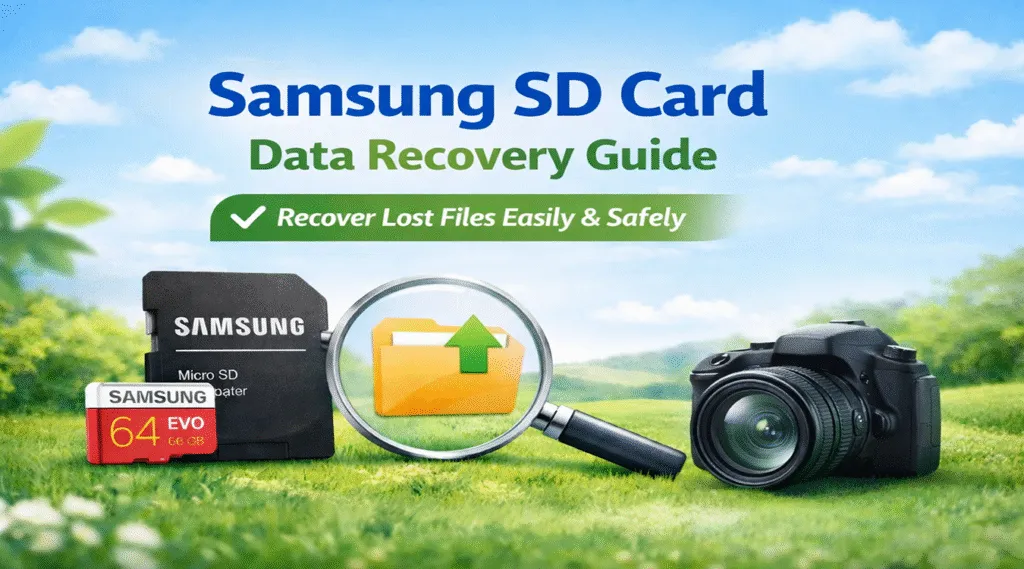
Samsung SD card data recovery is often possible when files have been accidentally deleted, the card was formatted, or its file system has become corrupted. The most important step is to stop using the card immediately, because taking new photos, recording videos, formatting the card, or saving new files may overwrite the lost data.
For logically damaged but still detectable cards, Magic Data Recovery can scan Samsung SD and microSD cards for lost photos, videos, documents, and other files. It supports recovery from accidental deletion, formatting, RAW file systems, inaccessible partitions, and other common data-loss scenarios, while allowing users to preview recoverable files before saving them to another drive.
This guide applies to Samsung-branded SD and microSD cards, including EVO, EVO Plus, EVO Select, and PRO Plus models, as well as removable memory cards used in Samsung phones, cameras, tablets, drones, and other devices. You will learn how to recover data safely, troubleshoot an undetected card, and determine when professional recovery may be necessary.
Before repairing or formatting the card, follow the recovery-first process below. For more general troubleshooting and recovery methods, visit our complete Anleitung zur Wiederherstellung von SD-Karten.
Unterstützt Windows 7/8/10/11 und Windows Server
Inhaltsübersicht
Quick Answer: How to Recover Data from a Samsung SD Card
To perform Samsung SD card data recovery safely:
- Stop using the SD or microSD card immediately.
- Remove it from the phone, camera, or other device.
- Connect it directly to a Windows computer using a reliable card reader.
- Do not format the card or run CHKDSK before recovering important files.
- Scan the card with data recovery software.
- Preview the found photos, videos, and documents.
- Save recovered files to your computer or another drive—not back to the Samsung card.
If the card is not detected by any computer, card reader, or device, it may have physical damage and require a professional recovery service.
Can Samsung SD Card Data Be Recovered?
n many logical data-loss situations, Samsung SD card data can still be recovered. Deleted files are usually not erased immediately; instead, their storage space is marked as available for reuse. A quick format may also remove file-system references without immediately overwriting every file.
Recovery may be possible when the card:
- Contains accidentally deleted photos, videos, or documents
- Was quick-formatted in a phone, camera, or computer
- Appears as RAW or asks to be formatted
- Has a damaged or unsupported file system
- Is visible in Disk Management but cannot be opened
- Contains missing, hidden, or inaccessible folders
Software cannot repair a cracked, burned, severely bent, or electrically damaged SD card. If the card is not detected in Disk Management after testing another reader and computer, stop repeatedly reconnecting it and consider professional recovery.
Common Samsung SD Card Data Loss Scenarios
1. Versehentliche Löschung
Files deleted from an SD card normally bypass the Windows Recycle Bin. Recovery remains possible until the corresponding storage sectors are overwritten.
2. Versehentliche Formatierung
A Samsung SD or microSD card may be formatted accidentally in a camera, Android phone, Windows computer, or another device. Quick formatting generally creates a new file-system structure, so old files may still be detectable through a deep scan.
3. RAW or “You Need to Format the Disk” Error
File-system corruption can cause the card to appear as RAW or trigger a formatting message. Do not accept the format prompt before recovering important data.
4. Samsung SD Card Not Showing Up
A missing drive letter, damaged reader, USB connection problem, outdated driver, or corrupted partition may prevent the card from appearing in File Explorer.
5. Files Missing from a Samsung Phone
When a microSD card remains inside a Samsung phone, Android access restrictions may prevent desktop software from scanning the card fully. Removing the card and connecting it through a reader generally provides more direct access.
6. Sachschäden
Cracks, damaged contacts, water exposure, overheating, and controller failure cannot be corrected with recovery software.
Auswahl der besten Samsung SD Card Recovery Software
Nicht jede Wiederherstellungslösung funktioniert auf dieselbe Weise. Allgemeine Systemdienstprogramme reparieren oft Fehler, können aber gelöschte Dateien nicht finden. Daher benötigen die Benutzer spezialisierte Samsung SD-Karte Wiederherstellungssoftware das tiefer scannt als Standardwerkzeuge.
Warum ein spezielles Samsung SD Card Recovery Tool wichtig ist
Ein professionelles Wiederherstellungstool analysiert die Rohsektoren des Speichers, anstatt sich nur auf die Dateiindizes zu verlassen. Dadurch kann es wiederherstellbare Daten identifizieren, die normalen Dienstprogrammen völlig entgehen. Gleichzeitig vermeidet ein gutes Tool die Veränderung der Originaldaten, was das Wiederherstellungsrisiko verringert.
Why Use Magic Data Recovery for a Samsung SD Card?
Magic Data Recovery is a Windows-based recovery tool designed to scan removable storage devices, including Samsung SD and microSD cards. It supports common logical data-loss scenarios such as accidental deletion, quick formatting, RAW file systems, inaccessible partitions, and corrupted directory structures.
For Samsung memory-card recovery, its main advantages include:
- Recovery of photos, videos, audio, documents, archives, and other files
- Unterstützung für mehr als 5.000 Dateiformate
- Deep scanning for formatted and logically corrupted cards
- Dateivorschau vor der Wiederherstellung
- Filters for locating files by type, name, size, and date
- Recovery to another drive to avoid overwriting source data
The free version can be used to scan the Samsung SD card, review the results, preview supported files, and recover up to the product’s current free recovery allowance.
Wie man Samsung SD-Kartendaten mit Magic Data Recovery wiederherstellt
Wenn Sie einen sicheren und strukturierten Ansatz für Samsung SD-Karte Datenrettung, Magic Data Recovery bietet einen Arbeitsablauf, den die meisten Benutzer leicht nachvollziehen können. Der richtige Umgang mit der SD-Karte ist jedoch während des gesamten Prozesses unerlässlich.
Schritt 1: Herunterladen und Installieren von Magic Data Recovery
Laden Sie zunächst Magic Data Recovery herunter und installieren Sie es auf Ihrem Computer. Am wichtigsten ist es, die Software auf einem Laufwerk zu installieren anders als bei der betroffenen Samsung SD-Karte. Dieser Schritt verhindert ein versehentliches Überschreiben und hilft, wiederherstellbare Daten zu schützen.
Unterstützt Windows 7/8/10/11 und Windows Server
Schritt 2: Wählen Sie die zu scannende Samsung SD-Karte
Als Nächstes schließen Sie Ihre Samsung SD-Karte mit einem Kartenleser an den Computer an. Danach starten Sie Magic Data Recovery. Wählen Sie auf der Hauptschnittstelle die Samsung SD-Karte aus, die Sie scannen möchten, und starten Sie dann den Wiederherstellungsprozess.

Schritt 3: Scannen Sie die Samsung SD-Karte nach gelöschten Dateien
Sobald der Scan beginnt, führt die Software automatisch einen erweiterten Scan durch. Währenddessen zeigt Magic Data Recovery die wiederherstellbaren Dateien in Echtzeit an, während der Scanvorgang fortschreitet. Daher können Sie wichtige Dateien bereits vor Abschluss des Scans identifizieren.

Schritt 4: Vorschau gelöschter Dateien vor der Wiederherstellung
Verwenden Sie nach Abschluss des Scans die Vorschaufunktion, um den Dateiinhalt zu überprüfen. Sie können zum Beispiel eine Vorschau von Fotos, Videos oder Dokumenten anzeigen, um zu überprüfen, ob sie intakt sind. Außerdem können Sie mit der Vorschau nur das wiederherstellen, was Sie brauchen, was Zeit und Speicherplatz spart.

Schritt 5: Dateien an einem sicheren Ort wiederherstellen
Wählen Sie schließlich die Dateien aus, die Sie wiederherstellen möchten, und wählen Sie ein sicheres Ziel. Speichern Sie wiederhergestellte Daten immer auf Ihrem Computer, einem anderen Laufwerk oder einem Cloud-Speicher. Stellen Sie niemals Dateien auf derselben Samsung SD-Karte wieder her, da dies andere verlorene Daten überschreiben und den Wiederherstellungserfolg verringern kann.

What If the Samsung SD Card Is Not Detected?
If the Samsung SD card does not appear in File Explorer, check it in Windows Disk Management.
Versuchen Sie die folgenden Schritte:
- Use another USB port.
- Test another card reader or SD adapter.
- Connect the card to another computer.
- Check whether it appears in Disk Management.
- Assign a drive letter only if the partition is healthy and simply lacks one.
- If the card appears as RAW or unallocated, recover the data before formatting.
If the card is not detected by any computer or card reader, software will normally be unable to scan it. This may indicate damaged contacts, controller failure, or other physical problems.
Should You Run CHKDSK Before Samsung SD Card Recovery?
Avoid running CHKDSK before recovering important files from a corrupted, RAW, or unstable Samsung SD card. CHKDSK is a file-system repair utility, not a deleted-file recovery tool. Its purpose is to modify file-system structures and repair detected errors.
A safer sequence is:
- Scan and recover important files.
- Confirm that the recovered files open correctly.
- Sichern Sie die wiederhergestellten Daten.
- Run CHKDSK or reformat the card only after recovery.
If the card contains no important data, you may proceed directly with repair or formatting.
How to Recover Data from an SD Card Used in a Samsung Phone
If the lost files were stored on a removable microSD card inside a Samsung Galaxy phone, power off the phone and remove the card when possible. Connect the card directly to a computer through a card reader.
Direct card-reader access is generally preferable because the recovery program can scan the memory card as a storage device. When the card remains inside the phone, Android permissions and USB connection modes may restrict low-level access.
Do not install a recovery app on the affected microSD card, because installation and scanning may create new data and overwrite deleted files.
Tipps zur Verbesserung der Samsung SD Card Datenrettung Erfolg
Auch die besten Samsung SD-Karte Wiederherstellungstool funktioniert besser, wenn sie mit der richtigen Handhabung kombiniert wird. Beachten Sie daher diese bewährten Tipps:
- Stellen Sie die Verwendung der SD-Karte sofort ein
- Vermeiden Sie die Neuformatierung der Karte
- Verwenden Sie ein zuverlässiges Kartenlesegerät
- Wiederherstellung von Dateien auf einem anderen Speichergerät
- So bald wie möglich mit der Wiederherstellung beginnen
Infolgedessen verbessern sich die Erfolgsquoten bei der Wiederherstellung erheblich.
Schlussfolgerung
Samsung SD card data recovery is possible in many cases involving accidental deletion, quick formatting, RAW file systems, inaccessible partitions, and logical corruption. Recovery success largely depends on whether the original storage sectors have been overwritten, so stop using the card as soon as data loss is discovered.
For the safest workflow, connect the Samsung SD or microSD card directly to a Windows computer, scan it with Magic Data Recovery, preview the found files, and save recovered data to another drive. Repair commands and formatting should only be considered after important files have been recovered.
For additional recovery methods, troubleshooting instructions, and prevention advice, visit our complete Anleitung zur Wiederherstellung von SD-Karten.
Unterstützt Windows 7/8/10/11 und Windows Server
FAQs über Samsung SD-Karte Datenrettung
Can I recover deleted files from a Samsung SD card?
Can I recover data from a formatted Samsung SD card?
How do I recover photos from a Samsung microSD card?
What should I do if my Samsung SD card says it needs to be formatted?
Can data be recovered from a corrupted Samsung SD card?
Why is my Samsung phone not reading the SD card?
Should I run CHKDSK on a corrupted Samsung SD card?
Bietet Samsung eine offizielle Software zur Wiederherstellung von SD-Karten an?

Vasilii ist ein Datenrettungsspezialist mit rund 10 Jahren praktischer Erfahrung in diesem Bereich. Im Laufe seiner Karriere hat er Tausende von komplexen Fällen mit gelöschten Dateien, formatierten Laufwerken, verlorenen Partitionen und RAW-Dateisystemen erfolgreich gelöst. Sein Fachwissen umfasst sowohl manuelle Wiederherstellungsmethoden mit professionellen Tools wie Hex-Editoren als auch fortschrittliche automatische Lösungen mit Wiederherstellungssoftware. Vasilii hat es sich zur Aufgabe gemacht, zuverlässiges Wissen zur Datenwiederherstellung sowohl IT-Fachleuten als auch normalen Nutzern zugänglich zu machen und ihnen dabei zu helfen, ihre wertvollen digitalen Ressourcen zu schützen.