
Unallocated vs Free Space in Windows: Key Differences
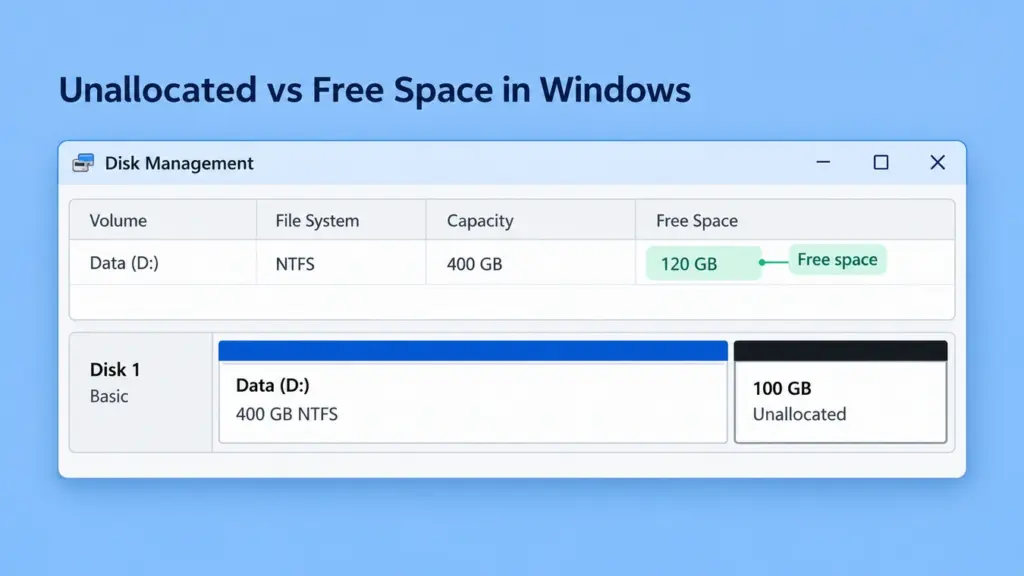
Beim Vergleich unallocated vs free space in Windows, the key difference is where the capacity belongs. Unallocated space sits outside the partitions or volumes currently assigned on a disk. File system free space is available capacity inside an existing formatted volume. Windows can normally save files into the latter, but it does not automatically add neighboring unallocated space to that drive.
These labels matter when a drive fills up, storage capacity appears to be missing, or a previously accessible drive disappears. There is also a third meaning of “Free space” on older MBR disk layouts. This guide focuses on identifying these states on basic disks in Windows 10 and Windows 11 before making changes.
Inhaltsübersicht
Unallocated vs Free Space at a Glance
Both terms can describe capacity that is not currently being used for ordinary files, but the next available action is different.
Vergleich | File system free space | Unallocated disk space |
Standort | Inside an existing formatted volume | Outside currently assigned partition or volume regions |
Managed by | The file system, such as NTFS or exFAT | Disk partitioning and volume-management tools |
Typical display | Free space in drive Properties | A separate Unallocated region in Disk Management |
Ready for ordinary file storage | Normally yes, within that volume | No, until incorporated into a usable volume |
Effect of permanently deleting files | Usually increases free space | Does not normally create unallocated space |
Meaning for old data | Does not prove previous content was erased | Does not prove previous content was erased |
Beispiel: A 500 GB data volume reports 150 GB free, while Disk Management shows another 100 GB as Unallocated beside it. The data volume still has 150 GB available. The extra region is not included in its capacity until the layout is changed appropriately.
For a full-drive warning, check the affected volume’s free space first. Unallocated capacity elsewhere does not automatically resolve the warning.
File System Free Space Remains Inside the Drive
A file system keeps track of the storage available within its own boundaries. On NTFS, the $Bitmap metadata file records which clusters are in use and which are free. A cluster is a unit that the file system uses to allocate storage.
Free clusters can be scattered across a volume. A report of 100 GB free does not mean there is a single empty 100 GB region at the end of the partition.
When a file is permanently deleted, its storage can become available for reuse without changing the partition’s start or end position. Moving a file to the Recycle Bin may leave it occupying space until it is permanently removed.
This is the central distinction in file system free space vs unallocated space: the first concerns allocation within a file system; the second concerns allocation in the disk layout.
Free capacity also does not override other restrictions. For example, a FAT32 drive can have plenty of space but still reject a file larger than its per-file limit. That is a FAT32 file size limitation, rather than evidence that the remaining capacity is unallocated.
Unallocated Space Is Outside the Current Storage Layout
Disk Management displays unallocated space as a separate region, normally with a black bar. It has no ordinary drive letter because it is not an accessible file-storage volume.
Unallocated space can exist for several reasons:
- A new disk has not yet been fully partitioned.
- An existing volume was deliberately shrunk.
- Eine Partition wurde gelöscht.
- A copied disk layout did not use the larger destination’s full capacity.
- Windows cannot interpret partition information that previously described the region.
The label alone does not distinguish these cases. A new blank SSD and a previously used SSD with missing partition information may both show unallocated capacity, although their appropriate next steps differ.
Unallocated space is not a file system. It also does not mean that every sector contains zeros. If a region previously held important files, creating a new volume can write new structures into storage that may still contain recoverable information.
The Special “Free Space” Label on MBR Disks
Windows uses “Free space” in another context: space inside an MBR extended partition that is not occupied by a logical drive.
An extended partition acts as a container. Deleting one logical drive can leave the container in place, with its newly available area displayed as Free space, traditionally in green.
Windows label or field | Was darin beschrieben wird |
Free space in File Explorer Properties | Available capacity inside the selected file system |
Free Space in Disk Management’s upper volume list | Available capacity reported for that volume |
Free space inside a green extended-partition container | Capacity available for logical drives within the MBR container |
Unallocated in the lower disk map | Capacity outside currently assigned storage regions |
The green region is not the same as free clusters inside an NTFS drive. It also has a container boundary that black-bar unallocated space outside the extended partition does not have.
The phrase “free space vs unallocated partition” is therefore imprecise: an unallocated region is not itself a partition. Read the region’s label and boundaries before deciding what to change.
GPT does not use MBR extended partitions or logical drives. The GPT partition table overview explains that separate layout structure. Do not remove an extended partition merely to change the displayed color, especially while it still contains logical drives.
Checking Each Type of Space in Windows
Read the Disk Management Map
- Presse Fenster + R, eingeben
diskmgmt.msc, und drücken Sie die Eingabetaste. - Identify the correct disk using its capacity and device information. Do not assume it is Disk 0.
- In the upper list, inspect the intended data volume’s Kapazität, Free Space, und % Free.
- In the lower map, look for a separate Nicht zugewiesene region or an extended-partition container labeled Free space.
- Compare the labels with the legend rather than relying on color alone.
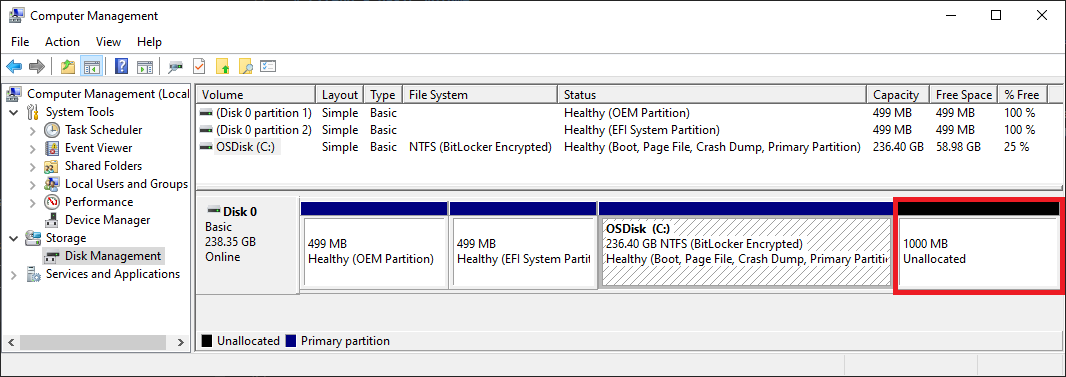
Microsoft Learn example: the C: volume reports 58.98 GB free, while a separate 1000 MB region is Unallocated. The red outline is part of the source screenshot.
The system partitions in that screenshot also illustrate an exception: Disk Management can report system or recovery partitions as 100% free even when they contain essential files. Do not interpret that percentage as permission to remove them.
Check an Accessible Volume Separately
For a mounted data drive, open Dieser PC, right-click the drive, and select Eigenschaften. The Free space figure belongs to that drive’s file system and excludes neighboring unallocated regions.
Windows PowerShell provides a read-only alternative:
Get-Volume |- Format-Table DriveLetter, FileSystemLabel, FileSystem, Size, SizeRemaining
For a normal recognized data volume, Größe reports its capacity and SizeRemaining reports its remaining space. Explicitly selected size properties are in bytes. Neither field adds unallocated capacity from elsewhere on the disk.
How Common Operations Change the Space
Betrieb | Typical result on a basic disk |
Permanently delete files | Releases file-system storage without changing partition boundaries |
Format an existing volume | Creates a file system within the existing region; the partition remains allocated |
Shrink an NTFS volume | Reduces its boundary and releases space after it; MBR container boundaries affect the displayed state |
Delete a partition or logical drive | Removes the associated volume; space becomes Unallocated or Free space inside an extended partition |
Extend a supported volume | Incorporates available adjacent space into the larger volume |
Create a separate volume | Allocates space to a new drive rather than enlarging the existing one |
Windows may not be able to shrink an NTFS volume by all of its reported free capacity. Paging files or shadow-copy storage can limit how far the built-in shrink operation can move the end boundary.
For basic disks, Disk Management generally needs unallocated space on the same disk immediately to the right of the volume being extended. Its current extension guidance supports NTFS and ReFS; tools and configurations differ. Check Microsoft’s volume extension requirements before changing the layout.
Back up first. After an intentional resize, verify the new boundary in Disk Management and the intended drive’s capacity in Properties. Confirm existing files still open.
Choosing the Next Step from the Actual Situation
Situation | Der geeignete nächste Schritt |
The drive is nearly full but its partition still exists | Free capacity within that drive or plan a backed-up resize |
A known-empty new disk has unused capacity | Create a volume if it matches the intended storage plan |
A previously working drive has become Unallocated | Protect needed files before creating or formatting anything |
Windows shows RAW instead of NTFS or exFAT | Investigate file-system recognition; do not treat RAW as ordinary free space |
A larger replacement SSD has unused capacity | Compare the copied partition boundaries before extending or creating another volume |
For unexpected partition loss, follow the Anleitung zur Wiederherstellung verlorener Partitionsdaten. Recovering files and restoring partition-table entries are different tasks; creating a new volume does neither.
If the partition still exists but was accidentally formatted, use the separate guide to recovering files from a formatted partition. An empty-looking formatted drive and a missing partition require different assessments.
FAQs
Is unallocated space always a sign of damage?
Can files be saved directly to unallocated space?
Does formatting make a drive unallocated?
Why does DiskPart show little Free space when File Explorer shows plenty?
Listendatenträger concerns space outside allocated partitions. File Explorer reports free capacity within a selected volume. They measure different things.Can free space on another drive fix a full system drive?
Does unallocated space need to be removed?

Jason ist ein Spezialist für Datenwiederherstellung und technischen Support mit über 15 Jahren praktischer Erfahrung. Er hat intensiv mit Endnutzern zusammengearbeitet, schwierige Fälle von Datenverlust behoben und praktische Lösungen für versehentlich gelöschte Daten, formatierte Laufwerke, beschädigte Dateisysteme, verlorene Partitionen, Systemausfälle und andere Notfälle im Bereich der Datenwiederherstellung bereitgestellt. Zu seinen Fachgebieten gehören außerdem Datensicherung und -wiederherstellung, Dateireparatur sowie Notfallwiederherstellung, wobei er besonderen Wert auf eine sichere, zuverlässige und technisch korrekte Beratung legt.