
Cómo recuperar archivos eliminados de OneDrive: guía paso a paso
A folder deleted on a laptop can disappear from OneDrive and other connected devices soon afterward. That does not always mean every copy is gone. To Recuperar archivos eliminados de OneDrive, start with the web Recycle Bin, then check the device and any independent backups.
Recovery depends on what OneDrive still retains and whether the file ever existed locally. A deleted cloud file may remain restorable within the applicable retention period. A downloaded copy may have a separate recovery path. An online-only placeholder, however, is not a complete local copy.
For now, avoid further cleanup and check the correct OneDrive account. This guide helps identify the remaining copies, choose a suitable recovery method, and verify the result. For other deletion scenarios, see our guía de recuperación de archivos eliminados.
Índice
Before Recovery: Protect Any Remaining Copies
Do not empty either Recycle Bin, reset OneDrive, or reinstall Windows while investigating the deletion. If ongoing changes are spreading between devices, pause OneDrive sync on affected computers. Pausing cannot reverse a deletion that has already synced.
If another computer may still hold an intact offline copy, keep it disconnected while checking. Copy usable files to independent storage before reconnecting.
When local disk recovery may be necessary, minimize use of the original drive. Save downloads, software installations, and recovered files elsewhere. Prefer another physical drive rather than another folder on the same disk.
Quick Answer: Choose the Right OneDrive Recovery Method
Abrir OneDrive en la web, seleccione Papelera de reciclaje, choose the deleted items, and select Restaurar. If they are missing, use the situation below to decide what to check next.
Situación | Qué hay que comprobar primero | Limitación principal |
Deleted file appears in OneDrive Recycle Bin | Restore it online | The item must still be retained |
File was deleted from a downloaded local folder | Windows Recycle Bin or Mac Trash | A cloud deletion does not necessarily leave an item here |
Work or school file is missing from the first bin | Second-stage recycle bin and IT administrator | Access and retention depend on the organization |
Many files were deleted or changed together | Restore your OneDrive, if available | It undoes a batch of changes and has a limited window |
File exists but contains the wrong content | Historial de versiones | An appropriate earlier version must exist |
File is permanently deleted but was backed up | Independent backup or another preserved copy | The backup must contain the actual file content |
No retained copy exists, but the file was downloaded locally | Local disk recovery | Overwriting and SSD TRIM may prevent recovery |
File was always online-only | Cloud recovery, owner, or administrator | Local software cannot recover content never stored locally |
These methods recover different copies. Checking one empty bin does not establish that every recovery route has failed.
Confirm Deletion Before Scanning a Drive
First, search OneDrive online by filename or part of the name. Confirm the signed-in email address: personal and work accounts have separate storage and separate bins.
If the file appears online but is missing in File Explorer, follow our Guía sobre la desaparición de archivos de OneDrive. That situation calls for account, path, or sync checks before deleted-file recovery.
If the file belonged to someone else, ask the owner to check the original location. Losing access to a shared folder is different from deleting a file you own.
Finally, establish whether the file was downloaded. OneDrive Files On-Demand can display names and thumbnails without keeping complete file content on the computer. A blue cloud icon indicates an online-only file; opening it downloads it, while Guárdalo siempre en este dispositivo keeps it available locally. Microsoft explains these file states here.
Method 1: Restore Deleted Files from OneDrive Recycle Bin
Lo mejor para: Files that were uploaded to OneDrive and are still in its web Recycle Bin.
This is usually the quickest way to restore OneDrive deleted files because it uses the retained cloud copy without scanning a disk.
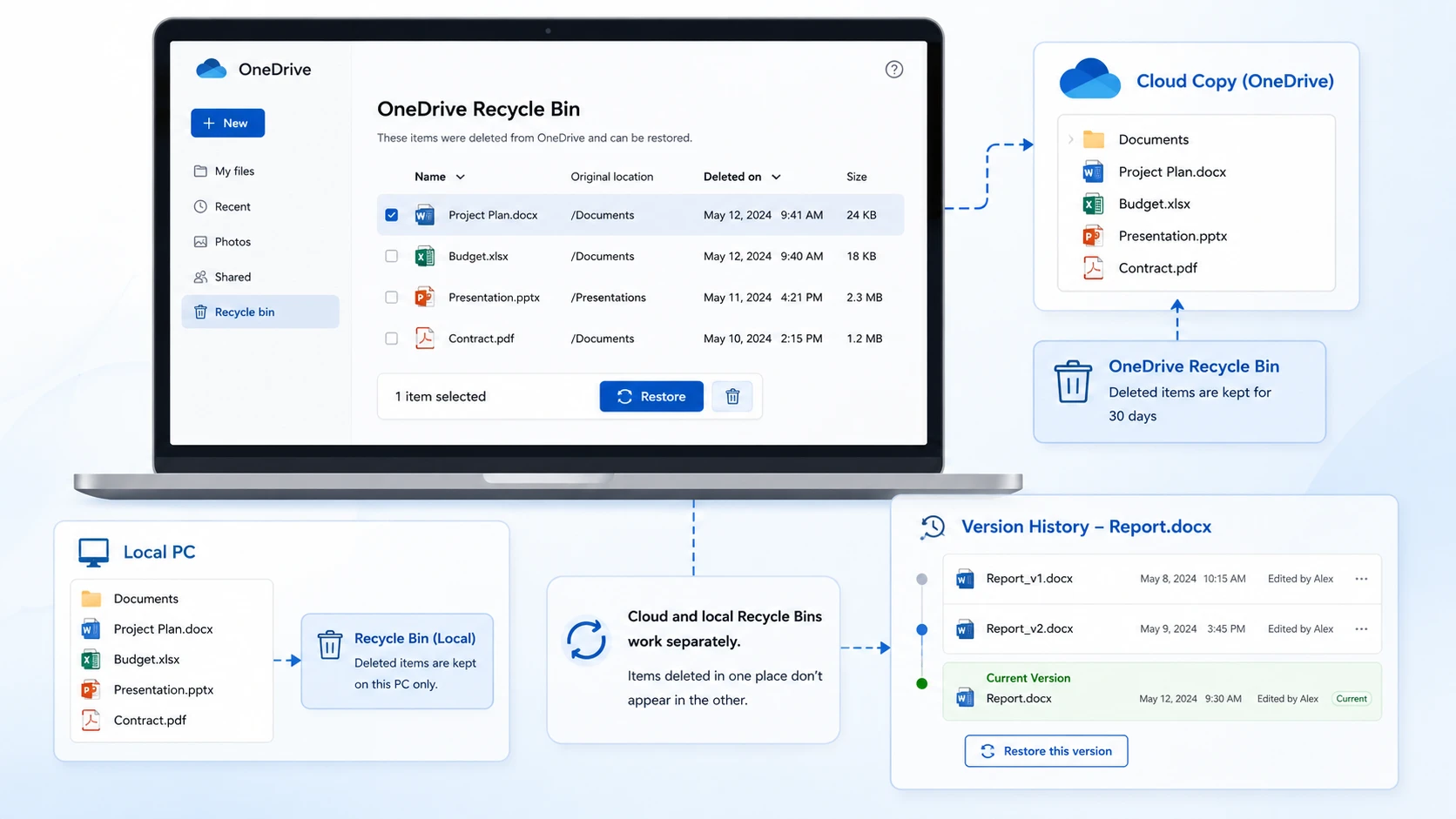
- Inicia sesión en OneDrive with the account that owned the files.
- Abrir Papelera de reciclaje en el panel de navegación.
- Selecciona los archivos o carpetas que necesites.
- Seleccione Restaurar.
- Open the original folder online and check the restored content.
For Personal Vault files, use Mostrar elementos del «Personal Vault» and unlock the vault if prompted. Otherwise, deleted vault items may not be visible.
How Long Does OneDrive Keep Deleted Files?
Microsoft documents these usual retention periods:
Account type | Usual Recycle Bin period | Important distinction |
Personal Microsoft account | 30 días | Do not wait until the deadline to restore |
Cuenta de trabajo o de estudios | 93 days, unless the administrator changed the setting | The first and second stages share the retention period |
Check Microsoft’s OneDrive restoration guidance and, for organizational accounts, confirm the applicable settings with IT.
Resultado esperado: The items return to their original location. Open important files rather than relying only on their filenames.
If they are absent: Check the local bin and, for work or school accounts, the second-stage bin. An empty personal OneDrive bin does not provide the same administrator recovery route as an organizational account.
Method 2: Check Windows Recycle Bin or Mac Trash
Lo mejor para: Downloaded files deleted locally through a normal deletion operation.
The device bin and OneDrive web bin are separate. A file missing from one may still be in the other.
En Windows, abre Papelera de reciclaje, find the item, right-click it, and select Restaurar. On a Mac, open Basura, locate the file, and select Volver a poner.
Check the restored file locally. Resume sync only after confirming the unwanted deletion has stopped, then verify the cloud copy separately.
Limitación: Files deleted from the cloud and deleted online-only files do not appear in the computer’s Recycle Bin or Trash, according to Microsoft’s recovery instructions. Shift+Delete bypasses the Windows bin; it should not be treated as proof that the OneDrive web bin is also empty.
If this fails: Look for an existing backup before attempting local disk recovery.
Method 3: Check the Second-Stage Bin for Work or School Accounts
Lo mejor para: Organizational OneDrive items removed from the first-stage bin but still retained in the second stage.
Personal OneDrive accounts do not have this same two-stage recovery workflow.
- Open the work or school OneDrive web Papelera de reciclaje.
- Busque papelera de reciclaje de segunda etapa near the bottom of the page.
- If accessible, select the missing items and restore them.
- If the option or items are unavailable, contact the Microsoft 365 administrator.
Moving between stages does no start a fresh 93-day period. The retention clock runs from the original deletion, as explained in Microsoft’s site collection Recycle Bin documentation.
Give IT the filename, original path, owner account, and approximate deletion time. Ask whether organizational retention or a configured backup preserves another copy. Those protections must already apply; they are not automatically available for every account.
Resultado esperado: A retained item returns to its location, or IT identifies another applicable recovery route.
If this fails: Check independent backups and whether complete file content existed on a local device. Avoid assuming that Microsoft Support can restore every permanently deleted item.
Method 4: Use Restore Your OneDrive for a Batch of Changes
Lo mejor para: Many deletions or unwanted changes within the last 30 days, with eligible Microsoft 365 access.
For one deleted document, restoring that item is usually more precise. A full rollback also reverses useful changes made after the selected point.
- Sign in to OneDrive online.
- For an eligible personal account, open Settings → Options → Restore your OneDrive. For work or school accounts, look under Settings → Restore OneDrive.
- Choose a date or custom time before the incident.
- Revisa el cuadro de actividades y las acciones seleccionadas.
- Preserve any newer files needed, then confirm Restaurar.
Files created after the restore point move to the Recycle Bin. This feature cannot recover files permanently purged from the OneDrive Recycle Bin. See Microsoft’s Restore your OneDrive instructions.
If malware caused the changes, secure affected devices before restoring and resuming synchronization.
Resultado esperado: Selected changes are reversed. Check the affected folders and important recent work.
If unavailable or unsuccessful: Try an independent backup or administrator recovery where applicable.
Method 5: Restore an Earlier Version When the File Still Exists
Lo mejor para: A document, image, or other file that remains present but has been overwritten or changed incorrectly.
Version History addresses changed content, not the absence of a permanently deleted file.
- Find the existing file in OneDrive online.
- Haga clic con el botón derecho y seleccione Historial de versiones.
- Consulta las versiones y fechas disponibles.
- Select the menu beside the required version and choose Restaurar.
- Open the file and verify its contents.
Microsoft’s Version History guide explains that this feature supports multiple file types, not just Office documents. Available history depends on the file and applicable settings.
Resultado esperado: The selected earlier version becomes the current version.
If there is no usable version: Check a separate backup. Repeatedly reopening Version History will not create missing historical copies.
Method 6: Recover OneDrive Files from an Independent Backup
Lo mejor para: Files captured by File History, Time Machine, an external backup, or a configured organizational backup before deletion.
A known, usable backup is preferable to scanning for uncertain remnants. However, a backup must contain the actual file data. Do not assume that backing up a folder of online-only placeholders captured its cloud contents.
Historial de archivos de Windows o versiones anteriores
- Connect the backup drive, if required.
- Right-click the folder that originally contained the file.
- Seleccione Restaurar versiones anteriores.
- Choose a snapshot from before the deletion and inspect it.
- Utilice Restaurar a, where available, to recover into a separate location.
These options require prior protection of the relevant files. Turning on File History now cannot recreate a backup from before deletion. Microsoft’s Instrucciones sobre el historial de archivos also explain how to inspect versions before restoring.
Other Copies to Check
Browse the relevant date in a Mac Time Machine backup or another backup application. Also check an external drive, an email attachment, a previously exported project, or a colleague’s authorized copy.
Resultado esperado: A complete file opens from the backup destination.
If no copy exists: Local recovery is an option only if the file’s content previously existed on accessible local storage.
Method 7: Recover Deleted Local Copies with Magic Data Recovery
Lo mejor para: Deleted Windows files that were downloaded or created locally, have no usable retained copy, and were stored on a drive that remains stable and readable.
Magic Data Recovery scans local storage. For OneDrive recovery, its role is to look for the former downloaded or synced copy. It cannot scan Microsoft’s cloud servers or reconstruct an online-only file that was never downloaded.
The product supports recovery scenarios involving deletion, formatting, and file system errors. In this article, the relevant question is narrower: does the drive still contain usable data from the deleted OneDrive file?
Select the Original Storage Location
Common sync folder names include:
C:\NUsuNombreUnDriveC:\Users\YourName\OneDrive - OrganizationName- Desktop, Documents, or Pictures redirected into OneDrive
These are examples. Check the actual folder path, especially if OneDrive was moved to another drive. Scan the drive that held the file content, not an unrelated disk or the OneDrive website.
Scan, Preview, and Recover to Another Drive
1. Prepare another physical drive for recovered files.
2. Download and install Magic Data Recovery away from the affected drive where practical. For valuable files deleted from a system drive, consider assessing that drive from another computer with qualified assistance.
Compatible con Windows 7/8/10/11 y Windows Server
3. Launch the software and select the original drive or partition.
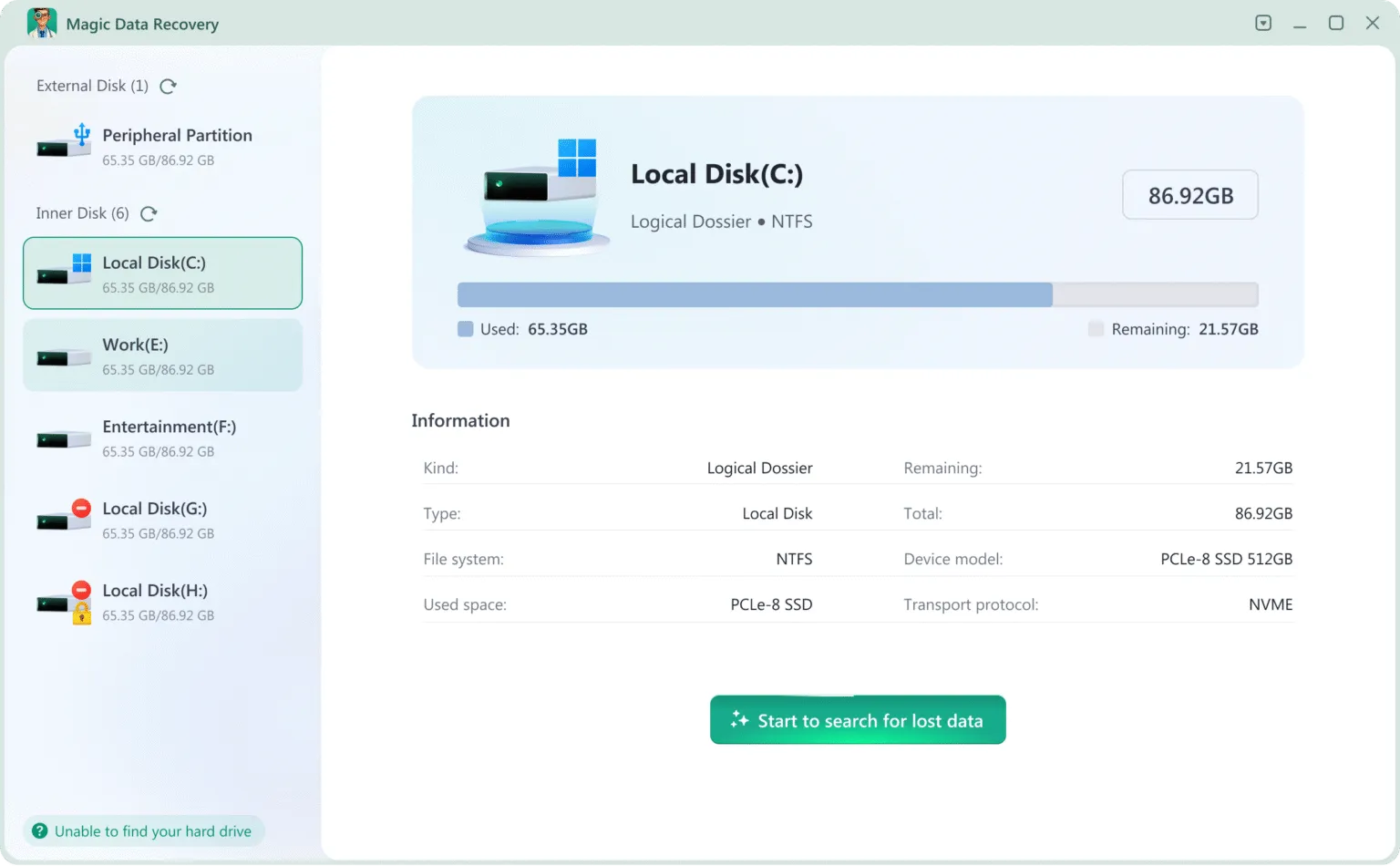
4. Start the scan and review the results.
5. Search by filename or filter by file type where available. Folder names may be missing from some results.
6. Preview supported files and compare their contents and sizes.

7. Recover the selected items to the separate drive.
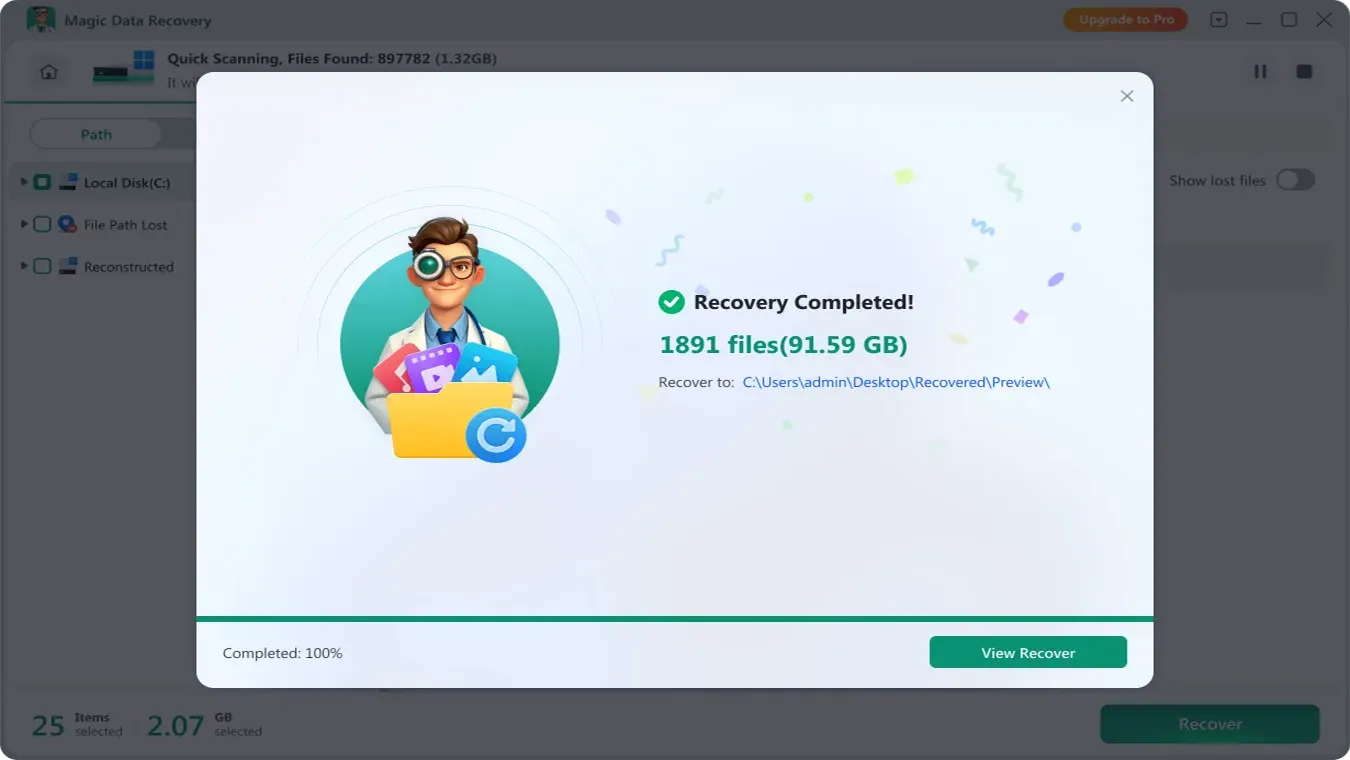
8. Open the saved files in their usual applications.
For example, a spreadsheet created locally and deleted before upload has no cloud copy to restore. Local recovery may still be worth assessing. This is an illustrative scenario, not a tested recovery result.
What Local Recovery Cannot Promise
A found filename does not establish that the contents are intact. New writes may overwrite deleted data, and SSD TRIM can make deleted content unavailable even when little time has passed. Preview is a useful check, but opening the saved file provides stronger confirmation.
Neither Magic Data Recovery nor another local tool can recover data that never existed on the scanned drive. Do not keep trying scanners for an exclusively cloud-only file.
If local recovery fits the case, review Magic Data Recovery, check the current license terms, and assess the results before relying on this route.
What If OneDrive Deleted Files Are Not in Recycle Bin?
Work through this checklist before concluding that the files are permanently lost:
- Verify the owner account and search OneDrive online.
- Show Personal Vault items if relevant.
- Check the owner’s storage for a shared file.
- Check the local bin for a locally deleted downloaded copy.
- Check the second-stage bin and IT recovery options for work or school accounts.
- Inspect an independent backup or preserved offline copy.
- Consider local disk recovery only where full file content existed.
Restore your OneDrive is useful for eligible batch incidents, but it does not bypass permanent deletion. Likewise, Version History applies to an existing file rather than serving as an alternative recycle bin.
A new file that was deleted before its first upload requires local or backup recovery. Deleting an already uploaded file while offline is different: a cloud copy may still exist until the queued deletion synchronizes. Preserve any intact copy before reconnecting the affected device.
Verify Recovered Files Before Resuming Normal Use
A successful recovery means the needed content is usable, not merely that a name appears in a list.
- Open documents and check essential pages, formulas, and attachments.
- Inspect photos at full size and play videos beyond the first few seconds.
- Test archives by extracting their contents.
- Check the file version and date against the work needed.
Keep a verified copy outside the active sync folder. Resume synchronization after the deletion or malware issue is resolved, then confirm the online files and a second device where appropriate. Do not delete recovery output until the independent copy is verified.
Cuándo dejar de intentar recuperarse por cuenta propia
Stop repeated scans if the local drive clicks, disconnects, overheats, or cannot be read consistently. A storage recovery specialist may help with a damaged local device, but cannot retrieve a cloud-only file simply by examining the computer.
For an important organizational file, escalate promptly to IT. If a personal cloud-only file has been permanently purged and no independent copy exists, local recovery software has no source content to recover.
Do not format, initialize, or run file system repair commands to try to reverse a OneDrive deletion. Such operations address storage problems and can alter the local recovery source.
Reduce the Risk of Another OneDrive Deletion
Keep at least one independent backup of important files. OneDrive offers useful recovery protections, but synchronized deletion can affect connected devices, and retained items have limits. An external backup or a separately configured backup service provides another recovery source.
For critical folders, use Guárdalo siempre en este dispositivo when local storage permits, then verify that the backup application captures the actual contents. Local availability alone is not an independent backup because deletion can still synchronize.
Test restoration periodically. Recover a sample document from backup, open it, and confirm that recent work is included. A backup plan becomes useful only when its restore process works.
Finally, distinguish deleting a file from freeing local space. For cloud files that should remain online, use the relevant Free up space option instead of deleting them. Review shared-folder permissions and keep account recovery details current so access problems do not delay restoration.
Conclusión
A Recuperar archivos eliminados de OneDrive, first locate a retained copy: the web Recycle Bin, local bin, organizational second-stage bin, or an independent backup. Use Version History for changed content and a full OneDrive rollback only when the batch recovery conditions apply.
If those routes fail and complete file content previously existed on a readable Windows drive, Magic Data Recovery can help assess the remaining local data. Save recovery output elsewhere and verify it before restarting normal use. For broader guidance, visit our recuperación de archivos eliminados.
Compatible con Windows 7/8/10/11 y Windows Server
Preguntas frecuentes
¿Puedo recuperar archivos de OneDrive que se hayan eliminado hace más de 30 días?
¿La combinación de teclas Mayús+Supr también omite la Papelera de reciclaje web de OneDrive?
¿Puede un programa de recuperación restaurar archivos de OneDrive que solo están disponibles en línea?
¿Al eliminar un archivo de OneDrive, se eliminará también de otros ordenadores?
¿Por qué los archivos eliminados de Personal Vault no aparecen en la Papelera de reciclaje?
Can I restore a folder that someone else shared with me?
Does Restore Your OneDrive recover permanently purged files?
Should I reset OneDrive to recover deleted files?

Jason es un especialista en recuperación de datos y asistencia técnica con más de 15 años de experiencia práctica. Ha trabajado intensamente con usuarios finales, resolviendo casos complejos de pérdida de datos y ofreciendo soluciones prácticas de recuperación para eliminaciones accidentales, unidades formateadas, sistemas de archivos dañados, particiones perdidas, fallos del sistema y otras situaciones de emergencia relacionadas con la recuperación. Su experiencia también abarca las copias de seguridad y la restauración, la reparación de archivos y la recuperación ante desastres, con especial énfasis en ofrecer una orientación segura, fiable y técnicamente precisa.