
Comment réparer l'ordinateur qui ne reconnaît pas la clé USB
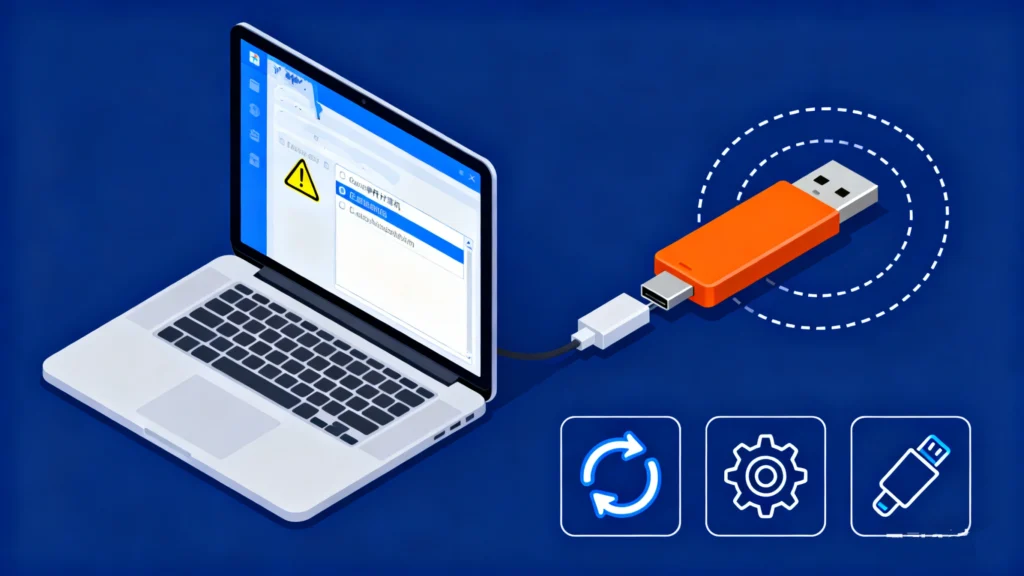
Table des matières
Lorsque votre ordinateur ne reconnaît pas une clé USB
Peu de problèmes techniques sont aussi frustrants que le fait de brancher un périphérique USB et de se rendre compte que l'on n'a pas le temps de s'en occuper. l'ordinateur ne reconnaît pas la clé USB du tout. Il n'y a pas de fenêtre contextuelle, pas de lettre de lecteur et pas d'accès aux fichiers. Que vous essayiez d'accéder à des documents professionnels, à des photos personnelles ou à des sauvegardes importantes, une clé USB qui devient soudainement illisible peut être une véritable source d'angoisse.
Dans la pratique, ce problème est extrêmement fréquent. De nombreux utilisateurs signalent des scénarios dans lesquels un La clé USB n'est détectée sur aucun ordinateur, même après avoir essayé différents ports USB ou systèmes. La bonne nouvelle est que, dans la plupart des cas, le problème n'est pas permanent et qu'il peut être résolu avec la bonne Méthodes de récupération USB.
Ce guide explique pourquoi un ordinateur ne reconnaît pas une clé USB, Nous vous guiderons à travers des méthodes de dépannage éprouvées et vous montrerons comment récupérer des données en toute sécurité en cas d'erreurs de système de fichiers ou de partitions perdues. Lorsque les outils intégrés ne suffisent plus, nous vous expliquons également pourquoi Magic Data Recovery est une solution fiable dans les scénarios de récupération du monde réel.
Prise en charge de Windows 7/8/10/11 et Windows Server
Raisons courantes pour lesquelles un ordinateur ne reconnaît pas une clé USB
Pour commencer, il est essentiel de comprendre l'origine du problème avant de tenter de le résoudre. Voici les raisons les plus fréquentes pour lesquelles les utilisateurs rencontrent un l'ordinateur ne reconnaît pas la clé USB question.
1. Problèmes de port USB ou de connexion matérielle
Parfois, le problème n'a rien à voir avec la clé USB elle-même.
Les situations les plus courantes sont les suivantes
- Ports USB mal fixés ou endommagés
- Alimentation insuffisante des ports USB avant des ordinateurs de bureau
- Les concentrateurs USB qui ne parviennent pas à fournir une tension stable
Avant de supposer que le lecteur est défectueux, testez-le toujours directement sur un autre port USB ou sur un autre ordinateur. Si le lecteur est défectueux, il faut le tester directement sur un autre port USB ou sur un autre ordinateur. La clé USB n'est détectée sur aucun ordinateur, mais le problème est peut-être plus profond.
2. Système de fichiers corrompu ou non pris en charge
Outre les problèmes matériels de base, un système de fichiers corrompu est l'une des principales causes d'une panne d'ordinateur. l'ordinateur ne reconnaît pas la clé USB.
Cela se produit souvent lorsque :
- La clé USB est débranchée sans avoir été retirée en toute sécurité.
- Un système se bloque pendant le transfert de fichiers
- Le lecteur est utilisé sur les systèmes Windows, macOS et Linux.
Lorsque le système de fichiers devient illisible, le système d'exploitation peut refuser de monter entièrement le disque, ce qui le rend invisible.
3. Partition manquante ou endommagée
Une autre cause grave mais courante est la perte de cloison.
En l'occurrence :
- La clé USB est détectée par le système
- Aucune lettre de lecteur n'apparaît
- Gestion des disques indique que l'espace est “non alloué”
Les utilisateurs décrivent souvent cette situation comme une La clé USB n'est détectée sur aucun ordinateur, même si l'appareil lui-même est techniquement connecté.
4. Pilotes USB obsolètes ou corrompus
Au niveau du système, les pilotes de contrôleurs USB jouent un rôle essentiel dans la reconnaissance des périphériques.
Des problèmes de pilote peuvent survenir après :
- Mises à jour de Windows
- Mise à niveau des systèmes
- Installations manuelles de pilotes
En cas de dysfonctionnement des pilotes, le système peut ne pas communiquer avec la clé USB.
5. Dommages physiques ou usure de la mémoire flash
Avec le temps, les clés USB ne sont pas conçues pour durer éternellement.
Au fil du temps, des facteurs tels que
- Excessif lecture/écriture cycles
- Exposition à la chaleur ou à l'humidité
- Mémoire flash de mauvaise qualité
peut entraîner la dégradation d'un lecteur. Dans ce cas, un l'ordinateur ne reconnaît pas la clé USB peut indiquer une défaillance prématurée du matériel.
Comment réparer l'ordinateur qui ne reconnaît pas la clé USB : Solutions étape par étape
En gardant à l'esprit ces causes potentielles, avant de passer à la récupération des données, Dans l'ordre, essayez les solutions suivantes, qui ont fait leurs preuves.
Solution 1 : Vérifier les ports et les câbles USB
Commencez par l'essentiel :
- Brancher la clé USB sur un autre port
- Éviter temporairement les concentrateurs USB
- Essayer un autre ordinateur si possible
Ce test rapide permet d'écarter les problèmes de connectivité simples.
Solution 2 : Détection manuelle de la clé USB (Windows)
Si votre ordinateur ne reconnaît pas automatiquement l'appareil :
- Presse Win + X et ouvrir Gestion des disques
- Recherchez la clé USB répertoriée sans lettre
- Cliquez avec le bouton droit de la souris et attribuez une nouvelle lettre de lecteur
Cette méthode permet souvent de résoudre les cas où le l'ordinateur ne reconnaît pas la clé USB est due à des conflits de lettres.
Solution 3 : Utiliser Utilitaire de disque sur macOS
Pour les utilisateurs de Mac confrontés à un La clé USB n'est détectée sur aucun ordinateur scénario :
- Ouvrir Utilitaire de disque
- Sélectionner Affichage > Afficher tous les appareils
- Vérifier si la clé USB apparaît
- Exécuter Premiers secours réparer les erreurs
Si l'Utilitaire de disque ne peut pas réparer le disque, la récupération des données est l'étape suivante.
Solution 4 : Mise à jour ou réinstallation des pilotes USB
Sous Windows :
- Ouvrir Gestionnaire de périphériques
- Élargir Contrôleurs de bus universel en série
- Désinstaller le périphérique de stockage de masse USB
- Redémarrer l'ordinateur
Le système réinstalle automatiquement les nouveaux pilotes et rétablit souvent la détection de l'USB.
Lorsque des erreurs de système de fichiers ou la perte d'une partition empêchent la reconnaissance d'une clé USB
À ce stade, de nombreux utilisateurs commettent une erreur grave : formatage immédiat du disque. Si le formatage peut rendre l'USB à nouveau utilisable, il efface également les données récupérables.
Si votre l'ordinateur ne reconnaît pas la clé USB est causée par :
- Corruption du système de fichiers
- Partitions perdues ou endommagées
récupération des données doit être effectuée avant toute action destructrice.
Récupérer les données d'une clé USB non reconnue avec Magic Data Recovery
Pourquoi Magic Data Recovery est recommandé
Magic Data Recovery est spécialement conçu pour les scénarios dans lesquels les outils système traditionnels ne parviennent pas à reconnaître les périphériques de stockage.
Il aborde efficacement les questions suivantes
- Systèmes de fichiers corrompus
- Partitions USB supprimées ou perdues
- Conducteurs affichés comme RAW ou non alloués
Au lieu de s'appuyer sur le système d'exploitation pour monter le disque, Magic Data Recovery analyse directement la mémoire flash.
Principaux avantages de Magic Data Recovery
L'outil se distingue par le fait qu'il :
- Prise en charge des clés USB des principales marques
- Récupère les fichiers même si le disque n'a pas de lettre
- Permet de prévisualiser les fichiers avant de les récupérer
- L'analyse en lecture seule permet d'éviter d'autres dommages.
Ces atouts le rendent plus fiable que les corrections manuelles lorsqu'il s'agit d'une La clé USB n'est détectée sur aucun ordinateur.
Exemple de cas d'utilisation typique
Un scénario courant dans le monde réel :
- Une clé USB est débranchée de manière incorrecte
- Le système de fichiers devient RAW
- L'ordinateur ne reconnaît plus le périphérique dans l'Explorateur de fichiers de Windows, mais il est reconnu dans la Gestion des disques.
Dans cette situation, Magic Data Recovery peut analyser le disque, reconstruire la structure des fichiers et restaurer les documents, les photos et les vidéos en toute sécurité.
Si vous êtes à la recherche d'une solution plus efficace et plus sûre, Magic Data Recovery mérite d'être prise en considération.
Prise en charge de Windows 7/8/10/11 et Windows Server
Prévenir les problèmes de détection des clés USB à l'avenir
Pour réduire le risque d'être confronté à une l'ordinateur ne reconnaît pas la clé USB encore une fois :
- Toujours utiliser “Retirer le matériel en toute sécurité”
- Éviter d'utiliser une clé USB sur un trop grand nombre de systèmes
- Garder sauvegardes des données importantes
- Remplacer les lecteurs flash vieillissants de manière proactive
La prévention est souvent plus simple que la guérison.
Conclusion
A l'ordinateur ne reconnaît pas la clé USB peut provenir d'un simple problème de port ou d'une grave détérioration du système de fichiers. Si le dépannage de base permet de résoudre de nombreux cas, les erreurs de système de fichiers et les pertes de partitions requièrent une approche plus prudente.
Au lieu de risquer une perte permanente de données, il est préférable d'utiliser un outil professionnel tel que Magic Data Recovery offres un chemin plus sûr et plus fiable. Il s'attaque aux causes profondes des échecs de détection USB tout en préservant vos précieux fichiers.
FAQ
Pourquoi ma clé USB est-elle soudainement illisible ?
Comment détecter manuellement un périphérique USB ?
Pourquoi mon USB externe ne s'affiche-t-il pas ?
Comment faire en sorte que mon ordinateur lise une clé USB ?
Les clés USB se détériorent-elles ?
Comment faire en sorte que mon ordinateur lise une clé USB ?
Lorsque je branche mon USB, rien ne se passe ?
Pourquoi SanDisk n'est-il pas reconnu ?
Pourquoi ma clé USB n'apparaît-elle pas dans le Finder ?

Erin Smith est reconnue comme l'une des rédactrices les plus professionnelles d'Amagicsoft. Elle a continuellement perfectionné ses compétences rédactionnelles au cours des 10 dernières années et a aidé des millions de lecteurs à résoudre leurs problèmes techniques.