
Come risolvere il problema del mancato riconoscimento dell'unità flash USB da parte del computer
Indice dei contenuti
Quando il computer non riconosce un'unità flash USB
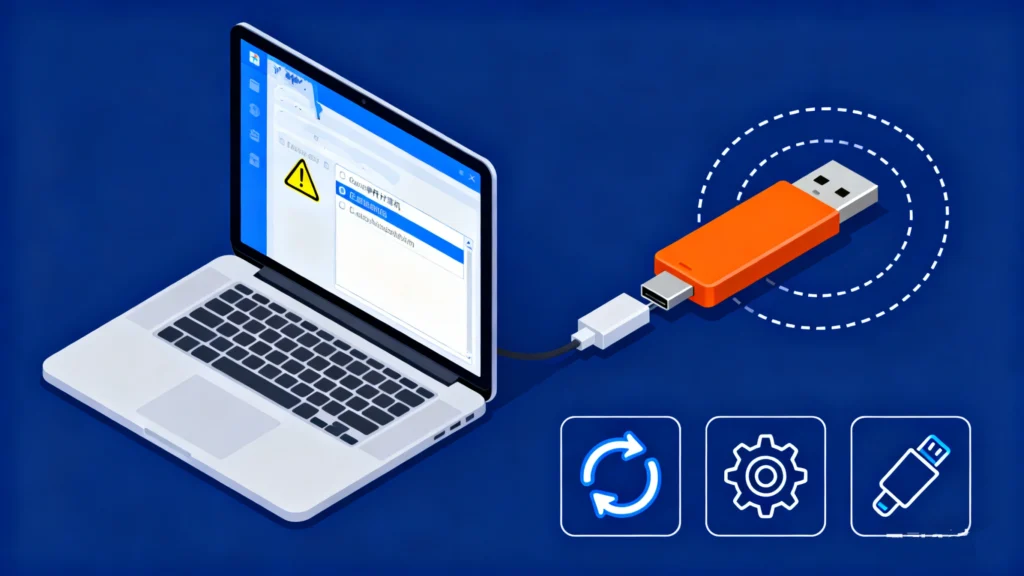
Pochi problemi tecnici sono così frustranti come collegare un dispositivo USB e rendersi conto che il dispositivo non è stato collegato. Il computer non riconosce l'unità flash USB affatto. Non c'è nessun pop-up, nessuna lettera di unità e nessun accesso ai file. Se si sta cercando di accedere a documenti di lavoro, foto personali o backup importanti, una chiavetta USB che diventa improvvisamente illeggibile può provocare una vera e propria ansia.
In pratica, questo problema è estremamente comune. Molti utenti riferiscono di scenari in cui un L'unità flash non viene rilevata in nessun computer, anche dopo aver provato diverse porte o sistemi USB. La buona notizia è che, nella maggior parte dei casi, il problema non è permanente e può essere risolto con i giusti accorgimenti. Metodi di recupero USB.
Questa guida spiega Perché un computer non riconosce un'unità flash USB, Il programma di ricerca e sviluppo di questo sito, che vi accompagna attraverso metodi di risoluzione dei problemi collaudati, mostra come recuperare i dati in modo sicuro in caso di errori del file system o di partizioni perse. Quando gli strumenti integrati non sono più sufficienti, vi spiegheremo anche perché Magic Data Recovery è una soluzione affidabile in scenari di recupero reali.
Supporta Windows 7/8/10/11 e Windows Server
Motivi comuni per cui un computer non riconosce un'unità flash USB
Per cominciare, è essenziale capire la causa principale prima di tentare qualsiasi soluzione. Di seguito sono riportati i motivi più frequenti per cui gli utenti riscontrano un Il computer non riconosce l'unità flash USB problema.
1. Problemi di connessione alla porta USB o all'hardware
A volte il problema non ha nulla a che fare con la chiavetta stessa.
Le situazioni più comuni includono:
- Porte USB allentate o danneggiate
- Alimentazione insufficiente dalle porte USB anteriori dei PC desktop
- Hub USB che non erogano una tensione stabile
Prima di supporre che l'unità sia difettosa, testatela direttamente su un'altra porta USB o su un altro computer. Se l'unità L'unità flash non viene rilevata in nessun computer, Il problema potrebbe essere più profondo.
2. File System corrotto o non supportato
Al di là dei problemi hardware di base, un file system danneggiato è una delle cause principali alla base di una Il computer non riconosce l'unità flash USB.
Questo accade spesso quando:
- L'unità USB è stata scollegata senza una rimozione sicura.
- Il sistema si blocca durante il trasferimento dei file
- L'unità viene utilizzata su sistemi Windows, macOS e Linux.
Quando il file system diventa illeggibile, il sistema operativo può rifiutarsi di montare completamente l'unità, facendola apparire invisibile.
3. Partizione mancante o danneggiata
Un'altra causa grave ma comune è la perdita della partizione.
In questo caso:
- L'unità USB viene rilevata dal sistema
- Non appare nessuna lettera di unità
- Gestione del disco mostra lo spazio come “Non allocato”.”
Gli utenti spesso descrivono questa situazione come una L'unità flash non viene rilevata in nessun computer, anche se il dispositivo stesso è tecnicamente connesso.
4. Driver USB obsoleti o corrotti
A livello di sistema, i driver del controller USB svolgono un ruolo fondamentale nel riconoscimento del dispositivo.
I problemi del driver possono verificarsi dopo:
- Aggiornamenti di Windows
- Aggiornamenti del sistema
- Installazione manuale dei driver
In caso di malfunzionamento dei driver, il sistema potrebbe non riuscire a comunicare con l'unità flash USB.
5. Danno fisico o usura della memoria flash
Con il tempo, le unità flash USB non sono progettate per durare per sempre.
Nel corso del tempo, fattori quali:
- Eccessivo lettura/scrittura cicli
- Esposizione a calore o umidità
- Memoria flash di bassa qualità
possono causare il degrado di un'unità. In questi casi, un Il computer non riconosce l'unità flash USB può indicare un guasto hardware precoce.
Come risolvere il problema del mancato riconoscimento dell'unità flash USB da parte del computer: Soluzioni passo-passo
Tenendo conto di queste potenziali cause, prima di passare a recupero dati, provare, in ordine, le seguenti soluzioni collaudate.
Soluzione 1: Controllare le porte e i cavi USB
Iniziare con le basi:
- Collegare la chiavetta USB a un'altra porta
- Evitare temporaneamente gli hub USB
- Provare con un altro computer, se disponibile
Questo rapido test consente di escludere semplici problemi di connettività.
Soluzione 2: Rilevare manualmente l'unità USB (Windows)
Se il computer non riconosce automaticamente il dispositivo:
- Stampa Win + X e aprire Gestione del disco
- Cercare l'unità USB elencata senza lettera
- Fare clic con il pulsante destro del mouse e assegnare una nuova lettera di unità
Questo metodo risolve spesso i casi in cui il Il computer non riconosce l'unità flash USB è causato da conflitti di lettere.
Soluzione 3: Utilizzare Utility Disco su macOS
Per gli utenti Mac che devono affrontare un L'unità flash non viene rilevata in nessun computer scenario:
- Aperto Utility Disco
- Selezionare Visualizza > Mostra tutti i dispositivi
- Controllare se l'unità USB viene visualizzata
- Correre Primo soccorso per riparare gli errori
Se Utility Disco non è in grado di riparare l'unità, il prossimo passo sarà il recupero dei dati.
Soluzione 4: Aggiornare o reinstallare i driver USB
Su Windows:
- Aperto Gestione dispositivi
- Espandi Controllori Universal Serial Bus
- Disinstallare il dispositivo di archiviazione di massa USB
- Riavviare il computer
Il sistema reinstallerà automaticamente i nuovi driver, spesso ripristinando il rilevamento USB.
Quando gli errori del file system o la perdita della partizione impediscono il riconoscimento dell'USB
In questa fase, molti utenti commettono un errore critico: formattazione immediata dell'unità. La formattazione può rendere l'USB nuovamente utilizzabile, ma cancella anche i dati recuperabili.
Se il vostro Il computer non riconosce l'unità flash USB è causata da:
- Corruzione del file system
- Partizioni perse o danneggiate
recupero dati dovrebbe essere eseguito prima qualsiasi azione distruttiva.
Recupero dei dati da un'unità flash USB non riconosciuta con Magic Data Recovery
Perché è consigliato l'Magic Data Recovery
Magic Data Recovery è stato progettato specificamente per gli scenari in cui gli strumenti di sistema tradizionali non riescono a riconoscere i dispositivi di archiviazione.
Si occupa efficacemente di:
- File system danneggiati
- Partizioni USB cancellate o perse
- Le unità vengono visualizzate come RAW o non allocati
Invece di affidarsi al sistema operativo per montare l'unità, Magic Data Recovery scansiona direttamente la memoria flash.
Vantaggi principali di Magic Data Recovery
Lo strumento si distingue perché:
- Supporta le unità flash USB delle principali marche
- Recupera i file anche quando l'unità non ha una lettera
- Consente l'anteprima dei file prima del recupero
- Utilizza una scansione di sola lettura per evitare ulteriori danni.
Questi punti di forza lo rendono più affidabile delle correzioni manuali quando si ha a che fare con una L'unità flash non viene rilevata in nessun computer.
Esempio di caso d'uso tipico
Uno scenario comune nel mondo reale:
- Un'unità USB è stata scollegata in modo errato
- Il file system diventa RAW
- Il computer non riconosce più il dispositivo in Esplora file di Windows, ma lo riconosce in Gestione disco.
In questa situazione, Magic Data Recovery può scansionare l'unità, ricostruire la struttura dei file e ripristinare documenti, foto e video in modo sicuro.
Se siete alla ricerca di una soluzione più efficiente e sicura, Magic Data Recovery vale la pena di prendere in considerazione.
Supporta Windows 7/8/10/11 e Windows Server
Prevenire i problemi di rilevamento delle unità flash USB in futuro
Per ridurre il rischio di dover affrontare un Il computer non riconosce l'unità flash USB di nuovo:
- Utilizzare sempre “Rimozione sicura dell'hardware”.”
- Evitate di utilizzare un'unità USB per troppi sistemi.
- Mantenere backup di dati importanti
- Sostituire le unità flash obsolete in modo proattivo
La prevenzione è spesso più semplice del recupero.
Conclusione
A Il computer non riconosce l'unità flash USB Il problema può derivare da semplici problemi di porta o da gravi danni al file system. Mentre la risoluzione dei problemi di base risolve molti casi, gli errori del file system e la perdita di partizioni richiedono un approccio più attento.
Invece di rischiare la perdita permanente dei dati, utilizzare uno strumento professionale come Magic Data Recovery offerte un percorso più sicuro e affidabile. Risolve le cause principali dei guasti di rilevamento USB, preservando i vostri preziosi file.
Domande frequenti
Perché la mia chiavetta USB è improvvisamente illeggibile?
Come si fa a rilevare manualmente un dispositivo USB?
Perché la mia USB esterna non viene visualizzata?
Come si fa a far leggere al computer un'unità flash?
Le unità flash USB si guastano?
Come si fa a far leggere al computer un'unità flash?
Quando collego la mia USB, non succede nulla?
Perché SanDisk non viene riconosciuto?
Perché la mia USB non viene visualizzata nel Finder?

Erin Smith è riconosciuta come una delle scrittrici più professionali di Amagicsoft. Negli ultimi 10 anni ha continuamente affinato le sue capacità di scrittura e ha aiutato milioni di lettori a risolvere i loro problemi tecnologici.