
Des fichiers ont disparu du bureau sous Windows 7
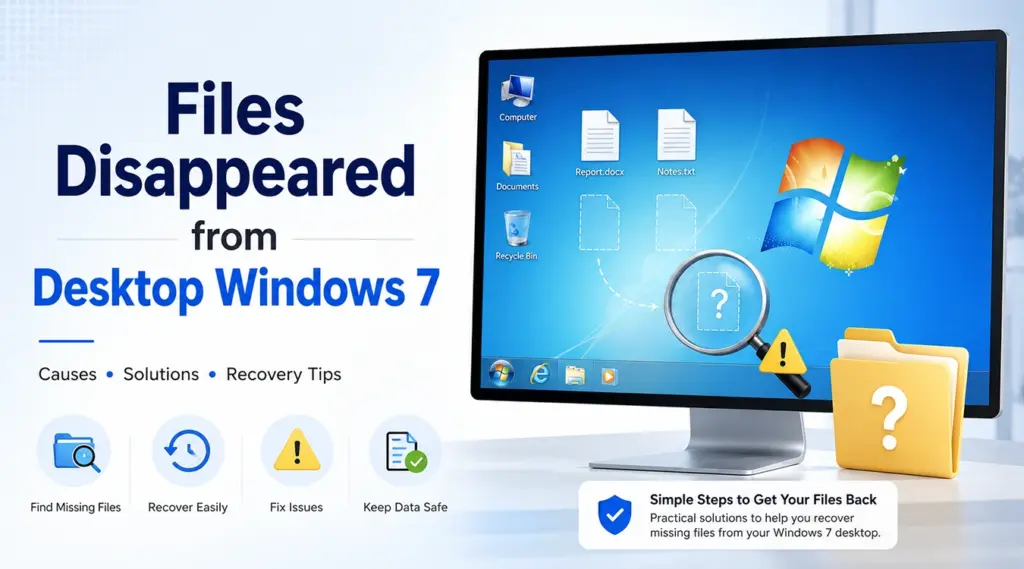
Si votre Des fichiers ont disparu du bureau sous Windows 7, ne partez pas du principe qu’ils sont définitivement perdus. Windows 7 peut masquer des icônes du bureau, charger un autre profil utilisateur, déplacer des fichiers ou envoyer les éléments supprimés dans la Corbeille. Dans d’autres cas, les fichiers peuvent effectivement avoir été supprimés. C’est pourquoi ce guide vous aide à identifier la cause du problème, à essayer d’abord des solutions Windows sûres, puis à utiliser un logiciel dédié récupération de fichiers effacés outil comme Magic Data Recovery uniquement lorsque les options intégrées ne permettent pas de récupérer les données manquantes.
Important : Si vous pensez qu'il y a eu une véritable perte de données, cessez d'enregistrer de nouveaux fichiers sur le disque concerné. De nouvelles écritures risquent d'écraser les données supprimées et de réduire les chances de récupération.
Prise en charge de Windows 7/8/10/11 et Windows Server
Table des matières
Pourquoi certains fichiers ont-ils disparu du bureau sous Windows 7 ?
Quand Des fichiers ont disparu du bureau sous Windows 7, la suppression n'est qu'une cause parmi d'autres. Commencez par comparer vos symptômes avec l'explication la plus probable.
Ce que vous voyez | Cause probable | Meilleure première action |
Tous les éléments du bureau disparaissent | Les icônes du bureau sont masquées | Afficher les icônes du bureau |
Il manque certains fichiers | Attributs masqués ou suppression | Afficher les fichiers cachés |
Fond d'écran ou paramètres modifiés | Profil différent ou temporaire | Vérifiez le répertoire C:\Users |
La recherche trouve toujours les fichiers | Les fichiers ont été déplacés | Afficher leur emplacement |
Les fichiers apparaissent dans la corbeille | Suppression accidentelle | Les restaurer |
Une sauvegarde existe | Versions antérieures ou Sauvegarde Windows | Restaurer la sauvegarde |
Les fichiers sont introuvables | Suppression éventuelle | Scanner avec Magic Data Recovery |
Commencez donc par la solution la moins invasive. Un problème d'affichage ou de profil nécessite un dépannage sous Windows, tandis qu'une suppression définitive requiert une solution de récupération.
Méthode 1 : Afficher les icônes du bureau sous Windows 7
Si Des fichiers ont disparu du bureau sous Windows 7 Outre les raccourcis et les dossiers, Windows peut tout simplement masquer toutes les icônes du bureau.
- Cliquez avec le bouton droit de la souris sur une zone vide du bureau.
- Pointer vers Voir.
- Assurez-vous que Afficher les icônes du bureau est cochée.
Si les fichiers réapparaissent, cela signifie que les données n'ont jamais quitté l'ordinateur. En revanche, si certains éléments manquent toujours, passez à la méthode suivante.
Cette vérification doit être effectuée en premier lieu, car elle ne modifie que l'affichage du bureau et n'altère pas les fichiers enregistrés.
Méthode 2 : Afficher les fichiers et dossiers cachés sous Windows 7
Windows 7 permet de masquer des fichiers individuels à l'aide de l'attribut « Masqué ». Par conséquent, un fichier peut toujours se trouver dans le dossier « Bureau » même si vous ne pouvez pas le voir normalement.
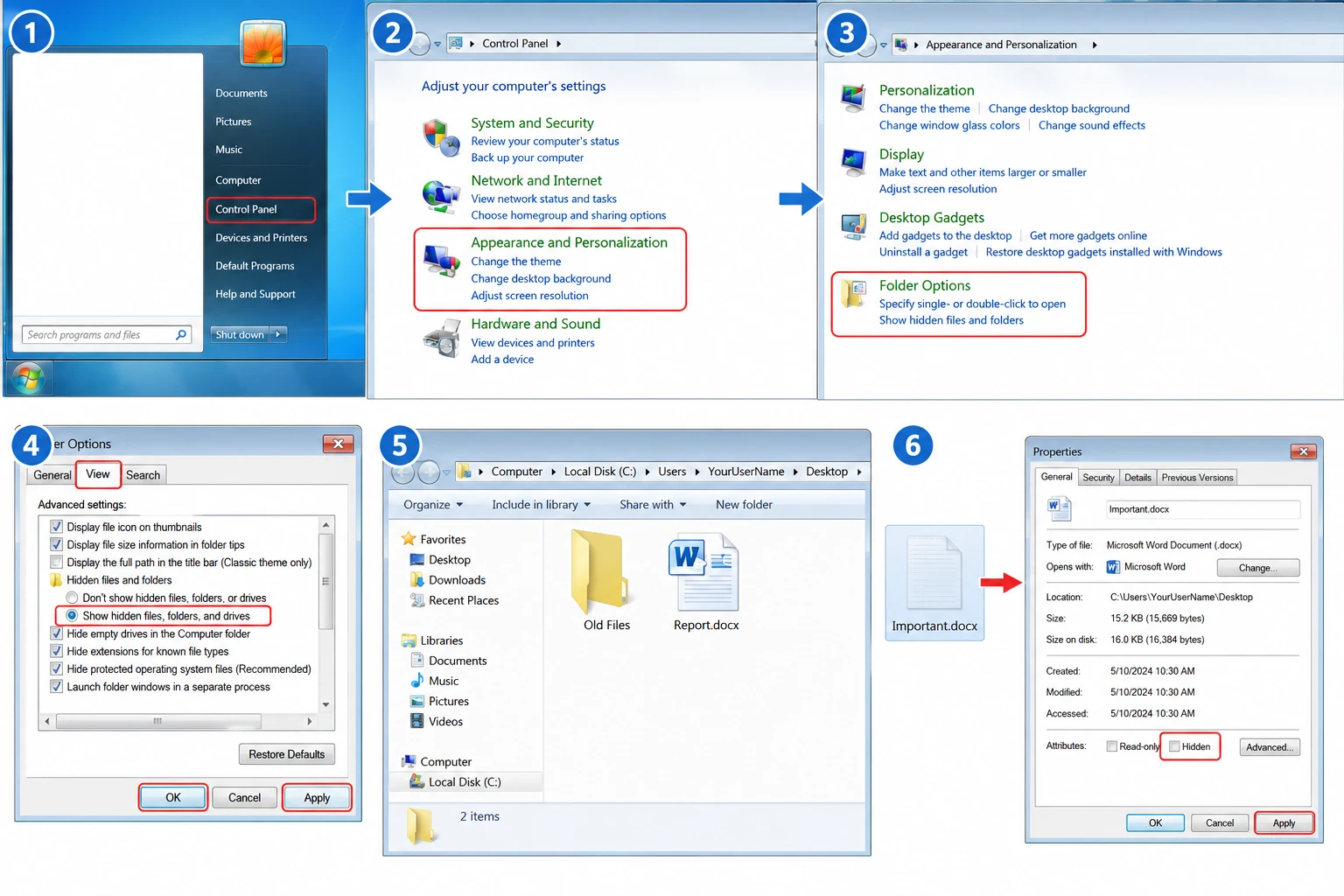
Pour Afficher les fichiers cachés sous Windows 7:
- Cliquez sur Démarrage et ouvrir Panneau de contrôle.
- Choisir Apparence et personnalisation > Options des dossiers.
- Ouvrir le Voir tabulation.
- Sélectionner Afficher les fichiers, dossiers et lecteurs cachés.
- Cliquez sur Appliquer et OK.
- Ouvrir
C:\Utilisateurs\VotreNomd'Utilisateur\Bureau.
Si un fichier semble estompé, cliquez dessus avec le bouton droit de la souris, puis sélectionnez Propriétés, clair Caché, puis appliquez la modification.
Cette méthode permet souvent de résoudre le problème Des fichiers ont disparu du bureau sous Windows 7 lorsque les attributs du fichier ont changé mais que les données proprement dites sont restées intactes.
Méthode 3 : Vérifier un autre profil utilisateur ou un profil temporaire
Si Des fichiers ont disparu du bureau sous Windows 7 Après un redémarrage ou une connexion, il se peut que Windows ait chargé un autre profil. Un profil temporaire ou différent peut afficher un bureau vide, tandis que vos données d'origine restent associées à votre compte habituel.
Commencez par ouvrir :
Ordinateur > Disque local (C:) > Utilisateurs
Ensuite, repérez le dossier de votre compte standard à l'emplacement suivant :
C:\Utilisateurs
Ensuite, ouvrez son Bureau dossier et recherchez les fichiers manquants.
Vérifiez également si le fond d'écran a changé, si des paramètres de personnalisation ont disparu ou si la disposition du bureau vous semble inhabituelle. Ces indices laissent davantage penser à un problème lié au profil qu'à une suppression définitive.
Si vous retrouvez les fichiers d'origine, copiez les données importantes sur un support de stockage sécurisé avant de modifier le profil. Dans ce cas, il n'est pas nécessaire d'utiliser un logiciel de récupération, car les fichiers existent toujours.
Méthode 4 : Rechercher les fichiers manquants sur le bureau sous Windows 7
Parfois Les fichiers du bureau de Windows 7 sont manquants car quelqu'un les a déplacés par inadvertance. Par conséquent, effectuez une recherche sur l'ordinateur avant de les considérer comme supprimés.
Ouvrir le Démarrage menu et saisissez une partie du nom du fichier. Vous pouvez également effectuer une recherche par extension :
*.docxpour les documents Word*.xlsxpour les fichiers Excel*.jpgpour les photos*.pdfpour les documents PDF
Si Windows trouve le fichier, ouvrez l'emplacement où il se trouve, puis copiez-le ou déplacez-le vers le bureau.
Par exemple, un glissement accidentel peut déplacer plusieurs fichiers vers un autre dossier sans les supprimer. La fonction de recherche de Windows permet souvent de localiser immédiatement leur nouvel emplacement.
Méthode 5 : Restaurer les fichiers du Bureau à partir de la Corbeille
Si Des fichiers ont disparu du bureau sous Windows 7 Après avoir supprimé le fichier de manière classique, vérifiez ensuite la Corbeille.
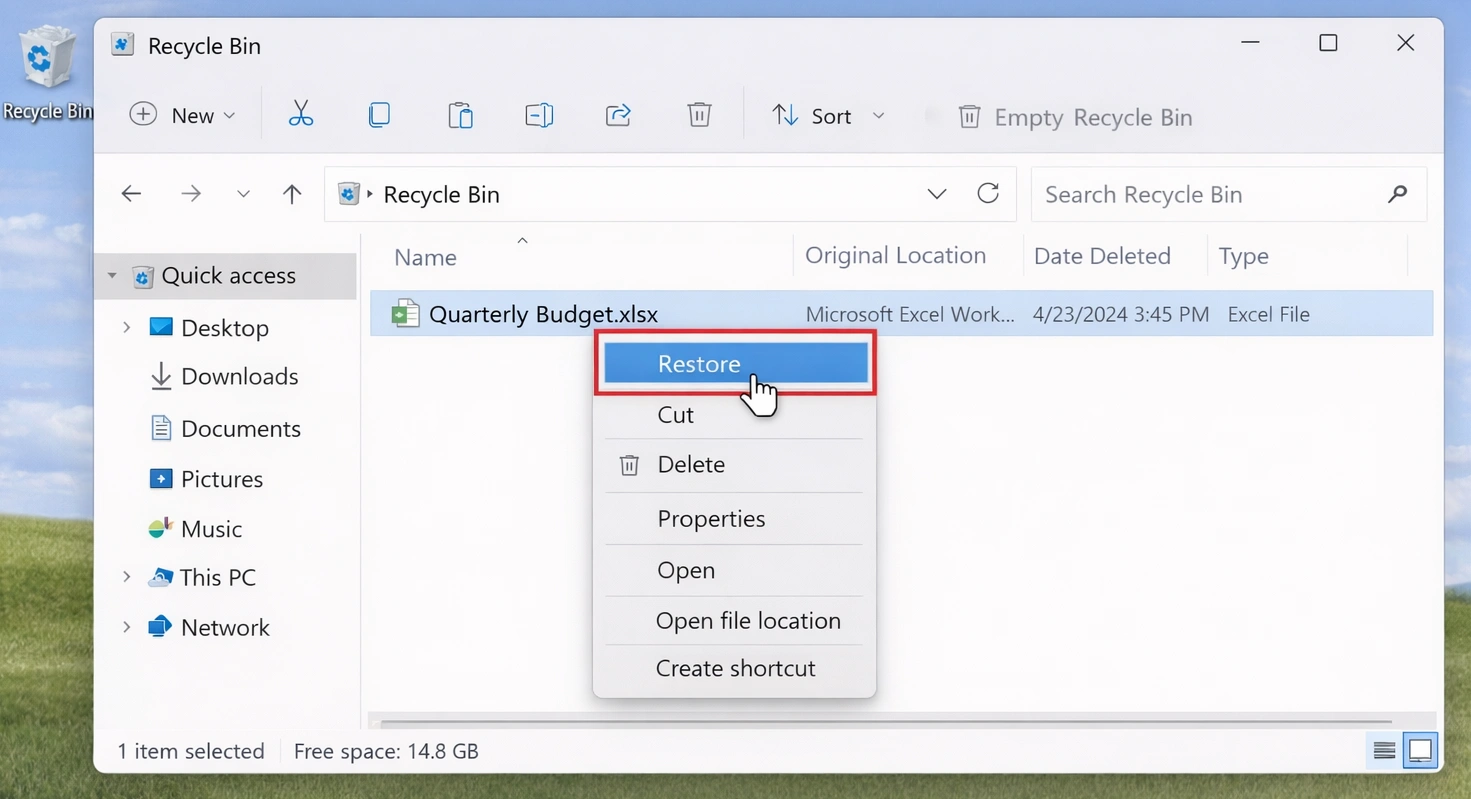
- Ouvrir Corbeille.
- Recherchez le fichier ou le dossier manquant.
- Cliquez avec le bouton droit de la souris.
- Sélectionner Restaurer.
Windows replace l'élément à son emplacement d'origine.
Cependant, Maj + Suppr contourne le processus habituel de la Corbeille. De même, vider la Corbeille rend son contenu inaccessible par les moyens habituels. Si les données manquantes ne s'y trouvent pas, vérifiez les options de sauvegarde de Windows avant de lancer une analyse de récupération.
Méthode 6 : Restaurer des versions antérieures ou des sauvegardes de Windows 7
Si Des fichiers ont disparu du bureau sous Windows 7 et si vous avez effectué une sauvegarde précédemment, Windows 7 dispose peut-être déjà d'une copie utilisable.
Restaurer une version précédente
Ouvrez votre dossier utilisateur, cliquez avec le bouton droit de la souris Bureau, et choisir Restaurer les versions précédentes.
Si Windows affiche une version antérieure, ouvrez-la d'abord et vérifiez qu'elle contient bien les fichiers dont vous avez besoin. Cette vérification supplémentaire vous évitera de restaurer la mauvaise version.
Utiliser la fonction de sauvegarde et de restauration
Aller à :
Panneau de configuration > Système et sécurité > Sauvegarde et restauration
Utilisez ensuite l'option de restauration pour localiser les fichiers manquants dans une sauvegarde existante.
Ces méthodes intégrées fonctionnent bien lorsque des données de restauration existent déjà. En revanche, elles ne sont d'aucune utilité lorsque Windows ne dispose d'aucune version antérieure ni d'aucune sauvegarde appropriée.
Méthode n° 7 : Comment récupérer des fichiers disparus du bureau sous Windows 7
Si Des fichiers ont disparu du bureau sous Windows 7 et si aucune des vérifications ci-dessus ne permet de les localiser, il se peut qu'ils aient été supprimés du disque dur. À ce stade, Magic Data Recovery offre un moyen pratique d'analyser le support de stockage concerné afin d'identifier les fichiers récupérables.
Magic Data Recovery Il prend en charge Windows 7 et permet de rechercher des documents, des photos, des vidéos, des fichiers d'archive et bien d'autres types de fichiers. De plus, ses outils de prévisualisation et de filtrage vous aident à vérifier les résultats de l'analyse avant la récupération.
Par conséquent, cette approche convient aux situations où le La corbeille est vide, Windows ne parvient pas à localiser les fichiers et il n'existe aucune sauvegarde utilisable.
Étape 1 : Télécharger et installer Magic Data Recovery
Commencez par télécharger Magic Data Recovery. Dans la mesure du possible, installez-le sur un disque qui ne contient pas les fichiers manquants.
Cette précaution permet de réduire les écritures inutiles sur la zone de stockage concernée. Elle diminue ainsi le risque d'écraser des données qui pourraient encore être récupérables.
Prise en charge de Windows 7/8/10/11 et Windows Server
Étape 2 : Sélectionnez le disque sur lequel les fichiers du bureau ont été perdus
Lancez ensuite Magic Data Recovery. Dans l'interface principale, sélectionnez le disque sur lequel étaient stockés vos fichiers du bureau Windows 7. Dans la plupart des installations de Windows 7, le dossier « Bureau » se trouve sur le disque système. Sélectionnez le disque concerné et lancez l'analyse.

Étape 3 : Recherche des fichiers manquants ou supprimés sur le bureau
Le logiciel analyse ensuite le disque sélectionné à la recherche de fichiers perdus ou supprimés. Parallèlement, il affiche les éléments détectés au fur et à mesure de l'analyse.
Vous pouvez consulter les résultats pendant l'analyse. Toutefois, laisser le processus se terminer jusqu'au bout peut aider le logiciel à repérer d'autres données récupérables.

Étape 4 : Prévisualisation des fichiers avant la récupération
Une fois que l'analyse a identifié des correspondances potentielles, utilisez Avant-première pour en vérifier le contenu.
De plus, vous pouvez affiner les résultats en fonction du nom du fichier, du type de fichier ou des filtres disponibles. Cette étape vous aide à sélectionner les bons documents, photos, vidéos ou autres fichiers du bureau avant la récupération.

Étape 5 : Récupération des fichiers vers un emplacement sûr
Enfin, sélectionnez les fichiers dont vous avez besoin et lancez la récupération. Enregistrez les données récupérées sur un autre disque ou périphérique de stockage, et non sur le disque concerné. Ce choix permet de réduire le risque d'écraser d'autres fichiers supprimés qui pourraient encore être récupérables.

Ensuite, ouvrez plusieurs fichiers récupérés et vérifiez qu'ils fonctionnent correctement avant de les recopier sur le bureau de Windows 7.
Pourquoi utiliser Magic Data Recovery pour récupérer des fichiers manquants du Bureau sous Windows 7 ?
Magic Data Recovery répond à un problème que les paramètres du bureau, la Corbeille et les outils de sauvegarde de Windows ne permettent pas de résoudre : les fichiers supprimés en l'absence de sauvegarde exploitable.
Par exemple, supposons que vous supprimiez un dossier de projet de votre Windows 7 version de bureau et versions ultérieures vider la corbeille. L'affichage des fichiers cachés ne permet pas de restaurer ce dossier supprimé. De même, la fonction « Sauvegarde et restauration » ne peut pas vous aider si vous n'avez jamais créé de sauvegarde.
Dans ce cas, une analyse du périphérique de stockage concerné permet de résoudre directement le problème.
De plus, Magic Data Recovery offre un processus simple de scan, de prévisualisation et de récupération. Sa compatibilité avec Windows 7 en fait également un outil pertinent pour les utilisateurs qui ont besoin de Logiciel de récupération de données pour Windows 7 plutôt qu'une solution réservée aux versions récentes de Windows.
Toutefois, aucun outil de récupération ne peut garantir le succès. Les données supprimées peuvent devenir irrécupérables si elles sont écrasées par de nouvelles informations. Par conséquent, cessez toute activité inutile sur le disque concerné dès que vous constatez une perte de données.
Méthode n° 8 : Vérifier la présence de logiciels malveillants ou de problèmes au niveau du système de fichiers
Si Des fichiers ont disparu du bureau sous Windows 7 Si cela se produit plus d'une fois, examinez le système sous-jacent après avoir sécurisé les données importantes.
Commencez par lancer une analyse de sécurité effectuée par un logiciel fiable. Ensuite, soyez attentif aux signes avant-coureurs tels que :
- Erreurs de lecture répétées
- Déconnexions inattendues du disque dur
- Ralentissements importants
- Bruits mécaniques inhabituels
- Problèmes récurrents liés à des fichiers manquants
Si le disque dur semble instable, évitez de multiplier les tentatives de réparation.
Les outils de réparation du système de fichiers peuvent modifier la structure des disques. Par conséquent, veillez à récupérer au préalable vos fichiers importants, dans la mesure du possible. Ensuite, procédez au dépannage de Windows ou du disque concerné.
Quelle est la meilleure solution pour récupérer des fichiers qui ont disparu du bureau sous Windows 7 ?
Pour Des fichiers ont disparu du bureau sous Windows 7, respectez l'ordre suivant :
- Afficher les icônes du bureau.
- Afficher les fichiers et dossiers cachés.
- Vérifiez dans le dossier C:\Users s'il existe un autre profil utilisateur.
- Rechercher dans Windows les fichiers qui ont été déplacés.
- Vérifier la corbeille.
- Essayez les versions précédentes ou la fonction de sauvegarde et de restauration.
- Utilisez le code Magic Data Recovery si les éléments indiquent une délétion.
- Vérifiez la présence éventuelle de logiciels malveillants ou de problèmes de disque après avoir protégé vos données importantes.
Cette procédure commence par des vérifications rapides et peu risquées. Elle ne s'oriente vers la récupération de fichiers que lorsque les explications plus simples ne suffisent plus.
Vous évitez ainsi de perdre du temps à effectuer une analyse de récupération lorsque Windows s'est contenté de masquer ou de déplacer les fichiers.
Comment éviter que des fichiers ne disparaissent du bureau sous Windows 7
Une fois que vous aurez résolu Des fichiers ont disparu du bureau sous Windows 7, prenez quelques mesures pour réduire le risque qu'un tel incident se reproduise.
Tout d'abord, conservez au moins une sauvegarde sur un support de stockage distinct. De plus, évitez d'utiliser le bureau comme seul emplacement pour vos documents importants, vos photos ou vos fichiers professionnels.
Vérifiez également quel compte Windows vous utilisez avant de déplacer ou de supprimer des dossiers volumineux. Si Windows affiche soudainement un bureau qui ne vous est pas familier, vérifiez votre profil utilisateur avant de créer de nouveaux fichiers.
Enfin, soyez attentif aux erreurs de disque, aux bruits inhabituels et aux problèmes récurrents liés au profil. Une simple routine de sauvegarde permet souvent de gagner bien plus de temps qu’un processus de restauration.
Conclusion : Récupérer des fichiers disparus du bureau sous Windows 7
Quand Des fichiers ont disparu du bureau sous Windows 7, commencez par les explications les plus simples. Vérifiez la visibilité des icônes du bureau, les paramètres relatifs aux fichiers cachés, les profils utilisateur, la fonction de recherche Windows, la corbeille et les sauvegardes disponibles avant de conclure à une perte définitive de données.
Toutefois, si les fichiers ont bel et bien été supprimés et que Windows ne parvient pas à les récupérer, Magic Data Recovery constitue donc une étape logique. Il prend en charge Windows 7 et offre un processus direct d'analyse, de prévisualisation et de récupération. Plus important encore, il répond précisément aux situations où les méthodes intégrées à Windows échouent, car il ne reste aucune copie utilisable.
Il convient donc d'allier un diagnostic minutieux à une récupération en toute sécurité. Limitez les écritures sur le disque concerné, choisissez le méthode de récupération des fichiers effacés qui corresponde à la cause réelle, et de restaurer les fichiers importants vers un emplacement sûr. Ce processus vous offre un moyen contrôlé de résoudre Des fichiers ont disparu du bureau sous Windows 7 sans se fier à des suppositions.
Prise en charge de Windows 7/8/10/11 et Windows Server
FAQ sur les fichiers qui ont disparu du bureau
Pourquoi tous mes fichiers du bureau ont-ils disparu sous Windows 7 ?
Si des fichiers ont disparu du bureau sous Windows 7, vérifiez d'abord si Windows a masqué les icônes du bureau ou chargé un autre profil utilisateur. Vérifiez également le dossier C:\Users\VotreNomD'Utilisateur\Bureau, affichez les fichiers cachés et recherchez les noms des fichiers manquants. Si ces vérifications s'avèrent infructueuses, consultez la Corbeille et les sauvegardes disponibles avant d'envisager une analyse de récupération de données.
Comment récupérer des fichiers manquants sur le bureau sous Windows 7 ?
Commencez par les options les plus sûres. Affichez les icônes du bureau, affichez les fichiers cachés, vérifiez votre profil d'utilisateur standard et recherchez les éléments déplacés dans Windows. Ensuite, restaurez les fichiers à partir de la Corbeille ou d'une sauvegarde existante. Si des fichiers ont disparu du bureau sous Windows 7 à la suite d'une suppression définitive, utilisez un logiciel de récupération avant que de nouvelles données ne les écrasent.
Pourquoi les fichiers de mon bureau ont-ils disparu après le redémarrage de Windows 7 ?
Un redémarrage peut mettre en évidence un problème lié au profil utilisateur. Par exemple, Windows peut charger un profil temporaire ou différent, ce qui donne lieu à un bureau inhabituel ou presque vide. Recherchez le dossier de votre compte habituel dans C:\Users et ouvrez le répertoire « Bureau » correspondant. Si les fichiers d'origine s'y trouvent encore, sauvegardez-les d'abord, puis résolvez le problème lié au profil.
Un profil temporaire peut-il donner l'impression que des fichiers du bureau de Windows 7 ont disparu ?
Oui. Un profil temporaire peut afficher un bureau, des paramètres et des dossiers personnels différents, ce qui peut donner l'impression que vos fichiers habituels ont disparu. Cependant, ces données peuvent toujours se trouver dans votre dossier d'origine, sous C:\Users. Avant d'utiliser un logiciel de récupération, vérifiez le répertoire « Bureau » d'origine et, si vous y trouvez des fichiers importants, copiez-les sur un support de stockage sûr.
Comment afficher les fichiers masqués du Bureau sous Windows 7 ?
Ouvrez le Panneau de configuration, sélectionnez « Apparence et personnalisation » > « Options des dossiers », puis sélectionnez l'onglet « Affichage ». Cochez ensuite la case « Afficher les fichiers, dossiers et lecteurs cachés ». Vérifiez ensuite le répertoire C:\Users\VotreNomd'Utilisateur\Bureau. Si un fichier apparaît en gris, ouvrez ses « Propriétés » et décochez l'option « Caché » pour que Windows l'affiche à nouveau normalement.
Où sont stockés les fichiers du bureau sous Windows 7 ?
Windows 7 stocke généralement les fichiers du bureau d'un utilisateur dans le dossier C:\Users\VotreNomD'Utilisateur\Desktop. Par conséquent, vérifier ce dossier vous permet de distinguer un problème d'affichage d'une véritable perte de données. Si les fichiers s'y trouvent mais n'apparaissent pas sur le bureau, vérifiez la visibilité des icônes, les attributs de masquage et les paramètres du profil avant de tenter de récupérer les fichiers.
Puis-je récupérer des fichiers du bureau supprimés définitivement sous Windows 7 ?
C'est possible, mais la récupération dépend du fait que de nouvelles données aient ou non écrasé les informations supprimées. Cessez toute utilisation inutile du disque concerné et vérifiez d'abord vos sauvegardes. S'il n'existe aucune sauvegarde exploitable, Magic Data Recovery peut analyser le disque à la recherche de fichiers récupérables. Enregistrez les données récupérées ailleurs afin d'éviter d'écraser d'autres contenus supprimés.

Vasilii est un spécialiste de la récupération de données qui possède une dizaine d'années d'expérience pratique dans ce domaine. Tout au long de sa carrière, il a résolu avec succès des milliers de cas complexes impliquant des fichiers supprimés, des disques formatés, des partitions perdues et des systèmes de fichiers RAW. Son expertise couvre à la fois les méthodes de récupération manuelle à l'aide d'outils professionnels tels que les éditeurs hexagonaux et les solutions automatisées avancées à l'aide de logiciels de récupération. La mission de Vasilii est de rendre accessible aux professionnels de l'informatique et aux utilisateurs quotidiens des connaissances fiables en matière de récupération de données, afin de les aider à sauvegarder leurs précieuses ressources numériques.