
File scomparsi dal desktop di Windows 7
Se il vostro I file sono scomparsi dal desktop di Windows 7, non dare per scontato che siano persi definitivamente. Windows 7 potrebbe nascondere le icone sul desktop, caricare un altro profilo utente, spostare i file o inviare gli elementi eliminati nel Cestino. In altri casi, i file potrebbero essere stati effettivamente eliminati. Pertanto, questa guida ti aiuta a identificare la causa, a provare prima alcune soluzioni sicure di Windows e a utilizzare uno strumento dedicato recupero dei file cancellati strumento come Magic Data Recovery solo quando le opzioni integrate non riescono a recuperare i dati mancanti.
Importante: Se si sospetta una perdita effettiva di dati, smettere di salvare nuovi file sull'unità interessata. Le nuove operazioni di scrittura potrebbero sovrascrivere i dati cancellati e ridurre le possibilità di recupero.
Supporta Windows 7/8/10/11 e Windows Server
Indice dei contenuti
Perché i file sono scomparsi dal desktop di Windows 7?
Quando I file sono scomparsi dal desktop di Windows 7, la delezione è solo una delle possibili cause. Innanzitutto, confronta i tuoi sintomi con la spiegazione più plausibile.
Quello che vedi | Probabile causa | La migliore prima mossa |
Tutte le icone sul desktop scompaiono | Le icone sul desktop sono nascoste | Mostra le icone sul desktop |
Mancano alcuni file | Attributi nascosti o cancellazione | Mostra i file nascosti |
Sono state modificate le immagini di sfondo o le impostazioni | Profilo diverso o temporaneo | Controlla C:\Users |
La ricerca individua ancora i file | I file sono stati spostati | Apri la loro sede |
I file vengono visualizzati nel Cestino | Cancellazione accidentale | Ripristinarli |
Esiste un backup | Versioni precedenti o Backup di Windows | Ripristina il backup |
I file non si trovano da nessuna parte | Possibile cancellazione | Scansiona con Magic Data Recovery |
Pertanto, inizia con la soluzione meno invasiva. Un problema relativo allo schermo o al profilo richiede la procedura di risoluzione dei problemi di Windows, mentre la cancellazione definitiva richiede una soluzione di ripristino.
Metodo 1: Visualizzare le icone sul desktop in Windows 7
Se I file sono scomparsi dal desktop di Windows 7 Oltre alle scorciatoie e alle cartelle, Windows potrebbe semplicemente nascondere tutte le icone del desktop.
- Fai clic con il tasto destro del mouse su un'area vuota del desktop.
- Seleziona Vista.
- Assicurarsi che Mostra le icone sul desktop presenta un segno di spunta.
Se i file vengono recuperati, significa che i dati non hanno mai lasciato il desktop. Tuttavia, se mancano ancora alcuni elementi, procedi con il metodo successivo.
Questa verifica dovrebbe essere effettuata per prima, poiché modifica solo la visualizzazione del desktop e non altera i file salvati.
Metodo 2: Visualizzare i file e le cartelle nascosti in Windows 7
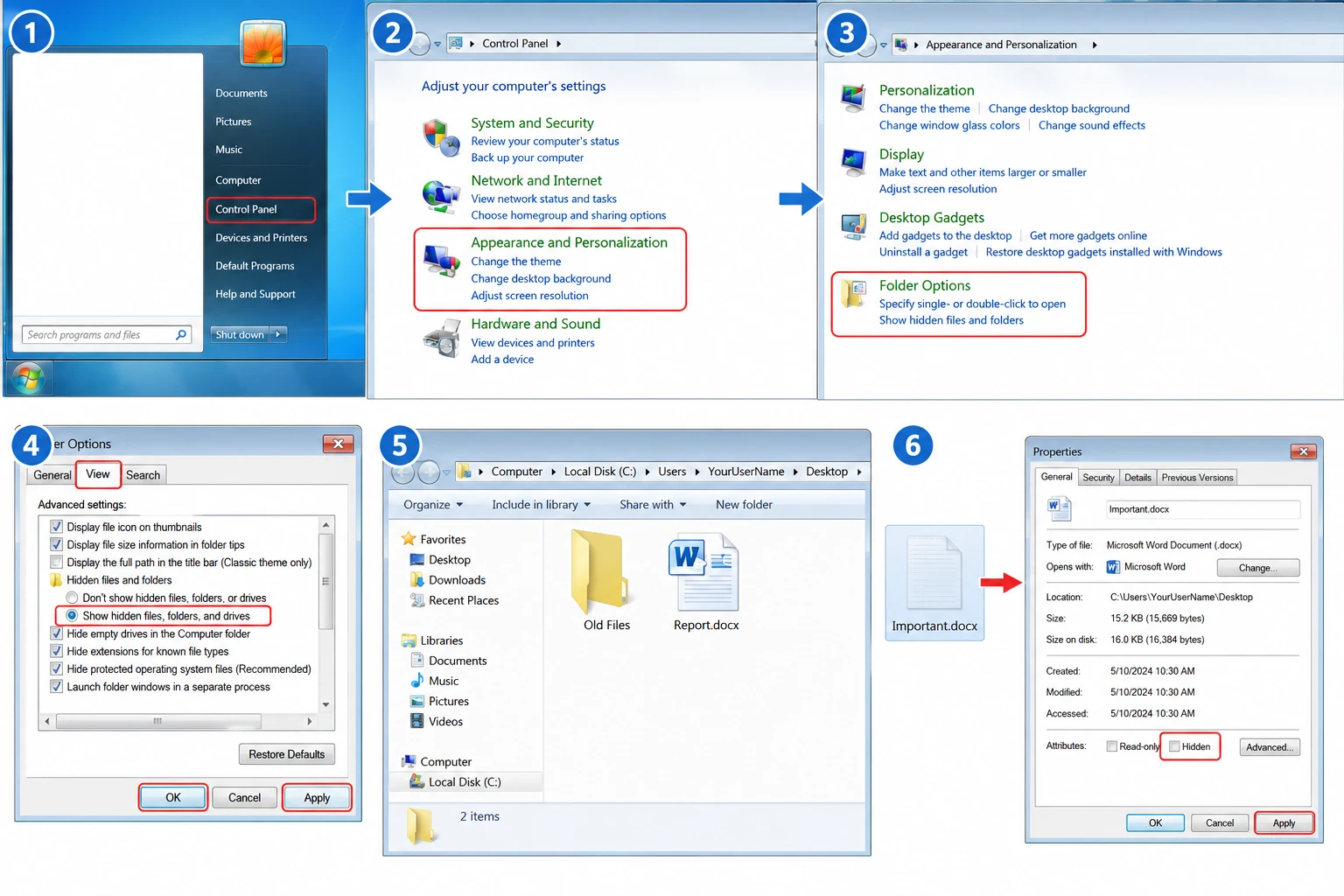
Windows 7 consente di nascondere singoli file tramite l'attributo "Nascosto". Di conseguenza, un file potrebbe essere ancora presente all'interno della cartella "Desktop" anche se non è visibile normalmente.
A Mostrare i file nascosti in Windows 7:
- Cliccare Inizio e aprire Pannello di controllo.
- Scegliere Aspetto e personalizzazione > Opzioni cartella.
- Aprire la sezione Vista scheda.
- Selezionare Mostra file, cartelle e unità nascosti.
- Cliccare Applicare e OK.
- Aperto
C:\Utenti\IlTuoNomeUtente\Desktop.
Se un file appare sbiadito, fare clic con il tasto destro del mouse su di esso e selezionare Proprietà, chiaro Nascosto, quindi applicare la modifica.
Questo metodo spesso risolve I file sono scomparsi dal desktop di Windows 7 quando gli attributi del file sono cambiati, ma i dati effettivi sono rimasti intatti.
Metodo 3: Verificare un profilo utente diverso o temporaneo
Se I file sono scomparsi dal desktop di Windows 7 Dopo un riavvio o l'accesso al sistema, Windows potrebbe aver caricato un altro profilo. Un profilo temporaneo o diverso può mostrare un desktop vuoto, mentre i dati originali rimangono nell'account abituale.
Per prima cosa, apri:
Computer > Disco locale (C:) > Utenti
A questo punto, individua la cartella del tuo account standard nel percorso:
C:\Utenti
Quindi apri il suo Desktop cartella e cerca i file mancanti.
Verifica anche se lo sfondo è cambiato, se mancano impostazioni di personalizzazione o se il layout del desktop ti sembra insolito. Questi indizi indicano con maggiore certezza un problema legato al profilo piuttosto che una cancellazione definitiva.
Se trovi i file originali, copia i dati importanti su un supporto di archiviazione sicuro prima di modificare il profilo. In questo caso, non è necessario ricorrere a un software di recupero dati, poiché i file sono ancora presenti.
Metodo 4: Ricerca dei file mancanti sul desktop in Windows 7
A volte Mancano i file sul desktop di Windows 7 perché qualcuno li ha spostati per sbaglio. Pertanto, controlla il computer prima di considerarli cancellati.
Aprire la sezione Inizio menu e digita una parte del nome del file. Puoi anche effettuare la ricerca in base all'estensione:
*.docxper i documenti Word*.xlsxper i file Excel*.jpgper le foto*.pdfper i documenti PDF
Se Windows individua il file, apri la cartella in cui si trova e copialo o spostalo nuovamente sul desktop.
Ad esempio, trascinando per sbaglio alcuni file è possibile spostarli in un’altra cartella senza eliminarli. Spesso Windows Search è in grado di individuare immediatamente la loro nuova posizione.
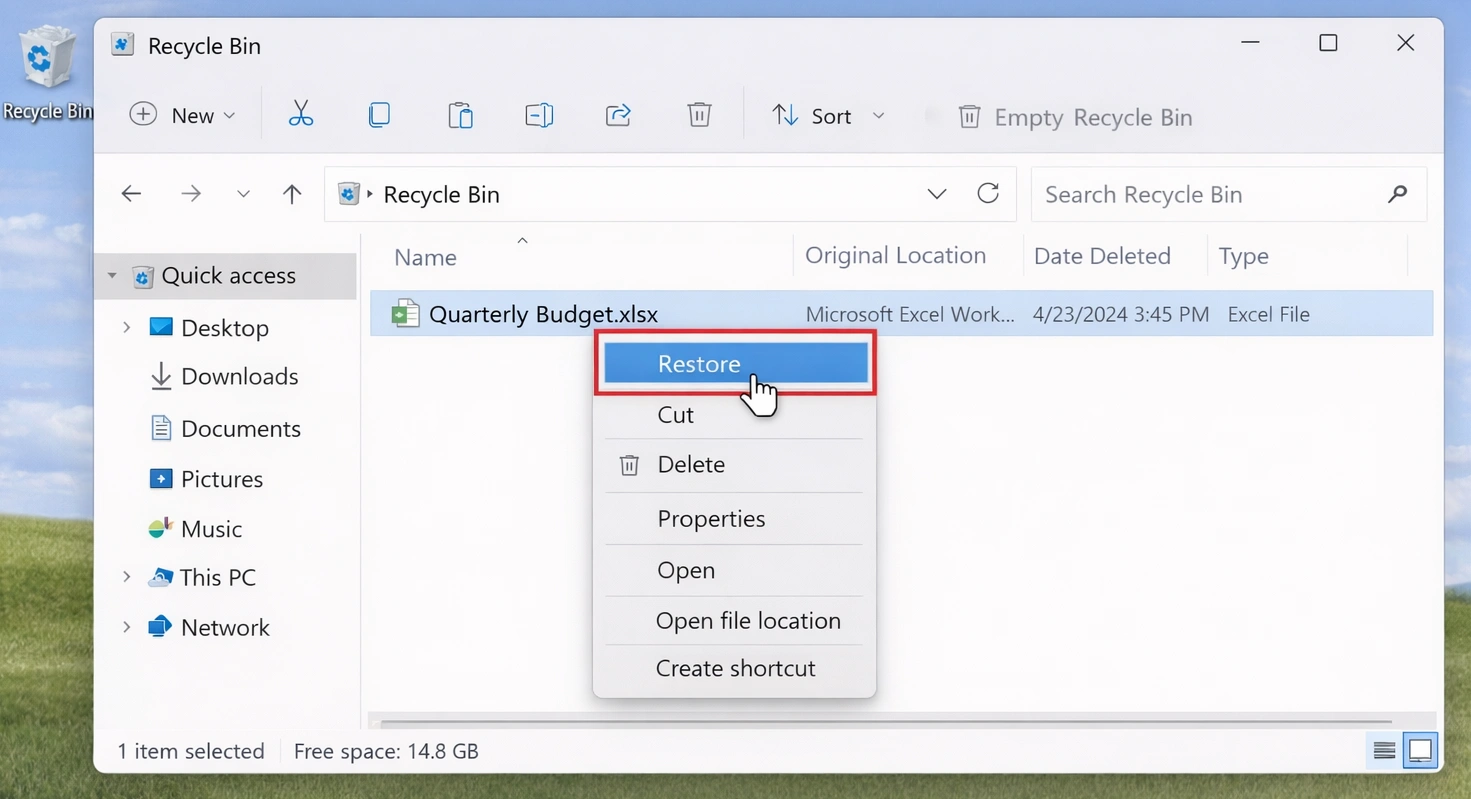
Metodo 5: Ripristinare i file del desktop dal Cestino
Se I file sono scomparsi dal desktop di Windows 7 Dopo aver eliminato normalmente i file, controlla il Cestino.
- Aperto Cestino.
- Individua il file o la cartella mancante.
- Fare clic con il tasto destro del mouse.
- Selezionare Ripristino.
Windows riporta l'elemento nella sua posizione originale.
Tuttavia, Maiuscolo + Canc aggira la normale procedura del Cestino. Allo stesso modo, svuotando il Cestino il suo contenuto non è più accessibile normalmente. Se i dati mancanti non si trovano lì, controlla le opzioni di backup di Windows prima di avviare una scansione di recupero.
Metodo 6: Ripristino delle versioni precedenti o dei backup di Windows 7
Se I file sono scomparsi dal desktop di Windows 7 e se in precedenza hai creato un backup, Windows 7 potrebbe già disporre di una copia utilizzabile.
Ripristino di una versione precedente
Apri la cartella utente, fai clic con il tasto destro del mouse Desktop, e scegliere Ripristino delle versioni precedenti.
Se Windows mostra una versione precedente, aprila prima e verifica che contenga i file che ti servono. Questo controllo aggiuntivo ti aiuta a evitare di ripristinare la versione sbagliata.
Utilizza le funzioni di backup e ripristino
Vai a:
Pannello di controllo > Sistema e sicurezza > Backup e ripristino
A questo punto, utilizza l'opzione di ripristino per individuare i file mancanti in un backup esistente.
Questi metodi integrati funzionano bene quando i dati di ripristino sono già disponibili. Tuttavia, non sono d’aiuto quando Windows non dispone di una versione precedente o di un backup adeguato.
Metodo 7: Come recuperare i file scomparsi dal desktop di Windows 7
Se I file sono scomparsi dal desktop di Windows 7 e se nessuno dei controlli sopra indicati li individua, è possibile che siano stati cancellati dal disco. A questo punto, Magic Data Recovery offre un metodo pratico per eseguire la scansione dell'archivio interessato alla ricerca di file recuperabili.
Magic Data Recovery Supporta Windows 7 e consente di cercare documenti, foto, video, archivi e molti altri tipi di file. Inoltre, i suoi strumenti di anteprima e filtraggio ti aiutano a verificare i risultati della scansione prima del recupero.
Pertanto, questo approccio è adatto alle situazioni in cui il Il Cestino è vuoto, Windows non riesce a individuare i file e non esiste alcun backup utilizzabile.
Passo 1: Scaricare e installare Magic Data Recovery
Per prima cosa, scarica Magic Data Recovery. Se possibile, installalo su un'unità che non contenga i file mancanti.
Questa precauzione riduce le operazioni di scrittura non necessarie nell'area di archiviazione interessata. Di conseguenza, riduce il rischio di sovrascrivere dati che potrebbero ancora essere recuperabili.
Supporta Windows 7/8/10/11 e Windows Server
Passaggio 2: selezionare l'unità in cui sono stati persi i file del desktop
A questo punto, avvia Magic Data Recovery. Nell'interfaccia principale, seleziona l'unità su cui erano precedentemente memorizzati i file del desktop di Windows 7. Nella maggior parte delle installazioni di Windows 7, la cartella "Desktop" si trova sull'unità di sistema. Seleziona l'unità interessata e avvia la scansione.

Fase 3: Ricerca dei file sul desktop mancanti o eliminati
Il software esegue quindi una scansione dell'unità selezionata alla ricerca di file persi o cancellati. Nel frattempo, man mano che la scansione procede, visualizza gli elementi individuati.
È possibile visualizzare i risultati durante la scansione. Tuttavia, lasciare che il processo giunga al termine può aiutare il software a individuare ulteriori dati recuperabili.

Passo 4: Anteprima dei file prima del recupero
Una volta che la scansione ha individuato potenziali corrispondenze, utilizzare Anteprima per verificarne il contenuto.
Inoltre, è possibile restringere i risultati in base al nome del file, al tipo di file o ai filtri disponibili. Questo passaggio consente di selezionare i documenti, le foto, i video o altri file presenti sul desktop corretti prima del recupero.

Passo 5: Recuperare i file in una posizione sicura
Infine, seleziona i file che ti servono e avvia il recupero. Salva i dati recuperati su un'unità o un dispositivo di archiviazione diverso da quello interessato dal problema. Questa scelta riduce il rischio di sovrascrivere altri file cancellati che potrebbero essere ancora recuperabili.

Successivamente, apri alcuni dei file recuperati e verifica che funzionino correttamente prima di copiarli nuovamente sul desktop di Windows 7.
Perché utilizzare Magic Data Recovery per recuperare i file mancanti dal desktop di Windows 7?
Magic Data Recovery affronta un problema che le impostazioni del desktop, il Cestino e gli strumenti di backup di Windows non riescono a risolvere: i file cancellati in assenza di un backup utilizzabile.
Ad esempio, supponiamo che tu elimini una cartella di progetto dal tuo Windows 7 desktop e versioni successive svuotare il Cestino. La visualizzazione dei file nascosti non consente di ripristinare quella cartella eliminata. Allo stesso modo, la funzione "Backup e ripristino" non può essere d'aiuto se non è mai stato creato un backup.
In tale situazione, eseguire una scansione del supporto di archiviazione interessato risolve direttamente il problema.
Inoltre, Magic Data Recovery offre un flusso di lavoro semplice per la scansione, l’anteprima e il recupero dei dati. Il supporto per Windows 7 lo rende inoltre adatto agli utenti che necessitano di Software di recupero dati per Windows 7 piuttosto che una soluzione limitata alle versioni più recenti di Windows.
Tuttavia, nessuno strumento di recupero può garantire il successo. I dati cancellati potrebbero diventare irrecuperabili se vengono sovrascritti da nuove informazioni. Pertanto, è necessario interrompere qualsiasi attività non necessaria sull’unità interessata non appena si nota la perdita di dati.
Metodo 8: Verificare la presenza di malware o di problemi nel file system
Se I file sono scomparsi dal desktop di Windows 7 più di una volta, verifica il funzionamento del sistema dopo aver messo al sicuro i dati importanti.
Per prima cosa, esegui una scansione di sicurezza affidabile. Successivamente, presta attenzione a segnali di allarme quali:
- Errori di lettura ricorrenti
- Disconnessioni impreviste dell'unità
- Gravi rallentamenti
- Rumori meccanici insoliti
- Problemi ricorrenti legati alla mancanza di file
Se l'unità sembra instabile, evitare ripetuti tentativi di riparazione.
Gli strumenti di riparazione del file system possono modificare le strutture del disco. Pertanto, quando possibile, recuperare prima i file importanti. Successivamente, risolvere i problemi relativi a Windows o all’unità interessata.
Qual è la soluzione più efficace per i file scomparsi dal desktop di Windows 7?
Per I file sono scomparsi dal desktop di Windows 7, segui questo ordine:
- Mostra le icone sul desktop.
- Mostra i file e le cartelle nascosti.
- Controlla nella cartella C:\Users se è presente un altro profilo utente.
- Cerca in Windows i file spostati.
- Controllare il Cestino.
- Prova le versioni precedenti oppure esegui il backup e il ripristino.
- Utilizzare Magic Data Recovery se i dati indicano una delezione.
- Verifica la presenza di malware o di problemi al disco solo dopo aver protetto i dati importanti.
Questa procedura inizia con verifiche rapide e a basso rischio. Si passa poi al recupero dei file solo quando le spiegazioni più semplici non sono più sufficienti.
In questo modo, si evita di perdere tempo con una scansione di recupero quando Windows ha semplicemente nascosto o spostato i file.
Come evitare che i file scompaiano dal desktop in Windows 7: risoluzione dei problemi
Dopo aver risolto I file sono scomparsi dal desktop di Windows 7, adotta alcune misure per ridurre il rischio che si verifichi un altro incidente.
Innanzitutto, conservate almeno un’ copia di backup su un supporto di archiviazione separato. Inoltre, evitate di utilizzare il desktop come unica posizione in cui conservare documenti importanti, foto o file di lavoro.
Verifica inoltre quale account Windows stai utilizzando prima di spostare o eliminare cartelle di grandi dimensioni. Se Windows carica improvvisamente un desktop che non riconosci, controlla il tuo profilo utente prima di creare nuovi file.
Infine, prestate attenzione agli errori del disco, ai rumori insoliti e ai problemi ricorrenti relativi al profilo. Una semplice procedura di backup spesso fa risparmiare molto più tempo rispetto a un processo di ripristino.
Conclusione: come recuperare i file scomparsi dal desktop di Windows 7
Quando I file sono scomparsi dal desktop di Windows 7, inizia con le spiegazioni più semplici. Controlla la visibilità delle icone sul desktop, le impostazioni relative ai file nascosti, i profili utente, la funzione "Cerca in Windows", il Cestino e i backup disponibili prima di dare per scontata una perdita definitiva dei dati.
Tuttavia, se i file sono stati effettivamente cancellati e Windows non è in grado di ripristinarli, Magic Data Recovery diventa la scelta più sensata per il passo successivo. Supporta Windows 7 e offre un flusso di lavoro diretto che comprende scansione, anteprima e recupero. Ma soprattutto, risolve proprio quella situazione in cui i metodi integrati in Windows falliscono perché non rimane alcuna copia utilizzabile.
Pertanto, è necessario combinare una diagnosi accurata con un recupero sicuro. Ridurre le operazioni di scrittura sull’unità interessata, scegliere il metodo di recupero dei file cancellati che corrisponda alla causa effettiva e recuperare i file importanti in una posizione sicura. Questo processo offre un modo controllato per risolvere I file sono scomparsi dal desktop di Windows 7 senza ricorrere a supposizioni.
Supporta Windows 7/8/10/11 e Windows Server
Domande frequenti sui file scomparsi dal desktop
Perché tutti i miei file presenti sul desktop sono scomparsi in Windows 7?
Se alcuni file sono scomparsi dal desktop in Windows 7, verifica innanzitutto se Windows ha nascosto le icone del desktop o se è stato caricato un altro profilo utente. Controlla anche la cartella C:\Users\IlTuoNomeUtente\Desktop, mostra i file nascosti e cerca i nomi dei file mancanti. Se questi controlli non danno esito positivo, controlla il Cestino e i backup disponibili prima di prendere in considerazione una scansione per il recupero dei dati.
Come posso recuperare i file mancanti dal desktop in Windows 7?
Inizia con le opzioni più sicure. Visualizza le icone sul desktop, mostra i file nascosti, controlla il tuo profilo utente normale e cerca in Windows gli elementi che sono stati spostati. Successivamente, ripristina i file dal Cestino o da un backup esistente. Se i file sono scomparsi dal desktop su Windows 7 a causa di una cancellazione definitiva, utilizza un software di recupero prima che i nuovi dati li sovrascrivano.
Perché i miei file sul desktop sono scomparsi dopo aver riavviato Windows 7?
Un riavvio può mettere in luce un problema relativo al profilo utente. Ad esempio, Windows potrebbe caricare un profilo temporaneo o diverso, generando un desktop sconosciuto o quasi vuoto. Controlla in C:\Users la cartella del tuo account normale e apri la directory Desktop. Se i file originali sono ancora presenti, salvali prima e poi risolvi il problema relativo al profilo.
È possibile che un profilo temporaneo faccia sembrare che i file sul desktop di Windows 7 siano mancanti?
Sì. Un profilo temporaneo può mostrare un desktop, impostazioni e cartelle personali diversi, per cui i tuoi file abituali potrebbero sembrare scomparsi. Tuttavia, i dati potrebbero comunque trovarsi nella cartella originale in C:\Users. Prima di utilizzare un software di recupero, controlla la directory originale del Desktop e, se li trovi, copia i file importanti su un supporto di archiviazione sicuro.
Come faccio a visualizzare i file nascosti sul desktop in Windows 7?
Apri il Pannello di controllo, seleziona Aspetto e personalizzazione > Opzioni cartella, quindi seleziona la scheda Visualizza. Seleziona quindi Mostra file, cartelle e unità nascosti. A questo punto, controlla la cartella C:\Users\IlTuonomeUtente\Desktop. Se un file appare sbiadito, apri Proprietà e deseleziona l'opzione Nascosto affinché Windows lo visualizzi nuovamente in modo normale.
Dove vengono salvati i file del desktop in Windows 7?
Windows 7 salva solitamente i file presenti sul desktop dell'utente nella cartella C:\Users\NomeUtente\Desktop. Pertanto, controllare questa cartella aiuta a distinguere un problema di visualizzazione da una vera e propria perdita di dati. Se i file sono presenti in questa cartella ma non sul desktop visibile, verificare la visibilità delle icone, gli attributi di nascondimento e le impostazioni del profilo prima di tentare il recupero dei file.
È possibile recuperare i file del desktop cancellati definitivamente in Windows 7?
È possibile, ma il recupero dipende dal fatto che i dati cancellati siano stati sovrascritti da nuovi dati. Interrompere l’uso non necessario dell’unità interessata e verificare innanzitutto la presenza di backup. Se non esiste alcun backup utilizzabile, Magic Data Recovery può eseguire una scansione dell’unità alla ricerca di file recuperabili. Salvare i dati recuperati altrove per evitare di sovrascrivere ulteriori contenuti cancellati.

Vasilii è uno specialista del recupero dati con circa 10 anni di esperienza pratica nel settore. Nel corso della sua carriera, ha risolto con successo migliaia di casi complessi riguardanti file cancellati, unità formattate, partizioni perse e file system RAW. La sua esperienza copre sia i metodi di recupero manuale utilizzando strumenti professionali come gli editor esadecimali, sia le soluzioni automatiche avanzate con i software di recupero. La missione di Vasilii è quella di rendere accessibile la conoscenza del recupero dati affidabile sia ai professionisti IT che agli utenti di tutti i giorni, aiutandoli a salvaguardare i loro preziosi beni digitali.