
Récupérer des fichiers Visual Studio : 7 méthodes sûres
Si vous avez besoin de récupérer des fichiers Visual Studio, commencez par déterminer ce qui a réellement disparu. Des modifications non enregistrées suite à un plantage, un fichier supprimé .cs fichier, un dossier de projet supprimé et un solution supprimée définitivement nécessitent des méthodes de récupération différentes. La fonction « AutoRecover » de Visual Studio peut permettre de récupérer les modifications non enregistrées dans l'IDE, tandis que Visual Studio Code utilise des fonctionnalités distinctes : « Backup » et « Local History ». Si la suppression a effacé les fichiers d'origine du disque et qu'il ne reste aucune copie intégrée, Magic Data Recovery pourraient s'avérer utiles avant que de nouvelles données ne les écrasent.
Prise en charge de Windows 7/8/10/11 et Windows Server
Table des matières
Avant de récupérer des fichiers Visual Studio, identifiez le type de perte
Visual Studio et Visual Studio Code n'utilisent pas le même système de récupération. Visual Studio utilise la fonctionnalité « AutoRecover », tandis que VS Code dispose de fonctionnalités distinctes : « Sauvegarde » et « Historique local ». La sauvegarde automatique ne constitue pas non plus une sauvegarde permanente.
Pour récupérer des fichiers Visual Studio Pour plus d'efficacité, procédez dans l'ordre suivant :
Situation de perte de données | Meilleure première option |
Visual Studio s'est bloqué alors que des modifications n'avaient pas été enregistrées | Récupération automatique de Visual Studio |
VS Code s'est bloqué alors que des modifications n'avaient pas été enregistrées | Sauvegardes VS Code / Fermeture d'urgence |
Le fichier VS Code enregistré a été supprimé | Histoire locale ou corbeille |
Le fichier de projet suivi a été supprimé | Git ou un autre système de gestion de version |
Le dossier du projet contenait des sauvegardes Windows | Historique des fichiers / Versions précédentes |
Le fichier a été définitivement supprimé | Récupération de fichiers Windows ou logiciel de récupération |
Avant de procéder à une récupération plus approfondie, cessez toute écriture sur le disque concerné. Les compilations, les téléchargements et les installations de paquets peuvent écraser les données supprimées.
Méthode 1 : Récupérer des fichiers Visual Studio à l'aide de la fonction de récupération automatique
Pour la version complète de l'IDE Visual Studio sous Windows, vérifiez d'abord la fonction « AutoRecover » après un plantage ou un arrêt inopiné.
- Rouvrez Visual Studio et recherchez les documents restaurés.
- Aller à Outils > Options > Environnement > Récupération automatique.
- Ouvrez l'Explorateur de fichiers et saisissez
%LocalAppData%\Microsoft\VisualStudio\BackupFiles. - Vérifiez dans le dossier du projet s'il contient des copies de sauvegarde récentes.
- Ouvrez un fichier de projet, vérifiez le code, puis enregistrez-le sous un nouveau nom.
Selon Microsoft, Visual Studio permet de sauvegarder les fichiers précédemment enregistrés sous %LocalAppData%\Microsoft\VisualStudio\BackupFiles\[nom_du_projet], tandis que les nouveaux fichiers non enregistrés peuvent porter des noms aléatoires. La disponibilité dépend de l'intervalle et de la durée de conservation configurés.
Cela peut récupérer des fichiers Visual Studio après un plantage, mais il n'est pas conçu pour restaurer l'intégralité d'un projet qui aurait été définitivement supprimé du support de stockage.
Méthode 2 : Récupérer des fichiers VS Code non enregistrés à partir de sauvegardes
Si VS Code a planté ou s'est fermé sans que les modifications aient été enregistrées, rouvrez d'abord le même espace de travail. La fonction « Hot Exit » peut rétablir l'état de l'éditeur. Sinon, vérifiez :
%APPDATA%\Code\Sauvegardes
VS Code utilise cet emplacement de sauvegarde Windows pour l'état non enregistré de l'éditeur.
Ne le confondez pas avec la fonction « AutoRecover » de Visual Studio. Pour récupérer des fichiers Visual Studio, utilisez le chemin d'accès de Visual Studio ; pour le contenu non enregistré de VS Code, utilisez le chemin d'accès de VS Code.
N'oubliez pas non plus qu'un tampon d'éditeur non enregistré n'est pas la même chose qu'un fichier supprimé. Les logiciels de récupération de données fonctionnent généralement avec des données qui ont effectivement été écrites sur le support de stockage.
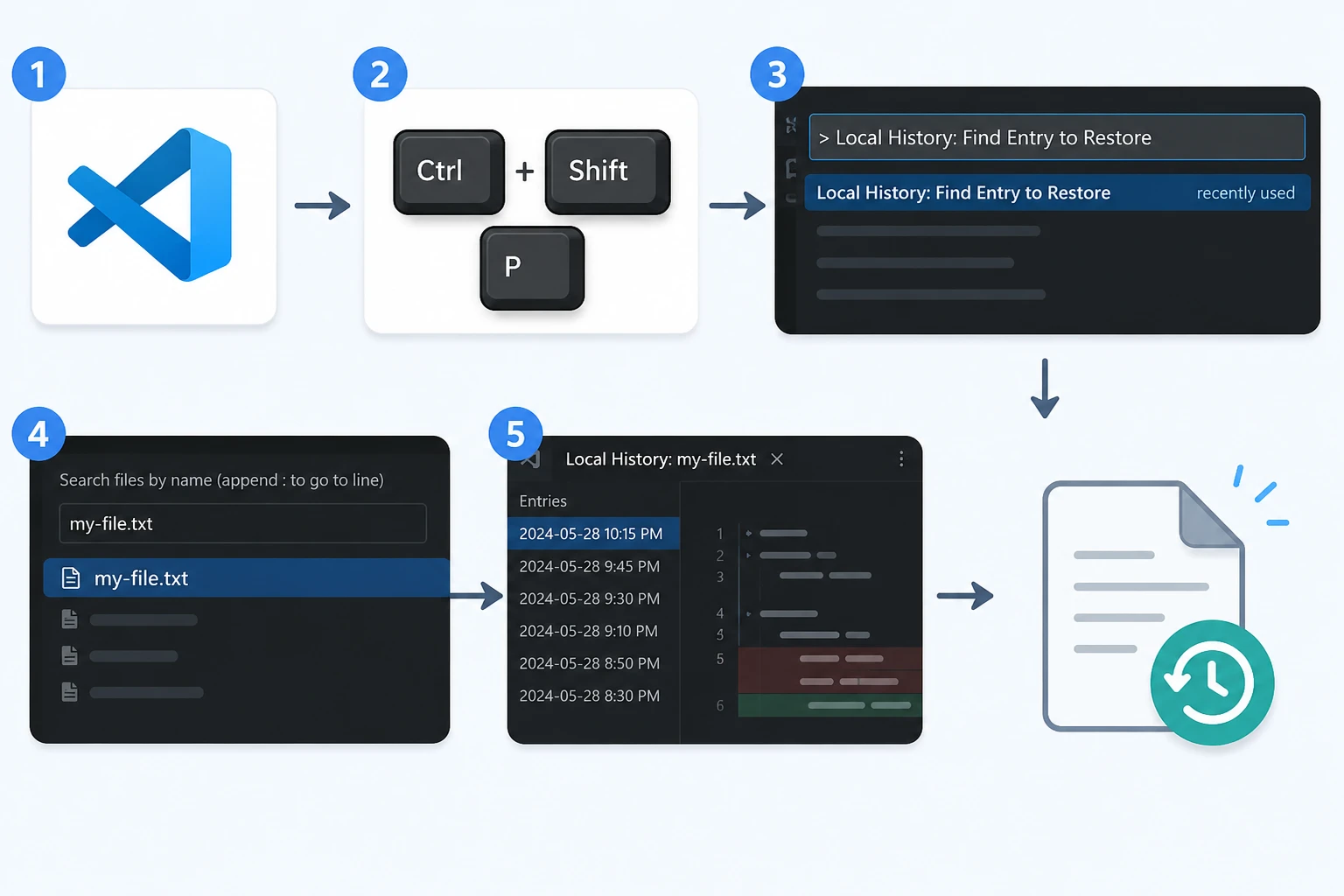
Méthode 3 : Restaurer des fichiers VS Code supprimés à l'aide de l'historique local
Pour un fichier que vous avez enregistré dans VS Code et que vous avez ensuite supprimé ou modifié, l'historique local peut contenir une version utilisable.
- Ouvrez VS Code.
- Presse Ctrl + Maj + P.
- Exécuter Histoire locale : rechercher une entrée à restaurer.
- Rechercher le fichier supprimé.
- Ouvrez une entrée horodatée et restaurez la version dont vous avez besoin.
L'historique local de VS Code permet de stocker les contenus précédents issus des états enregistrés de l'éditeur. Toutefois, les entrées disponibles dépendent des paramètres, des exclusions, de la taille du fichier et du fait que vous ayez ou non déjà enregistré le fichier.
Si le fichier n'a disparu que récemment, vous pouvez également consulter ces Méthodes de récupération des fichiers récemment supprimés avant de passer à une analyse complète du disque.
Méthode 4 : Récupérer des fichiers Visual Studio à partir de la corbeille ou de Git
Pour les fichiers source enregistrés, vérifiez la Corbeille et le système de gestion des versions avant de lancer l'analyse du disque.
Vérifier la corbeille
Si vous avez supprimé un fichier source, une solution ou un fichier de projet enregistré de manière normale, ouvrez la corbeille et restaurez-le à son emplacement d'origine.
Cela vaut tout particulièrement pour .cs, .cpp, .h, .json, .xml, .sln, ainsi que les dossiers de projet supprimés via l'Explorateur de fichiers ou un éditeur.
Si vous avez déjà Corbeille vidée, la commande « Restaurer » standard ne fonctionnera plus. À ce stade, la procédure peut nécessiter une sauvegarde ou une restauration au niveau du stockage.
Restaurer à partir de Git
Si Git avait déjà ajouté le fichier à son suivi et que vous l'avez validé, Git reste généralement la solution la plus simple.
- Pour supprimer un fichier sous contrôle de version sans valider les modifications, utilisez le contrôle de version ou
git restore chemin\vers\le\fichier. - Si la version requise figure dans un commit antérieur, récupérez-la à partir de l'historique du dépôt.
- Si vous utilisez GitHub, GitLab ou Azure DevOps, vérifiez le dépôt distant avant de tenter une récupération du disque.
Pour les utilisateurs qui recherchent Visual Studio : récupération de fichiers, le contrôle de version est souvent plus sûr que l'analyse de l'espace disque supprimé, car Git restaure une version connue du projet plutôt que de reconstituer des données de stockage supprimées.
Cependant, Git ne peut pas restaurer un fichier non suivi que vous n'avez jamais validé, à moins qu'il n'existe une autre copie ailleurs.
Méthode 5 : Récupérer des fichiers Visual Studio à l'aide de l'historique des fichiers
Si l'historique des fichiers Windows a sauvegardé le dossier du projet, vous pourrez peut-être restaurer une version antérieure.
- Ouvrez l'explorateur de fichiers.
- Accédez au dossier qui contenait le projet manquant.
- Cliquez avec le bouton droit de la souris et choisissez Restaurer les versions précédentes.
- Sélectionnez une version antérieure à la suppression.
- Ouvrez-le pour vérifier les fichiers, puis restaurez-le.
Cela fonctionne bien pour récupérer des fichiers Visual Studio à la suite d'un écrasement accidentel, de la suppression du dossier du projet ou d'un nettoyage incorrect alors qu'une sauvegarde valide existe déjà.
Si vos fichiers de développement étaient stockés sur un disque dur classique (HDD) plutôt que sur un SSD, le processus de récupération sous-jacent est différent. Pour en savoir plus, consultez récupération de données sur disque dur avant de lancer une analyse au niveau du disque.

Méthode 6 : Récupérer des fichiers Visual Studio à l'aide de l'outil de récupération de fichiers de Windows
Si le Fiche, Git, la fonctionnalité de récupération automatique, l'historique local et l'historique des fichiers ne contiennent pas le fichier, la fonctionnalité de récupération de fichiers de Windows peut analyser le stockage local à la recherche de données supprimées.
Son format de commande de base est le suivant :
winfr lecteur-source : lecteur-destination : [/mode] [/switches]
Par exemple, /n Les filtres permettent de limiter la recherche à un dossier de projet ou à une extension spécifique.
Les disques source et de destination doivent être différents. Plus important encore, évitez de continuer à utiliser le disque source, car de nouvelles écritures pourraient occuper l'espace disque qui contenait auparavant vos fichiers source.
Pour les fichiers supprimés à l'aide de Maj + Suppr ou perdus après avoir vidé la corbeille, consultez le guide complet expliquant comment restaurer les fichiers définitivement effacés.

Pourquoi la fonction TRIM des SSD est-elle importante ?
De nombreux PC de développement modernes stockent les projets Visual Studio sur des SSD. Cela crée une contrainte supplémentaire en matière de restauration.
Lorsque Windows supprime un fichier, le système d'exploitation peut envoyer une commande TRIM au SSD. La commande TRIM indique au disque que ces blocs ne sont plus nécessaires. Le contrôleur du SSD peut alors les effacer ou les réutiliser en interne.
Par conséquent, les données supprimées d'un SSD peuvent disparaître beaucoup plus rapidement que celles supprimées d'un disque dur (HDD).
Notre guide sur Récupération de données SSD explique comment la fonction TRIM, l'écrasement des données et le contrôleur du SSD peuvent influencer la récupération.
En attendant, évitez :
- la reconstruction de solutions Visual Studio volumineuses ;
- restauration des paquets NuGet ;
- téléchargement des SDK ;
- l'installation d'applications volumineuses ;
- copier des fichiers sur la partition concernée.
Chaque action peut entraîner des écritures supplémentaires.
Méthode 7 : Récupérer des fichiers Visual Studio avec Magic Data Recovery
Si les options intégrées s'avèrent inefficaces, un logiciel de récupération de données peut s'avérer utile lorsque les fichiers Visual Studio ont été préalablement enregistrés sur un support de stockage local, puis supprimés.
Cette fonctionnalité diffère de la récupération automatique, de l'historique local, de Git ou de l'historique des fichiers.
- La fonction de récupération automatique repose sur des copies IDE temporaires.
- L'historique local de VS Code repose sur les états de l'éditeur précédemment enregistrés.
- Git repose sur le suivi des versions.
- L'historique des fichiers dépend des sauvegardes existantes.
- Les logiciels de récupération de données analysent les supports de stockage à la recherche de données supprimées pouvant être récupérées.
Magic Data Recovery peut donc constituer une solution complémentaire lorsque ces sources de restauration intégrées ne contiennent plus le projet manquant.
Cela s'applique particulièrement lorsque :
- un fichier source .cs, .cpp, .h ou autre a été supprimé définitivement ;
- un dossier de projet a été ignoré ou a disparu de la corbeille ;
- La corbeille a été vidée ;
- il n'existe aucune version utilisable de Git ;
- il n'existe aucune sauvegarde de l'historique des fichiers ;
- le fichier d'origine enregistré a disparu du disque dur ou du SSD local.
Cependant, la récupération n'est pas garantie. De nouvelles données peuvent écraser le contenu supprimé, tandis que la fonction TRIM des SSD peut compliquer considérablement la récupération. De plus, une récupération logicielle ne permet pas de réparer un périphérique de stockage endommagé physiquement.
Si les options de récupération intégrées ne fonctionnent plus, vous pouvez essayer Magic Data Recovery avant que de nouvelles données ne viennent écraser les fichiers supprimés.
Comment utiliser Magic Data Recovery pour récupérer des fichiers Visual Studio
Étape 1 : Télécharger et installer Magic Data Recovery
Téléchargez Magic Data Recovery, mais ne l'installez pas sur le même disque dur ou la même partition que celle qui contenait le projet Visual Studio supprimé.
L'installation crée de nouveaux fichiers. Par conséquent, l'installation d'un logiciel de récupération sur la partition concernée pourrait écraser le code source que vous essayez de restaurer.
Prise en charge de Windows 7/8/10/11 et Windows Server
Étape 2 : Sélectionner le disque sur lequel étaient stockés les fichiers de Visual Studio
Lancez le programme. Sélectionnez ensuite le disque ou la partition d'origine qui contenait la solution Visual Studio, le dossier de projet ou les fichiers source individuels supprimés.
Lancez l'analyse.

Étape 3 : Recherche des fichiers de projet perdus ou supprimés
Laissez l'analyse se poursuivre pendant que le programme explore le périphérique de stockage sélectionné.
Vérifiez les dossiers et fichiers correspondant au chemin d'accès d'origine du projet ou au code source, à la solution, au projet, à la configuration et aux fichiers texte concernés.

Étape 4 : Récupération des fichiers vers un emplacement sûr
Sélectionnez les fichiers dont vous avez besoin et copiez-les sur un autre disque dur ou dans un autre emplacement de stockage sécurisé.
Ne réenregistrez pas les fichiers récupérés sur la partition d'origine concernée tant que la récupération est encore en cours.

Est-il possible de récupérer des fichiers Visual Studio à partir d'un SSD ?
C'est possible, mais la récupération sur SSD mérite une attention particulière, car la fonction TRIM peut modifier le processus qui suit la suppression.
Sur un disque dur classique, la suppression d'un fichier consiste généralement à supprimer sa référence dans le système de fichiers, tout en laissant les secteurs sous-jacents inchangés jusqu'à ce que Windows les réutilise.
Sur un SSD, en revanche, TRIM peut indiquer au contrôleur du SSD que les blocs supprimés sont libres. Le contrôleur peut alors effacer ces blocs lors d'un nettoyage interne.
Par conséquent, chaque seconde compte. Si votre projet Visual Studio était stocké sur un SSD, réduisez immédiatement au minimum toute autre activité sur le disque.
Vérifiez toutefois d'abord Git, AutoRecover, l'historique local de VS Code, la corbeille et les sauvegardes. Ces méthodes ne reposent pas sur la récupération des blocs SSD supprimés et peuvent vous permettre d'obtenir une version plus propre de votre projet.
Comment éviter la perte de fichiers Visual Studio
Après avoir récupérer des fichiers Visual Studio, utilisez plusieurs niveaux de protection plutôt que de vous fier à une seule fonctionnalité de récupération.
Utilisez Git dès le début
Mettez en place un système de gestion de version dès que vous créez un projet important. Ensuite, validez régulièrement des versions de travail significatives.
Un dépôt Git local permet de conserver l'historique des versions, tandis qu'un dépôt distant offre une protection supplémentaire contre les pannes de stockage local.
Laisser les fonctionnalités de récupération de l'éditeur activées
Les fonctionnalités de récupération automatique de Visual Studio et de VS Code permettent de protéger les modifications récentes en cas de plantage.
Cependant, aucun des deux ne doit se substituer à Git ni à une véritable sauvegarde.
Sauvegarder l'intégralité du dossier du projet
L'historique des fichiers, la synchronisation dans le cloud ou toute autre solution de sauvegarde peuvent protéger les fichiers que Git ne suit pas.
Cela concerne :
- fichiers de configuration locaux ;
- actifs ;
- fichiers exportés ;
- fichiers de base de données ;
- documentation du projet ;
- autres contenus complémentaires exclus par
.gitignore.
Évitez de conserver la seule copie sur un seul disque dur
Un projet stocké uniquement sur un SSD reste exposé aux risques de suppression accidentelle, de corruption, de panne matérielle ou de formatage.
Utilisez des calques de restauration distincts :
récupération de l'éditeur → Git → dépôt distant → sauvegarde
Cette combinaison réduit le risque que vous ayez besoin ultérieurement d'une restauration au niveau du stockage.
Conclusion
Le moyen le plus sûr de récupérer des fichiers Visual Studio Cela dépend de ce qui leur est arrivé. Commencez par utiliser la fonction « Récupération automatique » de Visual Studio pour les modifications non enregistrées dans l'IDE, les sauvegardes de VS Code pour l'état non enregistré de VS Code, et l'historique local pour les versions précédentes enregistrées de VS Code. Vérifiez ensuite la corbeille, Git, l'historique des fichiers et la récupération de fichiers Windows.
Si un projet ou un fichier source enregistré a été supprimé définitivement et que ces sources de récupération ne contiennent plus de copie utilisable, Magic Data Recovery peut offrir une option de récupération au niveau du stockage. Il faut toutefois agir rapidement, car l'écrasement des données et la fonction TRIM des SSD peuvent réduire récupération de fichiers effacés possibilités.
En fin de compte, la meilleure approche consiste à procéder d'abord à la récupération, puis à renforcer la protection offerte par Git et les sauvegardes, afin que la prochaine suppression accidentelle ne nécessite pas de recourir à la récupération du disque.
Prise en charge de Windows 7/8/10/11 et Windows Server
FAQ
Comment récupérer des fichiers Visual Studio après un plantage ?
Pour récupérer des fichiers Visual Studio après un plantage, rouvrez Visual Studio et vérifiez si des documents ont été restaurés. Vérifiez ensuite le dossier %LocalAppData%\Microsoft\VisualStudio\BackupFiles\[nom_du_projet] si la fonctionnalité « Récupération automatique » était activée. La fonction de récupération automatique peut contenir des copies récentes de l'éditeur, mais il ne s'agit pas d'une sauvegarde permanente du projet. Si la suppression a effacé un fichier précédemment enregistré du stockage, utilisez plutôt une méthode de récupération des fichiers supprimés.
Visual Studio peut-il récupérer des fichiers qui n'ont jamais été enregistrés ?
Visual Studio peut parfois restaurer un nouveau fichier non enregistré si la fonctionnalité « Récupération automatique » a créé une copie temporaire avant le plantage. Les nouveaux fichiers non enregistrés peuvent porter des noms de sauvegarde générés aléatoirement. Cependant, la récupération dépend des paramètres de la fonctionnalité « Récupération automatique » et du moment où celle-ci a été déclenchée. Si le contenu n’a jamais été écrit sur le disque et qu’aucune copie temporaire n’existe, les logiciels de récupération de données classiques risquent de ne pas disposer de données de fichier stockées à localiser.
Où Visual Studio Code stocke-t-il les sauvegardes des fichiers non enregistrés ?
Sous Windows, VS Code peut stocker les données de sauvegarde non enregistrées de l'éditeur dans le répertoire %APPDATA%\Code\Backups. Cet emplacement diffère du dossier « AutoRecover » de l'IDE Visual Studio complet. VS Code propose également un « historique local » pour les versions enregistrées des fichiers. Par conséquent, consultez le dossier « Backups » pour retrouver l'état non enregistré de l'éditeur et l'« Historique local » lorsque vous avez besoin d'une copie enregistrée antérieure ou d'un fichier précédemment supprimé.
Puis-je récupérer un projet Visual Studio supprimé qui ne se trouve pas dans la corbeille ?
Oui, s'il existe encore une autre copie ou si les données sont récupérables sur le support de stockage. Vérifiez d'abord les fonctionnalités de récupération de Git, Visual Studio ou VS Code, l'historique des fichiers et les autres sauvegardes. Si le projet a été supprimé définitivement du stockage local et qu'il ne reste aucune sauvegarde, l'outil de récupération de fichiers de Windows ou un logiciel de récupération de données pourrait permettre de localiser les données supprimées avant que de nouvelles écritures sur le disque ne les écrasent.
Git permet-il de récupérer des fichiers Visual Studio ?
Oui. Si Git avait suivi l'évolution du fichier manquant et que vous l'aviez validé, Git est souvent le moyen le plus sûr de récupérer des fichiers Visual Studio, car il restaure une version connue au lieu de reconstruire des données supprimées du disque. Vous pouvez restaurer des suppressions suivies ou récupérer des versions antérieures à partir de l'historique des validations. Cependant, Git ne peut pas restaurer un fichier non suivi qui n'a jamais été validé, à moins qu'une autre copie n'existe.
Un logiciel de récupération peut-il restaurer des fichiers Visual Studio écrasés ou ayant fait l'objet d'une opération TRIM ?
Ce n'est pas garanti. Dès que de nouvelles données écrasent les secteurs qui contenaient un fichier supprimé, le contenu d'origine risque de disparaître définitivement. La fonction TRIM des SSD peut également permettre au contrôleur d'effacer les blocs supprimés, ce qui rend la récupération plus difficile. Par conséquent, cessez immédiatement d'utiliser le disque concerné et n'installez jamais de logiciel de récupération ni ne sauvegardez de fichiers restaurés sur la même partition endommagée.
Quel est le meilleur moyen d'éviter la perte de fichiers Visual Studio ?
Utilisez plusieurs niveaux de protection. Activez la fonctionnalité « AutoRecover », veillez à ce que l'historique local de VS Code reste accessible, utilisez Git en effectuant régulièrement des commits pertinents, poussez les dépôts importants vers un service distant et effectuez des sauvegardes régulières de vos projets. L'enregistrement automatique protège votre travail récent, Git préserve l'historique des versions et les sauvegardes vous protègent contre une perte de données plus importante. Combinées, ces méthodes réduisent considérablement le recours à la récupération d'urgence des fichiers.

Vasilii est un spécialiste de la récupération de données qui possède une dizaine d'années d'expérience pratique dans ce domaine. Tout au long de sa carrière, il a résolu avec succès des milliers de cas complexes impliquant des fichiers supprimés, des disques formatés, des partitions perdues et des systèmes de fichiers RAW. Son expertise couvre à la fois les méthodes de récupération manuelle à l'aide d'outils professionnels tels que les éditeurs hexagonaux et les solutions automatisées avancées à l'aide de logiciels de récupération. La mission de Vasilii est de rendre accessible aux professionnels de l'informatique et aux utilisateurs quotidiens des connaissances fiables en matière de récupération de données, afin de les aider à sauvegarder leurs précieuses ressources numériques.