
Réutilisation d'une clé Windows 10 : comment ça marche ?
Réutilisation d'une clé Windows 10 Cela fait référence à la réactivation de Windows 10 sous une licence existante, généralement après une réinstallation du système d'exploitation ou un changement de matériel informatique. La réussite de cette opération dépend du type de licence, de l'édition de Windows et de l'appareil sur lequel l'activation est effectuée.
Une clé de produit ne correspond pas au droit légal d'utiliser Windows sur un autre ordinateur. De plus, certains systèmes utilisent des licences numériques qui ne nécessitent pas la saisie d'une clé de 25 caractères par l'utilisateur. Ce guide explique ces différences, le fonctionnement de l'activation de Windows et dans quels cas une licence existante peut être réutilisée. Pour plus d'informations sur la recherche et la gestion des licences logicielles, rendez-vous sur notre Centre de récupération des clés de licence.
Table des matières
Que signifie « réutiliser une clé Windows 10 » ?
Réutilisation d'une clé Windows 10 signifie tenter d'activer à nouveau Windows à l'aide d'une clé de produit ou d'un droit d'activation existant. Ce processus peut concerner l'ordinateur d'origine, du matériel de remplacement ou un autre appareil.
Cependant, l'activation et le transfert de licence ne sont pas interchangeables.
L'activation de Windows permet de vérifier si un appareil dispose d'un droit d'activation valide. Par ailleurs, la licence logicielle applicable détermine où et comment le propriétaire est autorisé à utiliser Windows.
Quelques informations sur la réutilisation des clés Windows 10
Objet | Explication |
Système d'exploitation | Windows 10 |
Clé de produit | Un code de 25 caractères utilisé pour l'activation de Windows |
Licence numérique | Une méthode d'activation qui ne nécessite pas la saisie manuelle d'une clé de produit |
Types de licences | Vente au détail, équipementiers et ventes en gros |
Exigence principale | Une licence valide et une édition Windows compatible |
Droits de transfert | Conformément au contrat de licence d'origine |
Lieu d'activation | Paramètres > Mise à jour et sécurité > Activation |
Sensibilité du matériel | Des modifications importantes, notamment le remplacement de la carte mère, peuvent nécessiter une réactivation. |
La différence essentielle est simple : le fait de disposer d'une clé de produit ne signifie pas automatiquement que vous pouvez l'utiliser sur un nombre illimité d'ordinateurs.
Comment fonctionne l'activation de Windows 10 ?
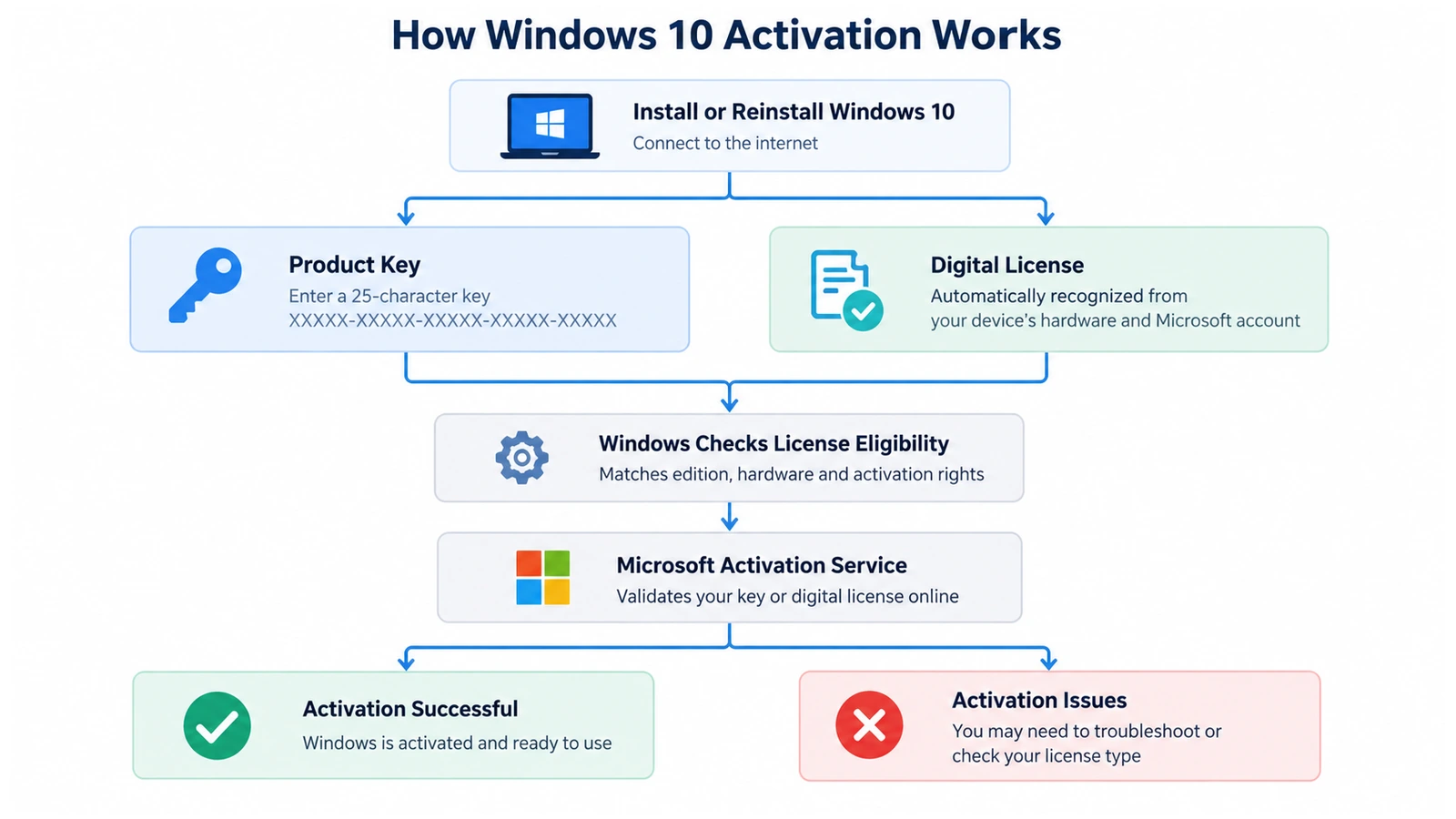
L'activation de Windows permet à Microsoft de vérifier qu'une installation de Windows utilise une licence valide et ne dépasse pas le nombre d'appareils autorisé.
Considérez une clé de produit comme un identifiant permettant d'établir un droit d'activation. Une licence numérique, en revanche, permet à Windows de reconnaître un droit d'activation existant associé à l'appareil.
Toutefois, aucune de ces deux méthodes ne remplace le contrat de licence initial.
Étape 1 : Windows identifie la méthode d'activation
Lors de l'installation ou de l'activation, Windows vérifie si l'ordinateur dispose d'une licence numérique valide ou si l'utilisateur fournit une clé de produit.
A Licence numérique Windows 10 fonctionne généralement sans qu'il soit nécessaire de saisir manuellement un code de 25 caractères.
En revanche, l'activation à l'aide d'une clé de produit nécessite une clé valide associée à l'édition de Windows appropriée.
Étape 2 : Windows vérifie l'appareil et la licence
Windows communique avec les services d'activation de Microsoft lors de l'activation en ligne.
Le système prend en compte le droit d'activation disponible et les informations associées à l'appareil.
Par exemple, la réinstallation de Windows 10 Édition Familiale sur un ordinateur déjà activé permet souvent une réactivation automatique.
Toutefois, le remplacement de la carte mère peut modifier suffisamment l'identité de l'appareil pour nécessiter une nouvelle vérification d'activation.
Étape 3 : Windows affiche le résultat de l'activation
Une fois la demande traitée, Windows indique son état d'activation.
Si l'activation aboutit, la page « Activation » confirme que Windows est activé. Dans le cas contraire, Windows peut afficher une option de dépannage ou un code d'erreur.
Microsoft explique ces méthodes dans son site officiel Documentation sur l'activation de Windows.
Types de licences Windows 10 et règles relatives à leur réutilisation
Il est essentiel de bien comprendre le type de licence, car les différentes méthodes d'acquisition confèrent des droits d'utilisation différents.
Licence de vente au détail
Une licence « Retail » provient généralement d'un achat distinct de Windows.
Conformément aux conditions de la licence logicielle autonome de Microsoft, les licences « Retail » éligibles autorisent généralement les transferts d'un appareil à un autre, à condition que l'appareil précédent n'utilise plus cette copie.
Par exemple, une personne ayant acheté Windows 10 séparément peut éventuellement transférer cette licence sur un autre ordinateur.
Toutefois, il n'est pas autorisé d'activer Windows simultanément sur deux ordinateurs avec une seule licence standard pour un seul appareil.
Licence OEM
Une licence OEM (Original Equipment Manufacturer) est généralement préinstallée sur un ordinateur de bureau ou un ordinateur portable. Ces licences restent généralement associées à l'ordinateur sur lequel elles ont été initialement installées.
Therefore, replacing an SSD usually does not require a new license, while transferring a preinstalled OEM license to a completely different computer generally falls outside its standard transfer rights.
Certain manufacturer warranty repairs and applicable legal exceptions may affect specific situations.
Volume License
Organizations use Volume Licensing to manage Windows across multiple devices. These licenses may use Key Management Service (KMS), Multiple Activation Keys (MAK), or other organization-managed activation arrangements.
Consequently, employees should contact their IT administrator rather than attempting to transfer an organizational Windows key independently.
For exact transfer conditions, consult Microsoft’s Windows 10 Retail License Terms.
Windows 10 Product Key vs. Digital License: What's the Difference?
A common misconception is that every activated computer has a unique product key that users can retrieve and reuse. In reality, Microsoft supports more than one activation method.
Fonctionnalité | Windows 10 Product Key | Windows 10 Digital License |
Form | Code de 25 caractères | Activation entitlement |
Manual entry | May be required | Généralement inutile |
Where it comes from | Purchase, packaging, firmware, or licensing records | Established through eligible activation |
Same-device reinstall | Can be entered again if appropriate | Usually reactivates automatically |
Modifications du matériel | May require key re-entry | May require account-linked troubleshooting |
Transferability | Depends on license terms | Depends on underlying license rights |
A digital license can also be associated with a Microsoft account. This association helps eligible users reactivate Windows after major hardware changes.
However, linking an account does not convert an OEM license into a transferable Retail license.
Likewise, retrieving an installed product key does not guarantee that it represents the computer’s original purchased license.
Why Does Reusing a Windows 10 Key Matter?
The consequences of reusing a Windows 10 key depend on what changes to the computer.
Reinstalling Windows 10 on the Same Computer
A clean installation removes the existing operating system, but it does not automatically cancel the computer’s license.
If the device already has a valid digital license, installing the same Windows edition usually allows automatic reactivation after connecting to the internet.
For example, a computer previously activated with Windows 10 Pro should generally receive Windows 10 Pro again.
Replacing an HDD or SSD
Storage upgrades normally have little effect on Windows activation because the license does not depend solely on the storage drive.
Therefore, an SSD replacement usually does not require purchasing another Windows license.
Nevertheless, backing up personal files and software license information remains important before performing the upgrade.
Replacing the Motherboard
Motherboard replacement creates a more significant activation issue because Windows may no longer recognize the device.
The result depends on the original license and whether Microsoft’s supported reactivation process applies.
For eligible digital licenses, linking the license to a Microsoft account before making changes can simplify the process.
Moving Windows to Another PC
Moving a license to another computer requires more than knowing the original product key.
A qualifying Retail license may permit the transfer, while a preinstalled OEM license generally remains with the original device.
As a result, users should verify the license agreement before attempting activation elsewhere.
Where Can You Check Windows 10 Activation Information?
Windows provides several built-in ways to inspect activation-related information. These methods help you understand the current state without changing the license.
Check Activation Status in Settings
- Presse
Win + Ipour ouvrir les Paramètres. - Aller à Update & Security > Activation.
- Check the Windows edition and activation message.
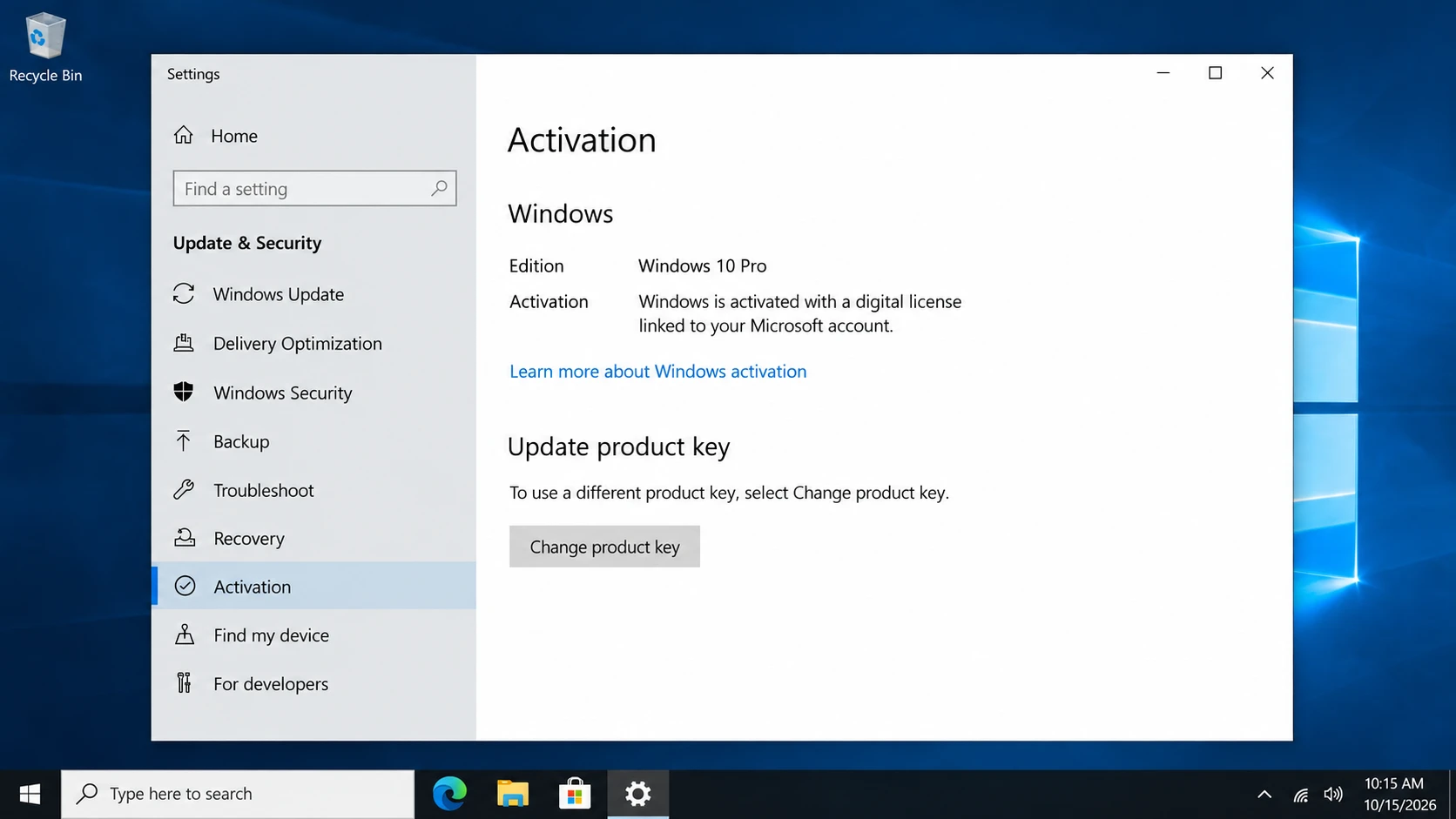
Windows may display:
- Windows est activé à l'aide d'une licence numérique.
- Windows est activé à l'aide d'une licence numérique associée à votre compte Microsoft.
- Windows n'est pas activé.
These messages help determine whether a new product key is necessary.
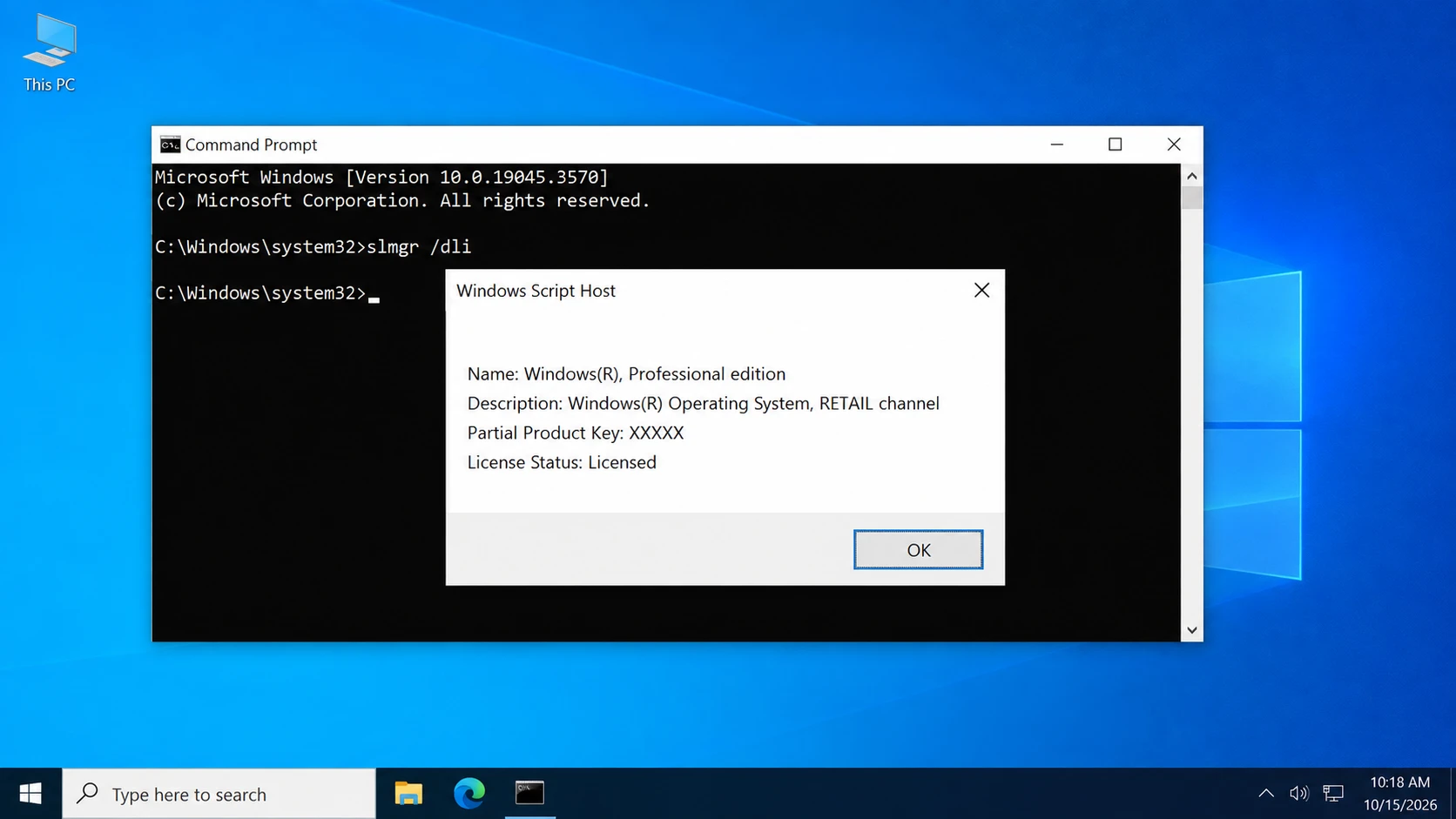
Check License Information with Command Prompt
Open Command Prompt as administrator and run slmgr /dli.
The resulting window may show information about the installed licensing channel, such as Retail or OEM.
However, this command cannot reliably establish every license’s original purchase conditions. It may also report a generic installed key.
Check for an OEM Product Key with PowerShell
Some manufacturers store the original OEM product key in UEFI firmware.
Open PowerShell and run:
(Get-CimInstance -ClassName SoftwareLicensingService).OA3xOriginalProductKey
If the firmware contains a key, Windows may display it.
An empty result does not necessarily indicate an activation problem. For additional methods, see our guide on how to get your Windows 10 product key.
Common Misconceptions About Reusing Windows 10 Keys
Several misunderstandings can lead to unnecessary purchases or unsuccessful activation attempts.
Misconception 1: A Product Key Can Always Be Used Again
Not every license allows transfers between computers. Retail, OEM, and Volume licenses follow different rules. Additionally, some product keys act as generic installation keys rather than independent proof of a valid license.
Misconception 2: Reinstalling Windows Always Requires a New Key
A computer with an existing digital license often reactivates automatically after reinstalling the same Windows edition. Therefore, users should check activation before assuming they need to purchase another license.
Misconception 3: Uninstalling a Product Key Transfers the License
The command slmgr /upk removes the installed product key from the local Windows installation. However, it does not automatically transfer license rights, clear every server-side activation record, or guarantee activation on another computer.
Misconception 4: Finding a Key Guarantees Successful Activation
A retrieved key may be an OEM firmware key, a generic installation key, or another stored value.
Consequently, its presence does not guarantee that the key can activate a different device.
Is It Safe to Reuse or Change a Windows 10 Key?
Réutilisation d'une clé Windows 10 through Microsoft’s supported activation methods is generally safe when you have the necessary license rights.
However, changing activation information carelessly may leave Windows unactivated.
Before making changes:
- Confirm that Windows Home or Pro matches your license.
- Save relevant purchase documentation.
- Link an eligible digital license to your Microsoft account before significant hardware changes.
- Avoid unknown activation scripts and unofficial KMS services.
- Never publish complete product keys or account credentials.
If the system uses an organization’s license, consult the IT administrator before modifying its activation configuration.
What Should You Do When You Need to Reuse Windows 10?
After understanding how activation works, choose the next step according to your circumstances.
Same Computer: Reinstall and Reactivate
For a previously activated computer, reinstall the corresponding Windows edition.
During setup, users with a valid digital license can usually select I don’t have a product key.
Next, connect to the internet and check Activation settings.
Changed Motherboard: Use Microsoft’s Reactivation Process
If Windows becomes unactivated after a significant hardware change, open Settings > Update & Security > Activation > Troubleshoot.
For eligible, previously linked digital licenses, follow I changed hardware on this device recently and select the appropriate device.
Microsoft provides the complete procedure in its hardware-change reactivation guide.
New Computer: Check Transfer Rights First
If you purchased a qualifying stand-alone Retail license, review the transfer terms and stop using the licensed copy on the old device.
Then install the matching Windows edition on the new computer and enter the eligible product key through Activation settings.
If activation fails, contact Microsoft rather than repeatedly entering unrelated keys.
Missing Product Key: Check Existing Records
When the original key is unavailable, start with purchase emails, retail accounts, packaging, and Windows’ built-in inspection methods.
If you need to locate and back up accessible software keys before reinstalling Windows, Magic Recovery Key offers a convenient way to check supported Windows and application license information. Unlike manually searching multiple locations, it provides a centralized interface for reviewing available keys.
However, it cannot generate missing licenses, bypass Microsoft activation requirements, or guarantee that every original key can be recovered.

Can You Still Reuse a Windows 10 Key in 2026?
Yes. Windows 10 license reuse can remain possible in 2026 when the relevant activation requirements and license terms permit it.
Microsoft ended regular Windows 10 support on October 14, 2025. However, the end of support did not automatically invalidate existing legitimate licenses.
Windows 10 computers can continue operating, although systems without ongoing security updates face increased risks.
Therefore, eligible users should consider Windows 11. Others can review Microsoft’s Windows 10 Extended Security Updates options.
Conclusion
Réutilisation d'une clé Windows 10 means activating Windows again under an existing license, but the ability to do so depends on the original license rights, hardware configuration, and activation method. Digital licenses simplify same-device reinstalls, while transferring a license to another computer requires additional consideration.
Understanding the distinction between product keys, digital licenses, and license transfer rights helps prevent unnecessary activation problems.
When license information is missing, Windows’ built-in tools and purchase records should come first. Magic Recovery Key is worth considering when you need a convenient way to locate and back up accessible software keys before reinstalling Windows. For further information, explore our Centre de récupération des clés de licence.
Prise en charge de Windows 7/8/10/11 et Windows Server
FAQs About Reusing Windows 10 Keys
Puis-je réutiliser ma clé Windows 10 après avoir formaté mon ordinateur ?
Puis-je réutiliser ma clé Windows 10 après avoir remplacé un SSD ?
Puis-je transférer une clé OEM Windows 10 sur un nouvel ordinateur ?
Puis-je utiliser une même clé de produit Windows 10 sur deux ordinateurs ?
Une licence numérique Windows 10, c'est la même chose qu'une clé de produit ?
Combien de fois peut-on réutiliser une clé d'activation Windows 10 Retail ?
La fin du support de Windows 10 a-t-elle une incidence sur l'activation de la clé de produit ?

Vasilii est un spécialiste de la récupération de données qui possède une dizaine d'années d'expérience pratique dans ce domaine. Tout au long de sa carrière, il a résolu avec succès des milliers de cas complexes impliquant des fichiers supprimés, des disques formatés, des partitions perdues et des systèmes de fichiers RAW. Son expertise couvre à la fois les méthodes de récupération manuelle à l'aide d'outils professionnels tels que les éditeurs hexagonaux et les solutions automatisées avancées à l'aide de logiciels de récupération. La mission de Vasilii est de rendre accessible aux professionnels de l'informatique et aux utilisateurs quotidiens des connaissances fiables en matière de récupération de données, afin de les aider à sauvegarder leurs précieuses ressources numériques.