
Windows 10 プロダクトキーの再利用:その仕組み
Windows 10 プロダクトキーの再利用 これは、通常、オペレーティングシステムの再インストールやコンピューターのハードウェア変更を行った後、既存のライセンスに基づいてWindows 10を再度アクティベーションすることを指します。これが機能するかどうかは、ライセンスの種類、Windowsのエディション、およびアクティベーションを行うデバイスによって異なります。.
プロダクトキーは、別のコンピューターで Windows を使用する法的権利とは異なります。さらに、一部のシステムでは、ユーザーが 25 文字のキーを入力する必要のないデジタルライセンスが採用されています。このガイドでは、これらの違い、Windows のアクティベーションの仕組み、および既存のライセンスを再利用できる場合について解説します。ソフトウェアライセンスの確認および管理に関する詳細については、当社の ライセンスキー復元センター.
目次
Windows 10のプロダクトキーを再利用することとはどういう意味ですか?
Windows 10のプロダクトキーの再利用 これは、既存のプロダクトキーまたはアクティベーション権限を使用して、Windows を再度アクティベートしようとすることを意味します。このプロセスには、元のコンピュータ、交換用ハードウェア、または別のデバイスが関与する場合があります。.
ただし、有効化とライセンスの譲渡は同じものではありません。.
Windowsのアクティベーションでは、デバイスに有効なアクティベーション権限があるかどうかが確認されます。一方、該当するソフトウェアライセンスによって、所有者がWindowsをどこで、どのように使用できるかが決まります。.
Windows 10 のキー再利用に関する概要
項目 | 説明 |
オペレーティングシステム | ウィンドウズ10 |
プロダクトキー | Windowsのアクティベーションに使用される25文字のコード |
デジタル・ライセンス | プロダクトキーを手動で入力する必要のないアクティベーション方法 |
ライセンスの種類 | 小売、OEM、および大量注文 |
主な要件 | 有効なライセンスおよび互換性のあるWindowsエディション |
移籍権 | 元のライセンス契約の内容によります |
有効化場所 | [設定] > [更新とセキュリティ] > [アクティベーション] |
ハードウェアの感度 | 大幅な変更、特にマザーボードの交換を行った場合は、再アクティベーションが必要になる場合があります |
重要な違いは単純です。プロダクトキーを持っているからといって、自動的に無制限の台数のコンピューターで使用できるわけではありません。.
Windows 10のアクティベーションはどのように行われるのですか?
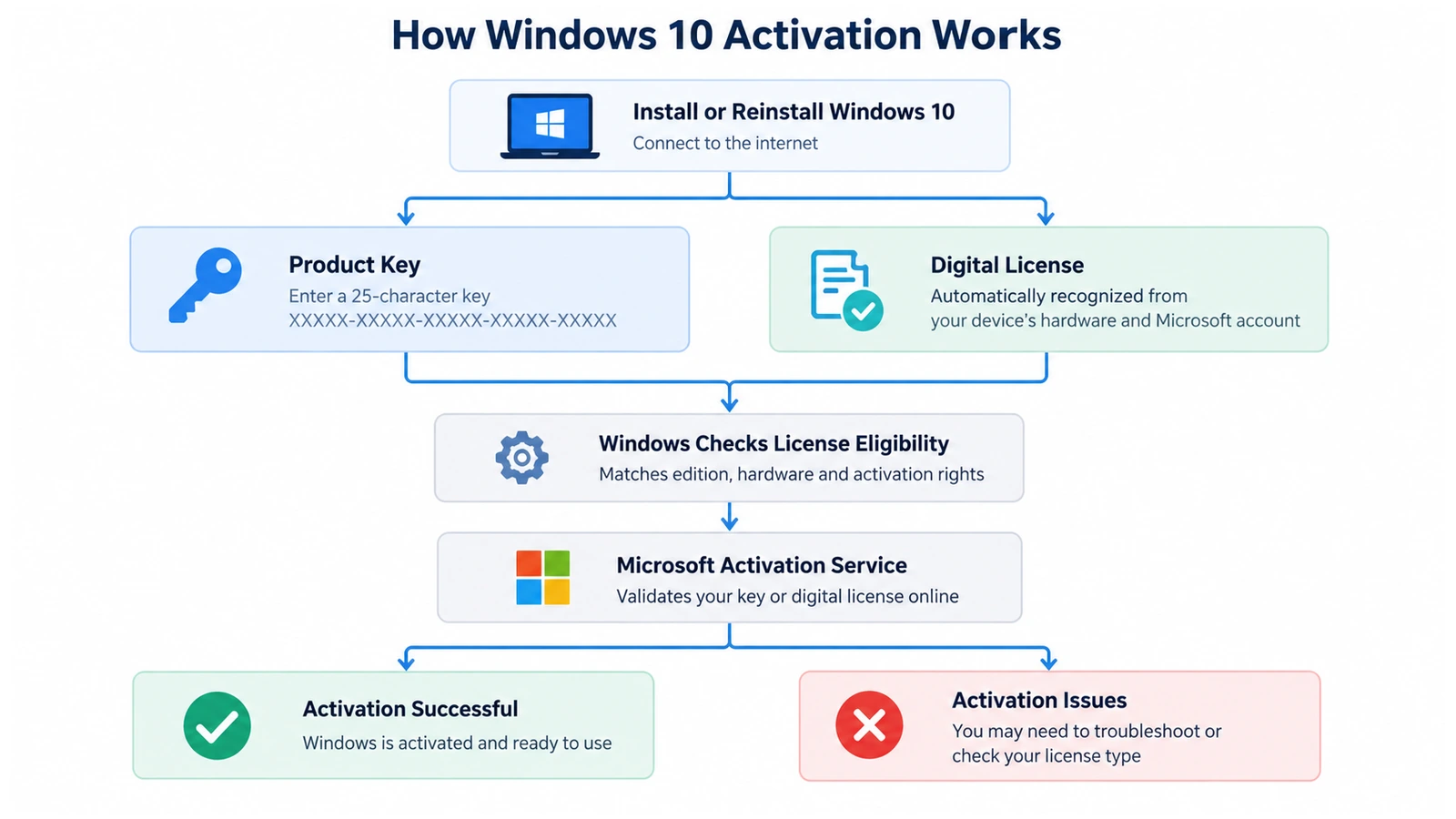
Windowsのアクティベーションは、Microsoftが、Windowsのインストールが有効なライセンスを使用しており、許可されたデバイス数を超えていないことを確認するためのものです。.
プロダクトキーは、アクティベーションの権利を確立するための認証情報のようなものと考えてください。一方、デジタルライセンスは、Windows がそのデバイスに関連付けられた既存の権利を認識できるようにするものです。.
ただし、いずれの方法も、元のライセンス契約に優先するものではありません。.
手順 1: Windows がアクティベーション方法を特定する
インストールまたはアクティベーションの際、Windows は、そのコンピューターに有効なデジタルライセンスがあるか、あるいはユーザーがプロダクトキーを入力したかを確認します。.
A Windows 10 デジタルライセンス 通常、25文字のコードを手動で入力しなくても正常に動作します。.
対照的に、プロダクトキーによるアクティベーションでは、正しいWindowsエディションに関連付けられた有効なキーが必要となります。.
ステップ 2: Windows によるデバイスとライセンスの確認
オンラインアクティベーションが行われる際、Windowsはマイクロソフトのアクティベーションサービスと通信します。.
システムは、利用可能なアクティベーション権限およびデバイスに関連付けられた情報を考慮します。.
たとえば、すでにアクティベーション済みのコンピューターに Windows 10 Home を再インストールすると、多くの場合、自動的に再アクティベーションが行われます。.
ただし、マザーボードを交換すると、デバイスの識別情報が変更され、再度のアクティベーション確認が必要になる場合があります。.
手順 3: Windows がアクティベーションの結果を表示します
リクエストの処理が完了すると、Windows はそのアクティベーションの状態を報告します。.
アクティベーションが成功すると、「アクティベーション」ページに Windows が有効であることが表示されます。失敗した場合は、Windows にトラブルシューティングのオプションやエラーコードが表示されることがあります。.
マイクロソフトは、公式のドキュメントでこれらの方法について説明しています。 Windowsのアクティベーションに関するドキュメント.
Windows 10 ライセンスの種類と再利用に関するルール
ライセンスの種類を理解することは不可欠です。なぜなら、取得方法によって利用権限が異なるからです。.
小売ライセンス
小売版ライセンスは、通常、Windowsを別途購入することで入手できます。.
マイクロソフトのスタンドアロンソフトウェアライセンス規約に基づき、条件を満たす小売ライセンスについては、原則として、以前のデバイスでそのコピーが使用されなくなっていることを条件に、デバイス間の譲渡が認められています。.
たとえば、Windows 10を別途購入した場合は、そのライセンスを新しいパソコンに移行できる可能性があります。.
ただし、1つの標準的な単一デバイス用ライセンスを使用して、2台のコンピュータで同時にWindowsをアクティベートすることは許可されていません。.
OEMライセンス
OEM(Original Equipment Manufacturer)ライセンスは、通常、デスクトップPCやノートPCにプリインストールされています。これらのライセンスは、一般的に、当初ライセンスが適用されたコンピュータに紐付けられたままとなります。.
したがって、SSDの交換には通常、新しいライセンスは必要ありませんが、プリインストールされたOEMライセンスを全く別のコンピュータに移行することは、一般的にその標準的な移行権限の範囲外となります。.
特定のメーカー保証による修理や、適用される法的例外により、状況によっては影響が生じる場合があります。.
ボリュームライセンス
組織では、ボリューム ライセンスを利用して、複数のデバイスにわたる Windows を管理しています。これらのライセンスでは、キー管理サービス (KMS)、複数アクティベーション キー (MAK)、またはその他の組織が管理するアクティベーション方式が使用される場合があります。.
したがって、従業員は、組織用のWindowsキーを独自に転送しようとせず、IT管理者へ連絡する必要があります。.
具体的な転送条件については、Microsoftの Windows 10 リテール版ライセンス規約.
Windows 10のプロダクトキーとデジタルライセンス:その違いとは?
よくある誤解として、アクティベーション済みのコンピュータにはすべて固有のプロダクトキーがあり、ユーザーがそれを取得して再利用できるというものです。実際には、マイクロソフトは複数のアクティベーション方法をサポートしています。.
特徴 | Windows 10 のプロダクトキー | Windows 10 デジタルライセンス |
フォーム | 25文字コード | 有効化権限 |
手動入力 | 必要となる場合があります | 通常は不要 |
その由来 | 購入、梱包、ファームウェア、またはライセンスに関する記録 | 対象となるアクティベーションを通じて設定されました |
同一デバイスでの再インストール | 必要に応じて、再度入力することができます | 通常は自動的に再起動します |
ハードウェアの変更 | キーの再入力が必要になる場合があります | アカウントに関連するトラブルシューティングが必要になる場合があります |
移転可能性 | ライセンス条項によります | 基礎となるライセンス権によって異なります |
デジタルライセンスは、Microsoft アカウントに関連付けることもできます。この関連付けにより、条件を満たすユーザーは、ハードウェアの大幅な変更後に Windows を再アクティベーションできるようになります。.
ただし、アカウントを紐付けても、OEMライセンスが譲渡可能なリテールライセンスに変換されることはありません。.
同様に、インストール済みのプロダクトキーを取得したとしても、それがそのコンピューターの当初購入したライセンスに相当するとは限りません。.
Windows 10のキーを再利用することがなぜ重要なのでしょうか?
その結果、 Windows 10のプロダクトキーの再利用 コンピュータにどのような変更が加えられるかによって異なります。.
同じコンピューターに Windows 10 を再インストールする
クリーンインストールを行うと、既存のオペレーティングシステムは削除されますが、コンピュータのライセンスが自動的に無効になるわけではありません。.
そのデバイスにすでに有効なデジタルライセンスがある場合、同じエディションの Windows をインストールすれば、通常、インターネットに接続した後、自動的に再アクティベーションが行われます。.
たとえば、以前に Windows 10 Pro がアクティベーションされていたコンピュータには、通常、再び Windows 10 Pro が提供されます。.
HDDまたはSSDの交換
ストレージのアップグレードは、通常、Windowsのアクティベーションにほとんど影響を与えません。これは、ライセンスがストレージドライブのみに依存しているわけではないためです。.
したがって、SSDへの交換を行う場合、通常はWindowsのライセンスを別途購入する必要はありません。.
とはいえ、アップグレードを行う前に、個人用ファイルやソフトウェアのライセンス情報をバックアップしておくことは依然として重要です。.
マザーボードの交換
マザーボードを交換すると、Windowsがそのデバイスを認識しなくなる可能性があるため、アクティベーションに関するより深刻な問題が生じます。.
結果は、元のライセンスの内容および、マイクロソフトがサポートする再有効化プロセスが適用されるかどうかに依存します。.
対象となるデジタルライセンスについては、変更を行う前にライセンスをMicrosoftアカウントに紐付けておくと、手続きがスムーズになります。.
Windowsを別のPCに移行する
ライセンスを別のコンピュータに移行するには、元のプロダクトキーを知っているだけでは不十分です。.
対象となる小売ライセンスであれば譲渡が認められる場合がありますが、プリインストールされたOEMライセンスは、通常、元のデバイスに紐づいたままとなります。.
そのため、ユーザーは他の場所でアクティベーションを行う前に、ライセンス契約内容を確認する必要があります。.
Windows 10のアクティベーション情報はどこで確認できますか?
Windows provides several built-in ways to inspect activation-related information. These methods help you understand the current state without changing the license.
Check Activation Status in Settings
- プレス
勝利+I「設定」を開くには。. - こちらへ Update & Security > Activation.
- Check the Windows edition and activation message.
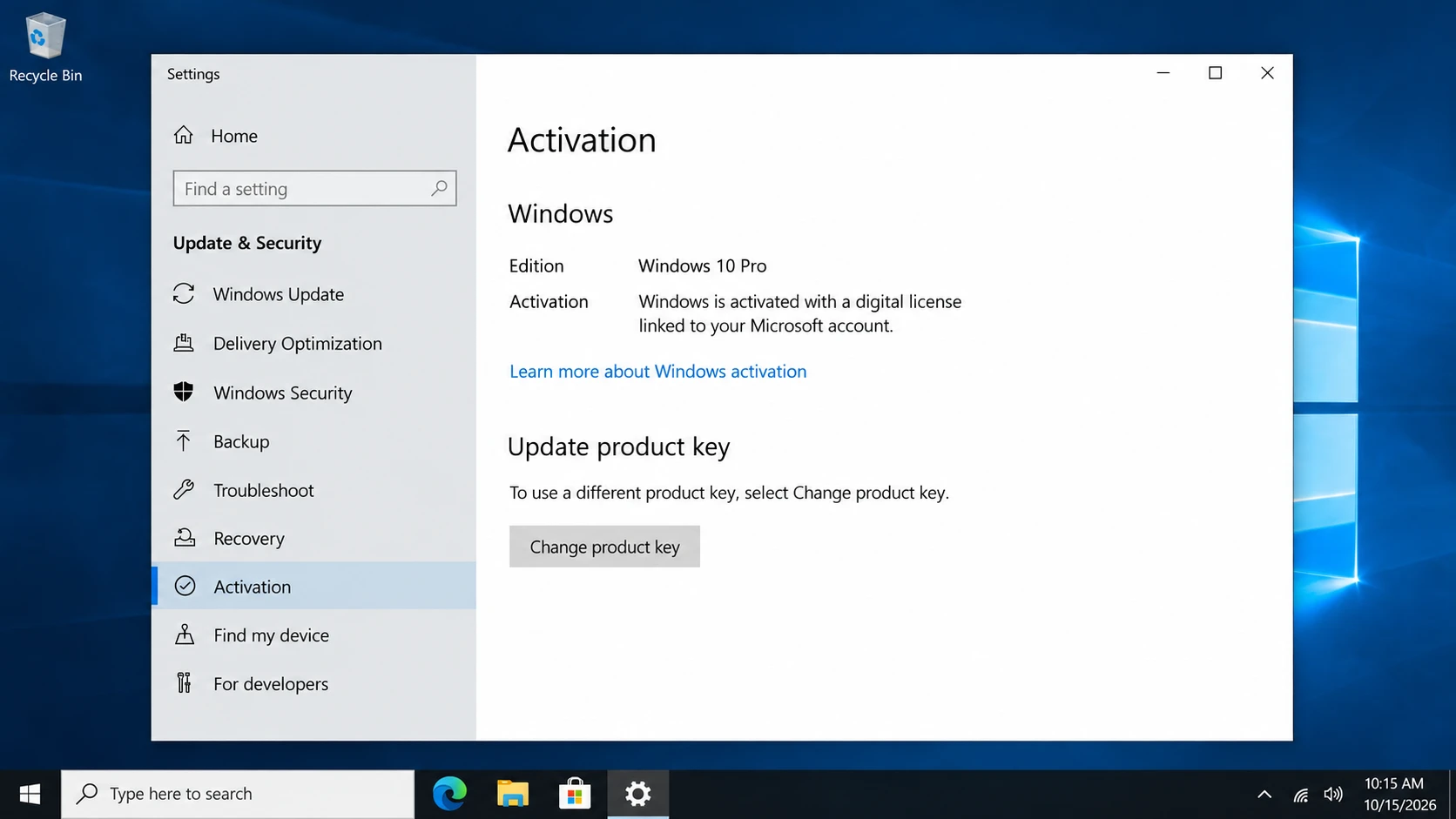
Windows may display:
- Windowsはデジタルライセンスによってアクティベーションされています。.
- Windows は、Microsoft アカウントに紐付けられたデジタルライセンスによってアクティベーションされています。.
- Windows はアクティベーションされていません。.
These messages help determine whether a new product key is necessary.
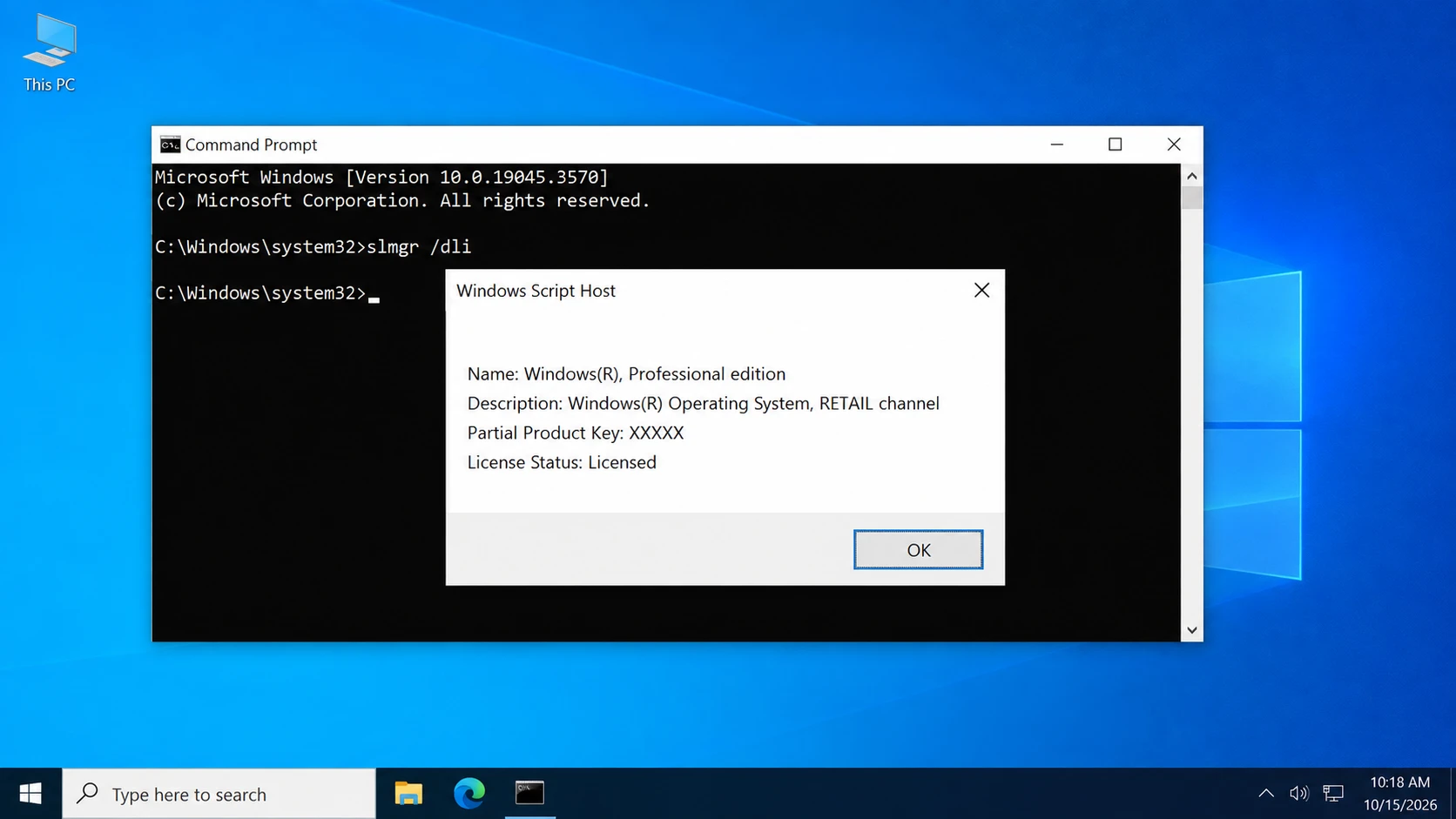
Check License Information with Command Prompt
Open Command Prompt as administrator and run slmgr /dli.
The resulting window may show information about the installed licensing channel, such as Retail or OEM.
However, this command cannot reliably establish every license’s original purchase conditions. It may also report a generic installed key.
Check for an OEM Product Key with PowerShell
Some manufacturers store the original OEM product key in UEFI firmware.
Open PowerShell and run:
(Get-CimInstance -ClassName SoftwareLicensingService).OA3xOriginalProductKey
If the firmware contains a key, Windows may display it.
An empty result does not necessarily indicate an activation problem. For additional methods, see our guide on how to get your Windows 10 product key.
Common Misconceptions About Reusing Windows 10 Keys
Several misunderstandings can lead to unnecessary purchases or unsuccessful activation attempts.
Misconception 1: A Product Key Can Always Be Used Again
Not every license allows transfers between computers. Retail, OEM, and Volume licenses follow different rules. Additionally, some product keys act as generic installation keys rather than independent proof of a valid license.
Misconception 2: Reinstalling Windows Always Requires a New Key
A computer with an existing digital license often reactivates automatically after reinstalling the same Windows edition. Therefore, users should check activation before assuming they need to purchase another license.
Misconception 3: Uninstalling a Product Key Transfers the License
The command slmgr /upk removes the installed product key from the local Windows installation. However, it does not automatically transfer license rights, clear every server-side activation record, or guarantee activation on another computer.
Misconception 4: Finding a Key Guarantees Successful Activation
A retrieved key may be an OEM firmware key, a generic installation key, or another stored value.
Consequently, its presence does not guarantee that the key can activate a different device.
Is It Safe to Reuse or Change a Windows 10 Key?
Windows 10のプロダクトキーの再利用 through Microsoft’s supported activation methods is generally safe when you have the necessary license rights.
However, changing activation information carelessly may leave Windows unactivated.
Before making changes:
- Confirm that Windows Home or Pro matches your license.
- Save relevant purchase documentation.
- Link an eligible digital license to your Microsoft account before significant hardware changes.
- Avoid unknown activation scripts and unofficial KMS services.
- Never publish complete product keys or account credentials.
If the system uses an organization’s license, consult the IT administrator before modifying its activation configuration.
What Should You Do When You Need to Reuse Windows 10?
After understanding how activation works, choose the next step according to your circumstances.
Same Computer: Reinstall and Reactivate
For a previously activated computer, reinstall the corresponding Windows edition.
During setup, users with a valid digital license can usually select I don’t have a product key.
Next, connect to the internet and check Activation settings.
Changed Motherboard: Use Microsoft’s Reactivation Process
If Windows becomes unactivated after a significant hardware change, open Settings > Update & Security > Activation > Troubleshoot.
For eligible, previously linked digital licenses, follow I changed hardware on this device recently and select the appropriate device.
Microsoft provides the complete procedure in its hardware-change reactivation guide.
New Computer: Check Transfer Rights First
If you purchased a qualifying stand-alone Retail license, review the transfer terms and stop using the licensed copy on the old device.
Then install the matching Windows edition on the new computer and enter the eligible product key through Activation settings.
If activation fails, contact Microsoft rather than repeatedly entering unrelated keys.
Missing Product Key: Check Existing Records
When the original key is unavailable, start with purchase emails, retail accounts, packaging, and Windows’ built-in inspection methods.
If you need to locate and back up accessible software keys before reinstalling Windows, Magic Recovery Key offers a convenient way to check supported Windows and application license information. Unlike manually searching multiple locations, it provides a centralized interface for reviewing available keys.
However, it cannot generate missing licenses, bypass Microsoft activation requirements, or guarantee that every original key can be recovered.

Can You Still Reuse a Windows 10 Key in 2026?
Yes. Windows 10 license reuse can remain possible in 2026 when the relevant activation requirements and license terms permit it.
Microsoft ended regular Windows 10 support on October 14, 2025. However, the end of support did not automatically invalidate existing legitimate licenses.
Windows 10 computers can continue operating, although systems without ongoing security updates face increased risks.
Therefore, eligible users should consider Windows 11. Others can review Microsoft’s Windows 10 Extended Security Updates options.
まとめ
Windows 10 プロダクトキーの再利用 means activating Windows again under an existing license, but the ability to do so depends on the original license rights, hardware configuration, and activation method. Digital licenses simplify same-device reinstalls, while transferring a license to another computer requires additional consideration.
Understanding the distinction between product keys, digital licenses, and license transfer rights helps prevent unnecessary activation problems.
When license information is missing, Windows’ built-in tools and purchase records should come first. Magic Recovery Key is worth considering when you need a convenient way to locate and back up accessible software keys before reinstalling Windows. For further information, explore our ライセンスキー復元センター.
Windows 7/8/10/11およびWindows Serverをサポート
FAQs About Reusing Windows 10 Keys
パソコンをフォーマットした後、Windows 10のプロダクトキーを再利用することはできますか?
SSDを交換した後、Windows 10のプロダクトキーを再利用することはできますか?
OEM版のWindows 10のプロダクトキーを新しいパソコンに移行することはできますか?
1つのWindows 10プロダクトキーを2台のコンピューターで使用することはできますか?
Windows 10のデジタルライセンスは、プロダクトキーと同じものですか?
Windows 10のパッケージ版プロダクトキーは、何回まで再利用できますか?
Windows 10のサポート終了は、プロダクトキーによるアクティベーションに影響しますか?

バシリイは、この分野で約10年の実務経験を持つデータ復元のスペシャリストです。そのキャリアを通じて、彼は削除されたファイル、フォーマットされたドライブ、失われたパーティション、RAWファイルシステムを含む何千もの複雑なケースの解決に成功してきました。彼の専門知識は、16進エディタなどの専門ツールを使用した手動復元方法と、復元ソフトウェアを使用した高度な自動化ソリューションの両方をカバーしています。バシリの使命は、信頼できるデータ復元知識をITプロフェッショナルと一般ユーザーの双方が利用できるようにし、貴重なデジタル資産を保護できるようにすることです。.