
Reusing Windows 10 Key: How It Works
Reusing Windows 10 key refers to activating Windows 10 again under an existing license, usually after reinstalling the operating system or changing computer hardware. Whether it works depends on your license type, Windows edition, and the device receiving the activation.
A product key is not the same as the legal right to use Windows on another computer. Moreover, some systems use digital licenses that do not require users to enter a 25-character key. This guide explains these differences, how Windows activation works, and when an existing license can be reused. For more information about locating and managing software licenses, visit our License Key Recovery Hub.
Table of Contents
What Does Reusing a Windows 10 Key Mean?
Reusing a Windows 10 key means attempting to activate Windows again using an existing product key or activation entitlement. The process might involve the original computer, replacement hardware, or a different device.
However, activation and license transfer are not interchangeable.
Windows activation checks whether a device has a valid activation entitlement. Meanwhile, the applicable software license determines where and how the owner may use Windows.
Quick Facts About Windows 10 Key Reuse
Item | Explanation |
Operating system | Windows 10 |
Product key | A 25-character code used for Windows activation |
Digital license | An activation method that does not require manually entering a product key |
License types | Retail, OEM, and Volume |
Main requirement | A valid license and compatible Windows edition |
Transfer rights | Depend on the original license agreement |
Activation location | Settings > Update & Security > Activation |
Hardware sensitivity | Major changes, especially motherboard replacement, may require reactivation |
The key distinction is simple: having a product key does not automatically mean you can use it on unlimited computers.
How Does Windows 10 Activation Work?
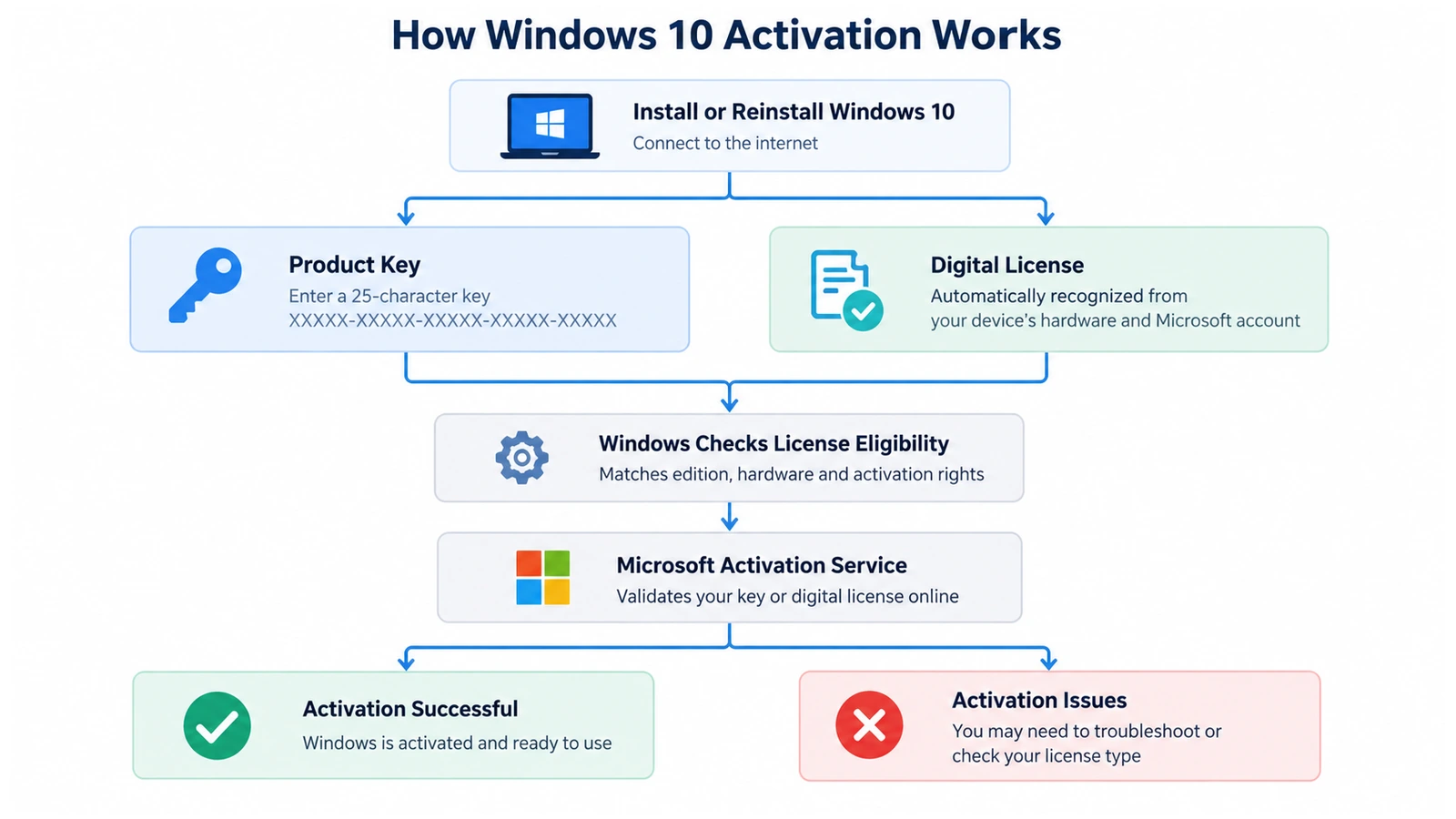
Windows activation helps Microsoft verify that a Windows installation uses a valid license and does not exceed the permitted number of devices.
Think of a product key as a credential that can help establish an activation entitlement. A digital license, by contrast, allows Windows to recognize an existing entitlement associated with the device.
However, neither method overrides the original licensing agreement.
Step 1: Windows Identifies the Activation Method
During installation or activation, Windows checks whether the computer has an eligible digital license or whether the user provides a product key.
A Windows 10 digital license usually works without manually entering a 25-character code.
By contrast, product-key activation requires a valid key associated with the correct Windows edition.
Step 2: Windows Checks the Device and License
Windows communicates with Microsoft’s activation services when online activation takes place.
The system considers the available activation entitlement and information associated with the device.
For example, reinstalling Windows 10 Home on an already activated computer will often allow automatic reactivation.
However, replacing the motherboard may change the device identity enough to require another activation check.
Step 3: Windows Displays the Activation Result
After processing the request, Windows reports its activation status.
If activation succeeds, the Activation page confirms that Windows is active. Otherwise, Windows may display a troubleshooting option or error code.
Microsoft explains these methods in its official Windows activation documentation.
Types of Windows 10 Licenses and Their Reuse Rules
Understanding the license type is essential because different acquisition methods provide different usage rights.
Retail License
A Retail license usually comes from a separate purchase of Windows.
Under Microsoft’s stand-alone software license terms, qualifying Retail licenses generally allow transfers between devices, provided the previous device no longer uses that copy.
For example, someone who purchased Windows 10 separately may be able to move that license to a replacement computer.
However, activating Windows on two computers simultaneously with one standard single-device license is not permitted.
OEM License
An Original Equipment Manufacturer (OEM) license commonly comes preinstalled on a desktop or laptop. These licenses generally remain associated with the original licensed computer.
Therefore, replacing an SSD usually does not require a new license, while transferring a preinstalled OEM license to a completely different computer generally falls outside its standard transfer rights.
Certain manufacturer warranty repairs and applicable legal exceptions may affect specific situations.
Volume License
Organizations use Volume Licensing to manage Windows across multiple devices. These licenses may use Key Management Service (KMS), Multiple Activation Keys (MAK), or other organization-managed activation arrangements.
Consequently, employees should contact their IT administrator rather than attempting to transfer an organizational Windows key independently.
For exact transfer conditions, consult Microsoft’s Windows 10 Retail License Terms.
Windows 10 Product Key vs. Digital License: What's the Difference?
A common misconception is that every activated computer has a unique product key that users can retrieve and reuse. In reality, Microsoft supports more than one activation method.
Feature | Windows 10 Product Key | Windows 10 Digital License |
Form | 25-character code | Activation entitlement |
Manual entry | May be required | Usually unnecessary |
Where it comes from | Purchase, packaging, firmware, or licensing records | Established through eligible activation |
Same-device reinstall | Can be entered again if appropriate | Usually reactivates automatically |
Hardware changes | May require key re-entry | May require account-linked troubleshooting |
Transferability | Depends on license terms | Depends on underlying license rights |
A digital license can also be associated with a Microsoft account. This association helps eligible users reactivate Windows after major hardware changes.
However, linking an account does not convert an OEM license into a transferable Retail license.
Likewise, retrieving an installed product key does not guarantee that it represents the computer’s original purchased license.
Why Does Reusing a Windows 10 Key Matter?
The consequences of reusing a Windows 10 key depend on what changes to the computer.
Reinstalling Windows 10 on the Same Computer
A clean installation removes the existing operating system, but it does not automatically cancel the computer’s license.
If the device already has a valid digital license, installing the same Windows edition usually allows automatic reactivation after connecting to the internet.
For example, a computer previously activated with Windows 10 Pro should generally receive Windows 10 Pro again.
Replacing an HDD or SSD
Storage upgrades normally have little effect on Windows activation because the license does not depend solely on the storage drive.
Therefore, an SSD replacement usually does not require purchasing another Windows license.
Nevertheless, backing up personal files and software license information remains important before performing the upgrade.
Replacing the Motherboard
Motherboard replacement creates a more significant activation issue because Windows may no longer recognize the device.
The result depends on the original license and whether Microsoft’s supported reactivation process applies.
For eligible digital licenses, linking the license to a Microsoft account before making changes can simplify the process.
Moving Windows to Another PC
Moving a license to another computer requires more than knowing the original product key.
A qualifying Retail license may permit the transfer, while a preinstalled OEM license generally remains with the original device.
As a result, users should verify the license agreement before attempting activation elsewhere.
Where Can You Check Windows 10 Activation Information?
Windows provides several built-in ways to inspect activation-related information. These methods help you understand the current state without changing the license.
Check Activation Status in Settings
- Press
Win + Ito open Settings. - Go to Update & Security > Activation.
- Check the Windows edition and activation message.
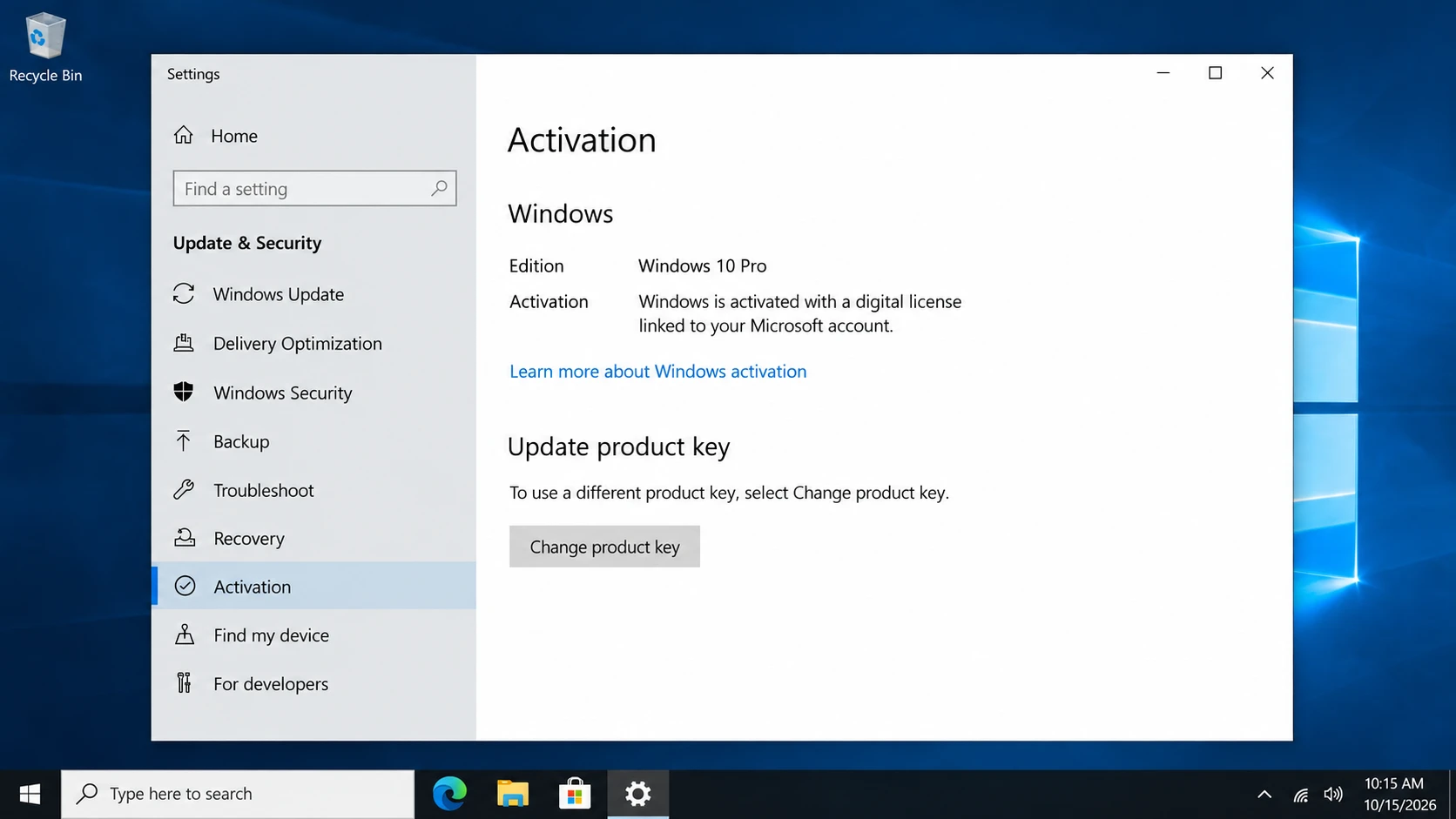
Windows may display:
- Windows is activated with a digital license.
- Windows is activated with a digital license linked to your Microsoft account.
- Windows is not activated.
These messages help determine whether a new product key is necessary.
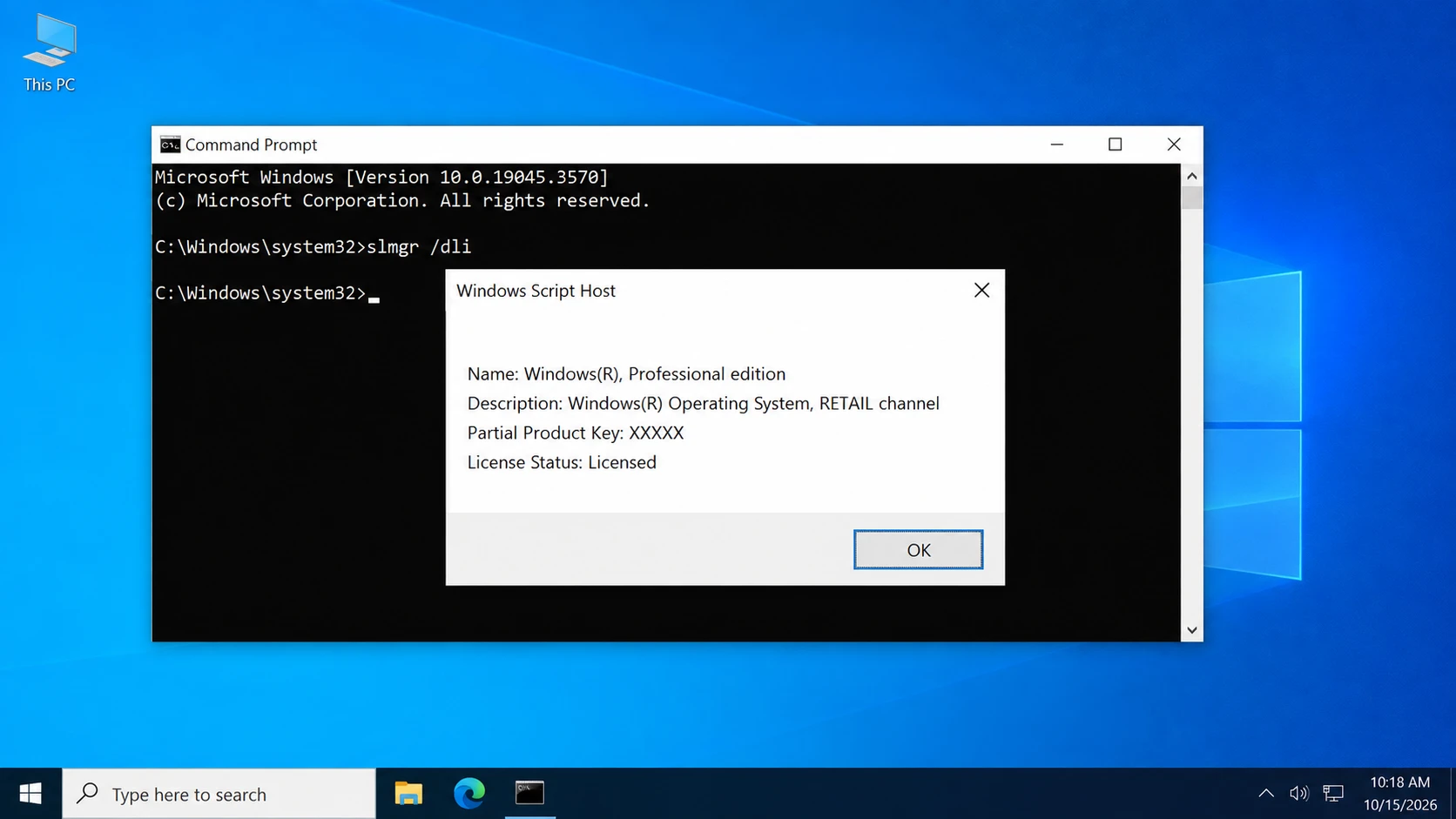
Check License Information with Command Prompt
Open Command Prompt as administrator and run slmgr /dli.
The resulting window may show information about the installed licensing channel, such as Retail or OEM.
However, this command cannot reliably establish every license’s original purchase conditions. It may also report a generic installed key.
Check for an OEM Product Key with PowerShell
Some manufacturers store the original OEM product key in UEFI firmware.
Open PowerShell and run:
(Get-CimInstance -ClassName SoftwareLicensingService).OA3xOriginalProductKey
If the firmware contains a key, Windows may display it.
An empty result does not necessarily indicate an activation problem. For additional methods, see our guide on how to get your Windows 10 product key.
Common Misconceptions About Reusing Windows 10 Keys
Several misunderstandings can lead to unnecessary purchases or unsuccessful activation attempts.
Misconception 1: A Product Key Can Always Be Used Again
Not every license allows transfers between computers. Retail, OEM, and Volume licenses follow different rules. Additionally, some product keys act as generic installation keys rather than independent proof of a valid license.
Misconception 2: Reinstalling Windows Always Requires a New Key
A computer with an existing digital license often reactivates automatically after reinstalling the same Windows edition. Therefore, users should check activation before assuming they need to purchase another license.
Misconception 3: Uninstalling a Product Key Transfers the License
The command slmgr /upk removes the installed product key from the local Windows installation. However, it does not automatically transfer license rights, clear every server-side activation record, or guarantee activation on another computer.
Misconception 4: Finding a Key Guarantees Successful Activation
A retrieved key may be an OEM firmware key, a generic installation key, or another stored value.
Consequently, its presence does not guarantee that the key can activate a different device.
Is It Safe to Reuse or Change a Windows 10 Key?
Reusing a Windows 10 key through Microsoft’s supported activation methods is generally safe when you have the necessary license rights.
However, changing activation information carelessly may leave Windows unactivated.
Before making changes:
- Confirm that Windows Home or Pro matches your license.
- Save relevant purchase documentation.
- Link an eligible digital license to your Microsoft account before significant hardware changes.
- Avoid unknown activation scripts and unofficial KMS services.
- Never publish complete product keys or account credentials.
If the system uses an organization’s license, consult the IT administrator before modifying its activation configuration.
What Should You Do When You Need to Reuse Windows 10?
After understanding how activation works, choose the next step according to your circumstances.
Same Computer: Reinstall and Reactivate
For a previously activated computer, reinstall the corresponding Windows edition.
During setup, users with a valid digital license can usually select I don’t have a product key.
Next, connect to the internet and check Activation settings.
Changed Motherboard: Use Microsoft’s Reactivation Process
If Windows becomes unactivated after a significant hardware change, open Settings > Update & Security > Activation > Troubleshoot.
For eligible, previously linked digital licenses, follow I changed hardware on this device recently and select the appropriate device.
Microsoft provides the complete procedure in its hardware-change reactivation guide.
New Computer: Check Transfer Rights First
If you purchased a qualifying stand-alone Retail license, review the transfer terms and stop using the licensed copy on the old device.
Then install the matching Windows edition on the new computer and enter the eligible product key through Activation settings.
If activation fails, contact Microsoft rather than repeatedly entering unrelated keys.
Missing Product Key: Check Existing Records
When the original key is unavailable, start with purchase emails, retail accounts, packaging, and Windows’ built-in inspection methods.
If you need to locate and back up accessible software keys before reinstalling Windows, Magic Recovery Key offers a convenient way to check supported Windows and application license information. Unlike manually searching multiple locations, it provides a centralized interface for reviewing available keys.
However, it cannot generate missing licenses, bypass Microsoft activation requirements, or guarantee that every original key can be recovered.

Can You Still Reuse a Windows 10 Key in 2026?
Yes. Windows 10 license reuse can remain possible in 2026 when the relevant activation requirements and license terms permit it.
Microsoft ended regular Windows 10 support on October 14, 2025. However, the end of support did not automatically invalidate existing legitimate licenses.
Windows 10 computers can continue operating, although systems without ongoing security updates face increased risks.
Therefore, eligible users should consider Windows 11. Others can review Microsoft’s Windows 10 Extended Security Updates options.
Conclusion
Reusing Windows 10 key means activating Windows again under an existing license, but the ability to do so depends on the original license rights, hardware configuration, and activation method. Digital licenses simplify same-device reinstalls, while transferring a license to another computer requires additional consideration.
Understanding the distinction between product keys, digital licenses, and license transfer rights helps prevent unnecessary activation problems.
When license information is missing, Windows’ built-in tools and purchase records should come first. Magic Recovery Key is worth considering when you need a convenient way to locate and back up accessible software keys before reinstalling Windows. For further information, explore our License Key Recovery Hub.
Supports Windows 7/8/10/11 and Windows Server
FAQs About Reusing Windows 10 Keys
Can I reuse my Windows 10 key after formatting my computer?
Can I reuse my Windows 10 key after replacing an SSD?
Can I transfer an OEM Windows 10 key to a new computer?
Can I use one Windows 10 product key on two computers?
Is a Windows 10 digital license the same as a product key?
How many times can a Windows 10 Retail key be reused?
Does Windows 10 end of support affect product key activation?

Vasilii is a data recovery specialist with around 10 years of hands-on experience in the field. Throughout his career, he has successfully solved thousands of complex cases involving deleted files, formatted drives, lost partitions, and RAW file systems. His expertise covers both manual recovery methods using professional tools like hex editors and advanced automated solutions with recovery software. Vasilii's mission is to make reliable data recovery knowledge accessible to both IT professionals and everyday users, helping them safeguard their valuable digital assets.