
What Is Data Overwriting? How It Affects File Recovery
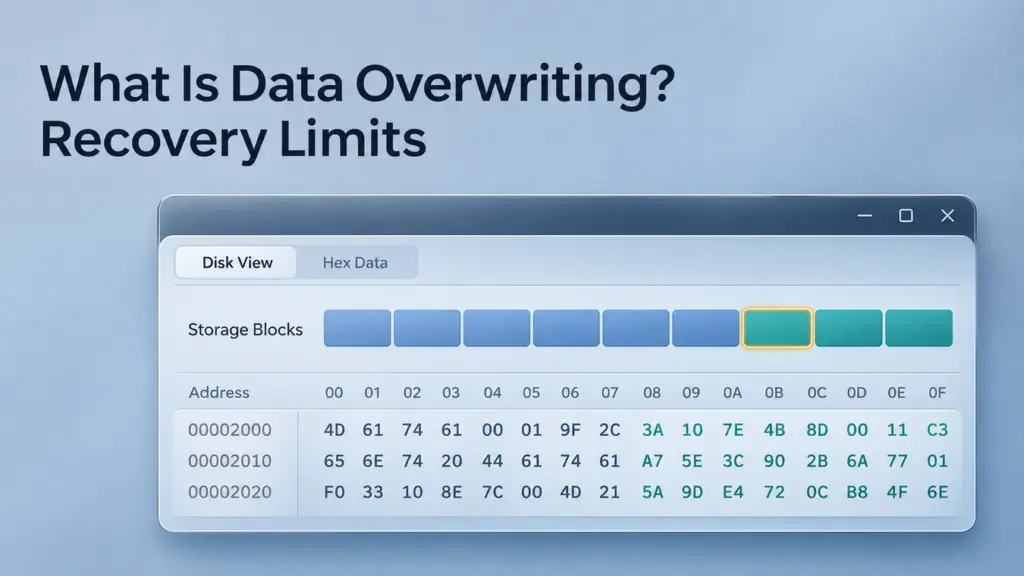
Data overwriting means writing new information to storage locations that previously held other information, replacing the older contents available at those addresses. It can happen during ordinary file updates, when deleted space is reused, or through deliberate disk wiping. However, replacing a file with another file of the same name does not prove that its original physical storage locations were overwritten.
This distinction matters after saving the wrong document, deleting files, formatting a drive, or preparing a device for sale. This guide focuses on Windows PCs and common HDD and SSD storage, explaining what different operations change and what those changes mean for recovery.
Réponse rapide : Recovery software cannot reconstruct original bytes that have actually been overwritten. An earlier backup, cloud version, temporary file, or unaffected copy may still be recoverable. On SSDs, TRIM can also make deleted data unavailable without a person saving new files.
Table des matières
How Overwriting Files on Disk Works
A file has both contents and information describing how to find those contents. The file system tracks its name, size, and storage allocation. On NTFS, the Tableau du fichier principal holds file records and information used to retrieve file data; sufficiently small files can store their contents within a record.
For files stored outside those records, space is allocated in clusters. The taille de l'unité d'allocation determines the size of those clusters, while the storage device receives reads and writes through logical block addresses.
After permanent deletion, previously occupied space can become available for reuse. A later write may use some of that space, replacing the original contents. The new file does not need the deleted file’s name, extension, or folder location.
Exemple : An HDD contains a deleted photograph. A newly downloaded archive is allocated space that overlaps part of the photograph’s former allocation. The archive can overwrite that part even though the two files have unrelated names.
Overwriting is therefore about storage locations, rather than matching filenames. The operating system’s logical block addresses also should not be confused with permanent physical positions inside an SSD.
Overwriting, Replacing, Deleting, and Formatting
These operations can produce similar symptoms, such as an old file disappearing, while changing different things.
Fonctionnement | What changes | What it means for older data |
Permanently delete a file | File-system records and allocation are updated | Contents may remain readable until reused or made unavailable by the device |
Save or replace a same-name file | The current contents associated with that path change | Old storage may be reused or released, depending on the application and file system |
Overwrite occupied storage | New bytes replace the contents at the addressed locations | The overwritten original bytes cannot be recovered through a normal scan |
Quick-format a volume | New file-system structures are created | Some old contents may survive; metadata writes and SSD TRIM can still cause loss |
Complete a zero-writing Windows full format | Writes cover the formatted volume | Old contents in the overwritten range are unavailable to recovery software |
Some applications save through a temporary file and then replace the original directory entry. Others update existing file contents. A successful save dialog cannot reveal which earlier storage locations remain intact.
Formatting also depends on the exact tool and mode. Windows quick formatting differs from a completed full format that writes across the volume. For the recovery workflow after an accidental format, see récupération d'un disque dur formaté.
Why HDDs and SSDs Behave Differently
HDD Writes Replace Magnetic Data
On a conventional magnetic HDD, successfully rewriting the relevant physical storage area replaces the older recorded contents there. Recovery tools may find unaffected fragments or separate copies, but they cannot read an unlimited stack of previous versions beneath a completed overwrite.
Host-visible addresses still have limits: a drive can remap defective sectors, leaving areas ordinary software cannot reach. This matters when evaluating secure disposal, rather than predicting that a recovery application can retrieve an overwritten file.
SSD Writes Use Internal Address Mapping
SSDs manage flash through a controller. Updating a logical address can write to a different flash page and invalidate the previous page. Garbage collection later consolidates valid data and erases blocks for reuse.
Consequently, a logical overwrite does not guarantee that every earlier physical copy has immediately disappeared. It also does not make those old pages accessible to ordinary Windows recovery software.
TRIM Is Separate from Overwriting
TRIM tells supported storage that specified logical ranges are no longer needed. The controller can make the former contents unavailable through normal reads and erase flash during internal maintenance.
This is why “I have not copied anything onto the SSD” does not establish recoverability. Timing and behavior depend on the device, file system, driver, and connection. There is no guaranteed recovery window after deletion.
Does Overwriting Data Prevent Recovery?
Yes, for the original information that has actually been replaced. Recovery software searches for remaining information; it cannot derive missing original bytes from unrelated new bytes.
However, recovery claims often use “overwritten file” to mean a document that was saved over or replaced. An older copy may survive elsewhere. Restoring it retrieves that copy rather than reversing an overwrite.
Situation | What may still be recovered |
A document was saved with unwanted edits | An earlier backup, cloud version, or application recovery copy |
New writes reused only some of a deleted file’s storage | Unaffected fragments, sometimes an incomplete file |
File metadata was replaced but contents survived | Data identified by its structure, potentially without original names or folders |
All required contents were physically overwritten | A separate surviving copy, if one exists |
An SSD no longer exposes deleted contents after TRIM | Backups or other accessible copies; a deeper scan cannot force the old data to reappear |
Partial survival does not guarantee a usable file. A damaged header, missing index, or lost compressed segment can prevent a document, archive, or video from opening even when much of its content remains.
Finding a filename in scan results also proves less than finding a complete, readable file. Metadata can survive independently of the data it once described.
Checking What Happened in Windows
Start with the operation and affected device. Establish whether the file was deleted, saved over, copied over, or lost after formatting. Check the application’s recent activity and the file’s actual location, including whether it belonged to a synced folder.
File Explorer timestamps and file sizes are clues, not proof that particular disk areas were overwritten. Likewise, free space and unallocated space describe allocation states, not whether earlier contents have been securely erased.
Read the TRIM Notification Setting
On a stable Windows 11 or Windows 10 PC, open Command Prompt as administrator and run this query:
- fsutil behavior query DisableDeleteNotify
For a reported file-system setting:
0means disabling delete notifications is off, so notifications are enabled.1means disabling delete notifications is on, so notifications are disabled.
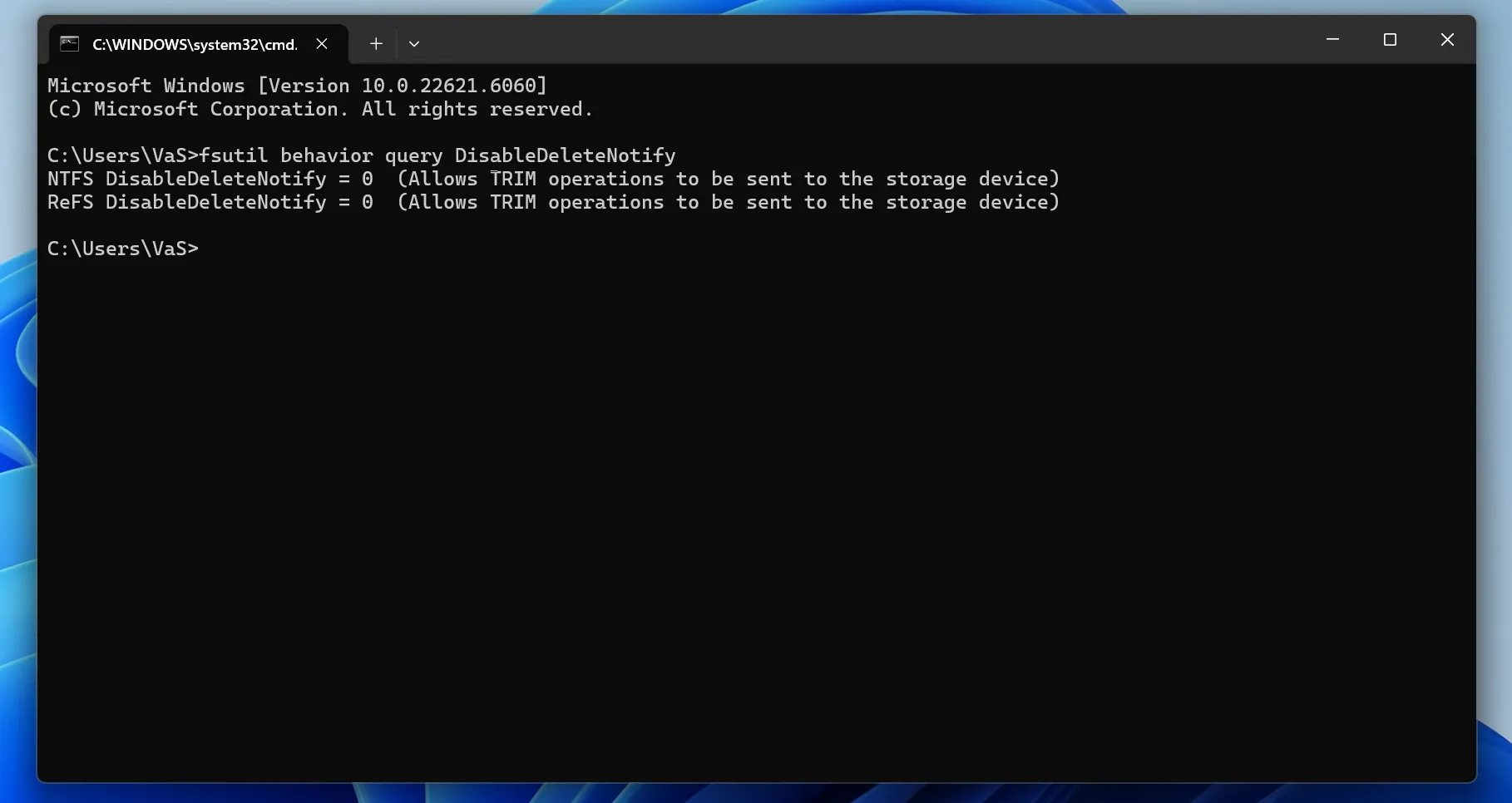
Windows reports that NTFS and ReFS delete notifications are enabled in this example.
This command queries a Windows setting. It does not establish whether a particular deletion generated a notification, whether a USB bridge passed it through, or whether the device erased specific data. Changing the setting afterward cannot undo a completed operation.
If valuable files have already disappeared, preserving the affected drive takes priority over collecting screenshots or repeatedly booting it to inspect settings.
Checking Backups and Previous Versions
When a file was saved over, look for an earlier copy before scanning deleted space. For a OneDrive or SharePoint file, inspect its available version history. For a local folder protected by File History, check versions captured before the unwanted change.
To inspect an existing Windows folder backup:
- Open File Explorer and locate the folder that contained the file.
- Cliquez avec le bouton droit de la souris sur le dossier et sélectionnez Restaurer les versions précédentes. The command may appear under Afficher plus d'options.
- Select a version from before the change and open it to inspect the contents.
- If the needed copy exists, use Restaurer vers…, where available, to save it separately and preserve the current version.
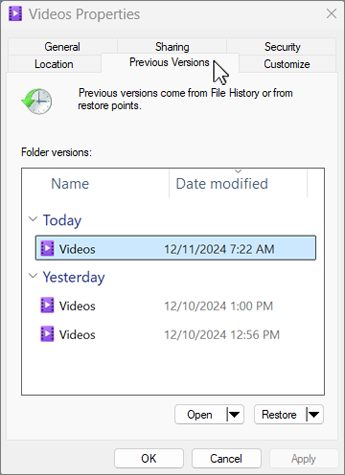
The Previous Versions tab lists available earlier folder copies. The dates and folder name are examples from Microsoft Support.
File History must already have captured the relevant folder before the loss. Enabling it afterward does not create a historical copy, and an empty list does not prove that the original disk data was overwritten.
If the event was deletion rather than replacement, the guide to récupération des fichiers récemment supprimés covers the Recycle Bin, backups, and remaining-data recovery options.
Deliberate Overwriting and Secure Disposal
Accidental-loss recovery and secure disposal have opposite goals. A free-space wiping utility deliberately writes into available file-system space to remove remnants of deleted files. Do not run one while trying to recover those files.
However, overwriting one file or filling visible free space does not establish that every copy has been removed. Backups, snapshots, temporary copies, and inaccessible device areas need separate consideration. SSD remapping makes ordinary file-level overwriting particularly unsuitable as proof of complete flash sanitization.
For disposal, use the drive manufacturer’s documented sanitize or secure-erase procedure appropriate to the exact device. Cryptographic erase is another method when the device’s encryption and key-management conditions support it; simply deleting a password is not equivalent.
Current NIST media-sanitization guidance distinguishes Effacer, Purge, et Destroy according to the intended protection level. A pass count alone does not establish that a method covers the relevant media or meets that objective.
Record the device identity, selected method, completion status, and errors. A successful read-back checks only the addresses examined; it cannot prove that hidden flash pages or independent backups were sanitized.
Protecting Remaining Data and Verifying Recovery
After accidental loss, stop downloads, installations, copying, and cleanup on the affected device. If it contains the running Windows installation, avoid continuing normal use. Use another computer or obtain help with preserving the source if needed.
When scanning stable storage, install tools elsewhere and save recovered files to a separate physical device. A sector image made after the loss can preserve the state still readable at imaging time; it cannot recreate information already overwritten or erased. Clicking, repeated disconnections, or other hardware symptoms call for professional assessment before further scanning.
Verify recovered copies by opening them in their normal applications and checking the needed contents. Inspect multiple pages, worksheets, archive entries, or video sections as appropriate. Compare hashes with a known-good earlier copy when one exists. A matching filename, expected size, or successful export message alone does not establish completeness.
FAQ
Does using the same filename always overwrite the same disk sectors?
Can new files in a different folder overwrite deleted data?
How long does it take for deleted data to be overwritten?
Can a professional laboratory recover physically overwritten HDD data?
Is writing zeros less effective than writing random data?
Does a smaller replacement file leave the end of the old file recoverable?
Does a disk clone restore an overwritten file?

Jason est un spécialiste de la récupération de données et de l'assistance technique, fort de plus de 15 ans d'expérience sur le terrain. Il a beaucoup travaillé auprès des utilisateurs finaux, résolvant des cas complexes de perte de données et proposant des solutions de récupération concrètes en cas de suppression accidentelle, de disques formatés, de systèmes de fichiers endommagés, de partitions perdues, de pannes système et d’autres situations d’urgence nécessitant une récupération. Son expertise couvre également la sauvegarde et la restauration, la réparation de fichiers et la reprise après sinistre, en mettant particulièrement l’accent sur des conseils sûrs, fiables et techniquement rigoureux.