
Ripristinare i file di Visual Studio: 7 metodi sicuri
Se avete bisogno di ripristinare i file di Visual Studio, innanzitutto occorre individuare cosa sia effettivamente andato perso. Modifiche non salvate a seguito di un crash, un file cancellato .cs file, una cartella di progetto rimossa e un soluzione eliminata definitivamente richiedono metodi di recupero diversi. La funzione AutoRecover di Visual Studio può essere d’aiuto in caso di modifiche non salvate nell’IDE, mentre Visual Studio Code utilizza funzionalità separate di backup e cronologia locale. Se l’eliminazione ha rimosso i file originali dal disco e non rimane alcuna copia integrata, Magic Data Recovery potrebbero essere utili prima che i nuovi dati li sovrascrivano.
Supporta Windows 7/8/10/11 e Windows Server
Indice dei contenuti
Prima di recuperare i file di Visual Studio, identifica il tipo di perdita
Visual Studio e Visual Studio Code non utilizzano lo stesso sistema di recupero. Visual Studio utilizza la funzione "AutoRecover", mentre VS Code dispone di funzioni separate di backup e cronologia locale. Inoltre, il salvataggio automatico non costituisce un backup permanente.
A ripristinare i file di Visual Studio Per farlo in modo efficiente, segui questa procedura:
Situazione di perdita dei dati | La scelta migliore |
Visual Studio si è bloccato con modifiche non salvate | Visual Studio - Ripristino automatico |
VS Code si è bloccato con modifiche non salvate | Backup di VS Code / Chiusura immediata |
Il file VS Code salvato è stato eliminato | Storia locale o Cestino |
Il file di progetto tracciato è stato eliminato | Git o altri sistemi di controllo del codice sorgente |
La cartella del progetto conteneva i backup di Windows | Cronologia dei file / Versioni precedenti |
Il file è stato eliminato in modo permanente | Recupero file di Windows o software di recupero dati |
Prima di procedere con il recupero approfondito, interrompi qualsiasi operazione di scrittura sull'unità interessata. Le operazioni di compilazione, download e installazione di pacchetti potrebbero sovrascrivere i dati cancellati.
Metodo 1: Ripristino dei file di Visual Studio con la funzione di ripristino automatico
Per l'IDE completo di Visual Studio su Windows, dopo un arresto anomalo o uno spegnimento imprevisto, controlla innanzitutto la funzione "AutoRecover".
- Riapri Visual Studio e cerca i documenti ripristinati.
- Vai a Strumenti > Opzioni > Ambiente > Ripristino automatico.
- Apri Esplora file e digita
%LocalAppData%\Microsoft\VisualStudio\BackupFiles. - Controlla nella cartella del progetto se sono presenti copie di backup recenti.
- Apri un file di progetto, verifica il codice e salvalo con un nuovo nome.
Microsoft afferma che Visual Studio è in grado di eseguire il backup dei file salvati in precedenza in %LocalAppData%\Microsoft\VisualStudio\BackupFiles\[nome del progetto], mentre i nuovi file non salvati potrebbero avere nomi casuali. La disponibilità dipende dall'intervallo e dal periodo di conservazione configurati.
Questo può ripristinare i file di Visual Studio dopo un crash, ma non è pensato per ripristinare un intero progetto che sia stato eliminato definitivamente dalla memoria.
Metodo 2: Recuperare i file di VS Code non salvati dai backup
Se VS Code si è bloccato o si è chiuso senza salvare le modifiche, riaprire innanzitutto lo stesso spazio di lavoro. La funzione "Hot Exit" potrebbe ripristinare lo stato dell'editor. In caso contrario, verificare quanto segue:
%APPDATA%\Code\Backup
VS Code utilizza questa posizione di backup di Windows per lo stato dell'editor non salvato.
Non confonderlo con la funzione "AutoRecover" di Visual Studio. Per ripristinare i file di Visual Studio, utilizzare il percorso di Visual Studio; per i contenuti non salvati in VS Code, utilizzare il percorso di VS Code.
Inoltre, tieni presente che un buffer dell'editor non salvato è diverso da un file cancellato. I software di recupero dati funzionano generalmente con i dati che sono stati effettivamente scritti su un supporto di archiviazione.
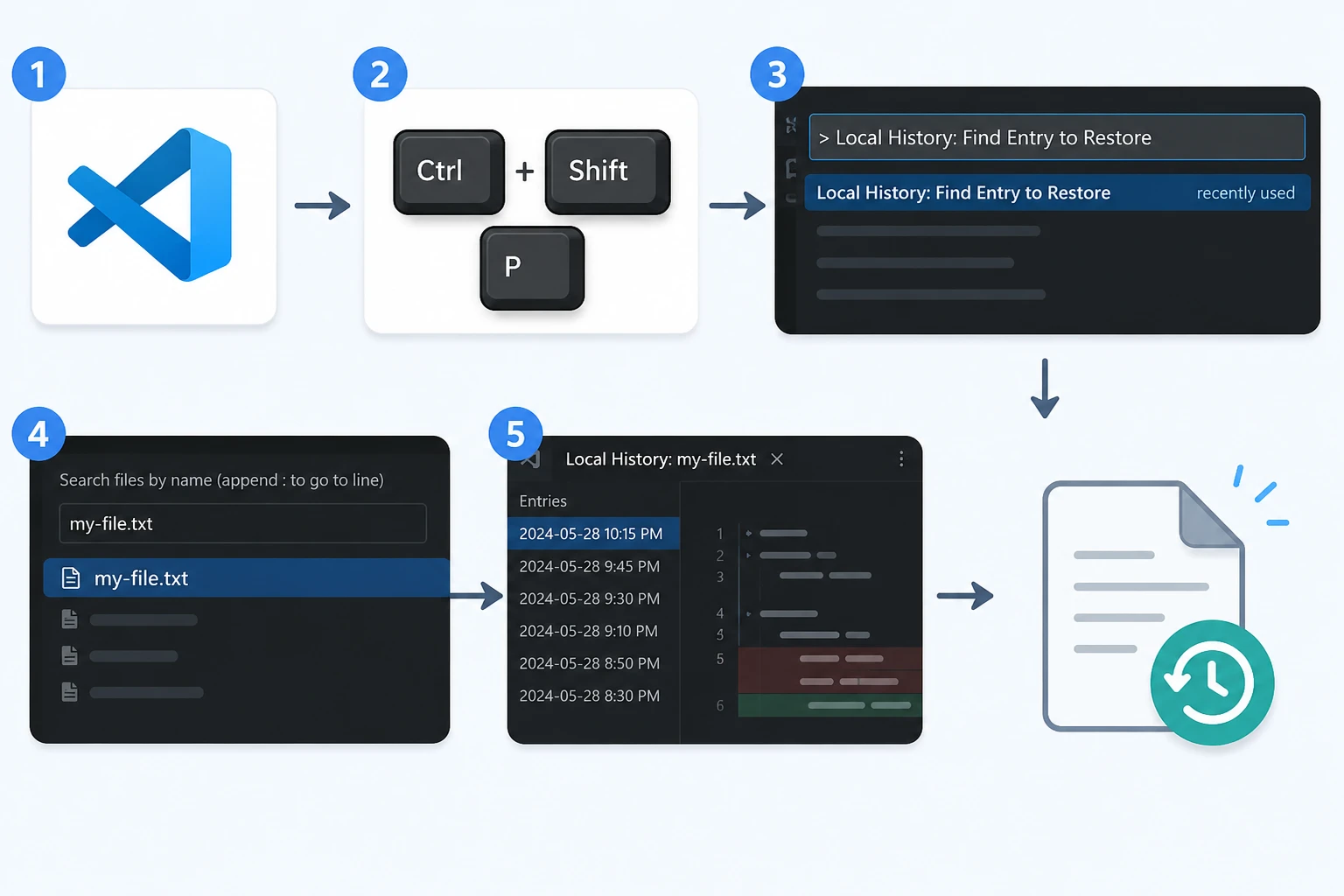
Metodo 3: Ripristinare i file di VS Code eliminati tramite la cronologia locale
Per un file salvato in VS Code e successivamente eliminato o modificato, la Cronologia locale potrebbe contenere una versione utilizzabile.
- Apri VS Code.
- Stampa Ctrl + Maiusc + P.
- Correre Storia locale: trova la voce da ripristinare.
- Cerca il file eliminato.
- Apri una voce con data e ora e ripristina la versione che ti serve.
La cronologia locale di VS Code può memorizzare i contenuti precedenti ricavati dagli stati salvati dell'editor. Tuttavia, le voci disponibili dipendono dalle impostazioni, dalle esclusioni, dalle dimensioni del file e dal fatto che il file sia stato salvato in precedenza.
Se il file è scomparso solo di recente, puoi anche dare un’occhiata a questi Metodi per il recupero dei file cancellati di recente prima di passare a una scansione completa del disco.
Metodo 4: Recuperare i file di Visual Studio dal Cestino o da Git
Per i file sorgente salvati, controllare il Cestino e il controllo di versione prima di eseguire la scansione del disco.
Controlla il Cestino
Se hai eliminato normalmente un file di origine, una soluzione o un file di progetto salvato, apri il Cestino e ripristinalo nella posizione originale.
Ciò è particolarmente rilevante per .cs, .cpp, .h, .json, .xml, .sln, e le cartelle dei progetti eliminate tramite Esplora file o un editor.
Se hai già Cestino svuotato, il normale comando "Ripristina" non funzionerà più. A quel punto, potrebbe essere necessario eseguire un ripristino dal backup o a livello di storage.
Ripristina da Git
Se Git aveva già il file sotto controllo e l'hai sottoposto a commit, Git è solitamente l'opzione più semplice.
- Per eliminare in modo non definitivo un file sottoposto a controllo di versione, utilizzare il controllo di versione oppure
git restore percorso\del\file. - Se la versione richiesta è presente in un commit precedente, ripristinala dalla cronologia del repository.
- Se utilizzi GitHub, GitLab o Azure DevOps, controlla il repository remoto prima di provare a ripristinare il disco.
Per gli utenti che cercano Visual Studio: recupero dei file, il controllo del codice sorgente è spesso più sicuro rispetto all'analisi dello spazio su disco cancellato, poiché Git ripristina una versione nota del progetto anziché ricostruire i dati cancellati.
Tuttavia, Git non può ripristinare un file non monitorato che non è mai stato sottoposto a commit, a meno che non ne esista una copia altrove.
Metodo 5: Ripristinare i file di Visual Studio con la Cronologia dei file
Se la funzione "Cronologia file" di Windows ha eseguito il backup della cartella del progetto, potresti riuscire a ripristinare una copia precedente.
- Aprire Esplora file.
- Vai alla cartella che conteneva il progetto mancante.
- Fare clic con il tasto destro del mouse e scegliere Ripristino delle versioni precedenti.
- Seleziona una versione precedente alla cancellazione.
- Aprilo per verificare i file, quindi ripristinalo.
Questo funziona bene per ripristinare i file di Visual Studio a seguito di una sovrascrittura accidentale, della cancellazione della cartella del progetto o di un'operazione di pulizia errata, quando esiste già un backup valido.
Se i file di sviluppo erano archiviati su un disco rigido tradizionale (HDD) anziché su un SSD, il meccanismo di recupero è diverso. Per ulteriori informazioni, consulta Recupero dati su disco rigido prima di eseguire una scansione a livello di disco.

Metodo 6: Ripristinare i file di Visual Studio con la funzione di recupero file di Windows
Se il Cestino, Git, il ripristino automatico, la cronologia locale e la cronologia dei file non contengono il file, la funzione di recupero file di Windows può eseguire una scansione dell'archivio locale alla ricerca dei dati eliminati.
Il formato di base del comando è:
winfr unità sorgente: unità destinazione: [/mode] [/switches]
Ad esempio, /n I filtri consentono di limitare la scansione a una cartella di progetto o a un’estensione specifica.
Le unità di origine e di destinazione devono essere diverse. Soprattutto, evita di continuare a utilizzare l'unità di origine, poiché eventuali nuove operazioni di scrittura potrebbero occupare lo spazio su disco che in precedenza conteneva i tuoi file di origine.
Per i file eliminati con Maiuscolo + Canc oppure se sono andate perse dopo aver svuotato il Cestino, consulta la guida più approfondita su come ripristinare i file eliminati in modo permanente.

Perché la funzione TRIM degli SSD è importante
Molti PC di sviluppo moderni memorizzano i progetti di Visual Studio su SSD. Ciò comporta un’ulteriore limitazione in termini di ripristino.
Quando Windows elimina un file, il sistema operativo può inviare un comando TRIM all'SSD. Il comando TRIM comunica all'unità che quei blocchi non sono più necessari. Il controller dell'SSD può quindi cancellarli o riutilizzarli internamente.
Pertanto, i dati cancellati da un SSD possono scomparire molto più rapidamente rispetto a quelli cancellati da un HDD.
La nostra guida a Recupero dati SSD spiega in che modo la funzione TRIM, la sovrascrittura e il controller dell'SSD possono influire sul recupero dei dati.
Nel frattempo, evita di:
- ricostruzione di soluzioni Visual Studio di grandi dimensioni;
- ripristino dei pacchetti NuGet;
- scaricare gli SDK;
- installazione di applicazioni di grandi dimensioni;
- copiare i file sulla partizione interessata.
Ogni azione può generare ulteriori operazioni di scrittura.
Metodo 7: Ripristino dei file di Visual Studio con Magic Data Recovery
Se le opzioni integrate non funzionano, un software di recupero dati diventa utile nel caso in cui i file di Visual Studio fossero stati precedentemente salvati su un supporto di archiviazione locale e successivamente cancellati.
Si tratta di una funzionalità diversa da AutoRecover, Cronologia locale, Git o Cronologia file.
- La funzione di recupero automatico si basa su copie temporanee dell'IDE.
- La cronologia locale di VS Code si basa sugli stati dell’editor salvati in precedenza.
- Git si basa sulle versioni tracciate.
- La cronologia dei file dipende dai backup esistenti.
- Il software di recupero dati esegue una scansione dei dispositivi di archiviazione alla ricerca di dati cancellati recuperabili.
Magic Data Recovery può quindi rappresentare un'opzione complementare quando tali fonti di ripristino integrate non contengono più il progetto mancante.
È particolarmente rilevante quando:
- un file sorgente con estensione .cs, .cpp, .h o di altro tipo è stato eliminato definitivamente;
- una cartella di progetto è stata ignorata o è scomparsa dal Cestino;
- Il Cestino è stato svuotato;
- non esiste una versione di Git utilizzabile;
- non è presente alcun backup di "Cronologia file";
- il file originale salvato è scomparso da un disco rigido o SSD locale.
Tuttavia, il recupero non è garantito. Nuovi dati potrebbero sovrascrivere il contenuto cancellato, mentre la funzione TRIM degli SSD può rendere il recupero notevolmente più difficile. Inoltre, il recupero tramite software non è in grado di riparare un dispositivo di archiviazione danneggiato fisicamente.
Se le opzioni di recupero integrate non funzionano più, puoi provare Magic Data Recovery prima che i nuovi dati sovrascrivano i file eliminati.
Come utilizzare Magic Data Recovery per recuperare i file di Visual Studio
Passo 1: Scaricare e installare Magic Data Recovery
Scarica Magic Data Recovery, ma non installarlo sullo stesso disco o sulla stessa partizione che conteneva il progetto di Visual Studio eliminato.
L'installazione crea nuovi file. Pertanto, l'installazione di un software di ripristino sulla partizione interessata potrebbe sovrascrivere il codice sorgente che si sta tentando di ripristinare.
Supporta Windows 7/8/10/11 e Windows Server
Passo 2: Selezionare l'unità su cui erano memorizzati i file di Visual Studio
Avvia il programma. Quindi seleziona l'unità o la partizione originale che conteneva la soluzione Visual Studio, la cartella del progetto o i singoli file sorgente eliminati.
Avvia la scansione.

Fase 3: Ricerca dei file di progetto persi o cancellati
Lascia che la scansione prosegua mentre il programma esegue la ricerca sul dispositivo di archiviazione selezionato.
La revisione ha individuato cartelle e file relativi al percorso originale del progetto o al codice sorgente, alla soluzione, al progetto, alla configurazione e ai file di testo pertinenti.

Passo 4: Recuperare i file in una posizione sicura
Seleziona i file che ti servono e salvali su un'altra unità o in un'altra posizione di archiviazione sicura.
Non riscrivere i file recuperati sulla partizione originale interessata mentre il processo di recupero è ancora in corso.

È possibile recuperare i file di Visual Studio da un SSD?
È possibile, ma il recupero dei dati dagli SSD merita un’attenzione a parte, poiché il comando TRIM può modificare ciò che accade dopo la cancellazione.
Su un disco rigido tradizionale (HDD), l'eliminazione di un file comporta in genere la rimozione del relativo riferimento nel file system, lasciando però inalterati i settori sottostanti fino a quando Windows non li riutilizza.
Su un SSD, tuttavia, TRIM potrebbe indicare al controller dell'SSD che i blocchi cancellati sono liberi. Il controller può cancellare tali blocchi durante la pulizia interna.
Di conseguenza, il tempo è fondamentale. Se il progetto di Visual Studio era memorizzato su un SSD, riduci immediatamente al minimo qualsiasi ulteriore attività sul disco.
Tuttavia, controlla prima Git, AutoRecover, la cronologia locale di VS Code, il Cestino e i backup. Questi metodi non si basano sul recupero dei blocchi SSD cancellati e potrebbero fornirti una versione più pulita del tuo progetto.
Come prevenire la perdita di file in Visual Studio
Dopo aver ripristinare i file di Visual Studio, utilizzare diversi livelli di protezione invece di fare affidamento su un’unica funzione di ripristino.
Usa Git fin dall'inizio
Quando crei un progetto importante, configura il controllo di versione. Successivamente, esegui regolarmente il commit di versioni di lavoro significative.
Un repository Git locale conserva la cronologia delle versioni, mentre un repository remoto offre una protezione aggiuntiva contro eventuali guasti del sistema di archiviazione locale.
Mantieni attive le funzioni di ripristino dell'editor
Le funzionalità di recupero automatico di Visual Studio e di VS Code consentono di proteggere le modifiche recenti in caso di arresto anomalo.
Tuttavia, nessuno dei due dovrebbe sostituire Git o un vero e proprio backup.
Eseguire il backup dell'intera cartella del progetto
La cronologia dei file, la sincronizzazione su cloud o un’altra soluzione di backup possono proteggere i file che Git non tiene traccia.
Questo è importante per:
- file di configurazione locali;
- attività;
- file esportati;
- file di database;
- documentazione del progetto;
- altri contenuti di supporto esclusi da
.gitignore.
Evita di conservare l'unica copia su un unico disco
Un progetto salvato su un solo SSD rimane esposto al rischio di cancellazione accidentale, danneggiamento, guasto hardware o formattazione.
Utilizzare livelli di recupero separati:
ripristino dell'editor → Git → repository remoto → backup
Questa combinazione riduce la probabilità che in seguito sia necessario ricorrere a un ripristino a livello di storage.
Conclusione
Il modo più sicuro per ripristinare i file di Visual Studio Dipende da cosa sia successo. Inizia con la funzione di recupero automatico di Visual Studio per le modifiche non salvate nell'IDE, i backup di VS Code per lo stato non salvato di VS Code e la cronologia locale per le versioni precedenti salvate di VS Code. Successivamente, controlla il Cestino, Git, la cronologia dei file e il recupero file di Windows.
Se un progetto o un file sorgente salvato è stato eliminato definitivamente e tali fonti di recupero non contengono più una copia utilizzabile, Magic Data Recovery può offrire un'opzione di ripristino a livello di archiviazione. Tuttavia, è necessario agire rapidamente perché la sovrascrittura e la funzione TRIM degli SSD potrebbero ridurre recupero dei file cancellati possibilità.
In definitiva, la procedura migliore consiste nel recuperare prima i dati e poi potenziare la protezione offerta da Git e dai backup, in modo che la prossima cancellazione accidentale non richieda il ricorso al recupero del disco.
Supporta Windows 7/8/10/11 e Windows Server
Domande frequenti
Come posso recuperare i file di Visual Studio dopo un arresto anomalo?
Per recuperare i file di Visual Studio dopo un arresto anomalo, riaprire Visual Studio e verificare se sono presenti documenti ripristinati. Quindi controllare la cartella %LocalAppData%\Microsoft\VisualStudio\BackupFiles\[nomeprogetto] se la funzione di recupero automatico era abilitata. La funzione di recupero automatico potrebbe contenere copie recenti create dall'editor, ma non costituisce un backup permanente del progetto. Se l'eliminazione ha rimosso un file precedentemente salvato dall'archivio, utilizzare invece un metodo di recupero dei file eliminati.
Visual Studio è in grado di recuperare i file che non sono mai stati salvati?
Visual Studio può talvolta ripristinare un nuovo file non salvato se la funzione di recupero automatico (AutoRecover) ha creato una copia temporanea prima dell'arresto anomalo. I nuovi file non salvati potrebbero utilizzare nomi di backup generati in modo casuale. Tuttavia, il recupero dipende dalle impostazioni della funzione di recupero automatico e dalla tempistica. Se il contenuto non è mai stato scritto su disco e non esiste alcuna copia temporanea, i software convenzionali di recupero dati potrebbero non disporre dei dati del file memorizzati da individuare.
Dove vengono salvati i backup dei file non salvati in Visual Studio Code?
Su Windows, VS Code può memorizzare i dati di backup dell'editor non salvati nella cartella %APPDATA%\Code\Backups. Questo percorso è diverso dalla cartella AutoRecover dell'IDE completo di Visual Studio. VS Code offre inoltre la Cronologia locale per le versioni salvate dei file. Pertanto, controlla la cartella «Backups» per lo stato dell’editor non salvato e la «Cronologia locale» quando hai bisogno di una copia salvata in precedenza o di un file eliminato in passato.
È possibile recuperare un progetto di Visual Studio cancellato che non si trova nel Cestino?
Sì, se esiste ancora un’altra copia o se i dati sono recuperabili dall’archivio di memorizzazione. Verifica innanzitutto le funzionalità di recupero di Git, Visual Studio o VS Code, la Cronologia file e altri backup. Se il progetto è stato eliminato definitivamente dall’archivio locale e non è rimasto alcun backup, Windows File Recovery o un software di recupero dati potrebbero individuare i dati eliminati prima che le nuove scritture sul disco li sovrascrivano.
Git aiuta a recuperare i file di Visual Studio?
Sì. Se Git ha tenuto traccia del file mancante e lo hai sottoposto a commit, Git è spesso il modo più sicuro per recuperare i file di Visual Studio, poiché ripristina una versione nota invece di ricostruire i dati cancellati dal disco. È possibile ripristinare le eliminazioni tracciate o recuperare versioni precedenti dalla cronologia dei commit. Tuttavia, Git non può ripristinare un file non tracciato che non è mai stato sottoposto a commit, a meno che non ne esista un’altra copia.
I software di recupero dati sono in grado di ripristinare i file di Visual Studio sovrascritti o sottoposti a TRIM?
Non in modo affidabile. Una volta che i nuovi dati sovrascrivono i settori che contenevano un file cancellato, il contenuto originale potrebbe non essere più recuperabile. La funzione TRIM degli SSD può inoltre consentire al controller di cancellare i blocchi eliminati, rendendo più difficile il recupero. Pertanto, smettete immediatamente di utilizzare l’unità interessata e non installate mai software di recupero né salvate i file ripristinati sulla stessa partizione in cui si è verificata la perdita.
Qual è il modo migliore per evitare la perdita di file in Visual Studio?
Utilizza diversi livelli di protezione. Attiva la funzione di recupero automatico (AutoRecover), mantieni attiva la cronologia locale di VS Code, usa Git effettuando commit frequenti e significativi, esegui il push dei repository importanti su un servizio remoto ed effettua backup periodici dei progetti. Il salvataggio automatico protegge il lavoro recente, Git protegge la cronologia delle versioni e i backup proteggono da una perdita più estesa dei dati. Insieme, questi metodi riducono significativamente la necessità di ricorrere al recupero d’emergenza dei file.

Vasilii è uno specialista del recupero dati con circa 10 anni di esperienza pratica nel settore. Nel corso della sua carriera, ha risolto con successo migliaia di casi complessi riguardanti file cancellati, unità formattate, partizioni perse e file system RAW. La sua esperienza copre sia i metodi di recupero manuale utilizzando strumenti professionali come gli editor esadecimali, sia le soluzioni automatiche avanzate con i software di recupero. La missione di Vasilii è quella di rendere accessibile la conoscenza del recupero dati affidabile sia ai professionisti IT che agli utenti di tutti i giorni, aiutandoli a salvaguardare i loro preziosi beni digitali.