
Backup completo vs. backup incrementale e differenziale
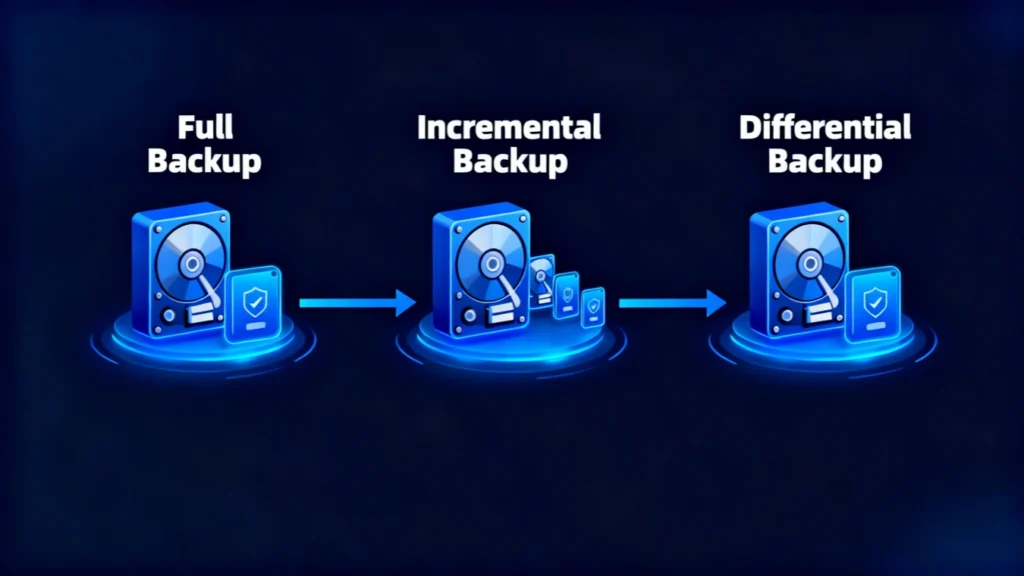
Perdita di dati succede raramente nel momento giusto. Un disco rigido può guastarsi, una cartella importante può essere cancellata, un ransomware può danneggiare i file accessibili oppure un backup può rivelarsi incompleto proprio quando ne hai più bisogno. Per questo motivo, capire come un backup completo L'analisi dei processi rappresenta una delle fasi più importanti nella definizione di un piano affidabile di protezione dei dati.
A backup completo copia tutti i dati selezionati all'interno di un ambito di backup definito. A differenza di un backup incrementale, che salva le modifiche apportate dall'ultimo backup, oppure un backup differenziale, che salva le modifiche apportate dall'ultima copia completa, un backup completo crea una linea di base di ripristino autonoma.
Tuttavia, una copia completa non è sempre la stessa cosa di una immagine del sistema. La differenza è importante quando si desidera recuperare singoli file, ripristinare un intero computer o progettare una soluzione pratica strategia di backup.
Questa guida spiega come funziona ogni tipo di backup, i relativi vantaggi e limiti, quando utilizzarli e cosa fare se il backup è mancante, danneggiato o non disponibile.
Indice dei contenuti
Che cos'è un Backup completo?
A backup completo è una copia completa di tutti i dati selezionati per un determinato processo di backup. A seconda del software e della configurazione, tale ambito può includere documenti, foto, video, database, dati delle applicazioni, cartelle, partizioni o un intero disco.
Il vantaggio principale è l'indipendenza.
Quando si esegue il ripristino da un backup completo, di norma non è necessaria una serie di file incrementali precedenti. Il set di backup selezionato contiene già i dati acquisiti in quel momento.
Ad esempio, immaginiamo che un'azienda archivi 500 GB di file di progetto su un'unità condivisa. Se domenica viene creata una copia completa, il backup di domenica conterrà tutti i dati di progetto selezionati. Se lunedì l'unità originale dovesse guastarsi, l'amministratore potrà ripristinare la copia di domenica senza dover prima ricostruire diversi set di backup giornalieri.
Questa semplice struttura di ripristino rende i backup completi particolarmente utili come punti di riferimento per il ripristino.
Come funziona un Backup completo Lavorare?
Il processo di base prevede solitamente quattro fasi:
- Il software di backup identifica i file, le cartelle, le partizioni o i dischi inclusi nell'ambito del backup.
- Legge tutti i dati selezionati, anziché solo i file modificati di recente.
- Copia tali dati in un'altra posizione di archiviazione, ad esempio un'unità esterna, un dispositivo NAS, un server di backup o una destinazione cloud.
- Il software registra il set di backup in modo che possa essere utilizzato in seguito per il ripristino.
Poiché il software copia l'intero set di dati selezionato, un backup completo di solito richiede più tempo e spazio di archiviazione rispetto a un backup incrementale o backup differenziale.
Tuttavia, il ripristino è spesso più semplice perché ci sono meno dipendenze.
Cosa significa un Backup completo Includere?
La risposta dipende da ciò che scegli di proteggere.
Un errore comune è quello di dare per scontato che ogni backup completo include automaticamente Windows, le applicazioni installate, i file personali, le impostazioni di sistema, le informazioni di avvio e tutte le partizioni presenti sul computer. Ciò non è necessariamente vero.
Il termine “completo” descrive il metodo di backup all’interno dell’ambito selezionato. Non definisce automaticamente l’ambito stesso.
Backup completo a livello di file
Un backup a livello di file può includere cartelle selezionate quali:
- Documenti
- File del desktop
- Foto
- Video
- Cartelle di progetto
- Documenti aziendali
- Dati dell'applicazione
In questo caso, il backup completo contiene tutti i file selezionati, ma potrebbe non includere il sistema operativo o la configurazione di avvio.
Backup di partizioni o dischi
Alcune applicazioni di backup sono in grado di proteggere un'intera partizione o un intero disco.
A seconda del software, ciò può includere:
- Dati del file system
- Applicazioni
- File utente
- File di sistema
- Strutture dei dischi
- Partizioni di ripristino
Questo tipo di backup si avvicina maggiormente a ciò che molti utenti definiscono un backup di immagine.
Backup completo o incrementale o differenziale
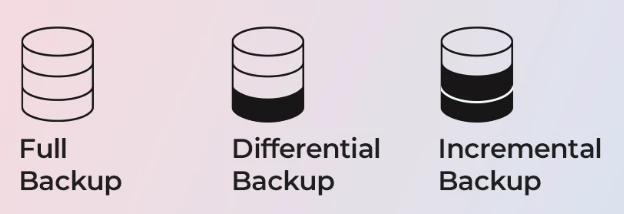
Comprendere la differenza tra questi tre metodi rende più facile scegliere il flusso di lavoro di recupero più adatto.
Tipo di backup | Cosa copia | Velocità di backup | Utilizzo dello spazio di archiviazione | Processo di ripristino | Miglior utilizzo |
Backup completo | Tutti i dati selezionati | Il più lento | Il più alto | Semplice | Backup di riferimento |
Backup incrementale | Modifiche apportate dopo l'ultimo backup | Il più veloce | Il più basso | Richiede una catena di backup | Backup frequenti |
Backup differenziale | Modifiche apportate dall'ultimo backup completo | Medio | Medio | Differenziale completo + più recente | Equilibrio tra velocità e recupero |
Backup completo vs Backup incrementale
Un backup incrementale memorizza solo i dati che sono stati modificati dall'ultima operazione di backup.
Ad esempio:
- Domenica: Backup completo
- Lunedì: Incrementale A
- Martedì: Incrementale B
- Mercoledì: C incrementale
Se i dati devono essere ripristinati mercoledì, il processo di ripristino potrebbe richiedere la copia completa di domenica più i set incrementali di lunedì, martedì e mercoledì.
Il vantaggio principale è l'efficienza. I backup incrementali occupano poco spazio e di solito vengono completati rapidamente.
Lo svantaggio principale è la dipendenza. Se una parte della catena di backup non è più disponibile o risulta danneggiata, il ripristino può diventare più complicato.
Backup completo vs Backup differenziale
A backup differenziale registra tutte le modifiche apportate dall'ultima copia completa.
Ad esempio:
- Domenica: Backup completo
- Lunedì: Cambiamenti rispetto a domenica
- Martedì: tutte le modifiche apportate da domenica
- Mercoledì: tutte le modifiche apportate da domenica
Per ripristinare lo stato di mercoledì, in genere sono necessari il backup completo di domenica e l'ultimo backup differenziale di mercoledì.
Questo rappresenta un compromesso utile. I set di backup crescono nel corso del ciclo, ma il processo di ripristino richiede solitamente un numero inferiore di file rispetto a una catena incrementale.
Backup incrementale vs Backup differenziale
Scegli un backup incrementale quando la velocità di backup e l'efficienza dello spazio di archiviazione sono fondamentali.
Scegliere un backup differenziale quando si preferisce una procedura di ripristino più semplice e si è disposti ad accettare file di backup giornalieri di dimensioni maggiori.
Nessuno dei due sostituisce una verifica periodica backup completo. Al contrario, entrambi i metodi utilizzano normalmente la copia completa come punto di riferimento.
Vantaggi e svantaggi di un Backup completo
Non esiste un metodo di backup ideale per ogni situazione. Un metodo utile strategia di backup trova un equilibrio tra velocità di backup, costo dello spazio di archiviazione, velocità di ripristino e livello accettabile di perdita di dati.
Vantaggi di un Backup completo
I principali vantaggi includono:
Recupero semplice: Un backup completo non dipende di norma da una lunga catena di backup.
Flusso di lavoro di ripristino più rapido: Il software di ripristino spesso è in grado di ripristinare i dati direttamente da un unico set di backup completo.
Linee guida chiare per il recupero: Gli amministratori sanno esattamente quale set di dati corrisponde a una specifica data di backup completo.
Minore rischio di dipendenza: Il danneggiamento di un singolo file incrementale non interrompe la catena che risale alla copia completa.
Utile per la conservazione a lungo termine: Le copie complete periodiche possono fungere da importanti punti di ripristino.
Svantaggi di un Backup completo
Anche i compromessi sono altrettanto importanti.
Maggiore utilizzo dello spazio di archiviazione: La copia ripetuta di tutti i dati selezionati comporta un consumo di spazio notevolmente maggiore.
Finestre di backup più lunghe: La lettura e la copia di dischi di grandi dimensioni possono richiedere molto tempo.
Maggiori requisiti di larghezza di banda: I backup in rete o su cloud possono comportare il trasferimento di grandi quantità di dati.
Effettuare copie complete troppo spesso può risultare inefficiente: Eseguire il backup di centinaia di gigabyte ogni giorno potrebbe non essere necessario se cambia solo una piccola quantità di dati.
Per questo motivo, molti utenti combinano i backup completi periodici con quelli incrementali o differenziali.
Migliori pratiche per backup affidabili

Creare i backup è solo il primo passo: garantirne l'affidabilità è ciò che veramente protegge i vostri dati. Un piano di backup deve essere sia ridondante e verificabile, combinando diversi tipi di storage e effettuando test regolari. Ecco alcune best practice per rendere più efficace la vostra strategia di backup:
Conservate i backup in almeno due luoghi
Seguite la “regola del 3-2-1”: mantenete tre copie dei vostri dati, su due tipi di archiviazione diversi, di cui una conservata fuori sede o nel cloud. Ad esempio, mantenete un backup locale su un'unità esterna e un altro su una piattaforma cloud sicura per proteggervi da danni fisici o furti.
Programmare backup automatici per evitare la perdita di dati
L'errore umano è una delle cause più comuni di backup mancati. Automatizzate il processo in modo che il vostro sistema esegua backup completi, incrementali o differenziali a intervalli fissi senza bisogno di input manuali. Questo garantisce la coerenza anche durante i periodi di lavoro più intensi.
Etichettate e organizzate le versioni di backup in modo chiaro
Tenere traccia delle date e dei tipi di backup assegnando alle cartelle un nome logico (ad esempio, “IncrementalBackup_2025-11-10”). Questa pratica aiuta a evitare confusione durante il ripristino e velocizza il processo di ripristino.
Monitoraggio dello stato di salute dello storage
Controllare regolarmente le condizioni delle unità esterne o degli abbonamenti cloud. Sostituite tempestivamente i dischi in avaria e rivedete la capacità di archiviazione per garantire che i nuovi backup non vengano interrotti.
L'implementazione di queste pratiche assicura che il vostro Backup completo-e tutti i backup incrementali o differenziali associati, rimangono coerenti, ripristinabili e sicuri a lungo termine.
Recuperare i file persi quando il backup non è d'aiuto
Se il vostro backup completo Se non contiene i file mancanti e l'unità originale continua a funzionare normalmente a livello hardware, uno strumento di recupero dati potrebbe rappresentare un'altra opzione.
Magic Data Recovery da Amagicsoft è progettato per gestire situazioni di perdita logica dei dati, quali file cancellati, unità formattate, dati persi e supporti di archiviazione inaccessibili. La documentazione ufficiale indica che il programma supporta i dispositivi di archiviazione più comuni, tra cui HDD, SSD, chiavette USB e schede di memoria, con un flusso di lavoro che comprende scansione, anteprima e recupero.
Il punto fondamentale è che i software di recupero dati non sostituiscono un strategia di backup. Affronta invece un problema diverso: i file di cui non è mai stato eseguito il backup, i file persi tra un backup e l'altro o i dati che diventano inaccessibili prima che sia possibile creare un backup valido.
Conclusione
A backup completo rimane uno dei principi fondamentali della protezione dei dati, poiché crea una copia completa del set di dati selezionato e riduce le dipendenze relative al ripristino. Tuttavia, l'utilizzo esclusivo di copie complete può comportare un consumo superfluo di spazio di archiviazione e di tempo.
Un approccio migliore consiste nel creare un sistema equilibrato strategia di backup. Utilizzare copie complete periodiche come punti di riferimento per il ripristino, aggiungere un backup incrementale quando l'efficienza è fondamentale, oppure utilizzare un backup differenziale quando si desidera una catena di ripristino più breve. Se la priorità è il ripristino completo del sistema, valutare se un immagine del sistema dovrebbe far parte del piano.
Soprattutto, conservate più di una copia, conservate i backup critici in un luogo separato dal dispositivo originale e verificate regolarmente la possibilità di ripristino.
Se i dati vengono persi prima che sia disponibile un backup valido, oppure se un backup previsto non contiene i file necessari, Magic Data Recovery può rappresentare una soluzione pratica per il ripristino in determinati scenari di perdita di dati logici. Non sostituisce un piano di backup affidabile, ma può aiutare a colmare le lacune quando la prevenzione non è più sufficiente.
Se stai cercando una soluzione più efficace nel caso in cui alcuni file siano già andati persi, valuta la possibilità di provare Magic Data Recovery prima di continuare a utilizzare l'unità interessata.
Supporta Windows 7/8/10/11 e Windows Server
Domande frequenti
Che cos’è un backup completo?
Un backup completo è migliore di un backup incrementale?
Qual è la differenza tra un backup completo e un backup differenziale?
Un backup completo è la stessa cosa di un'immagine di sistema?
Con quale frequenza dovrei eseguire un backup completo?
Qual è il tipo di backup che consente il ripristino più veloce?
I software di recupero dati possono sostituire i backup?

Erin Smith è riconosciuta come una delle scrittrici più professionali di Amagicsoft. Negli ultimi 10 anni ha continuamente affinato le sue capacità di scrittura e ha aiutato milioni di lettori a risolvere i loro problemi tecnologici.