
Full Backup vs Incremental and Differential Backup
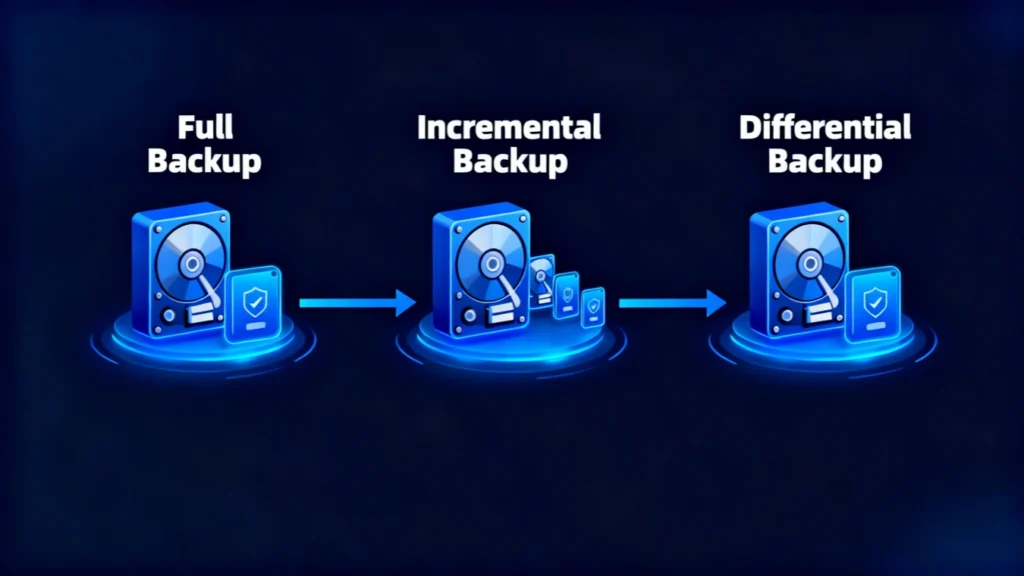
Data loss rarely happens at a convenient time. A hard drive can fail, an important folder can be deleted, ransomware can damage accessible files, or a backup set may turn out to be incomplete just when you need it most. For this reason, understanding how a full backup works is one of the most important steps in building a reliable data protection plan.
A full backup copies all selected data within a defined backup scope. Unlike an incremental backup, which saves changes made since the previous backup, or a differential backup, which saves changes made since the latest full copy, a full backup creates a self-contained recovery baseline.
However, a full copy is not always the same as a system image. The difference matters when you want to recover individual files, restore an entire computer, or design a practical backup strategy.
This guide explains how each backup type works, their advantages and limitations, when to use them, and what to do if your backup is missing, corrupted, or unavailable.
Table of Contents
What Is a Full Backup?
A full backup is a complete copy of all data selected for a particular backup job. Depending on the software and configuration, that scope may include documents, photos, videos, databases, application data, folders, partitions, or an entire disk.
The key advantage is independence.
When you restore from a full backup, you normally do not need a chain of earlier incremental files. The selected backup set already contains the data captured at that point in time.
For example, imagine that a business stores 500 GB of project files on a shared drive. If it creates a full copy on Sunday, the Sunday backup contains all selected project data. If the original drive fails on Monday, the administrator can restore the Sunday copy without first rebuilding several daily backup sets.
This simple recovery structure makes full backups particularly useful as recovery baselines.
How Does a Full Backup Work?
The basic process usually follows four steps:
- The backup software identifies the files, folders, partitions, or disks included in the backup scope.
- It reads all selected data rather than only recently changed files.
- It copies that data to another storage location, such as an external drive, NAS device, backup server, or cloud destination.
- The software records the backup set so that it can later be used for recovery.
Because the software copies the complete selected dataset, a full backup usually takes more time and storage space than an incremental backup or differential backup.
However, recovery is often simpler because there are fewer dependencies.
What Does a Full Backup Include?
The answer depends on what you choose to protect.
A common mistake is to assume that every full backup automatically contains Windows, installed applications, personal files, system settings, boot information, and every partition on the computer. That is not necessarily true.
The word “full” describes the backup method within the selected scope. It does not automatically define the scope itself.
File-Level Full Backup
A file-level backup may include selected folders such as:
- Documents
- Desktop files
- Photos
- Videos
- Project folders
- Business records
- Application data
In this case, the full backup contains all selected files, but it may not contain the operating system or boot configuration.
Partition or Disk Backup
Some backup applications can protect an entire partition or disk.
Depending on the software, this may include:
- File system data
- Applications
- User files
- System files
- Disk structures
- Recovery partitions
This type of backup moves closer to what many users call an image backup.
Full Backup vs Incremental vs Differential Backup
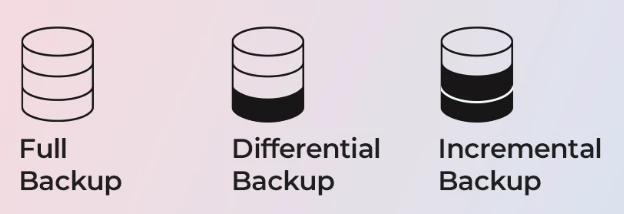
Understanding the difference between these three methods makes it easier to choose the right recovery workflow.
Backup Type | What It Copies | Backup Speed | Storage Use | Restore Process | Best Use |
Full Backup | All selected data | Slowest | Highest | Simple | Baseline backups |
Incremental Backup | Changes since the previous backup | Fastest | Lowest | Requires backup chain | Frequent backups |
Differential Backup | Changes since the last full backup | Medium | Medium | Full + latest differential | Balance of speed and recovery |
Full Backup vs Incremental Backup
An incremental backup stores only the data that changed since the most recent backup operation.
For example:
- Sunday: Full backup
- Monday: Incremental A
- Tuesday: Incremental B
- Wednesday: Incremental C
If data must be restored on Wednesday, the recovery process may require the Sunday full copy plus Monday, Tuesday, and Wednesday incremental sets.
The main benefit is efficiency. Incremental backups are small and usually complete quickly.
The main drawback is dependency. If part of the backup chain becomes unavailable or corrupted, recovery can become more complicated.
Full Backup vs Differential Backup
A differential backup records all changes made since the most recent full copy.
For example:
- Sunday: Full backup
- Monday: Changes since Sunday
- Tuesday: All changes since Sunday
- Wednesday: All changes since Sunday
To restore Wednesday’s state, you generally need the Sunday full copy and Wednesday’s latest differential backup.
This creates a useful compromise. Backup sets grow throughout the cycle, but the restore process usually requires fewer files than an incremental chain.
Incremental Backup vs Differential Backup
Choose an incremental backup when backup speed and storage efficiency matter most.
Choose a differential backup when you prefer a simpler restore process and can accept larger daily backup files.
Neither replaces a periodic full backup. Instead, both methods normally use the full copy as their baseline.
Advantages and Disadvantages of a Full Backup
No backup method is ideal for every situation. A useful backup strategy balances backup speed, storage cost, recovery speed, and acceptable data loss.
Advantages of a Full Backup
The main benefits include:
Simple recovery: A full backup does not normally depend on a long backup chain.
Faster restore workflow: The recovery software can often restore directly from one complete backup set.
Clear recovery baseline: Administrators know exactly which dataset belongs to a specific full backup date.
Lower dependency risk: Damage to one incremental file does not break a chain leading back to the full copy.
Useful for long-term retention: Periodic complete copies can serve as important recovery points.
Disadvantages of a Full Backup
The trade-offs are equally important.
More storage usage: Copying all selected data repeatedly consumes significantly more space.
Longer backup windows: Large disks can take considerable time to read and copy.
Higher bandwidth requirements: Network or cloud backups may transfer large amounts of data.
Frequent full copies can be inefficient: Backing up hundreds of gigabytes every day may be unnecessary if only a small amount of data changes.
For this reason, many users combine periodic full backups with incremental or differential backups.
Best Practices for Reliable Backups

Creating backups is only the first step—ensuring their reliability is what truly protects your data. A backup plan should be both redundant and verifiable, combining different storage types and regular testing. Here are several best practices to make your backup strategy more effective:
Store backups in at least two locations
Follow the “3-2-1 rule”: keep three copies of your data, on two different storage types, with one stored offsite or in the cloud. For example, maintain one local backup on an external drive and another on a secure cloud platform to protect against physical damage or theft.
Schedule automatic backups to prevent data loss
Human error is one of the most common causes of missing backups. Automate the process so your system performs full, incremental, or differential backups at fixed intervals without manual input. This guarantees consistency even during busy work periods.
Label and organize backup versions clearly
Keep track of backup dates and types by naming folders logically (e.g., “IncrementalBackup_2025-11-10”). This practice helps avoid confusion when restoring and speeds up the recovery process.
Monitor storage health
Regularly check the condition of your external drives or cloud subscriptions. Replace failing disks early and review storage capacity to ensure new backups are not interrupted.
Implementing these practices ensures that your Full Backup—and any associated incremental or differential backups—remain consistent, recoverable, and secure over the long term.
Recover Lost Files When a Backup Cannot Help
If your full backup does not contain the missing files and the original drive still works normally at the hardware level, a data recovery tool may provide another option.
Magic Data Recovery from Amagicsoft is designed for logical data-loss situations such as deleted files, formatted drives, lost data, and inaccessible storage. Its official documentation supports common storage devices including HDDs, SSDs, USB flash drives, and memory cards, with a scan, preview, and recovery workflow.
The important point is that recovery software does not replace a backup strategy. Instead, it addresses a different problem: files that were never backed up, files lost between backup intervals, or data that becomes inaccessible before a valid backup can be created.
Conclusion
A full backup remains one of the clearest foundations for data protection because it creates a complete copy of the selected dataset and reduces restore dependencies. However, using full copies alone can consume unnecessary storage and time.
A better approach is to build a balanced backup strategy. Use periodic full copies as recovery baselines, add an incremental backup when efficiency matters, or use a differential backup when you want a shorter restore chain. If complete machine recovery is the priority, evaluate whether a system image should also be part of the plan.
Most importantly, keep more than one copy, separate critical backups from the original device, and test recovery regularly.
If data disappears before a valid backup exists, or if an expected backup does not contain the files you need, Magic Data Recovery can serve as a practical recovery option for supported logical data-loss scenarios. It does not replace a reliable backup plan, but it can help bridge the gap when prevention is no longer enough.
If you are looking for a more efficient solution when files are already missing, consider trying Magic Data Recovery before continuing to use the affected drive.
Supports Windows 7/8/10/11 and Windows Server
FAQs
What is a full backup?
Is a full backup better than an incremental backup?
What is the difference between a full backup and a differential backup?
Is a full backup the same as a system image?
How often should I create a full backup?
Which backup type restores fastest?
Can data recovery software replace backups?

Erin Smith is recognized as one of the most professional writers at Amagicsoft. She has continually honed her writing skills over the past 10 years and helped millions of readers solve their tech problems.