
Errore di inizializzazione del disco e guida alla correzione sicura
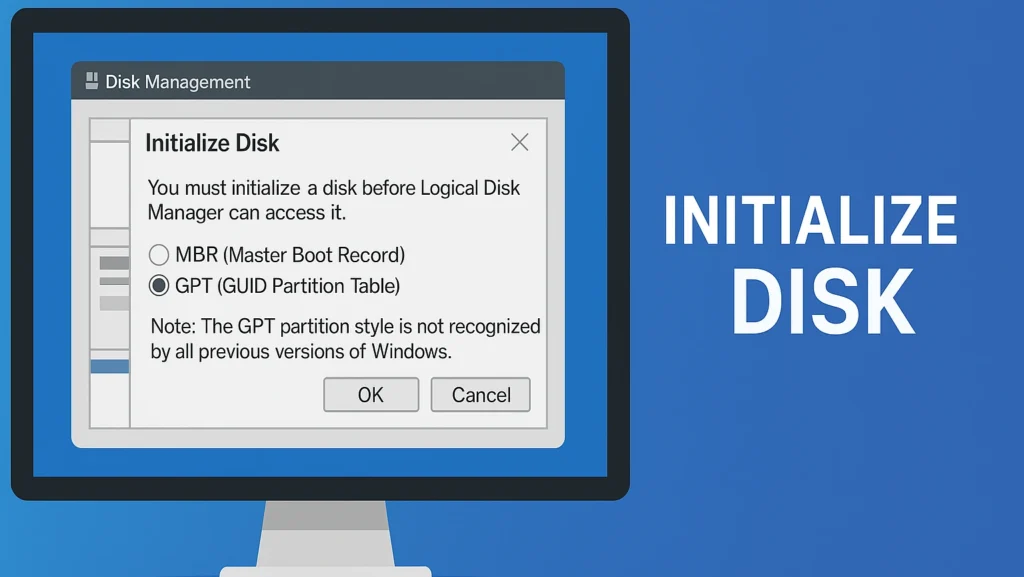
“Inizializza il disco” si riferisce al processo di preparazione di un disco rigido nuovo o danneggiato per l'uso, assegnando una tabella di partizioni, o MBR (Master Boot Record) o GPT (Tabella delle partizioni GUID). Questo processo aiuta il sistema operativo a riconoscere l'unità, consentendo di creare volumi e memorizzare i dati.
Quando un sistema visualizza un errore “non inizializzato”, di solito significa che l'unità non può essere letta correttamente a causa di metadati danneggiati o di un'altra unità. corruzione della partizione.
Indice dei contenuti
Perché appare il messaggio “Inizializza il disco
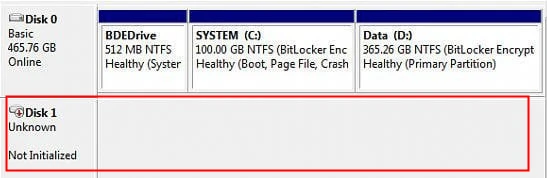
Questo prompt può essere visualizzato quando:
Un nuovo disco rigido o un'unità SSD non sono mai stati formattati prima.
Un'unità esterna o interna diventa illeggibile in seguito a uno sbalzo di tensione, a un incidente o a una rimozione impropria.
Lo stile di partizione dell'unità (MBR o GPT) è mancante o corrotto.
Si verificano problemi di connessione al disco o guasti al driver del controller.
In breve, questo messaggio non significa sempre che il disco è morto, ma indica che Windows non può leggere la struttura esistente.
Come funziona
Quando si inizializza un disco:
Rilevamento - Gestione disco di Windows identifica un dispositivo non allocato o RAW.
Prompt - Una finestra di dialogo chiede se si desidera inizializzare il disco come MBR o GPT.
Configurazione - Una volta selezionata, la tabella delle partizioni viene scritta sul disco.
Suddivisione - È quindi possibile creare volumi logici e assegnare lettere di unità.
Scegliere tra MBR e GPT dipende dal tipo di sistema e dalla capacità del disco.GPT è consigliato per le unità di dimensioni superiori a 2 TB o per i sistemi basati su UEFI.
Passo dopo passo: come inizializzare un nuovo disco in Windows
Se il disco è nuovo di zecca e non ha dati da proteggere, seguite questi passaggi in modo sicuro:
1. Aprire Gestione discoStampa Win + X → selezionare Gestione del disco.
2. Individuare il disco non inizializzatoIl disco apparirà come “Sconosciuto” e “Non inizializzato”.”
3. Inizializza il disco:Inizializza il discoFare clic con il tasto destro del mouse sul disco → scegliere Inizializza il disco.
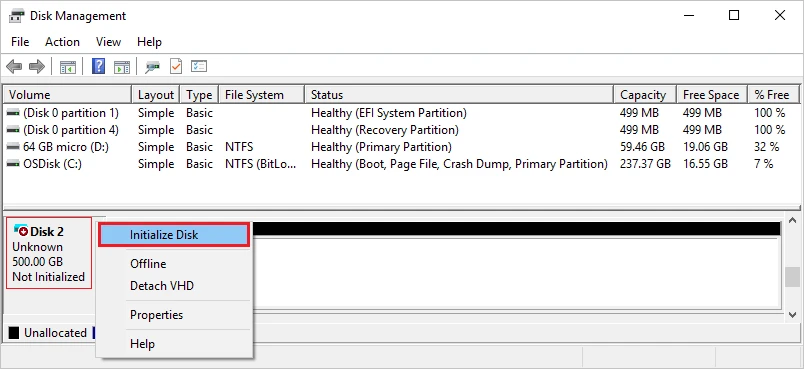
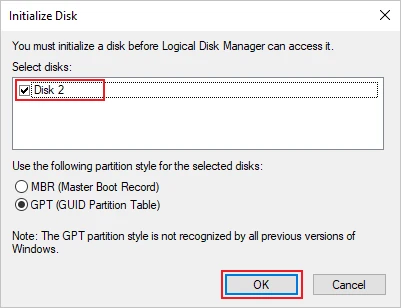
5. Creare un nuovo volumeFare clic con il tasto destro del mouse sullo spazio non allocato → Nuovo volume semplice → seguire la procedura guidata.
6. Assegnare una lettera di unità e un formatoScegliere NTFS o exFAT, quindi completare la configurazione.
💡 Suggerimento: Se il disco conteneva precedentemente dei dati, fare non inizializzare immediatamente. Il processo può sovrascrivere le informazioni della partizione, con conseguente perdita di dati.
Come risolvere il problema “Nessuna inizializzazione” senza perdita di dati
Se Windows richiede improvvisamente di inizializzare un disco che prima funzionava, è un segno di danneggiamento della tabella delle partizioni.
Ecco cosa fare:
Interrompere tutte le operazioni - Non scrivete o formattate nulla.
Utilizzare uno strumento di recupero - Correre Magic Data Recovery per scansionare il disco non riconosciuto e recuperare i file.
Salvare i dati recuperati ad un altro viaggio sicuro.
Inizializzare il disco manualmente utilizzando Gestione disco o diskpart.
Riformattare e ripristinare il tuo dati recuperati dopo.
Questo approccio impedisce la sovrascrittura accidentale e garantisce che i file rimangano intatti.
Vantaggi di una corretta inizializzazione
Consente il riconoscimento del sistema operativo e l'accesso in lettura/scrittura.
Permette agli utenti di scegliere MBR o GPT per la compatibilità.
Aiuta a gestire le partizioni in modo efficiente.
Previene gli errori del disco RAW o non allocato nelle nuove unità.
Inizializzazione del disco vs. formattazione del disco
Molti utenti confondono il simbolo “Inizializza” con la formattazione, ma hanno scopi molto diversi nella gestione del disco.
Aspetto | Inizializza il disco | Formattazione del disco |
Scopo | Crea la tabella delle partizioni (MBR/GPT) | Prepara un sistema di file (NTFS, FAT32, exFAT) |
Quando necessario | Quando l'unità è nuova o non leggibile | Dopo l'inizializzazione o prima del riutilizzo |
Impatto dei dati | Può cancellare le informazioni sulla partizione | Cancella i file nel volume selezionato |
Livello di processo | Impostazione della struttura a basso livello | Struttura dei file di alto livello |
Strumenti utilizzati | Gestione disco, diskpart | Procedura guidata di formattazione, Esplora file |
Errore tipico | sconosciuto, non inizializzato | Formattazione dell'unità prima dell'uso |
In breve, l'inizializzazione configura il disco struttura, mentre la formattazione prepara spazio di archiviazione. Entrambi sono necessari, ma hanno scopi diversi.
Conclusione
Il messaggio Disco non inizializzato può intimorire, ma spesso è un segno di corruzione della partizione piuttosto che di un fallimento totale.
Sempre recuperare i dati quindi inizializzare in modo sicuro il disco scegliendo MBR o GPT a seconda del sistema.
Con i passi corretti e gli strumenti affidabili, è possibile ripristinare il normale funzionamento dell'unità senza perdere i file importanti.
Recupero prima dell'inizializzazione
Supporta Windows 7/8/10/11 e Windows Server
Domande frequenti sull'inizializzazione del disco
Cosa significa “Inizializza disco” in Windows?
È sicuro inizializzare un disco?
Cosa devo fare se vedo un errore "no initialized"?
Qual è la differenza tra inizializzare un disco in MBR o GPT?
È possibile passare da MBR a GPT dopo l'inizializzazione?
Perché Windows mi chiede di inizializzare un'unità esterna?
È possibile recuperare i dati dopo l'inizializzazione?

Erin Smith è riconosciuta come una delle scrittrici più professionali di Amagicsoft. Negli ultimi 10 anni ha continuamente affinato le sue capacità di scrittura e ha aiutato milioni di lettori a risolvere i loro problemi tecnologici.