콘텐츠로 건너뛰기
아매직소프트 로고 아이콘
  • 홈
  • 제품
    • Magic Data Recovery
    • Magic Recovery Key
  • 스토어
  • 블로그
  • 자세히 보기
    • 아마직소프트 소개
    • 문의하기
    • 개인정보 보호정책
    • 약관
    • 라이선스 계약
    • 환불 정책
  • 한국어
    • English
    • 日本語
    • Deutsch
    • Français
    • Español
    • 繁體中文
디스크 문제 수정

컴퓨터가 USB 플래시 드라이브를 인식하지 못하는 문제 해결 방법
2025년 12월 28일 Smith, Erin 아직 댓글이 없습니다
컴퓨터가 USB 플래시 드라이브를 인식하지 못함

목차

When Your Computer Is Not Recognizing a USB Flash Drive

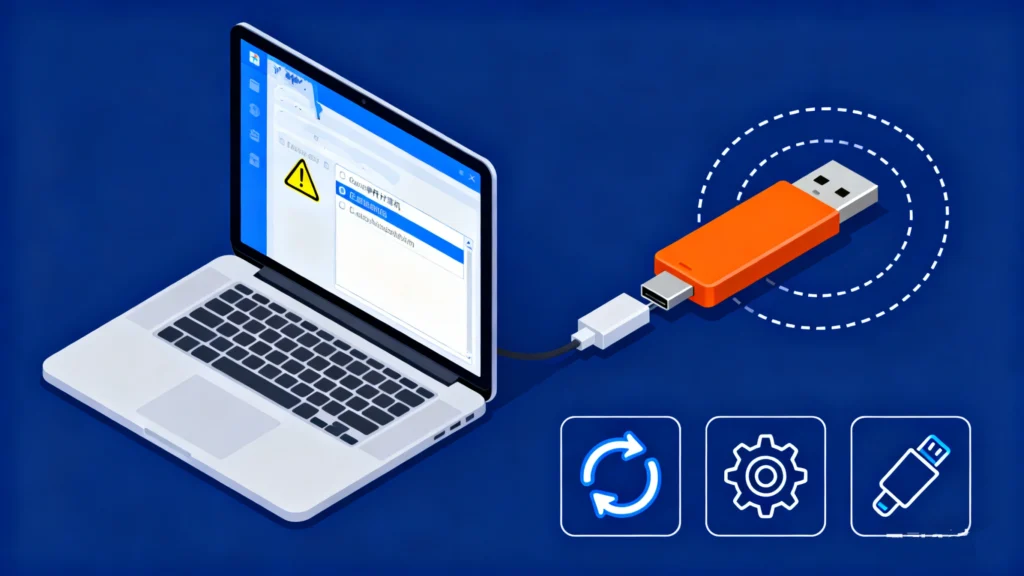
Few technical issues are as frustrating as plugging in a USB device and realizing your computer not recognizing USB flash drive at all. There is no pop-up, no drive letter, and no access to files. Whether you are trying to access work documents, personal photos, or important backups, a USB flash drive that suddenly becomes unreadable can cause real anxiety.

In practice, this problem is extremely common. Many users report scenarios where a flash drive not detected on any computer, even after trying different USB ports or systems. The good news is that, in most cases, the issue is not permanent and can be fixed with the right approach.

이 가이드는 다음과 같이 설명합니다. why a computer does not recognize a USB flash drive, walks you through proven troubleshooting methods, and shows 데이터를 안전하게 복구하는 방법 언제 파일 시스템 오류 또는 파티션 손실 are involved. When built-in tools are no longer enough, we will also explain why Magic Data Recovery is a reliable solution in real-world recovery scenarios.

Magic Data Recovery 다운로드

Windows 7/8/10/11 및 Windows Server 지원

Common Reasons a Computer Is Not Recognizing a USB Flash Drive

To begin with, understanding the root cause is essential before attempting any fix. Below are the most frequent reasons users encounter a computer not recognizing USB flash drive issue.

1. USB Port or Hardware Connection Problems

Sometimes the problem has nothing to do with the flash drive itself.

일반적인 상황은 다음과 같습니다:

  • Loose or damaged USB ports
  • Insufficient power from front USB ports on desktop PCs
  • USB hubs that fail to deliver stable voltage

Before assuming the drive is faulty, always test it directly on another USB port or computer. If the flash drive not detected on any computer, the issue may go deeper.

2. Corrupted or Unsupported File System

Beyond basic hardware issues, a corrupted file system is one of the top causes behind a computer not recognizing USB flash drive.

This often happens when:

  • The USB drive is unplugged without safe removal
  • A system crashes during file transfer
  • The drive is used across Windows, macOS, and Linux systems

When the file system becomes unreadable, the operating system may refuse to mount the drive entirely, making it appear invisible.

3. Missing or Damaged Partition

Another serious but common cause is partition loss.

In this case:

  • The USB drive is detected by the system
  • No drive letter appears
  • 디스크 관리 shows the space as “Unallocated”

Users often describe this situation as a flash drive not detected on any computer, even though the device itself is technically connected.

4. Outdated or Corrupted USB Drivers

From a system-level perspective, USB controller drivers play a critical role in device recognition.

Driver issues may occur after:

  • Windows 업데이트
  • System upgrades
  • Manual driver installations

When drivers malfunction, the system may fail to communicate with the USB flash drive altogether.

5. Physical Damage or Flash Memory Wear

Over time, USB flash drives are not designed to last forever.

Over time, factors such as:

  • Excessive read/write cycles
  • Exposure to heat or moisture
  • Low-quality flash memory

can cause a drive to degrade. In these cases, a computer not recognizing USB flash drive may indicate early hardware failure.

How to Fix Computer Not Recognizing USB Flash Drive: Step-by-Step Solutions

With these potential causes in mind, before moving to 데이터 복구, try the following proven solutions in order.

Solution 1: Check USB Ports and Cables

Start with the basics:

  1. Plug the USB flash drive into a different port
  2. Avoid USB hubs temporarily
  3. Try another computer if available

This quick test helps rule out simple connectivity issues.

Solution 2: Manually Detect the USB Drive (Windows)

If your computer does not automatically recognize the device:

  1. 프레스 승리 + X 를 열고 디스크 관리
  2. Look for the USB drive listed without a letter
  3. Right-click and assign a new drive letter

This method often resolves cases where the computer not recognizing USB flash drive is caused by letter conflicts.

Solution 3: Use Disk Utility on macOS

For Mac users facing a flash drive not detected on any computer scenario:

  1. 열기 디스크 유틸리티
  2. 선택 View > Show All Devices
  3. Check if the USB drive appears
  4. 실행 응급 처치 to repair errors

If Disk Utility cannot repair the drive, data recovery should be your next step.

Solution 4: Update or Reinstall USB Drivers

Windows에서:

  1. 열기 장치 관리자
  2. 확장 범용 직렬 버스 컨트롤러
  3. Uninstall the USB Mass Storage Device
  4. 컴퓨터 다시 시작

The system will automatically reinstall fresh drivers, often restoring USB detection.

When File System Errors or Partition Loss Prevent USB Recognition

At this stage, many users make a critical mistake: formatting the drive immediately. While formatting may make the USB usable again, it also erases recoverable data.

만약 computer not recognizing USB flash drive is caused by:

  • 파일 시스템 손상
  • Lost or damaged partitions

데이터 복구 should be performed 전에 any destructive action.

Recovering Data from an Unrecognized USB Flash Drive with Magic Data Recovery

Magic Data Recovery를 권장하는 이유

Magic Data Recovery is specifically designed for scenarios where traditional system tools fail to recognize storage devices.

It effectively addresses:

  • 손상된 파일 시스템
  • Deleted or lost USB partitions
  • Drives showing as RAW 또는 할당되지 않은

Instead of relying on the operating system to mount the drive, Magic Data Recovery scans the flash memory directly.

Magic Data Recovery의 주요 이점

The tool stands out because it:

  • Supports USB flash drives from major brands
  • Recovers files even when the drive has no letter
  • 복구 전 파일 미리 보기 허용
  • Uses read-only scanning to avoid further damage

These strengths make it more reliable than manual fixes when dealing with a flash drive not detected on any computer.

Typical Use Case Example

A common real-world scenario:

  • A USB drive is unplugged incorrectly
  • The file system becomes RAW
  • The computer no longer recognizes the device in Windows File Explorer but Recognized in Disk Management

In this situation, Magic Data Recovery can scan the drive, reconstruct the file structure, and restore documents, photos, and videos safely.

If you are looking for a more efficient and safer solution, Magic Data Recovery 를 고려할 가치가 있습니다.

Magic Data Recovery 다운로드

Windows 7/8/10/11 및 Windows Server 지원

Preventing USB Flash Drive Detection Issues in the Future

To reduce the risk of facing a computer not recognizing USB flash drive 를 다시 클릭합니다:

  • 항상 “하드웨어 안전하게 제거”를 사용하세요.”
  • Avoid using one USB drive across too many systems
  • 유지 백업 of important data
  • Replace aging flash drives proactively

Prevention is often simpler than recovery.

결론

A computer not recognizing USB flash drive problem can stem from simple port issues or serious file system damage. While basic troubleshooting resolves many cases, 파일 시스템 오류 그리고 파티션 손실 require a more careful approach.

Instead of risking permanent data loss, using a professional tool like Magic Data Recovery offers a safer and more reliable path. It addresses the root causes behind USB detection failures while preserving your valuable files.

자주 묻는 질문

1. Why is my USB stick suddenly unreadable?

Sudden unreadability is usually caused by file system corruption, unsafe removal, or power interruption during data transfer.

2. How do I manually detect a USB device?

On Windows, open Disk Management and assign a drive letter. On macOS, use Disk Utility and enable “Show All Devices.”

3. Why is my external USB not showing up?

This may be due to driver issues, a corrupted file system, or a missing partition.

4. 컴퓨터에서 플래시 드라이브를 읽게 하려면 어떻게 하나요?

Try different USB ports, update drivers, and check Disk Management or Disk Utility for unmounted drives.

5. Do USB flash drives go bad?

Yes. Flash memory wears out over time, especially with frequent read/write cycles.

6. How do I get my computer to read a flash drive?

If standard fixes fail, data recovery software can access the drive directly without formatting.

7. When I plug in my USB, nothing happens?

This often indicates driver failure, insufficient power, or severe file system corruption.

8. Why is SanDisk not being recognized?

Brand-specific drives can still suffer from corrupted firmware, file system errors, or worn flash memory.

9. Why is my USB not showing up in Finder?

Finder may hide unmounted drives. Check Disk Utility to see if the device appears but is not mounted.
  • 디스크 복구
Smith, Erin

에린 스미스는 Amagicsoft에서 가장 전문적인 작가 중 한 명으로 인정받고 있습니다. 지난 10년간 꾸준히 글쓰기 기술을 연마해 왔으며 수백만 명의 독자가 기술 문제를 해결하는 데 도움을 주었습니다.

글 탐색

이전 게시물
다음

검색

카테고리

  • 비트 로커 복구
  • 삭제된 파일 복구
  • 디스크 문제 수정
  • 문서 복구
  • 포맷 파일 복구
  • 하드 드라이브 복구
  • 라이선스 키 복구
  • 손실된 파일 복구
  • 메모리 카드 복구
  • 뉴스
  • 비밀번호 복구
  • 사진 복구
  • SSD 복구
  • USB 드라이브 복구
  • 사용자 가이드
  • 비디오 복구
  • Wiki
  • Windows 문제 수정

최근 게시물

  • SD 카드에서 삭제된 파일 복원 무료
    2026년 SD 카드에서 삭제된 파일을 무료로 복원하는 방법
  • Windows에서 삭제된 파일을 복구하는 입증된 방법
    Windows에서 삭제된 파일을 복구하는 입증된 방법
  • SD 드라이브가 인식되지 않음 6가지 입증된 복구 방법
    SD 드라이브가 인식되지 않음: 6가지 입증된 복구 방법

태그

CHKDSK 및 디스크 도구 디스크 복구 오류 문제 해결 방법 Magic Data Recovery Magic Recovery Key WiKi

관련 게시물

SSD 드라이브가 인식되지 않는 문제 수정
디스크 문제 수정

SSD 드라이브가 인식되지 않습니다: 원인, 수정 및 데이터 복구 가이드

2025년 12월 26일 Smith, Erin SSD Drive Not Recognized: Causes, Fixes, and Data Recovery Guide에 댓글 닫힘

목차 SSD 드라이브가 인식되지 않는 이유는 무엇인가요? SSD 드라이브가 인식되지 않음 오류는 오늘날 사용자가 직면하는 가장 실망스러운 스토리지 문제 중 하나입니다. SSD를 PC에 연결했지만 파일 탐색기, 디스크 관리, 심지어 BIOS에도 나타나지 않는 경우입니다. 많은 실제 사례에서 이 문제는 [...]에서 발생합니다.

노트북이 외장 하드 드라이브를 인식하지 못함
디스크 문제 수정

노트북이 외장 하드 드라이브를 인식하지 못하는 문제 해결 방법

2025년 12월 26일 Smith, Erin How to Fix Laptop Not Recognizing External Hard Drive에 댓글 닫힘

노트북이 외장 하드 드라이브를 인식하지 못하는 것은 흔하면서도 답답한 문제입니다. 많은 사용자가 백업, 파일 전송 또는 업무 관련 데이터 액세스를 위해 외장 HDD 또는 SSD를 연결할 때 이 문제를 겪습니다. 어떤 경우에는 드라이브의 전원이 켜지지만 노트북에 표시되지 않습니다. 다른 상황에서는 디스크가 [...]로 표시됩니다.

PC가 플래시 드라이브 장치를 인식하지 못하는 문제 해결
디스크 문제 수정

PC가 플래시 드라이브를 인식하지 못하는 문제를 해결하는 방법

2025년 12월 25일 Smith, Erin How to Solve PC Not Recognizing Flash Drive Issues에 댓글 닫힘

PC가 플래시 드라이브를 인식하지 못하는 경우 목차 PC가 플래시 드라이브를 인식하지 못하는 문제는 특히 중요한 파일이 장치에 저장되어 있는 경우 업무에 차질을 빚고 마감 시간을 지연시키며 심각한 문제를 야기할 수 있습니다. USB 플래시 드라이브를 연결했지만 아무 일도 일어나지 않습니다. 알림이 없습니다. 드라이브 문자가 없습니다. 가끔 잠깐 나타나기도 하고 [...].

아매직소프트 로고 아이콘

당사의 비전은 사용자에게 최고 수준의 제품과 서비스를 제공하는 세계적으로 유명한 소프트웨어 브랜드 및 서비스 제공업체가 되는 것입니다.

제품
  • Magic Data Recovery
  • Magic Recovery Key
정책
  • 약관
  • 개인정보 보호정책
  • 환불 정책
  • 라이선스 계약
회사
  • 아마직소프트 소개
  • 문의하기
  • 스토어
팔로우하기

저작권 © 2025 아마직소프트. 모든 권리 보유.

  • 약관
  • 개인정보 보호정책
