
SD 드라이브가 인식되지 않음: 6가지 입증된 복구 방법
언제 SD 드라이브가 인식되지 않음 Windows 11 또는 Windows 10에서 이 문제는 카드 리더기의 결함, 오래된 드라이버, 드라이브 문자가 없는 경우, 파일 시스템 손상 또는 카드의 물리적 손상으로 인해 발생할 수 있습니다. 올바른 SD 카드 솔루션 해당 카드가 파일 탐색기, 장치 관리자 등에 표시되는지에 따라 달라집니다. 디스크 관리.
카드를 포맷하거나 복구 명령을 실행하기 전에, 카드에 중요한 사진, 동영상 또는 문서가 저장되어 있는지 확인하십시오. 포맷, 초기화 또는 손상된 파일 시스템 복구 작업을 수행하면 복구 가능한 데이터가 덮어쓰이거나 변경될 수 있습니다. SD 카드가 인식되지만 ‘RAW’, ‘할당되지 않음’, ‘접근 불가’로 표시되거나 포맷을 요청하는 경우, 다음을 사용할 수 있습니다. Magic Data Recovery 추가 복구 작업을 시도하기 전에 카드를 스캔하여 중요한 파일을 복구하십시오.
이 가이드에서는 SD 카드가 인식되지 않는 원인을 진단하는 방법을 설명하고, 10가지 실용적인 인식되지 않는 SD 드라이브를 안전하게 해결하는 방법.
Windows 7/8/10/11 및 Windows Server 지원
목차
간단한 답변: SD 카드가 인식되지 않을 때 해결 방법
Windows 11 또는 Windows 10에서 인식되지 않는 SD 드라이브를 해결하려면:
- SD 카드를 한 번 빼었다가 다시 삽입하십시오.
- 다른 USB 포트, 카드 리더기 또는 컴퓨터를 사용해 보세요.
- 사용 중인 리더기가 SD, SDHC 또는 SDXC 카드를 지원하는지 확인하십시오.
- ‘장치 관리자’와 ‘디스크 관리’에서 해당 카드를 확인하십시오.
- 카드 리더기 드라이버를 활성화하거나, 업데이트하거나, 다시 설치하거나, 이전 버전으로 되돌리십시오.
- SD 카드에 새로운 드라이브 문자를 할당하십시오.
- BIOS 또는 UEFI에서 내장 카드 리더기 설정을 확인하십시오.
- 카드가 RAW 상태이거나, 할당되지 않았거나, 접근할 수 없는 경우 중요한 파일을 복구합니다.
- 데이터를 백업한 후에야 CHKDSK를 실행하십시오.
- 최후의 수단으로 SD 카드를 포맷하십시오.
Windows 디스크 관리에서는 저장 장치에 파티션, 파일 시스템 또는 드라이브 문자가 있는지 확인할 수 있습니다. 또한 이 기능을 사용하여 볼륨을 생성 및 포맷하거나 드라이브 문자를 변경할 수도 있습니다. SD 카드가 가장 먼저 표시되는 경우
무작정 수리를 시도하기 전에, Windows가 하드웨어, 디스크 또는 파일 시스템 수준에서 해당 카드를 인식할 수 있는지 확인하십시오.
프레스 Windows + X 를 열고 디스크 관리. 또한 다음을 누를 수도 있습니다. Windows + R, 입력 diskmgmt.msc, 을 클릭하고 확인. 다음 표에서 볼 수 있듯이.
SD 카드 상태 | 가능성 있는 문제 | 권장 조치 |
파일 탐색기에 표시되지만 열 수 없음 | 파일 시스템 오류, 파일 손상 또는 권한 문제 | 중요한 파일을 복구한 다음 파일 시스템을 확인하세요. |
드라이브 문자가 지정되지 않은 상태로 ‘디스크 관리’에 표시됨 | 드라이브 문자가 없거나 중복됨 | 새 드라이브 문자 할당 |
RAW로 표시됨 | 파일 시스템이 손상되었거나 지원되지 않음 | CHKDSK 실행 또는 포맷 전에 데이터 복구하기 |
'할당되지 않음'으로 표시됨 | 분실되거나 손상된 파티션 | 새 볼륨을 생성하기 전에 파일을 복구하세요 |
‘장치 관리자’에는 표시되지만 ‘디스크 관리’에는 표시되지 않음 | 드라이버, 리더기, USB 컨트롤러 또는 연결 문제 | 드라이버를 업데이트하거나 다시 설치하세요 |
용량은 올바르게 표시되지만 액세스할 수 없습니다 | 논리적 손상 또는 파티션 정보 손상 | 복구 소프트웨어로 카드를 스캔하세요 |
“No Media” 또는 0바이트로 표시됨 | 리더기, 어댑터, 컨트롤러 또는 하드웨어 오류 가능성 | 다른 리더기를 사용해 보세요. 서식 설정을 변경하거나 수리를 반복해서 시도하지 마세요. |
어디에도 나타나지 않습니다 | 리더기 오류, 호환되지 않는 하드웨어, 비활성화된 리더기 또는 카드의 물리적 결함 | 다른 리더기, 포트 및 컴퓨터를 테스트해 보세요 |
이 진단은 매우 중요합니다. 왜냐하면 드라이브 문자를 할당한다고 해서 물리적으로 손상된 카드를 복구할 수는 없으며, 단순히 드라이브 문자 충돌이 발생한 카드를 포맷할 경우 불필요하게 카드의 내용이 지워질 수 있기 때문입니다.
SD 드라이브가 인식되지 않는 이유는 무엇인가요?
SD 카드가 표시되지 않는 데는 여러 가지 이유가 있을 수 있습니다.
연결이 느슨하거나 오염된 경우
먼지, 산화, 접점 마모 또는 카드 삽입 불량으로 인해 SD 카드와 리더기 간의 통신이 중단될 수 있습니다.
카드 리더기 또는 USB 포트 결함
SD 카드는 정상적으로 작동할 수 있지만, 내장 리더기, USB 카드 리더기, 어댑터, 케이블, USB 허브 또는 포트에 결함이 있을 수 있습니다.
호환되지 않는 카드 또는 리더기
구형 기기는 표준 SD 또는 SDHC 카드는 지원하지만 최신 SDXC 카드는 지원하지 않을 수 있습니다. SD 협회는 구형 SD 및 SDHC 기기가 반드시 SDXC 카드와 호환되는 것은 아니라고 밝히고 있습니다. 항상 리더기나 호스트 기기가 지원하는 용량과 카드 표준을 확인하십시오. r 드라이브 문자 충돌
Windows에서 SD 카드를 인식하더라도, 드라이브 문자가 할당되지 않았거나 현재 할당된 문자가 다른 저장 장치나 네트워크 장치와 중복되어 파일 탐색기에 표시되지 않을 수 있습니다.
카드 리더기 드라이버 오류 또는 손상
드라이버가 없거나, 오래된 버전이라거나, 비활성화되었거나, 손상된 경우, Windows가 내장형 또는 USB 카드 리더기와 통신하지 못할 수 있습니다.
파일 시스템 손상
안전하지 않은 제거, 파일 전송 중 전원 손실, 시스템 충돌, 플래시 메모리 오류 또는 카메라 녹화 중단은 파일 시스템에 손상을 줄 수 있습니다. 그러면 해당 카드가 RAW로 표시될 수 있습니다., 서식이 변경되거나, 접근이 불가능해질 수 있습니다.
분실되거나 손상된 파티션
카드의 파티션 정보가 손상된 경우, 저장 공간에 복구 가능한 파일이 남아 있더라도 ‘디스크 관리’에서는 해당 공간을 ‘할당되지 않음’으로 표시할 수 있습니다.
BIOS 또는 UEFI 설정
일부 노트북의 경우 BIOS 또는 UEFI 펌웨어에서 내장 카드 리더기를 활성화하거나 비활성화할 수 있습니다. 펌웨어를 재설정하거나 업데이트하면 이 설정이 변경될 수 있습니다.
SD 카드의 물리적 고장
구부러지거나, 금이 가거나, 과열되었거나, 액체 손상을 입었거나, 전기적 손상을 입은 카드는 Windows를 통해 복구할 수 없을 수도 있습니다. 반복적인 연결 해제, 용량 오류, 0바이트 상태, 또는 여러 장치에서 발생하는 오류는 하드웨어 수준의 문제를 나타낼 수 있습니다.
인식되지 않는 SD 드라이브를 수정하는 방법
만약 SD 카드가 표시되지 않습니다., 를 클릭하고 다음 문제 해결 단계를 따르세요:
다른 기기에서 SD 카드를 확인해 보세요
SD 카드에 결함이 있다고 가정하기 전에 다른 장치에서 테스트해 보세요. 다른 카메라, 스마트폰 또는 컴퓨터에서 작동한다면 컴퓨터 또는 카드 리더기에 문제가 있는 것일 수 있습니다.
컴퓨터 재시작
간단한 재시작으로 소프트웨어 결함이나 일시적인 하드웨어 오작동으로 인한 감지 문제를 해결할 수 있는 경우가 있습니다.
다른 카드 리더기나 USB 포트를 사용해 보세요
사용 중인 카드 리더 또는 USB 포트에 문제가 있는 경우가 있습니다. 다른 카드 리더 또는 포트를 사용해 보세요. USB 허브를 사용하는 경우 카드 리더를 컴퓨터에 직접 연결합니다.
인식되지 않는 SD 드라이브의 드라이버 업데이트 또는 재설치
오래되거나 손상된 드라이버로 인해 SD 카드가 인식되지 않을 수 있습니다. 드라이버를 업데이트하거나 다시 설치하려면 다음 단계를 따르세요:
- 열기 장치 관리자 (시작 메뉴에서 검색할 수 있습니다).
- 찾기 SD 카드 리더기 아래 디스크 드라이브.
- 마우스 오른쪽 버튼을 클릭하고 드라이버 업데이트 또는 장치 제거.
- 컴퓨터를 다시 시작하면 Windows가 자동으로 드라이버를 다시 설치합니다.
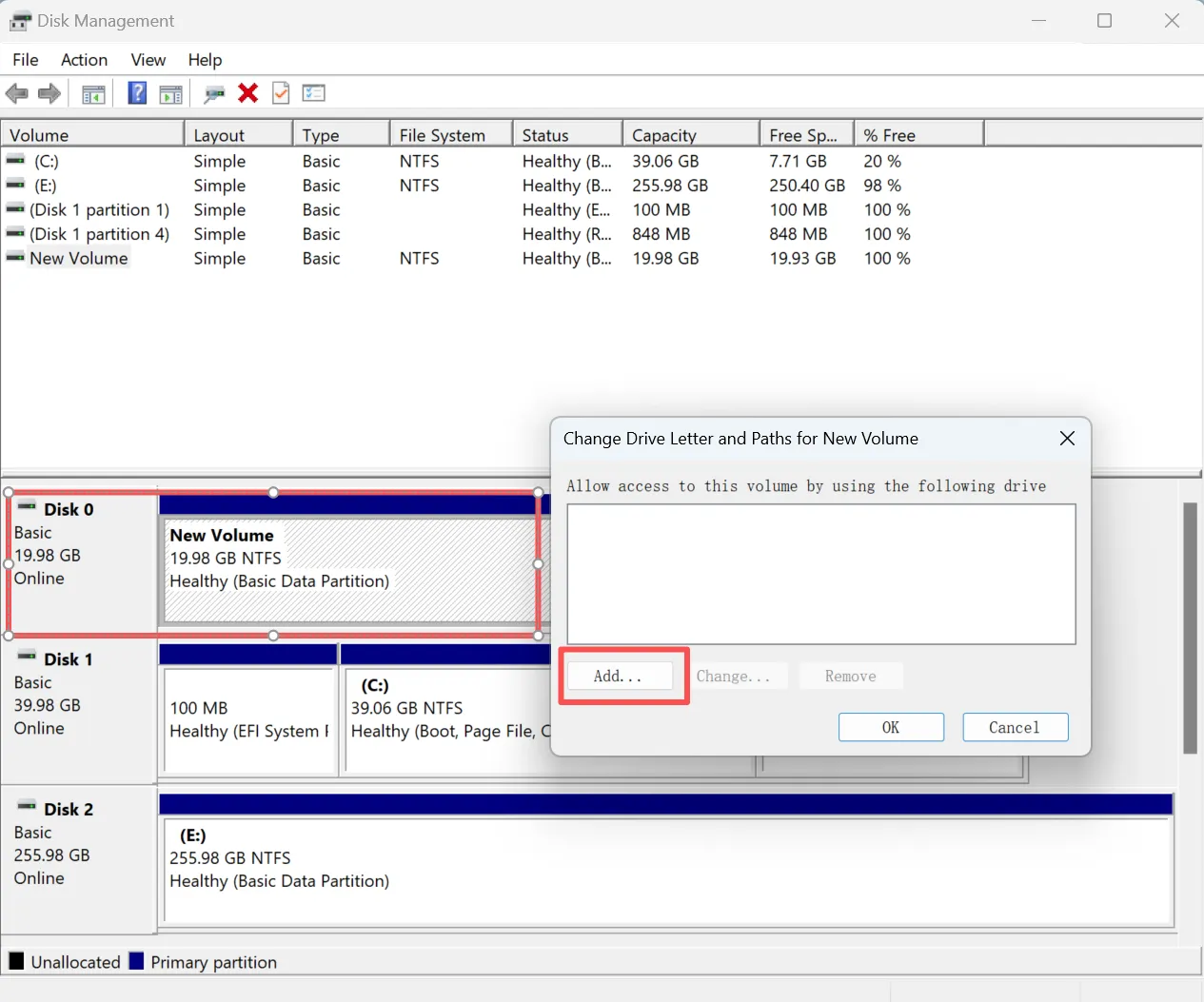
디스크 관리를 사용하여 드라이브 문자를 할당하기 인식되지 않는 SD 드라이브의 경우
SD 카드가 실제로는 작동하지만 파일 탐색기에 나타나지 않는 경우 드라이브 문자를 할당해 볼 수 있습니다.
- 마우스 오른쪽 버튼으로 시작 메뉴를 클릭하고 디스크 관리.
- 드라이브 목록에서 SD 카드를 찾습니다.
- 마우스 오른쪽 버튼으로 클릭하고 드라이브 문자 및 경로 변경.
- 새 드라이브 문자를 할당합니다.
CHKDSK를 신중하게 실행하십시오
CHKDSK는 볼륨의 파일 시스템과 메타데이터에 오류가 있는지 확인합니다. 다음과 같은 복구 매개변수와 함께 사용할 경우 /f, 이 기능은 파일 시스템의 논리적 문제를 수정하려고 시도합니다. SK는 데이터 복구 도구가 아닙니다. 마이크로소프트는 FAT 파일 시스템에 대한 복구 작업이 파일 할당 테이블을 변경할 수 있으며, 이로 인해 때때로 데이터가 손실될 수 있다고 밝히고 있습니다. 복구 매개변수를 사용하기 전에 중요한 파일을 복구하거나 백업하십시오.
먼저 읽기 전용 여부를 확인하세요
- 검색 명령 프롬프트.
- 선택 관리자 권한으로 실행.
- 다음 명령어를 입력하고,
E:SD 카드의 실제 드라이브 문자와 함께:chkdsk E:
수리 매개변수가 없으면 CHKDSK는 볼륨 상태를 보고할 뿐 오류를 수정하지는 않습니다. 물리적 파일 시스템 오류
데이터를 보호한 후 다음 명령을 실행하세요: chkdsk E: /f

그리고 /f 이 매개변수는 CHKDSK가 감지된 오류를 수정하도록 지시합니다. 복구 작업이 진행되는 동안 볼륨을 잠그거나 마운트를 해제해야 할 수도 있습니다. 다음 조건에서 CHKDSK를 실행할 때:
- RAW로 표시되며 중요한 파일이 포함되어 있습니다
- 반복적으로 연결이 끊어집니다
- 용량이 잘못 표시됩니다
- Windows가 멈춰 버립니다
- 물리적 손상이 의심됨
Windows에서 RAW 드라이브에는 CHKDSK를 사용할 수 없다고 표시되면, 먼저 파일을 복구한 다음 카드를 포맷하십시오.
SD 카드 포맷하기 (필요한 경우)
시스템이 여전히 SD 카드를 인식하지 못하면 다음과 같이 할 수 있습니다. 포맷해야 합니다.. 포맷하면 모든 데이터가 지워지므로 SD 카드의 데이터에 대한 백업이 있는지 확인하세요.
SD 카드를 포맷하려면 다음과 같이 하세요:
- 열기 파일 탐색기 를 클릭하고 SD 카드를 마우스 오른쪽 버튼으로 클릭합니다.
- 선택 형식.
- 파일 시스템 선택(exFAT 는 일반적으로 큰 카드에 사용됩니다).
- 클릭 시작 를 클릭하여 카드를 포맷합니다.
포맷으로 인한 데이터 손실의 위험을 원하지 않는다면 SD 드라이브가 인식되지 않음 가 첫 번째 선택이 될 것입니다.
인식되지 않는 SD 드라이브에서 파일을 복구하는 방법
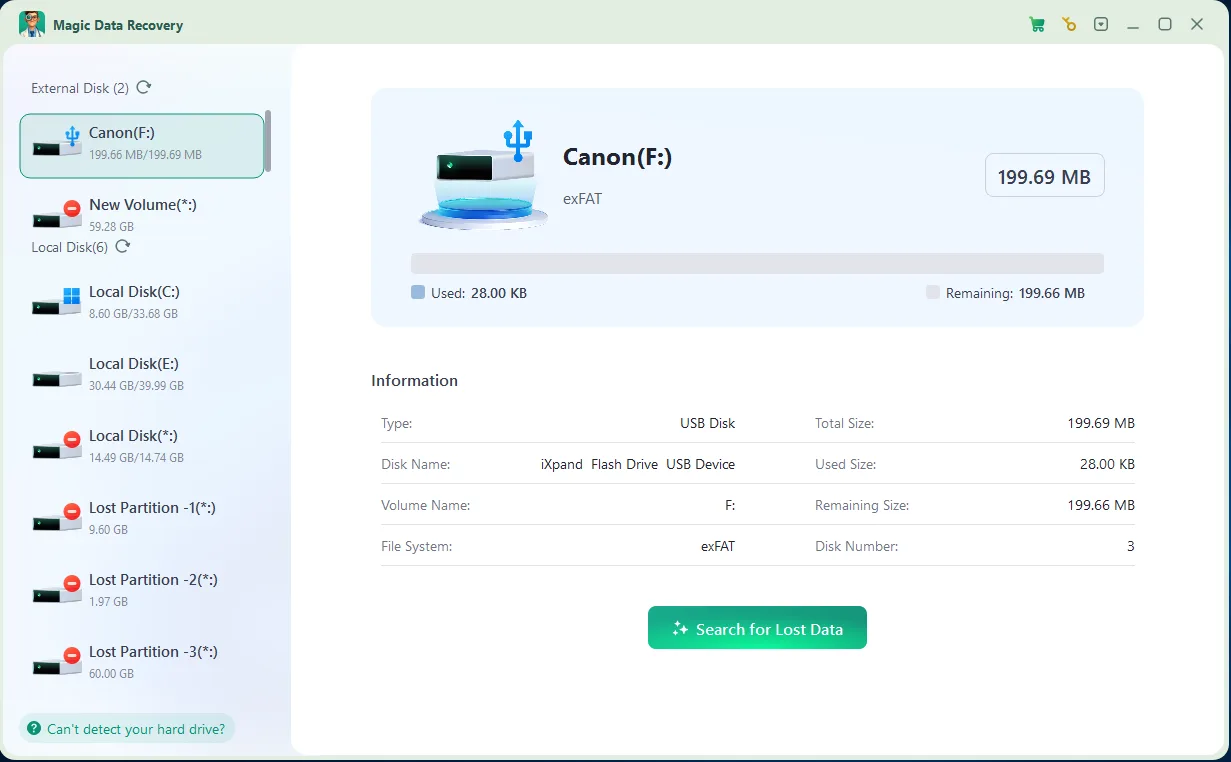
손상되었거나 읽을 수 없는 SD 카드로 인해 데이터가 손실된 경우에도 올바른 도구를 사용하여 데이터를 복구할 수 있습니다. Magic Data Recovery 는 감지되지 않는 SD 카드에서 손실된 파일을 복구하는 고급 솔루션입니다. 이 도구는 읽기 전용 모드를 제공하여 복구 프로세스 중에 데이터를 덮어쓰지 않도록 합니다.
SD 카드가 다시 인식되지 않는 현상을 방지하는 방법
문제를 해결한 후에는 다시 고장이 발생할 가능성을 줄이기 위해 다음 지침을 따르십시오:
- 컴퓨터에서 카드를 빼기 전에 먼저 안전하게 카드를 꺼내십시오.
- 메모리 카드를 꺼내기 전에 카메라나 기타 기기의 전원을 끄십시오.
- 녹화 중이거나 파일을 전송하는 동안에는 카드를 꺼내지 마십시오.
- 카드를 가득 채우지 마십시오.
- 해당 카드의 표준 및 용량을 지원하는 리더기를 사용하십시오.
- 느슨하거나 손상된 microSD 어댑터는 교체하십시오.
- 렌즈를 건조하고 깨끗하게 유지하십시오.
- 호환되지 않는 기기들에서 같은 카드를 계속해서 사용하지 마십시오.
- 중요한 사진과 동영상을 정기적으로 백업하세요.
- 자주 연결이 끊기거나, 읽기 전용 상태가 되거나, 파일 오류가 발생하는 카드는 교체하십시오.
반복적으로 오류가 발생했다가 다시 작동하기 시작한 SD 카드는 중요한 데이터의 유일한 사본으로 신뢰해서는 안 됩니다.
결론
다음과 같은 경우 SD 드라이브가 인식되지 않음, 먼저 해당 카드가 ‘장치 관리자’, ‘디스크 관리’ 또는 ‘파일 탐색기’에 표시되는지 확인하십시오. 이를 통해 문제가 물리적 연결, 카드 리더기, 드라이버, 드라이브 문자, 파티션 또는 파일 시스템과 관련된 것인지 파악할 수 있습니다.
비파괴 방식으로 시작하세요 SD 카드 솔루션 예를 들어, 카드를 다시 연결하거나, 리더기를 교체하거나, 호환성을 확인하거나, 드라이버를 업데이트하거나, 새로운 드라이브 문자를 할당하는 등의 방법입니다.
SD 카드가 ‘RAW’, ‘할당되지 않음’, ‘접근 불가’로 표시되거나 포맷을 요청하는 경우, 복구 작업을 시도하기 전에 데이터를 백업해 두십시오. Magic Data Recovery 감지된 SD 카드를 스캔하여 CHKDSK 실행이나 포맷으로 인해 카드가 변경되기 전에 사진, 동영상, 문서 및 기타 파일을 복구하는 데 도움을 줍니다.
Windows 7/8/10/11 및 Windows Server 지원
SD 드라이브가 인식되지 않음 - FAQ
SD 드라이브가 인식되지 않는 문제를 해결하는 방법은 무엇인가요?
SD 카드가 갑자기 읽을 수 없는 이유는 무엇인가요?
SD 카드가 파일에 표시되지 않는 이유는 무엇인가요?
컴퓨터에서 마이크로 SD 카드를 읽게 하려면 어떻게 해야 하나요?
죽은 마이크로 SD 카드를 어떻게 수정하나요?
SD 카드의 수명은 어떻게 되나요?
감지되지 않은 SD 카드를 복구하는 방법은 무엇인가요?
SD 카드가 불량인지 어떻게 알 수 있나요?

바실리는 이 분야에서 약 10년간 실무 경험을 쌓은 데이터 복구 전문가입니다. 그는 경력 전반에 걸쳐 삭제된 파일, 포맷된 드라이브, 손실된 파티션 및 RAW 파일 시스템과 관련된 수천 건의 복잡한 사례를 성공적으로 해결했습니다. 그의 전문 지식은 헥스 에디터와 같은 전문 도구를 사용한 수동 복구 방법과 복구 소프트웨어를 사용한 고급 자동화 솔루션을 모두 다룹니다. 바실리의 사명은 IT 전문가와 일반 사용자 모두에게 신뢰할 수 있는 데이터 복구 지식을 제공하여 소중한 디지털 자산을 보호할 수 있도록 돕는 것입니다.