
가까운 데이터 복구 전문가를 찾고 계신가요? 지금 바로 비용 절약하세요
중요한 파일이 사라졌다는 사실을 갑자기 깨닫게 되면 정말 끔찍할 수 있습니다. 실수로 휴지통 비우기, 실수로 파티션을 포맷했거나, 갑자기 Windows 시스템이 다운되는 상황을 겪게 되면, 당장은 당황스러울 것입니다. 결국, 휴대폰을 집어 들고 허둥지둥 전문가를 찾아보게 될지도 모릅니다 내 주변의 데이터 복구 전문가 비즈니스 문서, 재무 기록, 혹은 대체할 수 없는 가족 사진을 복구하기 위해서라면, 가장 먼저 떠오르는 방법은 컴퓨터를 챙겨서 가장 가까운 컴퓨터 수리점에 직접 방문하거나, 하드 드라이브를 대형 전문 업체로 우편으로 보내는 것일 것입니다.
하지만 수백 달러, 심지어 수천 달러를 실물 제품에 쓰기 전에 데이터 복구 전문가, 업계의 한 가지 비밀을 알아두셔야 합니다. 매일 발생하는 데이터 손실 사례 중 80% 건 이상이 기계적 고장이 아닌 소프트웨어 문제로 인해 발생합니다. 즉, 종종 하드 드라이브에서 파일 복구 다음과 같은 스마트 유틸리티를 도입하여 Magic Data Recovery. 간단한 진단 체크리스트만 따라도 시간을 절약하고, 개인정보를 보호하며, 힘들게 번 돈을 아낄 수 있습니다.
Windows 7/8/10/11 및 Windows Server 지원
목차
정말 사내 데이터 복구 전문가가 필요할까요?
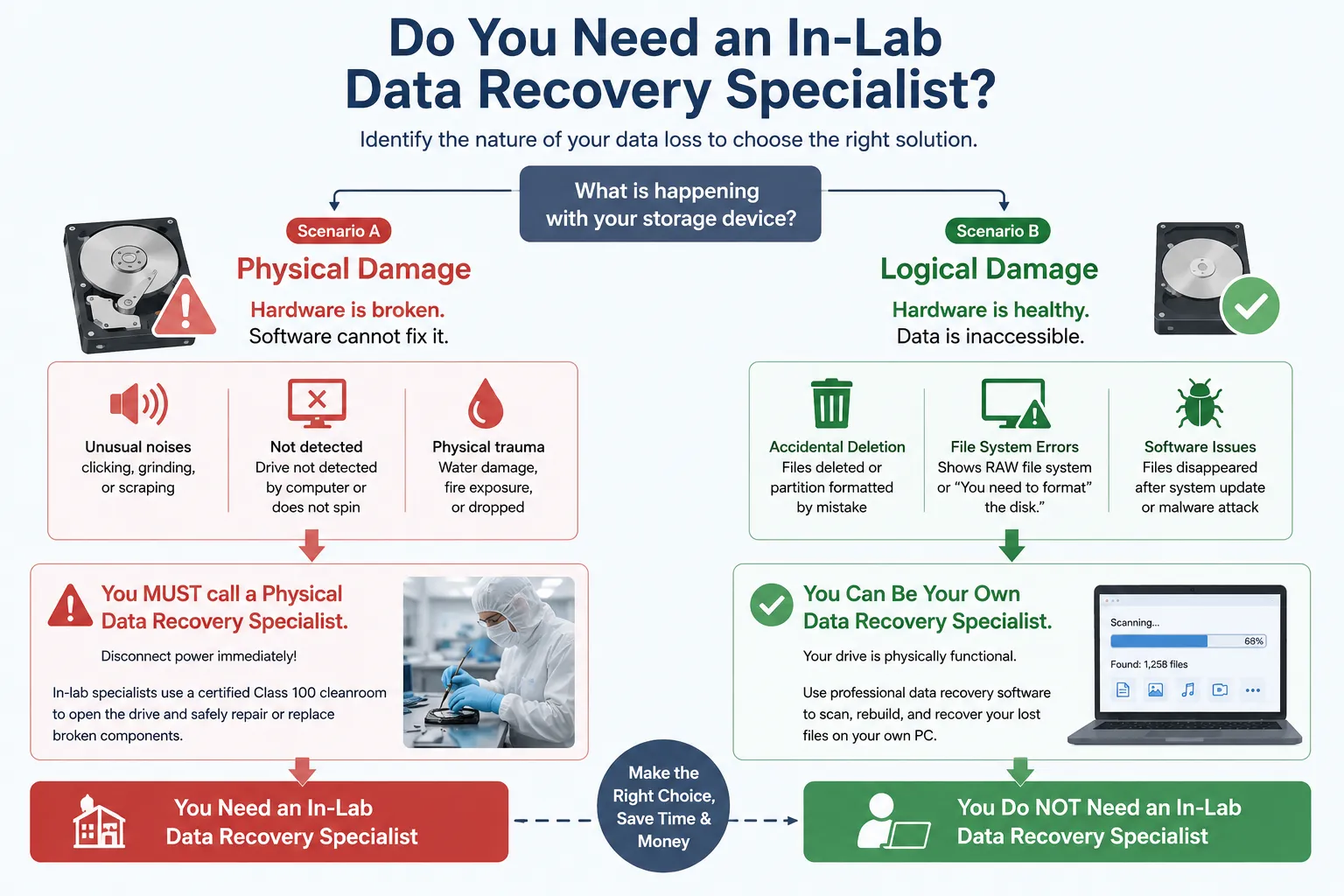
최선의 대처 방안을 결정하려면 먼저 데이터 손실의 정확한 원인을 파악해야 합니다. 전문 데이터 복구 엔지니어들은 드라이브 고장을 크게 ‘물리적 손상’과 ‘논리적 손상’ 두 가지로 분류합니다. 이 둘의 차이를 명확히 이해하면 막대한 비용이 드는 실수를 피할 수 있습니다.
시나리오 A: 반드시 물리적 데이터 복구 전문가에게 연락해야 할 때
물리적 손상은 저장 장치의 내부 기계적 부품이 고장 날 때 발생합니다. 하드 드라이브에 물리적 손상이 발생한 경우, 소프트웨어로는 복구할 수 없습니다. 즉시 가까운 내 주변의 데이터 복구 전문가 다음과 같은 경고 신호가 보인다면:
- 전원을 연결하면 드라이브에서 평소와 다른 딸깍거리는 소리, 삐걱거리는 소리, 또는 긁히는 소리가 납니다.
- 컴퓨터가 하드웨어 수준에서 해당 드라이브를 전혀 인식하지 못하거나, 드라이브가 전혀 회전하지 않습니다.
- 이 기기가 물에 잠기거나, 화염에 노출되거나, 높은 곳에서 떨어졌습니다.
이러한 증상이 나타나면 즉시 전원을 차단하십시오. 이러한 극한 상황에서는 실험실 내 데이터 복구 전문가 고장 난 부품을 안전하게 교체하려면 공인된 Class 100 청정실 내에서 드라이브를 열어야 합니다.
시나리오 B: 직접 데이터 복구 전문가가 될 수 있는 경우 (논리적 손상)
반면에, 논리적 손상 이는 하드웨어 자체는 완벽하게 정상적이지만 데이터에 접근할 수 없게 된 상태를 의미합니다. 이는 데이터 손실 사례의 대부분을 차지합니다. 다음과 같은 상황에 직면했다면 논리적 손상을 겪고 있는 것입니다:
- 실수로 파일을 삭제했거나 파티션을 포맷했습니다.
- 귀하의 드라이브는 Windows 디스크 관리 하지만 “RAW 파일 시스템” 또는 “디스크를 포맷해야 합니다.”
- 갑작스러운 Windows 업데이트나 악성코드 공격으로 인해 파일이 사라졌습니다.
드라이브가 물리적으로 정상적으로 작동한다면, 물리 기술자를 고용하는 것이 좋습니다. 데이터 복구 전문가 대개 불필요한 지출입니다. 대신, 전문가용 소프트웨어를 안전하게 설치하여 저장 장치의 섹터를 스캔하고, 분실된 파일을 직접 본인의 PC에서 복구할 수 있습니다.
더 현명한 선택: Magic Data Recovery (가정용 데이터 복구 전문 업체)
드라이브 상태는 정상이지만 파일이 사라진 경우, 전문 복구 소프트웨어를 사용하는 것이 가장 합리적인 방법입니다. 매우 효율적인 해결책을 찾고 계신다면, 다음을 사용해 보시기 바랍니다. Magic Data Recovery. 이 유틸리티는 자동화된 디지털 데이터 복구 전문가, 따라서 고가의 외부 기술 지원이 필요하지 않습니다. 이 솔루션은 복잡한 전문 엔지니어링 도구와 일반 사용자의 접근성 사이의 격차를 해소합니다.
실험실용 소프트웨어와 호환되는 고급 알고리즘
상업용 데이터 복구 업체들은 고가의 하드웨어와 독자적인 코드를 사용하여 데이터 섹터를 추출합니다. Magic Data Recovery는 이와 유사한 고도의 심층 스캔 알고리즘을 가벼운 Windows용 패키지에 통합했습니다.
이 소프트웨어는 표준 Windows 파일 시스템 계층을 우회하여 기본 원시 데이터를 직접 읽어들입니다. 파편화된 파일 서명을 정교하게 재구성함으로써, Windows에서 열 수 없는 심하게 손상되었거나 할당되지 않은 파티션, 또는 RAW 파티션에 있는 파일도 복원할 수 있게 해줍니다.
500MB 무료 복구 서비스로 위험 부담 없는 진단
많은 지역 수리점에서는 고장 난 드라이브를 확인하는 것만으로도 의무적인 진단비를 청구합니다. 게다가 기기를 기업 소속 실험실로 보내는 것은 심각한 데이터 개인정보 보호 문제를 야기합니다.
Magic Data Recovery는 완전히 투명하고 위험 부담이 없는 체험판을 제공함으로써 이러한 상황을 바꿉니다. 비용을 지불하기 전에 소프트웨어를 다운로드하고 대상 드라이브를 스캔한 뒤, 복구 가능한 모든 파일을 미리 확인할 수 있습니다.
게다가 이 도구에는 넉넉한 파일 복원을 위한 500MB 무료 데이터 제한. 이를 통해 단 한 푼도 들이지 않고도 가장 중요한 문서를 즉시 복구할 수 있습니다. 이는 본인의 컴퓨터에서 이 도구의 효과를 직접 확인해 볼 수 있는 완전히 안전한 방법입니다.
단계별 가이드: 분실한 데이터를 직접 복구하는 방법
전문적인 파일 복구 기술을 활용하기 위해 컴퓨터 공학 분야의 고급 학위가 필요하지는 않습니다. 이 간단한 단계별 가이드를 따라 데이터를 안전하게 복구하세요.
1단계: Magic Data Recovery 다운로드 및 설치
먼저, Magic Data Recovery를 다운로드하여 데이터 손실이 발생한 영역과 완전히 분리된 정상적인 드라이브 파티션에 소프트웨어를 설치하십시오. 이러한 신중한 접근 방식은 실수로 데이터를 덮어쓰는 것을 효과적으로 방지하고, 손실된 데이터가 파손되는 것을 막아줍니다.
Windows 7/8/10/11 및 Windows Server 지원
2단계: 스캔할 대상 드라이브 선택
컴퓨터에서 프로그램을 실행하세요. 그런 다음 메인 사용자 인터페이스에서 파일이 삭제된 특정 드라이브나 파티션을 선택하고 클릭하여 스캔 과정을 시작하세요.

3단계: 드라이브에서 손실된 파일 검색하기
이 소프트웨어는 저장 장치의 섹터를 심층적으로 분석하기 위해 자동으로 고급 스캔을 수행합니다. 또한 스캔이 진행되는 동안 복구 가능한 모든 파일을 실시간으로 정리하여 나열합니다.

4단계: 복구 전 파일 미리보기
다음으로, 내장된 미리보기 기능을 사용하여 문서나 사진의 실제 내용을 확인하세요. 이 중요한 단계를 거치면 데이터 사용 한도에 도달하기 전에 꼭 필요한 파일만 복구할 수 있습니다.

5단계: 파일을 안전한 위치로 복구하기
마지막으로, 대상 파일을 선택한 후 완전히 다른 드라이브나 백업 저장 장치에 안전하게 저장하십시오. 데이터를 원래 드라이브의 동일한 파티션으로 복원해서는 안 됩니다. 그렇게 할 경우 데이터가 영구적으로 손상될 위험이 있습니다.

가까운 곳의 오프라인 데이터 복구 전문가: 소프트웨어가 작동하지 않을 때 고려해야 할 사항
때로는 소프트웨어만으로는 해결되지 않을 수도 있습니다. 저장 장치가 물리적으로 고장 났거나 심각한 기계적 결함으로 인해 소프트웨어가 드라이브를 읽을 수 없는 경우, 공식 서비스 센터를 찾아야 합니다. 내 주변의 데이터 복구 전문가.
불공정 가격 책정이나 미숙한 수리 업체의 피해자가 되지 않으려면, 선택한 업체가 다음과 같은 엄격한 업계 기준을 충족하는지 반드시 확인하십시오:
- 명확한 “데이터 미사용 시 요금 미청구” 정책: 평판이 좋은 데이터 복구 전문가 중요한 파일을 복구하지 못하더라도 전액을 청구하지 않습니다. 복구 시도가 실패할 경우, 소액의 진단비나 배송비만 지불하면 된다는 점을 반드시 확인하시기 바랍니다.
- 인증받은 클린룸 시설: 해당 업체가 인증된 클린룸을 갖춘 실제 현지 실험실을 운영하고 있는지 확인해 보십시오. 무균 클린룸 밖에서 최신형 하드 드라이브를 개봉하면 미세한 공기 중 입자가 플래터에 달라붙어, 파일 복구 가능성을 영구적으로 잃게 될 수 있습니다.
- 엄격한 데이터 개인정보 보호 계약: 저장 장치에는 매우 민감한 금융 정보, 비밀번호 및 개인 기록이 포함되어 있습니다. 신뢰할 수 있는 데이터 복구 전문가 개인정보 처리 과정에서 귀하의 개인정보를 보호하기 위해 법적 구속력이 있는 비밀유지계약서(NDA)를 제출하고 SOC 2 또는 이에 상응하는 보안 준수 규정을 준수해야 합니다.
비교: 재택 소프트웨어 전문가 vs. 현장 전문 서비스
귀하의 구체적인 상황에 맞춰 현명한 결정을 내리실 수 있도록, 가정용 소프트웨어 솔루션과 일반적인 오프라인 실험실 서비스를 비교해 보겠습니다.
평가 지표 | Magic Data Recovery (소프트웨어 솔루션) | 현장 실험실 전문가 (물리 실험실) |
평균 비용 | 500MB 무료 / 저렴한 라이선스 | 일반적으로 드라이브당 $300에서 $2,000+ |
처리 시간 | 즉각적인 결과 (5~30분) | 평균 3~14 영업일 소요 |
데이터 개인정보 보호 관리 | 100% Secure (데이터가 가정 밖으로 유출되지 않습니다) | 물류 운송 및 직원의 노출 위험 |
최적의 활용 | 실수로 인한 삭제, 포맷, RAW 드라이브 | 기계적인 딸깍거리는 소리, 연기, 물에 빠짐 |
결론 및 최종 평가
갑작스러운 데이터 손실이 발생했다고 해서 무조건 비싼 수리비에 저축한 돈을 써야 하는 것은 아닙니다. 드라이브가 여전히 Windows에서 인식된다면, 직접 해결해 볼 수 있습니다. 데이터 복구 전문가 는 항상 가장 현명하고, 빠르며, 비용 효율적인 첫 번째 단계입니다. 하드 드라이브 복구.
회복의 여정을 시작하실 때는 다음을 적극 추천합니다. Magic Data Recovery. 이 전문적인 Windows 도구는 파일 시스템에 대한 완벽한 가시성을 제공하여 데이터 손실 위험을 방지합니다.
비싼 진료 예약을 잡거나, 제품을 찾으러 매장에 차를 몰고 가는 대신 내 주변의 데이터 복구 전문가, 지금 바로 조치를 취해 파일을 보호할 수 있습니다. 오늘 바로 소프트웨어를 다운로드하고, 500MB 무료 파일 복구 한도를 활용하여 소중한 데이터를 즉시 복구하세요.
Windows 7/8/10/11 및 Windows Server 지원
데이터 복구 전문가에 관한 자주 묻는 질문
전문 데이터 복구 전문가의 비용은 얼마인가요?
수리점 전문가들은 일반적으로 손상 정도에 따라 1,143.30~2,000파운드 이상의 비용을 청구합니다. 하지만 고급 복구 소프트웨어를 사용하면 집에서 훨씬 저렴한 비용으로 논리적 문제를 해결할 수 있습니다.
내 주변에서 가장 좋은 데이터 복구 전문가를 어떻게 찾나요?
저장 장치를 맡기기 전에, 엄격한 "데이터가 없으면 비용도 없음(No Data, No Charge)" 정책을 적용하고, 인증받은 클린룸을 갖추고 있으며, 비밀유지계약(NDA)을 통해 완벽한 데이터 기밀성을 보장하는 현지 전문 업체를 찾아보시기 바랍니다.
소프트웨어가 클릭 하드 드라이브에서 파일을 복구할 수 있나요?
아니요, 딸깍거리는 소리는 심각한 물리적 및 기계적 고장을 의미합니다. 소프트웨어로는 물리적 부품을 복구할 수 없으므로, 즉시 드라이브의 전원을 끄고 가까운 데이터 복구 전문 업체에 문의해야 합니다.
집에서 데이터 복구 소프트웨어를 사용하는 것이 안전한가요?
네, 전문 소프트웨어를 사용하는 것은 데이터 개인정보 보호 측면에서 완전히 안전합니다. 하지만 저장하고자 하는 삭제된 파일이 덮어쓰이지 않도록, 항상 별도의 정상적인 파티션에 프로그램을 설치해야 합니다.
데이터 복구 전문가들은 왜 그렇게 비싼 비용을 청구할까요?
하드웨어 전문가들이 높은 수리비를 청구하는 이유는, 정밀한 드라이브를 안전하게 분해하고 수리하는 데 필요한 무균 클린룸 환경, 특수 공구, 인건비, 그리고 수년간 축적된 엔지니어링 전문 지식에 막대한 투자를 하기 때문입니다.

바실리는 이 분야에서 약 10년간 실무 경험을 쌓은 데이터 복구 전문가입니다. 그는 경력 전반에 걸쳐 삭제된 파일, 포맷된 드라이브, 손실된 파티션 및 RAW 파일 시스템과 관련된 수천 건의 복잡한 사례를 성공적으로 해결했습니다. 그의 전문 지식은 헥스 에디터와 같은 전문 도구를 사용한 수동 복구 방법과 복구 소프트웨어를 사용한 고급 자동화 솔루션을 모두 다룹니다. 바실리의 사명은 IT 전문가와 일반 사용자 모두에게 신뢰할 수 있는 데이터 복구 지식을 제공하여 소중한 디지털 자산을 보호할 수 있도록 돕는 것입니다.